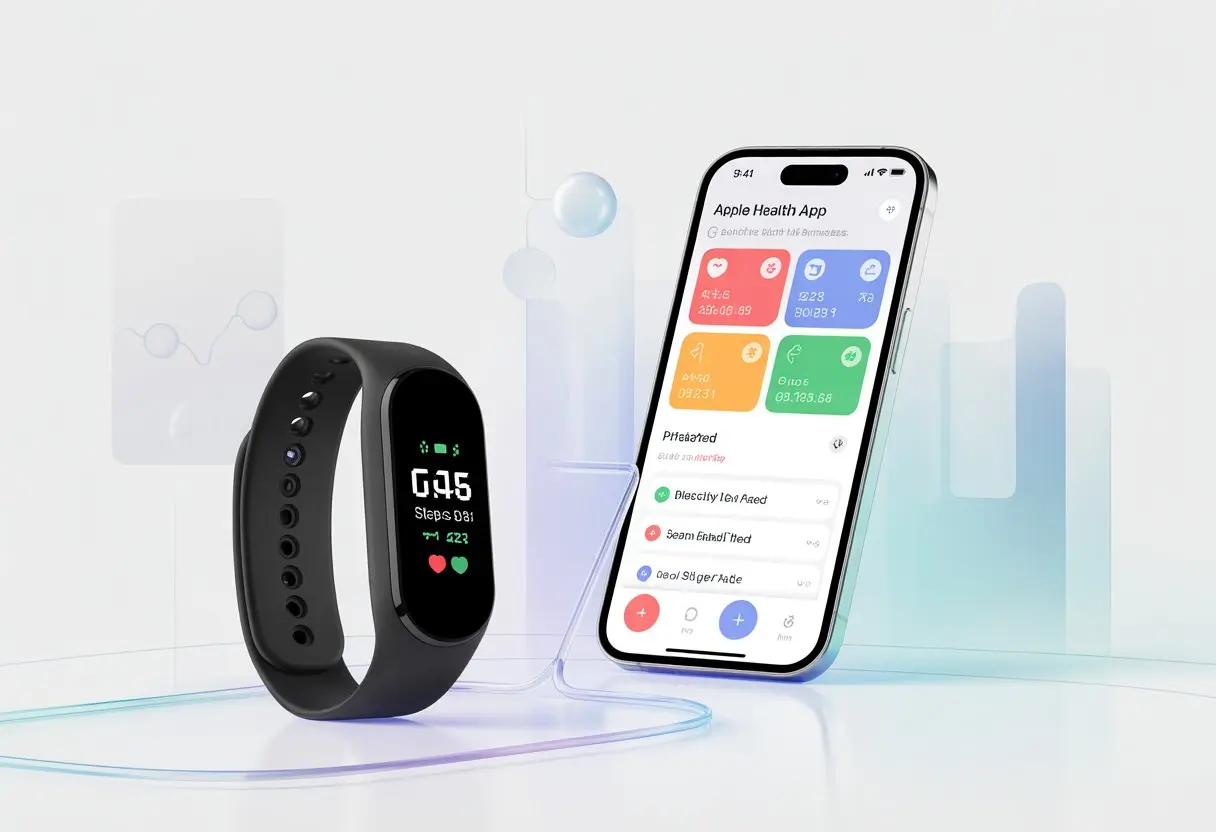
Let’s face it—we all crave those easy wins. That’s why pairing a fitness tracker with Apple Health feels like finding a secret shortcut on a road trip.
You get all your health and activity stats in one place, no tech PhD required.
Forget bouncing between five different apps to see if you finally hit 10,000 steps. By syncing your fitness tracker with Apple Health, you’ll see your progress at a glance—whether you’re marathon training or just sprinting for the last cookie.
The best part? Setup takes minutes, not hours. You’ll spend more time moving, less time fiddling with settings.
So, ready to see all your health data come together faster than socks disappear in the laundry? Let’s dive in.
What Is a Fitness Tracker and How Does It Work?
Fitness trackers are smart little gadgets that count your steps, log workouts, and sometimes nudge you off the couch when you’ve sat too long.
These wearables have become as common as missing socks at the gym.
The Evolution of Wearables
Let’s wander down memory lane for a second. The first wearables? Just pedometers.
No charging needed, but they only counted steps—if you remembered to take them out of your jeans before laundry day.
Then came gadgets like the Jawbone UP. Suddenly, your wrist flashed lights, tracked sleep, and buzzed with silent alarms.
You could even compete with friends you’d never met.
Now, the Apple Watch and similar devices are basically mini-computers. They track activity, answer calls, send emojis, and silently judge you when your move rings aren’t closed by dinner.
Wearables have turned into fitness coach, best friend, and sometimes tattletale—all in one.
Popular Fitness Tracker Brands
The world of wearables is packed. Here’s a quick look at the big names so no wrist feels left behind:
Some folks love the Apple Watch for its deep health features. Others prefer Fitbit’s friendly look or Jawbone UP’s minimalist style.
No matter what you pick, there’s something for every taste and budget.
Core Health Features
Fitness trackers do more than count steps. Modern ones track heart rate, monitor sleep (and remind us how little we get), and estimate calories burned—even if it’s just reaching for snacks.
The Apple Watch nudges you to stand, move, and exercise each day, so you can track activity with colorful rings and reminders.
Many trackers are waterproof for swimmers, have GPS for outdoor fans, and even measure blood oxygen for the data-obsessed.
Most trackers sync with health apps like Apple Health, so all your fitness data lands in one spot. If only syncing with motivation worked as well.
Getting Started With Apple Health
https://www.youtube.com/watch?v=tH61kmcAVLc
Before you sync your new tracker, let’s get familiar with the Apple Health app. We’ll figure out how to set it up, connect your first device, and find where all those health stats hide.
Setting Up the Health App
First things first—open the Health app on your iPhone. Don’t worry about your step count just yet.
Just tap the app. It’s already there, staring up from your home screen like a puppy waiting for a walk.
Tap the profile picture in the top right. Here’s where you plug in some basics: age, weight, height.
Apple Health doesn’t want your life story, just the essentials.
This helps your tracker make more sense of your data and gives you prettier graphs. If you ever need to update info after, say, a wild holiday season, just edit your profile.
Connecting Your First Fitness Tracker
Ready to let your gadget chat with Apple Health? Most trackers—Fitbit, Garmin, even those no-name Amazon deals—can send data to Apple Health if you set them up right.
Here’s the basic process:
Open the Health app.
Tap the Browse tab, pick a category like “Activity.”
Scroll and select the device or app you want to connect. Sometimes, you’ll need the tracker’s app—like Fitbit or Garmin Connect—open and logged in too.
Once you follow the steps, your tracker’s info (steps, heart rate, sleep, etc.) shows up in Apple Health.
Your iPhone now has “receipts” for all your activity.
Now that your data’s flowing in, it’s time to check out the dashboard.
At the top, you’ll see a Summary tab—think of it as your daily report card. Steps, distance, sleep, and more show up here.
Want more details? Tap any data type for trends, graphs, and those mysterious spikes from “walking to the fridge” workouts.
You can customize what you see. Just tap “Edit” and choose your favorite metrics.
No more scrolling past stats you don’t care about (looking at you, mindfulness minutes).
The dashboard makes it easy to spot progress and patterns. If you want more tips, Apple’s Health app guide is handy.
Pairing Your Fitness Tracker With Apple Health
When you connect your fitness tracker to Apple Health, tracking your steps, heart rate, and workouts gets way simpler—and honestly, a little more fun.
You’ll see trends over time and unlock the magic of syncing data between your gadgets.
Bluetooth Setup for Seamless Syncing
Let’s be real: Bluetooth can be a hero or a headache. To start, turn on Bluetooth on your iPhone—swipe down, tap the icon, and hope for the best.
Most trackers—Apple Watch, Fitbit Charge 2, Alta HR—use Bluetooth to chat with your phone.
Follow the pairing instructions from your tracker’s manual. Usually, you’ll open the tracker’s app, find your device, and let them do their thing.
Keep both devices charged and close together—no hide and seek. When they pair, Apple Health grabs your fitness data automatically.
If you feel like a secret agent during setup, you’re probably doing it right.
Integrating Different Brands (Apple Watch, Fitbit, and More)
Apple likes to keep things in its own world, but we don’t always. Pairing an Apple Watch is easy—set it up with your iPhone, and watch health data roll into the Health app like pizza on Friday.
You can check which data syncs (steps, heart rate, workouts) in the Health app settings under “Data Sources.”
Fitbit users have to jump through a few more hoops. Fitbit doesn’t talk directly to Apple Health, so you’ll need a third-party app like Sync Solver or Fitbit to Apple Health.
Connect Fitbit to its own app, then use the third-party app to link to Apple Health. Every tracker—Fitbit Charge 2, Alta HR, whatever—might need a slightly different process.
Just follow steps in the Apple Health pairing guide or your tracker’s help section, and you’ll get there.
Troubleshooting Common Pairing Issues
Sometimes, things just don’t work. Bluetooth acts up, or your tracker goes invisible.
If syncing stalls, try the basics: restart both devices, update your apps, and double-check Bluetooth is still on.
Still stuck? Open the Health app, tap “Browse,” pick a health category, and check “Data Sources & Access.” Removing and re-adding the device here can help.
If your Fitbit’s being stubborn, reinstalling the sync app usually fixes it. For tough cases, the Apple Health support article has more help.
And if all else fails: take a breath, grab a snack, and try again. Even gadgets need a break sometimes.
Syncing and Managing Data
Let’s figure out how your fitness tracker can beam your workout adventures straight into Apple Health—without making you want to throw your phone.
We’ll talk about letting your tracker do the work, when you might need to step in, and how apps like Strava fit into the mix.
Automatic Sync vs. Manual Data Entry
Most trackers and workout apps try to keep things smooth. If your device allows it, automatic sync means every step, bike ride, and yoga pose lands in Apple Health without you lifting a finger (except maybe tapping “OK” once).
But sometimes, tech gremlins appear. If your device refuses to sync, manual data entry is your backup.
Open the Health app, pick what you want to add (steps, distance, whatever), hit “Add Data Point,” and type in the numbers.
It’s a bit more effort, but at least your stats are legit—even if it means admitting you only ran a mile.
Transferring Data From Exercise and Activity Apps
Linking a favorite fitness or activity app—Strava, Garmin Connect, or whatever you’re into—with Apple Health is usually easier than finding your sneakers. Most apps have built-in connections to Health.
Just head into the app’s settings, find Apple Health or HealthKit integration, and hit connect. That’s it.
Sometimes, you’ll need to tweak permissions so the app can read and write the right data—steps, heart rate, workouts, and so on. Apps like Strava usually show a checklist, so you can pick exactly which stats make the jump into Apple Health.
When syncing goes sideways, try a restart or poke around in the app’s privacy settings under “Motion & Fitness.” That usually fixes it.
Syncing activity and workout data from your favorite apps gives you a full view of your fitness progress. Now you’ll know exactly how many calories you earned for that second slice of pizza.
Understanding Key Health Metrics
Fitness trackers aren’t just about step counts. They show patterns in your movement, track heart health, and keep tabs on stuff you might not even notice—like your breathing rate.
Tracking Steps and Activity Rings
Most of us check our steps and quietly judge ourselves for that extra dessert. The tracker’s accelerometer logs your steps and movement all day, so even a victory dance or a snack run counts.
Apple Health adds a twist with Activity Rings: Move, Exercise, and Stand. Each ring fills up as you hit your daily targets.
The Move ring tracks active calories burned. The Exercise ring counts minutes of brisk activity. The Stand ring checks if you get up once an hour.
Watching those rings fill up is weirdly satisfying. Kinda like popping bubble wrap, but healthier.
If you link your fitness tracker to Apple Health, your steps and activities sync automatically. You’ll see details in clear graphs and charts, making it easy to spot lazy days—and brag about the active ones.
Not everyone has the heart of an athlete, and that’s fine. Fitness trackers let you monitor your heart rate all day.
These gadgets use sensors on the back to check your pulse whenever you want. Some even ping you if your heart rate gets too high or low, which honestly helps—especially if your only workout is sprinting for the doorbell.
Apple Health tracks other vitals too, like respiratory rate, blood oxygen, and wrist temperature. These numbers show your overall health, not just your exercise.
You can check your heart rate trends and compare them with your activity. It’s nice to know if your weekly dance party actually counts as cardio.
All this data sits in your iPhone’s Health app, ready to review. For a full rundown, take a look at this guide to Apple Health features.
Deep Dive: Sleep and Calorie Tracking
Keeping tabs on sleep patterns helps explain why you sometimes wake up feeling like a zombie. Tracking calories burned makes it easier to decide when to splurge on pizza—or stick with salad.
Monitoring Sleep Patterns With Apple Health
Ever sleep eight hours and still wake up groggy? Apple Health gives you the scoop on your nightly rest.
When you connect your fitness tracker, your sleep data lands right in the Health app. You’ll see when you were asleep, restless, or just counting sheep.
Apple Health lays out your sleep patterns in easy-to-read graphs. You’ll see time spent in light, deep, and REM sleep.
Sometimes it’s eye-opening—literally—if you snore more than you thought.
Spotting restless nights lets you make changes, like ditching your phone before bed or skipping that third cup of coffee after 3 p.m.
For more help with tracking daily sleep, you can set bedtime reminders and wind-down routines right in the app.
Analyzing Calories Burned Efficiently
Counting calories burned shouldn’t be a guessing game. Apple Health and your fitness tracker give you real numbers for every walk, jog, dance-off, or failed attempt at mountain climbers.
Apple Health automatically calculates calories based on movement, age, weight, and heart rate.
You can check total calories burned, active calories, and even calories you burn while binge-watching shows. Want to compare days? Apple Health’s graphs make it easy to spot trends or find that magical day you closed all your fitness rings.
If you want to dig deeper, you’ll find tips and explanations on the Apple Watch activity tracker. No more mystery about what you’ve burned—just the facts, and maybe a good excuse for dessert.
Maximizing Notifications and Motivational Features
Let’s be honest—sometimes you need a little push to exercise. Who better to give it than your watch?
With the right notification settings and reminders, your fitness tracker and Apple Health become your own personal cheer squad.
Customizing Health Notifications
Too many notifications can drive you up the wall, but the right ones help you stay on track. On your Apple Watch, you can set up alerts for high or low heart rate, irregular rhythm, or when you’ve been sitting longer than a cat in a sunbeam.
Manage these notifications right from the Heart Rate or Activity apps.
The Apple Health app lets you choose which health data matters most and get daily reports right on your wrist. Changing notification settings filters out the noise, so you only get reminders to stand up, move, or take a deep breath when you’re about to lose it at work.
Sometimes, your fitness tracker is more persistent than a toddler asking for snacks. Honestly, that’s what we need.
Setting up reminders means your device nudges you to hit your step goal, close activity rings, and maybe not skip leg day (again).
Personalize reminders based on your goals—moving more, squeezing in a workout, or just walking instead of driving to the mailbox. Those gentle buzzes and encouraging messages from your wrist are hard to ignore, and they help you stay consistent.
You can even edit your move goal (yep, that’s a thing), which keeps things challenging without feeling impossible. Check out tips from experienced users on getting motivated with Apple Watch.
With the right notifications and reminders, you can turn daily movement into a game. Every step counts—because your tracker never forgets, and now, neither will you.
Tips for Finding the Best Fitness Tracker for Apple Health
Nobody wants a fitness tracker that gives them a headache—or a heart rate spike for the wrong reasons. Here’s what to check before you end up with a fancy step counter that refuses to play nice with your iPhone.
Compatibility Considerations
Before you dream about closing rings and crushing goals, you have to make sure your best fitness tracker works with Apple Health. Not all devices are friends; some brands act like Apple’s not even on their radar.
Always check if the tracker syncs directly with the Apple Health app. Many popular trackers—Fitbit, Garmin, Samsung—need third-party apps or workarounds. Devices from Apple, Withings, and a few others usually sync without much hassle.
Will it sync automatically, or do you need another app (and a lot of patience)?
Does it support the iOS version on your device?
If you hate unnecessary tech drama, pick a tracker that plays nice with Apple Health right out of the box. You’ll save time, energy, and probably avoid a few eye rolls.
Feature Comparison and Buyer’s Guide
Let’s be honest: not all trackers are built the same. Some count every step, track our sleep, and bug us when we sit too long.
Others just flash a light and say, “good job!”
Here’s what you might want to check before picking one:
Feature
Why It Matters
Look For
Steps & Activity
Track progress, hit goals
Accurate sensors
Heart Rate
Monitor workouts, spot trends
24/7 tracking, alerts
Battery Life
Nobody likes charging every night
5+ days is ideal
Water Resistance
Swim or splash, no stress
At least “showerproof”
Display
Glance at info easily
Bright, customizable
Style
Wear it all day or just at the gym
Swappable bands, color choices
Price
Our wallet matters, too
Compare features, not brands
You might want to scroll through Reddit discussions when you’re deciding. Real people share what works (and what totally doesn’t).
The best fitness tracker for Apple Health? It’s not always the priciest one—sometimes it’s just the thing that gets us moving and keeps our phone happy.
Hi, my name is Garrett Jones, and I am a tech enthusiast. I enjoy researching the new tech that has been released, and have a vast knowledge of the best tech to purchase.
From a young age, I have always had a big interest in technology, and this blog is an extension of that interest. Through this blog, I hope to provide others with all of the information they need regarding tech options to consider, and things such as compatibility. Some of the different items I will be discussing include headphones, smartwatches, and how to fix common issues.