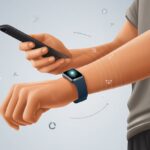
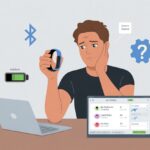
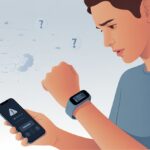
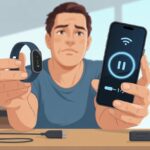
We’ve all been there. You close your activity rings, maybe do a little victory dance, and then wait for those numbers to show up on your iPhone. Nothing happens. Your fitness tracker and Apple Watch just… stop talking to each other.
Most of the time, syncing glitches show up because of a software update, a connection hiccup, or some sneaky setting you didn’t even know existed.

We might want to blame the universe—or maybe just our own laziness—but usually, the cause is simple. Sometimes the watch and phone just need a quick restart or a settings tweak.
If your Apple Watch isn’t syncing with your fitness tracker app, you’re definitely not the only one. Let’s try to figure out why our gadgets keep ignoring each other and see if we can get them back on the same team.
Understanding Fitness Tracker and Apple Watch Syncing
Syncing a fitness tracker with an Apple Watch depends on a handful of things. We need to know what syncing actually means, which features line up, and what goes wrong when things stop working.
How Syncing Works
When we say “syncing fitness data,” we’re talking about moving steps, calories, and heart rate info from one device to another. Usually, the Apple Watch sends numbers to the iPhone’s Fitness or Health app over Bluetooth.
Sometimes it feels like magic. Other times, it’s more like a stubborn squirrel refusing to let go of a nut.
Syncing happens automatically, but only if Bluetooth and Wi-Fi are on. The watch collects data using its sensors, then zips that over to your iPhone.
If either device falls asleep or loses connection, your stats might take a nap too.
The Apple Health app gathers all this data in one place. The Fitness app gives us those satisfying rings. If data doesn’t show up, the hand-off between your watch and iPhone probably got lost somewhere along the way.
Compatibility Requirements
Not every fitness tracker wants to be best friends with your Apple Watch. Both devices need current software. Think of software updates as relationship therapy—things just work better when everyone’s speaking the same language.
Apple Watch syncing with iPhone only works if you’re using an iPhone 6s or newer with a recent iOS version. Older phones or ancient Watches might not keep up.
Third-party trackers, like Fitbit or Garmin, won’t sync directly with Apple Watch. Instead, they use the Apple Health app as a go-between.
Check your settings. Open the Health app on your iPhone, tap your profile, then Devices, and make sure your Apple Watch appears on the list.
If it’s missing, your fitness data could be wandering off somewhere. Some apps also need permission to access your step and workout info (see Apple’s Health app guide for details).
Common Syncing Pitfalls
Oh, syncing problems. You can do almost everything right and still end up missing half your data.
Bluetooth is often the culprit, so make sure both your Apple Watch and iPhone have Bluetooth turned on and aren’t in airplane mode.
Restarting both devices can help. If your Activity rings or Health app stats aren’t updating, power down both your watch and iPhone. This trick solves it for a lot of people, as Apple’s support and community forums suggest.
Double-check that your Apple Watch is set as a data source in Apple Health. If you use more than one watch, switching between them can mess things up unless you enable the “auto switch” setting (Reddit’s Apple Watch Fitness crowd knows this pain).
And sometimes, nothing works. That’s when it’s time for deep breaths, maybe a snack, and a manual re-sync. If all else fails, you might need to unpair and repair your watch as a last resort.
Initial Troubleshooting Steps
Sometimes your fitness tracker just stops syncing. Before you panic or blame Mercury in retrograde, try a few simple checks to get your Apple Watch and iPhone back in sync.
Checking Device Connections
Let’s make sure your Apple Watch and iPhone still know they’re supposed to be friends. Open the Watch app on your iPhone and check if it’s still paired with your watch.
If they’re not paired, syncing isn’t going to happen, no matter how hard you wish for it.
Double check that both devices are awake and unlocked. Sometimes your watch slips into “do not disturb” mode and stops sending notifications and data.
Open the Health app on your iPhone, go to Sources, and see if your Apple Watch is listed as a data source. If it’s not at the top, move it up.
That helps your iPhone use your watch’s data first, which usually makes syncing more reliable (Reddit’s Apple Watch Fitness discussions have plenty of stories about this).
Restarting iPhone and Apple Watch
Let’s face it, our gadgets need naps too. Small system glitches build up if you never restart your devices.
Here’s what to do: restart both the iPhone and Apple Watch.
Press and hold the side button on your Apple Watch, then swipe to power off. On your iPhone, press and hold either volume button and the side button, then slide to power off.
Turn them both back on and give it a minute. This clears out minor issues that block syncing, as people mention on Apple’s discussion boards.
Ensuring Bluetooth and Wi-Fi are Enabled
If Bluetooth or Wi-Fi is off, your Apple Watch can’t send data to your iPhone. Swipe into Control Center on both devices and make sure the Bluetooth and Wi-Fi icons are blue.
On your iPhone, go to Settings > Bluetooth and Settings > Wi-Fi to check if the toggles are green. Both need to be on for real-time syncing.
If either one is off, the devices stop talking and your activity data won’t show up. For more help, check out Xponential+’s troubleshooting tips.
Sync Settings and Permissions
Getting your fitness tracker to sync with the Apple Watch means checking a few important settings and permissions. If steps, activity, or health data look off or missing, these sync features might be the culprit.
Enabling Fitness Tracking and Motion Data
First things first: make sure fitness tracking is turned on. If it’s off, all those steps to the fridge don’t count.
Go to iPhone Settings, tap Privacy & Security, then Motion & Fitness. Both Fitness Tracking and Health need to be enabled for your tracker and Apple Watch to talk.
It’s easy to forget about this. Accidentally turning it off can make your watch seem like it’s on strike.
If your fitness data isn’t syncing, double-check these switches before you blame the universe.
Quick Tip:
- If you use a third-party tracker or app, it probably needs the same permissions in this menu.
Granting Health Data Access
If you want your devices to share steps, workouts, and calories, you have to open the gates in the Health app.
Here’s how:
- Open the Health app.
- Tap your profile picture.
- Tap Devices, then tap your Apple Watch.
- Tap Privacy Settings and make sure sharing is on for all the categories you care about.
Third-party apps need special permissions too. Updates or random bugs sometimes make the app forget it can talk to the Health app.
If that happens, disconnect and reconnect the app or refresh the Health app permissions.
This way, your data counts, and you don’t miss out on bragging rights.
Reviewing Privacy Settings
Privacy settings love to sneak in and block your numbers from syncing. Maybe you locked something down a little too tightly.
To review:
- Go to Settings on your iPhone.
- Tap Privacy & Security.
- Tap Health and check which apps have access to health data.
Your devices and apps should show up here. Make sure your fitness tracker, Apple Watch, and any fitness app have permission to read and write the steps and health data you want tracked.
If you find one turned off, flip the switch and watch the data come back.
Apple Watch-specific settings are worth a look in Apple’s official privacy guide, especially if you’re feeling extra private after a cookie binge.
If everything looks right and things still won’t sync, at least you know it’s not a permission issue making you look lazy.
Fixing Sync Problems in the Fitness App
Sometimes, your fitness app just stops cooperating. Syncing issues usually come down to a glitchy app, a missed update, or a sneaky reinstall that didn’t go as planned.
When the fitness app, workout app, or activity app stops tracking your hard work, you have a few tricks to try.
Force Quitting and Reopening Fitness App
First up: try the classic move and force quit the fitness app. Apps get sluggish, especially after a long workout.
Swipe up from the bottom of the screen (or double-tap the Home button if you have one). Flick the fitness app off the screen like you’re sending it to time out.
Reopen it and cross your fingers.
Why bother?
- It clears temporary bugs.
- Refreshes the connection between Apple Watch and iPhone.
- Helps if the workout app froze mid-burpee (which is just rude).
If things still don’t sync, it might be time to try the next step.
Reinstalling the Fitness App
Sometimes, our fitness app just needs a full reboot—kind of like us after spin class. Deleting and reinstalling the app might sound extreme, but honestly, it usually fixes sync problems.
Here’s how to do it:
- Tap and hold the fitness app icon until it starts to wiggle.
- Tap the little “X.” Don’t panic—our hard-earned data should stay safe in the cloud.
- Reinstall from the App Store. Easy.
This process fixes deeper bugs or weird settings that a simple restart can’t touch. If our workout app refuses to recognize our efforts, reinstalling often brings it back in line faster than our favorite coach.
Updating the Fitness App
Updates are like the vegetables of tech—maybe not our favorite, but they keep things running smoothly. Our fitness app usually needs the latest updates to talk to the Apple Watch.
To update:
- Open the App Store.
- Tap your profile.
- Scroll to find the fitness app.
- Hit “Update” if it’s there. If not, hey, you’re already up to date.
New updates squash bugs and add support for whatever wild new features Apple invents. If we skip updates, our fitness app might ignore our runs too. Sometimes, an iOS or Apple Watch update also solves syncing headaches, and you can read more at Apple Community.
Addressing Software and System Issues
When our fitness tracker won’t sync with the Apple Watch, we want real fixes, not just more circles to close. The right software and a smooth connection process really save us from extra steps—literally.
Checking for Software Updates
We’ve all ignored an update or two because we’re “busy” (maybe watching cat videos, no judgment). Outdated software is honestly one of the top reasons for syncing troubles.
Let’s double-check both our iPhone and Apple Watch for updates. If you’re not sure, open the Settings app and tap “Software Update.” Apple loves pushing out fixes—even for bugs we never noticed.
Running iOS 16 or later matters, since some new features and fixes just won’t work on older versions. And don’t forget to update any third-party fitness apps that talk to your watch.
Here’s a quick reminder:
- On iPhone: Settings > General > Software Update.
- On Apple Watch: Watch app > General > Software Update.
After updating, a good old restart can work wonders.
Unpairing and Pairing Devices
If updates didn’t solve it, maybe it’s time for the “tech relationship reset.” Unpairing the Apple Watch from our iPhone and pairing it again often clears up those stubborn sync issues.
Go to the Watch app, select your watch, and tap “Unpair Apple Watch.” Wait for it to finish. This gives our devices a fresh start, minus the drama.
Once the reset finishes, pair the watch and phone again like they’re meeting for the first time—swipe right, so to speak.
Pro tip: Keep Bluetooth and Wi-Fi on for the smoothest experience. More on that here.
Factory Reset Options
If syncing issues just won’t go away, there’s always the “factory reset” option. It’s the nuclear button—only use it if nothing else works.
A factory reset wipes everything and starts fresh, so back up your data first unless you’re ready to start your fitness journey from zero.
To reset the iPhone, go to Settings > General > Transfer or Reset iPhone > Erase All Content and Settings. On the watch, use Settings > General > Reset > Erase All Content and Settings.
There are third-party tools like TunesKit iOS System Recovery that claim to fix glitches without a full wipe, but let’s be honest—we’re all checking reviews before hitting that button.
After a factory reset, set up the devices as new. Syncing should work—unless your devices are so old, they still think “Apple” means fruit.
Advanced Calibration and Data Management
Sometimes, our fitness tracker and Apple Watch need a gentle nudge to get along. We can fix a lot of syncing issues by giving calibration data a fresh start and making sure our fitness goals keep moving with us.
Resetting Fitness Calibration Data
When our fitness tracker stops syncing, outdated calibration data is often the culprit. Luckily, we can reset it with just a few taps.
On the iPhone, open the Watch app, head to Privacy, and tap Reset Fitness Calibration Data. This wipes out the old data and lets our devices relearn our patterns.
After the reset, take the Apple Watch and tracker out for a walk or run in a place with good GPS. That way, our devices can gather fresh, accurate calibration data. For more details, check out how to calibrate your Apple Watch.
Handling Historical Data
We all want to keep those hard-earned steps or look back at that one time we climbed three flights of stairs by accident. Resetting calibration data doesn’t erase historical data from the Fitness app, but it can stop old syncing glitches from haunting us.
If we need to manage or delete specific old activity records, we have to dig into the Health app and edit entries manually. Just a heads up: deleting historical data is permanent, so think twice before hitting delete.
If data still won’t sync after editing, restart both the Apple Watch and iPhone. Sometimes, that’s all it takes.
Syncing Fitness Goals and Achievements
Nobody wants their sweat and tears to go unnoticed, so keeping fitness goals and achievements in sync matters. Both the Apple Watch and fitness tracker need up-to-date software.
Make sure Fitness Tracking is enabled under the Watch app’s Privacy settings on your iPhone. More info in this step-by-step guide.
If you use more than one Apple Watch, check the “auto switch” feature in the Watch app. This helps keep your goals and achievements updated correctly.
When in doubt, restart both devices. It’s surprising how often that works.
Special Cases and Device Limitations
Not every fitness tracker or Apple Watch acts the same. Sometimes, syncing issues sneak up because of our device, power settings, or even our taste in third-party gadgets.
Issues with Apple Watch SE
If you’ve got an Apple Watch SE, you might see occasional syncing hiccups. It’s not just because it’s the “SE” and not the “Ultra Max Galactic Edition.”
Sometimes, the SE struggles with big sync tasks, especially if you haven’t updated watchOS in a while.
A weak Wi-Fi or Bluetooth connection can make syncing crawl or freeze. Certain bugs with Activity or Health data sharing also seem more common on SE models.
Keep your software updated, restart both devices now and then, and double-check that Airplane Mode isn’t on. Sometimes, waiting and restarting is really all you can do—technology, right?
Low Power Mode Effects
We all love saving battery, but when Low Power Mode is on, our watch slows down. This setting limits background activity, which can delay or block syncing between the fitness tracker and watch.
Notifications and data transfers might wait in a queue for what feels like forever. Activity data could show up hours later—just when we’ve forgotten we moved at all.
Features like heart rate monitoring or step tracking may also get reduced or turned off. If we want real-time syncing, we should turn off Low Power Mode. It’s great for squeezing out extra battery life, but not so great for keeping our fitness data current.
Third-Party Fitness Trackers
When you throw a third-party fitness tracker into the mix, things can get a little unpredictable. Not every fitness tracker wants to play nice with Apple’s Health and Fitness apps.
Some trackers sync only steps. Others just ignore calories altogether. A few seem to give up and take a nap instead of syncing anything.
Here’s a quick look at what might go wrong:
| Issue | Impact |
|---|---|
| Limited support | Only partial data syncs to Apple Health |
| App requirements | Extra apps may be needed (and more logins) |
| Data delays | Tracking might be late or not at all |
Try to pick trackers that actually say they work with Apple Health. Otherwise, you might end up typing in numbers by hand or poking around your phone every night trying to figure out what happened.
If you want more tips or just want to see what other folks are dealing with, check out this Apple Watch not syncing discussion.

From a young age, I have always had a big interest in technology, and this blog is an extension of that interest. Through this blog, I hope to provide others with all of the information they need regarding tech options to consider, and things such as compatibility. Some of the different items I will be discussing include headphones, smartwatches, and how to fix common issues.
- How to Get Text Messages on Fitbit Versa 2 Android: Simple Guide for Users - October 13, 2026
- Why Doesn’t My Fitbit Record My Sleep? Quick Troubleshooting Guide - October 13, 2026
- How to Change Face on Fitbit Versa 2: Quick and Easy Guide - October 12, 2026
Related Posts: