We’ve all been there—wrestling with headphone wires that seem to tangle themselves the moment we look away. Thankfully, Bluetooth headphones exist now, so we get to skip the octopus fight and just enjoy our music, movies, or calls on the tablet. Pairing Bluetooth headphones with a tablet is actually simple, as long as we know what to do.
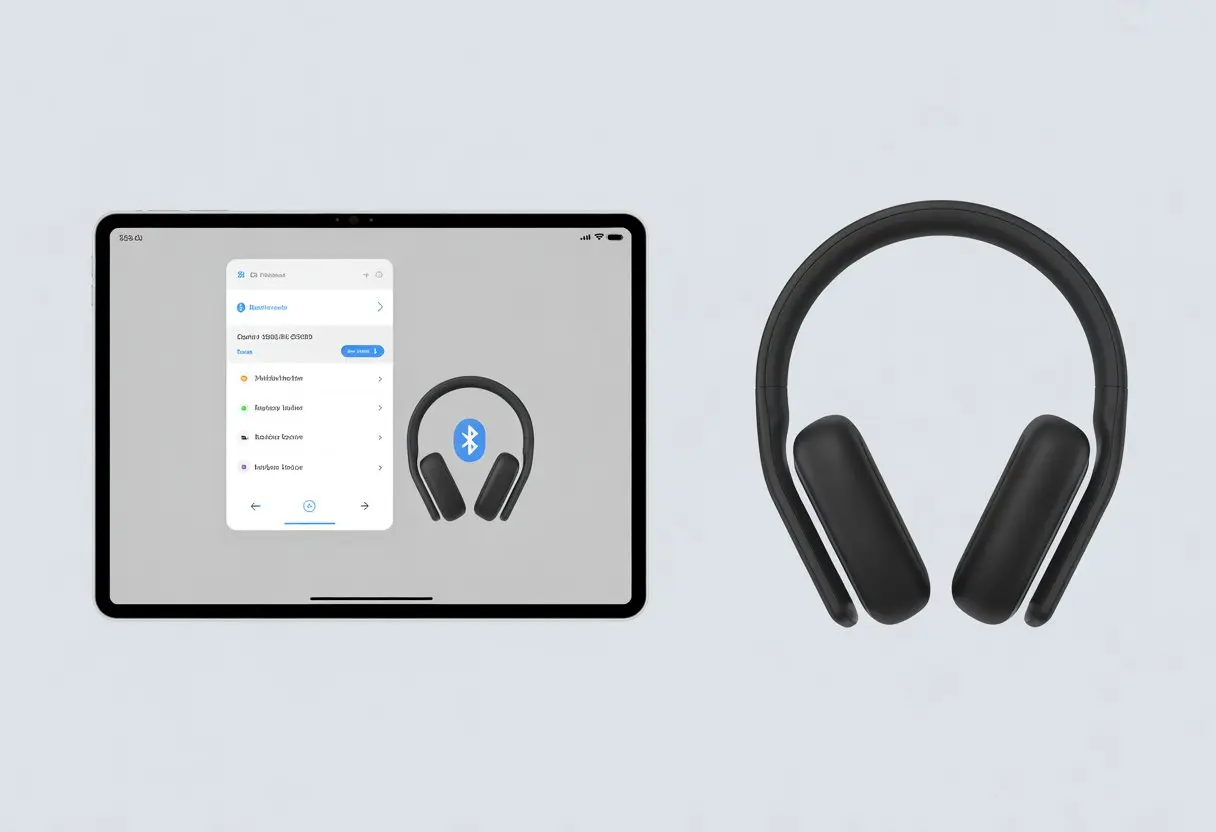
Maybe our tablet is brand new, or we just picked up some fresh wireless headphones. Either way, getting them to work together shouldn’t feel like rocket science.
A few taps in the settings, a quick look at the headphone lights, and we’re ready to go.
Menus and tech jargon can be a headache, but we’re not letting that ruin our day. Let’s break down the steps so we can get back to playlists, podcasts, and whatever videos we’re into lately.
If you want extra help, these simple pairing instructions might come in handy.
Understanding Bluetooth Technology
Bluetooth lets us ditch the wires and connect our headphones to tablets and other gadgets. Our bags stay blissfully knot-free.
To really get the most out of wireless headphones, it helps to know what Bluetooth is and how it works.
What Is Bluetooth?
Bluetooth is like that friend who keeps things simple when everyone else makes it complicated. It’s a wireless tech for short distances—about ten meters, or one room if we’re being real.
Bluetooth devices use radio waves instead of cords. The name comes from an old king, but no crowns required.
Unlike Wi-Fi, which is for internet, Bluetooth is really just for connecting gadgets—tablets, headphones, speakers, all that. It usually works automatically, though sometimes it acts up just to remind us who’s boss.
Pairing usually takes a few seconds, which is about as long as it takes us to realize our headphones weren’t lost, just hiding in the backpack.
Types of Bluetooth Devices
Bluetooth is everywhere now. There are classic Bluetooth gadgets—phones, tablets, laptops.
Then there are low energy (LE) types, like fitness trackers and smartwatches.
Let’s check out some common Bluetooth devices in our lives:
| Device Type | Typical Use |
|---|---|
| Headphones/Earbuds | Listening to music |
| Speakers | Sharing music with friends |
| Keyboards/Mice | Working on tablets and PCs |
| Fitness Trackers | Collecting our steps |
Our wireless headphones fit into the first group. Most new headphones use Bluetooth 5.0 or higher, so they’re faster and use less battery.
Some gadgets connect to several devices at once, but they can get a bit dramatic about it.
How Wireless Headphones Use Bluetooth
When we turn on our wireless headphones, they send out Bluetooth signals, basically yelling, “Pick me!” Our tablet listens, and if it likes what it hears, it connects.
Here’s how it goes:
- We put the headphones in pairing mode.
- The tablet scans for nearby Bluetooth devices (see how).
- Both devices do a “secret handshake” so nobody else butts in.
- Once paired, audio from the tablet streams straight to the headphones. No wires, no drama.
We still need to keep them close, though. If we wander off with the tablet and coffee, Bluetooth will probably quit before we finish the cup.
Preparing to Pair Bluetooth Headphones With a Tablet
Before we dive into wireless sound, let’s make sure everything’s set up right. It’s a lot easier to jam out when our tech isn’t throwing a fit.
Checking Device Compatibility
First up: compatibility. Our tablet and Bluetooth headphones have to speak the same language—at least Bluetooth-wise.
Most tablets from the last few years have Bluetooth built in. If we’re not sure, we can check the box, the manual, or poke around in the settings menu.
Our headphones should support a Bluetooth version that works with the tablet. If either one is ancient, things might get tricky.
Some Bluetooth headsets are picky and only play nice with certain Android or iOS versions. A quick look at the manufacturer’s website (or a fast internet search) can save us a headache.
Charging Your Headphones
Headphones that die right after connecting? That’s just cruel. We need to make sure our Bluetooth device is charged.
Most Bluetooth headphones use a charging cable and have a tiny light that blinks or glows. Sometimes it feels like it’s trying to talk to us.
Let’s give them at least 30 minutes on the charger if they haven’t seen an outlet lately. Some newer models show the battery on the tablet, but if not, a full charge is always a safe bet.
If the headphones won’t charge or the battery drains super fast, maybe it’s time to switch to a different pair.
Activating Bluetooth on the Tablet
Now let’s tackle turning on Bluetooth on the tablet. Usually, we just pull down the Quick Settings menu and tap the Bluetooth icon.
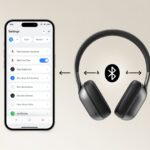
If we’re on Android, opening Settings and picking “Connected devices” or “Bluetooth” should do it. On iPads, it’s under Settings > Bluetooth, and we flip the toggle on.
If nothing shows up, maybe our Bluetooth headset isn’t in pairing mode yet, so that’s the next thing to check.
Once Bluetooth is on, the tablet starts scanning for devices. If there’s no Bluetooth on our tablet, we might be holding a calculator—or it’s time for an upgrade.
How to Enter Pairing Mode on Bluetooth Headphones
Before we connect our headphones to a tablet, we need to get them into pairing mode. Sometimes it’s easy, sometimes it’s like solving a secret puzzle.
Identifying Pairing Mode
First, we have to figure out what “pairing mode” looks like. Usually, we press and hold a button—maybe the power or Bluetooth one—for 3 to 5 seconds.
Some headphones make us press two buttons at once. If things get weird, it’s totally fine to check the manual.
Most headphones flash a LED light, usually blue or red, to show they’re in pairing mode. If the light blinks fast, we’re probably good. If nothing changes, we might still be in regular mode, wishing for magic.
Some headphones play a sound or use a voice prompt, so we don’t have to guess what’s happening.
If nothing’s working, checking the battery can save us from a lot of silent frustration. Dead headphones won’t enter pairing mode, no matter how nicely we ask.
Using Voice Guidance and LEDs
Some headphones use voice guidance, which is helpful and a little bossy. When we turn them on and hold the button, we might hear “Pairing” in a robotic voice. Honestly, that makes life easier.
LED indicators are another way companies tell us it’s time to pair. Here’s a quick table for decoding those tiny lights:
| LED Pattern | What It Means |
|---|---|
| Slow Blink | Normal/on |
| Fast Blink Blue | Pairing mode active |
| Red/Blue Alternating | Pairing mode (some brands) |
| No Light | Off or dead battery |
If our headphones look like a disco, they’re probably in pairing mode. If not, let’s try holding the right button a little longer.
Some headphones blink, beep, and say “Pairing” just for kicks, so trust both eyes and ears. If we’re stuck, checking the manual or a pairing tutorial is fair game.
Pairing Your Headphones With the Tablet
Pairing Bluetooth headphones isn’t rocket science, but the right steps can save us from the classic “Why won’t it connect?!” meltdown. Let’s walk through it, step by step.
Finding Available Devices on Your Tablet
First, we need to get our tablet looking for Bluetooth friends. We swipe down from the top and tap the Bluetooth icon.
If it’s already blue, we’re good. If not, tap it to turn it on.
Now, we open the Settings app and find the “Bluetooth” menu. A list of available devices should pop up.
Our headphones need to be in pairing mode—usually, that means holding the power or Bluetooth button until a blinking light appears.
If our headphones don’t show up, try turning Bluetooth off and on again. Yeah, sometimes that’s all it takes.
Initiating Bluetooth Connection
Once our headphones show up, it’s time to connect. Tap the headphone name—maybe it’s “CoolSound123” or something more creative.
The tablet takes a few seconds to connect. We might see a spinning wheel, but don’t panic—Bluetooth is just being dramatic.
If it’s the first time connecting, a pop-up might ask for permission. Tap “Pair” if it shows up.
When it connects, the tablet will say so. Cue imaginary applause!
Confirming the Bluetooth Pairing
After pairing, our tablet should confirm it. Usually, we get a notification, or the headphone name moves to “Paired devices.”
To double-check, look for a little headphone or Bluetooth icon in the status bar.
If audio still comes out of the tablet, check the sound settings and pick the headphones as the audio output. Nobody wants to be the person blasting music in public.
Sometimes, even if everything looks right, sound won’t play through the headphones until we hit play. Just give it a quick test, and we’re all set.
Entering a Passkey If Required
Some headphones really make us work for it and want a passkey. Usually, it’s just 0000 or 1234. Our tablet pops up a box for the code—no need to break out the secret agent skills.
If we don’t know it, we could check the manual, but honestly, who keeps those around? Most of the time, the code’s stuck on a sticker or printed right on the box.
We enter the passkey, confirm, and the pairing wraps up pretty quickly. At that point, we can give ourselves a little mental high-five for nailing the Bluetooth handshake.
For more help, check how to pair Bluetooth headphones for pictures and extra tips.
Troubleshooting Common Pairing Issues
Pairing Bluetooth headphones with a tablet sometimes just doesn’t go smoothly. We might have to reset, clear old pairing data, or even go for a full factory reset when nothing works.
Let’s tackle each fix with minimal tech jargon and maybe a dash of patience.
Resetting Your Headphones
When our headphones suddenly act like they’ve never met our tablet, it’s reset time. Think of it as a quick nap for their little circuits.
Most headphones have a reset button or a combo, like holding power and volume up for ten seconds.
If we can’t find the reset button, a glance at the manual—or a desperate Google search—usually does the trick. Resetting clears out those weird glitches that block signals.
After resetting, we try connecting again. If we see a blinking light, that’s usually a good sign the headphones are ready to pair.
For step-by-step help, check this Bluetooth problems guide.
Clearing Pairing Information
Our headphones remember old devices forever, which can get annoying. To wipe their memory, we need to clear old pairing info.
This might be called “clearing the Bluetooth cache” or deleting paired devices.
Here’s a quick checklist:
- Open Bluetooth settings on the tablet.
- Find the headphones, then tap “Forget” or “Remove.”
- On the headphones, press the pairing button (or check the manual) to clear stored connections.
This erases old pairing info and lets the headphones start fresh. It often solves problems caused by outdated connection data.
If nothing else works, restarting the tablet sometimes helps. More details live in this Bluetooth headphone troubleshooting article.
Restoring Factory Settings
If all else fails, restoring factory settings is the nuclear option. This wipes out every bit of headphone mischief and gives us a clean slate.
Usually, we hold down a few buttons for up to 15 seconds, or maybe there’s a hidden button somewhere. All pairing info, volume, and EQ settings vanish—back to square one.
Just remember, this removes everything, so we’ll need to pair all our favorite devices again. Factory resets can fix sneaky software bugs or leftover issues from failed connections.
For exact steps, check the manual or look up the model online. Each brand seems to have its own secret handshake for resets.
Using Bluetooth Headphones With Multiple Devices
The best part about Bluetooth headphones? They’re not monogamous. We can bounce from phone to computer to speakers—no wires, no drama.
Pairing With a Smartphone
Let’s start with the trusty smartphone. Most Bluetooth headphones pair up with phones using these basic steps:
- Turn on Bluetooth in the phone’s settings.
- Put the headphones in pairing mode (usually hold a button until a light flashes).
- Pick the headphones from the list that appears.
Many newer headphones support Bluetooth multipoint. That means we can stay connected to two devices at once.
We could listen to music on the tablet and still answer calls from the phone. Some pairings need a little tweaking in the settings, so if things act weird—it’s probably just Bluetooth being Bluetooth.
For more about multiple pairings, check out these details on setting up multipoint headphones.
Connecting to a Computer or PC
Connecting headphones to a computer sometimes tests our patience. Here’s how we usually pull it off:
- Open Settings > Devices > Bluetooth & other devices on Windows, or System Settings > Bluetooth on Mac.
- Click Add Bluetooth or other device, then pick Bluetooth.
- Put the headphones in pairing mode again.
- Select the headphones from the list.
Switching between the computer and another device, like a tablet, can cause surprise disconnects. Multipoint headphones sometimes let us toggle between devices easily, but honestly, disconnecting from one first is often the fastest fix.
Managing Connections With Other Wireless Speakers
Want to blast audio through other wireless speakers too? Some phones and tablets—especially Samsung—let us do this using Dual Audio or similar features.
On those devices, we can connect both headphones and a wireless speaker at the same time using options like Media Output and Dual Audio.
Here’s a quick look:
| Device | Possible Dual Output | How to Activate |
|---|---|---|
| Samsung phones | Yes (Dual Audio) | Quick Panel > Media Output > Pair devices |
| Other Android | Varies by model/brand | Check Bluetooth/Audio settings |
Android users can enable Dual Audio to share tunes with two devices at once—headphones and a speaker. No more fighting over who gets to listen.
If these settings are missing, maybe our device is a little too old, or we just got unlucky. For more info, see setting up Dual Audio for backup ideas.
Enjoying Audio on Your Tablet
Once our Bluetooth headphones are paired, we’re ready for all the audio our ears can handle. Whether it’s playlists, movies, or random headphone apps, there’s plenty to try.
Playing Music
Music is serious business—nothing beats our own soundtrack. To play music, just open up Spotify, Apple Music, YouTube, or whatever app we love.
Sound should play through the headphones once they’re connected.
If music still blasts from the tablet speakers, don’t panic. Check if Bluetooth is selected in the tablet’s sound settings.
A quick disconnect and reconnect sometimes fixes it. If not, double-check the tablet’s media volume. No one wants a silent disco.
For quick volume or playback tweaks, many headphones have buttons right on the earcups or earbuds. Some even have touchpads—swipe or tap to pause, play, or skip tracks. Who says we can’t play DJ at home?
Using Wireless Earbuds
Wireless earbuds are perfect for moving around while listening to audio from the tablet. We can answer calls, watch videos, or clean up while listening to music.
Most wireless earbuds—AirPods, Galaxy Buds, and the like—connect just like regular Bluetooth headphones. Put them in pairing mode, select them on the tablet, and we’re good.
Some earbuds let us use taps or gestures to play, pause, or launch a voice assistant. Double-tapping might skip a song.
Customizing the fit with different ear tips helps keep them in place for kitchen dance parties.
Pairing two sets of earbuds to one tablet at the same time doesn’t always work, but some tablets and earbuds support sharing audio. Just hope no one tries to snag the “good” earbud.
Exploring the Bose App
If we use Bose wireless headphones or earbuds, the Bose Music App unlocks extra features. The app lets us adjust EQ, update firmware, and pick sound profiles for rock, classical, or just drowning out noisy neighbors.
The app also helps us tweak noise cancellation or turn on things like “Find My Buds” (because losing them happens to the best of us). Setting up is easy: install the app, connect our Bose device, and follow the prompts.
We can even manage multiple Bose gadgets from one place. If we have a Bose speaker, headphones, and maybe a soundbar, the app lets us control them all without moving from the couch. That’s pretty handy.
Advanced Bluetooth Tips for Tech Wizards
Let’s get a little nerdy and deal with those annoying Bluetooth issues that pop up at the worst times. We’ll share ways to stop random disconnects and squeeze the best out of every playlist.
Optimizing Connection Stability
Bluetooth connections can be flaky—everyone knows that dreaded music dropout right at the best part of a song. The best way to keep things steady is to keep the tablet close to the headphones. Ten meters is usually the limit.
Walls and big obstacles get in the way. If we have too many gadgets connected, try disconnecting the extras. Less really is more here.
Turning off Wi-Fi or other Bluetooth devices nearby can help clear up interference. It’s like giving our headphones their own VIP section.
Sometimes, we need to update the tablet’s Bluetooth drivers and firmware. Old software can ruin the party. If things still act up, a quick “forget device” and re-pair often works wonders. It’s the tech version of turning it off and on again—simple, but surprisingly effective.
Utilizing Bluetooth Settings in Windows
When you connect Bluetooth headphones to a Windows device, the Settings app becomes your playground.
Just press Windows Key + I to open Settings. Then, head over to Devices > Bluetooth & other devices.
Here, you can manage, connect, or remove devices with just a couple of clicks.
If you click on your headphones, you might spot their battery level—some headphones spill the beans right there. You can also switch sound profiles, from “crisp audio” to “meh, just call me,” depending on your mood.
Still running into annoying glitches? Hit that “Remove Device” button, then add your headphones again for a quick reset.
If all else fails, Windows offers a Bluetooth troubleshooting guide. Sometimes, even the best of us need a little backup, right?

From a young age, I have always had a big interest in technology, and this blog is an extension of that interest. Through this blog, I hope to provide others with all of the information they need regarding tech options to consider, and things such as compatibility. Some of the different items I will be discussing include headphones, smartwatches, and how to fix common issues.
- How to Get Text Messages on Fitbit Versa 2 Android: Simple Guide for Users - October 13, 2026
- Why Doesn’t My Fitbit Record My Sleep? Quick Troubleshooting Guide - October 13, 2026
- How to Change Face on Fitbit Versa 2: Quick and Easy Guide - October 12, 2026
Related Posts: