Let’s be real—most of us love our gadgets almost as much as our morning coffee. Sometimes, though, getting them to play nice together feels like herding cats. Chromebooks and smartwatches aren’t the world’s most obvious tech duo, but hey, we’re not giving up that easily.
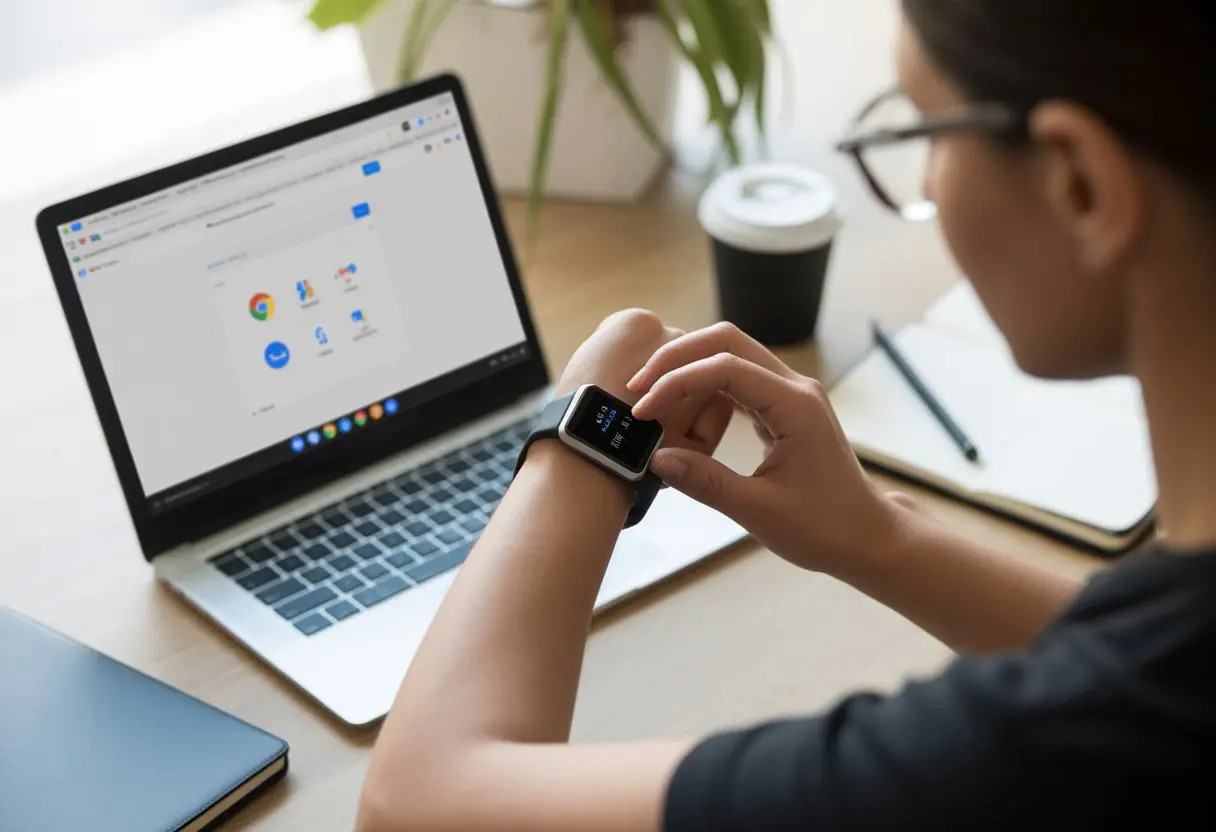
You can use a smartwatch with a Chromebook if your Chromebook supports Bluetooth and can install Android apps from the Play Store.
So, you’ll get notifications, track your activity, or maybe even control your music—right from your wrist while working or procrastinating on your Chromebook.
Not every feature works perfectly, but you can get a lot out of this tech combo with a few tweaks. Grab your Chromebook, juice up your smartwatch, and let’s start connecting the dots—no wires needed.
Getting Your Smartwatch and Chromebook Ready
To connect your smartwatch to your Chromebook, you’ll want to check a few things first.
Choosing the right devices, charging them, and keeping everything updated can save you from a lot of frustration later.
Checking Compatibility
Let’s avoid that awkward “square peg, round hole” situation. Not every smartwatch plays nice with every Chromebook.
Most Chromebooks pair with Bluetooth devices, including many smartwatches, but your mileage may vary. Android-based smartwatches, especially ones running Wear OS, usually work best.
Watches with their own systems (like some Fitbit and Apple Watch models) might not work fully with a Chromebook. If your Chromebook has the Play Store, you can sometimes install apps made for specific watches.
The quickest way to check? Search your Chromebook model and your smartwatch online. You can also try connecting via Bluetooth by following these steps to connect to Bluetooth on Chromebook.
If your Bluetooth menu won’t show your watch, that’s a clue they’re just not meant to be.
Charging Devices Before Pairing
Trying to pair dead devices is a recipe for disappointment. Plug in both your Chromebook and your smartwatch before you get started.
Smartwatches can drain fast during setup, especially if they’re downloading updates or syncing a bunch of stuff. The Chromebook needs enough battery too, so it doesn’t bail halfway through.
Here’s a quick checklist:
Plug in your Chromebook or make sure it’s at least 20%.
Charge your smartwatch to at least 50%.
Double-check your charging cables—they somehow tangle themselves when you’re not watching.
It’s just easier to fix things when both devices have plenty of power.
Updating Software on Both Devices
Old software is like expired milk—it’s just not worth the risk. Update your Chromebook and your smartwatch before you try anything else.
On your Chromebook, open Settings, scroll to “About Chrome OS,” and tap “Check for updates.” Updates often add new features or fix weird bugs that might block your gadgets from connecting.
For the smartwatch, if you’re using Wear OS, head to the watch’s settings and look for a system update option. Let it download and install whatever it wants.
If updates refuse to show up, try restarting your devices, switching to Wi-Fi, or searching for help specific to your model. Sometimes, turning things off and on again really does the trick.
Pairing Your Smartwatch with a Chromebook
Before you start bragging about syncing your smartwatch to your Chromebook, you need to nail the basics.
You’ll want Bluetooth turned on, and your Chromebook has to spot your smartwatch before you can even think about counting steps from your laptop.
Turning on Bluetooth on Chromebook
Let’s get Bluetooth running on your Chromebook first. Click the clock at the bottom right corner of the screen.
This opens up the Quick Settings Panel, where all the Chromebook magic lives. There’s a little Bluetooth icon there.
If it’s gray or says “off,” click it to turn it on. Sometimes Bluetooth hides in the “Settings” menu, which you can open from this panel too—because why not make it a little hunt?
If your device says “Bluetooth unavailable,” either your Chromebook doesn’t support Bluetooth or it’s just having a bad day. Try restarting it, or maybe accept that not every Chromebook is a Bluetooth fan.
With Bluetooth on (fingers crossed), it’s time for introductions. Set your smartwatch to pairing mode—this usually means pressing a button or poking around the settings.
Every brand seems to have its own way, so you might have to peek at the manual. On your Chromebook, go to “Settings” > “Bluetooth” > “Pair new device.”
Wait a moment. If you’re lucky, your smartwatch shows up in the list. Click it, and you might see a code or prompt.
Just follow the instructions until both devices agree to connect. Some smartwatches (like Wear OS ones) might need a companion app, which you can download from the Play Store.
Smartwatches and Chromebooks can be a fun combo, but apps really make things interesting.
With the right downloads, you can get your smartwatch and Chromebook working together just how you want.
Using Google Play Store to Find Smartwatch Apps
If your Chromebook supports Android apps, the Google Play Store is your new playground. Open it, search for keywords like “smartwatch” or “Wear OS,” and see what pops up.
There’s a ton of apps for fitness tracking, texting, to-do lists, and yes—even games. If you know what you’re looking for, it’s way easier.
A lot of smartwatch apps need a matching phone app, but some can run solo. If your watch needs a certain app (like for Android Wear), the Play Store usually gives you a heads-up.
Let’s talk privacy for a sec. Nobody wants a calculator app reading their texts.
When you install an app on your Chromebook, you’ll usually get a permission request. Take a second, read it, and actually think about what the app wants.
You can always tweak these settings later in your Chromebook’s settings. There’s a spot under Apps where you can check and change what each app can access—microphone, location, contacts, and so on.
If something feels off, hit deny. Apps only need what helps them work—anything else is just being nosy.
Syncing Notifications and Media
Honestly, we want our smartwatch to make life easier—not just remind us it’s lunchtime again.
With your Chromebook and smartwatch in sync, you can keep up with messages, share photos in a flash, and even run a family slideshow from the couch.
Enabling Notifications for Instagram and Facebook
Nothing says “tech life” like getting a buzz every time someone posts to Instagram. If your smartwatch and Chromebook both run Android, install the apps from the Play Store and sign in on both.
Wear OS smartwatches usually let you pick which notifications you get, but double-check the settings for each app and on your watch.
Here’s what to do:
Open the Watch app on your phone that’s connected to the smartwatch.
Tap Notifications and select Instagram and Facebook.
Make sure your Chromebook uses the same Google account.
Once you set this up, notifications usually come through to your watch just like they do on your phone. Now you can glance at your wrist when Instagram asks, “Are you still there?”
Sending Photos from Smartwatch to Chromebook
Snapped a great photo on your watch (maybe a sneaky selfie in class) and want it on your Chromebook? Most smartwatches sync photos with your phone first.
If your Chromebook runs Android apps, you can sometimes use Google Photos or another cloud app. Try this:
Open the Photos or Gallery app on your watch and pick the image.
If you see the option, tap “Share” > “Upload to Google Photos.”
Bonus: If both devices have Bluetooth, some models let you transfer files directly. It’s hit or miss, so keep your expectations in check.
Controlling Slideshows and YouTube Remotely
Now for the fun part. Use your smartwatch as a remote for slideshows or even to pause YouTube cat videos.
If your watch supports it, look for apps like YouTube Remote or Google Slides controller in the Play Store. Most pair your devices using Bluetooth or Wi-Fi.
Make sure both Chromebook and watch are on the same network.
Install and open the remote app on both.
Use the Next and Previous buttons on your watch for slides.
Hit play or pause from your wrist for YouTube.
It’s super handy when your hands are full—like when you’re holding popcorn during a YouTube marathon.
Using Productivity Apps Across Devices
Honestly, our brains need all the help they can get. Keeping files and reminders synced across Chromebooks, smartwatches, and phones is way easier than it sounds.
Accessing Google Drive from Both Devices
Google Drive is a lifesaver, especially when your homework, photos, and memes need to follow you everywhere.
On a Chromebook, just open the Google Drive app or visit drive.google.com. Your files show up in neat rows, ready to view or edit.
On your phone or smartwatch, use the Google Drive app. Smartwatches have tiny screens, so you’ll mostly just check reminders or quick previews.
Android devices make it easy to upload, download, and share files—just a few taps and you’re done. If you want to show off, try using voice commands on your smartwatch to search Google Drive or set reminders.
Everything syncs in real time, so whatever you fix from your phone or watch is ready for Chromebook browsing in seconds.
Managing Documents and Files on the Go
Life moves fast, right? We’re not always glued to our Chromebooks.
Managing files on the move just makes sense. Maybe we upload files from our phone while waiting in line for coffee. Later, we organize folders on the Chromebook back at our desk.
Editing documents feels smoother on a Chromebook. Still, smartphones—and even a few smartwatches—let us review files or check off to-dos.
Writing an essay from our wrist? Probably not happening. But marking a doc as “done” while skating down the hallway? That’s futuristic enough for now.
Let’s use built-in features like offline access. That way, our files stay available even when Wi-Fi lets us down.
Simple lists keep us organized, like this one:
Use Google Drive for cloud syncing.
Edit bigger files on the Chromebook.
Make quick file checks from smartwatches.
Upload PDFs or images using our phones.
Working across devices doesn’t mean we’re juggling or dropping files. It just means we’re a bit more organized—and, honestly, a lot more high-tech—than we used to be.
Troubleshooting Common Pairing and Syncing Issues
Sometimes, our smartwatches act like moody pets and refuse to connect or sync with our Chromebook.
Let’s walk through the best ways to get Bluetooth working and actually make our watch talk to the apps we need.
Resolving Bluetooth Connection Problems
First things first: we check that Bluetooth is on for both our Chromebook and smartwatch. If it isn’t, even our best dance moves won’t help us pair them.
We go to Settings, pick Bluetooth, and select “Pair new device.” Still not working? Time for the classic move—turn Bluetooth off and then back on.
Next, we restart both devices. It sounds simple, but sometimes a reboot really does work wonders.
If our watch still won’t connect, we remove it from the Chromebook’s Bluetooth list and try pairing again. This clears out any old info that might be causing problems.
Still nothing? We make sure both the smartwatch and Chromebook have the latest software updates. Updates often fix weird bugs.
If our smartwatch looks connected but nothing shows up in our apps, syncing probably needs some extra attention.
First, we double-check the app is installed and allowed to run in the background on our Chromebook. We make sure all permissions are granted.
Some smartwatches need an Android phone to sync certain health or messaging apps. You can check here. If that’s the case, our dreams of a phone-free setup might have to wait.
We reopen the app, make sure we’re signed in, and try syncing again. Sometimes, just signing out and back in helps.
If we’re using third-party apps, we check if they’re supported on ChromeOS or only on Android phones.
If nothing else works, we uninstall and reinstall the app, or look for updates. A fresh install can fix things—kind of like a strong cup of coffee in the morning.
Tips for an Even Smarter Smartwatch Experience
Staying charged and secure matters when we’re juggling smartwatches and Chromebooks.
Here’s how we can stretch our battery life and keep our devices safe—without just crossing our fingers.
Battery Saving Hacks for Chromebook and Smartwatch
Let’s be honest, running out of battery halfway through the day is no fun.
To keep our smartwatch and Chromebook running longer than the last slice of pizza at a party, we need a few tricks up our sleeves.
Scale Down Brightness: Auto-brightness helps. Lowering screen glow on both devices lets us see the screen and keeps the battery happy.
Limit Background Apps: On Chromebooks, closing unused tabs saves power. On smartwatches, turning off unused Bluetooth or Wi-Fi helps when we’re not syncing or streaming.
Use Battery Saver Modes: Most smartwatches and Chromebooks have battery saver options. These pause non-essential features and keep us connected for longer.
Skip Fancy Watch Faces: Animated or flashy faces use extra juice. Clean and simple keeps us charged.
Nothing kills the fun faster than a hacked device. Keeping your smartwatch and Chromebook safe isn’t rocket science, but you do need to stay a little careful.
Lock Screens: Set up a PIN, password, or pattern on both your Chromebook and smartwatch. If your Chromebook has a fingerprint lock, that’s even better.
Update Regularly: Don’t just swipe away those “Update Available” reminders. Updates patch bugs and close up security gaps.
Be Choosy With Apps: Stick to downloading apps from the Google Play Store or other sources you actually trust. Sideloading random apps? That’s like letting a raccoon loose in your kitchen—probably not worth the trouble.
Turn Off Bluetooth/Wi-Fi When Not Needed: If you leave these connections on, hackers might spot your devices. Just switch them off when you’re not using them.
If you want even more security tips for Android pairing, the community at Quora’s smartwatch compatibility page has some extra advice worth checking out.
Hi, my name is Garrett Jones, and I am a tech enthusiast. I enjoy researching the new tech that has been released, and have a vast knowledge of the best tech to purchase.
From a young age, I have always had a big interest in technology, and this blog is an extension of that interest. Through this blog, I hope to provide others with all of the information they need regarding tech options to consider, and things such as compatibility. Some of the different items I will be discussing include headphones, smartwatches, and how to fix common issues.