Let’s be honest—using Bluetooth headphones with a VR headset can feel like the universe is trolling us. Sometimes the sound drops out, the audio lags, or the headphones just refuse to connect, no matter how many times we try.
Bluetooth headphones often struggle with VR headsets because of latency, connection hiccups, and device compatibility issues.
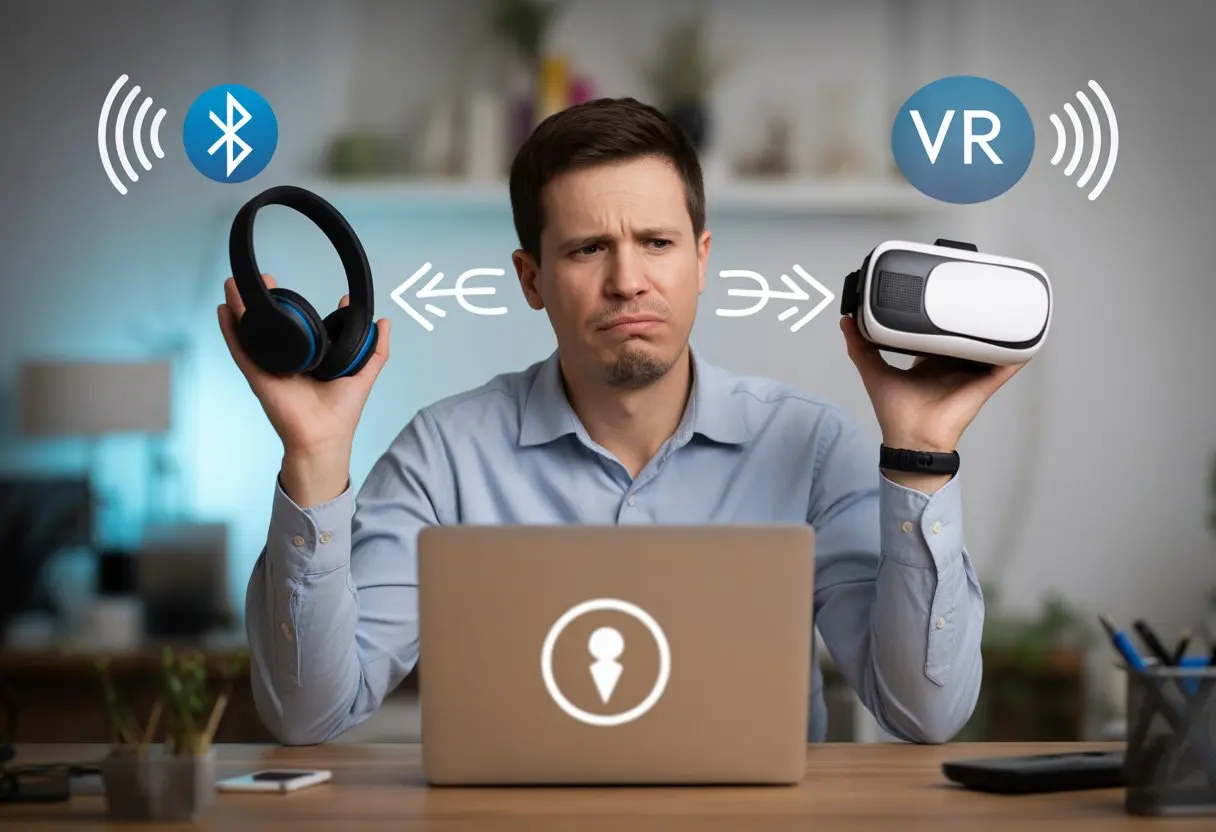
We fumble through menus, shake our gadgets, and maybe question our life choices—all for a pair of wireless headphones. But hey, we’re not alone here.
Lots of people run into disconnecting headphones, stuttering games, or just plain silence when trying to go wireless in VR.
Is it us? Is it the headset? Or is Bluetooth just being Bluetooth? Let’s dig into why these two bits of tech just can’t seem to play nice—and maybe figure out what we can actually do about it.
Understanding Bluetooth Headphone Compatibility With VR Headsets
Trying to use Bluetooth headphones with a VR headset isn’t always the simple plug-and-play we hope for. Different VR models, weird delays, and lost connections can turn our tech dreams into a bit of a circus.
How Bluetooth Technology Works With VR
Bluetooth is awesome for blasting music on speakers or syncing with phones. But when it comes to VR, Bluetooth shows its quirks.
It sends audio over short waves, which is fine for music, but not always fast enough for games or movies where timing is everything.
Sound and vision in VR need to sync up perfectly. If we hear a “pew pew” after we see a laser, it feels off.
This timing issue is called latency. Most regular Bluetooth headphones weren’t made for VR, so delays sneak in.
The headset sends audio over Bluetooth, but it takes extra milliseconds to reach our ears. That may not sound like much, but our brains definitely notice—even if Grandma doesn’t.
VR Headsets That Support Wireless Audio
Most VR headsets offer some kind of Bluetooth support, but not all do it well. The Meta Quest 2, for example, lets us connect Bluetooth headphones, but even the official help pages warn about audio delays if we use regular Bluetooth devices.
Some wireless earbuds are made just for VR and work better with certain headsets.
Here’s a quick breakdown:
| Headset Model | Bluetooth Audio | Notes |
|---|---|---|
| Meta Quest 2 | Limited | Possible delay with regular headphones |
| PlayStation VR | Not supported | Requires wired audio |
| Pico 4 | Limited | Similar delay issues |
| PC VR (SteamVR, etc.) | Varies (with dongle) | Adapters may help but add more complexity |
If we really want wireless sound, it’s smart to check if our VR headset lists compatible Bluetooth devices—or just go for headphones made for VR.
Common Limitations of Bluetooth Devices in VR
Bluetooth headphones in VR come with a few classic headaches. Audio drops are a big one.
Sometimes, the headphones just disconnect mid-game, like they’re on strike. Users often talk about frequent disconnects or pairing problems—which leads to us waving our headset around, mashing buttons, and hoping for a miracle.
Latency is the top annoyance. VR needs split-second timing, so even a tiny delay between what we see and what we hear can cause confusion or even motion sickness. It’s not exactly the vibe we want in the middle of a virtual adventure.
Sound quality can also take a hit. Some Bluetooth headphones compress the audio to make transmission faster or to save battery.
That can make things sound flat or just weird compared to a wired connection. So, while wireless is nice, it’s rarely drama-free.
Common Reasons Bluetooth Headphones Don’t Work With VR Headsets
Getting Bluetooth headphones to cooperate with a VR headset sometimes feels like trying to plug in a USB stick—always the wrong way first. We run into weird connections, glitchy sound, or total silence.
Let’s look at the main culprits behind these issues.
Incompatibility of Headsets and Headphones
Not all VR headsets and Bluetooth headphones are built to get along. Some VR devices, like the Meta Quest series, have spotty Bluetooth support.
They let us pair headphones, but then hit us with laggy audio, dropped connections, or just dead silence.
A lot of headsets were designed for wired audio or a short list of wireless accessories. Many don’t officially support Bluetooth audio at all.
That turns setup into a guessing game—will it work this time? Often, it just doesn’t.
Bluetooth headphones can also cause trouble. Older models or cheap knock-offs may run on outdated standards, which leads to major connectivity issues.
We might pair them, but end up with stutters, echoes, or no sound at all. For more on these struggles, check out this Oculus Quest 2 not pairing thread.
Unsupported Bluetooth Profiles
Bluetooth headphones and VR headsets need to “speak” the same digital language—these are called profiles. The most common ones for audio are A2DP (music) and HSP/HFP (calls).
If our VR headset doesn’t support the profiles our headphones use, we’re out of luck. We might pair the headphones, but hear nothing during a game.
This mismatch causes dropouts and major audio delays—especially if we don’t have low-latency profiles like aptX LL.
Some headphones and headsets only support basic profiles. Others might work fine in video apps but lag in fast games, as people mention in this Quest Bluetooth audio discussion.
A few things usually go wrong with profiles:
- Audio plays, but with a half-second lag.
- Sound works in video apps, but not in games.
- Total silence—except for the sound of our own frustration.
Firmware or Software Limitations
Even if the hardware lines up, software or firmware can still ruin the party. VR headsets sometimes have OS bugs, outdated software, or random quirks that block certain headphones.
Some VR systems block Bluetooth audio to cut down on lag during games. Others have hidden settings, glitches, or just aren’t updated enough to handle newer headphones.
If you’ve tried a dozen Bluetooth headphones and still get nowhere, a software update or a reboot might help—emphasis on might.
Firmware problems aren’t just a VR headset thing. Bluetooth headphones also need updated firmware to avoid hiccups.
If nothing works, try restarting both the headset and headphones. Lots of people in this Meta Quest 3 Bluetooth guide have found that sometimes, a simple restart does the trick.
Here’s a quick checklist:
- Update software or firmware.
- Restart both devices.
- Check for hidden audio settings.
- Accept that Bluetooth can be, well, unpredictable.
Troubleshooting Bluetooth Connection Problems
Bluetooth headphones and VR headsets can be a tricky pair. Sometimes, the headphones won’t connect, disconnect randomly, or just flat-out refuse to work.
It’s not always our fault—sometimes the tech just doesn’t want to cooperate.
Restarting Your VR Headset
When in doubt, we turn it off and on again. Seriously, our VR headset can get stuck or confused, especially after updates or failed connections.
A quick restart can clear out the glitches that block Bluetooth devices.
Here’s what to do:
- Hold the power button until the shutdown menu pops up.
- Pick “Restart,” or if that’s not an option, shut it down and wait a few seconds before turning it back on.
- Once it’s booted, try pairing the headphones again.
This resets the headset’s Bluetooth system and can stop disconnects or frozen pairing screens. Sometimes, all our headset needs is a short nap.
Pairing Bluetooth Headphones Correctly
Let’s get our gadgets talking the right way. VR headsets like the Oculus Quest 2 have a specific menu for Bluetooth pairing.
To avoid headaches:
- Open the universal menu (Meta or Oculus button).
- Go to settings and find Bluetooth pairing.
- Put the headphones in pairing mode—usually by holding the power or Bluetooth button until a light flashes.
If it still doesn’t work, try unpairing other nearby devices. Too many connections can confuse the headset.
Keep the headphones and VR headset close together during pairing. The closer, the better—think awkward middle school dance partners who only talk if they’re standing side by side.
If you want more details, here’s Meta’s step-by-step Bluetooth guide.
Ensuring Devices Are Up-To-Date
Sometimes, we just need to update our stuff. Old firmware can mess with Bluetooth connections and cause endless frustration.
For the VR headset, open settings and check for updates. For headphones, check the manufacturer’s app or website.
If our phone or computer connects fine but the VR headset doesn’t, outdated software could be to blame.
Some gadgets update quietly, others need us to do it manually. Double-check both devices.
A fresh update could be the fix for those “Bluetooth not working” blues.
If nothing else works, some folks have luck clearing the Bluetooth cache or doing a full headset reset, as mentioned in community forums. Not glamorous, but hey, whatever works.
Audio Quality Problems When Using Bluetooth With VR
If you’ve tried Bluetooth headphones with your VR headset, you’ve probably noticed a few “less-than-immersive” surprises. Some of us get lag, others hear choppy audio, and almost everyone runs into Bluetooth’s habit of turning high-tech adventures into an audio guessing game.
Audio Lag and Latency
Audio lag—latency—is one of the biggest headaches. When we fire a virtual blaster or shout in VR, there’s often a weird delay before the sound hits our ears.
Bluetooth is convenient, but it’s not exactly quick.
We might see lips moving before we hear the voice, or sound effects arrive milliseconds after the action. In rhythm games, our dance moves can look out of sync when the music lags.
Everyone becomes a bad lip reader, whether they want to or not.
To minimize lag, try headphones and adapters built for low-latency connections. But honestly, most regular Bluetooth headphones don’t have this magic, so we often just have to live with sound that’s fashionably late.
Sound Dropouts and Static
Bluetooth headphones and VR don’t always get along. One minute, you’re dodging space debris in-game, and the next, your headphones just shut up—then roar back with static that sounds like a gremlin gnawing on tinfoil.
Walls, bodies, and even the headset itself can mess with Bluetooth signals. These random drops mean you might miss a crucial sound cue or end up talking to an NPC who suddenly ghosts you like a bad Wi-Fi call.
If you hear clipping, chopped-up audio, or just plain weird distortion, you’re definitely not alone. Lots of folks have reported that Bluetooth audio can make game and browser sound clip or distort.
Sometimes, switching to wired headphones is the only way to keep the sound clean.
Interference From Other Devices
Bluetooth audio can be a bit antisocial. It gets overwhelmed by Wi-Fi routers, microwaves, or that neighbor with way too many smart devices.
If your VR setup sits among a sea of phones, tablets, and laptops, there’s a good chance all that tech is fighting for Bluetooth’s attention. That’s when you start hearing crackles, pops, or just lose audio to interference.
Some people notice distortion or voices turning robotic or deep. This happens with certain headsets and setups, like distorted VR sound when Bluetooth is wrestling with the rest of your electronics.
If Bluetooth starts acting up, try moving away from other devices or shutting off extra wireless gadgets. Sometimes, that’s all it takes to get your virtual soundscape back in order.
Specific VR Headsets and Bluetooth Headphone Compatibility
Pairing Bluetooth headphones with VR headsets isn’t as easy as we’d hope. Sometimes you spend more time troubleshooting than actually playing, just because your headphones and headset won’t get along.
Using Oculus Quest 2 With Bluetooth Headphones
The Oculus Quest 2 lets you pair Bluetooth headphones, but honestly, it’s a bit like watching a movie where the actors’ lips don’t match the words. Latency is a common headache, with noticeable delay and sync problems.
You connect through “Experimental Features” in the settings. Find the Bluetooth option, pair up, and cross your fingers. Even if you manage to connect, stuttering and disconnects are all too common.
Game lag and audio drops are especially rough in rhythm games, where timing matters most.
The Quest 2 team actually recommends plugging in wired headphones. Wireless is fun, but if you care about timing, Bluetooth audio can throw everything off. If you need a step-by-step, check Meta’s official pairing tips here.
Quick facts table:
| Feature | Bluetooth Supported | Wired Headphones | Common Issues |
|---|---|---|---|
| Oculus Quest 2 | Yes (experimental) | Yes | Lag, disconnects |
HTC and Bluetooth Audio Support
Trying to use Bluetooth headphones with HTC Vive or other HTC headsets? You’ll hit a wall—almost none of them support Bluetooth audio.
HTC focuses on low-latency gameplay, so they stick to built-in audio or wired headphones. Most Vive models have a 3.5mm jack or built-in speakers.
If you want wireless, you’ll need a third-party Bluetooth adapter, but that usually adds even more delay. Honestly, sticking with direct audio connections just works better for VR.
Key points:
- Direct audio connections = Less lag
- Most HTC headsets don’t officially support Bluetooth audio
- Third-party adapters may cause extra delay
Other Popular VR Headset Brands
Other VR brands, like PlayStation VR and Valve Index, aren’t much friendlier to Bluetooth headphones. They rely on built-in audio, 3.5mm jacks, or USB-C headphones.
PlayStation VR wants you to plug into the headset or controller. The Valve Index gives you high-quality sound right from its built-in speakers.
A few newer headsets try to offer Bluetooth pairing. Still, the delay makes watching a movie frustrating—and gaming even worse.
It’s usually best to stick with whatever audio solution the manufacturer recommends. Save the Bluetooth headphones for your phone or for flexing at the gym.
Advanced Fixes and When to Call for Backup
Sometimes, Bluetooth headphone trouble needs more than a reboot or wishful thinking. If the basics don’t work, you might have to dig deeper or ask for help.
Performing a Factory Reset on Your VR Headset
If your VR headset just won’t cooperate with Bluetooth headphones, a factory reset might be your last card to play. This wipes your device back to factory settings—apps, data, everything gone.
Back up anything important first. There’s no undo button.
Usually, you’ll go into Settings, then Device, and pick Factory Reset. The steps can vary, so check your headset’s guide.
A reset can squash weird software bugs, but you’ll spend a while watching progress bars as everything reinstalls. If pairing issues survive this, you probably have a hardware or deeper software problem. For more troubleshooting, check these steps for Oculus Quest 2 Bluetooth and pairing issues.
Replacing Faulty Parts
If you notice crackling audio, dropped connections when you move the headset, or headphones only working if you stand just so, you might have a hardware issue. Damaged jacks, loose Bluetooth modules, or worn cables can all cause trouble.
DIY repair is an option if you’re brave (or just stubborn), but be ready to void warranties or lose screws forever. If you see obvious damage—like bent ports—try cleaning gently with a brush or compressed air. If it’s out of your league, you’ll need new parts or a pro.
Some brands sell official replacement parts. Third-party options exist, but quality varies a lot. Test each fix before celebrating, or you might be heading back to the store. Here’s a quick jack cleaning tip from this headset mic fix guide.
Reaching Out to Customer Care
If you’ve tried everything—even yelling at the universe—and your Bluetooth headphones still refuse to cooperate, it’s time to let customer care take a swing.
Contact your VR headset’s support team for help specific to your device. They might suggest warranty repair if it turns out to be hardware.
Have your serial number, purchase info, and a list of what you’ve already tried handy. This saves time and makes life easier for everyone.
Some companies offer chat, email, or even video support, so help comes in all shapes. If your device is under warranty, you might get free repairs or a replacement. Sometimes, professional backup is just what you need.
Tips for Enjoying Virtual Reality Audio Without the Drama
Let’s be real—VR sound should feel immersive, not like you’re stuck in a tin can with laggy echoes. If Bluetooth headphones keep causing problems, there are ways to get crisp, smooth audio and keep your sanity intact.
Wired Alternatives to Bluetooth Headphones
Bluetooth headphones seem futuristic, but sometimes they’re just a headache. The real trick? Go wired.
Plug in regular headphones or earbuds and you’ll usually get instant sound with zero lag. Wired connections rarely cut out, glitch, or lag behind the action.
Most VR headsets, including Meta Quest models, still have a headphone jack. Just plug in, and boom—steady sound.
Here’s a quick comparison:
| Option | Audio Delay | Connection Drops | Setup Hassle |
|---|---|---|---|
| Bluetooth | High | Sometimes | Fiddly |
| Wired Headphones | Low | Rare | Plug & Play |
Ditching Bluetooth and sticking with wires clears up audio lag right away.
Optimizing Settings for Fewer Issues
Sometimes, a few tweaks can make Bluetooth headphones behave. Check your VR headset’s settings for “Experimental Features”—that’s usually where Bluetooth pairing hides.
Try not to run too many Bluetooth devices at once. Disconnect extra wireless controllers or keyboards to cut down on interference.
Keep your headset software updated. Restart both your headphones and headset if things get weird—sometimes a fresh start is all they need.
Let’s be honest: For serious VR games, wired always beats wireless. For casual video watching, Bluetooth might be fine if you don’t mind the occasional hiccup. But don’t expect too much—audio sync problems are pretty common in VR.
Future-Proofing Your VR Audio Setup
Bluetooth devices are getting better, sure, but honestly, they’re still not great for VR right now. Some newer VR headsets promise improved Bluetooth support, but until that happens, it’s worth checking out headset models that come with built-in audio or work with solid, low-latency wireless tech.
If you can, look for devices with Bluetooth 5.2 or newer. It might help, though honestly, that’s not a guarantee.
It’s also a good idea to watch for headset firmware updates—sometimes companies quietly roll out audio improvements.
And hey, don’t ditch your wired headphones just yet. They could come in handy on your next VR adventure.

From a young age, I have always had a big interest in technology, and this blog is an extension of that interest. Through this blog, I hope to provide others with all of the information they need regarding tech options to consider, and things such as compatibility. Some of the different items I will be discussing include headphones, smartwatches, and how to fix common issues.
- The Best Rugged And Waterproof Smartwatches - October 21, 2026
- 10 Best Military Smartwatch – Find The Best Tactical Military Watches in 2023 - October 20, 2026
- Are Wired Headphones Safer Than Bluetooth? A Friendly Guide - October 20, 2026
Related Posts: