It’s all fun and steps until our fitness tracker turns into a statue. Usually, trackers freeze because of software bugs, outdated apps, full memory, or syncing issues with our phones. Sometimes they just want attention, but most of the time, it’s a simple fix.
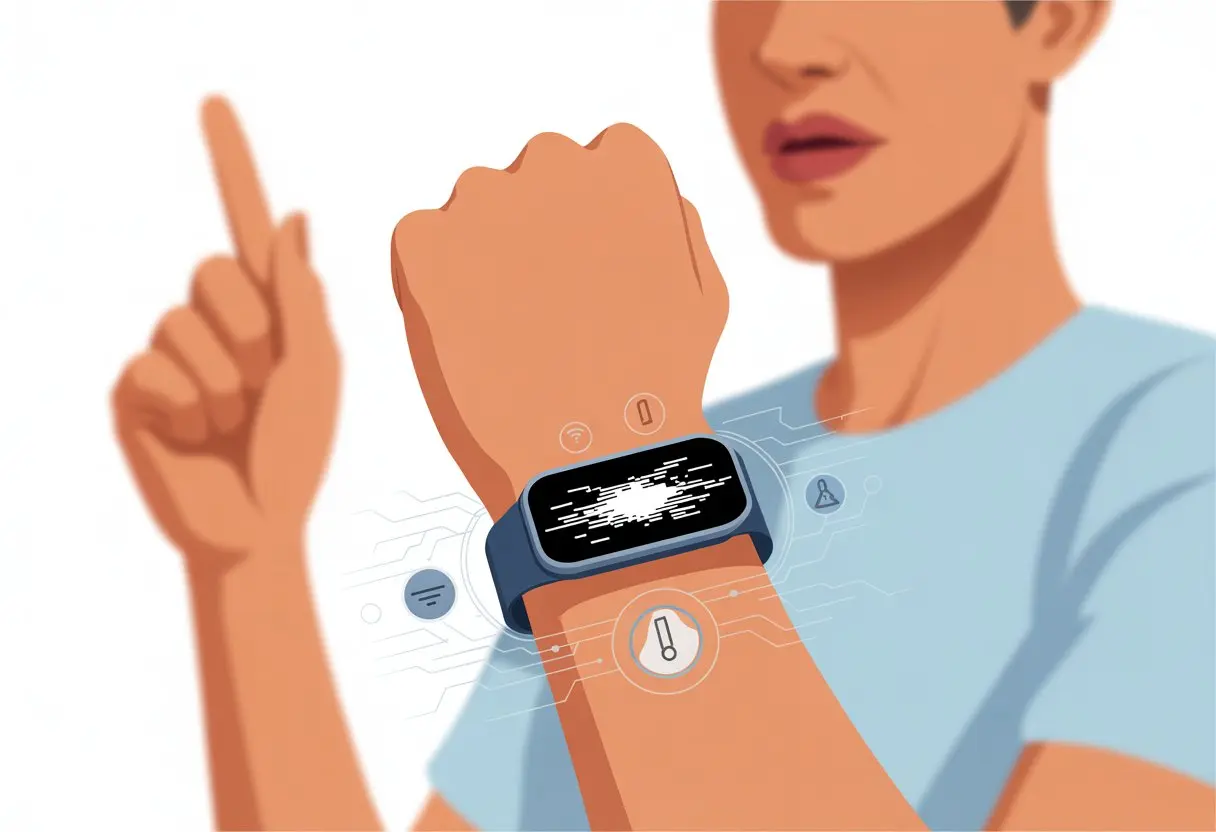
We’re here, glued to our daily step goals and itching to beat last week, but a frozen screen can turn “active lifestyle” into “active frustration” fast. When we can’t finish a workout or check our heart rate, it’s not just annoying—it can mess up our whole routine.
Stick around, and we’ll jog through the most common reasons trackers freeze and how to keep them running smoother than our pace on leg day.
Common Reasons Your Fitness Tracker Keeps Freezing
Let’s be honest—when our fitness tracker freezes, it feels like that classic moment when our computer crashes before we’ve saved anything. Suddenly, tracking goes out the window, and we’re left wondering if we burned any calories or just burned through our patience.
Software Glitches
Tech hiccups are usually the main culprit. Sometimes our tracker gets overwhelmed, sort of like a dog chasing its own tail. This might happen if we switch workout modes too quickly or open the app in a hurry.
The app might crash when we try to view certain workout details, and it can feel like we’re stuck in a loop. Fitbit users, for example, have noticed their app freezing while looking at exercise details.
Quick Fixes:
- Force close the app.
- Restart the tracker.
- If nothing helps, uninstall and reinstall the app.
If our tracker acts up, sometimes a reboot is all it needs.
Outdated Firmware
Running old firmware is like trying to play a new game on an ancient computer—it just doesn’t work for long. If we haven’t updated our tracker in forever, freezing is almost guaranteed.
Firmware updates fix bugs, boost performance, and add features. Skipping updates is like skipping veggies—sure, we can, but it’s not the best idea. We should check for the latest updates often. Restarting or plugging the device into a charger can sometimes kickstart an update.
If there’s an update available, we really should install it. This quick step can help prevent our fitness tracking from getting interrupted by crashes or freezes. Sometimes, a fresh update is all our device needs to act right again.
Storage Overload
If our tracker’s memory is jam-packed—think of that one drawer we keep stuffing—it might just refuse to work.
Too many saved workouts, messages, or extra apps can slow everything down. Some trackers stop recording new data when overloaded. When there’s no space left to process info, freezing is almost a given.
We should delete old data, clear out activity history, or sync data with our phones or computers. Regular digital cleaning keeps trackers running like new. Think of it as decluttering—without the dust bunnies.
Understanding Device Compatibility Issues
Sometimes, our fitness trackers freeze because they can’t get along with our other gadgets. Syncing with smartphones or using Bluetooth can trigger little meltdowns.
Syncing With Smartphones
Syncing should be easy, but sometimes it’s like solving a Rubik’s Cube with a blindfold. Different brands and models work better with some phones than others.
A tracker might work great with one Android, but freeze when paired with an iPhone on iOS 17. This happens a lot if we skip software updates or if a new update doesn’t play nice yet.
Honestly, we shouldn’t skip those app and firmware updates, even if they’re annoying. Also, it helps to double-check if our tracker brand even supports our phone model or OS version. Sometimes, features just don’t work right, and syncing glitches can mean lags, missed steps, and, yep, a frozen screen. Some users even notice mismatched data between the tracker and the phone app, as seen on the Fitbit community forum.
Bluetooth Connection Problems
Bluetooth is supposed to tie our gadgets together, but sometimes it’s just a tangled mess. If the Bluetooth connection drops or is weak, our device might freeze faster than leftovers in the freezer.
The biggest issues? Too many devices connected at once, being too far from the phone, or Bluetooth settings gone wild. Turning Bluetooth off and on again (the classic move) can help. If not, unpairing and re-pairing the tracker is our next best bet.
Some trackers like the Galaxy Watch 7 freeze after software updates, causing display lag and connection problems. Turning off auto features like always-on display and auto pause can sometimes help Bluetooth stability. There’s more about this in a Galaxy Watch Bluetooth discussion. If nothing works, maybe it’s time to let our gadgets chill out for a bit.
How Environmental Factors Can Cause Freezing
Sometimes our fitness trackers act up, and it’s not even their fault. Temperature swings and nearby tech can mess with their tiny computer brains.
Extreme Temperatures
We love sunny walks and chilly runs, but our trackers? Not so much. Extreme heat can make them overheat, freeze, or just shut down to protect themselves.
This happens a lot if we’re out when it’s blazing—like those days when just existing is enough to sweat. Fitbit users have seen their watches freeze during activities in temps above 90°F, especially if they’re outside for hours (Fitbit Surge freezes on hot days). On the flip side, freezing cold can also slow trackers down or make them unresponsive, since cold air messes with the battery and screen. If we want our stats to survive the weather, it’s best to avoid wearing smart devices during extreme heat or arctic blasts.
Quick checklist for temperature trouble:
- Don’t use your tracker in strong sun or super cold places
- Take breaks to let it cool down or warm up
- Cover your wrist in the cold and shade the device in the heat
Interference From Other Devices
Picture this: We’re in front of the TV, surrounded by every gadget we own, trying to get our steps in. All those wireless signals are bouncing around.
Our trackers use Bluetooth, GPS, and Wi-Fi, and too much interference from other electronics can confuse them. TVs, routers, even microwaves send out radio waves that mess with our tracker’s ability to connect or collect data.
Sometimes, trackers freeze or lose connection altogether. GPS is especially touchy, so indoor spots full of tech can make our step counts go wild instead of recording that power walk to the fridge. If our tracker gets stuck mid-workout, try moving away from electronic clusters or turning off unused gadgets. It gives our wrist buddy a better shot at counting steps without getting distracted by every device in the room.
Identifying Hardware-Related Freezing
When our fitness tracker freezes, it feels like it’s clocked out on us. Hardware problems can sneak up and ruin the fun, so we need to look at things like the battery and screen.
Battery Malfunctions
Honestly, nothing kills motivation faster than a step count stuck mid-stride because of battery drama. If our tracker keeps freezing or shutting off, the battery might be the culprit.
A battery that drains fast or refuses to charge is basically begging for help. Sometimes, a bloated battery (yes, it can puff up) or sudden shutdowns will leave us stranded. We should watch for overheating, weird charging times, or a tracker that keeps rebooting. Swapping in a fresh battery might be all it takes to get our frozen tracker back in action.
Here’s a quick battery troubleshooting checklist:
- Is our device shutting down even when the battery looks charged?
- Does it get hot while charging?
- Are charging times slow or unpredictable?
If the answer is “yes” to any of these, that battery probably needs a break.
Screen Unresponsiveness
There’s nothing like tapping a frozen screen twenty times, hoping it’ll snap out of it. Screen problems can make our tracker act like a stubborn cat—responsive one minute, ignoring us the next.
If the display keeps freezing or won’t respond to swipes and taps, hardware might be to blame. Sometimes, a loose screen cable or a cracked screen is the hidden gremlin. Screen lag can also happen after the tracker wakes from sleep, as folks mention with the Peloton Tread+.
And let’s not forget about liquid damage—sweat and electronics aren’t really friends, even if we look good at the gym. If a restart doesn’t fix our frozen screen, we might need a pro’s help or, honestly, a pep talk for our device.
Dealing With Boot Loop Nightmares
Boot loops are basically the digital version of being stuck in a revolving door—our tracker restarts again and again, and we just want to scream. Spotting the signs and knowing what to do can get us out of this cycle and back to counting steps instead of reboots.
Recognizing Boot Loop Symptoms
Here’s what to look for: a boot loop means our tracker keeps shutting off and restarting by itself. The device never fully starts up.
We stare at the logo, then a blank screen, then—yep—the logo again. Over and over. It’s like watching paint dry, but less interesting.
Boot loops can happen if a software update fails, the battery fizzles, or there’s some weird glitch. Some devices flash their start-up logo, others just freeze and go dark. If the device ignores touches or buttons, and restarting leads to the same cycle, we’re probably stuck in a boot loop. That’s when we know it’s not our fault—it’s just a tech meltdown.
Initial Troubleshooting Steps
When our tracker gets stuck in a boot loop, panicking doesn’t really do much (trust us, we tried). Let’s walk through a few things that might help:
-
Force a restart:
Hold down the main button for about 10-15 seconds. If we’re lucky, the logo pops up and the tracker boots up normally. If not, well, at least our fingers got a workout. Some brands, like Garmin, make us hold the light or control button for up to 30 seconds to make sure the watch is really off before restarting it. Here’s a Garmin boot loop fix. -
Check for battery life:
If the device keeps dying, plug it in. Sometimes, a simple charge is all it needs. -
Update or reset:
If it finally powers up, check for any pending software updates. Sometimes a factory reset is necessary, but keep in mind—this wipes out all our data.
If nothing works, we might need to contact support (or, in a fit of desperation, threaten to stick the tracker in the freezer—hey, some tried it with their Apple Watch Apple Watch stuck in boot loop). At least we’re not the only ones facing these boot loop headaches.
How To Fix A Freezing Fitness Tracker
Fitness trackers always seem to freeze up at the worst possible moment—right before a run or halfway through a walk. Before we give up and toss it in the junk drawer, let’s try a couple of fixes.
Restarting Your Device
Honestly, nothing beats a classic restart. When a device acts up, turning it off and on again sometimes works wonders. Most trackers have a restart or reboot option in the settings.
If the screen’s frozen and buttons don’t respond, try pressing and holding the power button for 10 to 30 seconds. That usually forces a restart. For some trackers, plugging it into the charger and holding the button does the trick. Restarting can clear up temporary software glitches, and we get a quick break while the tracker sorts itself out.
Restarting won’t erase our data or mess with our settings, so it’s a safe move. If the app on our phone freezes too, we should close it and clear its cache or offload the app, especially if we’re using iPhone or Android. Tips from the Fitbit community suggest this combo often gets things running again.
Performing A Factory Reset
If restarting doesn’t help, it might be time for a factory reset. This wipes everything—workouts, settings, all of it—so we should back up anything important first.
Each tracker handles this a bit differently. Usually, the reset option sits under “Settings.” Some devices, like Garmins, make us hold specific buttons while plugging into a charger. It’s not exactly a universal fix, but it often works when nothing else does.
After a factory reset, we’ll need to go through the setup process again. It only takes a few minutes, though it might test our patience if we’re in a hurry.
Repair Tools And Advanced Fixes
Sometimes, our fitness trackers just refuse to cooperate. When the usual tricks don’t work, we might need to break out some special tools or apps meant for tougher problems.
If our tracker still acts like a frozen popsicle, Tenorshare ReiBoot could be our next move. This tool helps fix system glitches without erasing our data.
Here’s what we need to do:
- Download and install ReiBoot on the computer.
- Connect the tracker with a USB cable.
- Follow the prompts to start repair mode and let ReiBoot work its magic.
It’s pretty straightforward, but we should make sure the tracker is charged and follow each step carefully. The nice thing is, ReiBoot works with lots of devices stuck on loading screens—not just Apple stuff. More info on using tools like Tenorshare ReiBoot is available if we’re curious.
Other Troubleshooting Apps
If ReiBoot doesn’t cut it, other apps might help. Some scan for software errors, clear out temporary files, and reset the system cache. These are for stubborn issues that a regular restart can’t handle.
Most apps are pretty user-friendly:
- Download the app to the computer or phone.
- Connect the tracker.
- Run a repair scan or follow the app’s repair wizard.
We should double-check that the app works with our specific device and operating system. Sticking with official or highly rated apps reduces the risk of making things worse—or bricking the tracker. Some apps even let us back up our data before making changes, so we’re not losing those precious (or possibly exaggerated) step counts.
When To Call In The Experts
Sometimes, no matter what we try, the tracker just won’t cooperate. That’s when we need to look at other options.
Reaching Out To Customer Support
After the tenth restart, it’s easy to wonder if our watch is haunted. That’s when customer support becomes our lifeline. Brands like Fitbit, Garmin, and Apple have teams ready to help with firmware bugs or stuck updates.
Before we reach out, it’s smart to gather our device info, jot down what we’ve already tried, and maybe snap a photo of the frozen screen. That way, we won’t get caught off guard when they ask for details.
Sometimes, poking around support pages turns up fixes or updates we didn’t know about. If we’re still stuck, starting a chat or sending an email can get things moving. And if our fitness app freezes when checking exercise details, chances are someone else has run into the same problem. The Fitbit community forum is a great place for real-life advice.
Considering Professional Help
If the tracker keeps misbehaving, it might be time for professional help. Some issues—like cracked screens or hardware that just won’t reboot—need more than a DIY fix.
We can send the tracker to an official service center or try a local electronics repair shop. If it’s under warranty, mailing it in usually costs nothing. That way, we’re not stuck with a dead device and a pile of missed steps.
Before paying for repairs, it’s worth comparing costs. If fixing it costs half as much as buying a new one, maybe it’s time to upgrade. As much as we love our gadgets, sometimes we just have to move on—especially if our patience is running out along with the battery.
Preventing Future Freezes
When our tracker freezes mid-workout, it’s more than annoying—it can totally mess up our groove. A few good habits can save us from these headaches down the road.
Regular Software Updates
Software updates are like vitamins for our trackers. If we skip them, our gadgets get cranky—kind of like us before coffee. Updates often fix freezing and squash bugs.
We should set reminders to check for updates every few weeks. Most trackers make it easy in their companion apps. Just tap a button and let it do its thing. Updates can improve battery life, add features, and keep workouts running smoothly.
If our tracker asks to update before a workout, it’s worth letting it finish. Those few minutes could save us from a mid-run restart. And if we’re using an Apple Watch, sticking with the latest stable version of WatchOS—like the support forums recommend—keeps crashes to a minimum.
Best Practices During Workouts
Keep your tracker from freezing by keeping things simple during your workouts. When you start too many apps or switch modes too quickly, even the smartest devices get confused.
Pick your workout, hit start, and try not to mash all the buttons like you’re launching a rocket. It’s tempting, but it just makes things worse.
Close out any unused apps running in the background on your phone or watch. Less clutter means fewer crashes.
If your battery’s almost dead, maybe hold off on starting a workout. Trackers seem to freeze more often when they’re low on juice.
Sometimes, a tracker just hates certain activities. If yours always freezes on cardio or interval training, you’re definitely not the only one. The Fitbit Community points out that some workout modes cause more trouble than others.
If you keep running into the same problem, try switching up your routine or picking a different workout mode. That little change might save you from another freeze-fest.

From a young age, I have always had a big interest in technology, and this blog is an extension of that interest. Through this blog, I hope to provide others with all of the information they need regarding tech options to consider, and things such as compatibility. Some of the different items I will be discussing include headphones, smartwatches, and how to fix common issues.
- Best Aviation Headset To Buy For Student Pilots? (7 Top Picks By Budget) - October 21, 2026
- The Best Rugged And Waterproof Smartwatches - October 21, 2026
- 10 Best Military Smartwatch – Find The Best Tactical Military Watches in 2023 - October 20, 2026
Related Posts: