Let’s be real—few things annoy us more than gearing up for a workout, only to watch our fitness tracker suddenly call it quits. One minute it’s logging every step; the next, it’s as lost as we are in a mall parking lot.
Our fitness tracker disconnects at random because of signal hiccups, outdated software, or settings that make it tough for the watch and phone to stay buddies.

We’ve all been there—waving our wrist around, rebooting our phone, just hoping the connection comes back. These annoying disconnects usually happen if the devices drift too far apart, Bluetooth throws a tantrum, or smart lock settings get weird—just like so many users have described in their connection woes.
It might feel like our trackers are rebelling against cardio, but there are some basic reasons behind all this drama. Let’s dig in and figure out why our trusty fitness buddy sometimes vanishes, and what we can actually do to keep it glued to our side.
Understanding Why Your Fitness Tracker Disconnects
Fitness trackers can drive us a little nuts when they keep disconnecting. The good news? Most problems have simple explanations, and a few tweaks usually get us back on track.
Common Causes of Automatic Disconnections
Half the time, our fitness tracker drops connection for reasons that seem silly in hindsight. Did we wander off to the other room? Bluetooth often cuts out if we leave our tracker in the kitchen while we bribe the dog to go outside.
Other culprits include low battery, phone settings like battery saver, outdated software, or too many Bluetooth devices fighting for attention. If we’ve got more than one device connected (like headphones and our tracker), we might see some random disconnects.
Restarting both the tracker and our phone can sometimes fix stubborn issues.
How Connectivity Works With Fitness Trackers
Fitness trackers rely on Bluetooth—it’s basically an invisible leash between the tracker and our phone. If either device goes into battery saver mode, or if thick walls or microwaves get in the way, that leash snaps pretty easily.
Many trackers need us to keep an app running in the background, or at least not force-closed. Turning off battery optimizations for the fitness app can keep the connection alive.
Sometimes Bluetooth just gets moody; toggling it off and on refreshes things. As Wear OS troubleshooting suggests, moving our devices closer together can work wonders.
Difference Between Fitness Trackers and Smartwatches
We toss around “fitness tracker” and “smartwatch” like they’re the same, but they’re not. Fitness trackers are usually lighter, last longer on a charge, and focus on activity—so fewer features and sometimes fewer connection headaches.
Smartwatches try to do everything—emails, calls, heart rate, maybe a dance routine (okay, not quite). They juggle more tasks and apps, so they often run into more connection problems.
If our tracker is acting up, it’s worth checking if it’s actually a tracker or a multitasking smartwatch. The fix might depend on the gadget we’re wrangling.
Top Troubleshooting Steps for Random Disconnections
When our fitness trackers disconnect out of nowhere, it’s usually down to power issues, Bluetooth drama, or a tiny settings hiccup. Tackling these one by one helps us get back to counting steps instead of dropped connections.
Checking Battery Life and Power Settings
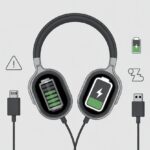
The battery—always lurking. When our fitness tracker runs low on juice, it starts turning off features, disconnecting from Bluetooth, or just giving up. We should check the battery icon often.
If it’s under 20%, time to charge up. Power-saving settings can also sneak in and mess things up.
Look for sleep modes or battery saver features in the tracker’s app or device menu. Turning these off can keep our tracker awake and connected.
Extreme temperatures? Those zap batteries fast. Leaving our tracker in the sun or the cold just makes it beg for mercy—and a charger.
Ensuring Proper Bluetooth Connection
Bluetooth connections can be as shaky as a toddler on roller skates. For a solid link, both our tracker and phone need Bluetooth turned on. If we wander more than 30 feet away, we’re just asking for a dropout.
If disconnects keep happening, we should forget the device in our phone’s Bluetooth settings and pair it again. That often clears up weird issues.
Too many Bluetooth devices in the area? Signals get jumbled. We should disconnect anything we don’t need for now.
Keeping our tracker’s app updated and making sure our phone’s software isn’t ancient helps, too—as mentioned in this Garmin forum.
Dealing With Notification Settings and Permissions
Believe it or not, our notification settings can ruin everything. Many trackers use notifications to stay synced.
If we turn off all notifications or limit permissions, our tracker might wander off and disconnect—some Fitbit users have seen this.
We should check our app’s notification settings. Some devices need all notifications or specific permissions to keep syncing.
On our phone, we need to make sure the app can run in the background and send notifications. Turning on all-day sync, if possible, helps keep tracker and phone on speaking terms.
If notifications get silenced or “Do Not Disturb” is on, syncing can stutter. Let’s keep those pings coming—even if it means more reminders to get up and move.
Fixes That Actually Work (Most of the Time)
Sometimes fitness trackers disconnect because of a little hiccup, and other times, it’s more complicated. Before we consider launching our tracker into orbit, there are a few fixes that actually work for most people.
How to Manually Reconnect Your Device
Let’s be honest—sometimes, tech just wants attention. If our tracker keeps disconnecting, we should manually reconnect.
Here’s how we can outsmart our devices:
- Open Bluetooth settings on our phone or tablet.
- Turn Bluetooth off, count to ten (for dramatic effect), then turn it back on.
- Find our tracker in the list. If it’s hiding, hit “Pair New Device.”
- If it still won’t connect, try unpairing and pairing again.
- Cross your fingers—can’t hurt, right?
For some trackers, like Apple Watch, unpairing and restoring from a backup works for persistent issues, as users have shared on this Apple Fitness Plus forum.
We should keep our devices close together. Trackers get lonely and don’t like connecting from across the room.
When to Reboot or Reset Your Fitness Tracker
If nothing else works, the old “turn it off and on again” trick becomes our superpower. A quick reboot can clear up those mysterious gremlins.
Here’s what usually works:
- Restart the tracker with its power button or app settings.
- Restart our phone or tablet too—fresh start for everyone.
- If the tracker’s extra stubborn, a factory reset might be needed. This erases everything, so back up anything important (like those 10,000 steps we actually did).
- Rebooting and resetting often help with software glitches, battery weirdness, and even the “my tracker thinks I’m a ninja and disconnects” problem.
If our device disconnects when too many notifications hit, battery issues might be the real culprit, as some folks pointed out in the Apple Support Communities.
Every tracker resets a little differently, so don’t be afraid to check the manual—yeah, the one we stuffed in a drawer last year.
Advanced Troubleshooting: When Your Tracker Is Extra Stubborn
If our fitness tracker keeps breaking up with our phone, it might be time to get a little extreme. Let’s try some bold moves, from total resets to tech wizardry with Play Store tools.
Factory Reset: Last Resort or Miracle Solution?
When nothing else fixes it, a factory reset acts like a panic button. This wipes our tracker’s memory and settings, basically sending it back to “just unboxed” mode.
We lose saved workouts, profiles, maybe even that high score from last week’s lunchtime walk. Before going nuclear, we should back up anything important and make sure our tracker’s charged.
The reset steps usually go like this:
- Find “Settings” on the tracker.
- Look for “Reset” or “Factory reset.”
- Follow the on-screen instructions (try not to gasp dramatically).
After the reset, we’ll need to pair the tracker with our phone again, just like the first time. If it still keeps disconnecting, maybe it wants a real vacation—or a replacement.
Troubleshooting With Play Store Apps
When patience runs out, we can let some Play Store apps do the heavy lifting. Apps for device monitoring help us spot connectivity issues, outdated software, or background restrictions that mess with our tracker.
Here’s a quick checklist for using these apps:
- Bluetooth scanner apps: Show which devices are connected (or struggling).
- Battery optimization checkers: Reveal if our phone is putting the tracker app to “sleep.”
- Firmware update tools: Help us grab the latest version for smoother connections.
We should update everything—tracker firmware, app, even our phone’s software. Sometimes, the real villain is just an old app that can’t keep up.
If our tracker survives this tech gauntlet, we might finally get to enjoy some uninterrupted step counting.
Software, Updates, and Connectivity Limitations
Let’s be real: nothing kills the workout vibe faster than a fitness tracker deciding to take a “connection nap” right in the middle of a run.
Our devices need updates, steady connections, and honestly, a bit of patience from us.
Importance of Timely Software Updates
Software updates work like vitamins for our smart gadgets—just without the weird aftertaste.
If we skip updates, our trackers start acting up. They might lose connection, freeze, or just throw a tantrum that rivals a toddler at bedtime.
Updates squash bugs, boost security, and help our tracker actually talk to our phone.
Sometimes after an update, settings flip off or reset for no good reason. If activity tracking keeps turning off or we spot repeated connection issues, grabbing the latest software can fix those weird problems.
Yeah, it’s annoying, but updating apps and devices is the easiest fix we never want to do—but really should.
Compatibility Issues and Connection Speed
Not every device wants to play nice.
If we’re using a phone from 2015 and a shiny new tracker, the connection might drop faster than our motivation on a rainy morning.
Compatibility headaches can make a fitness tracker disconnect every time we try to sync.
Sometimes, even updates break the bond and force us to reconnect everything.
Connection speed matters, too.
Bluetooth can get flaky—slow, out of range, or just plain confused by other devices nearby.
If the connection drags, we’ll notice laggy updates or straight-up disconnections.
Moving the tracker and phone closer, turning off extra devices, and making sure both are updated can help keep things together (at least until the next step count celebration).
Other Settings That Could Be Causing Chaos
It’s tempting to blame a weak battery or our phone, but sneaky settings can be just as much trouble.
Sometimes, it’s the tiny things—timers or those fancy watch faces—that make our tracker act like it’s got a secret agenda.
How Activity and Timer Settings Interrupt Connections
Let’s admit it, we love messing with our trackers, setting up activities or timers for workouts.
But did you know running multiple activities or timers can mess with connections? When the tracker juggles pause, start, and stop, it sometimes drops the connection, leaving us hanging.
Battery-saving features also add to the circus.
When activity and timer features keep waking the device, power-saving mode might just drop Bluetooth to save energy.
The result? We miss out on our latest lap.
Before blaming the tracker, we should try a full restart, clear the cache, or even uninstall and reinstall the fitness app.
Sometimes activity tracking keeps turning off for no obvious reason, so checking every setting is worth a shot.
The Mysterious Case of Watch Faces and ANT+
Watch faces—yeah, we all love a flashy look.
But sometimes, a third-party watch face sends the tracker into a tailspin, confusing the whole system.
If we notice disconnects right after changing the face, we probably found the troublemaker.
And don’t forget ANT+. This low-power tech lets the tracker talk to heart rate monitors and other sensors.
If two devices fight for the ANT+ channel, the tracker might just disconnect to escape the mess.
Quick tip: Try a simple, default watch face first.
If things improve, maybe it’s time to ditch the neon-cowboy theme and stick with basics.
With ANT+, reconnecting or unpairing unused sensors might just save us from another midnight connection drop.
Tips for Consistent Performance and Enjoyment
Let’s get serious for a second—seriously practical, that is.
First off, just keep Bluetooth turned on and nearby. Otherwise, the watch might wander off from the phone (not literally, but you get it).
If the connection drops, try restarting both devices. That old “turn it off and on again” trick? It still works more often than you’d think.
Sometimes, battery saver on your phone shuts down the app in the background. On Android, just add it to the protected apps list. That way, it keeps running even with the screen locked.
Nobody wants their fitness data taking a nap during a workout. Steps missed? Well, they’re gone for good.
Still having issues? Try removing and re-pairing the device in the app. It’s like hitting reset in a relationship—sometimes you need a fresh start.
You’ll find more tips like this on community forums, especially for weird problems like when devices disconnect if the app isn’t open or the screen is locked.
Keeping your tracker happy and connected isn’t rocket science. It just takes a bit of attention, maybe a pep talk—activate that Bluetooth, keep your phone close, and get back to breaking a sweat at your own pace.

From a young age, I have always had a big interest in technology, and this blog is an extension of that interest. Through this blog, I hope to provide others with all of the information they need regarding tech options to consider, and things such as compatibility. Some of the different items I will be discussing include headphones, smartwatches, and how to fix common issues.
- Why is my fitness tracker disconnecting randomly? Blame Bluetooth, Not Gremlins - September 29, 2026
- Why is my fitness tracker showing inaccurate distance? 7 Reasons Your Steps Think You Teleported - September 29, 2026
- Best Bluetooth Headphones for Meditation Music: Tune Out the Chaos, Tune In the Zen - September 28, 2026
Related Posts: