Let’s be real—there’s nothing more frustrating than finishing a workout, only to have our fitness tracker act like it never happened. We sweat, we ache, and yet, our app just sits there at zero—like it didn’t just watch us jog around the block three times and nearly trip over the neighbor’s cat.
Most of the time, our tracker skips recording workouts because of a sync issue, outdated software, or because it just can’t pick up the movements we make.
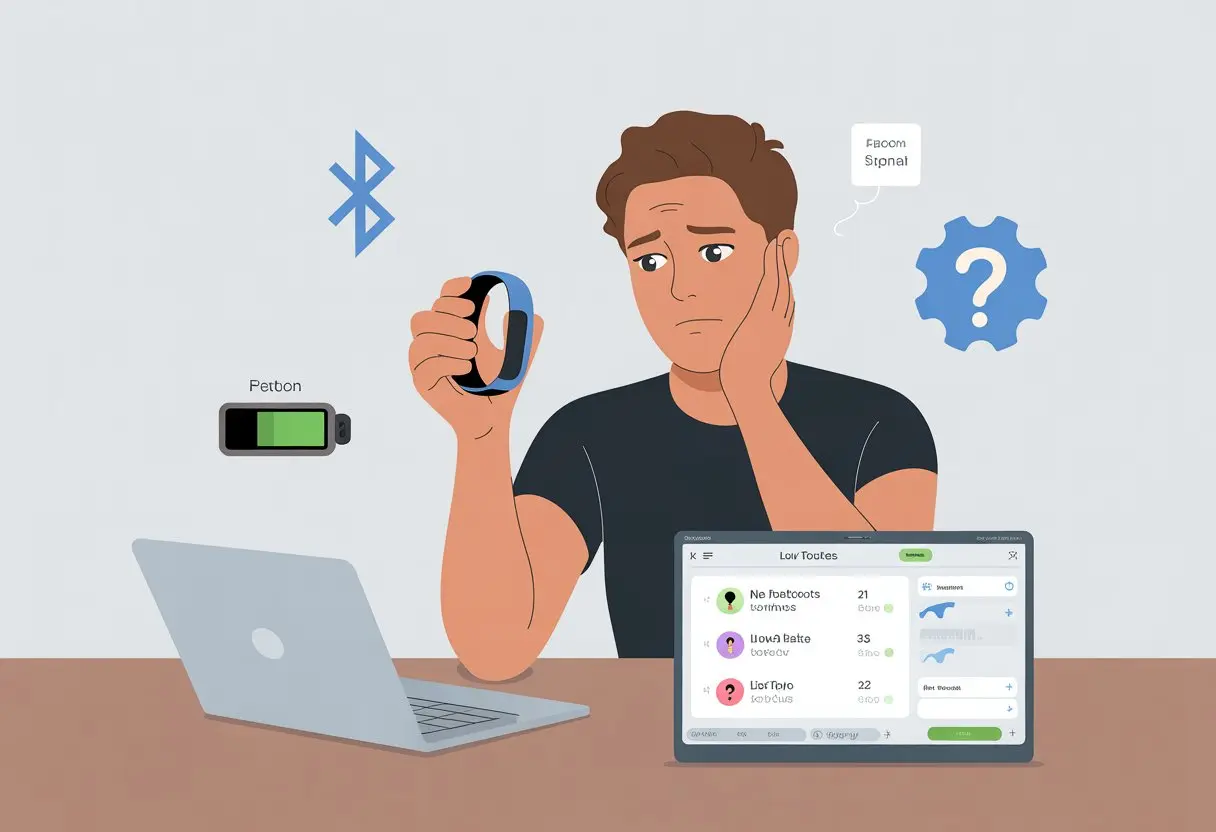
We’ve all stared at our devices, silently wondering if they’re plotting against us or if we’ve missed some obvious fix. Sometimes, the tracker just doesn’t connect well to our phone or watch, or it’s only set to recognize certain activities.
Whatever’s happening, we end up looking at an empty workout log, feeling a bit cheated.
If you’re nodding along, you’re definitely not the only one. Let’s figure out why these gadgets take random days off and get back to getting credit for every squat, sprint, and step.
We’re not letting a lazy tracker mess with our fitness game!
Common Reasons Your Fitness Tracker Is on a Workout Strike
Sometimes our trackers seem more interested in napping than logging our sweat sessions. Why do they go on strike and refuse to join us for a stroll, jog, or kitchen dance party?
Sensors Not Detecting Activity
We’ve all waved our arms like we’re hailing a cab, but the tracker just sits at zero. Fitness trackers use motion (like wrist swinging) and heart rate changes to detect workouts.
If we’re cycling or pushing a stroller, our hands barely move, so the sensors don’t pick up much.
It gets even trickier with certain workouts. Some trackers won’t recognize every exercise type and mostly give reminders for things like walking, running, or swimming.
That means our “living room step aerobics” session might go unnoticed unless we select it manually.
For better tracking, check if the tracker is set to the right activity and worn in the right spot. Make sure personal data (like weight and height) is accurate.
A quick settings update or manual logging can help stubborn trackers behave. You can find more tips about inaccurate activity logging in this community discussion.
Connectivity Woes
Sometimes, our tracker acts like an old radio—only working when the signal is perfect. Most trackers use Bluetooth to sync data with our phones or apps.
If the connection drops, workouts might disappear or get stuck in limbo.
App glitches and outdated software can also cause missed activity logs. Sometimes, our phone and tracker just need to “reintroduce” themselves by repairing the Bluetooth or restarting both devices.
It’s worth checking if app permissions are correct and that the app is up to date. If connectivity isn’t fixed, even a perfect run can become invisible.
Insufficient Battery or Low Power Mode
Running a marathon is tough—so is getting through the day with a low battery on our tracker. Many devices shut down sensors or switch to low power mode to save battery.
When that happens, key features like heart rate monitoring or movement detection just stop.
This setting often turns off exercise auto-detection or disables syncing until we recharge. Start every workout with enough battery.
Most trackers show a warning when power-saving is on. If we see that, it’s time for a quick charge to avoid missing out on activity minutes.
Software Issues Ruining the Sweat Fest
When our fitness trackers suddenly stop counting workouts, it’s easy to feel like technology is out to get us. Broken apps, outdated firmware, or corrupted data can mess up our sweat plans faster than we can lace up our sneakers.
Let’s tackle these tech troubles one at a time.
Outdated Firmware or App Versions
Sometimes, trackers act up just because the software is out of date. Old firmware or app versions can cause missing workouts, weird calorie counts, or a tracker that won’t sync.
We should check for updates regularly, whether we’re using iOS or Android. Most fixes come with the latest download, so hitting that update button is a must for anyone who wants accurate step counts.
Some fitness apps, like the Sweat app, even suggest reinstalling to fix bugs from old versions. If we skip updates, our hard-earned sweat might not show up at all.
Plug in, hop on Wi-Fi, and grab those updates before the next workout. It’s better than explaining why our walk around the block vanished.
System Errors and Glitches
Our gadgets might be smarter than old pedometers, but they still have meltdowns. System errors happen.
Sync problems, random crashes, or the app freezing mid-burpee can all keep workouts from being saved.
Restarting the tracker sometimes works wonders. If the app is stuck, force-closing and reopening it can help.
iOS users can try tools like TunesKit iOS System Recovery for persistent fitness app not working issues.
On Android, clearing the app’s cache or doing a full restart usually helps. If things are still frozen, turning it off and on again—maybe with some hope—might be our last shot before tech support.
Deleted or Corrupted Workout Data
Finishing a killer workout only to find our tracker lost the evidence stings. Deleted or corrupted workout data can happen for a bunch of reasons: failed syncing, a crashed app, or data getting lost during an update.
Sometimes, restoring from a cloud backup can save the day—if we set up backups ahead of time.
iOS has built-in features for syncing data to iCloud, while most Android fitness apps let us back up workouts to Google Fit or something similar.
Without a backup, our squats might be gone, but resetting fitness calibration data or reinstalling the app could shake loose any stuck records.
Set apps to back up automatically to avoid this pain. Even if the data vanishes, at least we’ll have the memory (and maybe the sore muscles) to prove we did the work.
Pairing Problems: When Your Tracker Ghosts Your Phone
Our fitness trackers are supposed to stay loyal, but sometimes they vanish like socks in the dryer. If our phone suddenly acts like our shiny gadget doesn’t exist, the problem might be pairing or Bluetooth issues.
That leaves our workout data lost somewhere in the void.
Unpaired Devices
Sometimes, trackers just lose their connection to our phones. It’s like inviting your Apple Watch to a party and it just stays home.
One moment, steps sync perfectly; the next, workout data is stuck on the watch.
An accidental unpair often happens after a software update or a missed setting. This pops up a lot when we switch between devices, like using two watches without checking the auto switch feature.
Our iPhones and Androids might not “see” the tracker, making data sharing impossible.
If reconnecting through the app fails, we might need to unpair and pair the device again. It’s annoying, but it usually fixes things.
Detailed instructions in community forums can help.
Bluetooth Malfunctions
Bluetooth is the invisible bridge between our phone and tracker, but sometimes it works about as well as a paper umbrella in a thunderstorm. If syncing fails, Bluetooth is probably the culprit.
Signs include repeated connection drops or our phone refusing to find the device at all. Restarting both phone and tracker often solves the issue.
If that doesn’t help, forget the tracker in Bluetooth settings and reconnect.
Here’s a quick cheat sheet:
| Step | What To Do |
|---|---|
| Turn Bluetooth off/on | Quick fix for lazy connections |
| Restart devices | Old-school, but works surprisingly well |
| Forget device | Remove and re-pair in phone’s settings |
Settings Set You Up to Fail (at Step Counting)
When our step counter says we’ve been glued to the couch all day, it’s often because of our phone or watch settings. These technical hiccups can leave our activity rings empty and our motivation even lower.
Disabled Fitness Tracking
If it feels like our tracker is ignoring us, fitness tracking might just be turned off. Yes, the simplest setting can stop every step from counting.
On iPhones, head to Settings > Privacy > Motion & Fitness and make sure Fitness Tracking is switched on. If we use Apple Health or any health app, double check it’s allowed to collect motion data.
It sounds boring, but it’s like giving permission for the device to do its job. More than one of us has started a walk, wondered why it’s not being recorded, and found we accidentally turned off a tiny toggle.
Apple Watch users, check the Watch app on your iPhone under Privacy settings. If these options are off, running around won’t show up on our health data or activity app.
Not until we flip that switch will our steps start popping up, almost magically. For more details, check out this tip about fixing step tracking.
Privacy Permissions Not Granted
Even if fitness tracking is enabled, apps like Apple Health can’t track anything unless we grant permission to read our health data. Sometimes, we hit “Don’t Allow” by accident, and the app can’t record our stroll to the mailbox.
Check which apps have access to your data by going to Settings > Health > Data Access & Devices. The list shows which devices and apps have permission.
Granting access lets our workouts finally appear on the health app and fill those empty activity rings.
Got a new watch or iPhone? We have to give permission to each device, not just once. It’s like an exclusive club—each member needs their own badge.
If we forget this step, our workouts vanish, and the rings unfairly accuse us of doing nothing. Learn how to set permissions with these Health app instructions.
Not All Workouts Are Created Equal: Tracker-Friendly Activities
Sometimes we think our fitness trackers can do everything but spot us at the gym. The truth is, some activities are just easier for trackers to record than others, and it doesn’t always match what we want to accomplish.
Supported Workouts on Your Device
Let’s be honest—our fitness trackers definitely play favorites, and they usually stick with the classics. Most modern trackers happily log walking, running, cycling, and swimming.
If we wander outside those basics, things get weird fast. Yoga, Pilates, and dance? Our tracker might not even notice unless we pick something similar from its list.
Before we start, we should check if our chosen workout actually shows up in the tracker’s supported activities. Some devices let us add custom workouts, but others stick to a strict menu.
If we just tap “Other” every time, the tracker might only count our steps and ignore all the hard work. For extra advice on how certain workouts can mess with tracking, check out Apple Watch not counting exercise minutes.
Strength Training and Rep Counting
Strength training throws a lot of fitness trackers for a loop. When we run, every step is easy to track, but reps and sets? Not so much.
We might do a tough set of curls, and our tracker just thinks we’re standing around, waving our wrist. Some trackers try to keep up by offering rep counting or “strength training” modes.
These modes can count reps and sets, and sometimes they’ll even buzz us when it’s time for a rest. But honestly, they’re not perfect. If we grip the bar weird or pause too long, the count gets all messed up.
One trick is to move in big, clear motions during reps or just log the workout manually. If our tracker gets fussy, we can always add the details in the app later.
That way, all our effort actually shows up in those daily stats. No wasted sweat!
Cycling, Running, and Other Movement-Based Workouts
Movement-based workouts are where fitness trackers really shine. Running, walking, and cycling get tracked easily because the sensors love repetitive, steady action.
When we’re cycling or running, GPS and accelerometers work together to track distance, speed, and calories. Step tracking works great for running and walking, but it drops the ball for cycling—our feet never hit the ground.
Other workouts, like hiking or rowing, sometimes need special modes. If we pick the right setting and make big, obvious movements, our tracker responds better.
Choosing the closest match for our activity helps us get credit for every mile, pedal, or sprint. It’s all about picking the right mode—then our tracker finally cheers us on like the digital coach it’s supposed to be.
Device-Specific Troubleshooting: Apple Watch, Fitbit, and Friends
Every so often, our trusty fitness trackers need a little nudge to get back on track. Software hiccups, connection issues, or weird settings can throw things off, and each device has its own quirks.
Apple Watch and Apple Watch SE Mishaps
When our Apple Watch suddenly stops logging workouts, panic can set in faster than our heart rate during HIIT. First thing we should do? Make sure the Workout, Activity, and Heart Rate apps aren’t frozen.
We close them out, then restart both our iPhone and watch for a much-needed reset. Stuck workout rings can happen when the watch loses connection with the iPhone or isn’t snug on our wrist.
We’re not alone—plenty of folks on Apple forums have run into this. Recalibrating the fitness tracking by walking or running with the device outdoors for 20 minutes can help a lot.
It’s smart to check privacy settings, too. If motion and fitness tracking isn’t allowed, our steps just vanish. Sometimes turning on Location Services brings everything back to life.
Fitbit Fails
When our Fitbit won’t record our workout, it’s usually a sync or app hiccup. The number one move: force the app to sync by swiping down on the dashboard.
If that doesn’t work, we restart both the tracker and our phone. Sometimes Fitbits need more encouragement than we do on a Monday morning.
People in the Fitbit Community say GPS errors and outdated apps are usual suspects. Keeping the app updated and checking Bluetooth connections keeps things running smoother.
If our activity disappears after switching phones or resetting passwords, we double-check our login and account. If nothing works, logging out and back in—or reinstalling the app—often zaps the bugs.
Third-Party Fitness Apps
Apps like Runkeeper, Strava, and the rest come with their own drama. If workouts aren’t recorded, it’s usually a permissions issue. Without access to motion or GPS, these apps just watch us sweat and do nothing.
Strava sometimes “forgets” activities if it can’t connect to the internet or sync with our Garmin, Apple Watch, or Fitbit. We need to make sure auto-sync is on, and that battery-saving or background app restrictions are off.
Runkeeper can miss workouts if our phone loses GPS mid-run, or if we just forget to hit “Start” (it happens). Keeping apps updated, double-checking device connections, and letting them run in the background saves us future headaches.
If nothing helps, uninstalling and reinstalling is usually the shortcut we need.
The Fix-It List: Steps to Rescue Your Recordings
Let’s roll up our sleeves and get our workouts back on track. These steps cover everything from updating cranky software to giving devices a fresh start—no dumbbells needed.
Update Firmware and Apps
Before we blame our sweat glands, let’s check if we’re running the latest versions. Developers love sending out firmware packages as if they’re care packages for our devices.
These updates fix bugs, add new features, and improve workout tracking. We should open our app store and see if there’s an update waiting.
If we’re rocking a fitness watch, its companion app probably needs an update, too. Some fitness devices get firmware updates through Bluetooth, so we should make sure ours are paired and charged up.
Just like us, our software needs regular refreshers to work its best. Keeping apps and firmware up to date can solve sneaky problems we didn’t even know about.
Restart Your Device
When in doubt, reboot! It’s not just tech advice—restarting really does fix a surprising number of glitches.
If our fitness tracker or watch isn’t recording exercise, turning it off and on again wakes up sleepy sensors and refreshes connections. We should power down our watch, tracker, or even our smartphone (especially if we use an Apple Watch—sometimes a restart on both devices is essential).
Give everything a breather, then turn them back on. It’s a bit like us after a quick nap—suddenly, we remember how to do our jobs.
Reset Calibration and Settings
If our step counts look like spaghetti math or the exercise ring won’t budge, it might be time to reset fitness calibration data. Our trackers learn from us, but sometimes they forget and need help remembering.
Most fitness apps let us “reset calibration” or clear old, confusing data. On Apple Watch, for example, we can go into the Watch app on our iPhone, find Privacy settings, and reset fitness calibration data.
This tells the tracker to relearn our stride and pace. Goodbye, bad habits!
If problems keep piling up, deleting and reinstalling the fitness app might help. No need to panic—our data usually hangs out safely in the cloud, waiting for us to log back in.
Standard Repair or Contact Support
Sometimes we do everything right and our fitness tracker just stands there, arms crossed, refusing to budge. That’s when it’s time for a standard repair or to call support.
Most devices have built-in troubleshooting—some even have a “standard repair” mode or a diagnostic tool. If things go completely sideways, official support can talk us through fixes or arrange a repair.
If all else fails, a pro might need to tinker with our gear. It’s a bit like taking our tracker in for a tune-up—it’ll come back ready to count every step, burpee, and questionable dance move with fresh enthusiasm. For more detailed help, the Apple Support Community discusses these issues in detail.
Pro Tips to Avoid Future Workout Amnesia
Nobody wants to pour sweat into a workout only for their fitness tracker to pretend nothing happened. Let’s outsmart our gadgets and make sure every burpee, pushup, and questionable dance move gets counted.
Check Regularly for Updates
We all know our tech can be needy. Fitness trackers are no different. Developers fix bugs, improve tracking, and unlock new features with updates.
When was the last time we checked for one? Here’s a quick checklist:
- Visit the app store every week or so.
- Update both the tracker and its app—new versions help sensors and the accelerometer work better.
- Reboot the device after updating for best results.
Don’t forget to keep Apple Health or other fitness apps fresh, too. Skipping updates is like skipping leg day—it’ll catch up to us. For more help, some users share similar stories in the Apple Support Community.
Calibrate Sensors Properly
Sensors are the brains (and sometimes the attitude) behind our fitness trackers. If they aren’t calibrated, our hard-earned jog might look like a stroll to the fridge.
Here’s how to keep the accelerometer and sensors in check:
- Follow the device’s instructions to calibrate, especially during setup.
- For step or movement calibration, take it for a short, brisk walk so it learns our style.
- Adjust sensitivity or motion settings as the manufacturer recommends.
Some trackers need a little encouragement (and maybe a pep talk) to read our unique moves. A well-calibrated device means our friends can’t argue about who took more steps today.
Keep Devices Synced
Syncing is how our workout data moves from the fitness tracker to apps like Apple Health. If they’re not talking, our exercise minutes might just disappear.
Let’s try these quick fixes:
- Sync devices often, at least after every workout.
- Make sure Bluetooth is on and the tracker is in range.
- Open fitness tracking apps to force a sync if needed.
If auto-sync is off, flip it back on—unless we like living on the edge. When syncing issues pop up, double-check permissions and reconnect the tracker.
A good sync keeps our fitness stats right where we need them: in our face, reminding us to get moving.
When All Else Fails: Time to Panic (or Contact Support)
You’ve tried everything, right? And yet, your fitness tracker still refuses to count those heroic treks to the fridge. Honestly, it’s hard not to feel a bit betrayed.
Before you consider tossing it out the window, let’s go over some last-ditch options. Yep, these are the “big fixes.”
Checklist of Standard Repair Moves:
| Step | Action |
|---|---|
| 1 | Restart the tracker and phone |
| 2 | Update all related apps and devices |
| 3 | Unpair and re-pair the tracker |
| 4 | Check system error messages |
Try unpairing and repairing your tracker. That move can clear out weird system errors. It’s a bit of a hassle, but honestly, sometimes it’s the trick that works. Plenty of people have watched their exercise data magically reappear after this step.
If your tracker’s still ignoring you, maybe it’s time to contact tech support or attempt a standard repair. Those folks have heard it all—step counters that just won’t budge, weird glitches, you name it. They can walk you through what to do next.
Sometimes, the tracker’s just broken, and you need a pro to check it out. You’re definitely not the only one—others have run into these headaches with devices like the Apple Watch and finally found relief after contacting support or re-pairing their device.
If nothing works, try not to panic. Maybe your tracker just needs a nap—honestly, who doesn’t?

From a young age, I have always had a big interest in technology, and this blog is an extension of that interest. Through this blog, I hope to provide others with all of the information they need regarding tech options to consider, and things such as compatibility. Some of the different items I will be discussing include headphones, smartwatches, and how to fix common issues.
- Why is My Fitness Tracker Screen Not Responding? When Your Steps Tracker Takes a Nap - September 22, 2026
- Why do my Bluetooth headphones not work with my camera? Reasons Your Gadgets Won’t Play Nice Together - September 21, 2026
- How to Use a Fitness Tracker for Elderly Care: Because Grandma Wants to Outsmart Her Step Counter - September 21, 2026
Related Posts: