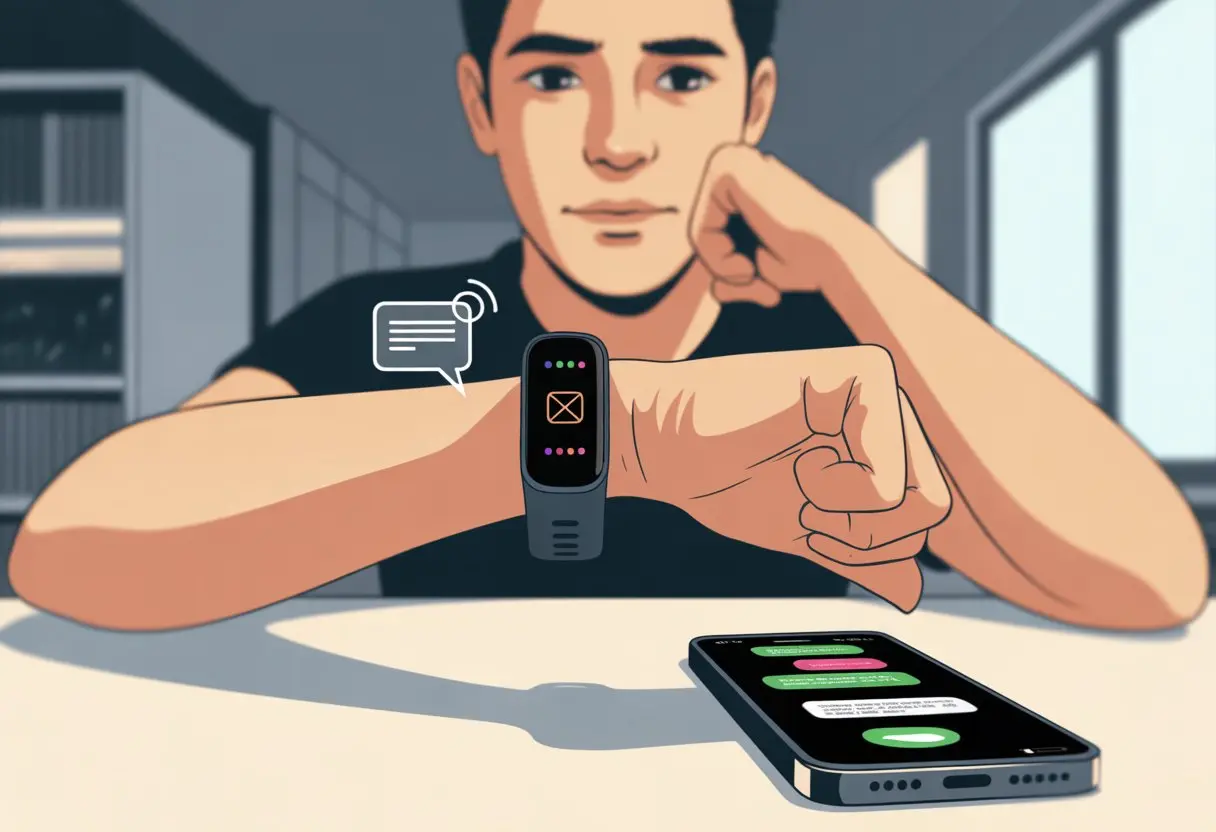
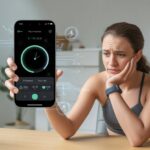
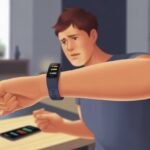
We’ve all had that moment—standing in line, waiting for a text, staring at our wrist, and realizing our fitness tracker just isn’t interested. Most of the time, fitness trackers miss texts because of Bluetooth hiccups, notification settings, or Do Not Disturb modes—and, let’s be honest, sometimes it’s just the classic “did you try turning it off and on again?”
When our smart gadgets leave us hanging, it’s more frustrating than sending a gym selfie to the wrong person.
The good news? We don’t need a computer science degree to fix it. Just a handful of quick checks can usually save the day—and our sanity.
Let’s dig into why our fitness tracker leaves our texts unread and what we can actually do to get its attention again.
Understanding How Fitness Tracker Notifications Work
Fitness trackers keep us updated by flashing message previews, call alerts, and app notifications right on our wrists.
If texts aren’t showing up, the reason might be a missing setting, a weak Bluetooth connection, or just too many notifications piling up.
The Basics of Notifications
Notifications act like tiny messengers, darting from our phone to our fitness tracker. These alerts cover text messages, call alerts, and app notifications.
Most trackers only show new and unread messages. If we’ve already read the message on our phone, it might just skip our wrist altogether.
Modes like “Do Not Disturb,” “Focus,” or “Driving Mode” can block notifications from ever making it to the tracker. Our tracker isn’t psychic; it just displays what our phone tells it to.
Notifications are limited by how much our tracker can show. We’re not reading novels here—just the quick info our phone passes along.
Bluetooth and Device Pairing
If our tracker isn’t talking to our phone, Bluetooth is probably the issue. Bluetooth is how our devices ask, “Hey, did you get my text?”
If Bluetooth is off, or the devices forgot each other, notifications just don’t show up.
Pairing, syncing, and staying close matter. The farther our tracker is from our phone, the less likely messages will get through.
Some trackers just stop showing notifications if they aren’t paired right. To keep things working, we need to make sure our tracker and phone are paired, synced, and within about 30 feet of each other.
A simple Bluetooth reset—turning it off and on—or a quick re-pairing can often get texts flowing again.
How App Notifications Are Delivered
Not all notifications are the same. Some come straight from our phone’s settings, others need a companion or notify app to work.
For our tracker to show notifications, we have to give those apps permission to display text.
Apps like messaging and email often have extra settings to control what appears. If we don’t set things up right, our tracker might miss every group chat and alert.
We should check notification permissions in both our app and phone settings. If we keep “Always Show Previews” and “Notification Access” on, we’re more likely to see texts on our wrist.
Common Reasons Your Fitness Tracker Isn’t Receiving Texts
Text notifications can feel like a game of hide and seek with our fitness trackers. If messages aren’t popping up, it usually comes down to notification settings or peace-and-quiet modes that sneakily block alerts.
Notification Settings Mishaps
Let’s be real, we’ve all gotten lost in our phone’s settings at some point. Getting texts on our fitness tracker depends on a few key things:
Notifications permissions: We need to allow notifications for texts on both our phone and tracker app. Otherwise, it’s like inviting someone over but never unlocking the door.
Show previews: If previews are off, we’ll just get a mystery alert with no clue what it says.
Bluetooth: Our tracker and phone need to be synced. If Bluetooth goes down, so do notifications.
App settings: Double-check both the phone’s Messages app and the wearable’s companion app—either one can block notifications if set wrong.
If texts are still missing after all this, try a phone restart or reinstall the app. Sometimes, that’s honestly all it takes to get things back on track, as Android smartwatch users have found.
Do Not Disturb and Silence Modes
The secret villain for many fitness tracker users? Do Not Disturb and Silence Modes. When these are on, our device basically puts on earmuffs and ignores every text.
With these modes active, notifications—including texts—just won’t show up. We might check our wrist, hoping for a message, but only get a blank screen.
Do Not Disturb (DND): This setting blocks messages so we can focus, nap, or pretend to work. Some trackers call it “Quiet Hours” or “Driving Mode,” but the result is the same—no new texts.
Watch-specific silence mode: Some wearables let us silence notifications just on the tracker, even if the phone is still buzzing.
Pro tip: Look for the moon icon (for DND) or any silence symbols on the tracker’s display. Turning these off usually brings texts back. More info is at Fitbit’s support page.
So, before blaming friends for not texting, let’s see if our device just took an unapproved vacation from notifications!
Device Settings and Feature Interference
Sometimes, our fitness trackers stay silent because a few settings are off or our phones get a little too clever. If our trackers aren’t lighting up with texts, permissions or battery-saving features are probably to blame.
Phone Notification Permissions
Our phones control which notifications make it to our trackers. If we forget to allow notification access, our trackers can’t show alerts for texts, calls, or apps.
This small permission can mean the difference between being in the loop or totally out of it.
We should check that our trackers appear under Bluetooth devices and that notifications are enabled for both calls and messages in our phone’s settings.
Settings like Do Not Disturb, Focus Mode, or Quiet Hours can block alerts before they even reach our wrists. If we want to see those messages, it’s best to turn those features off for a while.
Low battery alerts don’t just annoy us—they can silence our trackers. Many phones use power saving settings that force apps and Bluetooth to nap, which means our trackers go quiet too.
We should make sure our phone and tracker both have enough battery. It’s also worth checking for any power saving, Battery Saver, or Background App Management settings that could mess with notifications.
When devices enter battery saver mode, notifications are among the first things to disappear. And if Bluetooth drops out to save power, even calls and texts can vanish.
To avoid this, we keep the battery above 20% and try not to let our gadgets slip into deep sleep modes—unless we’re napping too.
Troubleshooting Steps to Restore Text Notifications
Let’s get our fitness tracker talking again instead of silently counting steps. Here’s a rundown of the most useful fixes, starting with the basics and moving up to the more extreme stuff.
Basic Troubleshooting Techniques
First, let’s check the basics. Make sure Bluetooth is ON—otherwise, our tracker’s as lonely as a treadmill in July.
Our phone should be within 30 feet of the tracker, or they just won’t communicate
(Learn more on Fitbit support).
Open the phone’s settings and confirm notification permissions for the fitness app. If we don’t see “Allowed,” let’s tap around until we do.
Still nothing? Sometimes, notifications take a break if our phone has the actual text conversation open. Close the messaging app and try again.
When in doubt, reboot the phone and tracker. “Turning it off and on again” works more often than we’d like to admit.
A quick check for software updates can help too, since old firmware loves to mess with notifications.
Advanced Fixes and Factory Resets
If you’re feeling brave (or just fed up), try uninstalling and reinstalling the notification app. This gives our phone a fresh start, like it never messed up notifications before.
If nothing else works and our tracker still ignores texts, it’s time for the big one: a factory reset. This wipes all data but usually solves stubborn notification bugs
(see Citizen Watch help for factory sync tips).
Before going nuclear, double-check that our phone’s software is up to date. And after a reset, don’t forget to re-pair the tracker—otherwise, they’ll just sit there and ignore each other!
Specific App Notification Problems
Still wondering why our tracker refuses to buzz when a message comes in? Let’s look at how certain apps and those sneaky Android settings can totally change our notification experience.
Sometimes, it’s not the tracker’s fault—it’s just the app or phone settings being tricky.
Text Messages and Messaging Apps
When our fitness tracker skips text alerts, it’s usually because notifications are off for apps like WhatsApp or Telegram. If we don’t enable “Show Notification Text” or “Show Caller Name” in the settings, we just won’t see the details until we unlock the phone.
We need to grant messaging apps permission for notifications and pop-ups. It sounds obvious, but it’s easy to overlook.
Let’s not ignore those silent modes—“Do Not Disturb,” “Driving Mode,” or those mysterious “Quiet Hours.” These modes block notification texts from showing up on our tracker, even if the phone’s right there, buzzing away. Fitbit points out that some devices only display unread texts, so if we check messages on the phone first, the tracker won’t alert us (see Fitbit help guide).
Here’s a quick checklist we can run through:
Check app permissions for notifications.
Make sure “Show Notification Text” is on.
Disable any focus or quiet modes.
If you’re desperate, try rebooting the phone—it fixes more than we’d like to admit.
Google Services and Android Policies
Android likes to remind us who’s boss, especially with privacy and security. Some Google features quietly limit how notifications work.
If we’re not seeing Gmail or WhatsApp previews, Android might be blocking our fitness tracker from getting notifications because of notification access restrictions or background process limits.
Google Play Services needs the right permissions for devices to sync notifications. If our tracker only vibrates but doesn’t show text, Android security settings might hide content for privacy. On some watches, notification previews start off disabled—thanks, Android.
Updating software can occasionally mess with notification reliability too. That’s always fun to discover.
Here’s a quick table for troubleshooting Google notification issues:
Problem
Fast Fix
Gmail alerts missing
Recheck Gmail app notification setting
Android not syncing
Update Google Play Services
No notification text
Enable notification access in settings
Before we blame the tracker, let’s remember—Android just wants to keep our conversations private, even if it sometimes hides the good stuff.
Smartwatch Features That Might Affect Notifications
Sometimes, our smartwatches act like they’re on a mission to miss texts and calls, especially in group chats. Before we point fingers at the phone, let’s check out the sneaky settings and features that might be hiding our messages.
Incoming Call Notifications
Honestly, missing Aunt Patty’s call isn’t ideal—especially if she’s bringing dessert. If our smartwatch skips caller names or doesn’t alert us, it’s almost always a notification settings issue.
Many devices let us handpick which apps can buzz our wrist, and sometimes incoming phone calls don’t make the cut.
To get call notifications, we need to turn on Bluetooth, run the smartwatch app, and set permissions just right. Don’t forget about “Do Not Disturb” modes. If those are on, it’s like hanging a “no visitors” sign on your digital front door.
Some watches get even more specific, with separate controls for call alerts and texts buried in their settings. I’ve missed calls on my watch just because I ignored a settings pop-up or let a battery saver put everything to sleep.
Our smartwatches come packed with all sorts of features. They track our heart rate, count our steps, and sometimes make us feel like we’re prepping for a marathon.
But here’s the thing—some features can quietly block notifications. If you don’t allow Background App Refresh or notification access, those vital “Hello?” messages just won’t show up.
On certain models, the watch insists that we keep the companion app open on our phone. Is it needy? Maybe, but it just doesn’t want to miss anything. Some devices only send notifications if we’re actually wearing the watch and it’s unlocked. It’s almost like the watch knows when we’re paying attention.
Notification settings often hide deep in menus. You’ll find options for texts, call alerts, calendar updates, and even which messaging apps get to bug us. If you don’t see a menu for messages, calls, or texts, the manufacturer probably skipped those features. No amount of button mashing will add them, unfortunately. You can see how folks run into this in discussions like this one: no phone or text calls or message on watch.
Sometimes a settings tweak, a quick app update, or just accepting permissions when prompted can fix it.
If nothing works, maybe it’s time to try a simpler fitness watch—one that stays quiet and lets us enjoy a little old-fashioned peace, just like some users hope for: fitness watch with zero notifications.
Hi, my name is Garrett Jones, and I am a tech enthusiast. I enjoy researching the new tech that has been released, and have a vast knowledge of the best tech to purchase.
From a young age, I have always had a big interest in technology, and this blog is an extension of that interest. Through this blog, I hope to provide others with all of the information they need regarding tech options to consider, and things such as compatibility. Some of the different items I will be discussing include headphones, smartwatches, and how to fix common issues.