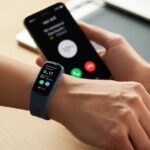
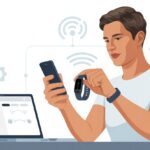
Alright, let’s be honest—most of us bought that shiny fitness tracker with big plans, but then realized we actually have to connect it to our phones to see any magic happen. Suddenly, syncing steps and heartbeats sounds scarier than doing burpees. The good news? Syncing a fitness tracker with your phone is usually as simple as turning on Bluetooth, grabbing the right app, and following a few easy steps.
We’re probably not becoming Olympic athletes overnight, but at least our phones can track every step (and snack break) we take. If we just turn on Bluetooth, download an app like Google Fit, and pair our device, we’ll be counting steps before we know it.
Let’s dive in and figure out how this works—before our trackers die of boredom.
What Is a Fitness Tracker and How Does It Work?
We all see people wearing slim bands on their wrists, tapping them like they’re James Bond—spoiler, they’re probably just checking their step count. Fitness trackers are little gadgets we wear to track how much we move, how well we sleep, and even how many times our heart skips a beat (hopefully not from seeing our lunch disappear).
Fitness Trackers vs. Other Electronics
Fitness trackers might look like regular watches, but they’re packed with sensors and chips. Unlike basic watches that only tell time (and let’s be honest, make terrible calculators), trackers can monitor movement, steps, and heart rate all day and night.
They connect wirelessly, usually through Bluetooth, to our phones so all our health data ends up safely stored in apps—not scribbled on napkins.
Ever wonder what makes a tracker different from a phone or smartwatch? Most fitness trackers are built just for health info.
They’re lighter, the batteries last for days (not hours!), and they focus on tracking physical activity—not texting your friends for pizza.
Here’s a quick comparison:
Device
Main Function
Battery Life
Health Tracking
Fitness Tracker
Activity & health stats
Long
Yes
Smartphone
Call, text, apps, entertainment
Short
Limited
Smartwatch
Call, text, some health & apps
Med-Short
Some
Health Info Collected by Fitness Trackers
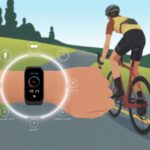
Let’s peek into what our fitness bands are secretly counting. They track our steps, distance walked, calories burned, sleep quality, heart rate, and sometimes even blood oxygen levels and stress.
Motion sensors (like accelerometers) and tiny lights check how fast our blood flows, so trackers build a pretty detailed health diary about us (don’t worry, they judge quietly).
Common data types include:
Step count: Tracks daily walking and running.
Heart rate: Measures how hard our heart is working.
Sleep tracking: Records how long and how well we sleep.
Calories burned: Estimates based on activity and stats.
Activity reminders: Gentle buzzes that say, “Hey, move a little!”
When we sync this data to our phone, we get colorful charts and can set goals—like actually using that gym membership instead of just letting the card gather dust. Some trackers let us compete with friends, if we need extra motivation beyond coffee.
Preparing Your Phone and Fitness Tracker
Before our grand syncing adventure, we need to lay some groundwork. Making sure our gadgets are ready will save us from yelling at our phone, our tracker, and probably our dog.
Checking Compatibility
Let’s not pair apples with oranges—or an Android tracker with an ancient flip phone. We need to double-check our fitness tracker works with our smartphone.
If we’re using Android, most newer trackers connect just fine, but some older models may not play nice. For iPhone users, watch out for any alerts about compatibility with the tracker app in the App Store.
It helps to check the fitness tracker’s official site for a list of supported devices. If we’re in the settings and see “not supported,” it’s probably time to move on or download an updated app.
Most trackers require their own app, like Fitbit or Google Fit. For Android, Google Fit and Health Connect are popular.
Checking the app requirements before we sync keeps things smooth and less dramatic.
Charging Devices for Sync Success
The last thing we want is for our devices to faint from exhaustion while syncing. Before we start, let’s plug both our smartphone and fitness tracker in or make sure they’re well-charged.
A tired phone or tracker can give us all sorts of strange errors. Trackers often need at least 20% battery to sync, but more is always better.
Look for that cheerful charging icon—no one wants a tracker that quits halfway through the process.
It’s tempting to think, “Just one more minute!” but trust us, a fully charged phone makes syncing easier.
Enabling Bluetooth and Location Services
Without Bluetooth, syncing a tracker to a mobile phone is like trying to toast bread without plugging in the toaster. So let’s open our settings and make sure Bluetooth is switched on.
For Android and iPhone alike, there’s usually a quick toggle button for Bluetooth—time to let those radio waves fly!
Some tracker apps also need us to enable location services. That’s right, your phone wants to know where it is, even if it never leaves your pocket.
For Android, go to Settings > Location and switch it on. For iPhones, check under Settings > Privacy > Location Services.
Our mobile phones are ready to search for the tracker, and the tracker is ready to be found. With both Bluetooth and location switched on, we’re just about ready to sync and start counting those epic steps.
Installing the Necessary Apps
Before our gadgets can talk to each other, we need to give them the right apps. Let’s look at how we can get our trackers synced without accidentally adding more steps to our day (unless, of course, you’re counting those steps to the app store).
Downloading Official Apps
We don’t want to risk our hard-earned step count, so let’s stick with the official apps whenever possible.
If we have a Fitbit, we should download the Fitbit app from the App Store on our iPhone or iPad or from Google Play on our Android phone. For Garmin fans, the Garmin Connect app is the way to go.
Most trackers have their own apps—like Veryfit, Mi Fit, or Samsung Health. The catch? Each brand wants us to use their own app, so grabbing the wrong one can leave our fitness tracker looking lost and confused.
Tablets like an iPad can work for setup, though phones usually get better compatibility. Using a computer, laptop, or even an e-reader for syncing is almost never possible, unless the brand offers a special desktop app (which, honestly, is rare).
Once we’ve logged in and paired our tracker via Bluetooth, we should be up and walking—or running—without delay.
Sometimes our fitness tracker wants to play with all the other apps on our phone. That’s when third-party apps like Google Fit come in handy.
If our tracker brand’s official app just isn’t keeping up—maybe it’s missing data, or maybe it’s on a coffee break—we can install Google Fit or another third-party app to get everything in one place.
We need to check compatibility, though. Not all trackers will sync with third-party apps, so before we download, let’s look up if our model is invited to the party.
If it is, we’ll usually connect our tracker’s account to Google Fit or another option and follow a few prompts.
Don’t bother trying this on an e-reader; books are great, but they’re not built for fitness updates. Most of these apps are for phones, and some work on tablets or iPads.
Don’t expect a laptop or desktop to wrangle your data from your wrist—unless you really enjoy a tech headache. For help with syncing, check out this community.
Pairing Your Devices Like a Pro
Getting our fitness tracker and phone to cooperate can feel like herding cats, but we’ll get them synced and tracking steps together. The process isn’t tough, but it does change a bit depending on the type of device we use.
Pairing With an iPhone
If you’re an Apple fan, pairing your fitness tracker to an iPhone is mostly smooth sailing. Start by making sure Bluetooth is enabled.
If it’s not, swipe up or go to settings and flip the switch. Next, open the fitness tracker’s app (Fitbit, Garmin, or whichever you use).
The app usually walks us through pairing step-by-step. Most of the time, we’ll see a big “Add Device” button screaming for attention.
Tap that, pick your tracker, and start connecting. Your iPhone searches for the tracker using Bluetooth, and it may ask you to enter a code that pops up.
Pro Tip:
Keep the tracker close to the iPhone for stronger signals.
If things slow down, a quick phone restart can work wonders.
Don’t forget to let the app access Health if you want all the calories, steps, and heartbeats counted.
Pairing With an Android Device
If you’re on Android, syncing the fitness tracker still isn’t rocket science, but it might call for a little patience. Bluetooth needs to be switched on and visible.
On some Android devices, you might need to enable “Location,” especially when using Google Fit or Samsung Health.
Open the fitness tracker’s app. Look for “Connect Device” or “Pair New Device.”
Just follow the prompts, and your phone will hunt for your tracker like a bloodhound. When it pops up, tap it, and confirm any codes or permissions that show up.
Some apps, like Stridekick, recommend linking Android phones through Google Fit.
If pairing circles forever, restart the phone, the tracker, or both.
Allow all app permissions, especially for Bluetooth and notifications.
Special Notes for Tablets
Pairing a fitness tracker with an iPad or Android tablet can get a bit quirky. Not every fitness app plays nice with tablets, and Bluetooth sometimes acts up in weird ways. If you’ve got an iPad running iOS, it behaves just like an iPhone—so those steps should feel familiar.
With Android tablets, the process looks like it does on Android phones, but it’s smart to check app compatibility in the Play Store first.
Some fitness trackers only pair with phones, so tablets aren’t always an option. If your favorite app looks stretched or weird on a big screen, that’s pretty normal. Sometimes you’ll notice features missing or notifications don’t show up.
Tablet Pairing Checklist:
Bluetooth on? Double-check—it can be tricky to find on some tablets.
Install the newest version of the fitness app for better luck.
Keep the tracker close to the tablet during setup to avoid hiccups.
If your tablet gets stubborn, switching to a phone might just save your sanity.
Initiating the First Sync
We all want our fitness tracker and phone to work together like a dance duo. To get started, connect them properly, pick your syncing style, and try not to make it harder than running on a treadmill at full speed.
Automatic vs. Manual Syncing
When it comes to syncing, you’ve got two main choices: automatic or manual. Automatic syncing is perfect if you forget what day it is. Most trackers offer a feature that quietly updates stats in the background, usually via Bluetooth.
Just keep Bluetooth on and let the app run. No need for tapping, swiping, or any tech wizardry.
Manual syncing is for those who like a bit more control. If automatic syncing flakes out or the app freezes (thanks, tech), you can force a sync. Open the fitness app, find your device, and hit “Sync” or pull down on the screen—here’s a guide if you need it.
Quick tip: Yelling at the tracker won’t help, but checking if your phone’s on Wi-Fi or has a solid data signal will. Slow internet can drag things out longer than waiting for takeout.
Syncing Multiple Devices
Let’s get a little wild—syncing more than one device. Maybe you’ve got a tracker on each wrist (hey, no judgment), or you want both your phone and tablet to show your steps. Many fitness apps let you manage multiple devices under one profile.
But here’s the catch: Most brands only let you sync one tracker at a time for step counting. Adding another tracker usually pauses or disconnects the first. The app will show which device is active.
To switch, you’ll need to manually pick which tracker’s in charge before syncing.
If things go sideways, don’t panic. Double-check which tracker is selected in the app and try again. Sometimes, you just need a little patience—and maybe a snack—while your gadgets sort themselves out.
Troubleshooting Sync Issues (Because Technology Can Be Sassy)
Sometimes your fitness tracker acts like it needs more coffee before it’ll sync. A few main speed bumps pop up, but with some patience, you can usually fix most issues.
Common Connectivity Problems
Bluetooth is usually the troublemaker. If your phone can’t find the tracker, check if Bluetooth is actually on—no shame, it happens.
Another gadget, like headphones, steals the Bluetooth spotlight.
Turning Bluetooth off and back on can work wonders. Restarting your phone and tracker is also worth a shot, according to the Fitbit Community.
App and Software Updates
Apps and devices need updates, just like we need haircuts now and then.
Old app versions can mess with syncing. Make sure you’ve got the latest from the app store. Checking for updates is quick and easy.
Your phone’s operating system matters too. If you’re using an ancient Android or iOS version, syncing might not work. Check your phone settings and update if needed. Developers often fix sync issues with updates, so staying current is a good move.
Resetting Devices Safely
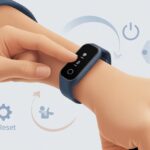
If nothing else works and your fitness tracker still gives you the silent treatment, it might be reset time. Try not to jump to a full factory reset unless you have to.
Start by turning the tracker off and back on. Unpair it in your phone’s Bluetooth settings, then pair again through the main app like WearOS. This usually solves stubborn problems.
Save a factory reset for last, since it can wipe your data. If you’re unsure, look for reset instructions in your tracker’s manual or app help section.
Where Your Data Goes: Exploring App Integrations
When you connect your fitness tracker to your phone, your data doesn’t just stay on your wrist. It often sneaks off to apps and places that want to track your steps, sleep, and maybe even your heart rate (hopefully nothing more personal than that).
Connecting With Google Fit
Google Fit is like the cool friend who wants to organize all your fitness info in one place. You can connect lots of trackers—including some smartwatches and apps—to Google Fit.
This app collects your steps, calories, heart rate, and more, even if the info comes from different sources.
Download Google Fit on your phone if it’s not already there. Open the app, sign in with your Google account, and most trackers or health apps will ask if you want to link data. Say yes, and suddenly your runs, squats, and dance sessions all show up in one tidy place.
You can link Google Fit with other apps to help analyze or share your health info. Many third-party apps sync through Google Fit, so you don’t have to enter everything by hand (which is about as fun as counting grains of rice).
Syncing to Other Health and Fitness Apps
Not all your data wants to live with Google. Some trackers and apps connect directly. On iPhone, Apple’s Fitness and Health apps grab data straight from compatible apps and accessories.
Check which apps sync by going to your Health app settings and tweaking permissions, so only trusted apps get your steps and snacks logged.
To sync with specific third-party apps, download the app, sign up, and connect your tracker via Bluetooth or Health Connect on Android. Some apps make it easy with a “Connect” or “Add to Your Rings” button—like what you’ll see on the Apple Fitness app.
Here’s a quick table of where your data might go:
Device/App
Syncs With
Special Steps?
Google Fit
Many trackers, apps
Sign in, grant permissions
Apple Health/Fitness
iPhone, Apple Watch
Grant permission, use compatible app
Third-party Apps
Various (Fitbit, etc)
Download app, connect tracker
Sometimes apps share info back and forth. Other times, they guard your sleep stats like a dragon with gold.
Keeping Your Sync Game Strong
Staying organized and secure makes syncing your fitness tracker with your phone less stressful. Good notifications help you catch every step, but privacy matters too when personal health info is involved.
Managing Notifications and Alerts
If your fitness tracker keeps buzzing like a Tamagotchi from the ’90s, it’s time to take control. Use the app’s settings to choose when you get notifications—only about real accomplishments, not just for standing up.
Here’s a quick checklist:
Set step goals that are realistic, not Olympic-level.
Mute low-priority alerts like “move more!” when you’re binge-watching shows.
Schedule do-not-disturb times, so the app lets you nap in peace.
Let’s not turn our phones into chaos machines. Make notifications work for you by focusing on info that’s actually useful. That way, every ping helps you move toward better health, not just higher stress.
Understanding Privacy and Security
Nobody wants their health info floating around the internet like a lost sock. Many fitness apps ask for permission to access contacts, location, or other data. Always check what kinds of info the app wants before saying yes.
It’s smart to use features like app passcodes or fingerprint logins. Never share your tracker’s login, and don’t use your pet’s name as a password. If your tracker syncs automatically, make sure cloud services use encryption and have a good reputation.
Review privacy settings and adjust what info gets shared with other apps or services. Apple has privacy guidelines, and Android users can manage app connections in the Google Fit settings.
Keep those steps private, and your heart rate data under lock and key—unless you’re in the mood to brag.
Fun and Unusual Electronics That Can Also Sync (Sort Of!)
Turns out, fitness trackers aren’t the only gadgets that want to sync. Some household electronics and even game systems have joined the fun, even if they don’t exactly count your steps.
Smart Home Devices
Your home security system or thermostat probably doesn’t seem like a gym buddy, but they’re sneakily keeping up. Smart home gadgets like lights and speakers sometimes sync with your fitness data to set moods based on activity.
Imagine finishing a run and your lamps suddenly turn party mode. It’s like having cheerleaders made of bulbs.
Home security systems and video doorbells can get creative too. Some setups link with fitness apps so you get security alerts on your smartwatch.
If you stop moving for too long, you half expect Alexa to send a rescue drone.
Even TVs, home theater systems, and projectors try to jump in, showing your latest step counts or fitness classes. Before you know it, your TV’s telling you to “just move for ten more minutes,” right in the middle of a cooking show. That’s multitasking for you.
Exercise Equipment and Game Systems
A treadmill isn’t just a moving sidewalk for rainy days. These days, a bunch of exercise machines—like ellipticals, smart bikes, and rowing machines—can sync straight to our phones or fitness trackers using Bluetooth, Wi-Fi, or whatever app you like.
You’ll see your calories burned or heart rate pop up on your phone almost instantly. Sometimes, it feels like the only thing you’re tracking is your ability to keep breathing.
Game systems are getting in on the action, too. With platforms like Nintendo Switch and Xbox, you can join step challenges, track your active minutes, or just jump into group workouts right in your living room.
Motion-tracking cameras and sensors actually check if you’re moving, not just sitting there wiggling your eyebrows. Sure, it’s not as seamless as syncing a payment system, but at least the only thing you’re spending here is sweat.
Hi, my name is Garrett Jones, and I am a tech enthusiast. I enjoy researching the new tech that has been released, and have a vast knowledge of the best tech to purchase.
From a young age, I have always had a big interest in technology, and this blog is an extension of that interest. Through this blog, I hope to provide others with all of the information they need regarding tech options to consider, and things such as compatibility. Some of the different items I will be discussing include headphones, smartwatches, and how to fix common issues.