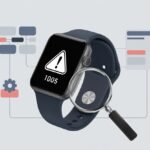
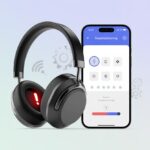
We’ve all been there. You pop in your Bluetooth headphones, ready to jam out or hop on a call, and then—bam, error code 007 just barges in like it owns the place.
With Bluetooth headphones, error code 007 usually means you’ve got a pairing or connection issue. But hey, there are easy ways to fix it and get back to your groove.
If your headphones are stuck and you feel like you need a spy gadget to fix things, don’t panic. We’ve got some straightforward steps that’ll save the day (and your headphones)—no secret agent skills required.
Grab your favorite playlist. Let’s break down why error code 007 shows up and what you can actually do about it. Hopefully, with as little frustration as possible.
Understanding Bluetooth Headphones Error Code 007
Error Code 007 seems to strike right when you finally want to unwind with music or finish that podcast.
If you know what this error means, why it pops up, and which devices love to flash it, you’re already halfway to solving it.
What Is Error Code 007?
Error Code 007 in Bluetooth headphones isn’t a James Bond thing—though honestly, that would be way cooler. Instead, this code appears when your headphones can’t connect with your phone or computer.
Usually, something’s off with pairing. The headphones end up in limbo, kind of like you at a middle school dance.
You’ll spot this message while connecting through Bluetooth settings on your Samsung Android or other devices. The routine goes like this: you try to pair, everything looks fine, and then Error 007 crashes the party.
Common Causes of Error Code 007
A bunch of little gremlins could be behind this. Maybe your Bluetooth headphones just need a restart.
Sometimes your phone or computer’s Bluetooth settings get stuck or act weird—like an app that refuses to load after an update.
Here are the main reasons Error 007 shows up:
Bluetooth is turned off or frozen
The headphones and device aren’t in pairing mode together
A software update failed or didn’t finish
Devices have too many other Bluetooth gadgets paired
Our Bluetooth pairing problems guide breaks down fixes like restarting your stuff and making sure both gadgets are ready to pair. Sometimes, just turning things off and on really does work. Classic IT magic.
Impacted Devices and Brands
We can’t just blame one brand—Error 007 loves to annoy everyone. Samsung Androids seem to see it a lot, but honestly, no brand is safe.
It happens on all kinds of Bluetooth headphones, from pricey over-ear models to cheap in-ears.
We’ve seen it pop up with Beats, Sony, JBL, and plenty of no-name brands. Some folks even deal with Error 007 on computers, so it’s not just a phone thing.
Any device that uses Bluetooth headphones might get hit with the 007 surprise. Doesn’t matter if it’s new or old, fancy or basic.
Quick Troubleshooting Steps
Bluetooth headphones flashing error code 007? Yeah, it happens. Let’s go after the usual suspects: settings, a quick refresh, and maybe a peek at the charging case.
Check Bluetooth Settings
First up, check if Bluetooth is even on. Sometimes it just… isn’t. If it’s off, flip it on.
Still not working? Look for your headphones in your device’s paired list. If they’re missing, pair them again.
Sometimes deleting the old pairing and starting fresh actually helps. Think of it as cleaning out a junk drawer.
If pairing fails, try toggling Bluetooth off and back on. It sounds silly, but it works more often than it should.
If the Bluetooth settings just made things more confusing, go for a reset.
Turn off the headphones and turn them back on. It’s the classic “have you tried turning it off and on again” move. We swear by it.
Restart your phone or computer too. Why does it help? Who knows, but it does.
If your headphones have a reset button, use it. Some want you to hold both volume buttons; others have their own secret handshake. Check the manual if you’re lost.
If error code 007 sticks around, “forget” the headphones on your Bluetooth list and re-pair. That clears out any gremlins hiding in your wireless connection.
Inspect the Charging Case
Sometimes the culprit isn’t Bluetooth or software—it’s the charging case.
Make sure your headphones have a full charge. Open the case, check that the earbuds sit right, and see if any lights are blinking weirdly.
Give the contacts a quick clean with a dry cotton swab. Dust and lint can mess things up more than you’d think.
If the case isn’t charging, try a different cable or plug. Sometimes the problem hides in the details.
If all else fails, a long press on the case’s reset button (if there is one) can sometimes jump-start everything. Don’t ignore the charging case—sometimes it’s the real villain.
Advanced Pairing Mode Fixes
Bluetooth headphones can get stubborn. Sometimes you need to coax them into pairing mode or clear out old connections to get things working again.
Activating Pairing Mode
Bluetooth headphones can be moody. To get them talking, start fresh by entering pairing mode.
Usually, you press and hold a button (or two) until a tiny light blinks like it’s at a rave.
If you’ve got separate earbuds, power both on and let them sync with each other first. After their little chat, get them discoverable for your device.
Some models want you to hold the power button for five seconds, some for ten. If you don’t have the manual, just experiment until you see blinking lights.
Keep other Bluetooth devices off to avoid confusion. For more steps, check out Techlicious’ troubleshooting pairing.
Remove and Re-Add Pairing Information
Sometimes devices cling to old connections and cause pairing errors.
When “error code 007” shows up, the pairing info might be corrupted or outdated.
Delete the old connection in your device’s Bluetooth menu. On Windows, head to Device Manager or Bluetooth settings and remove the headphones. On phones, just “forget” the device, then toggle Bluetooth off and back on.
After you wipe the slate clean, put the headphones in pairing mode and reconnect. It’s like a first date, but less awkward.
When Bluetooth headphones throw error code 007, things can get pretty annoying.
Sometimes you’ve just got to go back to basics or dive into device managers to get things working again.
Restore Factory Settings
Let’s be real—hitting reset feels risky. You might worry your headphones will lose their “best friend” status with your device.
Still, restoring factory settings is the big gun when nothing else works.
For most Bluetooth headphones, hold down the power and volume up buttons for about 10 seconds. Some want power and volume down; you’ll have to check the manual or just try a few combos.
When the lights start dancing or you hear a beep, you’ve reset it.
If you’re lucky, error code 007 will disappear like it was never there.
Using Device Manager on Different Platforms
Device Manager isn’t just for IT folks who love socks with sandals. You can use it too—it’s honestly not that scary.
On Windows, press Windows + X and choose Device Manager. Under “Bluetooth,” right-click your headphones and hit “Uninstall device.”
Disconnect, restart your PC, and then pair the headphones again. If your headphones are missing, enabling “Show Disabled Devices” in Sound Settings can help them reappear.
On Mac, go to System Preferences > Bluetooth, remove the device, and re-pair it. On phones, toggling airplane mode sometimes jolts Bluetooth back to life, as Techlicious suggests.
Just try not to yell at your screen in public.
Audio Issues Linked to Error Code 007
When error code 007 hits, Bluetooth headphones can really throw a fit. Glitchy noises, garbled voices, and weird squeals can turn your playlist into something out of a horror movie.
Distorted Audio and Unexpected Noises
Ever feel like your music’s coming through a tin can during a thunderstorm? Distorted audio usually means something’s interfering, the battery’s low, or the Bluetooth connection’s just acting up.
Let’s check a few things right away.
Distance: Are we too far from the device? Walls, pets, or just wandering away can make things worse.
Other devices: If we’ve got a Bluetooth jungle going, it’s chaos for our headphones.
Battery: Low power? That’s a recipe for robot voices and weird signals.
When we hear pops, crackles, or the ghost of dial-up, we should open sound settings. Switching the output device or toggling Bluetooth off and on often helps. Sometimes, reconnecting the headphones just sorts it out, as folks mention in strange Bluetooth noise issues.
Here’s a quick checklist for troubleshooting:
Problem
Possible Cause
Quick Fix
Muffled sound
Bluetooth interference
Move closer, turn off Wi-Fi
Choppy audio
Low battery
Charge the headphones
Static or buzzing
Signal problems
Try re-pairing the device
Diagnosing High-Pitched Whine Problems
A high-pitched whine in our headphones? It’s like a mosquito’s moved in. This squeal’s definitely not part of the playlist—it usually means the Bluetooth handshake failed.
Let’s try these steps:
Restart both the headphones and the computer. (Yes, the classic “turn it off and on again.”)
Update Bluetooth drivers in Device Manager.
Check for background apps hogging bandwidth.
If the whine sticks around, uninstalling and reinstalling the device sometimes helps. Still buzzing? We might need to reset network settings or run the Windows troubleshooter for headset whine issues.
Nobody wants a high-pitched concert in their ears. These steps can usually get things back to normal.
Fine-Tuning Sound Quality After Troubleshooting
Once we’ve cleared away error codes and fixed the basics, it’s time to make our headphones sound their best. Sometimes we still get weak bass, weird highs, or just plain bad audio, but a few tweaks can help our Bluetooth headphones shine.
Addressing Poor Sound Quality
Let’s be real—Bluetooth headphones sometimes sound like we’re listening from inside a cave. Fixing this usually starts with our device’s audio settings.
We should make sure our headphones are the default playback device. If the computer’s stuck on its own speakers, we’re missing out.
Checking the audio codec is a good next step. For better sound, we want aptX, AAC, or LDAC—if our headphones and device support them. SBC works, but it’s not winning any awards.
If things still sound off, a quick reconnect or device reset often helps. Removing and pairing again can clear up random glitches. For more help, the Microsoft Community has some solid advice.
Reducing Excessive Low Frequencies
Bass is great—until it turns into an earthquake in our head. Too much low end makes everything muddy.
We can jump into sound settings or grab an equalizer app. Lowering the bass sliders (sorry, bass lovers) usually brings things back in balance.
If our headphones have their own app, there’s probably a “Bass Boost” setting lurking. Turning that down helps a lot.
Fit matters too. A super tight seal can pump up the bass, sometimes too much. Swapping ear tips or wearing headphones a bit looser can dial things back if software tweaks aren’t enough. For more tips, check out this YouTube guide.
Improving Treble Response
Who skips treble? Without it, music sounds flat and lifeless, like the band’s playing behind a wall.
We open an equalizer and gently bump up the treble—usually between 4kHz and 12kHz. A little goes a long way; too much gets harsh fast.
Sometimes, settings aren’t the only problem. Interference or low-quality Bluetooth streaming can kill our highs. We should use a good codec, keep headphones charged, and stay close to the device.
Fit helps here, too—if our headphones aren’t snug, we lose treble. If things still sound fuzzy, disabling features like “hands free technology” or extra audio effects in the Bluetooth settings can clear things up, as folks on Reddit suggest.
Device Compatibility and Pairing Tips
Pairing Bluetooth headphones shouldn’t feel like hacking into a bank vault, but sometimes it does. Error code 007? We’re not secret agents—just trying to listen to music.
Connecting to Smartphones
Smartphones can be stubborn. We need to turn on Bluetooth and make our headphones discoverable before pairing.
When the phone asks for a PIN or passkey, “0000” or “1234” almost always works. If it doesn’t, we can clear old pairing info or forget the device in Bluetooth settings.
On Android, the Bluetooth symbol should show up in the status bar—no guessing needed. Still stuck? We can check the phone’s Bluetooth settings or clear saved devices to start fresh.
Connecting to Tablets
Pairing with a tablet can be a wild ride, too. Sometimes the tablet just won’t cooperate.
First, we check that our headphones aren’t already paired with something else. Bluetooth only lets us connect to one thing at a time.
Opening the Bluetooth menu in tablet settings makes sure everything’s discoverable. If pairing fails or throws error codes, updating the tablet’s software or restarting both devices usually helps. Clearing out old saved devices can also prevent confusion.
Pairing With Speakers and Other Devices
Pairing headphones with speakers or other gadgets isn’t always as smooth as you’d hope. Sometimes you check the compatibility list, only to realize older speakers might use a totally different Bluetooth profile.
If your headphones and the other device speak different “Bluetooth languages,” they might just ignore each other. I always make sure both are in pairing mode and close enough—otherwise, nothing happens.
If you run into errors or things just freeze, restarting both devices is honestly the oldest trick in the book. Sometimes, manually pairing and skipping those automated assistants works better than you’d expect.
When nothing else works, I end up going back to the device manual. Not just to squint at the fine print, but to actually get the exact pairing info I need.
Hi, my name is Garrett Jones, and I am a tech enthusiast. I enjoy researching the new tech that has been released, and have a vast knowledge of the best tech to purchase.
From a young age, I have always had a big interest in technology, and this blog is an extension of that interest. Through this blog, I hope to provide others with all of the information they need regarding tech options to consider, and things such as compatibility. Some of the different items I will be discussing include headphones, smartwatches, and how to fix common issues.