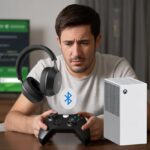
We’ve all been there—ready to jam out with our Bluetooth headphones, only to watch our Mac stare back at us like it’s never seen headphones before. Usually, Bluetooth headphones won’t connect to a Mac because the headphones aren’t in pairing mode, Bluetooth on the Mac is off or glitchy, or something wild like interference from other gadgets is happening. It honestly feels like our tech is plotting behind our backs just to make things harder.
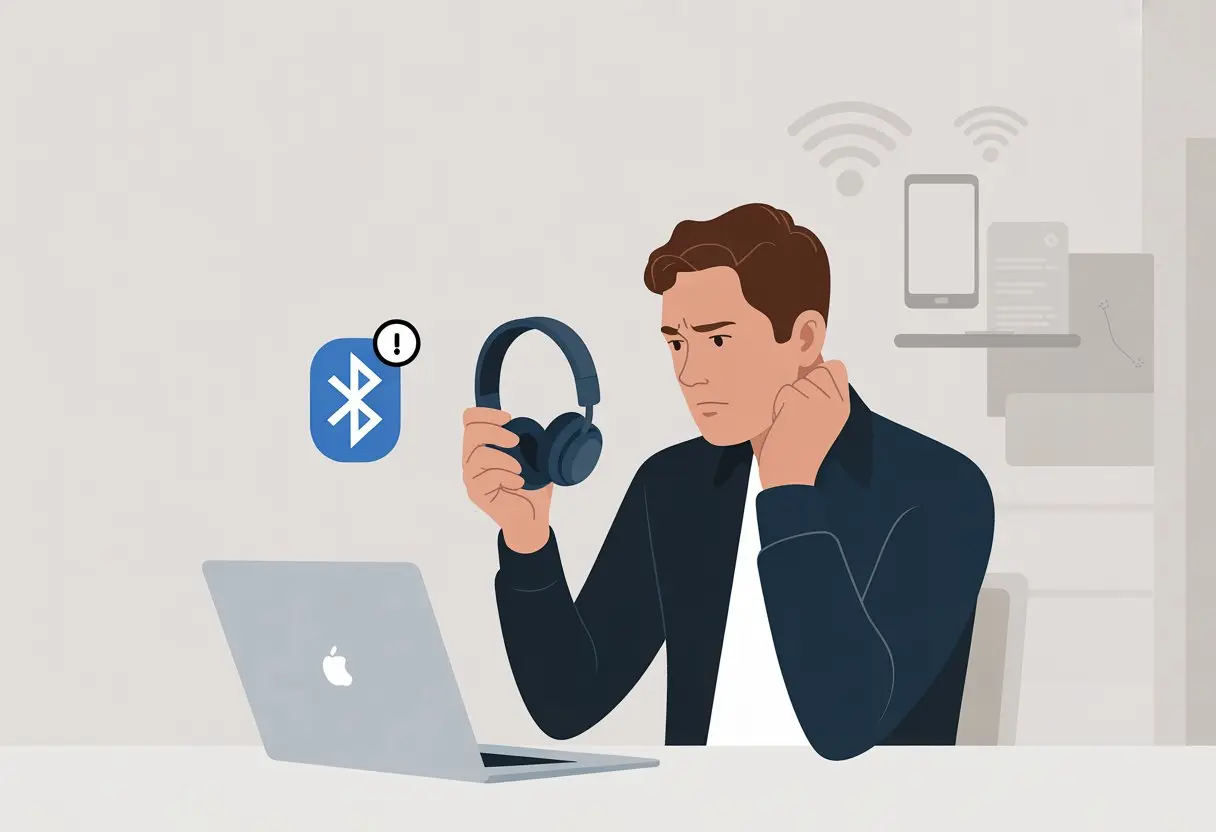
We can hit snags if the headphones aren’t charged, or if our Mac is already clinging to a bunch of other Bluetooth gadgets. Sometimes, the Mac just wants a reboot or a quick trip to the Bluetooth settings before it remembers how to play nice.
Let’s see why our Bluetooth headphones and Mac can’t seem to get along—and what we can try before we dig out those old wired earbuds we swore we’d never use again.
Basic Bluetooth Connection Steps
Before we start blaming our computers or headphones for being stubborn, let’s make sure we’re not skipping the basics. Connecting Bluetooth headphones to a Mac or MacBook can go sideways over small details, and that’s all it takes to ruin a good music session.
Turning On Bluetooth on Mac
First up, is Bluetooth even on? We’ve all assumed it’s always ready—like a loyal dog, but without the tail.
On the Mac, look for the Bluetooth icon in the menu bar at the top. If we see it, click and check if it says “Bluetooth: On”.
If it’s missing, we’ll need to turn it on:
- Click the Apple menu in the top left.
- Go to System Settings (or System Preferences—Apple loves switching things up).
- Click Bluetooth.
- Flip the switch to ON.
If Bluetooth isn’t on, even the fanciest headphones are just earmuffs. Still don’t see the icon? We can add it in the Control Center section of settings, so we’re not hunting for it every time we want to listen to music.
Enabling Pairing Mode on Your Headphones
Now for the trickiest part: pairing mode. Our Bluetooth headphones need to be in pairing mode before the Mac will even notice them.
Usually, we press and hold the power or Bluetooth button until a light flashes. Some headphones talk to us, others just blink.
Here’s a quick cheat sheet:
| Headphones Type | Standard Pairing Method |
|---|---|
| Over-ear | Hold power/Bluetooth button for 5–10 secs |
| In-ear/buds (with case) | Hold button on case until flashing light |
No blinking light? Time to check the manual or squint at the tiny print on the device. If the headphones already paired with something else, disconnect them there first. Bluetooth headphones can be picky—sometimes they really only want one friend at a time.
Selecting Your Headphones in Bluetooth Settings
With Bluetooth on and the headphones ready, we need to connect them in Bluetooth settings. On the Mac, head into System Settings, pick Bluetooth, and look for the headphones in the list.
Sometimes they’ll use their real name, sometimes it’s just a jumble of letters. When we see them, click Connect.
The Mac might ask us to confirm or enter a code. If we hit a connection error, don’t panic. Try toggling Bluetooth off and on, or just restart the Mac—old tricks still work, as this Bluetooth troubleshooting guide points out.
Once paired, the headphones should show as “Connected” in the Bluetooth menu. To make them the default audio, select them as the output device under Sound in System Settings.
Troubleshooting Common Bluetooth Pairing Issues
Bluetooth sometimes acts up for no good reason, but we can usually outsmart it. If our Mac refuses to pair with our headphones, it’s probably just missing a step or forgetting something basic.
Making Sure Headphones Are in Pairing Mode
Way too often, the Mac can’t find our Bluetooth headphones because they’re not actually in pairing mode. Most headphones want a long press on the power or Bluetooth button until a little light flashes.
If we skip this, the Mac will keep searching forever, like a detective in a missing-earbud mystery.
Check the manual for our headphone model, since every pairing mode is a little different. Usually, flashy LEDs or beeps mean we’re good to go.
If we skip the instructions (no shame), our headphones might refuse to show up in the Mac’s Bluetooth list.
After putting the headphones in pairing mode, open the Mac’s Bluetooth settings right away and look for the device name. If it’s not there, try the process again or make sure the headphones have enough battery.
A dead battery can hide a lot of Bluetooth sins. If that didn’t help, remember: most headphones only stay in pairing mode for a minute or two. Act fast or the chance slips away, like the ice cream truck on a hot day.
Restarting Bluetooth on MacBook
Sometimes, the Mac’s Bluetooth just needs a reset. It’s like giving it a pep talk or asking it to take a breather.
Toggle Bluetooth off and on using the menu bar or System Settings. It sounds basic but works more often than we’d like to admit.
If things are still stuck, restart the whole Mac. It’s a classic move for a reason. We can also reset the Bluetooth module on macOS, which clears out old pairing info and lets us start fresh.
Hold Shift and Option, then click the Bluetooth icon in the menu bar. An extra menu pops up with some hidden, advanced commands.
After the reset, the Mac will forget old Bluetooth devices, so we’ll need to pair everything again. It’s a bit annoying, but honestly, it beats yelling at your laptop.
Checking Passkey and Authentication
Some Bluetooth devices make the MacBook ask for a passkey or PIN. If we miss or mistype this code, the pairing won’t work, and we’ll just be staring at the connect screen.
Usually, the default passkey is 0000 or 1234, but it’s smart to check the headphone manual to avoid that awkward “wrong number” moment.
When pairing, look for a pop-up asking for a passkey. If both devices show numbers, just confirm they match. If not, remove the device from the Mac’s Bluetooth list and try again.
To do this:
- Open System Settings
- Go to Bluetooth
- Hover over the device
- Click the “x” to forget it
After forgetting the device, put the headphones in pairing mode again and try once more. It might take a couple tries, but we’ll get there.
Interference from Other Bluetooth Devices
Homes are packed with wireless gadgets these days. Sometimes, Bluetooth headphones get lost in the mix, fighting with other devices for attention.
If the Mac detects too many gadgets, it can get confused and pair with the wrong thing or refuse to connect at all.
Try disconnecting or turning off extra Bluetooth devices nearby, like keyboards, mice, or speakers. CleanMyMac suggests removing extra devices from the Bluetooth menu to clear things up.
Walls, microwaves, and even USB hubs can mess with the signal, too. Our headphones just want a little peace and quiet.
Moving closer to the Mac or away from other electronics often makes pairing easier. If nothing else works, unplug a few things and pretend it’s the 90s—at least until the headphones finally connect.
Software and Compatibility Problems
Honestly, some days it feels like Bluetooth headphones just refuse to connect to a MacBook Pro for reasons that make us want to ditch everything for tin cans and string. Usually, it’s software quirks or compatibility issues sneaking up on us.
Outdated macOS or Headphone Firmware
Running an old version of macOS is asking for Bluetooth trouble. Apple loves updates, and so do headphone makers.
When we ignore those updates (and who hasn’t?), bugs and glitches pile up. Outdated software can stop the Mac from talking to new headphones.
That “Pairing Failed” error shows up more when either the Mac or headphones are out of date. The fix is simple: update both devices.
Staying updated can fix connection problems and even stop music dropouts or Zoom call issues. Plenty of people say updating macOS solved their Bluetooth headaches after an update.
Unsupported Bluetooth Profiles
Bluetooth isn’t just one thing—it’s a weird club full of different profiles. The important ones here are A2DP (for streaming good audio) and HFP (for calls).
If our headphones or MacBook Pro don’t support the right profile, they’ll just ignore each other. Sometimes, older Macs or off-brand headphones don’t play well together because they don’t “speak” the same Bluetooth language.
That’s when the headphones show up in Bluetooth devices, but no sound comes out. Before buying new headphones, double-check the specs to make sure both Mac and headphones support A2DP and HFP. Otherwise, we might just end up lip-syncing to our favorite tunes.
Compatible OS for Bluetooth Headphones
Bluetooth headphones can be surprisingly picky about system requirements. On older versions of macOS or certain MacBook Pros, some headphones just won’t work, no matter how many resets we try.
Most modern headphones list their minimum OS requirements in the manual or online. If we’re still on a prehistoric version of macOS, it might not support the latest Bluetooth stuff.
For best results, pair things with a supported macOS version. Otherwise, we’ll spend more time troubleshooting than actually listening.
Resetting Devices to Restore Bluetooth Functionality
Sometimes, Bluetooth headphones just won’t cooperate with a Mac, leaving us reading lips. The best fixes are usually removing and reconnecting devices, resetting settings, and persuading both gadgets to play nice.
Forgetting and Re-Pairing Headphones
We’ve all frantically clicked the Bluetooth icon, hoping our headphones will finally show up. When that doesn’t work, it’s time for drastic moves.
In Mac’s Bluetooth settings, let’s hunt down our stubborn headphones, click the “x” next to their name, and hit Forget This Device.
Once we’ve banished them from Bluetooth memory, we should hold the headphones’ pairing button for a few seconds to put them back into discovery mode.
Now, let’s try bringing them back—look for them on the Mac and attempt pairing again.
This step wipes out old pairing data. Sometimes, macOS and headphones act like old rivals, and forgetting + re-pairing helps them make peace.
Restoring Headphones to Factory Settings
If re-pairing doesn’t do the trick, we need to give our headphones a fresh start. Restoring to factory settings erases all their saved devices.
Each brand does this differently, but most ask us to press and
Switching Devices Seamlessly
Honestly, we all love the idea of moving our headphones from our phone to our computer in one easy swoop. But let’s be real—it’s usually more like swapping hats than flipping a magic switch.
Some headphones claim to offer “multipoint connectivity,” letting us connect to two devices at once. Sounds great, right? Well, things can get messy if both devices try to play sound at the same time.
Our headphones sometimes just pick whichever device they feel like. Suddenly, it’s us, the MacBook, and the headphones all fighting for attention. Not exactly the seamless experience we hoped for.
When smooth switching fails, the simplest fix is to disconnect from one device before using another. This matters even more if both devices are sitting close together.
Headphones tend to guess which one you want, and honestly, they’re usually wrong.
What Works:
- Pick headphones with solid multipoint support if you want fewer headaches.
- If audio won’t switch, just manually disconnect from the device you’re not using.
- If issues keep popping up, try restarting each device and re-pairing.
We can’t promise our headphones will ever act like perfect butlers. With a little patience—and maybe turning them off and back on—we usually get things working.
Pro Tips, Future-Proofing, and Black Friday Wisdom
We all want Bluetooth headphones that work every single time. Even the best ones need a nudge now and then.
Staying ahead means keeping our tech updated. It’s also smart to grab upgrades when sales pop up.
Keeping Firmware Updated
Let’s be honest: nobody gets excited about firmware updates. Still, skipping them is kind of like eating chips for dinner—fun at first, but you’ll regret it later.
Firmware updates fix bugs, smooth out connections, and help our headphones play nice with the latest Mac updates.
Check for Updates:
Most brands have a mobile app or some way to check for updates. We should plug in our headphones to the app every so often—even if it’s just to feel productive.
Apple Releases Matter:
Don’t forget, our Mac also needs regular updates. IOS, MacOS, Bluetooth—all of it needs to stay current so everything works together.
Following troubleshooting advice really helps, especially if things get weird after an update.
If you ever catch yourself thinking, “Do I really need this update?”—well, skipping it is like ignoring a dental checkup. Nothing seems wrong at first, but you’re just asking for trouble down the road.
Evaluating New Headphones on Black Friday Deals
Why do we wait for Black Friday? I mean, nothing beats snagging something you already needed—except maybe getting it for 40% off and feeling a little smug about it.
Build a Comparison Table:
| Feature | Old Headphones | New Model on Sale |
|---|---|---|
| Bluetooth Version | 4.2 | 5.3 |
| Battery Life | 6 hours | 28 hours |
| Firmware Support | None | Regular Updates |
Look for models that mention easy Mac pairing. Good customer support and clear info about update schedules matter, too.
Brands that roll out frequent software updates definitely catch my eye.
Let’s be honest—waiting for Black Friday deals kind of feels like beating the system.
Who doesn’t want to win at shopping, right?

From a young age, I have always had a big interest in technology, and this blog is an extension of that interest. Through this blog, I hope to provide others with all of the information they need regarding tech options to consider, and things such as compatibility. Some of the different items I will be discussing include headphones, smartwatches, and how to fix common issues.
- Why is My Fitness Tracker Screen Not Responding? When Your Steps Tracker Takes a Nap - September 22, 2026
- Why do my Bluetooth headphones not work with my camera? Reasons Your Gadgets Won’t Play Nice Together - September 21, 2026
- How to Use a Fitness Tracker for Elderly Care: Because Grandma Wants to Outsmart Her Step Counter - September 21, 2026
Related Posts: