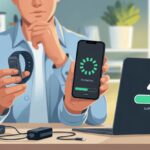
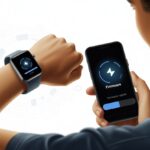
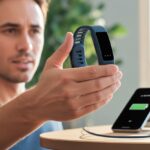
We all love our fitness trackers—until they start acting like they’ve run a mile too many without us. Sometimes, the best way to keep them running smoothly is by updating their firmware.
Updating the firmware on your fitness tracker fixes bugs, boosts performance, and adds features you probably didn’t even know you wanted.
Nobody wants their step count frozen halfway through a dance party or their watch stuck on “Monday.” We want our gadgets to keep up, not slow us down.
With the right steps, updating is quick and painless—unlike our last attempt at burpees.
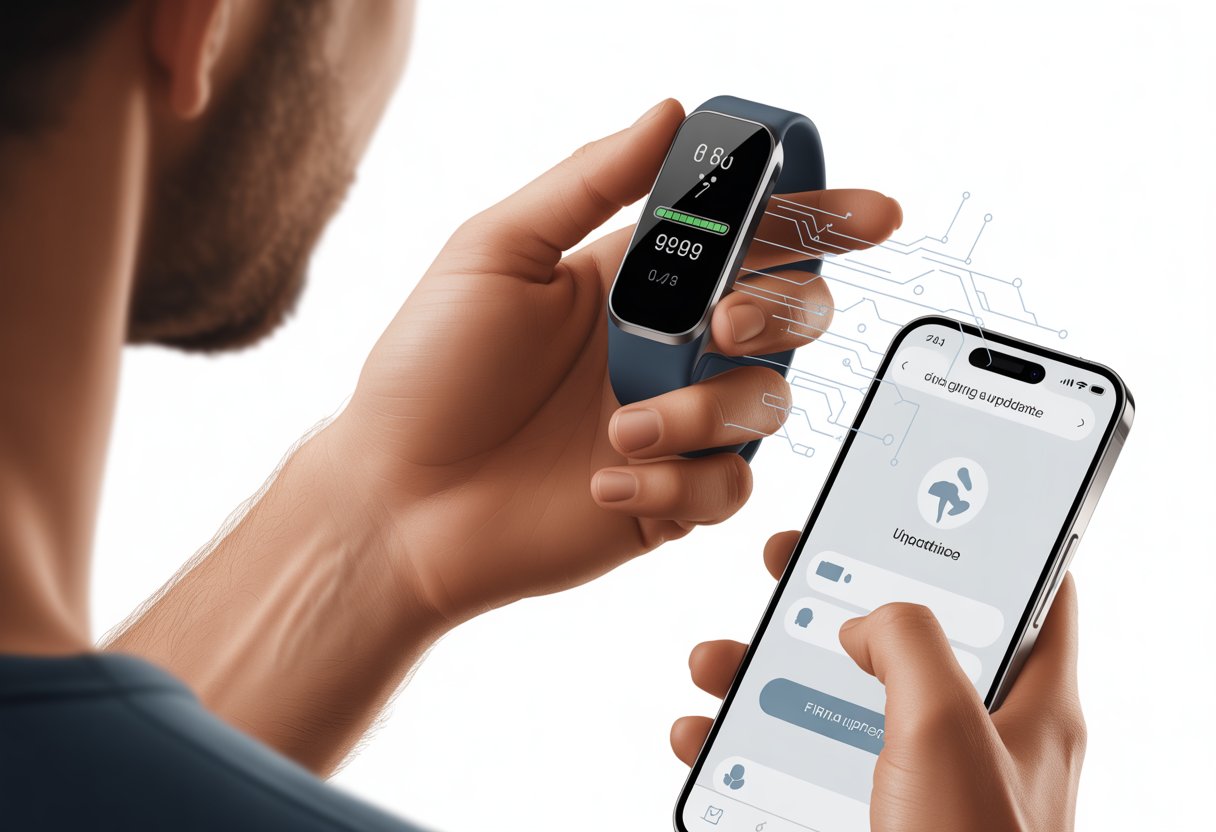
If you keep your device nearby and plugged in, most fitness trackers let you update through the app with just a tap or two. For example, with Fitbit devices, you just open the app, find the update option, and let the magic happen.
See exactly how to update your Fitbit here. No IT degree needed!
What Is Fitness Tracker Firmware?
Think of firmware as the not-so-secret sauce that helps your device do its job. It’s a special kind of software that lives inside gadgets like fitness trackers.
Firmware keeps everything running as it should.
Understanding Firmware Updates
Firmware works under the apps and buttons, kind of like the school principal keeping the hardware in line. It’s not just any software; it tells your tracker exactly how to behave.
When manufacturers want to make improvements, they release a firmware update. This isn’t just about squashing bugs that make your step count go wild.
Updates might add new features or improve battery life, so you aren’t always scrambling for your charger. Each update has a unique firmware version, so you can check if you’ve got the latest.
Keeping firmware current helps your tracker work properly. Sometimes, it even keeps your heart from racing for no reason—unless you’re actually running.
Why Firmware Matters for Your Fitness Tracker
Firmware is the brains of your electronics. For fitness trackers, updated firmware means more accurate heart rate readings and better step tracking.
Sometimes, you even get fancier graphics on your wrist.
Outdated firmware causes problems. Your device might stop syncing, or maybe your calories burned start looking a little too heroic.
Nobody wants to rely on guesswork for their fitness.
By keeping firmware updated, you help your tracker stay safe and smooth. It keeps your data reliable and your confidence (mostly) intact.
How to Prepare for a Firmware Update
Before jumping into a firmware update, check a few basics. Make sure your fitness tracker has the right firmware version.
Save your data, and avoid a surprise battery meltdown. These steps can keep update headaches to a minimum.
Checking Your Device’s Current Firmware Version
Let’s make sure you’re not already running the latest firmware—no sense fixing what isn’t broken. You can find the firmware version in your tracker’s settings or in the companion app.
If you see a pink update banner or “Update Tracker Software” on your app’s main page, it’s time to get clicking. Some trackers show the firmware version in a menu called “About,” “Device Info,” or just “Version.”
If your tracker hides it, a quick look in the manual or app help section usually brings up the answer.
Here’s a tip: Write down your current firmware version. If something goes haywire (and it does happen), you’ll know what version you started with. That makes explaining things a lot easier if you need help.
Backing Up Your Fitness Tracker Data
Once you’ve checked the firmware version, look at your data. Nobody wants to lose their hard-earned steps or that one run they actually finished.
Before any update, sync your device to the app on your phone or computer. Some trackers do this automatically, while others need a manual tap.
If your tracker connects to a cloud account, the data usually gets backed up there, too. Still, it doesn’t hurt to double-check.
Here’s what you should sync:
- Steps and activity history
- Workouts and heart rate records
- Sleep info
- Personal settings
Backing up saves you from explaining why last Saturday’s epic walk disappeared.
Ensuring Sufficient Battery Life
Nothing ruins a firmware update faster than a dead battery. Updates can take 15-30 minutes—or longer if your Wi-Fi decides to take a break.
Make sure your fitness tracker has at least 50% charge before you start. Honestly, 100% is even better.
Plug in the tracker for peace of mind. Some updates won’t even start unless you hit that battery percentage.
If you’re updating via computer, make sure the computer isn’t about to nap.
Quick checklist before updating:
- Tracker battery at least half full
- Charger plugged in (if possible)
- Computer or phone fully awake and not planning any surprise restarts
Don’t give your tracker a chance to throw a tantrum halfway through.
Updating Firmware Using a Mobile App
Updating firmware on a fitness tracker usually needs a solid Bluetooth connection and the official app on your phone. A few steps and a little patience keep your device running without any drama.
Connecting via Bluetooth
Start by getting your fitness tracker and phone to talk to each other. Enable Bluetooth on your phone and make sure your tracker is charged.
Open Bluetooth settings and look for your tracker’s name—something like “Fitbit Inspire” or “Garmin Vivosmart.”
Pairing usually takes just a few taps. You might need to enter a code or confirm the connection.
If things get weird, turning Bluetooth off and on often does the trick. If your tracker still hides, restart both your phone and the tracker.
Stay close—less than 10 feet apart keeps the connection solid.
Using the Official App
Once you’ve got Bluetooth working, open the app for your device. Each big brand, like Fitbit or Garmin, has its own app.
Head to the App Store or Google Play to download or update the app. Open it and log in.
Most trackers show up on the dashboard or device page in the app. If there’s new firmware, you’ll see a notification or an arrow icon—sometimes pink or red.
For Fitbit, a pink arrow means an update is ready: check out this guide for updating Fitbit firmware with the Fitbit app.
Common Update Steps on Mobile Devices
Once you spot a firmware update, it’s go time.
Here’s the usual routine:
- Plug in the tracker or make sure it’s at least 50% charged (nobody wants a mid-update meltdown).
- Tap the update notification in the app.
- Wait while the app downloads and sends the firmware to your tracker (perfect time for a snack or tea).
Keep your phone close and avoid using other Bluetooth devices during the process. If the update crashes, restart both devices and try again.
For Android, Fitbit offers step-by-step instructions on updating via the Android app.
After the update, your tracker will reboot. It might ask you to reconnect to Bluetooth and then show off its shiny new software, ready for another round of questionable jogging.
Updating Firmware With a Computer
Sometimes your fitness tracker just refuses to update through your phone’s app. That’s when you break out the computer and channel your inner IT specialist.
You’ll need a few tools and probably a bit of patience.
Using a USB Cable or Wireless Connection
First up: hardware. Most fitness trackers want you to hook them up to your computer with a USB cable.
Just grab the one from the box (or maybe the one from your headphones if it fits—hey, no judgment). Once connected, your tracker should wake up.
Some newer trackers support wireless updates. If that’s the case, you can use Wi-Fi or Bluetooth to connect to your computer.
It’s like teaching your old laptop a new trick, and when it works, it feels pretty great. For USB, double-check that you’re plugged into a working port—not the one you spilled coffee on last month.
Your computer should be powered and reliable—not the one that restarts at random. Make sure your tracker is fully charged so your update journey doesn’t end with a groan.
Downloading Firmware Updates
Now comes the treasure hunt: finding the right firmware update. Most manufacturers put these updates on their official websites, usually under “Support” or “Downloads.”
You’ll scroll past FAQs and pop-up ads, maybe even a chatbot or two.
You need the exact model of your tracker. Installing the wrong firmware can turn your fitness tracker into a fancy bracelet.
Links like updating your Fitbit device usually have the latest versions and instructions.
Once you find the right file, download it to a folder you’ll actually remember—not one called “Stuff” or “Misc.” You don’t want to lose the update among cat videos or old essays.
Double-check that the download finishes before moving on.
Running the Manufacturer’s Software
After all that, it’s time for the main event. Most companies want you to use their own software to update the device—Fitbit Connect, Garmin Express, or something with a name only an engineer could love.
You’ll need to install this on your computer. Don’t skip the installation steps, tempting as that “Next” button is.
Once the program is running, plug in the tracker (if you haven’t already) and follow the prompts—hopefully, you won’t need to speak fluent code.
The software recognizes the hardware and does most of the heavy lifting. Watch the progress bar fill—slowly, of course.
Don’t unplug anything or close the software until you get the all-clear. If you mess up, you’re back to square one (or calling tech support).
Some programs let you update more than one device, so you can keep the whole family’s trackers running (or at least, not flashing error messages every day).
Brand-Specific Firmware Update Guides
Each brand does firmware updates in its own quirky way. We’ll walk through the steps, highlight the weird quirks, and maybe crack a smile as we try not to brick our favorite gadgets.
Updating Xiaomi and Mi Trackers
Oh, Xiaomi. Always mixing things up! For Mi Bands and other trackers, I always check if my device is fully charged. Nobody wants a tracker blackout at 57%.
Next, I grab my phone and open the Mi Fit or Zepp Life app. Pairing is a must—the tracker needs to show up in the app before anything else can happen.
If there’s an update, the app usually flashes a big alert. I just follow the on-screen prompts and keep both the app and the band close together, almost like they’re on a date.
Don’t wander off! Bluetooth signals act picky and hate walls, microwaves, and apparently, my luck. I let the update finish before unplugging or rebooting anything.
Voilà, the latest features show up on my wrist—unless Xiaomi slips in another surprise.
Garmin Fitness Tracker Updates
Garmin keeps us guessing. I make sure my device is charged, then open the Garmin Connect app.
Syncing comes first. Sometimes I even sync twice, just for peace of mind.
If Garmin wants to update, the app notifies me. Sometimes, though, I have to check manually: More > Garmin Devices > [Device Name] > Device Settings > Software Update. If prompted, I tap Update.
For bigger updates, I can use a USB cable and Garmin Express on my computer. It feels a bit like updating an old-school MP3 player.
Patience helps. Garmin firmware updates can take several minutes, and nobody wants to end up with a tracker that only tells the time.
Epson View App and Printer-Like Updates
Epson makes both fitness trackers and printers. They want us to update them almost the same way.
With the Epson View app, I check that my tracker’s charged. Then I connect to the app and look in settings for update options.
When the update button shows up, I tap it and wait—kind of like watching a printer spit out one page at a time. I resist the urge to hit cancel.
During the update, I don’t touch any buttons. It’s the “printer update rule”—disturb nothing and hope for the best.
When the app says it’s done, I check if the tracker works. If not, I might have to try again or reach out to support.
Troubleshooting Firmware Update Issues
Sometimes fitness trackers would rather nap than update. If I hit a snag, it’s usually a failed download, flaky Bluetooth, or a moody computer or network.
Let’s roll up our sleeves and get these annoyances sorted out.
What To Do If the Update Fails
When the update crashes, it feels like the tracker is trolling me. My first move: restart both the tracker and my phone. This resets any cranky software.
If the update still refuses, I log out and back into the Fitbit or tracker app. Still nothing? I uninstall and reinstall the app, just in case it’s corrupted.
I keep the tracker close to my phone—distance is not my friend here. Need more help? The official update guide has step-by-step tips.
If nothing works and my device won’t cooperate, I try updating on another phone or tablet. Sometimes, tech just wants a change of scenery.
Resolving Bluetooth Problems
Bluetooth often seems to have a mind of its own. If syncing drags on or keeps failing, I make sure Bluetooth is actually on (we’ve all forgotten that at some point).
I go into phone settings and toggle Bluetooth off and back on. Then I move the tracker right next to the phone.
Long-distance relationships don’t work for gadgets. If problems stick around, I remove the tracker from paired Bluetooth devices, then pair it again.
If it’s still stubborn, I restart both the phone and the tracker. For more ideas, check this quick Bluetooth fix guide.
Handling Network or Computer Errors
Sometimes Wi-Fi or the computer throws a fit right when I need it most. I double check for a strong internet connection.
If Wi-Fi is weak, I move closer to the router or switch networks. If I’m updating with a computer, I restart it—classic IT move, but it works.
If updates keep failing, I test another USB port or try a different network. I also check if security software or a firewall is blocking the update.
Sometimes these apps “protect” me by keeping trackers in the Stone Age. If errors keep coming, the Fitbit help page has more troubleshooting tips.
And hey, I check my email—sometimes update instructions or alerts land there when things go sideways.
After the Update: Next Steps
Now that I’ve survived the firmware update (and maybe didn’t even need lucky socks), I want to make sure the tracker works right.
Let’s check the firmware, test features like GPS, and know what to do if things get weird.
Verifying the Firmware Update
First, I confirm my fitness tracker actually got its digital makeover. I open the app that pairs with my tracker.
For most devices, the firmware version shows up under device settings or the info tab. If I see the new version, I’m good.
If the version still looks old, I don’t panic—sometimes syncing is slow. I restart the app or device and check again.
For a quick refresher, this Fitbit help page shows where to find and confirm updates.
Sometimes I even get a confirmation email saying “Firmware update was successful.” If only everything was this polite!
Testing GPS and Other Features
Next up, it’s time to see if GPS and other tracker powers survived the update. I head outside and start a quick walk or run from the device menu.
I keep an eye on GPS signal strength. If it locks fast, great. I track a route and check the map in the app after syncing.
If there are weird jumps or missing data, maybe the GPS needs more attention—or maybe just a break.
I double check other features too—heart rate monitoring, step counting, notifications. Here’s a quick test list:
- Start a GPS activity.
- Check if heart rate sensor lights up.
- Send a notification or call to the tracker.
- Log a workout and sync.
If anything acts up, a quick restart can work wonders.
Getting Support If Something Goes Wrong
Even with our best efforts, tech sometimes just refuses to cooperate. If the firmware update bombs, features go missing, or the device decides it needs a nap, it’s probably time to ask for help.
Most brands tuck support right into their app or offer a help page. When you reach out, grab your device model, firmware version, and email—it really speeds things up and, honestly, makes us look like we know what we’re doing.
You can poke around community forums or YouTube for fixes that someone else has already figured out. Sometimes, just doing a clean reinstall of the app or giving the tracker a reset will kick it back into shape.
If nothing works, hey, at least you can say you tried everything before blaming it on solar flares.

From a young age, I have always had a big interest in technology, and this blog is an extension of that interest. Through this blog, I hope to provide others with all of the information they need regarding tech options to consider, and things such as compatibility. Some of the different items I will be discussing include headphones, smartwatches, and how to fix common issues.
- How to update fitness tracker firmware Without Accidentally Turning It Into a Fancy Bracelet - September 23, 2026
- Best Bluetooth Headphones for Garmin Watches That Won’t Fall Off Mid-Jog - September 22, 2026
- Why is My Fitness Tracker Screen Not Responding? When Your Steps Tracker Takes a Nap - September 22, 2026
Related Posts: