Let’s be honest—our smartwatches are only as clever as the software running inside them. If you want to update smartwatch firmware, you’ll usually need to connect the watch to your phone or Wi-Fi, then poke around the settings or companion app for the update prompts. Sounds easy enough, right? Well, it usually is, unless you start pressing every button except the right one.
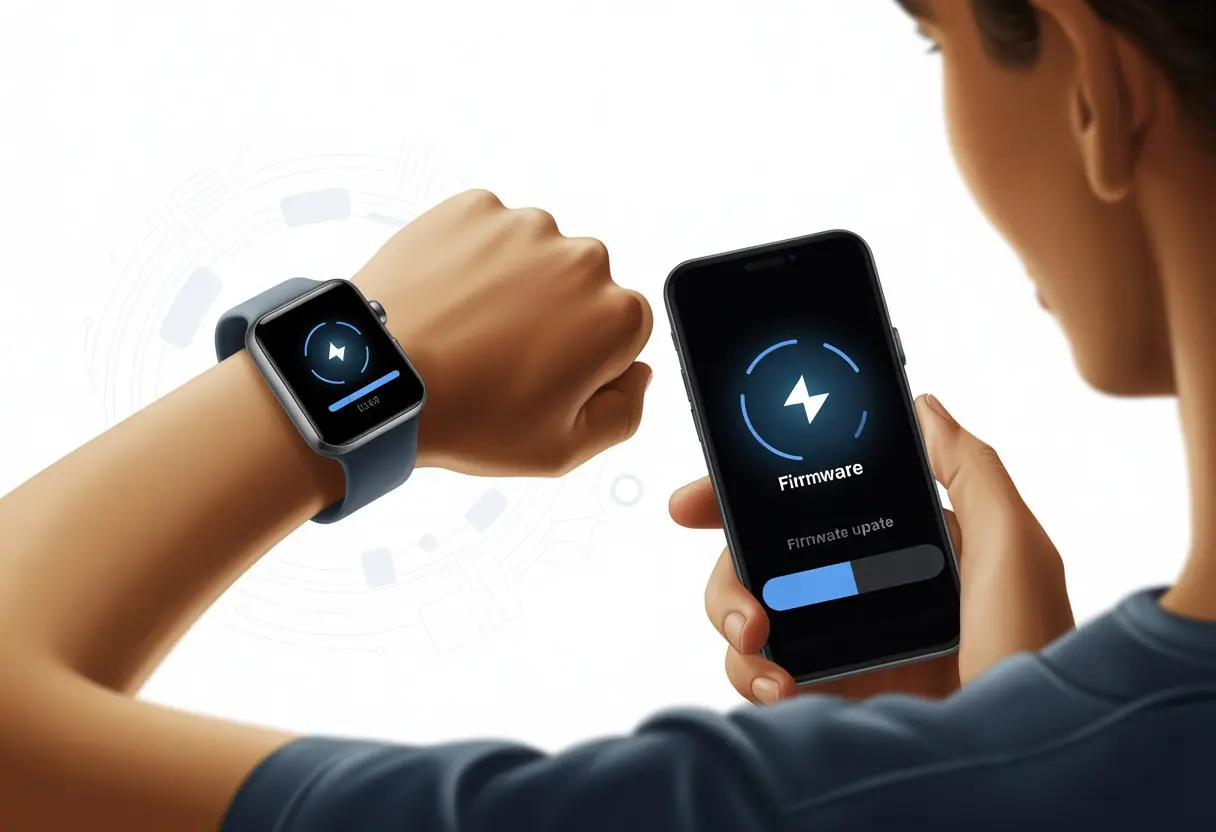
If you want your smartwatch to keep running smoothly and get those shiny new features, you really do need to update it regularly. Ignoring update notifications is tempting, but honestly, that’s like skipping leg day—you’re only hurting yourself. If you need step-by-step help, this easy-to-follow walkthrough can make the whole thing a breeze.
So, let’s dive in and show our smartwatches who’s really in charge. A quick update, and we’ll squeeze the most out of our wearable tech—without breaking a sweat!
What Is Smartwatch Firmware?
Inside our smartwatches, firmware quietly runs the show. It keeps things ticking along, even when we’re not thinking about it. Firmware isn’t just regular software; it acts more like a strict parent for the hardware.
Role of Firmware in Wearable Devices
Firmware sits between the hardware and software, giving both sides their marching orders. Picture it as the middle manager who actually understands what’s happening. Without firmware, the screen would stay dark, and the watch might ignore your taps—which would be pretty awkward mid-workout.
Most smartwatch firmware handles things like:
- Battery use
- Sensor controls
- Button presses
- Wireless connections
Firmware decides if your device wakes up when you raise your wrist, or if it just stays asleep like a grumpy teen. Updates can add new features or squash bugs, so your watch doesn’t freeze right when you’re checking your step count. Reliable firmware is the secret sauce that keeps your watch smarter than a regular old wristwatch.
Difference Between Software and Firmware
Firmware and software are like cousins: same family, but very different roles. Firmware lives inside the device and doesn’t disappear, even if you restart or delete apps. It’s in charge of the basics and makes sure your smartwatch can actually function.
Software, though, is what you choose to add—think new apps, music, or that weather app you ignore. We usually update software more often than firmware. Firmware is permanent, living in storage that doesn’t vanish when the battery dies. Software changes easily and you can remove or swap it out.
So, firmware is the quiet supervisor, and software is the fun stuff you pile on top. Both matter, but they keep your smartwatch running in totally different ways.
Why Update Your Smartwatch Firmware?
Even the smartest smartwatch could use a little help. Firmware updates keep things running smoothly and make sure you’re not stuck with last year’s tech.
Performance Improvements
Updating your smartwatch firmware is like giving your device a quick energy boost—without the jitters. Updates fix bugs, smooth out the system, and help apps load faster. You’ll end up waiting less, and maybe you’ll spend less time angrily poking your wrist.
A firmware update can add new features or improve what you already have. Sometimes you’ll get better battery life, new watch faces, or fresh health tracking tools. If your watch keeps freezing or lagging, these updates can save you a lot of frustration.
Firmware updates keep your smartwatch useful, even after the initial excitement wears off. No need to buy a new one every year. If you need a guide, check out this step-by-step guide to updating smartwatch software.
Security and Support
We all want to keep our data safe—and our private messages private. Firmware updates often include security patches that stop hackers from sneaking in. No one wants their watch starring in a spy movie, unless you’re the secret agent.
Support matters, too. When you update firmware, your device stays compatible with your phone and new apps. That means fewer errors, smoother syncing, and less yelling at your watch when something crashes mid-run. Stay safe and supported by keeping your software up to date. Want more info? Check the iTOUCH Wearables support page.
Preparing for a Firmware Update
Before you hit that tempting “update” button, take a moment. You don’t want to turn your smartwatch into a pricey bracelet. A few easy steps can save you from headaches, lost data, or a dead battery halfway through.
Backing Up Your Smartwatch
Trust me, nothing ruins your day faster than a failed update that wipes out your step count, weird sleep logs, or your dog’s face on your custom watch screen. The best move? Back up everything before you update.
Some smartwatches automatically sync data—contacts, health stats, messages—to your phone or the cloud. Others need you to use the app to start a backup. If there’s an option to export settings, use it. Check the app for backup options—usually in Settings > System > Backup or something similar.
Quick backup checklist:
- Sync health and fitness data
- Save custom watch faces and apps
- Backup contacts and messages
- Export important settings if possible
If anything goes wrong, your backups are a lifesaver. If your watch has an SD card or external storage, back up there too. Better safe than sorry, right?
Checking Compatibility
Before you throw a new firmware update (or ROM) onto your smartwatch, make sure it actually fits. Installing the wrong update is like putting diesel in a gas engine—not good.
First, check your model number in the About or Device Info section of your watch settings. Then, go to the manufacturer’s site or trusted support pages to find the right update for your model.
Make sure your paired phone or computer works with the update process. Some updates require a laptop, while others use a phone app. If you try firmware for another region or carrier, you could run into trouble. Don’t get fancy unless you really know what you’re doing (and have a backup).
Battery and Charging Tips
Trying to update with a low battery? That’s asking for trouble. If your watch dies mid-update, it could get stuck, or even refuse to turn on.
Start with at least 50% battery, just to be safe. Most brands recommend plugging your watch in during updates—nobody wants their watch dying at 87%.
Test your charger and cable before you start. Make sure the charging pins are clean and making solid contact. If you’re updating over the computer, like with some Epson models, keep both the watch and computer plugged in.
Here’s a quick list to avoid smartwatch disasters:
- Charge battery to at least 50%
- Use a reliable charging cable and adapter
- Keep the device on the charger if possible
- Avoid updating during power outages or storms
Going into a firmware update with a weak battery is like skydiving with a half-packed parachute. Not great!
How to Update Smartwatch Firmware via Smartphone
Updating your smartwatch is pretty simple—if you know where to tap and swipe. You can use the manufacturer’s app, mess with Bluetooth settings, or even try Google Play if your watch supports it.
Using the Manufacturer’s App
Start with the obvious: the official app that came with your smartwatch. Grab your phone, open the app (like Galaxy Wearable for Samsung or Wear OS for others), and make sure your watch is connected.
Look for a section labeled “Software update,” “Update watch software,” or something similar. If there’s new firmware, you’ll usually see a prompt. If not, hit “Check for updates” and cross your fingers. The rest is hands-off—just wait and let the app do its thing. Usually, it only takes a few minutes, unless the update is huge. For more help, check Update software and apps on your Samsung smart watch.
Bluetooth Settings Steps
If the manufacturer’s app isn’t cooperating, try your phone’s Bluetooth settings. Your phone and smartwatch need to be paired—Bluetooth on, devices close, and already connected.
Go into your phone’s Bluetooth options, usually in “Settings” > “Bluetooth” (don’t turn Bluetooth off, unless you want to test your patience). Some watches require Bluetooth access for updates, either in the watch software or the companion app. Sometimes, the watch will ask for a confirmation before starting the update. This doesn’t work for every brand, but it’s worth a shot.
google play Updates
For some smartwatches—especially those running Wear OS—Google Play makes things easy. Open the Google Play app on your watch or phone, tap the profile icon, and go to “Manage apps & device.”
Scroll through your apps and look for anything related to your smartwatch. If “Wear OS” or the brand-specific app has an update, tap “Update” and let Google handle the rest. This way, you can get updates without digging through settings menus. It’s quick, as long as your devices are signed in and online.
Updating Firmware With a Computer
Sometimes your smartwatch needs a fresh start. When that happens, you can connect it to your computer and run an update. This keeps your device running fast, safe, and bug-free—and for a moment, you get to feel like a tech wizard.
Connecting Your Device
First, let’s grab that trusty USB charging or data cable—it’s basically the star of this whole process. We plug one end into the watch and the other into the computer’s USB port.
If our watch uses a charging clip or cradle, now’s its time to shine.
Some smartwatches power on automatically when we plug them in. If ours prefers to nap, we might need to press the power button.
After plugging in, the computer should recognize our watch. Sometimes we’ll hear a beep or see a pop-up—always a good sign.
If nothing happens, we can try a different USB port, swap the cable, or just restart the computer. Honestly, a restart fixes more than it should.
If connecting still doesn’t work, the manufacturer’s help page is our next stop. Epson’s got a guide on connecting and updating that can walk us through the steps.
Downloading and Installing ROM
Now, we start the hunt for the latest firmware or ROM file for our watch. Manufacturers usually keep these on their websites or tucked away in official support sections.
We should avoid sketchy third-party sites—no one wants to give their smartwatch a virus.
After downloading, we run the file or open the update app. The instructions may ask us to find the firmware file, so let’s keep it somewhere obvious. The desktop works better than burying it in a maze of folders.
The update program usually shows a progress bar. We just watch it crawl along and try not to unplug anything. Interrupting an update? That’s just asking for trouble.
If we’re updating a smartwatch like an MTK model, extra steps might be needed, like installing drivers or using special tools. We really want to follow the instructions closely until our device restarts with shiny new firmware.
Troubleshooting Common Firmware Update Issues
Smartwatches have a knack for throwing curveballs during firmware updates. Whether we’re fighting connection issues or mysterious failures, a few right moves can save us some stress.
Connection Problems
Firmware updates need a strong connection, but sometimes our devices act like Wi-Fi and Bluetooth are foreign concepts. If this happens, let’s check the battery first—watches get grumpy when they’re low on power.
We should also make sure Bluetooth is on for both the watch and our phone. If Bluetooth is weak, we can try switching to Wi-Fi, especially if our watch supports direct Wi-Fi updates.
Some watches, like Galaxy Watch models, let us connect directly to Wi-Fi and update.
Here’s a quick checklist:
- Is Wi-Fi or Bluetooth on and stable?
- Are both devices close together?
- Did we remember the charger, or is the watch about to faint?
If nothing works, resetting the watch or restarting our phone sometimes shakes things loose.
Failed Updates
Sometimes that dreaded “update failed” message pops up. First, let’s not panic.
Failed firmware updates usually happen when the battery’s low, so we should charge the watch to at least 50% before trying again.
We shouldn’t turn off the phone or close the update app while it’s running. Even the Fossil Smartwatches help center warns against it.
If the update keeps failing, we can try resetting the smartwatch and starting over.
It might help to check for a more stable firmware version or contact support through the app or help site. Sometimes, tech just has a bad day.
Staying Up-to-Date With Smartwatch Firmware
Keeping our smartwatch firmware updated fixes bugs, boosts performance, and sometimes brings cool new features. If we skip updates, we might end up with glitches or stubborn apps—basically, our watch’s way of protesting.
Enabling Automatic Updates
Let’s be honest, we don’t want to remember another password, so why remember to update firmware? That’s where automatic updates save the day.
Most smartwatches let us turn on automatic updates with just a few taps. Usually, we head into Settings > System > System Updates and flip the switch for Automatic Updates.
Some brands, like Samsung, want us to connect to Wi-Fi and keep the watch plugged in so the update doesn’t stall out. Letting updates run on their own means less hassle and fewer “why isn’t my watch working?” moments.
Automatic updates also give us the newest security patches, which keeps our info safe. To double check, our device usually shows a message like “Your OS is up to date” when it’s done, as shown in this step-by-step guide.
Tips for Reliable Updates
Nobody wants their smartwatch stuck in update limbo. Here’s how we can avoid it:
- Charge Up: Updates need power, so we should aim for at least 50% battery.
- Stay Connected: A strong Wi-Fi signal helps prevent download failures.
- Be Patient: Sometimes updates take longer than expected. If things freeze, try holding the power button to restart, as suggested in this troubleshooting tip.
- Back Up Data: Rarely, updates go sideways. Backing up means our messages and data stay safe.
With these habits, our firmware updates should run smoother and keep our smartwatch in top shape.
Best Practices After Updating Firmware
We’ve pressed the update button, crossed our fingers, and now our smartwatch says it’s running the latest firmware. But is that really it? To avoid bugs or missing features, we should check for issues and bring back any customizations that disappeared.
Verifying Update Success
After a firmware update, it’s smart to double-check that everything worked. First, let’s go to settings on the smartwatch and check the firmware version. If it matches the update details, we’re good.
We should test everyday features: check notifications, start a timer, and maybe try heart rate or step tracking. If something acts weird (like the time suddenly showing the year 1985), don’t panic. A simple restart usually fixes most things.
If battery life drops after an update, let’s keep an eye on it for a few hours. If problems stick around, we can check the smartwatch’s support website or firmware update guides for solutions.
Restoring Custom Settings
Firmware updates can feel like someone hit a reset button on all our carefully picked settings. Did you lose your custom watch face? Or maybe that silent alarm just vanished?
Don’t panic—there’s always a way back. Start by picking your favorite watch face again. You can do this right from the watch settings or through the companion app on your phone.
If you notice your notification preferences or alarms have disappeared, it’s time to dig into those menus and set things up just how you want. Sure, it takes a few extra taps, but it’s worth it.
For trickier stuff, like rearranging custom app layouts or reconnecting Bluetooth devices, you’ll probably need to set them up by hand. Honestly, it helps to jot down your favorite settings before updating, but who actually remembers to do that every time?
With a bit of patience—and maybe a little trial and error—you’ll get your smartwatch back to how you like it. Sometimes, you might even discover a new favorite feature along the way.

From a young age, I have always had a big interest in technology, and this blog is an extension of that interest. Through this blog, I hope to provide others with all of the information they need regarding tech options to consider, and things such as compatibility. Some of the different items I will be discussing include headphones, smartwatches, and how to fix common issues.
- Why do my Bluetooth headphones not block outside sound? Sorry, They’re Not Mind Readers! - October 5, 2026
- How to Use a Smartwatch for Running Without Looking Like You’re Checking Your Stocks - October 4, 2026
- Best Bluetooth Headphones for Long Flights: Ears Happy, Neighbors Jealous - October 4, 2026
Related Posts: