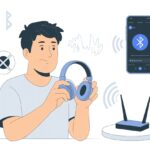
Let’s be real for a second—the last thing we want during a ride is our playlist blaring out to the whole house. Or, even worse, having our heavy breathing echo into someone’s Zoom call. The good news? We can connect Bluetooth headphones to our Peloton and keep our workout jams (and grunts) private.
No wires, no tangled mess, just pure, wireless audio bliss as we climb and sprint.
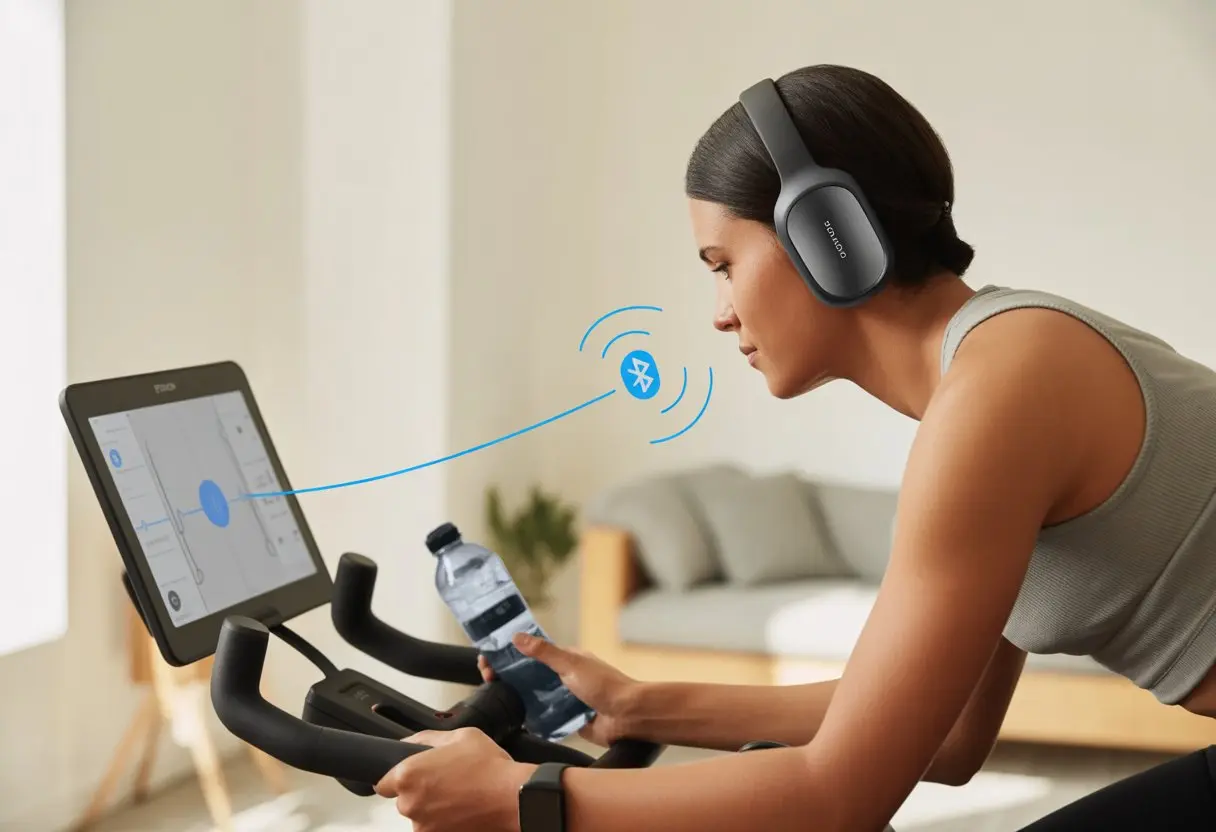
Pairing our Bluetooth headphones with a Peloton is honestly easier than shouting, “Can you hear this now?” across the house. We just tap a few settings, spot our headphones on the screen, and hit connect.
Armed with our headphones and maybe a little caffeine, we’re ready to ride in peace. Every beat and every instructor shout stays right where they belong—in our ears. No more bothering roommates, family, or even pets.
Let’s get to the steps and make this happen.
Understanding Bluetooth Headphones Compatibility
When we try to sync Bluetooth headphones with a Peloton, not every gadget wants to cooperate. Knowing which features will work (and which might leave us sweating in silence) can save us from frustration and those awkwardly overheard grunts.
Supported Bluetooth Profiles
Let’s chat about Bluetooth profiles. Sounds technical, but it’s just how our headphones and Peloton talk.
Most Bluetooth headphones and true wireless earbuds support the A2DP (Advanced Audio Distribution Profile). That’s the one sending our playlist or instructor’s voice straight into our ears, crystal clear.
Peloton supports A2DP, but not every Bluetooth device is a sure thing. We should skip older headsets that only offer mono profiles (like HSP or HFP). To get quality and a stable connection, it’s smart to pick headphones that list A2DP or stereo audio support in their specs.
Here’s a quick breakdown:
| Profile | What It’s For | Compatible With Peloton? |
|---|---|---|
| A2DP | High-quality audio | Yes |
| HFP/HSP | Basic calls/mono audio | Not recommended |
If our headphones have features like a microphone or volume controls, some buttons might not work with the Peloton. So, maybe skip the karaoke session during our climb.
Peloton Hardware Versions
Not every Peloton device connects the same way to Bluetooth gear. The Peloton Bike, Bike+, Tread, and Guide all have Bluetooth, but each one supports slightly different versions or software.
The original Peloton Bike feels a bit old school. It can pair with Bluetooth audio, but sometimes struggles with newer headphones or earbuds.
Bike+ and Tread models have newer Bluetooth chips. They handle pairing better, with fewer dropouts or pairing fails.
Peloton’s software updates can help with compatibility, but some headphones still refuse to play nice. If we see an “incorrect pin” error, unpairing from other devices and trying again usually helps.
For pairing steps, Peloton’s Bluetooth troubleshooting page is always there if we need backup.
And, no matter how advanced our bike or sneakers, the Bluetooth range only stretches about 30 feet. So, don’t expect our playlist to follow us into the kitchen.
Pairing Your Bluetooth Headphones with a Peloton
Connecting Bluetooth headphones to the Peloton is simple, but every step counts. We need to get our headphones ready and then use the bike’s settings to connect everything.
Activating Pairing Mode on Your Headphones
First up: before the Peloton can “see” our headphones, we need to put them in pairing mode. Every pair is a little different, and sometimes it feels like playing “Guess Which Button.”
Usually, holding down the main button for a few seconds does it. Most Bluetooth headphones flash a blue or white light—bonus points if it blinks at us impatiently.
Some headphones even announce “Pairing mode,” like they’re more awake than we are. If nothing flashes, check the manual or look for a tiny symbol that means it’s searching.
If our headphones stubbornly stick to other devices (looking at you, old phone), we should unpair or turn off Bluetooth on those first. That way, the headphones focus on their next adventure with the Peloton.
Now for the Peloton screen. Tap the top right corner to open Settings. Next, select Bluetooth Audio.
The bike starts scanning for available Bluetooth devices, including our headphones. Once our headphones show up—hopefully not with an embarrassing name—we just tap their name.
If a pin or passkey pops up (rare, but it happens), it’s usually 0000 or 1234. After a few seconds, we’ll see a confirmation that we’re connected.
If the headphones don’t show up, hit refresh or double check that they’re still in pairing mode. With a bit of patience, everyone’s on the same wavelength.
Troubleshooting Bluetooth Connection Issues
Sometimes, Bluetooth headphones just refuse to cooperate with the Peloton. When this happens, working out feels less like a party and more like a silent disco gone wrong.
Let’s tackle the annoying stuff: sound that doesn’t line up and signals that keep dropping.
Common Audio Sync Problems
Ever tried to pedal to the beat, but the beat shows up late? Audio lag between video and headphones can happen, especially if our headphones or the Peloton screen are being dramatic.
Some headphones have more delay than others—it’s them, not us.
Here’s what to try:
- Restart devices: The classic fix. Turn the bike and headphones off, then back on.
- Pair headphones again: Remove them from Peloton’s Bluetooth list and add them back.
- Update software: Make sure Peloton and headphone firmware aren’t stuck in the past.
- Use low latency headphones: If possible, pick headphones that brag about “low latency” mode.
If nothing works, check for extra tips on the Peloton support page.
Interference and Range Challenges
Bluetooth signals can be moody. One minute, everything’s fine. The next, our headphones are skipping or disconnecting.
This usually happens because other devices are causing interference, or we’re trying to cycle in the neighbor’s driveway.
Tips to keep our connection strong:
- Stay close: Keep headphones and Peloton within 30 feet, or risk garbled audio.
- Limit nearby electronics: Other gadgets, microwaves, or even routers can mess with our jams.
- Clear obstacles: Walls or even pets can block the Bluetooth signal.
- Switch headphone brands: If one pair keeps failing, it might be time for something new.
For more troubleshooting, Peloton’s accessory troubleshooting page has extra solutions.
Optimizing Your Audio Experience
If our workout jams sound off, it can mess with our whole groove. Let’s make sure our music and instructor aren’t fighting for space in our heads.
Adjusting Volume and Audio Balance
We’ve all had that moment—crank up the volume and it’s like a concert inside a tin can. On the Peloton, we can avoid that by checking the volume on both our Bluetooth headphones and the Peloton screen.
Sometimes turning up the wrong one just leads to confusion. It helps to test the sound with a music track before class starts.
That way, we don’t find out too late that our motivation playlist is actually silence. If the balance is off—maybe the instructor is whispering while the music is blasting—we can use the on-screen music vs. instructor volume slider.
This slider is basically our personal sound mixing board. No DJ skills needed.
If it still sounds weird, try disconnecting and reconnecting the headphones. Even high-tech gadgets need a little “turn it off and on again” sometimes.
For more tips, Peloton has a handy troubleshooting guide that can save us from dramatic headphone tantrums.
Using the Peloton App with Bluetooth Headphones
Let’s not forget the times we’re on the go. If we use the Peloton app for workouts on our phone or tablet, we can pair Bluetooth headphones through our device’s regular Bluetooth menu.
No secret codes, just standard pairing. We tap “Bluetooth” in settings, pick our headphones, and wait for that satisfying confirmation sound—ding!
Sometimes our headphones try to get creative and connect to the wrong device, so it’s smart to turn off Bluetooth on everything else during class.
If we get stuck and can’t hear our coach, the Peloton app support has tips for a smoother wireless headphone setup.
Perfect sound means both sweaty efforts and awkward dance breaks are fully enjoyed, wherever we are.
Tips for Using Bluetooth Headphones During Peloton Workouts
Let’s be honest: there’s nothing fun about your headphones dying mid-sprint or slipping out when you get sweaty. If we want our Peloton playlist to last as long as our legs, there are a couple of things we need to think about.
Battery Life Considerations
Nothing kills the vibe faster than gearing up for a ride, tossing on headphones, and hearing that dreaded, “Battery low.” Not exactly the pep talk I wanted. To dodge this, I usually charge my headphones right after I finish a workout.
Leaving a charging cable nearby makes it easy to plug them in as soon as I’m done.
Some Bluetooth headphones come with quick charge features. Just 10-15 minutes on the charger can squeeze out another hour or two of music.
For those of us who always forget to charge (guilty), this feature can really save the day.
Here’s a quick checklist to avoid battery mishaps:
- Check battery level before every ride
- Keep headphones charging when not in use
- Use quick charge if you’re in a rush
- Pick headphones with at least 8 hours of battery life
Most headphones show the battery level on the Peloton screen or on your phone. I’ve started making battery checks a habit—kind of like stretching, but honestly, way less effort.
Sweat and Durability Concerns
Let’s be real—we all get sweaty on tough rides, and our headphones do too. Some headphones can handle sweat, but others just can’t keep up.
To avoid nasty surprises, look for headphones marked sweatproof or water-resistant.
Check for ratings like IPX4, IPX5, or higher. That way, your headphones can survive the downpour that is your cardio session.
If you use over-ear headphones, wipe them down after every workout. In-ear headphones with removable, washable tips help a ton, especially if you ever share your gear (no judgment).
Not sure what to look for? Here’s a quick table:
| Feature | Why It Matters |
|---|---|
| Sweatproof/Waterproof | Survives steamy rides |
| Removable ear tips | Easy cleaning & hygiene |
| Rugged materials | Handles the occasional drop |
If your headphones ever start smelling like last week’s socks, it’s probably time for a clean—or maybe just a new pair.
Advanced Connection Techniques for Multiple Bluetooth Devices
We all love tech—until it decides it’ll only play nice with one gadget at a time. Peloton’s Bluetooth setup usually lets us listen, sweat, and brag about our stats without much fuss, but sometimes syncing everything needs a few tricks.
Connecting More Than One Bluetooth Device
You want both your Bluetooth headphones and your heart rate monitor to connect to the Peloton? Good news: the bike usually lets you pair an audio device (like headphones) and a fitness gadget (like a heart rate monitor) at the same time.
But don’t try connecting two pairs of headphones or two speakers—it won’t work.
Here’s what I do:
- Connect headphones first in the Bluetooth menu.
- Next, put the heart rate monitor into pairing mode, then pick it in the accessories or heart rate section.
Most heart rate monitors and Bluetooth headphones play nice together. No sibling rivalry here!
Need a walkthrough? There are step-by-step guides for pairing Bluetooth headphones and combining devices like speakers with heart rate monitors.
Switching Between Headphones and Speakers
Can’t pick between privacy and blasting your playlist for the whole house? Peloton makes it easy to switch between headphones and speakers (or whatever audio device you want) without too much fuss.
Here’s how I do it:
- Tap the settings icon up top.
- Hit “Audio,” then “Audio Output.”
- Pick your Bluetooth headphones or a speaker from the list, depending on your mood.
Sometimes devices take a few seconds to connect or disconnect. If your speaker won’t show up, turning Bluetooth off and on again usually fixes it.
And if you’re still stuck, try sweet-talking the bike—or just follow the steps in the audio output menu before you start mashing buttons in frustration.
Conclusion
So, we’ve figured out how to get our Bluetooth headphones working with the Peloton. Honestly, it’s not rocket science, but hey—it’s a lot better than shouting at the screen.
If things suddenly stop working, don’t panic. Just check if Bluetooth’s actually on. If it’s off, well, we’re not going anywhere fast.
If you’re still stuck, jump into Settings, tap Bluetooth Devices, and refresh the list. Spot your headphones? Awesome. If not, try a classic restart—sometimes that’s all it takes.
Here’s a quick cheat sheet for us:
| Step | What We Do |
|---|---|
| Turn on BT | Check Peloton Settings |
| Pair Headset | Find & select headphones |
| Dance break! | Test the sound |
Now, we can enjoy that crisp audio—no wires getting in the way or flapping around while we’re climbing. If anyone asks how we pulled it off, maybe just give them a wink and say, “We read the manual.”

From a young age, I have always had a big interest in technology, and this blog is an extension of that interest. Through this blog, I hope to provide others with all of the information they need regarding tech options to consider, and things such as compatibility. Some of the different items I will be discussing include headphones, smartwatches, and how to fix common issues.
- How to Get Text Messages on Fitbit Versa 2 Android: Simple Guide for Users - October 13, 2026
- Why Doesn’t My Fitbit Record My Sleep? Quick Troubleshooting Guide - October 13, 2026
- How to Change Face on Fitbit Versa 2: Quick and Easy Guide - October 12, 2026
Related Posts: