Let’s be real—most of us have held a brand-new smartwatch in one hand and our phone in the other, silently wondering if they’ll ever get along. The upside? Syncing them up is way easier than decoding whatever new slang teens are using. We just need to pair the watch with our phone using an app, usually through Bluetooth, and follow a few simple steps. Seriously, that’s it—no need for a degree in rocket science.
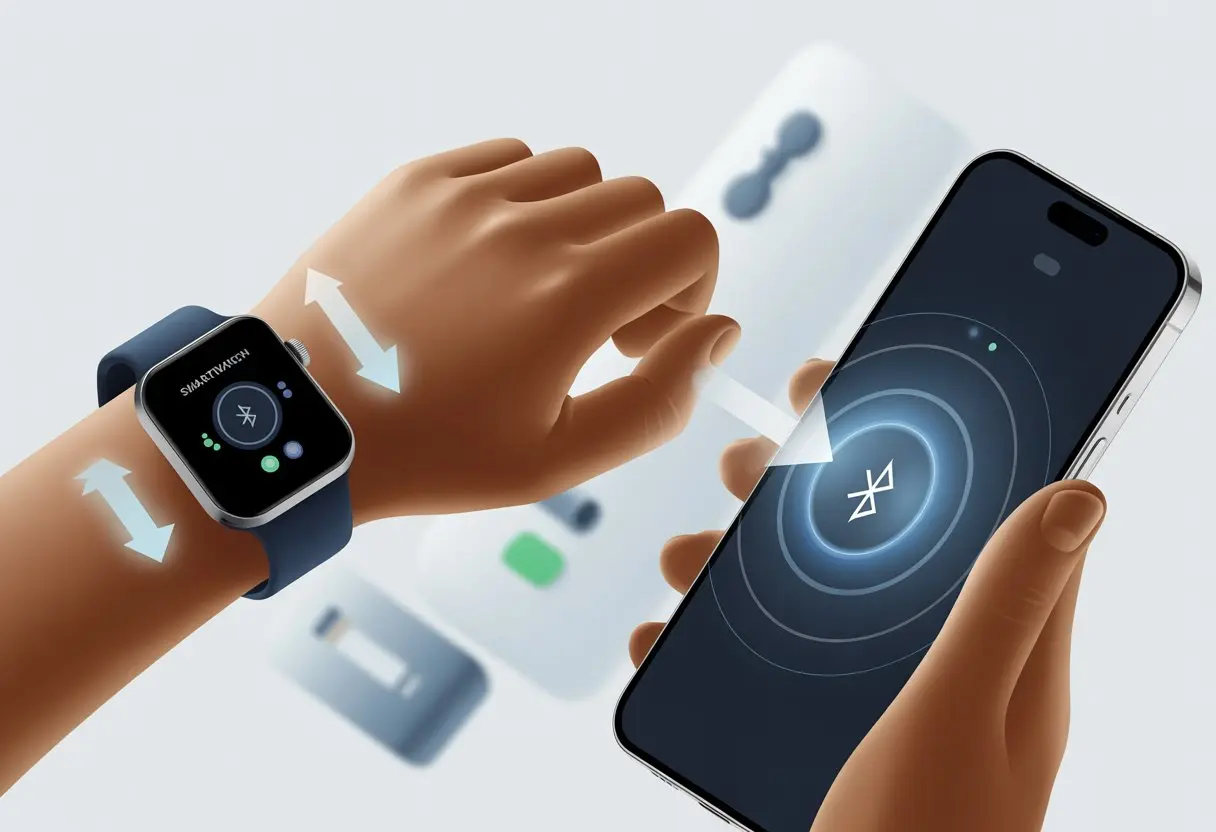
No matter if you’re on Android, iPhone, or something in between, the main thing is having the right app and making sure both devices are ready to connect. Some smartwatches want the Wear OS app or a brand-specific one, while others are happy with something universal like FitPro or Galaxy Wearable.
If you want the nitty gritty, Samsung users can find instructions for both iPhone and Android through Samsung support.
So, if you’re done missing messages or counting steps in your head, here’s how to make your smartwatch work with your phone. Your wrists (and your sanity) will probably thank you.
Understanding Smartwatch and Smartphone Compatibility
Not every smartwatch gets along with every smartphone. To keep your gadgets from fighting (or from flying across the room), you’ll want to check a few basics: operating systems, Bluetooth, and what apps you’ll need.
Supported Operating Systems
If your smartwatch and phone aren’t running in the same tech playground, things won’t go well. Many smartwatches use Wear OS by Google, which works best with Android phones, though some features might play nice with iPhones too.
But don’t expect everything to work if you mix and match. Some apps or integrations just won’t show up when you pair a Wear OS watch with an iPhone.
Other smartwatches stick to their own kind. The Apple Watch only connects to iPhones—no exceptions. Android-powered watches usually support both Android and iOS, but it depends on the version.
Before you buy, double-check those system requirements. Nobody wants to discover their new “smart” watch is just a fancy bracelet.
Bluetooth Capabilities
Now, about Bluetooth. Your smartwatch and phone need Bluetooth to connect, send messages, and gossip about your daily steps.
Most recent smartwatches use Bluetooth 4.0 or higher. If your phone thinks “app” is short for “appetizer,” you might hit a wall.
Both devices should support the same Bluetooth standard for the smoothest connection. If there’s a big gap—like pairing a shiny new Wear OS watch with a phone that’s stuck in the past—it might not work.
You can check your phone’s Bluetooth version in its settings. If it’s ancient, maybe it’s time for an upgrade. Outdated Bluetooth chips never saved a friendship.
App Requirements
Every smartwatch needs its own app—think of it as a digital butler. If you’re setting up a Wear OS by Google device, grab the Wear OS app from the Play Store if you’re on Android.
iPhone users sometimes get the app, but with fewer features.
Other smartwatches might need something special—Samsung Galaxy Watches use Galaxy Wearable, for example. If you skip the right app, your smartwatch will just sit there, bored.
Setting up is simple: search, download, open, and get ready to pair. Always check the app requirements and compatibility notes. If you want more details, see how to set up your watch with Wear OS.
Preparing for Connection: What You Need
Before your smartwatch and phone can join forces, there’s some quick prep to do. Make sure your gadgets are ready, fully charged, and you’ve got what you need to avoid any connection drama.
Charging Your Devices
Let’s be honest: nothing kills a setup faster than a dead battery. Before pairing, grab your charger and give both the smartwatch and phone a good boost.
Aim for at least 50% charge on both. This helps you dodge the panic of a mid-setup shutdown.
If you’ve got a new smartwatch like the Tag Heuer Connected, it might arrive with barely any battery. Don’t risk it—plug everything in for an hour. It’s a small step for a much smoother start.
Enabling Bluetooth and Wi-Fi
Your smartwatch and phone need Bluetooth turned on, and sometimes Wi-Fi helps too.
Go into your phone’s Settings and flip on Bluetooth. Most smartwatches will ask for this, and if it’s off, nothing is pairing.
Some models (Galaxy Watch, for example) may need Wi-Fi as well, especially for downloading apps or updates.
If your Wi-Fi is spotty, move closer to the router. No shame—smart devices love Wi-Fi. Double-check for those Bluetooth and Wi-Fi icons at the top of your screen. Missing a toggle is a classic (and easily avoided) mistake.
Required Apps and Downloads
Without the right app, your watch is just a fancy bracelet. Most smartwatches need a companion app to set up and manage the connection.
Android users, head to the Google Play Store. For Samsung, grab the Galaxy Wearable app.
If you’re using something unique like the Tag Heuer Connected, you’ll find its app with a quick search. Sometimes, the smartwatch itself flashes a QR code when you turn it on—pretty clever, honestly. Scan it and download the app.
Make sure your phone has enough storage before going wild with downloads. And don’t trust that “connection in progress” message until the apps finish updating.
The Step-by-Step Pairing Process
Getting your smartwatch to work with your phone takes a few steps, a little patience, and maybe a dash of luck. You’ll handle Bluetooth, punch in a code, and let the apps walk you through the rest—no sweat (well, hopefully).
Initiating Bluetooth Pairing
First, make sure your phone’s Bluetooth is on. Yes, actually check the settings and flip the switch—phones can be sneaky and forget.
Once that’s done, your smartwatch should light up or vibrate, welcoming you to the pairing party.
Open the companion app, like Wear OS or FitPro, if you haven’t already. Then, tap pair new device or add and wait for nearby devices to show up.
If your watch’s name appears, you’re in business. Pairing can be quick, but sometimes you’ll need to reboot a device or move them closer together, like two shy kids at a dance.
For more details, check out these steps for connecting a smartwatch to your phone.
Entering the Six-Digit Code
Now comes the memory test—but don’t stress, it’s just six numbers. Your phone and smartwatch will both show the same code.
Just make sure they match. If not, no worries—restart the process. It’s not a secret handshake, just a way to keep imposters out.
Tap pair or connect, then enter the code exactly as shown (no math required). If the code disappears while you’re distracted, just start again.
Matching this code keeps your pairing secure and stops random devices from crashing your party.
Following On-Screen Instructions
Once the code is confirmed, follow the on-screen instructions in your app or on your watch. You might get asked for permission to access notifications, fitness tracking, or even your camera—yep, your watch could become your new wrist paparazzi.
Some apps want you to register or sign in, just to prove you’re not a robot (or to sell you some fancy backgrounds later).
You’ll also see tips for syncing contacts, alarms, or health data, so you can make things your own. The app usually guides you through the last steps, almost like a friend who doesn’t judge you for skipping the fine print.
If you miss something, you can always go back and tweak the settings. For a detailed breakdown at this stage, the Android Wear guide gives step-by-step help.
Completing the Setup Process
By this point in the setup process, your phone and smartwatch are basically best buds, but there are still a few things to finish. You’ll need to give your devices permission to talk, and then check that everything’s set up right so your watch actually works.
Granting Permissions
When you connect the smartwatch, your phone’s going to get nosy—asking for all sorts of permissions. It’ll want to know if it can share contacts, messages, calls, and notifications.
Usually, a screen pops up listing these requests. If you skip them, your smartwatch might go silent.
For most features, it’s best to say yes, especially to notifications and contact sharing.
Here’s a quick breakdown:
| Permission | What It Does |
|---|---|
| Contacts | Syncs contact names/calls |
| Notifications | Shows phone alerts |
| Location | Helps with maps/fitness |
| Calls/Texts | Lets us reply on our watch |
You can pick and choose, but denying too many basically turns your smartwatch into a dumb watch. If you don’t see the permission screens, head into Bluetooth settings or use the watch’s app to find them.
Finalizing Setup on the Smartwatch
Now the real fun starts. Your smartwatch might ask you to pick a watch face, set some fitness goals, or, inevitably, update itself. There’s always that one update waiting, right?
It might also let you choose which apps can send notifications, so you’re not getting pinged every time your favorite game wants you back.
Most smartwatches guide you with step-by-step prompts. If you hit a button and nothing happens, don’t panic—updates can take a few minutes.
While you’re waiting, double-check if you’ve got automatic updates turned on. That way, you (hopefully) won’t have to deal with this again soon.
Once you’re through the setup screens, your smartwatch and phone should finally work as a team. If pairing fails, try restarting both devices. That trick usually helps, as folks on this Samsung community page suggest.
Sometimes, technology just needs a quick nap.
Configuring Notifications and Connected Features
When your shiny smartwatch pairs up with your phone, it’s time to make sure you’re not missing birthday wishes or that 47th “Are you coming?” group chat message. Fine-tuning notifications keeps you sane.
Managing messages and calendar events helps dodge double-bookings and those surprise dentist appointments nobody wants.
How to Manage Notifications
Let’s not go wild with endless alerts. On your phone, open the smartwatch app (like Wear OS or Galaxy Wearable).
Find the notifications section. Here, you pick which apps can buzz your wrist—texts, emails, maybe just a couple of games.
Turn off notifications for apps you barely use. Your wrist will thank you later.
You can usually toggle other options like preview message content, silent hours, or even set custom vibration patterns for VIPs. Some apps show a handy table of all your phone apps with toggles for each one.
Choosing carefully means you’ll only get interrupted when it matters.
If you want to change your mind (and who doesn’t?), just head back into the app and tweak your notification choices. For more details, check out the official Wear OS setup guide.
Syncing Messages and Agenda
Having messages and your agenda on your wrist is a game-changer—no more awkward phone peeking in meetings. Just allow message syncing in the companion app.
For text messages, you might need to grant extra permissions. Your watch shows incoming messages, and sometimes you can even reply with your voice or a quick reply.
Syncing your calendar keeps your agenda right where you need it. If you use Google Calendar or something similar, make sure sync is enabled in the settings.
Your events, reminders, and to-dos should pop up on your watch. When appointments change, your watch updates automatically, so you’re (almost) never late.
Some smartwatches let you manage tasks, reminders, or even join video calls right from your wrist. If a feature sounds handy, there’s probably a toggle for it—don’t be afraid to poke around the settings.
For a full walkthrough on syncing and features, the Wear OS help page is worth a peek.
Troubleshooting Common Connection Issues
We all want our smartwatches and phones to get along. When they start acting like rival siblings, it’s time to step in.
Let’s see how to fix the usual trouble spots—Bluetooth quirks, weird app problems, and those sneaky location settings.
Problems with Bluetooth Settings
Bluetooth is the glue between your devices. Sometimes, that glue just doesn’t stick.
First, check if Bluetooth is actually on for both your phone and smartwatch. It sounds silly, but it happens.
Make sure your devices are close together. Bluetooth works best when they’re within a few feet. If your watch is buried under a pile of laundry, good luck.
If things still aren’t working, try restarting both devices. Sometimes, they just need a fresh start—like us on Mondays.
If that doesn’t fix it, go into your phone’s Bluetooth settings, forget the watch connection, and pair them again. This solves a lot of stubborn issues, as explained in this helpful guide on troubleshooting smartwatch connections.
If there’s an update waiting for your watch or phone, install it. Outdated software is often the sneaky villain in Bluetooth drama.
Quick Fix Checklist:
- Bluetooth turned on for both devices
- Devices are close together
- Restarted both devices
- “Forget” and repair the connection
- Latest software updates installed
Resolving App Compatibility Errors
Sometimes, the problem isn’t Bluetooth—it’s the companion app. If you downloaded your smartwatch app from a sketchy site or it hasn’t been updated since forever, it’s time for an upgrade.
Head to the Google Play Store or your phone’s app store. Look for updates to the official smartwatch app.
Download any updates waiting around. An outdated app can stop your watch from connecting or syncing notifications.
Make sure the app matches your specific watch model. Some watches and apps fit together like puzzle pieces, others just don’t.
If nothing works, uninstall the smartwatch app and reinstall it. This resets settings that might be stuck.
Following these steps solves a lot of weird errors, as shown in this guide about fixing pairing issues.
Location Services and Connectivity
Location services don’t just track your steps—they’re also weirdly important for Bluetooth pairing between some smartwatches and phones.
Some apps need location permissions enabled to find and keep a connection. Open your phone’s settings and check if location services are on.
If not, flip that switch. Some smartwatches refuse to pair unless you also give them location permission—even if they don’t care that you hit the donut shop (again).
On Android, make sure the smartwatch app has location permission in the app settings. Pairing may fail without it, and your devices will just ghost each other.
Sometimes, giving your devices a little permission to stalk you keeps things running smoothly. If you’re stuck, this page explains how location settings factor into pairing.
Tips for Staying Connected
Nobody wants their smartwatch to stop talking to their phone halfway through the day. Staying connected takes a bit of planning (pun totally intended), and a few simple habits can prevent most connection headaches.
Keeping Your Devices Updated
We’ve all been tempted to hit “Remind me later” on those annoying updates, but honestly—keeping things current really helps. Automatic updates let you nap while your devices get smarter and more stable.
If you’re using a Samsung smartwatch or a Wear OS brand like Tag Heuer, regular updates squash those sneaky bugs that love to sneak in between your devices.
For most smartwatches, you’ll find update options in the settings menu. For your phone, updates come from either the Google Play Store or the device’s own system update area.
If you’re not sure, check once a week or so. If automatic updates are off, turning them on is your best friend.
That little blue “install now” button is way less scary than a dropped Bluetooth connection.
Best Practices for a Reliable Connection
Let’s be honest, Bluetooth likes short distances. If your phone and watch end up in different rooms—especially with a couple of walls in between—don’t be surprised if they stop talking to each other.
Here’s a quick checklist:
- Keep Bluetooth and Wi-Fi on for both devices.
- Charge both regularly. Low batteries? They’ll mess with your connection.
- Don’t overload with too many connected devices. Sometimes, less really is more.
- Restart both devices every so often. Hey, we all need a reset now and then, right?
If you’re using a Samsung smartwatch, grab the right companion app (something like Galaxy Wearable). That step makes a big difference for a stable Bluetooth connection.
And if nothing else works, just unpair and re-pair your devices. Honestly, sometimes starting over is the easiest fix.

From a young age, I have always had a big interest in technology, and this blog is an extension of that interest. Through this blog, I hope to provide others with all of the information they need regarding tech options to consider, and things such as compatibility. Some of the different items I will be discussing include headphones, smartwatches, and how to fix common issues.
- How to use a fitness tracker for sedentary alerts: Because Your Couch Won’t Miss You Anyway - September 14, 2026
- Why do my Bluetooth headphones not work with my projector? Solving Tech Mysteries for the Audio-Challenged - September 13, 2026
- Best Smartwatches for Medication Reminders: Never Forget Your Pills (or Your Sanity) Again - September 13, 2026
Related Posts: