We’ve all been there—gearing up for a workout, only to realize our fitness tracker just won’t hook up with our favorite headphones. Sometimes Bluetooth is off, another device is hogging the signal, or maybe our tracker’s begging for a software update. If we’ve already tried the classic “turn it off and on again” move and still get nothing but silence, it’s enough to make anyone want to throw their shoes across the room.
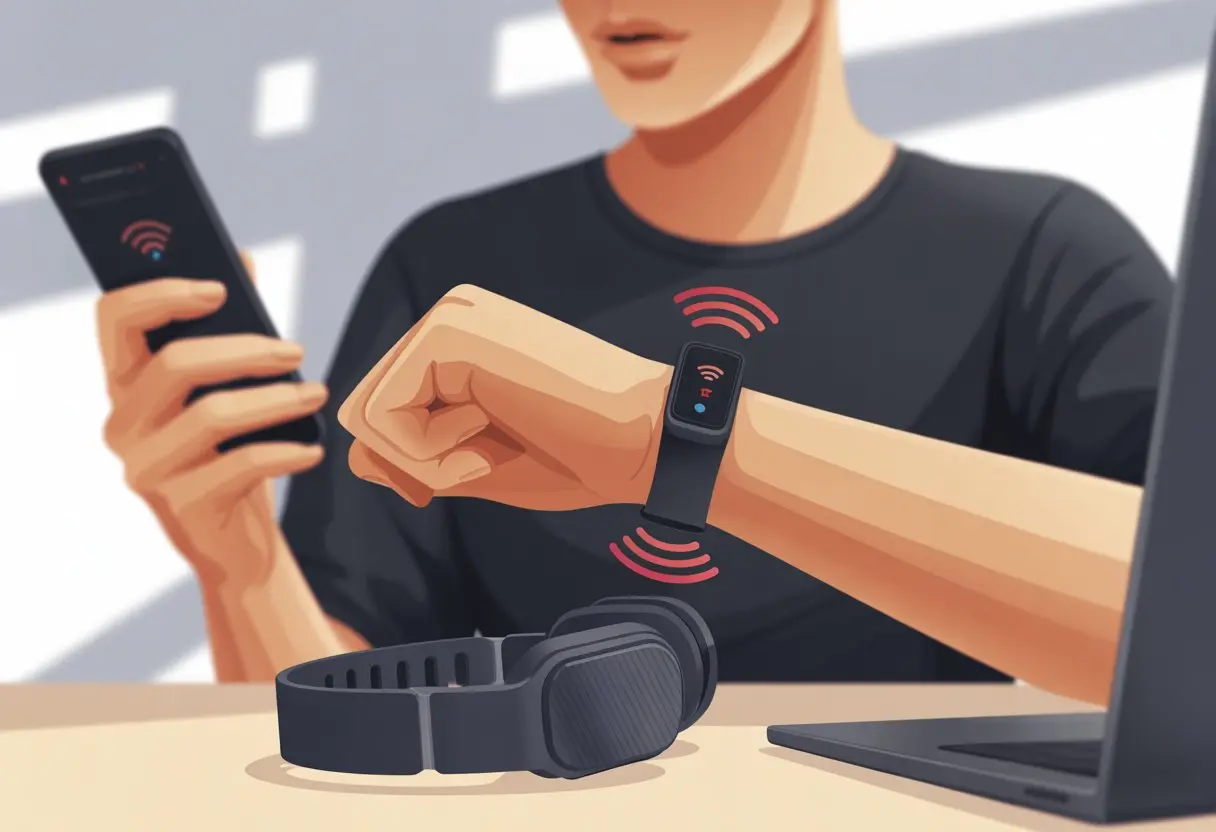
Let’s be honest, nobody wants to slog through a jog without a good playlist or a coach in their ear. Whether it’s Bluetooth glitches or just too many gadgets in the room, this stuff happens. We’re not alone in this headphone headache, and believe it or not, a few quick tweaks might get us back on track.
Stick around while we dig into why fitness trackers get so fussy with headphones and share some fixes that actually help. Who knows, maybe our next run will be less tech tantrum, more fun.
Understanding Fitness Tracker and Headphone Connectivity
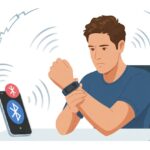
When our fitness tracker and headphones don’t want to play nice, Bluetooth confusion or device mismatch usually causes the drama. Sometimes, our fancy gadgets just need a little nudge to talk to each other, especially when we’re dealing with audio connections and all those sneaky settings.
How Bluetooth Works
Bluetooth is kind of like the handshake at a party—sometimes smooth, sometimes awkward. Our devices—trackers, headphones, even the odd smart toaster—use Bluetooth to connect and swap data over short distances.
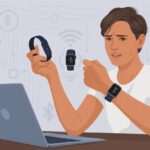
Pairing is the magic word here. When we turn on Bluetooth on both devices, they swap info and set up a secure link. But if one device is rocking an old Bluetooth version and the other is cutting-edge, they might just talk past each other.
Interference can also throw things out of whack. Walls, other electronics, or even the neighbor’s turbo Wi-Fi can mess with our signal. If that happens, we usually get things back on track by toggling Bluetooth off and on or just giving everything a quick reset.
Wireless Headphones Compatibility
Not every pair of wireless headphones wants to be friends with every fitness tracker. Some, like the Bose Soundsport Pulse, use special Bluetooth profiles for stuff like heart rate sensors or audio streaming. If our tracker doesn’t support those profiles, we’re stuck in “silent disco” mode.
We should check if our headphones and tracker use matching Bluetooth versions and profiles like A2DP or AVRCP. The user manual usually has a chart for this, but let’s be real, most of us just skip to the troubleshooting page.
Some trackers only connect with certain brands or types of headphones, or they just refuse if our headphones are already paired with our phone. Disconnecting from everything else first can help.
Role of Fitness Trackers in Audio Connections
Fitness trackers aren’t just step counters—they sometimes act as hubs for other devices. If we want to blast some “Eye of the Tiger,” our tracker needs the right hardware and up-to-date Bluetooth settings. Some trackers focus only on fitness and skip music streaming altogether.
We should poke around in the Bluetooth settings menu. Look for options like “+ audio device” or “pair new device”—sometimes they’re buried deeper than our motivation on a rainy day. If our tracker can connect to wireless headphones, it’s usually pretty straightforward, but sometimes it takes a reboot and a bit of patience.
If nothing works, our tracker might just not support it, or the feature could be model-specific. Checking support pages or forums (and trying not to get sucked into step challenges) can reveal if our tracker is really up for the job.
Common Reasons for Connection Issues
Getting our fitness tracker and headphones to get along isn’t always a walk in the park. Sometimes, gadgets act like they’ve got a mind of their own. Here’s why our Bluetooth gear sometimes just refuses to cooperate.
Out of Range or Interference Woes
Bluetooth isn’t exactly a superhero. If our tracker is too far from our headphones, the connection drops faster than we’d like. Usually, we get about 30 feet of range, but walls, furniture, or a packed gym can shrink that to almost nothing.
Other devices yelling for Bluetooth attention can also mess things up. Gym equipment, Wi-Fi routers, or someone else’s headphones might muddy the signal. If our music keeps cutting out during a workout, interference could be to blame.
We should keep our gadgets close and try to connect in open spaces. If we’re still stuck, it might help to check for other devices hogging the Bluetooth waves.
Pairing Mode Mix-Ups
Pairing mode is like a secret handshake. If our tracker or headphones aren’t in pairing mode, they’ll just ignore each other—no matter how many times we try. Sometimes, our devices refuse to go into pairing mode, or they bail before we’re ready.
We need to make sure both gadgets are ready at the same time. Flipping Bluetooth off and on, or even restarting both devices, can help. Garmin has some good advice on rebooting and pairing headphones.
If things still won’t work, we should watch for blinking lights or sound prompts that mean pairing mode is active. Sometimes, a little patience is all it takes.
Multiple Devices Connected
Our gadgets can be a little flaky. If we try connecting too many headphones, speakers, or phones at once, things get messy fast. Most fitness trackers only want one Bluetooth headphone connection at a time. If they sense another device nearby, they might just give up.
Imagine trying to listen to music while our smartwatch is also syncing notifications with our phone. Bluetooth gets overwhelmed, and the headphones get left out. It helps to turn off Bluetooth on any extra devices nearby.
Disconnecting everything else before pairing our headphones usually solves the problem. That way, nothing’s fighting for attention, and our playlist stays on.
Battery and Power Troubles
Nothing kills a morning jog like headphones that won’t play nice with our tracker. Usually, the sneaky culprit is right in front of us—that little battery icon that’s always running low. Time to give power issues the attention they deserve.
Low Battery in Devices
If our tracker or headphones have a low battery, the connection falls apart fast. A lot of Bluetooth headaches start with something as simple as not enough power. Even if the devices turn on, a weak battery can’t keep a stable connection. Once that battery icon turns red, we’re on borrowed time.
The fix? We should always check the battery level. Most trackers and headphones show a tiny battery icon, so we really shouldn’t ignore it. Plugging in for a quick charge solves more problems than any amount of button-mashing. Low batteries can also cause weird glitches, so a full charge gives us the best shot, just like Bluetooth headphone troubleshooting guides mention.
Automatic Power-Saving Features
Just when we think we’ve got it, some trackers and headphones sneak into “power-saving” mode. Sometimes, these features turn off Bluetooth or put the device to sleep—without warning us. These quirks can make our gear invisible when we try to pair.
To keep things running, we should check settings for sleep mode or auto shutoff. If we spot them, it’s worth turning those features off or tweaking them so our connection lasts longer. Sometimes, the user manual helps—or we just guess until something works.
Compatibility with Operating Systems
Sometimes, our tracker and headphones just don’t speak the same language. Each operating system—iOS, Android, or whatever our smartwatch runs—has its own quirks and secret rules.
Connecting with iOS Devices
Pairing Bluetooth headphones with an iOS device like an iPhone or iPad usually feels easy—unless we stumble into a hidden setting. The Apple Health app sometimes needs us to say “yes” to permissions. If we’re using an Apple Watch, things can get even pickier.
If our fitness tracker isn’t showing up, we should check if it’s supported by our iOS version and visible in Bluetooth settings. iOS can be picky, and some third-party trackers don’t always pop up. Sometimes, we have to open the tracker’s app to get things started.
The Apple Watch app adds extra steps if we want headphones for workouts or audio. The watch might insist we connect headphones through its own settings—because, well, it doesn’t trust the iPhone to do the job. If things get weird, a quick restart can sometimes calm down even the most stubborn Apple gadget. These Bluetooth troubleshooting tips are worth a look.
Connecting with Android Phones
Android users know it’s always a surprise what we’ll get after an update. Connecting our tracker and headphones means making sure our Android version and fitness app actually match our gear.
If our tracker or headphones use a newer Bluetooth version than our phone, things can go sideways. We should always check Bluetooth compatibility and look at the fitness app’s setup screen.
Android will ask for a bunch of permissions—not just Bluetooth, but location as well. If we say no, our tracker won’t connect. Some fitness apps want us to pair devices inside the app, not through the phone’s Bluetooth menu. For more on common pairing headaches, especially with lots of trackers and headphones, check out this guide to Bluetooth pairing problems.
Smartwatch-Specific Issues
Smartwatches really act like they’re the boss sometimes. They don’t just connect to our phones and headphones—they try to decide who gets to talk to what, and when. This usually means our headphones refuse to connect directly to both our watch and our phone at the same time.
If we use a Samsung or Garmin smartwatch, we often have to disconnect our headphones from the phone before pairing with the watch. Sometimes, the watch’s operating system—like Wear OS, Tizen, or Garmin’s own—snags control of the headphones and just forgets about the fitness tracker.
“Bluetooth stealing” is a real headache. Our phone can yank the headphone connection away from the watch right when we’re lacing up for a run. Ever had that happen? You’re definitely not alone—lots of smartwatch owners run into this. If we can’t get audio from our smartwatch to our headphones, try restarting both devices and look up brand-specific fixes. There are more tips on handling headphone reception issues with smartwatches if we need them.
Honestly, we just want our tech to get along, but sometimes it acts like a stubborn roommate.
Troubleshooting Steps to Fix Connection Problems
When our fitness tracker refuses to cooperate with our headphones, fixing it is usually not rocket science. Before we panic, let’s poke around our Bluetooth settings like we’re on a treasure hunt.
Rebooting the Fitness Tracker
First step—just turn the tracker off and back on. Sometimes these things just need a break. A quick reboot can clear out whatever’s got Bluetooth all tangled up.
To reboot, power down the tracker, wait ten seconds, and turn it on again. Most trackers use a main button or a menu option for this. The idea is to give the device a clean start and kick out any leftover gremlins.
A reboot helps the tracker reconnect with our headphones, and it’s such a classic fix that even support articles recommend it before anything else.
Sometimes, our gadgets just need a pep talk—just like we do before dragging ourselves out of bed.
Resetting Bluetooth Settings
If the tracker’s still being difficult, time to mess with Bluetooth settings. Turn Bluetooth off on the tracker. Wait a few seconds—maybe sigh dramatically—then turn it back on. This little ritual can clear up a lot.
With Bluetooth freshly toggled, try pairing the headphones again. If that fails, go ahead and reboot the headphones and maybe even the phone, just to cover all the bases. It feels a bit like overkill, but hey, sometimes that’s what it takes.
Resetting Bluetooth is a classic move, and Techlicious and other tech folks swear by it. Sometimes the simplest fix is the right one—our trackers need a reminder of who’s in charge.
Audio Features and Fitness Tracking Interference
Sometimes our fitness trackers and headphones just refuse to get along. Tech can get fussy, especially when we’re just trying to get a workout in and listen to a guilty pleasure playlist.
Conflicts with Heart Rate Sensors
Honestly, our wrists are crowded. Fitness trackers check our heart rate, count our steps, and maybe even judge our snack choices. Add Bluetooth headphones like the Soundsport Pulse, and signals can get messy.
Heart rate sensors need solid skin contact and a strong link to the tracker. If our headphones are also fighting for Bluetooth, radio interference can happen. Suddenly, our heart rate data drops or freezes—right when we’re about to set a new record.
Here’s a quick snapshot of what can go wrong:
| Issue | Result |
|---|---|
| Bluetooth interference | Heart rate signal dropping |
| Poor device placement | Inconsistent measurements |
| Multiple wireless connections | Competing signals, weaker tracking |
Sometimes it helps to keep devices on opposite arms or just pause and reconnect if things get weird. Let’s not forget—the heart rate sensor is really just trying to track our run, not battle headphone signals.
Impact on Exercise Routines
We’re tracking distance, pace, steps, and maybe how much we’re sweating (physically and emotionally). If the tracker loses its headphone connection, suddenly we’ve got no music and we’re not even sure we’ve run more than three steps.
During tough workouts, data can get unreliable. Bluetooth dropouts happen more in crowded gyms, and that can mess with our stats or stop our playlist cold. People in gyms say Bluetooth interference ruins both music and exercise tracking.
Here’s what might go wrong:
- Headphones cut out mid-workout
- Tracker misses distance or pace
- We wind up dancing to static, not music
Keeping devices charged and not fighting for the same signals gives us the best shot at enjoying our music and seeing real stats.
Apps and Notifications: A Love-Hate Relationship
Fitness trackers work hard, tracking our every step—sometimes better than our family notices us moving. But getting apps and notifications to play nice with our headphones? That’s a circus.
App Permissions and Audio Access
Let’s be real—apps aren’t psychic. If we hit “Deny” on every permission pop-up, our fitness app setup won’t work any magic. Trackers using Runkeeper or Apple Health need specific permissions to send notifications and push workout instructions to headphones.
Check phone settings for permissions like Motion & Fitness Activity, Bluetooth, and Audio Access. If any are off, our headphones and notifications might as well be in different universes. Make sure Apple Health’s audio settings aren’t blocked off like a family secret.
Sometimes, uninstalling and reinstalling the app resets the permissions. It’s not rocket science—just the digital version of “turn it off and on again.” It works more than we’d like to admit.
Notification Conflicts
Lost notifications test our patience. If alerts stop coming through our headphones, maybe our device is juggling too many connections. Some smartwatches, like those from Fitbit and Garmin, have notification drama after connecting Bluetooth headphones.
Let’s check a few things:
- Is the tracker paired with more than one device? If so, unpair the extras.
- Have we restarted the tracker and phone recently? (It helps. Annoying, but it does.)
- Are notification settings in both tracker app and phone silenced or limited?
- Does the tracker have permission to run in the background, or is battery saver shutting it down?
Even the Apple Health app sometimes needs a nudge. After an update or settings change, reviewing permissions can save us from missing out on those mid-run notifications.
When All Else Fails: Hardware Issues and Repairs
Sometimes, no matter what we try—every trick, hack, and update—our gadgets just won’t cooperate. If our fitness tracker and headphones still refuse to connect, hardware might be the real problem.
Signs of Bluetooth Hardware Failure
We know the feeling: Bluetooth is on, everything’s charged, and we’re still staring at a spinning wheel. A few signs point to the device, not us, being at fault.
- The tracker or headphones can’t find any devices, not even our phone.
- Connecting leads to weird error messages, like “Bluetooth unavailable” or “Connection failed” every time.
- Devices get hot to the touch or the battery drains way too fast.
Sometimes, only one earbud works while the other takes a vacation. We might get constant disconnects, even in the same room, like our gadgets forgot how to be friends.
If our headphones only pair with some devices but ignore our fitness tracker (and the tracker works fine elsewhere), it’s probably a hardware mismatch or just plain Bluetooth failure.
Contacting Manufacturer Support
Alright, we’ve tried everything on the software side. Now it’s time to put on our best “please help me” face and reach out to support.
First, grab the essentials:
- Model and serial numbers for both your fitness tracker and headphones.
- Proof of purchase—if you can actually find it (maybe it’s not buried in a sock drawer, but who knows).
- A rough list of what you’ve already tried, so tech support doesn’t walk you through the basics.
Most brands run support pages, live chat, or just a plain old phone line. Some drop troubleshooting guides, while others let you book a repair right away.
If your stuff’s still under warranty, you might score a free replacement. If not, ask what repairs cost—you never know, sometimes it’s cheaper than you expect.
Definitely poke around the manufacturer’s support resources. They sometimes post details about hardware issues or even recalls.
And hey, don’t stress—customer reps have heard every story, even the wild things we do just to get Bluetooth working.

From a young age, I have always had a big interest in technology, and this blog is an extension of that interest. Through this blog, I hope to provide others with all of the information they need regarding tech options to consider, and things such as compatibility. Some of the different items I will be discussing include headphones, smartwatches, and how to fix common issues.
- Best Smartwatch For Messaging And Phone Calls - November 2, 2026
- Samsung Galaxy Watch 4 Bluetooth Versus LTE – Which Model Is Right For You? - November 1, 2026
- What Are The Best Whoop Alternatives? - November 1, 2026