We’ve all been there. We try to pair our fancy Bluetooth headphones with our smartwatch, and both devices just stare at each other like awkward strangers at a party.
Most of the time, our Bluetooth headphones won’t connect to our smartwatch because the Bluetooth settings are off, the devices aren’t in pairing mode, or there’s a pesky software update waiting in the wings. Sometimes it feels like our gadgets need a pep talk before they’ll cooperate.
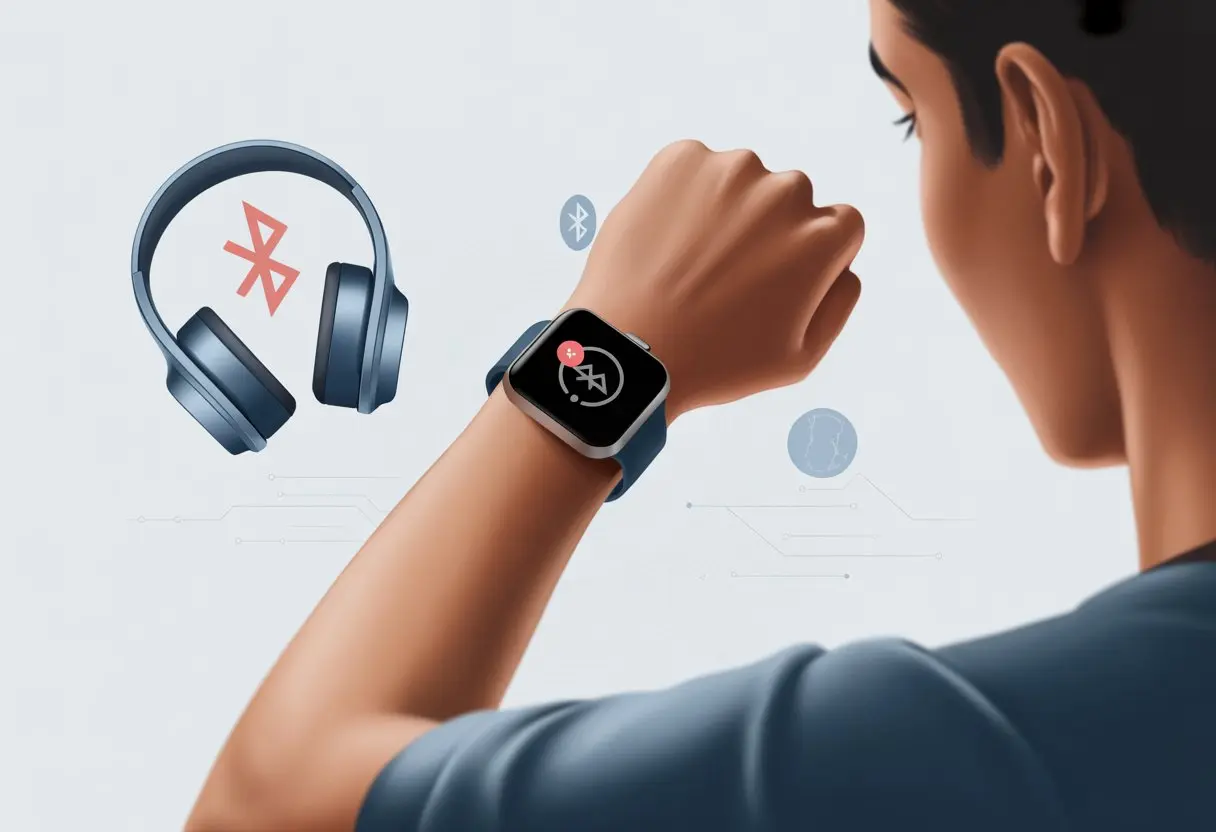
When we expect music on our wrist and get absolute silence, frustration hits fast. Even folks who claim to know every tech trick hit this wall.
The good news? Most pairing problems have easy fixes. We don’t need to be tech wizards to get things working again.
If we want smooth music on a run—or just don’t want to make our phone jealous—let’s look at why our Bluetooth headphones refuse to play nice with our smartwatch. Grab your gadgets, and let’s troubleshoot together.
Understanding Bluetooth Basics
Before we can figure out why our Bluetooth headphones are ignoring our smartwatches, let’s get comfortable with how Bluetooth technology actually works.
We’ll check out how these tiny signals help our gadgets talk, why Bluetooth versions matter, and what standards keep our headphones from being rebels.
How Bluetooth Technology Enables Connections
Bluetooth is pretty much the quiet kid passing secret notes in class. It uses short-range radio waves to let our devices—like headphones and smartwatches—have private chats.
When we’re ready to pair our headphones, both devices send out greeting signals, kind of like a digital handshake. If both agree (and they’re not grumpy), they swap keys so only they can share data.
This stops nosy neighbors from listening in. But Bluetooth connections have their limits.
The two devices have to be close—usually less than 30 feet. Too far, and the link gives up, just like us when we lose WiFi at a coffee shop.
Bluetooth Versions and Compatibility
Every new Bluetooth version tries to be cooler than the last. We started with Bluetooth 1.0, which honestly crawled along, and now we have versions like 5.0 and up that are much faster and go farther.
If our headphones use Bluetooth 5.0 but our watch is stuck on 3.0, they might not get along. Most Bluetooth gadgets are backward compatible, so newer devices usually play nice with older ones.
But if one of them is ancient, it might miss key features—or just refuse to work. This especially matters if our new headphones want features like low energy use or fast pairing, and our watch can’t handle it.
Checking which Bluetooth version both our watch and headphones use can save a lot of headaches.
Common Bluetooth Headphones Standards
Bluetooth headphones use different standards, and these are more than just boring acronyms. The most common ones for audio are A2DP (Advanced Audio Distribution Profile) for music, HFP (Hands-Free Profile) for calls, and AVRCP (Audio/Video Remote Control Profile) for controlling playback.
Here’s a quick table for those of us who forget:
| Profile | Main Use |
|---|---|
| A2DP | Streaming music |
| HFP | Phone calls |
| AVRCP | Playback control |
If our smartwatch doesn’t support the same profile as our headphones, things get awkward. If we’re missing sound or playback control, it’s probably a profile mismatch—not just bad luck.
For more tips on fixing connection woes, check out this Bluetooth pairing problems guide.
Pairing Bluetooth Headphones to a Smartwatch
Getting our Bluetooth headphones to connect to a smartwatch shouldn’t feel like rocket science. Sometimes, though, it kind of does.
Let’s break down the main steps together so we can get back to our favorite tunes—hands-free and wire-free, just like tech wizards (or at least like people who read the manual).
Checking Compatibility Between Devices
First, we need to double-check if our smartwatch and Bluetooth headphones even speak the same language. Not every Bluetooth device is friends with every smartwatch model.
Compatibility is key. For example, some Wear OS watches don’t support certain gadgets, like ANT+ accessories, but they usually love headphones.
If our Bluetooth headphones use an older version of Bluetooth and our smartwatch just came out last year, we might run into problems. Brands can make things easier—if we’ve got a Samsung watch and Samsung headphones, pairing is almost automatic.
But if we mix and match brands, we might need extra steps. Before we even try to connect our headphones, let’s peek at the smartwatch’s support website.
They’ll list what works and what doesn’t. It’s like checking the guest list before crashing a party—better safe than stuck staring at a “connection failed” message.
A quick visit to the official Samsung pairing guide can save us a lot of frustration.
Step-By-Step Pairing Guide
Let’s get hands-on with pairing our Bluetooth headphones to a smartwatch. Here’s our go-to cheat sheet:
1. Turn on Bluetooth:
On our watch, head into Settings, then flick on the Bluetooth switch.
2. Make headphones discoverable:
Most headphones jump into pairing mode if we hold the power or Bluetooth button until a light flashes. Pretend we’re in a spy movie and wait for the signal.
3. Start pairing:
On the watch, look for a menu that says “Bluetooth audio” or “Pair new device.” Tap it like we mean it.
4. Select our headphones:
Our headphones should pop up on the list—if they don’t, double-check they’re still in pairing mode. Select the name, and after a second or two, we should get a “connected” notice.
If it doesn’t work, maybe the headphones need to be reset, or our watch Bluetooth needs a quick off-and-on toggle. Sometimes, we need to update the software—because of course we do.
If all else fails, this Bluetooth troubleshooting page is a solid backup. At least we know we’re not the only ones.
Troubleshooting Connection Issues
Sometimes, getting our Bluetooth headphones to pair with a smartwatch feels like teaching an old dog new tricks. We run into weird errors, forgotten pairings, and stubborn tech that just won’t cooperate.
Let’s break down some common problems and what we can actually do about them.
The Dreaded Too Many Devices Error
Bluetooth, like our bags on a weekend trip, only has so much room. Most smartwatches and headphones can only remember a handful of devices.
When we try to add another, the device might refuse, flashing cryptic messages like “Can’t Connect” or just ignoring us. If our headphones or watch won’t connect, check both gadgets for a list called Paired Devices or Connected Devices.
Look for anything we’re not using—a forgotten phone, a neighbor’s speaker, or even our old TV. Time to say goodbye and delete those connections.
Here’s a quick way to clean house:
- Go to the Bluetooth settings on both our watch and headphones.
- Find paired or connected devices.
- Remove what we don’t need.
Clearing out these old links gives space for our trusty headphones to connect properly. Sometimes, it only takes a minute, but it can make all the difference.
Reddit users talk about this headache often.
Unpairing and Re-pairing Headphones
If our headphones act like they’ve never met our watch before—again and again—it’s time for the classic “turn it off and on again,” with a twist: unpairing and re-pairing.
This trick wipes away any failed connections and lets the devices start fresh. It’s basically hitting the reset button.
Open Bluetooth settings on both the watch and headphones. Select the headphones on the watch and remove or forget them.
Turn both devices off, wait a few seconds, and power them back on. Now, put our headphones in pairing mode (usually holding the power button until a flashy light appears).
On our watch, search for new devices and select the headphones when they pop up. If all goes well, we’re back in business.
The simple steps are explained more on Quora.
Resetting Bluetooth Settings
When nothing else works, resetting Bluetooth settings is our big red emergency button. It’s like cleaning out a messy drawer: sometimes we just have to dump everything out and start over.
Resetting clears all paired devices from our watch’s memory and makes it act like it’s brand new again—at least in Bluetooth terms.
On most smartwatches, head to Settings > Connections > Bluetooth. Look for an option like Reset Bluetooth or forget all paired devices.
On headphones, we might need to press and hold specific buttons to clear memory—check the manual or take a wild guess. We’ll have to re-pair all our Bluetooth devices afterward, so get ready for a quick round of button mashing.
It might sound like a hassle, but it can fix the toughest pairing issues. Samsung offers a straightforward help guide for this process if we get stuck.
Common Reasons Your Bluetooth Headphones Won’t Connect
When our Bluetooth headphones refuse to pair with our smartwatch, it usually comes down to a few common problems. Let’s see how low batteries, old software, and nosy devices get in the way.
Low Battery Drama
We’ve all been there—charging cords hopelessly tangled, only to find our Bluetooth headphones gasping for life. If the battery is low or dead, our headphones may not even turn on, and pairing just isn’t going to happen.
Many headphones have sneaky power-saving features that shut Bluetooth off before the device totally dies. To dodge this melodrama, we need to keep those headphones charged.
Before blaming our smartwatch, let’s make sure the headphones have enough juice for Bluetooth to work. Sometimes the battery icon lies, so it’s best to give them a solid charge for 30 minutes and try again.
Charging early also helps us avoid the annoying beeps and disconnects mid-song or mid-call. When in doubt, plug it in.
A simple battery check can save us a lot of time and headache. It’s often the quickest fix when Bluetooth headphones won’t connect.
Outdated Firmware Fails
Software bugs? They’re like invisible gremlins in our gadgets. When we skip updates on our smartwatch or headphones, old software can make Bluetooth act up in all sorts of strange ways.
Updates sneak in better connection support and squash pairing bugs we probably never even noticed. Let’s try to remember to check for updates on both devices every now and then.
Manufacturers roll out patches all the time—sometimes it’s a big deal, sometimes barely noticeable. If we want the latest features and fewer pairing headaches, keeping firmware current is the way to go.
On a Samsung watch, updating the software is especially important if we’re wrestling with connection issues. That’s straight from Samsung’s troubleshooting guide.
After an update, we might need to “forget” the old Bluetooth connection on both devices and start fresh. Honestly, wiping the slate clean can work wonders when our tech feels stuck in the past.
Interference from Other Devices
Bluetooth craves attention, but too many devices in one spot? Total chaos. When everything around us has Bluetooth turned on, our headphones and smartwatch get mixed signals about who to connect with.
Phones, tablets, TVs, maybe even a neighbor’s smart fridge—they’re all tossing out signals. Moving away from busy electronics can help when we’re pairing.
Turning off Bluetooth on extra devices cuts down the noise. Thick walls or a crowd of people can mess with the signal too, so keeping our headphones and smartwatch close together is smart.
If nothing’s working, turn off Bluetooth everywhere else—even that dancing speaker in the kitchen. Clearing the digital clutter gives our headphones and smartwatch a better shot at finding each other, just like this guide suggests.
Reading the Owner’s Manual Like a Pro
Let’s be real: the owner’s manual usually collects dust. But when our Bluetooth headphones just won’t connect to the smartwatch, suddenly that booklet feels like a hidden treasure map.
Interpreting Obscure Manufacturer Warnings
We’ve all seen those cartoon warnings and dramatic exclamation marks. Owner’s manuals love to toss in warnings that make about as much sense as a foggy morning.
So, how do we make sense of them?
- Look for Connection Guides: Most manuals bury the important Bluetooth pairing steps somewhere in the small print. It’s worth fighting the urge to skim and actually following each step.
- Highlight Compatibility Info: Some watches need specific Bluetooth versions to work right. If our headphones aren’t connecting, this section might tell us if we’re wasting our time. Still stuck? Double-check the troubleshooting pages.
- Beware the “Do Not” List: Manuals love to sprinkle in random rules—don’t pair during a full moon, don’t connect if you just ate garlic bread. Okay, maybe not that last one, but it pays to read these oddball restrictions so we don’t fall into a common trap.
Trying to decode the manual can feel like a puzzle, but it’s wild how many answers hide behind those warning triangles and tiny icons.
When All Else Fails: Seeking Help
We’ve tried everything. The headphones still refuse to play nice with the smartwatch. At some point, it’s time to call in the experts or just ask the internet hive mind.
Contacting the Manufacturer for Support
Let’s be honest—our patience is probably hanging by a thread at this stage. When we hit a dead end, reaching out to the manufacturer’s support team is usually the grown-up move (even if we don’t want to).
Most brands offer help through a toll-free number, chat, or email. We should have our device details, serial numbers, and error messages ready, because support reps love to ask for them.
Their websites often have guides that can dig up obscure Bluetooth issues we never imagined. If we’re lucky, they’ll talk us through a fix—or, worst case, help us get a replacement. Being polite usually makes everything go smoother for both sides.
Turning to JustAnswer and Other Forums
Not ready to give up? Online forums and community sites can be goldmines for weird but effective solutions.
Sites like JustAnswer connect us with experts who might have seen our exact problem before. Apple and Samsung forums, or even Reddit, are packed with people sharing their own Bluetooth struggles and victories.
Sometimes, someone’s already cracked the code our devices need to finally pair up. We might have to read a few long threads or try a fix that sounds a little odd, but hey, it could work.
Preventing Future Bluetooth Blues
Let’s make sure our Bluetooth headphones and smartwatch actually get along. Most problems happen because we skip updates or miss a step when connecting.
Keeping Your Devices Updated
We all know what happens when we ignore those annoying update pop-ups: stuff breaks. Our Bluetooth headphones or smartwatch might suddenly act like they’ve never met.
Why update?
Updates fix bugs, boost connection, and add new features. If we leave our smartwatch or headphones running old software, they might refuse to pair or drop the signal for no reason. Checking for updates on both devices is just good practice.
How to update:
- Headphones: Check the manufacturer’s app or website.
- Smartwatch: Go into settings and look for a “Software Update” option.
It’s not glamorous—kind of like brushing our teeth—but it keeps things working. If nothing else helps, restart both devices. Sometimes, the classic “turn it off and on again” trick is all we really need.
Best Practices for Bluetooth Connectivity
Bluetooth seems simple enough, but it can be unpredictable—almost like a moody cat sometimes. It only connects when the vibe is right, you know? Still, there are a few easy things you can try.
Keep it close:
Bluetooth isn’t magic. You should keep your headphones and smartwatch within a few feet of each other. It’s best to avoid big walls or, honestly, anything bulky like a fridge in between.
Forget and re-pair:
If your devices suddenly stop communicating, just make your phone or watch “forget” the connection and then pair them again. Usually, this quick reset fixes those stubborn issues. You can check out more details on Bluetooth pairing problems.
Clear old connections:
Some gadgets love to hang onto every device you’ve ever paired. If you notice a long list, go ahead and remove any old or unused Bluetooth devices. It helps your current connections run smoother.
And hey, don’t forget to turn Bluetooth on! It’s easy to overlook, and nobody wants to waste an hour troubleshooting just because the switch was off.

From a young age, I have always had a big interest in technology, and this blog is an extension of that interest. Through this blog, I hope to provide others with all of the information they need regarding tech options to consider, and things such as compatibility. Some of the different items I will be discussing include headphones, smartwatches, and how to fix common issues.
- How to Get Text Messages on Fitbit Versa 2 Android: Simple Guide for Users - October 13, 2026
- Why Doesn’t My Fitbit Record My Sleep? Quick Troubleshooting Guide - October 13, 2026
- How to Change Face on Fitbit Versa 2: Quick and Easy Guide - October 12, 2026
Related Posts: