Let’s be honest, who hasn’t wished checking blood pressure was as simple as checking a text? Thanks to smartwatches, that’s not just wishful thinking anymore.
These little gadgets on our wrists can do way more than count steps or buzz when we get a message. We can keep tabs on our blood pressure with a few easy steps and the right health apps.
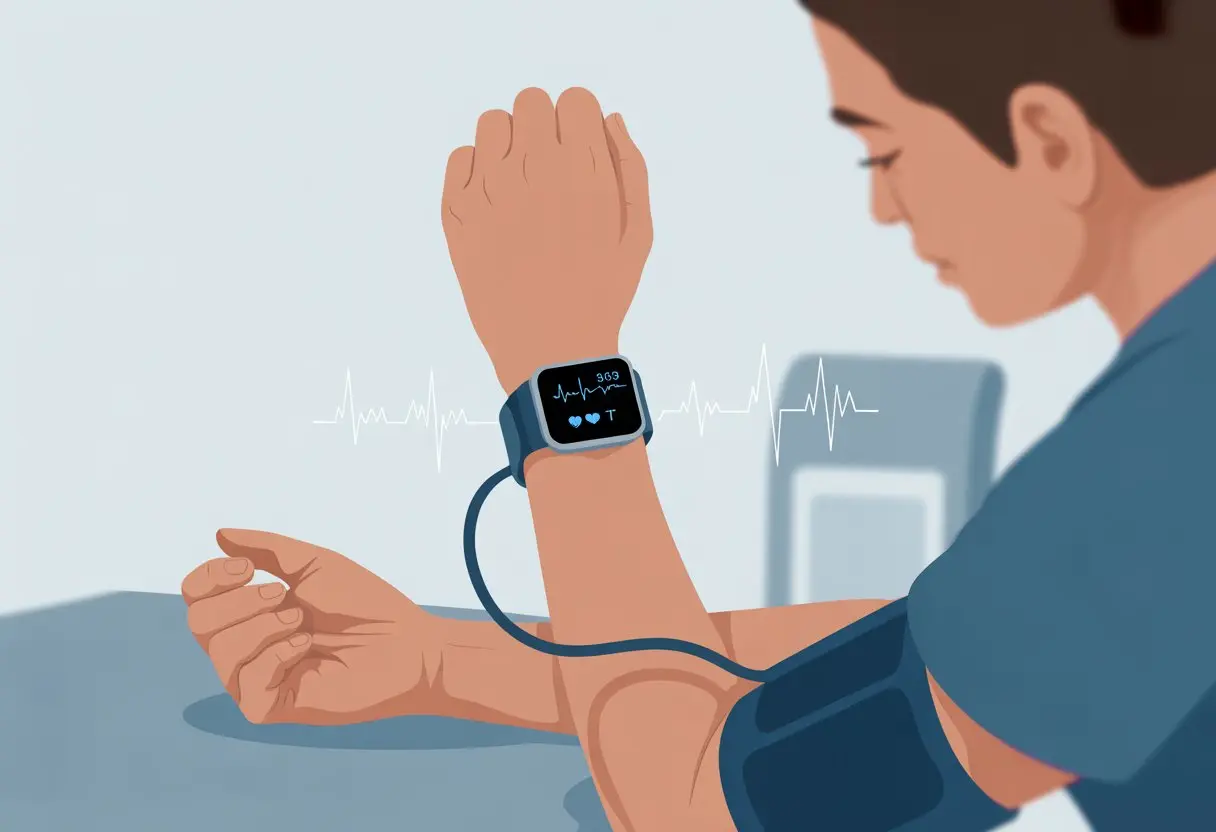
Forget the arm cuffs and those awkward beeping machines. Smartwatches use sensors like PPG, which shines a tiny light on our wrist and checks how our blood vessels respond—no waiting room needed.
If you want to know what’s really happening, let’s dive in.
Staying on top of our health feels way more doable these days. Let’s see how to get started, dodge rookie mistakes, and maybe even look like we know what we’re doing in front of our doctor.
Understanding Blood Pressure Monitoring With Smartwatches
Blood pressure monitoring on a smartwatch sounds futuristic, but under the hood, it’s a mix of science, sensors, and, honestly, a bit of hope. Our wrists become little data highways, constantly serving up health metrics in real time—though, let’s be real, accuracy isn’t always perfect.
How Smartwatches Measure Blood Pressure
So, how do these watches even try to measure blood pressure? Most use sensors with names like Photoplethysmogram (PPG) and sometimes Electrocardiogram (ECG).
The PPG sensor shines a green LED on our skin and picks up changes as blood pulses through. Some models go further and measure pulse transit time—the time it takes for a blood wave to travel from our heart to our wrist.
The watch then crunches the numbers to estimate systolic and diastolic pressure. Can we pronounce those words before coffee? Maybe not, but the watch doesn’t care.
If you’re curious about the details, there’s a good explanation of pulse transit time on this science forum.
Differences Between Wearable and Traditional Blood Pressure Monitors
Are smartwatches as accurate as the good old cuff? Nope. Traditional monitors wrap around the upper arm and squeeze, recreating that classic doctor’s office moment.
That method is the gold standard because it actually feels what’s happening inside the artery. Smartwatches, on the other hand, estimate using our pulse or light absorption.
They don’t squeeze anything; they just read signals from our skin. Because of that, smartwatch results can bounce around and usually need calibration with a real monitor.
If you want to see a side-by-side comparison, check out consumer tech articles.
Key Features of Blood Pressure Monitoring
Not every smartwatch blood pressure feature is built the same. Some give us a single reading when we ask, while others track all day and show trends.
We should look for a model that lets us calibrate with an upper-arm device. That keeps things from getting too wild.
A few features worth having:
- Automatic tracking
- Export data to our phone or doctor
- Hypertension alerts
- Integration with other health stats like heart rate
Some watches even let us email results or sync with health apps, which is pretty handy.
Health Metrics and Their Importance
Blood pressure isn’t just a random number—it tells us a lot about our risk for heart attacks, stroke, or just feeling off. Smartwatches usually track other things too, like heart rate, sleep, activity, and stress.
The more we track, the easier it is to spot trends or odd changes. Having all our stats in one place helps us make better choices, whether that’s running, walking, or just taking a breather.
If you want to see how big brands do it, check out Samsung’s smartwatch health features.
Getting Started: Setting Up Your Smartwatch
Before we can show off our smartwatch’s health superpowers, there’s a bit of setup. We need to connect our watch to our phone, breeze through some initial setup steps, and maybe even read the manual (just this once).
Pairing With Your Smartphone
First, our smartwatch and smartphone need to meet—think of it as a tech version of speed dating. We usually do this over Bluetooth, because who wants wires?
To start, we turn on Bluetooth on both our Android device and smartwatch. Then, we open the companion app (like Samsung Health or Wear OS), tap “Add device,” and wait for our watch to show up.
When our watch pops up, we tap it—probably faster than we should. Sometimes, a code appears; just make sure it matches on both screens before hitting “Confirm.”
We might need to allow notifications or contacts access, so we click yes (though maybe skim what we’re agreeing to). That’s it—our watch and phone should be best friends now.
Initial Calibrate and Setup
Now comes the part that actually matters. We can’t just strap on a watch and expect it to read our blood pressure out of nowhere.
Most smartwatches, like Samsung’s, need us to calibrate with a real blood pressure monitor first. We follow the prompts in the Samsung Health Monitor app, or whatever app our device uses, and type in the blood pressure reading from the traditional monitor.
Skipping calibration? Not a good idea. If we do, our future readings might be as random as a coin toss.
It’s best to calibrate when we’re relaxed, sitting down, and with good posture. If we’re lost, Samsung explains the process clearly on their support page.
Essential Instructions for First-Time Users
We know it’s tempting to just tap everything, but let’s slow down. Each smartwatch model has its own quirks, so it’s worth glancing at the quick start guide or checking in-app tips.
For blood pressure tracking to work, the watch should fit snugly on our wrist—not so tight it leaves marks, but not sliding around either.
Let’s double-check we have the right app on our phone. Samsung folks need the Samsung Health Monitor app; Wear OS users might need Google Fit or something brand-specific.
Update both the phone and the watch, since new features or fixes come out all the time. And keep Bluetooth on, unless we’re in the mood for a game of “Where’s my device?”
Taking and Interpreting Blood Pressure Readings
It’s not magic—it’s just a smartwatch. While these watches don’t replace a doctor, we can get helpful readings if we follow a few steps and know what the numbers mean.
Reading blood pressure and heart rate doesn’t have to feel like guesswork.
Step-by-Step Guide to Blood Pressure Measurement
First, let’s make sure we’re wearing the watch right—not waving our arms around like we’re casting spells. Most smartwatches want us to sit quietly, rest our arm on a table, and keep the watch snug but comfy.
- Sit down for about five minutes.
- Rest our arm at heart level—no yoga poses needed.
- Open the companion app and start the measurement.
Some watches want us to set a baseline with a cuff. This helps the device avoid wild guesses.
When it’s done, the watch shows our blood pressure—usually as systolic over diastolic (like 120/80 mmHg). Some apps use color codes or notifications to make things clearer.
Understanding Blood Pressure Ranges
So, what do these numbers actually mean? Blood pressure comes as two numbers: systolic (top) and diastolic (bottom).
| Category | Systolic (mmHg) | Diastolic (mmHg) |
|---|---|---|
| Normal | Less than 120 | Less than 80 |
| Elevated | 120-129 | Less than 80 |
| High (Stage 1) | 130-139 | 80-89 |
| High (Stage 2) | 140+ | 90+ |
| Hypertensive Crisis | 180+ | 120+ |
If our watch says we’re in the high or hypertensive range, don’t freak out. But don’t ignore it, either.
Tracking over time helps us spot trends—like that suspicious spike after a salty meal.
Heart Rate and Pulse Rate Integration
Our heart rate usually shows up next to blood pressure. These numbers can reveal a lot about how our heart’s doing.
A smartwatch uses sensors to track both. If our heart rate is racing and we’re just sitting there, that’s worth noting.
A healthy adult typically has a resting heart rate between 60–100 beats per minute.
Smartwatches combine pulse and blood pressure data using pulse transit time. That’s basically how fast our blood moves through our vessels.
Spotting patterns between high blood pressure and a high pulse rate can help us have a better conversation with our doctor—no need to bring a messy chart.
Enhancing Accuracy and Reliability
We want our smartwatch to do more than just look cool. To get reliable blood pressure readings, we need to calibrate it properly and take measurements the right way.
A little effort goes a long way to help our gadget give us useful data.
Calibrating Your Device Regularly
Let’s be honest—our smartwatch can’t read our minds, especially when it comes to blood pressure. Most of these gadgets need us to calibrate them every so often, which usually means comparing their numbers to a regular cuff.
This step isn’t just a formality—we’re actually teaching the watch what the right numbers look like. If we skip calibration, our results might start wandering into fantasy land.
Many smartwatches will nudge us when it’s time for a new calibration. When that happens, we grab a traditional monitor, follow the instructions, and sync the numbers.
Here’s a quick checklist for calibration:
- Use a validated blood pressure cuff
- Follow the smartwatch’s app instructions
- Calibrate when you’re relaxed, not after running up the stairs
- Repeat every few weeks, or as prompted
Doing this keeps our watch honest and our numbers believable.
Tips for Accurate Measurements
Nobody wants to brag about their blood pressure if the number’s just made up. If we want the most accurate readings, we need to treat our wrist gadget with some respect.
First, strap the watch snugly—about a finger above the wrist bone, but not so tight you lose feeling. Sitting still helps; let’s not try to multitask or crack jokes while measuring.
Even a deep sigh can throw things off. When it’s time to measure, rest your arm on a table at heart level.
Relax, don’t talk, and just zone out for a moment. Following these habits, as experts suggest, gives us results we can actually trust.
Quick tips:
- Wear the watch snug, not tight
- Stay still, arm supported
- Don’t talk during measurement
- Keep watch placement consistent each time
With these tricks, our smartwatch stands a fighting chance.
Connecting With Additional Health Metrics
Let’s be real—nobody’s smartwatch is just a wrist cuff anymore. Now we can keep tabs on everything from heart rhythms to snoring habits.
With all these tools, we’re kind of running our own mini health clinic—no awkward doctor visits required.
ECG and Blood Oxygen Levels
We can measure electrical heart activity with the ECG feature built into many smartwatches. It takes about 30 seconds, and the results show up on the watch or in the app.
This helps us spot irregular heartbeats, like atrial fibrillation (AFib). Blood oxygen levels (SpO2)? Not just for mountaineers.
A decent smartwatch tracks this as we go about our day. Low readings might mean sleep apnea or just a nasty cold.
Here’s a handy list:
- ECG: Records heart’s electrical activity
- Blood Oxygen (SpO2): Measures blood oxygen percentage
- Instant Readings: Usually ready in seconds
Just tap a button and let the watch do its thing—no needles, no fuss.
Sleep Tracking and Its Impact
Our smartwatches really want to know how desperate we are for that first cup of coffee. They use motion sensors, and sometimes heart rate or oxygen sensors, to figure out if we’re tossing, turning, or dreaming about pizza at 3 AM.
Sleep tracking shows if we’re getting enough rest. If blood oxygen dips a lot while we sleep, it might flag issues like sleep apnea.
We can check our sleep stages in colorful charts later, almost like we ran a marathon—of napping. With this info, we know exactly who to blame for our yawns (spoiler: it’s probably us).
Combining Metrics for Comprehensive Health Insights
Here’s where things get interesting: our smartwatch combines all these numbers. By comparing blood pressure trends to ECG results, blood oxygen, and sleep data, we get a fuller health picture than any old chart.
Table: How Health Metrics Combine
| Metric | What It Tells Us | Helpful For |
|---|---|---|
| Blood Pressure | Heart workload | Hypertension |
| ECG | Heart rhythm | Arrhythmia/AFib |
| Blood Oxygen | Oxygen delivery | Sleep apnea, breathing |
| Sleep Tracking | Quality/restfulness | Fatigue, sleep issues |
When these numbers line up, we can spot patterns and habits that might need a shake-up.
Syncing and Using Data Across Devices
Before we can show off our blood pressure stats to anyone with Wi-Fi, we need to make sure all our smart gadgets are actually talking to each other. This means syncing our smartwatch, phone, and apps so everything works together, and we don’t lose our hard-earned data after the next update.
Syncing Data Via Bluetooth
If our smartwatch can’t sync with our phone via Bluetooth, what’s the point? The key is to turn on Bluetooth on both devices and pair them—usually in the “Connections” or “Bluetooth” menu.
Once they’re connected, most watches send data to their companion app automatically. Sometimes it takes a few seconds or a minute, depending on how much we’ve stored.
If syncing slows down, just restart both devices. It’s the trick nobody wants to admit works.
Regular syncing keeps our blood pressure readings ready for our doctor—or our next family group chat.
Using Data With Android Devices and Wear OS
If we’re Android fans, our smartwatch probably works with Wear OS. We connect through the Wear OS app from the Play Store.
After pairing, we pick which health data gets synced, including blood pressure. Most Wear OS smartwatches let us see recent readings on the watch or in the app.
Some, like Samsung or Fitbit, have their own health apps but still play nice with Android. Data moves quickly, so we can track trends without opening a spreadsheet.
When our devices are in sync, we get easy access to charts and reminders. No need to be a tech expert—if we can tap and swipe, we’re set.
Integrating Blood Pressure Data With Health Apps
Getting our blood pressure data into health apps like Google Fit or Samsung Health is like inviting all our health info to one big party. Once our smartwatch syncs with its main app, that app can usually connect to bigger platforms for sharing.
Many apps ask us to link accounts or grant permissions—so don’t ignore those pop-ups! Apps like SmartBP on Apple Watch or Fitbit’s app can merge blood pressure logs with other stats for a clear picture.
By linking up, we can share data with our doctor or, if we’re feeling bold, the whole family. Our smartwatch isn’t just tracking for fun—it’s turning us into our own fitness manager, minus the whistle.
Troubleshooting and Tech Support
When our smartwatch decides it’s done playing doctor, knowing where to get help matters. Dealing with technical hiccups is part of owning cool gadgets, so let’s figure out how to get proper help without losing our patience.
Contacting Electronics Specialists
Sometimes we need someone who speaks fluent “beeping gadget.” Electronics specialists are lifesavers when the smartwatch app refuses to cooperate.
If blood pressure readings won’t sync, or the sensor acts like we’re invisible, an electronics pro can check the watch, the app, or even connection settings.
It helps to prepare a list of what we’ve already tried:
- Restarting the watch
- Checking Bluetooth
- Making sure the app’s up to date
Bringing in a specialist means we can stop yelling at inanimate objects. They have useful tools and a lot more patience than we do.
Getting Help From Verified Experts
Verified experts have real technical know-how and get approval from support platforms or official channels. If we’re tired of random internet advice, reaching out to a verified expert is just smart.
They walk us through solutions, like calibrating, resetting, or fixing account issues. Many brands offer official support teams, sometimes with live chat.
A verified expert’s help is especially useful for confusing error messages or stubborn bugs. No question is too silly—they’ve seen it all, including watches stuck in the ’90s.
When To Rely on Tech Support or JustAnswer
Sometimes we all hit a wall—and it’s not just the one we want to throw the watch at. That’s when official tech support or third-party services like JustAnswer can save us.
Tech support handles warranty stuff, replacements, or tricky errors. JustAnswer connects us with specialists in real time, so we get advice without scrolling through endless forums.
If our smartwatch is messing with us and the manual isn’t helping, it’s time to reach out. Just explain the issue, mention what we’ve tried, and let the pros work their magic.
Advanced Tips and Emergency Scenarios
Sometimes our smartwatches need a bit of troubleshooting, and sometimes we need them to save the day. Let’s look at fixing those common smartwatch hiccups and using our gadgets when things get serious.
Home Repair for Common Smartwatch Issues
Even the best smartwatches can act up. Sometimes our screens freeze just as we’re about to check our blood pressure for the hundredth time.
The good news? Most problems don’t need a rocket scientist.
Here are some quick fixes:
- If the screen gets stuck, hold the power button for at least 10 seconds to force a restart.
- Charging issues? Clean the charging contacts with a soft, dry cloth.
- If the blood pressure sensor seems off, take off the watch, gently clean the sensors, and put it back on snugly (but not so tight your hand goes numb).
Don’t forget to update your watch’s software. We might as well give our little wrist buddy a fighting chance.
If it’s still acting up, maybe it’s time to call support—while pretending we tried everything first.
Handling Emergency Questions With Your Smartwatch
Let’s be honest—most of us panic a bit when an emergency pops up. That’s when your smartwatch’s emergency tools can really shine.
A lot of smartwatches come loaded with SOS features. Some can even send alerts if they think you’ve taken a nasty fall.
To kick on SOS mode, just press and hold the right button for a few seconds. Careful, though—hold it too long and you might accidentally call for help while you’re just jogging.
Your smartwatch can use GPS to ping your location to your emergency contacts or even first responders. It’s a good idea to poke around in your settings and make sure fall detection’s actually switched on.
If you want more info, check out how Samsung smartwatches handle emergencies.
Oh, and if you ever trigger SOS by accident—maybe while wrestling your dog—it helps to know how to cancel it fast, before things get awkward.

From a young age, I have always had a big interest in technology, and this blog is an extension of that interest. Through this blog, I hope to provide others with all of the information they need regarding tech options to consider, and things such as compatibility. Some of the different items I will be discussing include headphones, smartwatches, and how to fix common issues.
Related Posts: