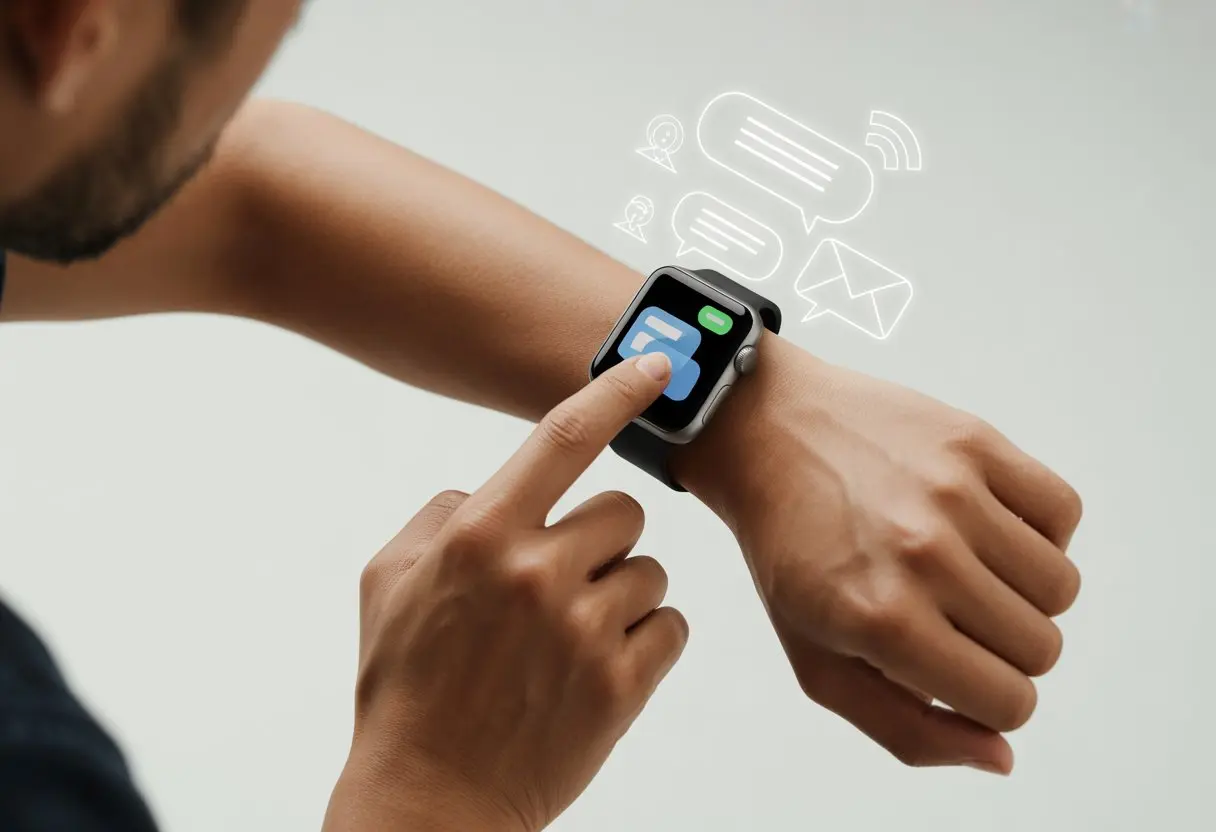
Sometimes it feels like our pockets just can’t handle one more thing—not even a phone. Thankfully, smartwatches let us send texts with just a flick of the wrist.
Let’s be real—texting on a tiny watch screen can make our thumbs feel massive at first. But whether we’re dictating a quick “on my way” or just tapping out an emoji, it gets easier (and honestly, a bit cooler) once we get the hang of it.
If you’ve ever wanted to text like a pro from your wrist, you’re in the right place. Who doesn’t want to look a little high-tech while dodging work emails in a meeting?
Understanding Text Messaging on Smartwatches
Texting from a smartwatch feels a lot like using a mini version of our phone, but there are a few twists. The experience depends on the smartwatch, its operating system, and what other gadgets we use.
Compatible Devices and Requirements
Not every smartwatch is ready to be our texting sidekick. Most Android users need a device running Wear OS or a brand-specific OS (like Samsung’s Galaxy line) that pairs with our Android phone via Bluetooth.
We also need to check if our watch can run a messages app. Some watches, like the latest Galaxy models, let us send and receive texts right from our wrist—no phone needed if we have LTE.
Here’s what to check before getting too excited:
Device Type
Android Phone Needed
LTE Option
Messages App Built-In
Samsung Galaxy
Yes (or LTE)
Yes
Yes
Garmin
Yes
No*
Partial (limited)
Wear OS Devices
Yes
Sometimes
Yes
Fitbit/Other
Usually
No
Sometimes
*Garmin watches only let us send pre-set replies—not type messages. So, if we need to vent about traffic, we might want a different watch. For more details, check out Samsung’s text messaging on smartwatches.
How Smartwatch Texting Differs from Phones
Typing out a long story with our thumbs is tough on a tiny screen. Most smartwatches give us a few ways to reply: voice input, emoji, quick replies, or—if we’re brave—a tiny on-screen keyboard.
If we use a Samsung Galaxy Watch, we can dictate, doodle, or type. Notifications come in with a buzz, so we don’t miss texts anymore.
Some Android smartwatches only support pre-made replies, not custom messages. Sending memes or long stories? That’s still a job for our phones.
One big plus: we can respond to messages without pulling out our phone every five minutes. On the flip side, if we’ve got big fingers, we might end up sending gibberish instead of “OK, see you soon.”
Setting Up Text Messaging on Your Smartwatch
Getting our smartwatch ready for texting isn’t rocket science, but it does take a little patience and some tapping. We’ll want to make sure everything is connected just right, or our fancy new toy is basically an expensive bracelet.
Connecting to Your Phone
First things first, let’s grab our Android phone and the smartwatch. We need to pair them together, kind of like matching socks from the laundry—except it’s a bit easier since our devices have Bluetooth.
To connect, we swipe down on the smartwatch home screen and tap Settings. Next, we look for the Bluetooth option and make sure it’s turned on.
On our phone, we open the wearable’s app (usually Galaxy Wearable for Samsung, or Wear OS for others) and follow the prompts to connect.
Once they’re linked, messages and notifications start showing up on our wrist, ready to go. For a more detailed walkthrough, there’s a handy guide on how to get text messages on an Android smartwatch.
Configuring Messaging Apps
Now that our devices are talking, let’s look at messaging apps. Many watches include their own Messages app, while others need third-party apps like Notify or something similar.
On Samsung devices, we make sure the Messages app is installed and synced. If we use another Android smartwatch, we might stick with the default app or download a new one from the Play Store.
The key thing is to allow Notifications and give the messaging app permission to access our messages. For fast replies, we set up the quick reply feature—no need for frantic typing on a tiny screen.
Most apps let us customize canned responses like “I’ll call you later,” “On my way!” or “I’m too lazy to type.”
It’s worth checking if the Notify app adds any extra features, because who doesn’t need a reminder to actually reply? If things get confusing, Samsung’s sending texts on your Galaxy Watch guide can help.
Using Quick Replies and Custom Replies
If typing on tiny screens drives us crazy, we’re not alone. Quick replies and custom replies make answering messages faster, even if we’ve only got one free finger.
How to Use Quick Replies
When our smartwatch buzzes with a new message, we can use the quick reply feature to respond in record time. Quick replies are preset answers that pop up as options right on our watch.
Here’s how it goes:
We get a text.
The watch screen flashes with several prewritten replies like “OK,” “On my way,” or the classic “Can’t talk, text later!”
We tap on a reply, and—boom—it sends instantly without fiddling with a tiny keyboard.
Quick replies are perfect when we’re in meetings, running, or just not in the mood to type. Many smartwatches like the Samsung Galaxy Watch let us send quick replies through their messaging app, so we don’t even need our phone nearby.
Some watches also let us answer with emojis when words just aren’t enough.
Creating and Editing Custom Replies
The best part? We don’t have to stick with boring, default replies forever. Creating and editing custom replies lets us add our own spin.
To add our own replies, we usually go to Settings or the Messages app on our smartwatch. There, we find “Quick Replies” or “Custom Replies.”
We can tap to add, edit, or delete any current reply—so “Be there with snacks!” or “You owe me coffee” is just a tap away.
If we’re glued to WhatsApp, you’re in luck—sort of. Most smartwatches let us view message notifications and send quick replies. We won’t be typing novels, but canned responses like “OK” or “See you soon” are right there when we need them.
On Android watches, WhatsApp notifications pop up if everything’s paired right. Some newer watches even have a real WhatsApp app.
We can:
Read incoming messages
Speak or tap out short replies
Send emojis (because who doesn’t love a thumbs-up?)
But we can’t start new chats. If Aunt Linda’s texting, we’re ready. If we want to message someone new, it’s back to the phone.
Telegram
Telegram’s support is a mixed bag—kind of like reaching into a candy bowl and getting mostly licorice. On some Wear OS watches, Telegram has its own companion app. That means we can browse chats, scroll through old messages, and send replies using voice dictation or the tiniest keyboard ever.
Here’s what we usually get:
View and reply to messages
Check group chats
Send stickers or simple media
But not every smartwatch has the full Telegram app. If not, we’re stuck with notifications and quick replies. No long rants—just the basics.
At least our wrists get a break.
Gmail
Gmail loves notifications. Emails show up on our smartwatch almost instantly.
Most smartwatches let us read, delete, or archive emails right from the wrist. That’s handy when our phone’s buried in the couch cushions.
But here’s the catch: replying is basic. We can tap “reply” to send a canned response or try voice dictation for short messages, but typing out essays or attaching files? Not happening.
What We Can Do
What We Can’t Do
Read email
Compose new mail
Send quick replies
Attach files
Archive/delete
Long responses
We can react to emails as they come in. Starting a new email, though, still needs a phone or computer.
Signal
We love Signal for privacy, but getting it to work with our watch can be a pain. Notifications show up, but unless our watch specifically supports Signal (which is rare), we usually only get to read the message and send quick, pre-set responses.
Features we usually get:
View new messages
Respond with canned replies
Receive stickers or images (if supported)
No starting new conversations, and sometimes no message history. If privacy is our top priority, that might be fine. If we want more features, we’ll probably need to stick with phones—or maybe just hope Signal updates its support someday.
Replying to Messages from Your Wrist
Let’s be honest—answering texts from our wrists feels pretty futuristic. With today’s smartwatches, we can reply to messages quickly, whether it’s with a prewritten response, a thumbs-up emoji, or even our awkward voice.
Replying to SMS vs. App Messages
Not every message gets the same treatment, right? When an SMS rolls in, most smartwatches let us read it and shoot back a quick reply right from our wrists.
Some watches, like Samsung’s, toss in preset responses, quick replies, or even a tiny keyboard for us to tap out a message (good luck if your thumbs are huge) as shown for Samsung smartwatches.
But what if it’s not a regular SMS? Messaging apps like WhatsApp or Facebook Messenger usually work too, as long as our watch is paired with our phone or has LTE.
Sometimes, though, only basic stuff like viewing and replying is supported, and the setup can be a little finicky. Plenty of folks chat about this on Reddit about smartwatches.
Here’s a look at some common reply options we might run into:
Type
Quick Replies
Keyboard
App Specific Replies
SMS
Yes
Yes
Sometimes
WhatsApp/etc.
Yes
Rare
Sometimes
We don’t always get every reply feature for every app. Still, the main ones usually get the job done.
Voice Replies and Emojis
Typing on a two-inch screen? Not exactly a dream. That’s why voice replies save the day. Most watches let us tap the mic, say what we want, and the device turns it into text.
On some apps, we can even send a straight-up voice note.
Voice replies come in handy when we’re busy or just not in the mood to type. Some watches, like Garmin, toss in their own voice assistant, so if you want to feel like you’re living in the future, you totally can reply to texts using your voice.
And then there are emojis. Sometimes, you just need to send a thumbs up or a smiling pile of poop—words fail, right? Most smartwatches include a basic emoji picker, so you’re covered.
With voice replies and emoji options, we can answer messages even if our hands are full of groceries or, let’s be honest, snacks.
Smartwatch Texting with Facebook Messenger and More
Texting from our smartwatch sounds futuristic, but it’s actually pretty practical when grabbing our phone feels like too much effort.
Messaging apps give us quick ways to reply or start chats, but not every app behaves perfectly.
Linking Facebook Messenger
We all want to reply to group chats from our wrist like we’re in a spy movie. But linking Facebook Messenger can be a bit of a hassle.
On most smartwatches, like Samsung Galaxy or Wear OS, Messenger notifications show up, letting us read and sometimes reply right from the watch.
Still, replies don’t always go through as they should. Sometimes, the watch claims our answer was sent, but it never shows up in the chat when we check our phone.
So, our clever comeback might just vanish into the void. To skip the frustration, it might be smarter to just read Messenger notifications and save the witty stuff for our phone. Curious about these Messenger ghost replies? Check this Reddit discussion about Facebook Messenger.
Other Supported Platforms
Thankfully, Facebook Messenger isn’t our only wrist-texting option. Most smartwatches come with built-in texting apps, letting us send, receive, or even start new conversations without digging for our phone.
Wear OS watches stay pretty flexible. We can message through WhatsApp, Telegram, and Google Messages.
Just tap a notification, use a voice command, or scribble a note on the tiny keyboard. It’s high-tech, and yeah, a little awkward.
Troubleshooting Texting Issues
Sometimes, our smartwatch just refuses to send a text, no matter how nicely we ask. We get weird notifications, error messages, or just… nothing.
At that point, we have to play tech detective and figure out what’s going on.
Notification Problems
If our texts aren’t buzzing in or out, notification settings might be to blame. On Android, open the Notify app or messaging app on the watch and make sure message alerts are turned on.
Quick checklist:
Make sure Do Not Disturb isn’t on (easy to forget).
Check that our paired phone hasn’t turned off notification sync.
Double-check the Bluetooth connection—sometimes it just drops out for no reason.
Samsung and Apple watches need a steady connection to our phones to send notifications right. If we’re using an LTE version, we should check if our watch is actually connected to cellular, too.
We’ve all hit “deny” on permissions just to get rid of pop-ups. But if our smartwatch doesn’t have the right permissions, it won’t send texts.
To check:
Go to the settings menu on our Android smartwatch.
Scroll to Apps.
Tap the messages or Notify app.
Make sure SMS, Contacts, and Notifications permissions are turned on.
Some apps might want access to storage or call logs, too. Third-party apps can have different requirements. If anything’s off, flipping it back on could fix things faster than a text from your mom.
Carrier Compatibility
Ever had a Verizon smartwatch that just refuses to text? That’s probably a carrier compatibility issue.
We should check:
Our smartwatch has a SIM card or eSIM, and it’s activated.
The plan supports texting directly from the device, not just when paired with our phone.
If using LTE, make sure the lines are linked with our cell account.
When our thumbs need a break from tiny keyboards, smartwatches keep us entertained with a bunch of other features. Sometimes it’s enough to make us wonder if we even need our phones.
Built-In Music Player
We don’t have to drag a separate music player or squint at our giant phones at the gym. Most smartwatches have their own music apps built in, so we can listen to playlists, albums, or podcasts on the go.
Many watches let us store songs directly on the device, so ditching the phone is totally possible. Pairing up with Bluetooth headphones is usually quick and painless.
Some watches give us playback controls right from the wrist, letting us pause, skip, repeat, or adjust volume without fishing for our phone. Certain models sync up with streaming services like Spotify or YouTube Music, so our favorite tunes are always close.
A few smartwatches offer offline playback or custom equalizer settings. That way, we can power-walk to metal or chill to whale sounds, all hands-free.
Third-Party App Integrations
Built-in features are great, but third-party apps make smartwatches even more fun. These apps can turn our device into a fitness tracker, smart home remote, or even a translator—some better than others.
We can grab apps for messaging, navigation, weather, sleep tracking, or payments. Wear OS and Samsung Galaxy Watches support tons of popular third-party apps, like WhatsApp and Google Maps.
Want to control the lights or unlock the door? There’s an app for that—actually, probably several. Not every app is perfect on a tiny screen, but developers keep tweaking and improving. It’s fun to experiment, even if we accidentally turn on the living room lamp at 3 a.m.
Tips for Efficient Smartwatch Messaging
Let’s be honest—typing on a smartwatch is pretty awkward. But with a few tricks, messaging can feel less painful (and maybe save us from some embarrassing typos).
1. Use the Quick Reply Feature
Why type when we can just tap and send? Most smartwatches have quick replies like “On my way!” or “Can’t talk now.” Customizing these makes our responses faster and a bit more personal.
2. Practice Voice Dictation
Tiny screens don’t exactly invite long messages. Luckily, most smartwatches offer voice dictation. Just speak, check it, and send. Sometimes it’ll mangle “see you” into “ceiling,” but it’s still less hassle than pecking at little keys.
Common Messaging Tips Table
Tip
Benefit
Use Emojis 🕺
Express more with less
Short Messages
Easier to read & send
Review Before Sending
Prevent auto-correct fails
3. Set Notifications Wisely
We don’t want nonstop buzzing. Fine-tune notifications to get only the important stuff on our wrist. If you use a Samsung smartwatch, check out their official support page for more.
4. Master Gestures
Many smartwatches use gestures. A quick flick or swipe can open messages or reply faster than scrolling. It’s not magic, but it feels close.
Let’s use these tricks so our smartwatch messaging doesn’t drive us crazy.
Legacy and Niche Devices: Texting on Pebble and Others
Smaller smartwatch brands and older models didn’t always make texting easy, but they still managed some clever workarounds. With creative apps and a little effort, sending a message from your wrist isn’t just for the big brands.
Pebble
Pebble—now there’s a watch that really kicked off the whole smartwatch thing, long before everyone started obsessing over touchscreens and voice assistants. If you want to send texts with Pebble, you’ll usually end up using third-party apps and getting a little creative with your setup.
There’s this “Send Text” app where you can pick a contact, dictate a message, or just send off a canned reply or an emoji straight from your wrist. That’s pretty handy, honestly.
To get started, you’ll need to install the Pebble app on your phone. Go to the Apps tab, find “Send Text,” and tap the gear icon to set up your quick replies.
Here’s the catch—Pebble keeps things simple, but you can only send SMS on Android. If you’re on iPhone, you’re kind of out of luck, unless you’re weirdly okay with a lot of restrictions.
If you’re more of a visual learner or your apps just aren’t cooperating, you can check out CNET’s guide on texting with Pebble. Sometimes it’s just easier to see each step, especially when your watch is acting like it belongs in the ‘90s.
Step outside the Pebble bubble and you’ll spot plenty of small smartwatch brands trying to hop on the texting bandwagon.
Most of these watches bring their own apps to the table, but honestly, using them sometimes feels like texting with oven mitts on. You get custom keyboard layouts, tiny touchscreens, and, more often than not, some pretty clunky companion apps.
Usually, we can only send basic SMS—assuming our phone actually supports it. A few watches toss in pre-set replies or the bare minimum of voice-to-text, but that’s mostly just for Android users.
If you’re on iPhone, well, things get even trickier. A lot of these devices just show notifications or let you swipe messages away, but forget about actually responding.
It’s always smart to double-check the compatibility list before buying anything. And honestly, trying to text on a screen this small? Sometimes it makes me weirdly miss T9 keyboards and the days when typing “LOL” meant twenty thumb presses.
Hi, my name is Garrett Jones, and I am a tech enthusiast. I enjoy researching the new tech that has been released, and have a vast knowledge of the best tech to purchase.
From a young age, I have always had a big interest in technology, and this blog is an extension of that interest. Through this blog, I hope to provide others with all of the information they need regarding tech options to consider, and things such as compatibility. Some of the different items I will be discussing include headphones, smartwatches, and how to fix common issues.