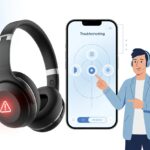
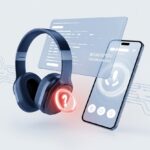
Is there anything more frustrating than settling in with your favorite playlist, only to get smacked with a weird error code 503 on your Bluetooth headphones? We just want tunes, not tech drama! The fastest way to fix Bluetooth headphones error code 503 is to reset the headphones, update Bluetooth drivers, and remove and re-pair the device.
Let’s be honest—Bluetooth troubleshooting sometimes feels like convincing a cat to fetch. It’s annoying, but don’t panic. Most of us have been there, and honestly, the fixes are usually easier than they sound.
If you want your music back (and maybe finish that podcast you keep pausing), stick around. We’ll walk through each quick fix and even talk about what to do if your headphones still act up.
Understanding Bluetooth Headphones Error Code 503
Sometimes Bluetooth headphones just don’t want to cooperate and throw out an error like “503.” If your wireless headset suddenly stops working, you know how irritating that can be.
So what’s really behind this mysterious code? Why does it happen, and how does it ruin our music sessions?
What Is Error Code 503?
Error Code 503 isn’t just a random number your headphones picked out of a hat. It usually pops up when there’s a problem connecting or pairing your Bluetooth device to your phone, computer, or tablet.
You might see a message like “Bluetooth connection failed” or “Service unavailable.” That’s the headphones’ way of saying, “Hey, something’s blocking me from talking to your device.”
Most of the time, code 503 signals a service error. The “service” your headphones need—like audio or microphone access—isn’t available. Maybe the device is busy, Bluetooth is overloaded, or the software just got confused.
Common Causes of Error Code 503
A weak Bluetooth signal is a usual suspect. If you wander too far from your phone or something’s blocking the signal (giant backpack, anyone?), a 503 error might crash the party.
Too many Bluetooth devices connected at once can also trip things up. Your headphones might just get overwhelmed and tap out.
Outdated software can cause chaos too. Old firmware on your headphones or device can mess with the connection. Hardware issues—like a stuck button, dying battery, or damage from being dropped—can also get in the way.
Sometimes, if the pairing process gets interrupted (think: incoming call, app crash, or your device updating at the worst time), you’ll see Error 503. And in rare cases, some headphones and devices just don’t get along.
Quick List of Common Causes:
- Weak Bluetooth signal
- Too many devices paired
- Outdated software or firmware
- Hardware problems
- Interrupted pairing process
How Error Code 503 Affects Your Bluetooth Headphones
When the infamous 503 error strikes, your headphones usually refuse to connect to anything. No phone, no laptop, not even that smart fridge you regret buying. The result? Silence. No music. Sometimes not even a blinking light.
You might see your device endlessly trying to connect, or the pairing just fails again and again. The headphones might show up in your device list, but hitting “Connect” does nothing except spike your blood pressure.
If device confusion causes the 503, even removing and re-pairing won’t always work right away. Sometimes you need to reset everything to bring it back to life. It’s kind of like rebooting your computer, but with more frantic button-mashing.
Some headphones are more dramatic than others. While many will clearly show a 503 error, others just go silent and leave you guessing. Either way, this error almost always means you’ve lost your Bluetooth connection—and probably your patience.
Initial Troubleshooting Steps
Let’s roll up our sleeves and push some virtual buttons. Before you consider launching your headphones out the window, try these steps to tame that wild Bluetooth 503 error.
Restarting Your Bluetooth Headphones
First things first—give your Bluetooth headphones the classic “turn it off and on again” treatment. It sounds basic, but even high-tech gadgets need a nap sometimes.
To restart most headphones, just hold the power button for a few seconds until the lights go off. Wait about 10 seconds, then turn them back on.
This refreshes their little electronic brains and can clear out minor bugs that trigger error 503. If you can’t find the power button, check the manual or look for the headphone icon.
After restarting, your headphones will try to reconnect to your device. If you still see error 503, move on to the next trick.
Turning Bluetooth On and Off
Bluetooth can be moody. If it’s not playing nice, try toggling it on your phone or computer.
Head to your device’s Bluetooth menu. Turn Bluetooth off, count to five, then flip it back on.
This quick move resets the Bluetooth system and helps if a software hiccup or crowded Bluetooth environment is causing trouble.
Check that no other Bluetooth devices are hogging all the attention—too many connections can cause errors. If your device is swamped, remove some unused connections as suggested here.
A tidy Bluetooth list just keeps things simpler.
Toggling Airplane Mode
This one feels a bit dramatic—like cutting the power to the whole house just to fix one lamp—but hey, it works.
Turn Airplane Mode on from your device’s quick settings or Control Center. All connections will drop for a moment. After 10-15 seconds, turn Airplane Mode off.
This resets all wireless chips—including your grumpy Bluetooth. Sometimes error 503 pops up when two wireless systems argue. By toggling Airplane Mode, you give them both a timeout.
Checking Device Compatibility and Settings
Getting Bluetooth headphones to work can feel like a weird puzzle sometimes. Before you get any more annoyed at error code 503, make sure you’ve got the right gear and settings.
Ensuring Device Compatibility
Not every gadget wants to be friends. Sometimes your computer or phone just isn’t compatible with your headset.
First, check if your Bluetooth device actually supports audio. Some Bluetooth dongles are just for keyboards and mice—not music.
A quick checklist for compatibility:
- Are the Bluetooth versions on your device and headset close enough to work together?
- Did you update the drivers for your Bluetooth adapter? If not, grab the latest and install it.
- Is your headset listed as supported by your device’s manufacturer? If your headset speaks Martian and your computer only knows English, they’re not going to connect.
If you’re unsure, check the specs in the manual or on the product support page. No one wants to buy a Ferrari only to realize the keys fit a scooter.
Bluetooth Settings Review
Bluetooth settings are like a secret handshake. Miss a step and the door stays locked.
Start by making sure Airplane Mode is off—unless you’re into silent headphones. Then, confirm Bluetooth is actually on.
Look for your headphones in the list of available devices. If you don’t see them, hold down the pairing button until the lights start flashing.
Try removing the device from your computer’s Bluetooth list, then pair it again. It’s basically relationship therapy for electronics.
If things still look grim, restart the Bluetooth support service. Sometimes a quick restart fixes stubborn issues, as Microsoft Support’s Bluetooth guide suggests.
Double-check if there’s a sneaky update for your Bluetooth driver waiting to be installed.
And don’t forget to give your headset a charge. Sometimes it just quietly ran out of battery at the worst possible moment.
Updating Bluetooth Drivers
Still stuck with that annoying Bluetooth headphones error code 503? Sometimes, all it takes is a good old Bluetooth driver update. It’s usually easier than fixing Grandma’s Wi-Fi, and a few clicks might get your headphones working again.
How to Update Bluetooth Drivers in Windows 10
First, open up Device Manager. Right-click the Start button (no hammers needed) and pick Device Manager from the list.
Expand the Bluetooth category. Find your Bluetooth driver, right-click it, and select Update driver.
A wizard will pop up (no magic required). Click Search automatically for drivers. Windows will look for the latest version and try to update.
If Windows can’t find anything, go to your PC maker’s website for a manual download. Enter your device model, look for Bluetooth drivers, and follow the install instructions.
Still having trouble? Sometimes you need to uninstall and let Windows reinstall the Bluetooth driver after a restart. More details on these steps are in this troubleshooting guide for Windows 10.
How to Update Bluetooth Drivers in Windows 11
Windows 11 sure likes to keep things interesting. You can get to Device Manager by right-clicking the Start menu and picking it from the list.
Inside Device Manager, click the Bluetooth category to expand it. Find your Bluetooth adapter, right-click it, and hit “Update driver” (yeah, try not to break your mouse).
Choose Search automatically for drivers. If Windows doesn’t find anything new, head over to the manufacturer’s support page and grab the right driver for your device and Windows 11.
Here’s a tip: Sometimes Windows Update brings in newer Bluetooth drivers, so it’s worth checking for Windows updates. If things go sideways, just uninstall the Bluetooth driver and reboot—Windows usually puts a fresh one back in place.
Resolving Issues With Bluetooth Adapters
Bluetooth headphones love to throw error codes when adapters start misbehaving. Sometimes, fixing the connection means poking around in your computer’s Bluetooth hardware or even thinking about a replacement.
Checking Your Bluetooth Adapter
First, let’s see if the Bluetooth adapter is actually awake and working. Open Device Manager (it’s really not as intimidating as it sounds) and check if your Bluetooth device appears without any warning icons.
A yellow triangle or red X means the adapter needs some help. If you see a problem symbol, right-click the adapter and select “Update driver” or “Uninstall device.”
After uninstalling, restart the computer and let Windows try to reinstall a fresh driver for your Bluetooth adapter. Running the Bluetooth troubleshooter in Windows is another handy move.
You’ll find it in Settings under Troubleshoot, and sometimes it sorts things out before you even know what happened. Microsoft’s support guide has even more tips if you want to dig deeper.
Replacing a Faulty Bluetooth Adapter
If nothing works, it might be time to accept that your Bluetooth adapter is done for—kind of like a vending machine that’s out of snacks. If Device Manager doesn’t show any Bluetooth device, or it keeps popping in and out like a ghost, replacement is probably the answer.
USB Bluetooth adapters are cheap and simple to set up. Just plug the new one into a USB port, let Windows handle the rest, and you’re back in business.
Make sure to remove or disable the old adapter in Device Manager so the new one gets all the attention. No need for adapter drama.
A new adapter can fix those weird errors and get your Bluetooth headphones working again. Just pick a reliable adapter—the super cheap ones aren’t always worth the headache.
Using The Bluetooth Troubleshooter
When error code 503 shows up, the Bluetooth troubleshooter can help get your headphones working again. Let’s talk about finding it and figuring out what it’s actually telling you.
Accessing the Bluetooth Troubleshooter
Finding the Bluetooth troubleshooter in Windows isn’t exactly obvious—it’s a bit of a treasure hunt. On both Windows 10 and 11, open Settings, then go to Update & Security.
Head over to the Troubleshoot section and click on Additional troubleshooters. Under that, you’ll see Bluetooth.
Click it and pick Run the troubleshooter. Windows will start looking for issues and might even fix things before you finish your coffee.
If you want a step-by-step guide, check out Microsoft Support.
- Tip: If your headphones aren’t cooperating, make sure they’re charged and not lost somewhere in the couch.
Interpreting the Troubleshooter Results
Once the Bluetooth troubleshooter finishes, you’ll usually get either a cheerful “All fixed!” or a vague message. Sometimes it tells you exactly what to do (“Turn Bluetooth on”, “Pair your device again”). Other times, it’s not so clear—classic Windows.
If you get suggestions, follow them step by step. Sometimes, a restart is all it wants—classic troubleshooting.
If you see error codes or extra hints (like “driver problem” or “device not found”), try what it recommends. If you’re still stuck, check out Microsoft’s help page for more ideas.
And hey, if nothing works, yelling at the headphones can’t hurt. Maybe they’ll listen this time.
Working With Device Manager
Bluetooth headphones sometimes throw error code 503 just to mess with us. Device Manager gives us the best tools to fight back.
Let’s jump in and fix those Bluetooth drivers with a few easy steps.
Uninstalling and Reinstalling Bluetooth Drivers
First up, open Device Manager (press Windows + X, then pick Device Manager). It’s like the control panel for your computer, minus the snacks.
Expand the “Bluetooth” section and right-click your Bluetooth device. Choose “Uninstall device”—don’t worry, we’re just removing the grumpy driver.
If there’s a box to remove the driver software, tick it. Your computer might flash a warning, but you’ve got this (probably).
After uninstalling, the easiest way to get Bluetooth back is to restart the computer. If you want to feel fancy, you can manually install the driver again by following Microsoft’s support guide.
Scanning for Hardware Changes
Now, let’s try Device Manager’s “Scan for hardware changes” trick. This makes Windows look for missing drivers and, hopefully, brings back your Bluetooth driver.
Click “Action” at the top and pick “Scan for hardware changes.” If it works, your Bluetooth section should reappear without any error codes.
If Windows doesn’t find the right driver, check for a Windows Update or visit the device manufacturer’s website. Updating Bluetooth drivers often solves these annoying issues.
For more help, follow Microsoft’s steps on reinstalling drivers in Device Manager.
Advanced Bluetooth Fixes
Sometimes, Bluetooth errors just won’t quit and need more than a quick reboot. Working through these common Bluetooth connection problems step by step (and with a little patience) usually gets things sorted.
Resetting All Bluetooth Connections
Let’s be real—sometimes our headphones get confused by all the old pairings and just need a clean slate. Go into your Bluetooth settings, find your headphones, and hit “Forget” or “Remove.”
If things are still acting up, try restarting the Bluetooth Support Service in Windows. Press Windows Key + R, type services.msc, and hit Enter.
Find Bluetooth Support Service, right-click, and restart it. This can sometimes fix those stubborn connection issues.
Try disconnecting other Bluetooth devices too—sometimes your headphones just want some alone time. No one likes a cluttered connection.
Entering Pairing Mode
Headphones need a little attention sometimes, and pairing mode is their way of asking for it. Usually, you hold the power button or a Bluetooth button for a few seconds until you see a blinking light or hear a beep.
Without pairing mode, your devices can’t find each other, and your headphones stay sad and unpaired. If you’re still struggling, check the manual—some headphones hide their pairing secrets pretty well.
If you’re still stuck, check out more tips for when your Bluetooth headphones aren’t connecting. No need to put your headphones in time out just yet.
Keeping Your System and Drivers Updated
Nobody wants to see error code 503 right when they’re about to jam out. Keeping your system and drivers updated helps avoid these Bluetooth headaches, whether you’re running Windows 10 or Windows 11.
Running Windows Update
Think of your computer as a messy locker. Windows Update? It’s basically the friendly janitor who comes by to tidy things up.
When you run Windows Update, you help your system get ready for your Bluetooth headphones.
Just open Settings, head over to Update & Security, and hit Check for updates.
Windows hunts down the latest patches, security upgrades, and occasionally, those elusive Bluetooth driver improvements.
If it finds something new, you just click the Install button and let Windows do its thing.
Sometimes, Windows grabs a driver update for your headphones and installs it on the spot.
You might need to restart your computer to lock in those changes.
Staying on top of these updates can squash those annoying driver error messages and boost your system’s performance.
If you ever get stuck or want more help, you can always check out Microsoft’s own tips here: Fix Bluetooth problems in Windows https://support.microsoft.com/en-us/windows/fix-bluetooth-problems-in-windows-723e092f-03fa-858b-5c80-131ec3fba75c.

From a young age, I have always had a big interest in technology, and this blog is an extension of that interest. Through this blog, I hope to provide others with all of the information they need regarding tech options to consider, and things such as compatibility. Some of the different items I will be discussing include headphones, smartwatches, and how to fix common issues.
- How to use a fitness tracker for sedentary alerts: Because Your Couch Won’t Miss You Anyway - September 14, 2026
- Why do my Bluetooth headphones not work with my projector? Solving Tech Mysteries for the Audio-Challenged - September 13, 2026
- Best Smartwatches for Medication Reminders: Never Forget Your Pills (or Your Sanity) Again - September 13, 2026
Related Posts: