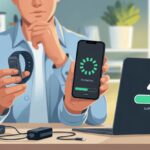
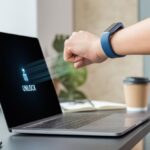
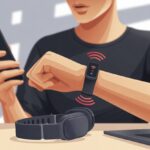
We’ve all done it—standing in front of our computer, waving our fitness tracker around like we’re casting some kind of spell, but absolutely nothing happens. We expect the computer to unlock with a flick of the wrist, but it just stares back, stubborn and locked up tighter than a jar of pickles.
Usually, fitness trackers won’t unlock computers because of compatibility issues, outdated software, or missing settings that need a little attention.
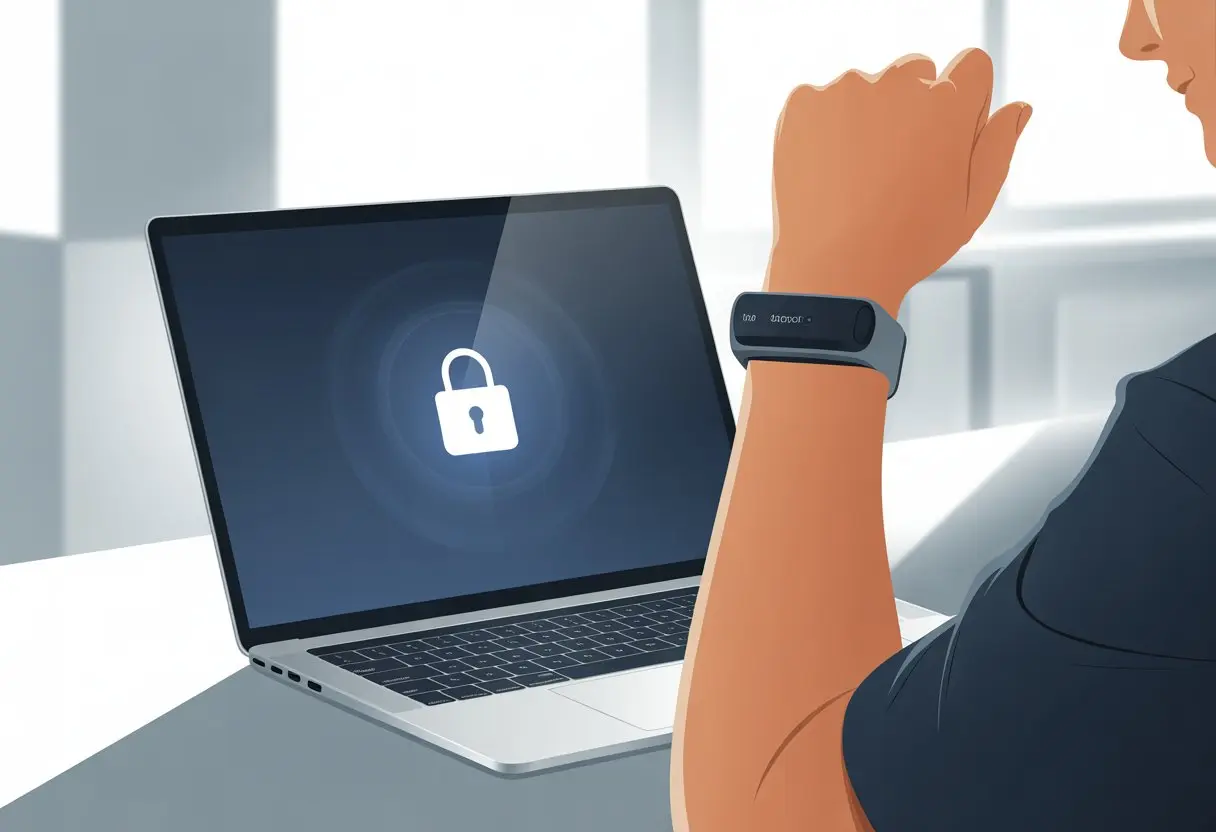
Before we blame our tracker for slacking off, it’s worth knowing that not all fitness bands play nicely with every computer out there. Some, like those old Fitbits, used to work with PCs, but that’s not always true anymore as explained here.
Sometimes, the problem isn’t the tracker at all—it might be a forgotten setting or a Windows update that just broke things for no good reason.
Tech should make life easier, not turn us into computer-whisperers. So let’s dig in and see why our trusty fitness tracker refuses to unlock the computer—and what we can actually do about it.
Common Reasons Your Fitness Tracker Won’t Unlock Your Computer
Sometimes fitness trackers ignore our laptops the way a cat ignores a bath. Issues show up with pairing, syncing, or that sneaky Bluetooth connection we all secretly hate.
Pairing Issues
If our tracker and computer aren’t paired, nothing’s going to work. It’s like trying to dance together while wearing different shoes.
Pairing happens over Bluetooth, so both devices need Bluetooth turned on. They should also be close together—no hiding the tracker in a sock drawer.
If pairing fails, check if the devices are even compatible. Some laptops or desktops only talk to certain trackers or software versions. Double-check those requirements before tossing the tracker out the window.
Battery life messes with pairing too. A half-dead tracker probably won’t connect. If nothing works, remove the tracker from the computer’s paired device list and try again. Sometimes starting fresh actually helps.
Syncing Conflicts
When syncing is off, nothing updates—even if we walk ten miles in the living room. The tracker and computer have to agree about data sharing, or our step count just stays stuck on our wrist.
Syncing problems often happen when too many fitness or tracking apps run at once. The apps start fighting, and nobody wins.
Only let one app sync with the tracker to avoid a digital turf war.
Outdated software causes trouble too. Syncing only works if both the tracker and computer are running the latest updates. If the tracker app is old, syncing just won’t happen. Check for updates everywhere, just to be sure.
Connectivity Disruptions
Connectivity should be easy, but sometimes it just refuses to cooperate. Bluetooth is usually the troublemaker, but USB connections can also act up.
Make sure Bluetooth is on. The tracker shouldn’t be out of range or fighting with other devices for attention.
Wi-Fi networks and other gadgets can cause interference. If Bluetooth is spotty, move both devices closer or away from thick walls and metal stuff.
Restarting the computer sometimes fixes weird connectivity problems. It’s simple, but let’s be honest—it works more than we’d like to admit.
For USB connections, check that cables aren’t damaged and ports are clean. Even a little dust can keep the tracker from recognizing our computer.
If nothing helps, unplug, replug, and cross your fingers.
Device Settings to Check Before Blaming the Universe
Sometimes, even the fanciest fitness tracker gets stopped by a simple device setting. Before we assume our gadgets are out to get us, let’s check a few troublemakers that love to slip by unnoticed.
Bluetooth Permissions
First thing: Bluetooth is the digital handshake here. If Bluetooth is off or the devices aren’t talking, the unlock feature just won’t work. No magical backdoor, no matter how hard we wish.
Let’s make sure Bluetooth is enabled on both the smartphone and the computer. If it’s already on but things still aren’t working, double-check that the fitness tracker shows up in the Bluetooth devices list.
If it’s missing, turn Bluetooth off and back on. It’s the tech equivalent of “Did you try restarting it?”
Sometimes, we need to grant permission for devices to connect. On most phones, this happens in the Bluetooth menu. Computers might have extra privacy settings where Bluetooth access has to be approved for new devices.
Giving explicit permission isn’t glamorous, but it can save a lot of time spent staring at the screen in confusion.
Unlock and Security Settings
Here’s where the secret menu hides. For the tracker to unlock the computer, both devices need to agree on the method and confirm it’s really us—not a sneaky raccoon in a hoodie.
On Windows, we might use Dynamic Lock or something similar. Macs often rely on Apple Watch unlock features.
Both require us to set up device pairing correctly, usually by following prompts in the settings. Check that the tracker’s unlocking feature is enabled—not all trackers have this out of the box, and sometimes a firmware update is waiting.
Security settings might block unlocking if certain things aren’t set, like a strong password or two-factor authentication. If we’re locked out, a quick look in the computer’s security menu under “Unlock with device” (or something similar) can reveal what’s wrong.
Notifications and Do Not Disturb Mode
Notifications do more than annoy us—they’re also important for unlocking. The phone and tracker often use notifications to tell the computer we’re nearby and ready to unlock.
If notifications are off for our tracker app or on the phone, the unlock signal might not go through. We should check the notifications section in device settings and make sure they’re allowed for the tracker’s app.
If we spot any blocked alerts, flip those switches.
Do Not Disturb mode is sneaky. If it’s on, it can silence notifications and block unlock signals without warning.
Smartphones and computers both have different ways to trigger Do Not Disturb—look for icons in the system tray or status bar. Turning it off can suddenly fix everything, and we’ll look like tech wizards.
Battery and Power: The Real Villain
Sometimes, the high-tech tracker isn’t lazy—it’s just running on fumes. A battery that’s barely alive or a stubborn USB charger can quietly ruin our plans to unlock the computer.
Low Battery Woes
When the fitness tracker’s battery is low, it acts like a grumpy toddler—nothing works right. A dead or dying battery can stop Bluetooth, block notifications, and definitely prevent unlocking.
Some trackers give hints, like dim screens or warnings, but others just power off with no warning at all.
Signs our battery is low:
- The tracker vibrates weakly
- The screen won’t wake up
- We see a sad battery icon
It’s best to check the battery status in the tracker’s app. If it keeps running out of power before lunch, maybe it’s time to rethink our charging habits. Skipping the daily charge is a gamble.
Charger and Cable Fiascos
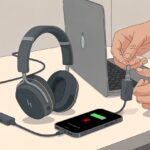
Do USB cables seem to multiply but never actually work? A bad charger or cable can cause endless headaches.
If the tracker only charges when we hold the cable at a weird angle, the cable is probably toast. Some fitness trackers are picky—they might only work with the original charger or a certain USB port.
To troubleshoot, we can:
- Swap out USB cables and charging bricks
- Try a different USB port on the computer or wall adapter
- Check for dust or grime on contact points
A tracker that doesn’t charge won’t unlock anything—except maybe our patience for tech issues. Make sure the cable is plugged in firmly and isn’t from the Stone Age.
Troubleshooting Like a Tech Wizard
Sometimes, the fitness tracker decides to go on strike right when we need that seamless unlock. No worries—there are a few tricks we can try to bring peace back to our digital lives.
Resetting Fitness Tracker and Computer
Let’s be real, sometimes our gadgets just need a fresh start. The classic “turn it off and back on” is still our best friend.
First, reset the fitness tracker by powering it down completely, waiting ten seconds, and turning it back on.
For computers, a full shutdown often clears up temporary glitches that block the tracker connection. Check Bluetooth settings, since a sneaky toggle might be off.
If everything still looks as frozen as last year’s leftovers, try resetting fitness calibration data or the network settings.
Quick checklist to reset and reconnect:
- Restart both tracker and computer.
- Toggle Bluetooth off and on.
- Make sure the tracker is charged (low battery, low chance).
- Check if the tracker is set to unlock the computer.
If we’re still stuck, it’s probably time to try something else.
Reinstalling Necessary Apps
Sometimes, the fitness app just gives up. If resetting hasn’t fixed it, we might need to reinstall the fitness app on our phone or computer.
Remove the app, restart the device, and grab the latest version from the app store.
When reinstalling, pay attention to permissions. Fitness tracking features might be disabled or greyed out, often hiding behind a privacy setting or device restriction.
Make sure permission for Bluetooth, motion, and fitness is turned on in settings.
If the app asks, grant every access requested (within reason—we don’t want the app to start making dinner). This gives our tracker a much better shot at linking up and unlocking the computer.
If issues keep popping up, check for updates in both the app and the device system.
Compatibility: When Your Devices Speak Different Languages
Getting a fitness tracker to unlock a computer sometimes feels like introducing two stubborn relatives who refuse to talk. Sometimes, the problem isn’t the settings—it’s just a basic mismatch.
It’s like Romeo and Juliet, but with more Bluetooth and less drama.
Operating System Woes: iOS 16, Android, and More
We’d all love to think our iPhone running iOS 16 and our shiny new fitness tracker are a dream team, but honestly, they don’t always get along. Apple locks down iPhones with tight security, so not every tracker will cooperate.
Some trackers just skip supporting unlocking features on iOS. Suddenly, we’re stuck at the login screen, waving our wrists around and hoping for magic.
Android phones can be more welcoming—like that neighbor who invites everyone over. Still, it really depends on the tracker’s app and whether it supports features like smart unlock.
Different Android versions can surprise us, though. If we’re stuck on an old version, our tracker might just stop talking to us entirely.
Before we start yelling at our gadgets, it’s a good idea to check the tracker manufacturer’s website for compatibility charts or lists of friendly devices.
Fitness Tracker and Computer Pairing Failures
Let’s talk about computers. Windows PC? Mac? Linux? Our fitness trackers have to figure out what “language” to speak.
Fitbit used to pair up with PCs, but now, unless we’ve got an older model, we might be out of luck. If our tracker only works with phones, our computer just sits there, feeling left out.
Pairing problems can get dramatic fast. We see the tracker show up in Bluetooth settings, but clicking connect is like trying to find matching socks in the dark—super frustrating.
Some trackers, especially older or budget ones, use apps that don’t support syncing with computers anymore. Suddenly, we’re left telling everyone about our steps instead of syncing them.
If you want to know which trackers are still compatible with Windows 10 PCs, check the list before jumping into troubleshooting.
When Smartwatches Get Too Smart for Their Own Good
Smartwatches try to help, but sometimes their fancy features cause more trouble than they’re worth. That excitement fades when a stray finger or late-night roll confuses our devices.
Touchscreen Mayhem and Inadvertent Screen Touches
Let’s be honest—these smartwatches have super sensitive touchscreens. One second, we’re checking the time, and the next, our wrist is sending weird messages to everyone.
It feels like the screen is just waiting for a sleeve, a random swipe, or a drop of water to wake up. We’ve all had that moment of confusion when the Apple Watch unlocks our computer just because we unzipped a jacket.
Sometimes, the watch picks up the tiniest taps, and we start to wonder if it’s reading our minds… but badly.
This gets extra annoying with computer unlocking. The watch might log a false touch and think we’re approving the unlock, when really, we’re just stretching.
Suddenly, our laptop comes to life, and our boss’s email pops up—while we’re still half-asleep in a meeting.
Quick Tips:
- Turn on touchscreen lock for exercise or sleep
- Clean the screen often
- Adjust sensitivity in settings if you can
Otherwise, we’d have to keep our arms frozen all day.
Sleep Tracking and Unlock Mishaps
We love that our smartwatches—Apple Watch, Fitbit, all of them—track our sleep. But sometimes, sleep tracking features have a secret: they think we’re up and ready before we even open our eyes.
We’ve all rolled over at 2 a.m., and suddenly, the smartwatch tries to unlock our computer. Who knew tossing and turning could count as logging in?
If we set the watch to stay connected to our computer overnight, every movement gets counted as proof we’re awake. That means our device could randomly unlock, just because we shifted under the covers.
What helps:
- Set your watch to “Do Not Disturb” while sleeping
- Double-check permissions for unlocking computers at night
- Keep the watch snug but not too tight, so sensors don’t get tricked by every blanket move
Sleep tracking is great—until it tries to start work before we do.
Keep It Updated: Software, Apps, and Firmware
Let’s be honest—our fitness tracker won’t magically fix itself if we ignore updates. Software, app, and firmware releases actually matter. They’re not just there to annoy us.
Checking for Updates
We all know the “Update Available” pop-up loves to show up at the worst time. Hitting “Remind me later” again and again? Not the best move.
To keep our tracker unlocking our computer, we need to check for updates on the tracker, the companion app, and the computer’s software.
Most trackers let us look for updates in their settings or about section. We might need to connect to Wi-Fi, Bluetooth, or even plug into a computer via USB.
Sometimes, we have to restart our device or phone after an update. It’s tempting to skip this, but it can actually help.
If the update freezes, restarting our phone or trying the update on another device might do the trick. Fitbit suggests restarting both devices or using a different phone or computer if things get stuck.
Fitness App Not Working After Update
We finally update everything, but now our fitness app is acting out—jumping, freezing, or refusing to unlock our computer.
First, check if the app itself needs an update! App stores roll out fixes after big updates break stuff.
Sometimes, the app loses its connection with the tracker after an update. Try logging out and back in, pairing the tracker again, or reinstalling the app.
If the fitness app still won’t work, don’t panic—other users have noticed that some updates cause hiccups and glitches that sometimes clear up in a day or two.
As a last resort, clear the cache or app data in your phone’s settings. If nothing helps, check the support forums and see if anyone else is suffering. You’re definitely not alone.
Advanced Solutions for Brave Souls
Sometimes, our fitness trackers just won’t behave with our computers. It’s not the end of the world—we can usually outsmart them with a few steps and a little patience.
Unpair and Re-pair Devices
Honestly, devices can act like grumpy pets that just need a reset. If our fitness tracker or Apple Watch isn’t unlocking our computer, try the classic move: unpair and re-pair.
Here’s how: Open Bluetooth settings on the computer and remove the tracker from the paired list. Then, on the tracker, go into settings and forget the computer too.
Restart both devices. Freshly restarted gadgets usually behave better.
Pair the tracker and computer again, following the same steps as before—like a first date. This often fixes most connection issues.
If things still aren’t working, check the instructions for your specific tracker model. Some of them have weird quirks.
Reset Fitness Tracker Calibration
Our fitness tracker can get confused if its calibration data is off. It’s like us after too much coffee—no idea what’s happening.
Time for a reset—not of our caffeine habit, but the tracker’s calibration.
Apple Watch users can open the Watch app on the iPhone, tap “Privacy,” and then Reset Fitness Calibration Data. Other trackers usually have a similar option in their system or profile settings.
Once we’ve reset, take the tracker for a quick walk so it can relearn our stride.
This reset can help if the device isn’t recognizing our movements right and, as a bonus, sometimes fixes those annoying unlock problems.
Just remember, all personalized activity data gets wiped, so we might lose our record-breaking grocery run. But hey, it’s a fresh start for everyone.
What Else Could Go Wrong? (Or Right, for Optimists)
Sometimes, fitness trackers seem to have their own secret lives. They don’t just mess with computer unlocks—they’ve got a whole bag of tricks with GPS, music, and other electronics around the house.
GPS, Music, and Other Feature Mischief
We love that trackers count our steps, find our location, and even play our favorite tunes. But when a tracker misbehaves, things get weird.
The GPS might drop us in the middle of a lake while we’re jogging on the sidewalk. Sometimes, it won’t track our walk at all—like the PC Health app not counting steps, which makes us feel like our morning walk didn’t even happen.
Music controls are great…when they work. But sometimes, our song skips lag, or the volume won’t budge. We might accidentally blast our playlist through the home theater while just trying to leave the house.
Pairing with car electronics can get weird, with trackers pausing music every time we hit a bump.
The more features the tracker has—sleep tracking, smart notifications, maybe even a voice assistant—the more chances for little hiccups. Sometimes, it feels like we’re wrangling a tiny, stubborn robot on our wrist.
Interference from Other Electronics
Homes are full of gadgets, and most don’t mind causing trouble now and then. Fitness trackers use Bluetooth and sometimes Wi-Fi.
If the TV, home theater, or microwave is busy, Bluetooth signals can get scrambled. Suddenly, our tracker drops connection or refuses to unlock anything.
Home security systems sometimes mess with trackers too, especially if they use the same wireless band. It’s not rare for our tracker to decide the stereo system next door is its new best friend.
Car electronics can be a headache. The moment we step inside, trackers might try to pair with every recorder and player in sight. That’s when unlocking our computer takes a back seat—sometimes literally.
Even smart fridges and home theater systems can give off enough signal noise to confuse a fitness tracker and ruin our hopes for a seamless unlock.
How to Keep Your Fitness Tracker and Computer on Speaking Terms
Staying connected means more than just charging our devices. If we want our fitness trackers to keep sharing data—workouts, calories, all of it—with our computers, we’ll have to keep everything in sync and dodge the usual hiccups.
Best Practices for Consistent Unlocking
First things first—are both devices actually awake and within Bluetooth range? Sometimes, the tracker just ignores us because we’re standing too far away. That’s pretty much like shouting across a football field and expecting someone to hear you.
If workout data isn’t transferring, maybe we forgot to enable fitness tracking or the right permissions on the tracker. A lot of trackers hide a privacy setting you have to toggle on.
On computers, especially if you’re using Windows or Google features, you’ll need to check that everything’s set up right. For Fitbit and similar brands, syncing works with a smartphone or computer, but you’ve got to keep the devices connected the whole time.
You can find more details about keeping your fitness tracker and computer in sync.
Still locked out? Try restarting both devices. Honestly, it’s like counting to ten before you yell at your coffee maker—sometimes it just works.
These simple steps usually help us keep track of calories burned and steps taken without too much hassle.

From a young age, I have always had a big interest in technology, and this blog is an extension of that interest. Through this blog, I hope to provide others with all of the information they need regarding tech options to consider, and things such as compatibility. Some of the different items I will be discussing include headphones, smartwatches, and how to fix common issues.
- How to use a fitness tracker for sedentary alerts: Because Your Couch Won’t Miss You Anyway - September 14, 2026
- Why do my Bluetooth headphones not work with my projector? Solving Tech Mysteries for the Audio-Challenged - September 13, 2026
- Best Smartwatches for Medication Reminders: Never Forget Your Pills (or Your Sanity) Again - September 13, 2026
Related Posts: