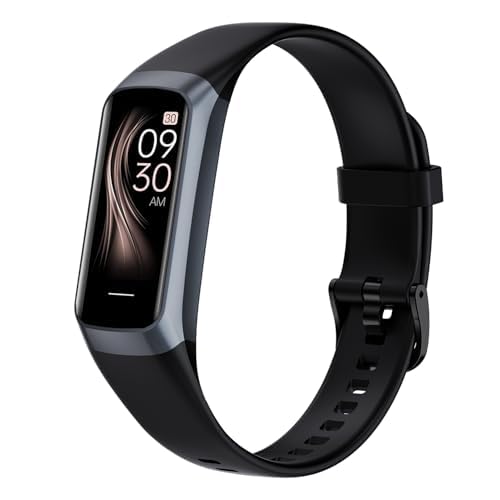
We’ve all been there—ready to crush our step goals, but our fitness tracker’s already begging for a charger before lunch. High screen brightness, endless notifications, and always-on Bluetooth usually drain our tracker’s battery the fastest. Sometimes it feels like our charger’s busier than we are.
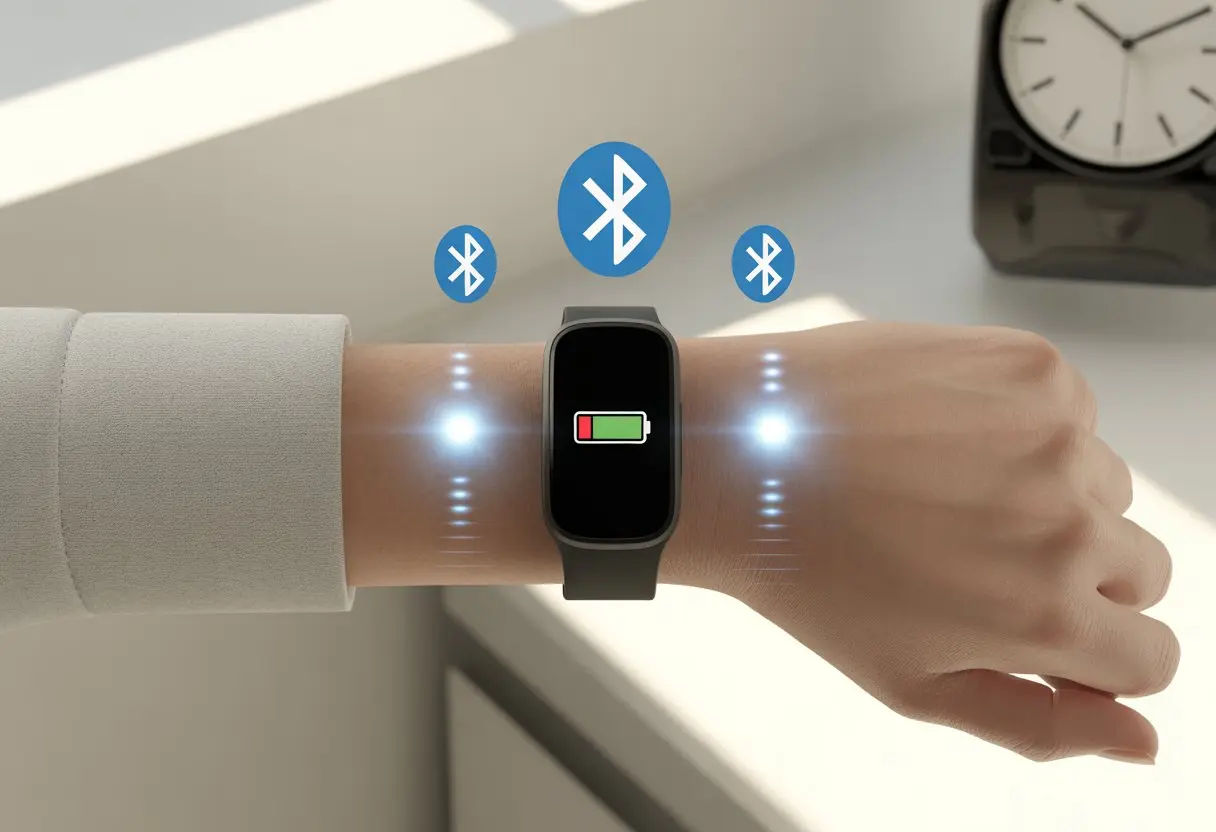
Instead of blaming our poor trackers for their short battery life, maybe we should check what’s really going on. Maybe we’ve left every feature on, cranked the screen up to “sunburn,” or loaded it with too many apps.
Honestly, there’s a lot happening behind that tiny screen, probably more than we realize.
If we’re tired of seeing the battery drop faster than our motivation on leg day, let’s figure out what’s really causing all this drama. Our wrists might just thank us.
Understanding Fitness Tracker Battery Life
We all want our fitness trackers to outlast our runs, but battery life depends on which device we pick and how many features we turn on.
Some trackers promise weeks of battery life, while others barely limp through a single day. Basic fitness bands that just count steps and show the time can last 5–14 days on one charge.
But if we jump to a smartwatch with a flashy display and built-in GPS, we’re lucky if it hangs on for 1–3 days.
Let’s be real—using GPS is a battery’s worst nightmare. Here’s a quick comparison:
| Device Type | Typical Battery Life |
|---|---|
| Basic Fitness Tracker | 5–14 days |
| Smartwatch (no GPS) | 2–5 days |
| Smartwatch (with GPS) | 1–3 days |
If we want sleep tracking, notifications, and a bright color screen, we’d better keep our charger handy.
Running GPS workouts, getting pinged with notifications, and cranking up screen brightness all make our battery disappear by dinnertime. Every time we set another silent alarm or check our heart rate for the tenth time before breakfast, our tracker just sighs.
Here are some classic battery drainers:
- High screen brightness or always-on displays
- Frequent GPS use for outdoor activities
- Multiple alarms or reminders
- Notifications and Bluetooth always enabled
If our fitness watch suddenly can’t last a day, maybe we’re living life at max brightness—literally. Even something simple like too many alarms can zap the battery, as folks with Fitbit have pointed out.
The more we expect from our tracker, the faster it begs for a recharge.
Common Causes of Rapid Battery Drain
Our fitness trackers should keep up with us, not spend half their lives on the charger. Battery life takes a hit for a bunch of reasons, and knowing what’s making our device gasp for energy can help us keep it running longer.
Power-Hungry Features and Settings
Some features just love to gulp down power. When we crank up the screen brightness or leave the always-on display active, the battery pays the price.
And GPS? That thing loves to drain the battery during even short runs. If we’re obsessed with all-day heart rate monitoring or PulseOx, those sensors act like tiny energy vampires.
Turning off high-frequency tracking when we don’t need it can really help. There’s a handy guide about excessively power-hungry options if you want to dig deeper.
Overactive Notifications
Trackers aren’t meant to be tiny, vibrating postmen. If our wrist buzzes every time someone posts a meme, it’s no wonder the battery’s running for cover.
Each alert lights up the screen and taps the battery. If emails, texts, and app notifications are all on, we might as well tape a charger to our arm.
Limiting notifications to what really matters—like step goals or actual phone calls—helps. Apps can send tons of alerts in the background, making things worse. It’s worth checking our notification settings and trimming the noise.
App Usage: The Sneaky Culprit
Sometimes, it’s the apps we barely notice that quietly drain battery. Many fitness trackers run background apps that check for updates, sync data, or track us 24/7.
If we’ve loaded up a dozen third-party apps or set multiple alarms, each one silently nibbles at the battery. Deleting unused apps or limiting silent alarms helps.
Continuous background processes can be a big reason our battery dies so quickly, as experts discuss in background sensors and apps. Regularly checking what’s running—and shutting down what we don’t need—can keep these sneaky culprits in check.
Connectivity Conundrums
Sometimes our fancy fitness tracker battery drains so fast, it feels like it’s running a sprint while we’re just sitting still. Bluetooth and GPS are usually the main troublemakers, and they can chew through battery if we’re not careful.
Bluetooth Connections and Issues
Bluetooth is the invisible string tying our tracker to our phone. When this connection gets glitchy or keeps reconnecting, the tracker works overtime, draining the battery like a thirsty kid with a juice box.
A weak Bluetooth connection makes our tracker keep searching and pairing, and the battery just can’t keep up. If we’ve got too many devices nearby or wander away from our phone, things get messy.
What can we do?
- Keep our phone and tracker close together.
- Turn off Bluetooth if we don’t need to sync right now.
- Try restarting the tracker and phone if problems keep popping up.
A healthy Bluetooth connection means less stress for our battery. There’s more info on battery and connection issues in the Fitbit Community.
GPS Overuse: Location Drama
GPS is amazing when we want a map of our heroic neighborhood run, but leaving it on all day is like running the faucet nonstop. GPS uses a lot of juice, especially if we forget to turn it off after a workout.
If we record every dog walk like it’s the Tour de France, the battery pays the price. Leaving GPS running, even when we’re not moving anywhere interesting, drains power fast.
To help our battery last:
- Only use GPS when we’re actually mapping a workout.
- Turn off the feature if we’re inside or just chilling.
- End GPS sessions when we’re done.
Some folks have noticed battery drain gets even worse after GPS workouts, especially after software updates, as mentioned in this discussion about a massive battery drain bug. So, keep an eye out for those sneaky bugs!
Tracking Features That Drain Power
Some tracker features work overtime all day and really take a bite out of battery life. Paying attention to these helps us use our trackers smarter and keep them juiced up longer.
Step Count and Daily Steps Tracking
When our tracker counts steps, it’s always on patrol. The accelerometer tracks every little move—even when we’re dancing in the kitchen or pacing by the fridge.
This constant monitoring doesn’t use much power, but it never stops. If we set our tracker to check steps every few seconds, it needs even more battery.
Some trackers let us pick how often step data updates. More updates mean faster draining.
Reminders to move and hourly step goals can also make things worse. Every alert zaps a bit more battery.
If we set lots of alarms or reminders, our device has to keep waking up—kind of like us trying to hit our step goal at 10 p.m.
Tip: Try deleting some silent alarms or reducing how often reminders pop up to save energy.
Running and Other Fitness Activities
Tracking running, biking, or other activities really kicks battery usage up. When we turn on a workout mode, the tracker often uses more sensors, like GPS and heart rate.
If GPS is on for our run, battery drain jumps because it’s constantly checking our location. Heart rate monitoring also shifts into high gear during workouts, checking way more often.
Wearing our tracker for long exercise sessions, using workout alerts, and tracking multiple activities in a day can sap the energy, too.
If we aren’t using features like real-time pace updates or constant GPS, turning them off helps the battery last longer.
You can get more details on what features drain battery life in this guide on optimizing battery usage.
Syncing and Update Surprises
Sometimes, our fitness tracker batteries vanish faster than our willpower at 6 a.m. But it’s not always our fault—updates and syncing can be the real troublemakers.
Automatic Updates and Software Syncing
Let’s be honest—software updates are like uninvited guests. They show up, demand attention, and sometimes mess up our battery life.
When our trackers get new updates, extra power gets used to re-optimize data, adjust settings, and run background checks. A fresh update can spark a battery draining spree because the device does a lot of background syncing, especially with services like Google.
All those health stats have to sync somewhere, right? The more often our tracker syncs step counts, sleep logs, and heart rate with our phone or email, the harder the battery works.
Turning on automatic updates means we might get an energy-draining surprise at the worst time. Some people even fix battery drain by unpairing, erasing, and re-pairing their tracker after a big update.
It’s like giving the device a fresh start, minus the confetti.
Third-Party Apps and Integration
Honestly, who doesn’t love adding new apps or connecting trackers to just about everything? The more apps, the more fun—or so it seems. But every time we connect something, whether it’s for email alerts or a fresh fitness challenge, our tracker ends up working harder and using more energy.
Fitness, weather, or music apps from third parties keep syncing and pulling updates on their own. These connections push our batteries to the limit, especially with every new notification or stat.
We can keep things under control by checking which apps or integrations run all the time. If we get rid of the apps we barely use, our batteries last longer, leaving more power for what matters—like those reminders to get up and move.
Environmental and User-Related Factors
When our fitness tracker battery suddenly drains fast, the reason is usually right in front of us. How we use our tracker every day can turn its battery life from marathon-worthy to a quick sprint.
Screen Brightness and Display Usage
Let’s admit it, we love a bright, crisp screen. Turning up the brightness makes everything pop, but it also means the battery drains faster. If we check the time every few minutes (guilty!), that just makes things worse.
Setting the display to wake every time we flick our wrist or tap the screen doesn’t help either. With each glance, we use up a little more battery.
To help the battery last:
- Lower the screen brightness to a level that’s easy on the eyes
- Shorten the screen timeout so it turns off quicker
- Cut down on how often the display wakes up by tweaking wake settings
If you want the nitty-gritty, high display brightness is a top reason for battery drain.
Music Playback and Battery Load
We love having music while we exercise, but streaming or playback on our tracker is tough on the battery. Playing music—especially over Bluetooth or cellular—uses up a lot of energy. If we turn on GPS or workout tracking at the same time, the battery drops even faster.
Even short music sessions can make a noticeable dent. Using music modes a lot means the charge won’t last as long, which is something many of us notice during runs or workouts.
- Download only the playlists we’ll actually use
- Keep music features short and sweet
- Try not to use GPS and music together
People have reported battery draining quickly during music and workouts, so maybe we don’t need a soundtrack for every single step—our battery will be happier.
Troubleshooting and Power-Saving Tips
We all want our fitness trackers to keep up—counting steps, not dying halfway through the day. Squeezing out extra battery life usually comes down to smart settings. If nothing seems to work, a good old reset often does the trick (it’s like the gadget version of comfort food).
Activating Sleep Mode
Sleep mode sounds like a nap for our trackers, but it’s actually one of the best battery-saving tricks. When we turn on sleep mode, the display goes dark and notifications stop lighting up our wrist every few minutes. That means less energy used and a battery that hangs on longer.
Here’s what sleep mode does:
- Shuts off unnecessary alerts while we sleep
- Dims or turns off the display
- Pauses things like heart rate updates or activity tracking
On most models, we set the sleep schedule in the app or directly on the watch. If we forget to enable sleep mode, our tracker might stay busy all night, draining the battery while we’re dreaming. For more tips, check out solutions for Fitbit models.
Factory Settings and Resets
When nothing else helps, restoring factory settings is like pulling the plug and starting over. This step wipes out customizations, apps, and sometimes even workout history. A reset can fix battery problems caused by software bugs or weird glitches, but it’s a bit of a last resort.
Before resetting, we should:
- Back up any important fitness data (goodbye, record nap times)
- Remove old updates or apps that could be causing trouble
- Restart and set everything up again
Sometimes trackers just get confused, stuck updating, or overloaded with old alarms—stuff that drains power. Doing a factory reset can break that cycle. For more help with tricky battery problems, check out this troubleshooting guide for high battery drain.
Connectivity With Other Devices
Our fitness trackers love connecting to computers and laptops. But all this “socializing” wears them out, especially when it comes to battery life. Staying connected keeps our devices busy, so let’s see what happens when our tracker mingles with our other tech.
Syncing With Your Computer or Laptop
Plug in your tracker, and it jumps into action. Syncing isn’t just a quick “hello”—it’s a whole back-and-forth. The more often you sync, the faster your tracker chews through its battery.
Leave your tracker plugged in too long, and you’ll notice the battery dropping. Background syncing and random updates can drain it faster than you’d expect, especially if Bluetooth keeps trying to stay connected. Sometimes everything looks idle, but the battery tells a different story.
Want to save some juice? Try these:
- Sync less often. Connect only when you really need to.
- Eject properly. Don’t leave your tracker connected for hours.
- Turn off Bluetooth on your computer or laptop when you’re not syncing.
Take a minute to check the settings on your tracker and your computer. Background apps sometimes sneak in and sync without you knowing, and your battery pays for it. Curious why Fitbit app syncing can suck up more battery? Check out this thread.

From a young age, I have always had a big interest in technology, and this blog is an extension of that interest. Through this blog, I hope to provide others with all of the information they need regarding tech options to consider, and things such as compatibility. Some of the different items I will be discussing include headphones, smartwatches, and how to fix common issues.
- How to Get Text Messages on Fitbit Versa 2 Android: Simple Guide for Users - October 13, 2026
- Why Doesn’t My Fitbit Record My Sleep? Quick Troubleshooting Guide - October 13, 2026
- How to Change Face on Fitbit Versa 2: Quick and Easy Guide - October 12, 2026
Related Posts: