Let’s be real—most of us have wasted way too much time trying to get our Bluetooth headphones and iPhones to cooperate. If our headphones aren’t connecting, all the playlists and podcasts in the world mean nothing. Still, don’t stress—pairing wireless headphones with an iPhone is usually quick once you know the drill.
Before we start smashing buttons in a panic, let’s just admit we’re all confused sometimes. We can get this sorted out in just a few taps if we follow the right steps—even when tech feels like it’s out to get us.
We’ve all frantically switched things off and on, desperately hoping for a miracle. With this guide, we’ll save some time (and maybe a bit of sanity) and get those headphones working with our iPhones.
If you’re ready to ditch tangled wires for good, let’s get into it.
Understanding Bluetooth and Wireless Headphones
Pairing wireless headphones with an iPhone feels like magic sometimes, but there’s real tech behind it. Let’s break down how Bluetooth connects our gadgets, how wireless stacks up against wired headphones, and what devices and software actually play nice together.
How Bluetooth Works
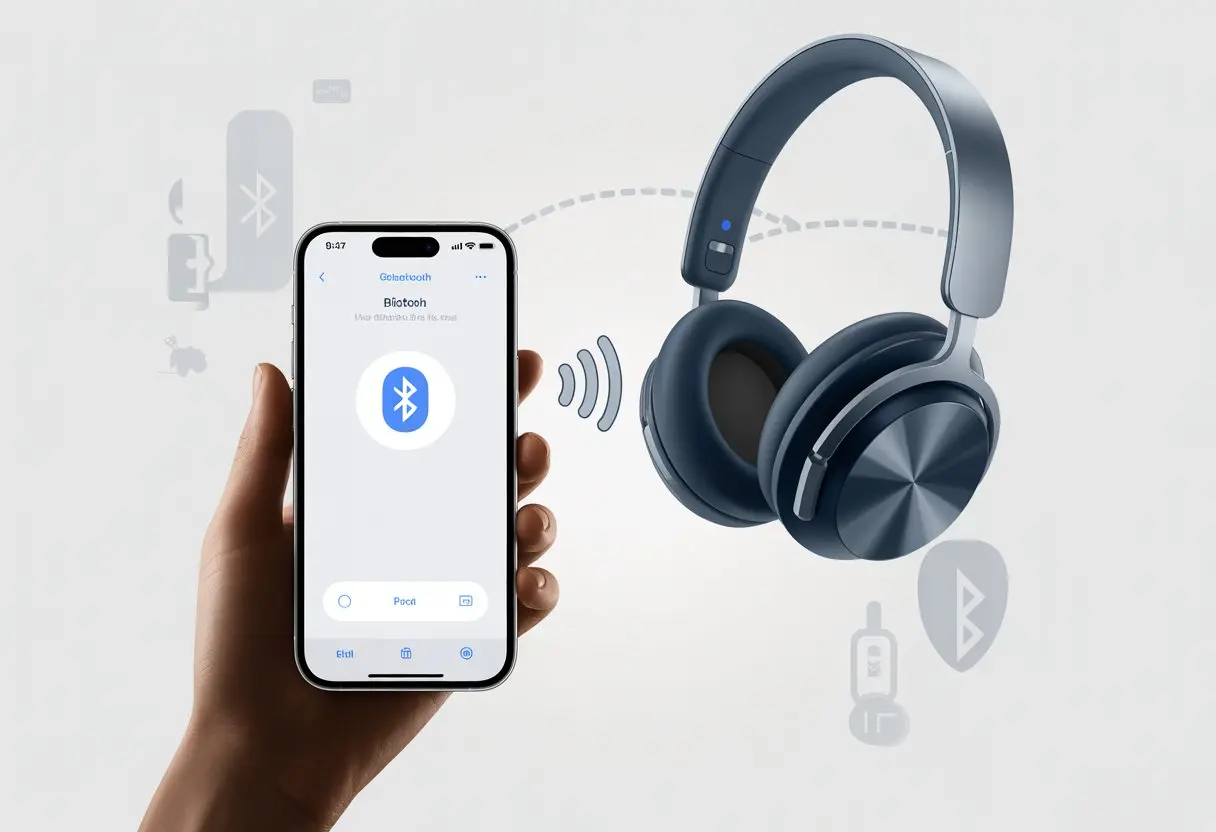
Bluetooth is basically a secret handshake for our devices. It uses short-range radio waves to let two gadgets—like our iPhone and headphones—talk to each other without any wires. We just need to turn on Bluetooth, put both devices in “pairing” mode, and they’ll spot each other like old friends.
What’s neat is that Bluetooth keeps getting better. It uses less power and connects faster now, so we don’t have to stand next to a charger all day. Most headphones with Bluetooth 4.0 or newer drop fewer connections and sound a whole lot better.
Just remember, there’s a distance limit—usually about 10 meters. That’s enough space to dance around without pulling your phone off the table, but if you wander too far, the audio might cut out and remind you to stick close.
Bluetooth Headphones vs. Wired Headphones
Let’s be honest: wires are a pain. Bluetooth headphones set us free to move around, no more untangling cords like a puzzle.
Wired headphones can sound a bit better, especially if you’re picky about audio or you make music. But for most of us, modern Bluetooth headphones sound great and work easily with our phones. Plus, lots of them now have noise cancellation and touch controls—stuff you rarely get on old-school wired sets.
Wired headphones never need charging, but wireless ones do depend on battery life. Thankfully, most wireless headphones last several hours or even a full day. If you forget to charge them, well, you can always pretend you’re listening.
Compatible Devices and Software
Bluetooth headphones work with almost all modern electronics—smartphones, tablets, laptops, you name it. If your iPhone or gadget has Bluetooth and isn’t ancient, you’re probably fine.
For the smoothest experience, update your software. Apple’s iOS updates often add Bluetooth features and fix annoying bugs. Most Bluetooth headphones also connect to Android devices, Windows laptops, and even smart TVs, though the setup might look a little different.
Nobody wants to start their Bluetooth journey only to hit a silly roadblock. Charging, powering on, and checking the right settings are quick things we can do so we don’t end up talking to ourselves.
Charging Your Headphones
Let’s be real—dead headphones kill the dream of wireless music. Before we mess with any settings, grab the charging cable that came with your headphones and plug them in until the indicator light (usually red or orange) does its thing.
Most headphones use USB-C or Micro-USB cables, sometimes even wireless charging pads. If you lost the original cable, no big deal—just use a compatible one.
A full charge can take anywhere from half an hour to a couple of hours. Don’t expect miracles with just five minutes on the charger. Blinking or steady green lights usually mean you’re good to go, but check the manual if you’re not sure what the colors mean.
Initial Power On and Indicator Lights
Now it’s time to find that power button. It’s usually pretty obvious, sometimes hiding in plain sight with a tiny symbol. Hold it down for a few seconds until the lights start flashing or you hear a sound.
Some headphones actually say “Power On” or “Pairing Mode” out loud, which is kind of nice. Flashy indicator lights mean your headphones are in pairing mode. If you see a steady light, they might already be paired with something else, so try holding the button longer or check the manual for a reset trick.
New headphones usually jump right into pairing mode the first time you use them. Older ones might still be clinging to an old device.
Enabling Bluetooth on Your iPhone
Pick up your iPhone and let’s get moving. Unlock it, open the Settings app, and tap on Bluetooth near the top. Flip the Bluetooth switch on. If the button turns green, you’re ready—if not, give it a tap.
When Bluetooth is on, your iPhone automatically searches for nearby headsets. The name of your headphones should pop up under “Other Devices.” If it doesn’t, try putting your headphones back in pairing mode. For more help, Apple’s got a step-by-step guide that’s pretty easy to follow.
Putting Your Headphones in Pairing Mode
Pairing Bluetooth headphones with an iPhone starts by putting the headphones in pairing mode. We need to make our headphones “visible” so our phone can spot them, and the steps aren’t always obvious.
Steps to Activate Pairing Mode
First, find the right button—or sometimes, a combo of buttons. Most headphones want us to press and hold the power button for about five seconds until a light starts flashing. Some true wireless earbuds jump into pairing mode when you take them out of the charging case.
Here’s a quick checklist to keep you sane:
Turn off the headphones if they’re already on.
Press and hold the power button, or maybe a button labeled “Bluetooth” or “Pair.”
Wait for a flashing LED—usually blue and red—to signal you’re in pairing mode.
If nothing happens, don’t freak out; sometimes it just takes a few tries or a firmer press.
Once pairing mode kicks in, your headphones usually put on a little light show. Most flash between two colors, often blue and white or blue and red. The blinking means your headphones are now searchable by your iPhone—like waving a tiny flag and shouting, “Pick me!”
Some models play a sound or voice prompt, letting you know they’re ready.
Here’s a quick reference:
Indicator
Meaning
Blinking blue/red
Pairing mode activated
Solid blue/red
Not in pairing mode
Voice prompt
“Ready to Pair” or something similar
If nothing flashes, the device might still be paired with something else. You’ll need to unpair it from old devices first.
Using the Passkey If Required
Sometimes, your iPhone asks for a passkey or PIN during pairing. It feels a little like you’re unlocking a secret vault, but the code is almost always simple. Most headphones use default codes like 0000, 1234, or 1111.
If your headphones came with a manual, the passkey might be in there. Just type the passkey on your phone when it asks. If none of those codes work, check the user guide or the brand’s website.
Once you enter the right passkey, the devices remember each other—so you won’t have to do this every time. That’s called storing the “pairing information.” If you ever need to start over, just repeat these steps.
Connecting to Your iPhone
Getting Bluetooth headphones to work with your iPhone isn’t rocket science, but sometimes it sure feels that way. We need to head to the right spot in Settings, pick the right device, and make sure our headphones aren’t napping when we try to connect.
Finding Your Headphones in Bluetooth Settings
First, open the Settings app on your iPhone and tap Bluetooth. If Bluetooth is off, flip the switch—otherwise, nothing will happen and you’ll just be staring at yourself in the screen.
Make sure your headphones are turned on and in pairing mode. Some models have a button just for pairing, while others want you to hold the power button for a few seconds. If your headphones start blinking like they’re at a party, you’re probably in the right spot.
In the Bluetooth section on your iPhone, you’ll see a list of nearby devices. Your headphones should show up, usually with a name that looks a little odd (sometimes it’s just a jumble of letters and numbers). If you see them, you’re ready for the next step. If not, try moving the headphones closer or turning them off and back on.
Once you spot your headphones on the list, it’s go time. Tap your headphones’ name in the Bluetooth menu. Sometimes, your iPhone will ask for a passcode—usually it’s 0000 or 1234, unless someone felt like making life difficult.
When the handshake finishes, you’ll see a Connected status. Now, all your audio—including those cringey voice notes—will come through your headphones. If you don’t hear anything, try cranking up the volume on both devices.
Your paired headphones show up under “My Devices” in Bluetooth settings. Want to reconnect later? Just tap their name again. That’s all it takes.
Troubleshooting Common Pairing Issues
Sometimes things don’t go as planned. If your headphones aren’t showing up in the Bluetooth list, check that they’re charged, in pairing mode, and near your iPhone. Too many active Bluetooth devices nearby can confuse everything—move away from the chaos if you can.
Still stuck? Turn Bluetooth off and on for both the headphones and your iPhone. Restarting both devices has saved plenty of people over the years.
Apple’s got some Bluetooth connection tips if you need more help. And if nothing works, maybe your headphones just need a break. Most problems fix themselves if you retrace your steps, double-check settings, and stay patient.
Managing Multiple Bluetooth Devices
Our digital lives get crowded fast, don’t they? Thankfully, iPhones let us juggle several Bluetooth devices without too much drama.
Switching Between Devices
Switching Bluetooth devices on your iPhone is as easy as flipping TV channels—no remote needed. If you want to jump from headphones to your Bluetooth speaker or soundbar, just head to Settings > Bluetooth.
You’ll see your list of paired devices. Tap the one you want to use. If it’s close by (and not dead), your iPhone takes care of the rest. But, the iPhone doesn’t let you stream audio to multiple devices at once—unless you’re using certain Apple headphones that allow sharing. If your Bluetooth list gets messy, ‘forget’ unused devices to keep things tidy. Breaking up with gadgets is way less awkward than the real thing.
Disconnecting and Reconnecting Headphones
Sometimes you need to disconnect your headphones—maybe to use them with an Android phone or a dusty old e-reader. Open Settings > Bluetooth, find your headphones, and tap the info “i” icon. Hit Disconnect to pause the connection.
Ready to reconnect? Power up your headphones and make sure they’re visible. Tap them in Bluetooth settings, and you’re back. This works even if you just used the headphones with a TV or game console. If something’s still not right, try toggling Bluetooth off and on. It’s an old trick, but it works. Want to connect two headphones at once? This guide covers it.
Pairing Bluetooth Headphones With Other Devices
Bluetooth headphones aren’t just for iPhones. You can use them with work computers, TVs for movie night, and even tablets or e-readers to escape the neighbor’s leaf blower. Here’s how you can get set up and skip the pairing headaches.
Connecting to a Mac or PC
Pairing Bluetooth headphones with a Mac usually goes smoothly if you don’t mind clicking around a bit. On a Mac, open System Settings (or System Preferences if you’re old-school), then click Bluetooth. Power up your headphones and put them in pairing mode—usually by holding a button and hoping for the best. Once your Mac sees them, click “Connect” and listen for that happy beep.
On Windows PCs, the steps are similar, just a bit more hidden. Go to Settings, then Devices, then Bluetooth & other devices. Click “Add Bluetooth or other device” and pick Bluetooth. When your headphones appear, hit “Connect.” Sometimes Windows asks for a code, but it’s usually painless. If things go sideways, restarting usually does the trick.
If your laptop doesn’t have Bluetooth, don’t panic. A cheap USB Bluetooth adapter will get you connected faster than your coffee cools.
Using With Smart TVs and Game Consoles
Most smart TVs make pairing simple. Open your TV’s Settings, find Bluetooth or Sound, and select Add Device or Bluetooth Headphones. Put your headphones in pairing mode, and the TV should find them. Select, connect, and you’re set—no more missing dialogue over microwave beeps.
Game consoles can be tricky. PlayStation consoles like the PS4 or PS5 support some Bluetooth devices, but you might need an adapter for fancier headphones. Xbox systems are even pickier—most need special headsets or a Bluetooth dongle in the controller. Sometimes plugging into the headphone jack or using a USB adapter does the trick. At least you won’t wake everyone up during late-night gaming.
Pairing With E-Readers and Tablets
Tablets usually play nice with Bluetooth. On an iPad, open Settings, tap Bluetooth, and pick your headphones from the list. Most Android tablets work the same way—just open Settings, tap Bluetooth, and pair up. No tech wizardry required.
Pairing with e-readers like a Kindle isn’t hard, but not every model supports Bluetooth headphones. On newer Kindles (like the Paperwhite 10th-gen and up), open Settings, go to Bluetooth Devices, and tap to connect. Now you can listen to audiobooks or pretend you’re in a silent library anywhere.
One tip: Charge your headphones before you start. Nothing kills the mood like your audio cutting out mid-chapter.
Maintaining Stable Wireless Connections
Nobody wants their music to stutter or their call to sound like a robot in a blender. A solid wireless connection keeps your headphones running without random dropouts or awkward static.
Signal Range and Interference
Bluetooth works great—until you wander off with your headphones into the next room or behind a couple of doors. Most Bluetooth headphones have a range of about 30 feet (10 meters) in open space, but walls, metal, and microwaves can mess things up.
If you want a steady connection, don’t leave your phone in one room and run off with your headphones. Thick walls or crowds can also cause issues. Keeping both devices nearby or in line-of-sight gives you the best chance at a clean signal.
Other gadgets like wireless routers and baby monitors love to crash the Bluetooth party. If you hear static, try moving away from them or pause the microwave for a minute. Sometimes a small shift in your setup makes a big difference.
Firmware and Software Updates
Running old software on your headphones or iPhone invites weird glitches. Updates fix bugs, improve compatibility, and help your gear keep a stronger wireless connection.
Check for updates on your iPhone in Settings > General > Software Update. For headphones, some brands have apps for firmware updates—others need a computer connection. If you’re lost, the headphone manual is your friend.
Updating isn’t just about new emojis (though those are fun). It actually keeps your connection smoother and more reliable, especially after starting a fresh pairing session.
Resetting Pairing Information
Wireless life gets messy fast, doesn’t it? When headphones keep dropping connections or just won’t pair, maybe it’s time for a reset.
Resetting the pairing info clears out old data and gives our devices a fresh start. Most of the time, we just hold some buttons on the headphones for a few seconds.
But every brand loves a little mystery. Sometimes there’s a secret reset combo—maybe power and volume buttons together, or something hidden in the manual.
It helps to check the instructions or search for our model online. Once we reset, we should remove the headphones from the iPhone’s Bluetooth settings.
After that, start the pairing process all over again. Weirdly enough, this usually brings things back to normal.
It almost feels like magic when it works—no tech support needed, and no more missing socks either.
Hi, my name is Garrett Jones, and I am a tech enthusiast. I enjoy researching the new tech that has been released, and have a vast knowledge of the best tech to purchase.
From a young age, I have always had a big interest in technology, and this blog is an extension of that interest. Through this blog, I hope to provide others with all of the information they need regarding tech options to consider, and things such as compatibility. Some of the different items I will be discussing include headphones, smartwatches, and how to fix common issues.