Why bother hunting down your phone just to dim the lights or mess with the thermostat? You can do all that straight from your wrist these days. Using a smartwatch with our smart home devices means we get to control lights, locks, and even appliances with a tap or a quick voice command—right from our watch. It’s basically like strapping a tiny remote control to your arm, except you won’t lose it in the couch cushions.
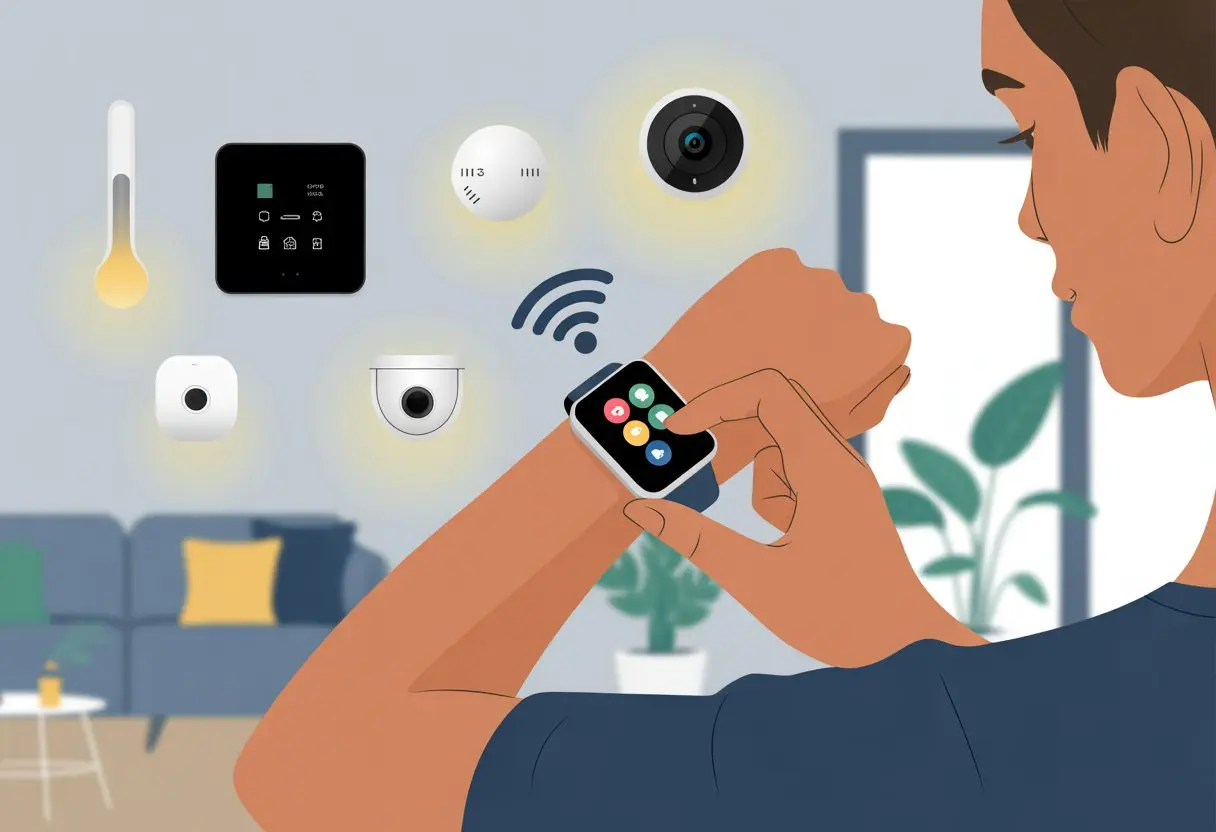
There’s power, convenience, and honestly, a little bit of that “secret agent” vibe. Some watches, like the Samsung Galaxy series, make it super simple to use smart home apps like SmartThings, so you can tweak your home with a few taps.
Even the Google Pixel Watch handles lighting and more, letting you look cool and stay comfy without leaving the couch—or your bed.
It’s not just about showing off to friends, though that’s always fun. With apps like Home Assistant and Home Connect, your smartwatch turns into the command center for your whole house.
If only it could make coffee too—then we’d really be living in the future.
Getting Started: Linking Your Smartwatch To Smart Home Devices
Before you start impressing guests or turning off the lights from the couch, you’ll want to make sure all your devices play nice together. Let’s talk about which watches and gadgets are compatible, how to connect them, and which smart home platforms will open the most doors for us—literally and figuratively.
Checking Device Compatibility
Don’t get ahead of yourself. First, check if your watch can connect with your smart home gear.
Not every wearable—or, let’s just say, digital wrist buddy—works with every device.
For example, Apple Watch mostly plays well with HomeKit devices. Wear OS smartwatches like the Galaxy Watch and plenty of Android Wear models get along best with Google Home.
Fitbit devices? Well, they don’t always offer full support for smart home services.
Here’s a quick comparison:
| Smartwatch Type | Smart Home Platform | Notes |
|---|---|---|
| Apple Watch | HomeKit | Uses Apple Home app |
| Samsung Galaxy Watch | SmartThings, Wear OS | Needs Samsung or Google apps |
| Fitbit | Limited | Fewer direct integrations |
| Wear OS | Google Home, others | Requires Wear OS support |
Before you sink time into setup, check the supported lists on device websites or search for compatibility guides.
Connecting via Bluetooth and Wi-Fi
If your devices are a match, it’s time to connect them. Most smartwatches—Apple Watch, Galaxy Watch, Wear OS—use Bluetooth and Wi-Fi to talk to other smart gadgets.
You’re basically turning your wrist into a remote control.
Typically, you’ll enable Bluetooth on both your smartwatch and your smartphone. Wi-Fi may also be needed for certain features or to control devices when you’re out and about.
On Android, start by turning Bluetooth on in Settings. The watch should pop up as a device you can pair with.
For iPhone folks, go to the App Store, grab the right app (like Samsung’s Galaxy Wearable), and follow the prompts. It’s not rocket science, but sometimes it feels close.
Connecting via Wi-Fi is often easier, but your smartwatch and smart home devices need to be on the same network for things to run smoothly.
Pairing With Smart Home Platforms
Here’s where things get fun: linking your smartwatch with your smart home system. Each platform rolls out the red carpet a little differently.
Apple Watch users will use the Apple Home app to add accessories. Android folks with Wear OS can pair their watch with services like Google Home, though not every model supports every trick.
Samsung Galaxy Watch users should install the SmartThings app. This unlocks control over lights, plugs, and more—if you’re ready for that much power.
Some smart home platforms, like Home Assistant, offer their own smartwatch apps for hands-free control. You can install these right on your wearable from the app store that matches your device, like Google Play for Wear OS.
Once you’re paired up, you can use voice commands, tap shortcuts, or dive into app interfaces to dim lights, adjust thermostats, or start the coffee pot—all with a flick of the wrist and a minimum of actual effort.
Apps And Platforms: Choosing The Right Tools For The Job
The right smartwatch app can make life easier, lights brighter, and even your toaster a little smarter. Let’s look at how to pick, use, and keep up with the best options for your smart home adventures.
First thing’s first: the app store is kind of a wild place. Apple Watch users shop in the Apple App Store. Wear OS users head to the Google Play Store.
Both stores are packed with smart home apps, but not every app supports every watch model. Check descriptions, screenshots, and—please—reviews, so you don’t end up with a useless gadget on your wrist.
It helps to look at app ratings and check for recent updates. A smart home app that hasn’t been updated in a year? Probably not your best bet.
When in doubt, filter by “smart home” and look for official apps from the brands you actually use. If the app description is full of typos, maybe skip it.
Top Smart Home Apps For Smartwatches
Picking the perfect app is a bit like finding the right pair of jeans—what fits one person might not fit another, but there are some crowd favorites. For Google’s Wear OS, Google Home is a solid pick for controlling lights, plugs, and thermostats.
If you’re on Team Apple, Apple Home keeps things smooth with iPhones and HomeKit gear. Some apps, like SmartThings, play nice with lots of devices and both major smartwatch brands.
Here are a few popular choices and what they’re good at:
| App | Platform | Key Features |
|---|---|---|
| Google Home | Wear OS | Voice controls, scenes |
| Apple Home | Apple Watch | Automations, alerts |
| SmartThings | Wear OS, Apple | Multi-brand support |
Want more? Check out Tekrevol’s roundup of the best smartwatch apps in 2025.
Keeping Apps And Software Updated
Nobody wants an app that forgets how to turn off the bedroom light or sets the toaster to “lava.” Keep your apps and software up to date for fewer bugs and better features.
Most smartwatches can update apps automatically, but it’s smart to check your update lists now and then.
Updates also keep things secure and squash bugs before they become a problem. Wear OS users will see updates in the Play Store or under watch settings.
Apple Watch users will find updates in the App Store or get them automatically with iPhone apps. If an app starts acting up, a quick update usually brings it back.
Honestly, hitting “update all” is about as close as we get to feeling like smart home superheroes.
Control And Automation: Managing Smart Home Devices From Your Wrist
Smartwatches let us command our homes like high-tech wizards. You can tap into smart locks, lights, and thermostats—all from your wrist.
With a few swipes, taps, or just your voice, you can control everything from the couch, the kitchen, or even while pretending to exercise.
Using Voice Control For Easy Automation
Let’s be honest—talking to your wrist and watching stuff happen feels pretty cool. With voice assistants built into Wear OS and Apple Watch devices, you can run your home by saying things like “turn off the lights” or “lock the door.”
It’s perfect for lazy days, hectic mornings, or when your hands are full.
Your watch will use Google Assistant or Siri, depending on the brand. This lets you control gadgets like smart lights, speakers, and thermostats.
You’ll get real-time notifications on your wrist when your commands work, making you look (or at least feel) pretty tech-savvy. For more details on using a smartwatch to control devices, check out this overview on smartwatch home automation.
Setting Up Smart Home Routines
Routines take laziness to the next level—automate everything and do less. Imagine tapping one button on your watch, and the lights dim, the thermostat adjusts, and the door locks all at once.
Both Wear OS and Apple Watch support routines through their smart home apps or voice assistants.
You can set up routines for things like bedtime, so everything powers down with a single tap or phrase. Routines can also react to events, like locking the doors and dropping the heat when you leave home.
If you want to dive deeper, plenty of free apps help you set up routines on your Wear OS or Apple Watches.
Here’s a quick cheat sheet of common routines:
| Routine Type | Example Trigger | Main Actions |
|---|---|---|
| Good Morning | 7 AM or “Good Morning” | Lights on, thermostat up, news on |
| Leaving Home | Tap or GPS movement | Locks doors, arms alarms, lights off |
| Bedtime | 10 PM or “Good Night” | Lights off, thermostat down, lock doors |
Popular Smartwatches For Smart Home Integration
If you’re serious about running your lights, locks, and maybe even your fridge from your wrist, you’ll want a wearable that’s actually up to the job.
The Apple Watch and Samsung Galaxy Watch are top picks. Each has its own perks, quirks, and a bit of personality to bring to your smart home setup.
Apple Watch Features
The Apple Watch kind of turns us into wizards, except we’re talking Siri instead of a wand. Just a quick flick of the wrist and we can dim the lights, tweak the thermostat, or unlock the door—no need to dig around for our phone.
Siri voice control really feels like a magic trick—just tell her to turn off the kitchen lights while we’re cozy under a blanket.
Apple Watch really hits its stride when we pair it with HomeKit devices. We organize accessories into scenes, tap a button, and suddenly “Movie Night” drops the lights and lowers the shades, almost like we’re in a spy movie.
Haptic alerts nudge us if we left the door unlocked, so we don’t have to stumble downstairs again.
Apple cares about privacy, so our neighbors can’t hack our garage door and surprise us with pizza—unless we actually invite them. There are also plenty of third-party apps that work smoothly with Apple’s ecosystem.
Controlling our home with the Watch feels a little sci-fi, honestly.
Samsung Galaxy Watch Tricks
If we’re more into galaxies than apples, the Samsung Galaxy Watch brings its own bag of tricks. Wear OS runs the show, giving us solid compatibility with Samsung’s SmartThings and most other smart home platforms.
Our Galaxy Watch lets us swipe, tap, or even twist to control devices with slick widgets and shortcuts.
We can use Bixby—Samsung’s voice assistant—for home commands, though sometimes we have to repeat ourselves. Want to ask your fridge for a yogurt update? SmartThings integration makes that possible (even if the fridge isn’t exactly chatty).
One standout feature is the quick panel. We set up our favorite smart devices, so turning on the fan or closing the garage is just a tap away.
Notifications and automation scenes work smoothly, making us feel like high-tech overlords. For even more hands-free action, we use voice commands right from the watch. Or we just use dramatic gestures and pretend we’re superheroes.
If you want to go deeper, check out more about integrating wearables with smart homes at ausecoelectrical.com.au.
The Garmin Edge: Taking Control With Fitness-Focused Watches
Smart home gadgets aren’t just about lights and thermostats. Our fitness-loving crew brings Garmin watches into the mix, because they do more than count steps—they want in on our smart home fun.
Let’s see how our wrist real estate can pull double duty.
Pairing A Garmin Watch With Your Smart Home
Pairing a Garmin watch to your smart home sounds like wizardry, but honestly, it’s easier than remembering our Wi-Fi password. Most Garmin devices, like the Fenix or Edge, connect to compatible equipment over Bluetooth, ANT+, or Wi-Fi.
We start simple. Open the Garmin Connect app, put your device in pairing mode, and let the phone do the heavy lifting.
For example, we control indoor smart trainers directly with Garmin’s wireless magic, making resistance match our workout or whatever playlist we’re jamming to.
Not every smart home gadget works natively, but some platforms—like certain smart lights—connect with third-party services or IFTTT. We set up routines so that when our watch sees we hit our activity goal, the living room turns into a disco.
We don’t always remember to celebrate, but our house sometimes does it for us.
Getting The Most Out Of Garmin Fenix
The Garmin Fenix isn’t just a snazzy name—it means business. It tracks our heart, maps our routes, and even doubles as a heart rate sensor for compatible Garmin Edge devices.
Imagine cycling while our watch beams those precious heartbeats right to our bike computer. Sharing is caring (and sweaty).
But the Fenix isn’t just about fitness stats. It also links us to our smart ecosystems.
With extended display mode, we sync the watch with devices like the Edge and use it as an extra screen, keeping all our training data in sight. The Fenix supports connecting sensors and some smart home devices (think: gym lights, fans) for the ultimate fitness cave.
If we ever wonder, “did I forget to log that run?”—don’t worry. Everything syncs up in the app.
With over-the-air updates, our Fenix might pick up new tricks while we sleep.
Exploring Garmin Pay And NFC Capabilities
Garmin Pay lets us leave the wallet at home and grab a post-run coffee with just a tap. Thanks to NFC (Near Field Communication), our Fenix or other compatible Garmin watches put contactless payments right on our wrist—no more fumbling for sweaty credit cards at the café.
To get started, we add a bank card in the Garmin Connect app. Once the watch is set up, we just hold it near the payment terminal and beep—done.
It’s secure too, since we need to enter a PIN each session (no, our watch can’t buy someone else’s lunch just because it’s nearby).
Some smart home systems, like certain locks, use NFC as well. If our door setup is modern enough, we unlock it with a flick of the Garmin watch.
That means coming back from a run, coffee in hand, and not breaking stride to get inside.
Health And Fitness Synergy: Making Home Smarter (And Healthier)
Pairing smartwatches with smart home devices gives us the power to track, automate, and tweak our daily routines—sometimes without even getting off the couch.
With a few taps or a wrist flick, we use modern tech to boost both our fitness and comfort.
Using Your Activity Tracker With Home Automation
Our activity tracker isn’t just counting steps—it’s quietly working to make home life easier and maybe even healthier.
For example, when our wearable devices sense we’re starting a workout, they can tell smart speakers to pump up the playlist for motivation.
We use voice assistants linked to smart thermostats to cool down the living room during those sweaty burpee sessions.
A fitness tracker like a Fitbit can also nudge our smart lights to flash when it’s time to stand or stretch, making sure we don’t spend hours glued to the sofa.
Some setups even lock doors automatically when we start an outdoor activity. It’s like having a tiny coach and butler living on our wrist.
Syncing Vital Signs With Smart Devices
By syncing vital signs—heart rate, blood oxygen, stress—between smartwatch and smart home, we get real-time adjustments that actually matter.
If our Apple Watch or other tracker spots a high heart rate, it can ping the fan to kick on or lower the lights so we can chill out.
For anyone tracking health closely, automations can be a real help. Smart devices watch our vitals and send alerts to family if numbers spike in a worrying way.
We can even set up reminders to drink water or move around when our vitals rat us out for being too lazy. As explained here, these tools make managing health automatic instead of a daily grind.
Integrating Sleep Patterns For Smarter Lighting
Getting good sleep isn’t just about a fluffy pillow. Smartwatches and fitness trackers keep tabs on our sleep patterns and share that data with smart lights.
If our wearable notices we’re waking up, it can signal the bedroom lights to gently brighten—no more rude awakenings that feel like an interrogation.
If our sleep tracker shows we’re tossing and turning, smart home setups can dim the lights and lower the thermostat. This helps us relax and maybe even sleep better.
For the truly high-tech, linking sleep patterns with lighting might help us beat Monday with a bit more energy (and a little less coffee).
Getting The Most Out Of Notifications And Alerts
We all want to know when the doorbell rings or if someone left the garage open again. Smartwatches—especially those running Android Wear—make sure we don’t miss these important (or sometimes not-so-important) moments.
With a few tweaks, our wrists become command centers for the smart home.
Customizing Notifications From Smart Devices
Our wrists aren’t exactly huge, so every alert matters. The trick is to let through only the notifications we actually care about.
We really don’t want a buzz every time the fridge opens, unless we’re tracking snacks.
Prioritizing notifications helps a lot. For example, we can set alerts only from high-priority devices—smoke detectors, door sensors, or a video doorbell.
Many smartwatches let us mute or snooze alerts from the apps that interrupt too much. That way, we keep family messages and filter out endless garden sprinkler updates.
Some smartwatches let us use custom vibration patterns, colors, or icons for different devices. Seeing a red exclamation point when the front door unlocks late at night is tough to ignore.
For more tips, personalizing notifications is a good way to make alerts less annoying.
Using Watch Notifications For Home Security
Let’s be honest—nobody wants to miss a security alert just because their phone’s wedged under a cushion. With a smartwatch, we get instant notifications if someone trips a camera or sets off an alarm.
These alerts pop up right on our wrist. So, even if our hands are covered in cookie dough, we’re still in the loop.
Some wearables let us take quick actions straight from the notification. If the garage door gets left open, we can close it right from our watch without scrambling for our phone.
That’s a lifesaver when we’re running late or just don’t feel like moving from the couch.
Pairing a smartwatch with a solid smart home platform means our security camera, motion sensor, or lock alerts go right to our Android Wear device. We end up knowing what’s happening at home, whether it’s a real intruder or just the neighbor’s cat sneaking around again.
Want to dig deeper into how these alerts work on wearables? Check out this guide on managing notifications on your smart wearable.

From a young age, I have always had a big interest in technology, and this blog is an extension of that interest. Through this blog, I hope to provide others with all of the information they need regarding tech options to consider, and things such as compatibility. Some of the different items I will be discussing include headphones, smartwatches, and how to fix common issues.
- The Best Rugged And Waterproof Smartwatches - October 21, 2026
- 10 Best Military Smartwatch – Find The Best Tactical Military Watches in 2023 - October 20, 2026
- Are Wired Headphones Safer Than Bluetooth? A Friendly Guide - October 20, 2026
Related Posts: