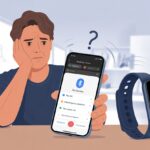
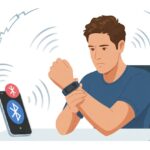
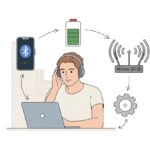
Picture this: you put on your Bluetooth headphones, press play, and… nothing. Or maybe the sound is choppy and your favorite song suddenly sounds like it’s underwater.
We’ve all been there, dancing in silence while mashing every button in sight. You can fix most common Bluetooth headphone connection problems with a few simple steps and a little patience.
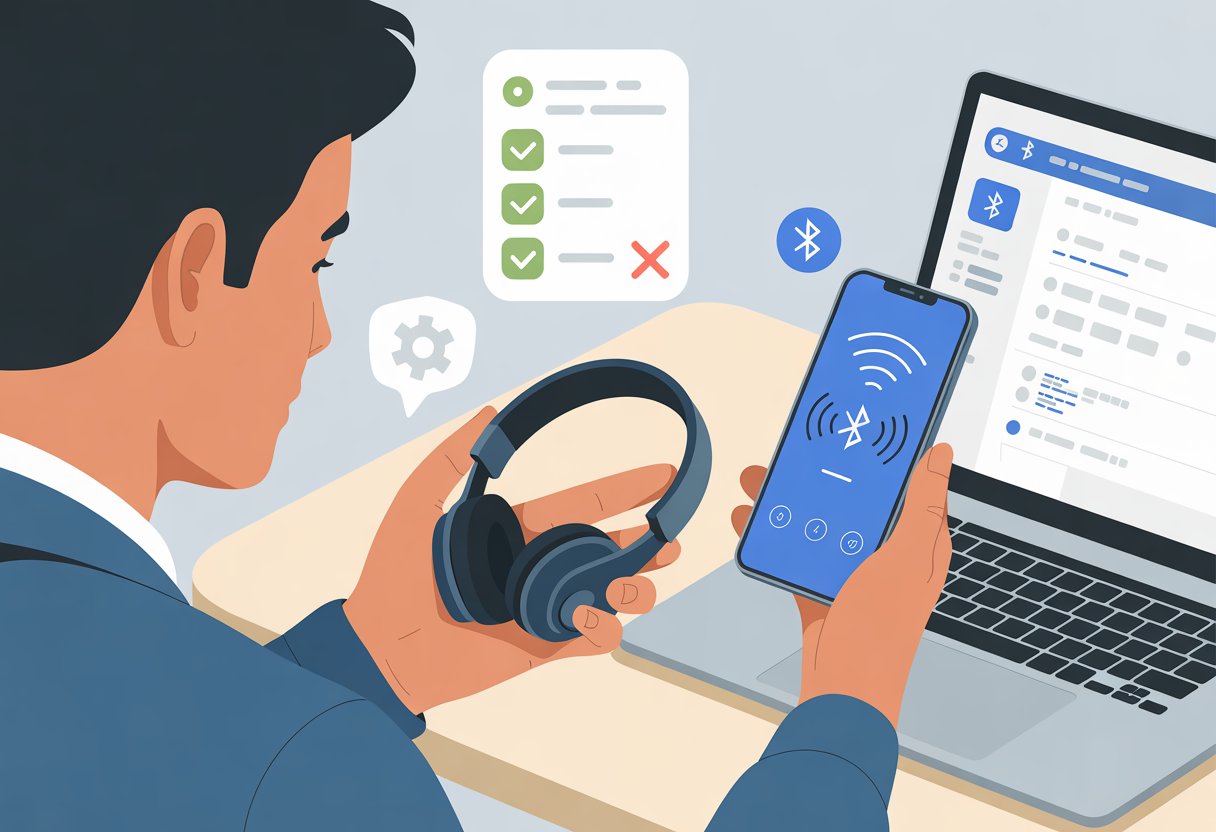
Maybe your headphones aren’t pairing, your device refuses to “find” them, or you get that mysterious “connected but no sound” glitch. Sometimes, your headphones just need a good recharge or a quick unpairing and re-pairing to snap out of their funk, as many users have learned the hard way (learn more here).
Learning a couple of tricks will save you from the endless cycle of frustration and whispered threats against your devices. If you’re ready to stop explaining to your friends why you’re yelling at your headphones, this guide is for you.
Let’s get your tunes back—without any tech headaches or emotional breakdowns.
Understanding Bluetooth Headphone Fundamentals
Bluetooth headphones use wireless technology, not magic, but sometimes it’s easy to get them mixed up. Knowing how these devices connect and what types are out there will help you make sense of dropped signals, weird noises, or the time your audio got swapped with your neighbor’s movie.
How Bluetooth Headphones Communicate
Bluetooth technology lets your headphones talk with your device using short-range radio waves. Imagine an invisible handshake instead of a tangled mess of wires.
To work their magic, both the headphones and the device (like your phone or computer) need to support Bluetooth and be within about 33 feet of each other. Walls, microwaves, and even your own body can block or scramble the signal, making music cut out or disappear entirely.
Pairing is just introducing your headphones to another device. You’ll often see flashing lights and maybe even hear cheerful beeps.
Most Bluetooth headphones support standard profiles like A2DP for streaming audio. Some fancier models may offer extra features, which sometimes brings extra trouble.
Low battery can also cause weird glitches, so always keep your headphones charged if you want fewer “Bluetooth blues.” If your headphones drop out or won’t connect, you’re not alone.
Many people have trouble with Bluetooth connection issues and audio dropouts.
Common Types of Bluetooth Accessories
Bluetooth accessories come in all shapes and sizes. There are wireless earbuds that hide in your pocket and giant over-ear headphones that make you look like a DJ—even if you’re just blocking out your neighbor’s barking dog.
You might also run across Bluetooth speakers, car hands-free kits, and keyboards. Here’s a quick list of common Bluetooth gadgets:
- Headphones & Earbuds: For audio on the go
- Speakers: For sharing music (or annoying your friends)
- Fitness Trackers & Smartwatches: For tracking steps and pretending to check the time
- Car Kits: For hands-free calling without the embarrassing headsets from the early 2000s
Each accessory has its quirks. Some only connect to one device, some can remember several, and a few will try to pair with any device in the room.
If you’re having issues, checking the device manual can be surprisingly helpful—even though nobody actually wants to read them. If you want more details about causes of cut-outs and interruptions, check out this overview on frequent Bluetooth dropouts.
Preparing for Connection: Before the Magic Happens
Bluetooth headphones can be picky, and a missed step might leave you listening to the sweet sound of silence. Keeping your gear charged and making sure the right settings are on is a must if you want music instead of frustration.
Checking Power and Charging Status
Don’t trust your headphones when they say, “I’m fully charged!” Sometimes they fib. Before you try to connect, plug your headphones in and let them charge until the light says they’re ready for action.
Even if you think there’s enough battery, a quick charge can save you from hours of confusion and silent walks to the bus stop. Check if the charging cable is clunky, loose, or just plain busted.
To be sure, plug the headphones into a few outlets. Some headphones need a special cable or charging block, so mix and match if needed.
Most models show a glowing or blinking light when charging. If you see nothing, make sure the cable is fully connected and your power source is actually working.
No one wants to play “guess the problem” before their podcast.
Making Sure Bluetooth Is Enabled
Grab your phone, tablet, or computer and bravely enter the land of settings. You want to enable Bluetooth.
It’s usually tucked away under one of these spots:
- Phones/Tablets: Go to Settings > Bluetooth
- PCs: Find the little Bluetooth symbol by the clock
- Macs: Look for the gray “B” icon in your menu bar
If the button is gray, you’re out of luck. Tap or click to turn it blue, green, or whatever happy color means “on.”
Double-check that your device isn’t already chatting with other headphones or speakers. If you’re having trouble, try toggling Bluetooth off and on.
If all else fails, restart your device—sometimes a fresh start is all you need to make technology behave. For more troubleshooting steps, these Bluetooth tips can come in handy.
Pairing the Right Way: No More Guesswork
Before you start wrestling with your gadgets, it’s important to know that Bluetooth connections work best when you follow a few key steps. If your headphones and devices don’t get along, it’s usually because pairing mode was skipped, the Bluetooth settings were overlooked, or the gadgets weren’t discoverable.
Activating Pairing Mode Properly
First things first—give your Bluetooth headphones a proper introduction to your device. Holding the power button for just one second? That’s only going to turn them on, not send them into the magical world of pairing mode.
Most headphones need you to hold the power or Bluetooth button for at least five to ten seconds. Watch for flashing blue or red lights, or sometimes an electronic jingle—your cue that it’s time to connect.
Still struggling? Some headphones want you to hold down both the volume up and down buttons at the same time.
If your headphones came with instructions, this is the one time you should actually read them. You can also find tips in discussions about pairing issues.
Quick checklist:
- Hold the power or Bluetooth button for 5–10 seconds
- Look for blinking lights or listen for a beep
- If nothing happens, try using the volume buttons
You’d be surprised how many Bluetooth connections fail because the device itself is just being stubborn. Open your Bluetooth settings.
Make sure Bluetooth is turned on. Look for the tiny Bluetooth icon near your battery or Wi-Fi signals—it’s usually shaped like a “B” that’s trying to be fancy.
If you don’t spot your headphones, hit “refresh” or “scan” and wait a few seconds. Sometimes, your device thinks it’s too cool to remember old Bluetooth friends.
If your headphones are listed but won’t connect, tap on them and select “Forget” or “Remove”, then try the entire bonding dance again. These steps also help when connecting headphones between different devices, like pairing with an iPhone then switching to a laptop, which can cause confusion.
If you want more help, check out these tips on Bluetooth pairing problems.
Tips for settings:
- Make sure Bluetooth is turned on
- Refresh the device list
- Remove old connections and retry pairing
Ensuring Devices Are Discoverable
Bluetooth headphones only show up in your device’s list if both gadgets are in a “let’s meet new friends” mood, also known as discoverable mode. If your phone or computer is feeling shy, your headphones will patiently wait forever.
Check that your headphone’s light is flashing, which means it’s advertising itself. Go to your phone, tablet, or computer settings and make sure its Bluetooth is set to “discoverable” or “visible.”
Some devices only stay discoverable for a few minutes, so act fast—no time for a snack break. On some Android devices, you should see the Bluetooth icon in the notification area when it’s on.
If pairing with an Apple Watch or iPhone, you’ll sometimes need to make the phone disconnect from other devices first, as explained in Apple community discussions.
Essential reminders:
- Headphones should flash or play a sound
- Device Bluetooth must be visible/discoverable
- Move quickly—discoverable mode can time out
Now, put your gadgets close together, and let Bluetooth connections do their thing, no guesswork required.
Troubleshooting Connection Issues Like a Pro
Bluetooth headphones can act stubborn. If yours refuse to connect, these practical steps often solve the most common problems without the drama.
Forgetting and Re-Adding Devices
Sometimes your headphones and phone just need a clean slate to get along. If you keep getting the spinning “connecting” icon and nothing happens, try making your device “forget” the headphones from its Bluetooth list.
To do this, go into your device’s Bluetooth settings, find your headphones, and tap on them. Choose “Forget” or “Remove.”
Pro tip: This is the Bluetooth version of giving someone the silent treatment, just with fewer hard feelings. After forgetting, put your headphones back in pairing mode.
You might need to hold a button or listen for a voice prompt. Now, reconnect like you’re meeting for the first time.
This will often clear up any previous connection confusion. For stubborn gadgets, make sure your headphones are charged.
Low batteries are sneaky troublemakers and can prevent pairing altogether. For more specific steps, check guides from manufacturers or see these practical suggestions.
Resetting Bluetooth Headphones
When forgetting and re-adding doesn’t fix the problem, it’s time for the big guns: a factory reset.
Most Bluetooth headphones have a reset sequence. Usually, you need to press and hold the power button or a mix of buttons for several seconds.
The exact trick depends on your brand and model. You probably don’t need a secret handshake, but it can feel that way sometimes.
Resetting your headphones wipes all paired devices and connection history. Think of it as clearing your browser cache, but for your ears.
After a reset, you’ll need to pair your headphones to your device again. Make sure Bluetooth is turned on.
If you keep having problems on Windows, poke around in your settings or check Microsoft’s Bluetooth troubleshooting tips.
If your reset doesn’t seem to work, double-check the manual or the manufacturer’s website for the right button combo. And try not to yell at your headphones—they can’t hear you (yet).
Dealing With Persistent Connection Gremlins
If your Bluetooth headphones are acting like moody teenagers, there’s probably a reason for their weird behavior. Let’s dig into what might be causing these headaches and how you can make your Bluetooth accessories a little more reliable.
Interference and Range Limitations
Bluetooth connections are like your patience—limited and easily disturbed. Walls, furniture, microwaves, and even a fish tank can mess with your music.
Most Bluetooth headphones give up at about 30 feet. That’s on a good day, with no walls or wild fish tanks in the way.
Many household gadgets—including Wi-Fi routers and cordless phones—sling signals in the same 2.4 GHz range. This can make your headphones stutter, drop out, or sound like they’re underwater.
You might as well try holding your phone up and spinning in a circle to see where your song stops dropping. Or, you could try a smarter approach:
- Stay close to your device—less than 30 feet is safest.
- Avoid thick walls or anything made of concrete.
- Move away from other electronics that may also use 2.4 GHz.
If you’re still having issues, try turning off devices one by one to spot the troublemaker. You can read more about this in these Bluetooth headphone troubleshooting tips.
Managing Multiple Bluetooth Gadgets
You might want to connect your headphones, your smartwatch, your Bluetooth speaker, and that random smart blender you never use—all at once. Bluetooth headphones, though, often get confused and forget who they’re talking to when too many gadgets fight for attention.
Here’s what helps keep things straight:
- Unpair unused devices from your phone or laptop.
- Restart both your headphones and your device before reconnecting.
- Clear old connections—many headphones store a dozen device profiles and get tripped up (you can usually reset your headphones by holding buttons, but check your manual or see more on how to reset Bluetooth connection memory).
If your headphones still throw a tantrum, try pairing them fresh with only the device you want to use. Bluetooth accessories work better when they don’t have to remember too many friends at once.
Advanced Fixes for Stubborn Headphones
Sometimes, your Bluetooth headsets just refuse to cooperate, even after you’ve yelled “connect already!” at your phone for the hundredth time. For these tough cases, you need to pull out the big guns.
Updating Device Firmware and Software
Before you toss your headphones out the window, check if your devices have updates waiting. Manufacturers love hiding important bug fixes in those boring “update available” messages.
Go to your phone’s or computer’s settings and peek at the update section. Sometimes, updating your headphones means grabbing an app made by the headphone brand—yeah, another app, sorry.
“Firmware Update in Progress” might pop up and take a few minutes. These fixes address stubborn pairing issues, weird disconnects, or audio dropouts.
If your phone or computer is running old software, that can mess with network settings and make Bluetooth devices act as flaky as a Wi-Fi connection at a crowded coffee shop. Updating both the device and your headphones closes weird compatibility gaps that cause connections to drop for no obvious reason.
You can learn more about device updates here.
Resetting Network Settings
When in doubt, hit the reset! Sometimes your network settings are confused and can’t remember how to play nice with your Bluetooth headsets.
Resetting network settings forces your device to start fresh by forgetting all Bluetooth, Wi-Fi, and sometimes cellular connections. To reset, go to your phone’s settings, look for “Reset,” and choose “Reset Network Settings.”
Keep in mind, this will erase all paired Bluetooth devices and Wi-Fi passwords. Be ready to live life on the edge and set those up again.
This step often clears out invisible bugs and pairing glitches that make Bluetooth connections solid for everyone but you. If you want extra help with this, check troubleshooting advice like these solutions.
When your headphones reconnect and work smoothly, you’ll feel like a technological wizard—no magic wand required.
Special Scenarios: Airplane Mode and Beyond
Everyone loves a good challenge, especially when your Bluetooth headphones refuse to cooperate in odd places. Whether you’re flying 30,000 feet above ground or stuck in a crowded café, these scenarios come with their own rules and quirks.
Connecting Headphones in Airplane Mode
Turning on airplane mode feels like you’re trying to avoid being tracked by government satellites. But don’t worry, you won’t lose your tunes.
Airplane mode quickly disables your phone’s cellular, Wi-Fi, and GPS signals. Luckily, Bluetooth usually isn’t included in this mass exodus of signals.
Once airplane mode is on, you can manually turn Bluetooth back on to connect your headphones.
Airlines are fine with this, as Bluetooth runs on low power and doesn’t bother their equipment. Just don’t expect to call grandma while you’re up there—cellular is still out of the question.
If your device turns off Bluetooth automatically when you enter airplane mode, just reconnect. Modern devices often keep Bluetooth on as long as something—like your headphones—is already using it.
For more on this, you can check out why Bluetooth works with airplane mode.
Public Spaces and Hidden Obstacles
Public places are like Bluetooth obstacle courses. Dozens of signals, walls, and mysterious objects try to ruin your connection.
From Wi-Fi routers to beeping microwaves, your headphones brave an invisible battlefield. Common public space challenges include:
- Competing Bluetooth connections (everyone’s got headphones)
- Interference from wireless devices (laptops, tablets, that annoying guy’s smartwatch)
- Physical barriers like pillars, shelves, or, weirdly, your own backpack
Try these quick solutions:
- Move closer to your source device. The fewer obstacles, the better.
- Forget and reconnect your headphones if pairing fails.
- Turn off Bluetooth on other nearby devices—for bonus drama, ask everyone in your coffee shop to unplug.
Strong headphones will survive the chaos, but even the best need a little help when you’re out and about in the wild.
Best Practices for a Hassle-Free Listening Experience
Bluetooth headphones work best when you set them up correctly and use the right tools. Paying attention to distance, battery life, and quality accessories can save your ears and your sanity.
Keeping Connections Strong
First, keep your device and Bluetooth headphones close. Bluetooth is a bit like a toddler—it works best when you don’t wander off.
Try to keep your headphones and your phone or laptop within about 30 feet. Avoid thick walls, fridges, or mysterious force fields.
If things sound choppy, move closer. Battery life is more important than you’d think.
Low battery can make your headphones act like a grumpy robot—disconnects, glitches, and random shutdowns. Always charge your Bluetooth headphones fully before using them.
If you hit problems, doing a quick reset can work wonders. Many headphone models have a reset button or a fancy two-button trick.
Consult your trusty manual or look up the reset method online (troubleshooting tips). Don’t forget to check if your devices are compatible, especially if you’re switching between iOS and Android.
Outdated software or incompatible devices can equal zero sound, maximum frustration.
Recommendations for Bluetooth Accessories
A bad cable or charger is the Bluetooth version of serving bad sushi—dangerous and, honestly, just disappointing.
Stick with the charging cables that came with your headphones. If yours disappears (it happens), grab a decent replacement instead of something sketchy.
Need more range? Try an external Bluetooth adapter. Some USB dongles boost your computer’s signal, which means fewer annoying dropouts.
Carrying a dedicated case keeps your headphones safe from bumps, dirt, and the mysterious crumbs lurking in your bag.
If you’re the type who misplaces things (no shame), cases with clips or pockets can seriously save you from headaches—and from spending more money.
Got a home packed with Bluetooth signals? I’m talking Wi-Fi, your neighbor’s smart fridge, even your toaster. Turn off devices you’re not using. It might actually help with those sudden connection drops.
Want to dig deeper? Check out these pairing tips for Bluetooth headphones.

From a young age, I have always had a big interest in technology, and this blog is an extension of that interest. Through this blog, I hope to provide others with all of the information they need regarding tech options to consider, and things such as compatibility. Some of the different items I will be discussing include headphones, smartwatches, and how to fix common issues.
- Solving Common Bluetooth Headphone Connection Problems: Why Your Music Keeps Playing Hide and Seek - September 12, 2026
- How to use Bluetooth headphones for YouTube Without Accidentally Broadcasting to the Whole Room - September 12, 2026
- Best Bluetooth Headphones for Seniors Who Want to Ditch Wires and Rock Out - September 11, 2026
Related Posts: