We’ve all been there—ready to relax with some music, but our Bluetooth headphones just won’t connect to the tablet. It almost feels like the headphones and tablet are having a silent argument, and we’re caught in the middle.
Usually, Bluetooth headphones refuse to connect to a tablet because the devices aren’t paired right, there’s interference, or one of them has Bluetooth turned off.
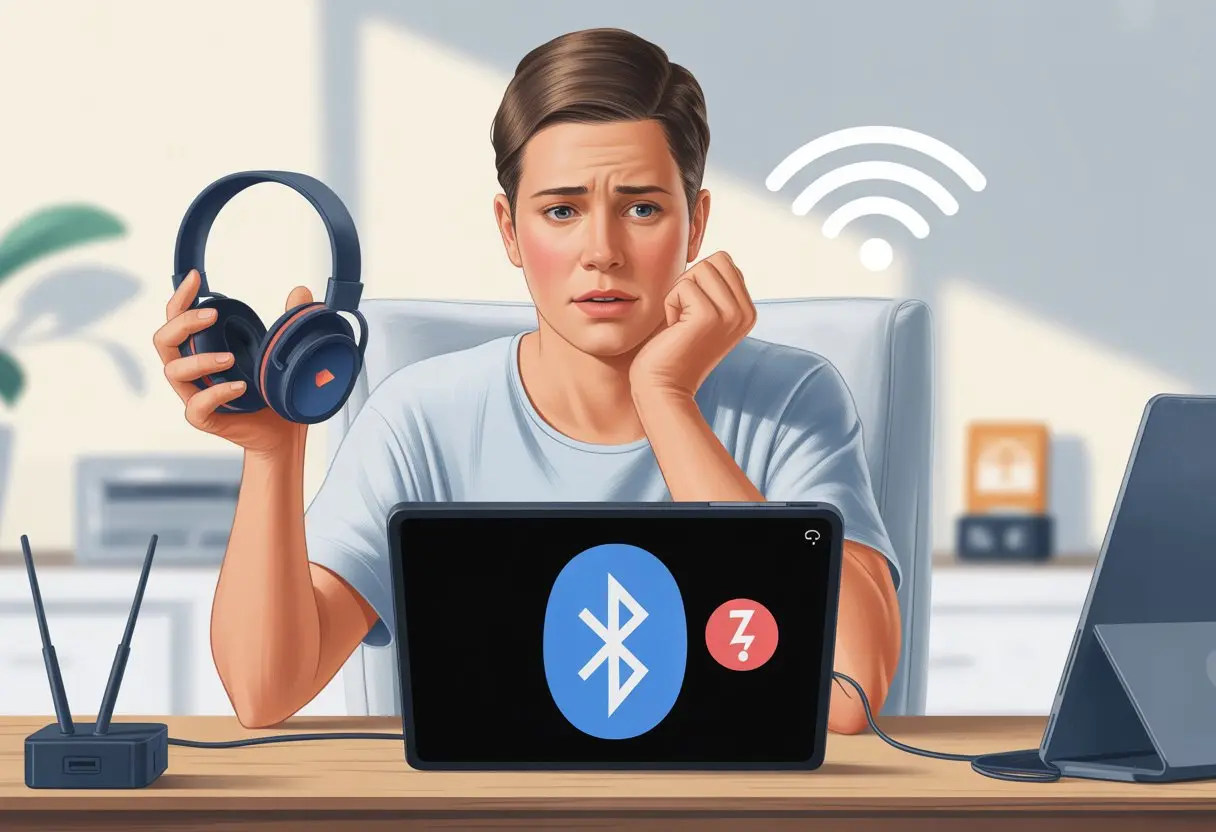
Maybe the headphones are still clinging to another device, or the tablet just can’t see them. Low battery, too much distance, or old pairings can also get in the way.
Before we blame the headphones for needing “me time,” it’s smart to do some quick checks. Sometimes all it takes is a restart or toggling Bluetooth off and on—like this post on Bluetooth pairing problems suggests.
Let’s get into the reasons our Bluetooth headphones ignore our tablets and see if we can get the connection working again. We don’t need to be tech geniuses; a little troubleshooting can get our music playing again.
Understanding Bluetooth Technology
Bluetooth is sometimes our best tech pal and, other times, a total mystery. If we want our headphones and tablet to play nice, we need to get how Bluetooth works and which devices use it. Sometimes, it really isn’t our fault.
How Bluetooth Works
Bluetooth lets our gadgets talk without any cable mess. It uses radio waves to send data over short distances—about 30 feet, give or take. That’s just enough range to wander around the living room looking for snacks.
When we connect headphones to a tablet, Bluetooth does a little “handshake” called pairing. The devices swap codes and decide if they trust each other. If one isn’t interested, nothing happens.
Devices also need to be running compatible Bluetooth versions. If our tablet is stuck in the past, that could be the issue.
Bluetooth can get weird if there’s interference from other wireless stuff—Wi-Fi routers, microwaves, you name it. Oddly enough, microwaves can mess things up for everyone. If pairing fails, crowded airwaves might be to blame.
Common Types of Bluetooth Devices
We use Bluetooth devices all the time, often without noticing. The obvious ones are headphones, speakers, and tablets. But there’s also fitness trackers, smartwatches, game controllers, keyboards, and—believe it or not—some fridges.
Here’s a quick look at what we usually pair:
| Device Type | Common Examples |
|---|---|
| Audio | Headphones, speakers |
| Wearable | Fitness band, watch |
| Input | Keyboard, mouse |
| Household | Smart TV, fridge |
Each group might use different Bluetooth versions. Newer gadgets usually have fewer connection issues because they support updated, faster, and more reliable versions.
If our headphones work with our phone but not our tablet, maybe the tablet just can’t keep up. Compatibility is a big factor for a smooth Bluetooth experience.
Key Reasons Bluetooth Headphones Won’t Connect to Tablet
Bluetooth headphones refusing to connect to our tablet can turn a chill day into a tech headache. Sometimes it’s a software glitch, sometimes it’s just physics messing with us, and sometimes we need a little patience (and maybe a snack).
Outdated Bluetooth Versions
Let’s be honest. Not all our gadgets get along. Old tablets and shiny new headphones don’t always speak the same Bluetooth language.
Maybe our tablet runs Bluetooth 3.0 and our headphones are on 5.2. Old tablets can’t always keep up with newer Bluetooth protocols. Compatibility issues can make devices invisible to each other.
If we’re lucky, a software update helps. If not, we might need a Bluetooth adapter or—dare I say it—wired headphones. Sometimes, that’s just the way it goes.
Bluetooth Range Limitations
Bluetooth isn’t magic; it’s just radio waves. The usual range is about 30 feet, but walls, doors, and even people can block the signal.
If we try to connect from across the house or while raiding the fridge, we’ll probably lose the connection. Keeping the tablet and headphones close together, especially when pairing, makes a difference.
Low battery can also mess with range and stability. Before blaming the universe, let’s make sure both devices are charged and nearby.
Interference with Other Devices
Our homes are full of gadgets fighting for wireless space. Microwaves, Wi-Fi routers, and other Bluetooth devices can all cause interference.
If our headphones work with our phone but not our tablet, maybe another device is hogging the Bluetooth connection. Headphones usually pair with one thing at a time, so if they’re still paired to our phone, they’ll ignore the tablet.
Android Central’s forum suggests turning off Bluetooth on other nearby gadgets. Clearing out extra connections gives our tablet a fighting chance.
Incorrect Pairing Procedure
Pairing isn’t always straightforward. Every brand does things a little differently—some want us to hold a button, others need a series of taps.
If we skip the right steps, the devices won’t pair. Old devices saved in the tablet’s Bluetooth list can also block new connections. Clearing out the list and starting fresh often helps.
Those tiny booklets that come with our headphones? They actually have the answers. If we’re still stuck, Google’s troubleshooting page might save the day.
Verifying Bluetooth Settings on Your Tablet
Before we blame the headphones (or threaten to toss the tablet), let’s check a few simple settings. Sometimes the fix is hiding right in the settings menu, just waiting for us to notice.
Checking Bluetooth Is Enabled
First things first—make sure Bluetooth is actually on. It sounds silly, but we’ve all jabbed at connect buttons while Bluetooth is off.
On most tablets, we swipe down from the top to see quick settings. Look for the Bluetooth icon.
If it’s not highlighted, Bluetooth is off. Tap it and hope for the best.
For more details, we can open Settings, tap Bluetooth, and check the slider. Also, make sure Airplane mode is off—it shuts down Bluetooth, too.
If the Bluetooth switch keeps turning itself off or looks grayed out, try restarting the tablet. Sometimes, even tech needs a quick nap.
Device Visibility and Discoverability
Bluetooth is a little secretive. If our tablet isn’t visible or discoverable, our headphones won’t even know it’s there.
In the Bluetooth menu, there’s usually a way to make the tablet “visible” or “discoverable” for a few minutes. Make sure that’s on when pairing new gadgets.
If it’s not, our headphones will keep searching forever. Follow any prompts that pop up.
Some tablets hide under names like “Available Devices.” We should check that our tablet shows up in the list on our headphones or at least as an option to pair.
If nothing works, check if other devices are connected and disconnect them—Bluetooth can get possessive and only allows one connection at a time (helpful tips here).
Pairing Mode Mischief: Is Your Headset Ready?
Few things are more annoying than headphones that just won’t connect. Usually, the problem starts with pairing mode not being set up right or timing out too soon.
Knowing how to spot and fix these issues can save us a lot of frustration.
Activating Pairing Mode
Let’s be honest, nobody keeps headphone manuals for long. That’s why we end up guessing how to put our headset into pairing mode.
For most headphones, we hold down the power button until we hear a beep or see the LED blink blue and red. Some models have a dedicated pairing button—usually the one we never noticed before.
Pairing mode is how our headphones announce themselves to the tablet. If the headset isn’t broadcasting, the tablet won’t find it.
Always check the indicator lights. No flashing light? Not in pairing mode. If things still don’t work, try forgetting the device on the tablet’s Bluetooth settings and start over.
For more help, check out this guide on Bluetooth pairing problems.
Pairing Mode Timers and Troubles
Pairing mode comes with a timer because—let’s be real—our headphones don’t trust us to commit. If we don’t connect them in about 60 seconds, most headsets just give up and slip back into their lonely, single-device routines.
When this happens, our tablet can’t connect until we restart pairing mode. It’s easy to get stuck in a loop: we press too late, headphones time out, we sigh, and then try again.
The quick fix? Get both devices ready before entering pairing mode, so you don’t waste precious seconds. Some earbuds, especially true wireless ones, need to sync with each other before the tablet can even spot them.
That can feel trickier than putting together flat-pack furniture. If you need help with these sync headaches, check out this guide on getting both earbuds paired.
Common Device Conflicts and Troubleshooting Tips
Sometimes Bluetooth headphones just refuse to connect to our tablet, and it feels like the universe is trolling us. Device conflicts, nearby gadgets, or that sneaky smartphone often stir up the trouble.
Previously Paired Devices Getting Jealous
We’ve all seen it—headphones still loyal to an old device, like a phone or computer. They’ll connect to our phone before even glancing at the tablet.
To fix this, we have to break up with the other device, at least for now. Turn off Bluetooth on any device the headphones have paired with before.
Make sure the headphones are in pairing mode before connecting them to the tablet. If they still act stubborn, try “forgetting” them on every device, then set them up again.
This usually stops headphones from running back to their old favorites. It’s basically hitting reset on their friendships. For more tips, see how to fix Bluetooth pairing problems.
Multiple Bluetooth Devices in the Vicinity
Let’s be honest—we’re surrounded by Bluetooth gadgets. When too many are nearby, our headphones might get confused and aim for the wrong connection.
Our tablet could also pick the wrong device from a crowded list. Disconnect any Bluetooth devices you’re not using.
Give your headphones and tablet some space from other gadgets, at least during setup. Sometimes, just turning both the headphones and tablet off and back on helps them find each other.
Check that neither device is trying to connect to something weird, like the smart fridge. A restart usually does the trick, as explained in Bluetooth troubleshooting.
Dealing with Smartphone and Computer Interference
Smartphones and computers can be sneaky. They’ll grab our Bluetooth headphones, even if we’re not using them together.
If our tablet feels ignored, it might be because the headphones are busy with another device. Put the headphones into pairing mode before turning on Bluetooth on the tablet.
If the headphones are already connected to a phone or computer, disconnect them first. Sometimes, we need to delete the Bluetooth pairing from both the computer and the phone before the headphones will pay attention to the tablet.
When nothing else works, wipe all Bluetooth pairings and start from scratch. That’s a digital reset, and it usually gets stubborn headphones to behave, as described in this Bluetooth headphone troubleshooting guide.
The Windows 10 Factor: Cross-Device Compatibility
Bluetooth headphones might connect perfectly to a tablet but throw a fit when we try them with a Windows 10 device. The blame game begins, but a few tips can help us figure out what’s wrong—and maybe stop us from smashing every Bluetooth gadget in sight.
Connecting Headphones to Windows 10 Devices
Getting a headset to talk to a Windows 10 PC shouldn’t feel like arranging a peace treaty. First, make sure Bluetooth is actually switched on—it sometimes hides in the Settings, pretending to be shy.
Here’s a quick checklist:
- Open Settings > Devices > Bluetooth & other devices.
- Check that Bluetooth is on. If not, flip the switch.
- Put the headphones in pairing mode—usually by holding the power button until a blinking light appears.
- Click Add Bluetooth or other device and pick the headphones from the list. If you don’t see them, try moving closer—distance makes everyone nervous.
It sounds simple on paper, but in reality, if the PC or headset isn’t showing up, it’s time to panic (but, you know, calmly).
When headphones refuse to connect, things get interesting. Some headphones remember too many devices and forget about us entirely.
Disconnect them from other devices before adding them to Windows 10. Remove the device from the PC’s Bluetooth list:
- Go to Device Manager.
- Find your stubborn headset under Audio inputs and outputs.
- Right-click and choose “Uninstall,” then restart the PC’s Bluetooth service by typing “services.msc” in the Start menu and setting “Bluetooth Support Service” to Automatic (see this tip).
If nothing works, some of us just get a Bluetooth USB adapter. It’s not fancy, but it can save us from dragging out wired headphones in 2025.
Maintenance and Updates for Flawless Connections
Nobody likes fiddling with tech that’s supposed to “just work.” A little maintenance and the occasional update can save us from Bluetooth drama, random disconnections, and existential crises over playlists.
Updating Tablet and Headphone Firmware
Keeping our tablet and headphone firmware updated is like giving our gadgets a shot of espresso. Old firmware misses new Bluetooth features or picks up bugs that sneak in like party crashers.
Check for updates on both tablet and headphones every couple of months, especially if things get weird. For tablets, go into the settings, usually under “System Updates” or “Software Updates.”
Bluetooth headphones might need a special app from the manufacturer—think “Gadget XYZ App,” not just your Bluetooth menu. Staying updated gives our devices the best shot at smooth Bluetooth connections.
Here’s a quick checklist:
- Connect to Wi-Fi before updating.
- Plug in if the battery’s low.
- Restart devices after updating for best results.
Resetting Bluetooth Settings
Sometimes, our devices just need a tough-love reset. Resetting Bluetooth settings can clear up stubborn glitches and help our gadgets forget their bad connections (if only life worked that way).
On most tablets, head into Settings > Bluetooth and turn Bluetooth off, then back on. Some tablets have a “Reset Network Settings” option, which wipes all saved Bluetooth devices—kind of like erasing digital history.
For headphones, holding down certain buttons (try both volume buttons or check the manual) can trigger a reset. Other users have fixed connection problems this way.
If you’re desperate, pair everything from scratch. It’s not glamorous, but it usually works. Old connections sometimes block new ones, so starting fresh gives Bluetooth a clean slate.
When to Seek Professional Help or Replace Your Tech
Sometimes, no matter how much we plead, restart, or wave our headphones around like a magic wand, they just won’t cooperate. At some point, we have to wonder if we’re fixing the right thing, or if our tech just needs a vacation—or a retirement party.
Signs Your Headphones Need Repair
If our headset loves static more than our playlist, we’re in trouble. Sudden drops in sound, random disconnects, and buttons that only work if we press them with all our strength point to hardware issues.
Listen for weird noises like crackling or buzzing. Check for broken parts, loose wires, or a battery that won’t charge even after a long wait.
If our headphones can’t connect to any device, not just our tablet, that’s a big sign they need a pro’s touch—or maybe a replacement.
If you smell burning plastic or spot smoke, don’t troubleshoot—just run and get professional help.
When a Tablet is the Real Culprit
Sometimes the headphones aren’t the problem. Sometimes our tablet causes the drama.
If our tablet won’t pair with any Bluetooth device—not just our headphones—that’s a solid clue the tablet’s the culprit. Watch for constant connection drops across multiple gadgets, Bluetooth settings that turn off by themselves, or the missing Bluetooth option in the menu.
Other hints include weird lag or freezing when pairing. If the tablet still refuses to connect after software updates, resets, and the classic “turn it off and on again,” we might need outside help or a new tablet.
Sometimes, the tablet just wants to retire and hang out at the beach.
Preventing Future Bluetooth Headaches
We all know the struggle—a tablet, a Bluetooth headset, and enough connection issues to make us consider going back to wired headphones. But with a few good habits, we can dodge most problems and keep the music rolling.
Best Practices for Device Pairing
Pairing can seem like a secret handshake, but it doesn’t have to be. Always make sure both the tablet and headset have enough battery—low battery can mess with the Bluetooth signal and stop things from connecting.
If the headphones keep failing to pair, just restart both devices. It’s like giving them a clean slate.
Try to avoid wireless chaos. Interference from gadgets like Wi-Fi routers and microwaves can mess with the signal. Move Bluetooth devices away from metal objects and thick walls to boost connection strength.
If you tend to forget devices, clear old connections on your tablet’s Bluetooth menu. Limiting paired devices gives your headset a better shot at connecting. Regular updates can also fix bugs and improve pairing reliability.
If nothing else works, try dancing around your tablet waving your headset in the air. It probably won’t help, but hey, at least you’ll get some cardio.
Time to Buy a New Bluetooth Headset?
Sometimes, no matter what we try, our Bluetooth headset just refuses to cooperate with our tablet.
If we hear static, deal with dropped connections, or notice the battery dying after only a few minutes, it could be time to move on.
Honestly, age makes even the best headsets cranky. If ours is over three years old, it probably misses out on newer Bluetooth standards anyway.
Let’s also check if our headset even works with our tablet’s Bluetooth version.
Newer tablets often won’t pair well with much older headsets. Funky sounds, slow pairing, or devices vanishing from the Bluetooth menu all point to trouble.
If we’re seeing these signs, maybe it’s time for an upgrade. Modern headsets come with better range, sound quality, and battery life—so those endless pairing headaches just sort of disappear.
Curious about when to let go? You can check out what the experts say about Bluetooth headset headaches.

From a young age, I have always had a big interest in technology, and this blog is an extension of that interest. Through this blog, I hope to provide others with all of the information they need regarding tech options to consider, and things such as compatibility. Some of the different items I will be discussing include headphones, smartwatches, and how to fix common issues.
- How to use a fitness tracker for sedentary alerts: Because Your Couch Won’t Miss You Anyway - September 14, 2026
- Why do my Bluetooth headphones not work with my projector? Solving Tech Mysteries for the Audio-Challenged - September 13, 2026
- Best Smartwatches for Medication Reminders: Never Forget Your Pills (or Your Sanity) Again - September 13, 2026
Related Posts: