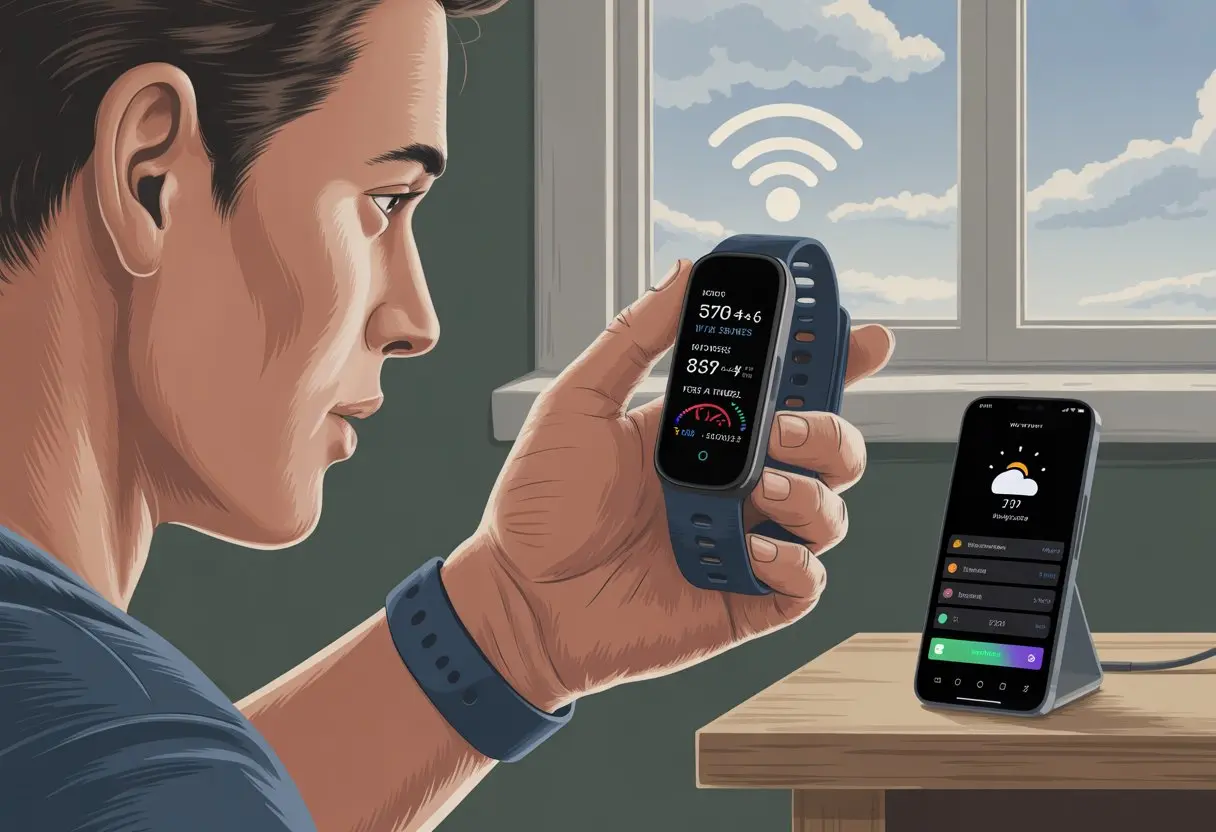
We’ve all been there—strapping on that shiny new fitness tracker, heading out for a jog, and hoping to check the weather. Instead, we get… nothing. Not a single cloud or sun icon, just a blank, lonely screen.
Usually, our fitness trackers stop showing weather updates because the app glitches, Bluetooth connection drops, or location settings go haywire.
It’s honestly annoying when we want to dodge the rain or chase the sun and our gadget leaves us clueless. Sometimes, a quick fix—like reopening the app, tweaking a setting, or giving the tracker a restart—does the trick, kind of like rebooting the TV when it acts up.
Let’s dig into why these trackers clam up about the weather. Maybe, just maybe, we’ll stop getting caught in surprise storms.
Common Reasons Your Fitness Tracker Isn’t Displaying the Weather
Fitness trackers sometimes act like they have their own agenda, especially when the weather widget just spins and spins. Most of the time, the real culprits are connection issues, lost location settings, or outdated software.
Connectivity Hiccups
Let’s be real—our trackers are needy. They want a steady connection to our phones or Wi-Fi to fetch those weather updates. If Bluetooth drops on the subway or Wi-Fi dies in a storm, our tracker misses out on the latest weather.
Most trackers grab weather data from our phones, not from satellites. So, if our phone disconnects, our wrist gadget is out of the loop, too. It’s pretty annoying.
Some trackers get weirdly picky and want both Wi-Fi and Bluetooth at different times. According to this Apple support thread, toggling Wi-Fi off and on can work wonders. The old “turn it off and on again” advice? It’s not just a joke.
Location Not Set Or Outdated
If we ask our tracker for Miami’s weather while standing in Fargo, that’s a recipe for disaster. The device needs to know where we are—or at least where we want the weather from—or we’ll just get some random, outdated forecast.
Trackers usually pull our current location from the phone’s GPS or from a set spot in the app’s settings. If we never gave permission, or if it’s stuck on our last vacation, we’re out of luck.
It’s worth double-checking in settings to make sure location services are on and that the app has permission to find us (otherwise, the weather’s always “unknown”). Some brands let us pick a default city, which is handy when GPS just can’t get it together. For a walkthrough, this guide for iTOUCH covers the steps.
Outdated Device Software
Trackers love updates almost as much as they love nagging us to move. If we keep ignoring that update notification, weather data might just give up. Software updates fix bugs, add new weather sources, and let the tracker work with the latest weather services.
If we’re running old software, sometimes the weather just won’t sync, no matter how hard we try. Updating both the tracker and the companion app can save us a headache. Nobody wants last year’s weather.
Updates are usually quick, and brands like Garmin and Apple have troubleshooting tips if we still get stuck. For more help, check out this Garmin Support video about weather widget issues.
Checking Device Settings for Weather Updates
We all just want our fitness trackers to play nice, right? Let’s look at some common settings that trip up weather data.
Weather Option is Disabled
Fumbling through endless menus is no one’s idea of fun. Miss a single toggle, and the weather widget just sits there, refusing to do anything.
Most trackers have a specific Weather setting that we need to turn on. If it’s off, we might as well ask a brick for tomorrow’s forecast.
We should dig into our device’s widget list or settings app and make sure “Weather” is enabled. On some trackers, we have to add the weather app manually.
Sometimes, the widget also needs a location or permission to use our phone’s location. If it doesn’t have this, it’ll just show weather for “Unknown City, Nowhere”—not helpful at all.
App Permissions Gone Rogue
Apps love to ask for permissions, sometimes for things they don’t really need. If our fitness tracker can’t see our location, weather updates stop making sense, like searching for clouds in a shoebox.
We need to check our phone’s app permissions and make sure the companion app (like Garmin Connect or Fitbit) can access our location. If we denied it by mistake, the tracker won’t know where we are.
To fix it, we go to the phone settings, find the app, and set “Location” permission to “Always Allow” or at least “Allow While Using.” If possible, enable background data or notifications too, so updates don’t get stuck. For more details, Garmin has help here.
Sync Settings Misfires
Even the best weather widget needs fresh data. If our device and phone aren’t talking, weather info goes stale or disappears. This usually means a sync problem.
First, make sure Bluetooth is working. The tracker often gets weather from our phone. Sometimes, we need to open the companion app to nudge the devices to sync.
If battery saver or data restrictions are on, the tracker might miss updates. If a quick sync doesn’t help, try forcing a sync or restarting both devices. As a last resort, uninstall and reinstall the app. Oddly enough, starting an activity that uses GPS, like a walk, can refresh the weather widget—at least according to some user forums.
Ensuring Your Tracker Has Accurate Location Information
If our fitness tracker’s weather is completely off, outdated location info is usually the culprit. Getting precise location data helps our devices update the weather in real time and keeps us from dressing for the wrong season.
GPS Issues
Ever notice your tracker says it’s sunny when you’re stuck in pouring rain? GPS glitches are usually to blame. Sometimes, our devices can’t get a good signal, especially indoors or surrounded by tall buildings.
This can make our current location look like we’re somewhere else entirely. To fix it, try stepping outside for a better signal.
Avoid standing too close to walls or under thick trees—nature’s cool, but it blocks satellites. For some trackers, restarting the device or syncing with our phone can refresh GPS data.
Making sure the app has permission to use location services can clear up a lot of problems, as seen with location issues on fitness devices.
If nothing else works, check for a firmware update. Sometimes even tech needs a nap and a fresh start.
Manual Versus Automatic Location
Trackers usually let us pick between manual and automatic location. If we leave it on automatic, things can get weird—especially if phone location services are off or the app can’t access them.
When the tracker can’t update our location, it might keep showing weather for wherever we last synced—maybe that city we visited last summer. With manual location, we set one place and weather only updates for that spot.
This works if we stay in one area, but not if we travel a lot. Switching modes is usually in the app settings.
We should double-check and pick whatever fits our lifestyle best. If in doubt, syncing after changing locations is a good move, as suggested in troubleshooting weather widget issues.
Battery Life and Its Mischievous Side Effects
We all wish our fitness trackers would last forever. But when battery life tanks, weather updates vanish, apps stop syncing, and steps might just disappear.
Battery Saving Modes
Battery saving modes are our tracker’s sneaky way of hanging on. Helpful, but they love to shut down “non-essential” features—guess what’s first to go? Yup, weather updates.
In these modes, trackers might skip background updates.
Heart rate monitoring and Bluetooth might take a break.
Some trackers dim the screen or mute vibration alerts.
Weather info often disappears to save power.
If we keep seeing that cloudy icon instead of today’s forecast, it’s worth checking if battery saving mode is on. Sometimes, flipping that setting brings back the weather, even if it drains the battery a bit faster.
Low Power Interruptions
Even without battery saving mode, running on low battery can mess things up. Most trackers start cutting features when their battery drops too low.
Weather updates usually disappear first, leaving us in the dark (and the rain). Devices might pause Bluetooth syncing or stop using Wi-Fi to avoid dying completely.
For example, some smartwatches can’t fetch new forecasts unless they’ve got enough power to connect to our phone or the internet, as mentioned in the Apple Watch discussions.
If weather isn’t showing, try charging your tracker. That simple step often brings back missing features and keeps us ready for whatever the sky throws at us.
How Data Synchronization Affects Weather Updates
Let’s be honest, our fitness trackers are only as smart as their connections. If weather updates have vanished, data synchronization probably caused it.
App and Device Out of Sync
When the app and fitness tracker stop communicating, weather updates disappear faster than a cat at bath time. Fitness trackers can’t fetch weather on their own—they rely on the phone app to play messenger.
If you close or force-stop the app, the connection breaks. The watch sits there, clueless about the weather, and you miss out on the forecast. Leaving the app running in the background is crucial. If you shut it down, whether by accident or to “save” battery (does that ever help?), the weather just won’t update, as plenty of folks have noticed in the Garmin community.
Here’s a quick checklist for the scatterbrained among us:
Make sure the fitness app stays open and running.
Don’t force-close the app on your phone.
Try syncing the device manually if it’s acting up.
Bluetooth Communication Breakdown
Bluetooth sounds high-tech, but honestly, it’s a bit jumpy—kind of like us before coffee. When Bluetooth is off, unstable, or disconnected, the tracker can’t grab new weather info from your phone.
If you spend too long in “Airplane Mode” or wander away from your phone, that weather handshake never happens. The weather page just goes stale, showing old info or nothing. Indoor GPS issues can mess things up too, but most of the time, it’s just lost Bluetooth.
Here’s what helps:
Keep Bluetooth on.
Stay near your phone when updating data.
Restart Bluetooth or reconnect the tracker if things get stuck.
If nothing else works, a quick disconnect and reconnect usually wakes up Bluetooth and brings back weather updates. No one likes surprise rain.
Importance of Software and Firmware Updates
Keeping your tracker’s software and firmware updated is a bit like cleaning out the fridge—not exactly thrilling, but definitely worth it. Updates can fix bugs, unlock new features, and help your weather widget finally catch up with reality.
App Updates Needed
Forgetting app updates can make devices act like they’re stuck in the past. If the phone app (like Garmin Connect or Fitbit) isn’t up to date, the tracker might refuse to show weather or even sync at all.
Most weather info comes through the phone app. If the app’s outdated, cloud data won’t reach the tracker—like sending a letter and the post office just shrugs. People on forums say letting the app run in the background is crucial for some brands, so closing it might send weather into hiding. More on that here.
Before you panic and reset everything, check for app updates first. Updates can also help with location permissions, which matter for weather.
Firmware is the tracker’s built-in brain. If it’s outdated, the tracker can forget how to talk to your phone or fetch basic info. Sometimes, the poor device just doesn’t know how to ask for the weather—it’s like it forgets its manners.
If your tracker runs old firmware, you might spot other weird issues too, like GPS hiccups or slow syncing. New firmware often brings fixes for weather glitches, better syncing, and improved battery life. Manufacturers push out updates to smooth out daily headaches, including blank weather widgets.
To avoid these problems, check for firmware updates in the app settings every couple of weeks. Nobody wants a tracker stuck on yesterday’s forecast!
Compatibility Between Fitness Trackers And Your Phone
Sometimes fitness trackers and phones just don’t get along, especially with weather updates. Let’s dig into the real-life issues that break device harmony, from aging phone software to dusty old tracker models.
Operating System Issues
Phones love their updates almost as much as we love caffeine, but not every tracker can keep up. If you’re running an old version of iOS or Android, the tracker app might roll its eyes and refuse to sync weather.
Weather apps on trackers need certain permissions—especially for location. Some operating systems are picky and hide background update options. If location or app permissions aren’t set to Always Allow or something similar, trackers can’t pull in the latest forecast.
Here’s a quick checklist to avoid the dreaded “my wrist is colder than my weather app” moment:
Update your phone’s OS.
Double-check app permissions for location and background data.
Restart both devices after changing settings, just in case.
Oddly, sometimes newer phone updates confuse older tracker apps, breaking weather widgets or sync. So, if your tracker freezes at “no weather data,” check your phone’s version and the tracker app’s update status before blaming Mercury retrograde.
Unsupported Devices
Not all fitness trackers play nice with every phone. Some only want to hang out with certain models, and they don’t hide it. Older trackers may stop getting app updates or refuse to work with new iOS or Android versions, leaving you in weather limbo.
If your Garmin device stops showing weather, it might mean the tracker isn’t compatible with the latest phone software, or vice versa. Sometimes, even if everything looks connected, the weather widget is just out of date or unsupported by the manufacturer.
Check the compatibility table in the manual or on the manufacturer’s site. Some trackers, especially the older ones, simply can’t support new weather features no matter how many times you reboot. If your device is on the “unsupported” list, it might be time to upgrade—or just accept that your wrist won’t predict rain for a while.
Additional Features That May Interfere with Weather Updates
Sometimes, fitness trackers try to do too much. When they do, certain features—like weather—get left behind.
Heart Rate Monitoring Interrupts
We count on our watches to track heartbeats like a tiny nurse on our wrist. But when the heart rate monitor runs nonstop, it can hog power and attention.
If the tracker struggles to check your pulse every second, it might forget to check the weather. The screen shows yesterday’s forecast while your heart gets all the VIP treatment.
Low battery can trigger this too. If the heart rate monitor is busy, the watch might turn off services like weather updates to save power. So, you get your heart rate, but risk missing out on rain alerts.
Activity Tracking Overload
Activity tracking is great—until it tries to log every move you make. When you run several activities at once (running, cycling, yoga, dog-walking), the watch scrambles to keep up.
Tracking multiple workouts can overwhelm the processor, especially on older models. When the chip gets confused, apps like weather can freeze or fail to update. It’s like asking someone to pat their head, rub their belly, and recite the forecast all at once.
If this happens, you’ll notice lag, glitches, or stale forecasts. Sometimes, just turning off unused activity trackers helps restore weather updates.
Step Count & Music Features
Step counting is harmless on its own. But pair it with music playback and you’re asking your tracker to be both DJ and pedometer.
Music apps eat memory and battery, leaving less room for weather updates. Streaming or playing songs while walking can make the watch skip new weather data. You might get your favorite song, but you won’t know if you need sunscreen.
If step goals, playlists, and weather alerts all compete, sometimes the weather loses. That’s the price of having a fitness assistant and a jukebox on your wrist.
Resetting and Reinstalling for a Fresh Start
Sometimes fitness trackers need a little tough love. If syncing and refreshing haven’t worked, you might need to reset or reinstall. Let’s get hands-on with troubleshooting.
Factory Reset
If your tracker keeps ignoring weather updates, a factory reset might snap it back to reality. A factory reset wipes all settings, files, and apps—taking your device back to square one.
Before you start, back up anything important. Nobody wants to lose their step count and discover they’ve “technically” never moved.
Here’s a basic rundown:
Open device settings
Tap on System or About (depends on the tracker)
Choose Factory Reset or Reset Device
Confirm and wait for the tracker to restart
This clears up stubborn glitches that block weather updates. Afterward, reconnect the tracker to your phone and check if the weather finally shows up—hopefully, it’s not always cloudy with a chance of bugs.
Reinstall Companion App
Sometimes the real culprit is the companion app on your phone. If it’s not playing nice with your tracker, weather data won’t get through.
Uninstall the app from your phone—don’t just close it. Then, head to the App Store or Google Play and reinstall the latest version.
Once installed, log in and pair the tracker again. Take your time and follow the prompts to avoid pairing fails. Many users say reinstalling the app fixes weather problems, saves you from endless troubleshooting, and might even save your sanity (see Apple Watch weather not updating).
A fresh install can clear out corrupted files and bugs that keep weather info stuck in the digital clouds.
When to Call in the Experts: Support and Warranty
Sometimes, fitness trackers are so stubborn that even a reboot and pep talk won’t help. If weather updates still won’t cooperate, it’s time to get backup or check your warranty.
Contacting Customer Service
Nobody wants to call tech support, but sometimes it’s better than endless searching for fixes. If your tracker hasn’t shown weather updates for days, or it’s stuck on last week’s forecast, tech support is your next best friend.
Here’s when to reach out:
Multiple restarts and resets haven’t helped.
The app is up-to-date, but the tracker still doesn’t get the weather.
The problem continues after the latest phone and device updates.
Customer service can walk you through advanced steps or check if your device needs repair. Some companies offer chat support, so you can avoid elevator music. They’ll probably ask for basics like serial numbers—so keep your tracker handy.
Understanding Your Warranty
Before you panic or squint at the fine print, know what your warranty covers. Most fitness trackers come with a limited warranty, usually for a year. This covers manufacturing defects, but not accidental drops (unless it’s waterproof—lucky you!).
Here’s a quick list of what’s covered:
Issue
Covered Under Warranty?
Software bugs (with official updates)
✅
Physical damage from accidental drops
❌
Battery issues within the warranty period
✅
Weather feature never worked since day one
✅
If you qualify for a warranty repair, companies may offer a replacement or free fix. Save the receipt—they always ask for it at the worst time. If your warranty’s up, at least you can brag about outliving planned obsolescence.
Bonus: Keeping Track of Time and Other Important Stats
Sometimes fitness trackers act less like tiny computers and more like confused wrist pets. Here’s how you can use them to check the time, juggle time zones, and pretend you’re a weather forecaster with the temperature info.
Clocks and Time Zones
Fitness trackers do way more than just count steps—they’re basically little clocks hanging out on our wrists. We check them to see if it’s lunchtime, time to work out, or just time to look busy at work.
Most fitness trackers grab the time straight from our smartphones. If we travel or our phone switches time zones, the tracker usually figures it out and updates itself.
Some trackers even let you check multiple time zones. That’s handy if you like to keep up with friends overseas, or maybe just to show off a little.
If the time ever looks totally wrong, check your phone’s clock first. Nine times out of ten, your tracker isn’t the one causing trouble.
Oh, and one last thing. If you’ve got “Do Not Disturb” or “Airplane Mode” turned on, your device might get confused about the time.
If your clock’s stuck, try flipping those settings off and on. Sometimes that’s all it takes.
Viewing Temperature Data
Let’s be honest—most of us love sneaking a peek at the temperature from our wrists, even if it makes us feel like amateur meteorologists. Fitness trackers usually show the local weather and temperature, but only if they’re hooked up to your phone and you’ve given them the right permissions.
For the most accurate temperature, you’ll want your tracker paired to a phone that actually has a live data connection. Sometimes, apps like Garmin or Apple need you to keep their companion apps quietly running in the background. One user on Reddit shared their Garmin watch weather troubles, and honestly, just keeping the app open can make the temperature updates behave.
If you notice the temperature info is missing or just plain old, check your phone’s Wi-Fi or cellular connection first. Make sure you’ve turned on location and weather permissions in your tracker’s app settings.
And if it still won’t update, try restarting your device. Worst case, it gives you a tiny break from checking the temperature every five minutes, right?
Hi, my name is Garrett Jones, and I am a tech enthusiast. I enjoy researching the new tech that has been released, and have a vast knowledge of the best tech to purchase.
From a young age, I have always had a big interest in technology, and this blog is an extension of that interest. Through this blog, I hope to provide others with all of the information they need regarding tech options to consider, and things such as compatibility. Some of the different items I will be discussing include headphones, smartwatches, and how to fix common issues.