Let’s be real, syncing our fitness trackers can feel like trying to teach a cat to fetch. One minute, everything’s working perfectly; the next, our steps and calories vanish into digital limbo.
Luckily, with a few easy tricks, we can usually get our fitness data syncing again—no wizardry required.
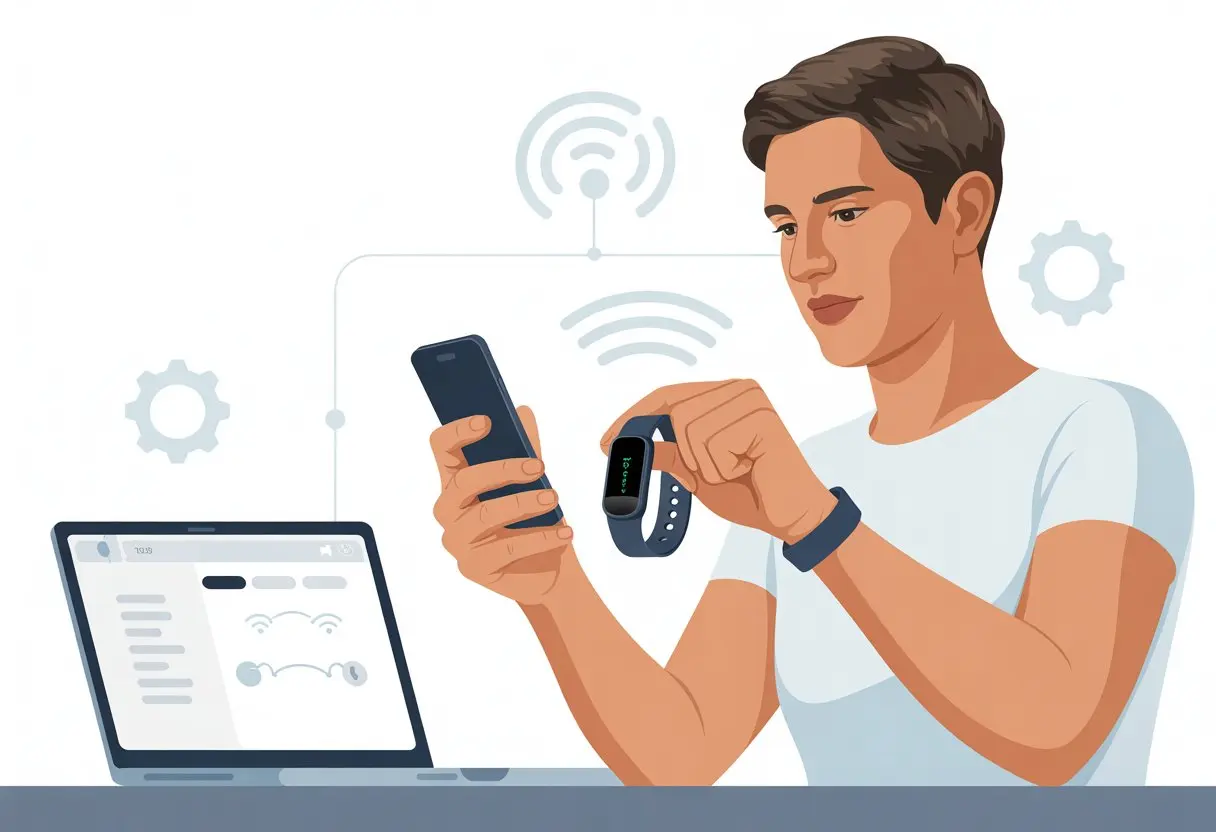
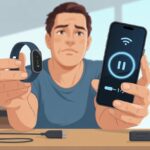
Whether it’s Bluetooth being weird, cranky apps, or just a settings mess, we’ve all run into sync issues. Maybe we see mismatched numbers or the app just sits there, stuck on “syncing…” forever.
Let’s figure out what actually works to fix these problems so our hard-earned steps don’t disappear.
Let’s troubleshoot together, laugh at the tech gremlins, and make sure our workouts count.
Understanding Fitness Tracker Sync Issues
Syncing our fitness trackers sounds simple, but tiny hiccups can throw off our step counts faster than we’d like. When syncing fails, it doesn’t just mess with our devices—it can confuse us about our own progress and health goals.
What Is Syncing and Why Does It Matter?
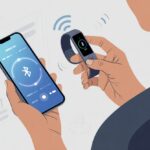
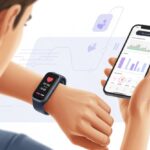
Syncing happens when our fitness tracker and smartphone agree to share data—kind of like best friends swapping secrets. Without syncing, our step counts, heart rates, and other fitness data stay stuck on the tracker, never making it to our favorite health app.
When syncing works, we get up-to-date stats and reminders to move more. If syncing fails, it’s like our effort disappeared into a black hole.
We can’t see daily or weekly progress, which makes hitting health goals a guessing game. If syncing doesn’t happen, the data on our fitness tracker isn’t helping us. All those kitchen laps? Unrecognized.
Common Causes of Sync Problems
Sync issues love to show up right when we’re ready to brag about our step streak. The usual suspects? Bluetooth tantrums, outdated firmware, or a dead battery.
Here’s what could go wrong:
- Bluetooth not turned on: Our phone and tracker can’t talk without it.
- Outdated apps or devices: Sometimes, our devices just refuse to cooperate without the latest software.
- Too many devices nearby: Our tracker might try to sync with someone else’s phone.
- Battery drain: Low power means our tracker wants a nap.
User manuals usually have a troubleshooting section for these moments, so we don’t have to panic. If nothing works, some platforms let us disconnect and reconnect devices, which sometimes magically fixes things.
How Syncing Impacts Your Health and Fitness Goals
Nothing kills motivation like crushing a workout and seeing stats stuck from two days ago. When our data doesn’t sync, we really don’t know if we’re meeting our goals or just guessing.
Syncing problems can mess up challenge results, too. Imagine entering a step contest and realizing your tracker didn’t bother to sync—ouch.
Some platforms need us to make sure our device sends data to Apple Health or Google Fit. Accurate syncing helps us spot trends, see improvements, and stay motivated. If it fails, we might miss out on rewards, reminders, or progress charts.
So, yeah—syncing matters as much as charging our coffee mug.
Initial Troubleshooting Steps
Every great tech rescue starts with the basics. Before we throw our tracker out the window, let’s try the simple fixes that solve most sync problems.
Restart Your Fitness Tracker
Sometimes, our tracker just wants a nap. Restarting it can fix sync issues, especially if it’s been working overtime counting our lazy steps.
To restart, we usually hold down the main button or use the settings menu. Most trackers show a logo or buzz when turning off and on.
If you’re stuck, check the manual—yeah, that one gathering dust. Restarting clears temporary glitches and shuts down background tasks that block syncing.
After restarting, try syncing again. If it’s still stubborn, move on to the next step.
Reboot Your Phone or Computer
Phones and computers need a fresh start too. When syncing just won’t happen, turning the device off and back on often breaks the cycle.
A reboot clears memory and resets connections. This really helps if the fitness app or Bluetooth crashed behind the scenes.
It’s smart to close running apps before rebooting. Once the device is back on, open the fitness app and try syncing. Sometimes, it just works, and we wonder why we didn’t do it sooner.
Check Bluetooth Connection
Bluetooth is the invisible handshake between tracker and phone. If it fails, syncing is doomed.
First, turn Bluetooth off and on again. It’s basic, but it works more than you’d think.
Look for the Bluetooth icon—sometimes it’s hiding or flashing, which means trouble. Unpair and then repair the tracker in settings if needed.
If it asks for a PIN, don’t panic; try 0000 or 1234. Make sure the tracker is close to your phone and there aren’t walls or microwaves in the way.
If the app still says “Can’t connect,” check permissions. Some apps need Bluetooth access in your phone’s settings.
Verify Wi-Fi Connection
Some trackers need Wi-Fi for big files or updates. If Wi-Fi is on a break, syncing can stall.
First, check if your phone or computer is actually connected to the internet. Open a website or streaming app to see if Wi-Fi is working.
If it’s slow or not responding, turn Wi-Fi off and on, or switch networks. Stay near the router to avoid weak signals.
If the network has a password, double-check you typed it right—typos sneak in. Sometimes, routers just need a restart.
Unplug, wait ten seconds, and plug back in if you’re feeling adventurous. When Wi-Fi is steady, try syncing again and hope for the best.
For more help, check out guides like this one on Google Fit sync problems.
Device Compatibility and OS Glitches
Fitness trackers are clever, but syncing issues can leave us frustrated and muttering at screens. Sometimes it’s just an outdated app, a confused device, or Bluetooth acting up.
Android Devices: Common Sync Snags
If you use Android, you probably know sync hiccups are part of the deal. Bluetooth sometimes just quits, leaving our tracker out in the cold.
Head to Settings and check if Bluetooth is on—unless your tracker paired with another device and is ignoring you. Another sneaky cause? Having more than one tracker saved.
Delete extras in Bluetooth settings. If things still act up, restart both the phone and tracker.
Some trackers need special app permissions or background activity access. Keep your app updated from the Play Store and make sure your OS isn’t ancient.
If you’re still stuck, there’s more advice about Fitbit not syncing on Android.
iPhone and iOS Issues
iPhone users aren’t safe from syncing drama either. Sometimes, the device won’t connect if Bluetooth or Location Services aren’t enabled for the app.
iOS updates (like iOS 16) can sneak in new permissions, so double-check app settings. Force closing and reopening the fitness app can sometimes fix things.
Restarting the phone and tracker is a classic move. If nothing works, deleting and reinstalling the app might help.
iOS doesn’t like multiple devices syncing at once. If your tracker paired with another iPhone, reset and pair it fresh (here’s how). Keeping the iPhone and tracker close—maybe even on the same desk—makes Bluetooth connection more reliable.
Apple Watch Quirks
Apple Watch brings its own flavor of trouble. Sometimes, data just hangs out on the watch and won’t move to the iPhone’s health app.
This can happen if app background refresh is off or the watch battery is low. Make sure both the Apple Watch and iPhone are updated to the latest versions.
Open the Watch app and toggle background refresh for health or fitness apps. If nothing works, try restarting both devices.
As a last resort, hard reset and re-pair the watch. It’s not fun, but sometimes it’s the only way.
Computer and Desktop Sync Woes
Trying to sync a tracker to a computer? That can be a headache. Sometimes, the desktop app doesn’t see the device, or the Bluetooth dongle just refuses to cooperate.
USB ports can be picky—some just won’t play nice. Keeping drivers and desktop sync software updated is a must.
Windows updates or MacOS quirks can mess with connectivity until we restart everything. If syncing still fails, unplugging and re-plugging (with a little wiggle) might do the trick.
Check if the tracker appears as a device in Bluetooth settings. If you see “ghost” devices, remove them to avoid confusion.
For more tales of syncing misery and fixes, the Fitbit community is full of them.
App-Related Sync Issues
Let’s be honest—if our steps don’t count, did we even walk them? When a fitness app acts up, it can totally kill our motivation. So, what can we actually do to get our fitness trackers and apps to play nice again?
Fitness App Not Working? Here’s How to Fix It
Sometimes our fitness app just sits there, refusing to sync, like a stubborn teenager. First, we need to check if the app has the right permissions.
On our phones, we should allow the app full access to health data, steps, or activity tracking. If we use Google Fit or Apple Health, double-check those permissions in device settings.
Turning things off and on again works more often than we’d like to admit. Try restarting both the phone and the wearable.
If we’re using the Fitbit app or another tool, logging out and back in can help. Some apps hide their sync button in a menu, so let’s look for that “Sync” or “Resync” button and give it a tap.
We might be surprised by how often this trick works. Android users can also tap the sync option in Google Fit’s journal, which sometimes smooths things out, as moto watch support suggests.
Deleting and Reinstalling the Fitness App
If nothing else works—brace yourself—it’s time to delete and reinstall the app. Uninstalling feels drastic, but it can clear out bugs or outdated data.
Before uninstalling, make sure we’ve backed up or synced our data, just in case.
After uninstalling, head to the App Store or Google Play Store and download the app again. Whether it’s the Fitbit app or another tracker, a fresh install often acts like a digital reset button.
Once reinstalled, sign back in and allow any permission prompts. Deleting and reinstalling really can save us from sync headaches, like a quick nap fixes a bad mood.
Updating the Fitness App for Bug-Free Syncs
Our fitness tracker gets stuck if we’re running an outdated app. App updates often include bug fixes and performance boosts that keep syncing smooth.
Visit the App Store or Google Play Store, search for the fitness app, and hit “Update” if it’s available.
If we usually ignore update notifications, maybe don’t this time. Each update is like a new toolbox; sometimes, developers fix problems we didn’t even realize we had.
By keeping our app current, we avoid weird bugs, failed syncs, and the annoyance of lost steps. It’s a pretty simple part of digital self-care.
Specific Tracker and Model Issues
Sometimes our fitness trackers just don’t listen. Whether the Fitbit Charge 5 isn’t cooperating, the Fitbit app is being stubborn, or we’re struggling to unpair an Apple Watch, sync problems are universal.
Let’s tackle each scenario like tech detectives—maybe with a little humor.
Fitbit Charge 5 Troubleshooting
We expect our Charge 5 to work out as hard as we do, but sometimes it just can’t keep up. If our Fitbit won’t sync, check if Bluetooth is turned on.
It’s silly, but it happens. Make sure the Fitbit app is updated, too.
Old versions are like using a floppy disk at the gym—just not helpful. If our Charge 5 still refuses to budge, restart both the tracker and the phone.
Sometimes, they just need a nap. Another good tip: log out of the Fitbit app, then log back in.
Think of it as a digital pep talk. If problems still hang around, follow this guide to fix Charge 5 sync issues.
General Fitbit Problems
When any Fitbit tracker gives us the cold shoulder, there are a few moves to break the ice. The classic fix is to turn it off and on.
Not just the tracker, but the phone too. It’s a miracle for tech everywhere—like giving it a cup of coffee.
Make sure only one device is connected to the tracker. Multiple Bluetooth connections can confuse it faster than we get confused sorting laundry.
If syncing to iPhone doesn’t work, uninstall and reinstall the Fitbit app. This resets everything smoother than a fresh jar of peanut butter.
If errors persist and we see “tracker not found,” check out these Fitbit problems and fixes.
Unpairing and Resetting Apple Watch
Sometimes our Apple Watch just needs a fresh start. Unpairing sounds rough, but it’s not a breakup—just a little reset.
To unpair, open the Watch app on the iPhone, tap the watch at the top, and hit “Unpair Apple Watch.” It’s simple, but keep the iPhone nearby.
These two get separation anxiety. After unpairing, restart both devices if things still seem off.
If needed, reset the watch to factory settings, but make sure all health and activity data are backed up to iCloud. Nobody wants to see their step count vanish.
Pairing again is usually pain-free, and the watch should be ready for action—hopefully with a better attitude.
Advanced Sync Problem Fixes
Sometimes, syncing woes just won’t quit. When restarting and updating apps still leaves us stuck, it’s time for the big troubleshooting tricks.
Factory Reset: The Last Resort
Nobody wants to hit the self-destruct button on their fitness tracker. A factory reset erases everything—activity history, custom settings, all our badges.
This step wipes the device, returning it to its original state. Only try a factory reset when every other trick fails.
Before starting, back up any important data with the tracker’s app, if possible.
To factory reset:
- Go to the settings menu on the tracker.
- Find Factory Reset.
- Follow the prompts, mentally say goodbye, and confirm.
After resetting, set up the tracker again and try syncing. It’s drastic, but for stubborn sync issues, it can work.
If nothing happens, the problem might be hardware-related. For more on device resets, check these tracker troubleshooting tips.
Resetting Fitness Calibration Data
Sometimes our tracker thinks we have giraffe legs or walks in zigzags. Calibration data can get weird and mess with syncing steps and distance.
Resetting the fitness calibration isn’t as harsh as a full reset—it only clears activity measurements, not the whole device.
To reset fitness calibration:
- Open the companion app (like Apple Health or Fitbit App).
- Find calibration or step length settings.
- Select reset, then save.
After resetting, we’ll need to walk or run so the tracker can recalibrate. This can fix problems where data refuses to show up correctly in other apps or on our phones.
Addressing Hardware Problems
If resets and calibration don’t fix it, our tracker might have a hardware issue. Charging ports, stubborn Bluetooth radios, or cracked screens can all stop syncing.
Let’s check for:
- Physical damage (cracks, dents, or screen issues).
- Connectors or pins that look odd.
- The tracker not turning on, holding a charge, or connecting at all.
If we find hardware damage, contact support or consider repairs or a replacement. There’s not much software magic for busted electronics.
For more ideas, see tracker not found issues.
Sometimes, these steps take real effort, but it beats launching our tracker out the window—though who hasn’t thought about it?
Maximizing Sync Performance and Preventing Issues
Dealing with sync problems can feel like wrestling a stubborn octopus. But if we focus on the basics—keeping features on, apps updated, and following smart routines—we can keep our fitness data flowing with less drama.
Enable Fitness Tracking Features
First, let’s make sure we’re not forgetting to flip a switch. If our fitness tracking features are off, our trackers are just fancy bracelets.
Double-check that fitness tracking is enabled on both the tracker and our phone or tablet. Most devices hide this in settings, sometimes under “Privacy” or “Permissions.”
Some apps need extra permissions to share step counts, sleep, or workout data. If we’re tracking steps for challenges or sending data to Apple Health or Google Fit, these permissions are critical.
Step data that doesn’t make it to the main hub won’t count for much, so let’s not let our daily walks go uncredited. We can find helpful tips at Wellhub US.
Regularly Update Software
Ignoring software updates is tempting, but that’s a fast track to sync headaches. Trackers, fitness apps, and even phones need regular updates to keep playing nicely.
Old apps or outdated device software can cause missing stats, broken connections, and the kind of error messages that haunt our day. Turn on automatic updates for apps and devices if possible.
The latest updates can fix bugs, patch security holes, and add new features. It also boosts the chances of our tracker and app working together.
Restarting our watch and phone after updating can help clear out gremlins that block the sync process. Some platforms, like Apple Watch, even recommend restarting for sync issues.
Best Practices for Reliable Syncs
Even the best gadgets can’t sync data with a bad connection. Always keep Bluetooth on and make sure the tracker is close to the phone.
If we’re syncing with a service like Fitbit, checking both the phone and tracker are connected can save a lot of frustration. More on this at MakeUseOf.
Opening the tracker’s app regularly helps push new fitness data to the cloud. For bonus points, try syncing before long activities and after workouts.
Avoid battery-saving modes if possible—they sometimes block background syncing and can make it look like our tracker is just napping.
A strong Wi-Fi or mobile data signal helps, too. The better our connection, the smoother our sync.
If sync still refuses to cooperate, a quick restart of everything usually does the trick. If not, well, sometimes glaring at the gadget is all we’ve got left.
When All Else Fails: Getting Help
Sometimes, no matter how many times we restart our tracker, the sync just won’t happen. That’s when reaching out for professional help or using expert services can save us from tossing the tracker out the window (please don’t).
Contacting Tech Support and Verified Experts
When we’ve tried every DIY fix we can think of, it might just be time to call in the pros. Most tracker brands—Fitbit, Apple, Garmin, Polar, you name it—have official tech support teams that are usually pretty responsive.
Before you reach out, grab your device model, phone type, app version, and a list of what you’ve already tried. Trust me, they’ll ask, and you don’t want to fumble through your memory while on the line.
Depending on the brand, you might find live chat, phone support, or even community forums where both users and staff jump in. When you’re chatting with tech support, try to keep your cool—and maybe your sense of humor. After all, the person on the other end probably didn’t break your tracker (at least, I hope not).
A lot of companies also connect you with verified experts who handle the weird stuff that regular support sometimes misses. You’ll find these folks in official forums and on specialty tech sites.
If you’re lucky, they’ve already seen your exact bizarre error before. No need for interpretive dance to explain what’s going on—just describe it, and they’ll (hopefully) get it.
Exploring JustAnswer Membership
When official tech support keeps telling you, “Have you tried turning it off and on again?” for the tenth time, it’s easy to feel stuck. That’s where a JustAnswer membership can make a difference.
With this subscription, you get real access to verified experts for all sorts of devices—not just fitness trackers. After signing up, you type in your issue, and yes, a real human (not a robot, thank goodness) chats with you.
They’ll ask follow-up questions that actually make sense and usually give you step-by-step instructions, not just a pile of jargon. You get help fast, and you don’t have to wait days for an email reply.
These experts can dig into oddball problems, suggest specific next steps, or even break the news if it’s time for a replacement. If you’re tired of scrolling through community threads at 2:00 AM, JustAnswer can save you a headache and give you answers while your tracker’s still got battery.
Understanding Data Types That Sync
If you want to outsmart your fitness tracker, you’ve got to know what data you’re asking it to share in the first place. Some types—like steps and heart rate—usually move between devices without much fuss.
Others, like sleep data, can be temperamental. When syncing fails, knowing what info you expect can save you a lot of frustration.
Steps, Calories, and Heart Rate
Let’s be honest—we all want credit for every single step, whether it’s a marathon or just another snack run. Fitness trackers really shine when they record steps, calories burned, and heart rate.
These are the big three, and most apps put them right at the top of the sync list because, well, they’re what we care about most.
Here’s a simple table to show how these usually sync:
| Data Type | Syncs Easily? | Where It Goes |
|---|---|---|
| Steps | Yes | Most fitness apps, HealthKit |
| Calories | Yes | Health, nutrition apps |
| Heart Rate | Yes | Health, exercise apps |
Steps and calories sync often because they change all the time and keep us motivated. Heart rate data is also super useful—it ties into our activity and overall health.
If these aren’t syncing, it’s usually an issue with the app connection, not the tracker itself. For more details, you can check out these data retrieval tips.
Other Fitness Metrics
Now, what about the less famous stats? Sleep, weight, distance, floors climbed, and blood oxygen levels can sync too, but sometimes they just don’t feel like it.
Not every tracker and app agrees on how—or even if—these should transfer. Some need special permissions or a third-party app like Health Sync to get things moving.
These numbers add depth to your health overview but might not update as often. If you’re missing this kind of data, check your app settings—sometimes a sneaky toggle hides important info.
And sometimes, devices just don’t match up. You might find a sleep record that says you napped at noon when you were definitely wide awake. It’s worth double-checking what stats your device promises to share, so you’re not chasing ghosts in your fitness history.
Conclusion: Crush Your Sync Issues and Keep Moving
Honestly, syncing a fitness tracker can feel more annoying than leg day sometimes. Still, with a few tricks, we can dodge most of those tech headaches and make sure our steps actually count.
First things first—don’t forget to check if Bluetooth is on and the app’s up to date. It sounds basic, but it’s easy to overlook. And hey, sometimes just turning everything off and back on really does the job.
If the tracker still ignores us, try uninstalling and reinstalling the app. Remember, we’ll need to give those health data permissions again—apps just love asking for them. Android folks, double-check those Health Connect settings while you’re at it.
Still stuck? Maybe the tracker just needs a little reset. Disconnect it, then reconnect. Sometimes that’s all it takes.
Here’s a quick cheat sheet:
| Step | Action |
|---|---|
| Check Bluetooth | Make sure it’s turned on |
| Update your app | Get the latest version |
| Restart device | Yes, really |
| Reinstall app | Uninstall, reinstall, log in |
| Reconnect tracker | Disconnect and connect it again |
If nothing works, at least pacing around in frustration burns a few calories. One way or another, we’re moving—right?

From a young age, I have always had a big interest in technology, and this blog is an extension of that interest. Through this blog, I hope to provide others with all of the information they need regarding tech options to consider, and things such as compatibility. Some of the different items I will be discussing include headphones, smartwatches, and how to fix common issues.
- How to use a fitness tracker for sedentary alerts: Because Your Couch Won’t Miss You Anyway - September 14, 2026
- Why do my Bluetooth headphones not work with my projector? Solving Tech Mysteries for the Audio-Challenged - September 13, 2026
- Best Smartwatches for Medication Reminders: Never Forget Your Pills (or Your Sanity) Again - September 13, 2026
Related Posts: