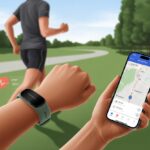
Let’s be honest—sometimes we wonder if our fitness tracker is really pulling its weight. The cool part? Pairing a tracker with our Android phone is simple now, so we can finally stop guessing and start counting every step. All we really need to do is turn on Bluetooth, grab a fitness app like Google Fit, and follow a few easy steps to connect things (way less stressful than untangling headphones, trust me).
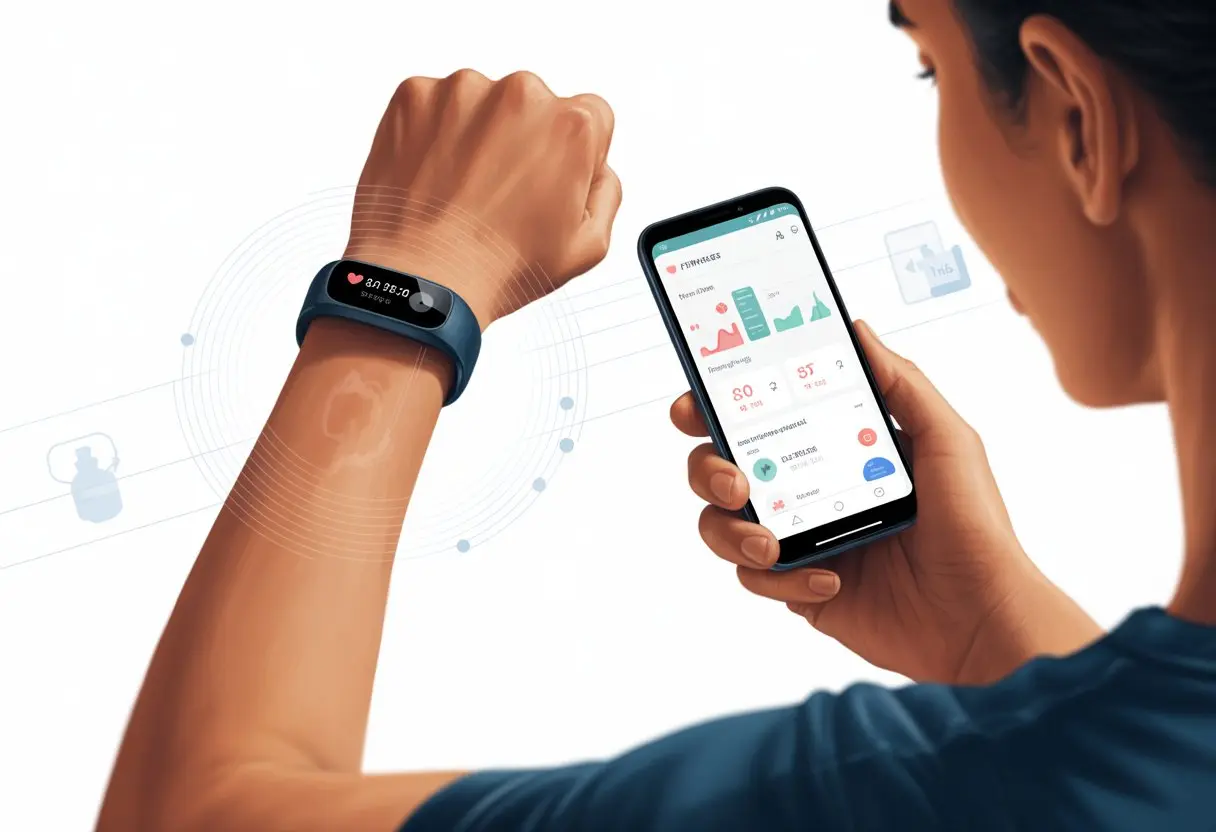
Once we connect our tracker, our phone starts showing us stats, tracks our progress, and sometimes even throws in a guilt trip if we ignore the stairs. If our Android feels left out, don’t stress—plenty of trackers work with it, and Google Fit supports most of them.
Now we can finally settle those debates about who really took more steps—or just see how many steps it takes to find the TV remote again.
Getting Started With Android-Compatible Fitness Trackers
If we want our Android to count our steps (and not just calls from Aunt Linda), we have to pick a tracker that plays nice with our phone. There are features, compatibility checks, and way too many acronyms, but let’s keep it straightforward.
What You Need: Devices and Compatibility
First things first, grab our Android phone and make sure it’s charged—nobody likes a dead battery. We should check what version it’s running; most trackers want Android 7.0 or higher.
We also need to enable Bluetooth. Fitness trackers like Fitbit, Amazfit Bip, and plenty of others use Bluetooth to connect.
Here’s a quick compatibility checklist:
- Android version: 7.0 or above is best
- Bluetooth: Make sure it’s on and visible
- Health apps: Google Fit or Health Connect are solid picks for syncing. Sometimes, we’ll need the tracker’s own app too.
- Permissions: The tracker might ask for location or health data. Don’t panic-tap “allow,” but these are usually needed for step tracking.
Some trackers only work with their own apps. Fitbit devices like the Fitbit Charge 2 use the Fitbit app, while Amazfit Bip pairs with Zepp. Always double-check before buying, so we don’t end up disappointed. If you want more details, check connecting your Android phone as a fitness tracker.
Choosing The Right Fitness Tracker for Android
Let’s be real—nobody wants a clunky brick strapped to their wrist. When we’re picking a tracker, comfort and Android compatibility matter most. Popular picks include the Fitbit Charge 2, Amazfit Bip, and any model that says “Android-compatible” (even if it’s in fine print).
A few things to look out for:
- Heart rate monitor: Handy if we ever wonder whether our heart’s still beating mid-workout.
- Step counter: Most trackers count steps, but not all do it well. Check reviews for accuracy.
- Waterproof rating: If we’re likely to get caught in the rain or take a surprise dip, pick a waterproof one—look for IP67 or IP68.
- Battery life: Some trackers last days, some can’t make it through the day.
Here’s a simple table for quick comparison:
| Tracker | Heart Rate Monitor | Waterproof | Android App |
|---|---|---|---|
| Fitbit Charge 2 | Yes | No | Fitbit |
| Amazfit Bip | Yes | Yes | Zepp |
| Generic Smartwatch | Sometimes | Sometimes | Varies |
Making sure our phone and tracker get along is the secret to turning our device into a fitness buddy instead of a tech headache.
Pairing And Setting Up Your Fitness Tracker
Time to roll up our sleeves and actually set things up. To track our steps, sleep, and get those notifications, we need to connect everything, grab the right apps, and accept a few permissions.
Connecting With Bluetooth
Bluetooth is the secret handshake here. If we forget to turn it on, our tracker won’t even get a chance to say hello.
Let’s swipe down on our Android, hit the Bluetooth icon, and then turn on our tracker. Most trackers will flash or buzz when they’re ready—sometimes more dramatic than you’d expect.
We go to Settings > Bluetooth and look for the tracker’s name. Sometimes it’s obvious, sometimes it sounds like a sci-fi robot. Tap it, hope for the best, and if it asks for a code, it’s usually “0000” or “1234.”
If nothing happens, try turning Bluetooth off and on, or just restart the tracker. Need more help? Check out how to connect a fitness tracker to an Android phone.
Installing Essential Apps
Trackers don’t just speak “Android” out of the box. Depending on what we’ve got, we’ll need the right companion app. Some of the usual suspects:
- Fitbit app for Fitbit devices
- Google Fit for most trackers
- Samsung Health if we’re using a Samsung tracker
We open up the Play Store, search for the official app, and avoid the fan-made ones. The app usually walks us through setup, which is just a lot of “Next” buttons.
If our tracker’s from a less-known brand, we might need to grab a weirdly named app. The right app helps sync our data, update software, and unlock features we’ll probably forget about.
Account Setup And App Permissions
When the app’s ready, it’s time to sign up—usually with an email, so our step history doesn’t disappear when we get a new phone or accidentally delete the app.
Then comes the permissions parade. The app might ask for:
- Bluetooth (obviously)
- Location (not for spying, just syncing)
- Notifications (so we see texts on our wrist)
We tap “Allow” (maybe a little nervously), but these are needed for things to work. Without them, we might have to count steps in our head. Apps may also offer to sync with Google Fit, Samsung Health, or others, so our data can live together in peace.
Fitness Tracking Features On Android
Tracking our health is honestly easier—and more high-tech—than ever. Our Android can follow our every move (in a healthy way), check our sleep, and even see if our heart keeps up during a wild dance break.
Monitoring Heart Rate And Activity
Most of us like knowing our hearts are doing their job. Fitness trackers use heart rate monitors to keep an eye on our pulse all day.
They show us our heart rate during workouts, walks, or even a sprint to the bus. Some apps, like Google Fit, tell us when we’re in the fat burn zone or hitting active minutes.
We can check calories burned, track daily exercise, and get nudges to move. Sometimes, just closing those activity rings feels like a win.
Step Counting And Distance Measurement
Step counting isn’t just for marathon runners or people dodging elevators. With built-in step counters, our Android phones and wearables turn walking into a bit of a game.
Trackers use sensors and sometimes GPS to turn our steps into data. We get numbers on steps, distance, and calories from walks, runs, or just pacing around the kitchen.
Distance tracking is great for runners and walkers—or anyone who says they don’t jog, but somehow ends up at the park. Some fitness apps let us see all this info right on our phones, so we can keep an eye on our progress.
Using Sleep Tracking Functions
We all want to know if we’re sleeping well or just tossing around all night. Newer trackers come with sleep monitors that track our sleep stages, total hours, and even give us a sleep score—so we’ve got evidence for why we’re tired.
Sensors figure out when we fall asleep, how deep we sleep, and how many times we wake up (usually for snacks). Thanks to apps like Google Fit, all that sleep data is easy to check while sipping coffee.
Some trackers break down sleep into light, deep, and REM, giving us insight into our rest—and maybe why Mondays are so rough. Sleep monitoring is more than a bonus; it’s like having a tiny sleep critic on our wrist.
Integrating With Third-Party Apps
We don’t need to stick to just one app. Our Android can sync with just about anything these days. Most trackers and apps let us connect to platforms like Strava, Fitbit, or Google Fit.
This means our steps, calories, heart rate, and sleep data can move between apps. Want to use your favorite running app and still keep track of your sleep? Go for it.
We can use Health Connect or Google Fit to pull data from different sources. That way, we get a full health picture—complete with stats, reminders, and maybe a new respect for rest days.
Maximizing Device Performance
Fitness trackers are loyal sidekicks, but sometimes they need a little care to stay in top shape. Charging, cleaning, and keeping them away from water (unless they’re waterproof) really helps them go the distance.
Improving Battery Life
Nothing kills a morning jog faster than seeing your tracker flash that dreaded “low battery” warning. If you want your battery to last, try dimming the screen—no need to light up the whole block. Turn off features you don’t actually use, like nonstop heart rate tracking or endless notifications for every email.
Whenever you can, flip on battery-saving modes, especially if you’re not working out. These settings slow down background apps and help your device survive the day. When it’s time to charge, don’t leave your tracker plugged in all night; a few hours usually does the trick, and overcharging can wear out the battery faster.
Install firmware updates as soon as they drop—sometimes they squeeze out more battery efficiency. Keep an eye on your apps, too. Ditching unnecessary third-party add-ons helps your battery hang in there. For more ideas, check out these expert tips and tricks for fitness watches.
Maintaining Your Fitness Tracker
Sweat, rain, and showers can all do a number on our trackers, even if we like to pretend they’re indestructible. Always check your device’s waterproof rating before hopping in the pool or shower—otherwise, you might be saying goodbye to your electronics.
After a workout, just wipe down the screen and band with a damp cloth. Skip the harsh cleaners or soaps—they can sneak into the cracks and mess things up. If you’ve got a silicone or rubber band, a little soap and water is fine, but make sure you dry it off.
Dust and gunk love to hide in small spaces. A toothpick or soft brush does wonders for keeping things clean without scratching. Once a month, check for cracks or loose parts, because damage can ruin the waterproofing.
Want more in-depth advice? There’s a helpful guide on maximizing workouts with fitness trackers.
Syncing And Analyzing Fitness Data
We want our fitness trackers to do the hard work—counting steps, tracking workouts, maybe making us feel like superheroes. To really get value, you’ve got to sync your data and figure out what it all means.
Syncing Data With Android Devices
Let’s face it: syncing sometimes feels like magic, and sometimes it just… doesn’t work. Most Android devices connect fitness trackers over Bluetooth, so the tracker isn’t just a wrist accessory—it actually beams your steps to your phone.
On Android, you’ve got the Google Fit app and, if you’re feeling brave, the Fitbit app. These apps grab everything from steps to that “quick” ab workout you maybe didn’t finish. If you’re using Google Fit, you can set up Health Connect to help your tracker and phone play nice. Just find the option in Google Fit settings to sync Fit with Health Connect and keep things humming along.
If you use MoveSpring, you can even turn your Android phone into a basic fitness tracker. Juggling multiple apps? Third-party options like Health Sync can help you keep all your fitness data in one place—no circus skills required.
Tracking Your Progress With Apps
All those steps and sleep stats? Thankfully, the apps do the math for us. Google Fit and Fitbit let you see your progress with simple charts and fun rewards. Sometimes, your “big win” is just seeing “You walked more than zero steps!” but hey, it counts.
You can compare workouts over time, check how much you’re actually sleeping (scrolling at 2 AM doesn’t count), and set new goals. Many apps make it easy to see if you’re making progress—or if your tracker’s just logging your walk to the fridge.
With Android, tracking and analyzing everything is pretty simple. Just keep Bluetooth on, update your apps, and don’t ignore those milestones—trackers might get jealous. If you want more details, here’s a guide to connecting Android phones as fitness trackers.
Advanced Tips For Power Users
You can get way more out of your fitness tracker by experimenting with settings and using features most people skip. Tweaking things gives you more control and makes workouts feel more personal.
Customizing Notifications And Settings
Honestly, nobody wants their wrist buzzing every time someone posts a pancake pic. Dive into your Android app settings and fine-tune those notifications.
Most tracker apps let you:
- Set do-not-disturb times for focused workouts
- Pick which apps can alert you (messages, calls, calendar stuff)
- Turn on silent alarms or custom vibrations for important things
Syncing with Android helps you filter out the noise so you only get what matters. You can also personalize notifications by activity type, which cuts down on distractions.
Many trackers let you use quick reply for messages. Pair your tracker with Android messaging apps and you can send preset responses right from your wrist. Some trackers even let you change vibration strength or set different notifications for different times of day.
If you want your tracker to work for you (not the other way around), these tweaks make a big difference. Curious for more? Check out Reddit’s Galaxy Watch power user thread.
Enabling GPS And Advanced Tracking
Turning on GPS sometimes feels like launching a mini satellite from your wrist. GPS tracking lets you map outdoor workouts, record routes, and track pace and distance more accurately.
To start:
- Pair your Android device and tracker in the app.
- Open tracker settings and enable “GPS” or “location tracking” for activities like running, hiking, or cycling.
- Some trackers give you a choice—use your phone’s GPS or the watch’s own chip. Using your phone’s GPS can save tracker battery.
Advanced tracking sometimes lets you record split times, set up interval workouts, or even track open water swims, depending on your model. Tracker apps often give you badges or achievements for hitting distance goals.
Just remember, GPS drains the battery fast. If you’re planning a long adventure, keep a charger nearby. For more ways to squeeze out extra features, check out these tips for getting the most from your fitness tracker.
Troubleshooting Common Issues
Even with your trusty tracker and favorite Android phone, things can go sideways. Let’s hit the main problems, so you can get back to counting steps—or at least pretending to.
Connection Problems And Quick Fixes
Trying to get your fitness tracker to talk to your Android device can feel like prepping for a space launch. Usually, it’s all about Bluetooth. If your tracker isn’t syncing, first make sure Bluetooth is on for both the tracker and the phone.
Check that both devices are charged. Low battery leads to grumpy gadgets and silent trackers. Restarting both the phone and the tracker fixes more weirdness than you’d expect. If things are still stuck, try unpairing and pairing again.
If your tracker keeps hiding, move it closer to your phone. Physical barriers (or even laundry piles) can block the signal. Sometimes, the classic “turn it off and on again” really does the trick. For step-by-step help, here’s a guide for troubleshooting tracker syncing with Android.
App Crashes And Software Glitches
Apps are great—until they refuse to open. If your tracker app crashes, update it and your Android software. Old versions have more bugs than a picnic in July. Clearing the app cache can help, too.
Sometimes, uninstalling and reinstalling the app feels drastic, but it’s quick and usually solves the problem. Make sure your Android phone has enough free storage, since a packed phone can make apps act up.
Too many apps running in the background can also cause trouble, so close a few out. If Google Fit isn’t tracking your activities, double-check that activity detection is on in settings. Need more help? The Google Fit help page has extra tips.
Compatibility With Non-Android Devices
Switching between Android and iOS—or trying to use your tracker with a Mac or Windows device—can be a headache. Not all trackers, apps, or software get along.
If you switch between Android and iPhone, you’ll need to install different companion apps from the right app store. Data might not transfer smoothly, and syncing can get weird if you use both types of devices. Some trackers just work better with Android, especially if you want advanced features.
Syncing with a computer is tricky, too. A lot of trackers skip Mac and Windows-friendly software now. Most data management happens in the mobile app, so getting info onto your laptop usually means exporting files or using third-party tools.
Honestly, sticking with one system makes life easier. If you need to use multiple devices, check compatibility first and save yourself some stress.
Comparisons With Other Consumer Electronics
Fitness trackers aren’t the only smart gadgets we own, right? They might look similar, but what they actually do can be pretty different—and sometimes, weirdly funny.
Fitness Trackers Versus Smart Watches
Comparing a fitness tracker to a smart watch is like lining up a Swiss Army knife next to a butter knife with ambition. Both have their place, but smart watches usually try to do everything.
Fitness trackers, like the Fitbit Inspire 3 or Amazfit Bip, stick to the basics: counting steps, tracking sleep, and checking heart rate. They don’t bombard you with dozens of extra apps you’ll never open. They’re lighter and usually last longer on a single charge than smart watches.
Smart watches want to be tiny computers on your wrist. They run apps, show notifications, and can even take calls—if talking to your hand is your thing. While trackers focus on fitness, smart watches double as mini-phones, music players, and sometimes even e-readers if your eyes (and patience) are up for it.
Want more details? Check out this comparison on Tom’s Guide.
Integrating With Home Tech And Gadgets
Fitness trackers probably won’t replace our entire smart home setup, but honestly, they fit in better than you’d expect. Most fitness bands sync up with our phones, and from there, our phones chat with all sorts of home gadgets.
Let’s say you want to know how many steps you’ve racked up just pacing around the house. You can just ask Alexa or Google Assistant on your phone. If you log a workout, you might want to see it pop up on your computer or even your TV—lots of trackers let you do that using their apps, which is pretty handy.
Some fitness trackers go a bit further and connect with home security systems. They’ll nudge you if you bolt out the door with a burst of energy but forget to set the alarm. Sure, you can’t unlock your front door by doing jumping jacks—at least not yet—but the integration’s already here in small ways.
Game systems, printers, and those other old-school gadgets? They’re safe for now. Unless your tracker suddenly challenges your camera to a dance-off, which, honestly, sounds kind of fun.

From a young age, I have always had a big interest in technology, and this blog is an extension of that interest. Through this blog, I hope to provide others with all of the information they need regarding tech options to consider, and things such as compatibility. Some of the different items I will be discussing include headphones, smartwatches, and how to fix common issues.
- The Best Rugged And Waterproof Smartwatches - October 21, 2026
- 10 Best Military Smartwatch – Find The Best Tactical Military Watches in 2023 - October 20, 2026
- Are Wired Headphones Safer Than Bluetooth? A Friendly Guide - October 20, 2026
Related Posts: