Ever wondered if our Bluetooth headphones could finally stop acting like expensive earmuffs during Zoom calls? Good news—they can!
We can use our Bluetooth headphones as both a speaker and a microphone on Zoom, making our meetings sound better and saving us from the dreaded echo. It’s almost like giving our ears a tiny vacation every time we log in.
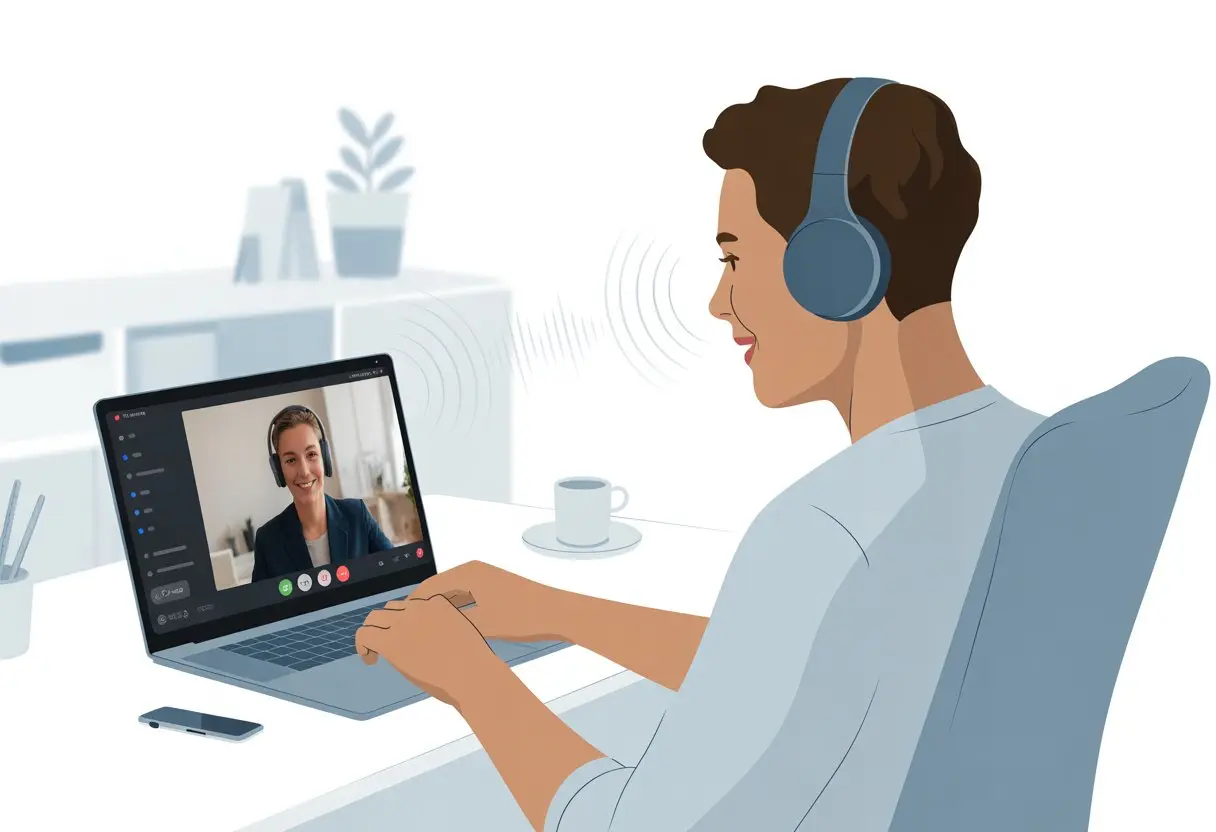
Of course, getting wireless headphones to cooperate with our devices and Zoom can feel like trying to teach a cat to do tricks. But honestly, it’s not as bad as it sounds once we know where to click and tap.
With just a few steps, we’ll have clear audio whether we’re at home, in the office, or faking a tropical beach background.
Let’s unlock crystal-clear sound and finally enjoy those meetings—or at least, hear them better! If you’re tired of shouting into your computer or missing important updates from your team, we’ve got the smooth, wireless answers you need.
Prerequisites for Using Bluetooth Headphones with Zoom
Before we start talking to coworkers like secret agents with earpieces, let’s make sure we’re not tripped up by basic tech problems. Both our gear and our settings need to be ready, or our fancy headphones might just end up as head decorations.
Supported Bluetooth Versions
Not all Bluetooth is created equal. For Zoom, we want headphones using at least Bluetooth 4.x.
This version gives us better sound and less lag, so our voice won’t sound like a robot with a sore throat. Newer is always better here.
With Bluetooth 5.0 or above, connection is more stable and the range is longer. That means fewer drop-outs if we wander off for coffee.
Older versions, like Bluetooth 2.1, might cut in and out or just refuse to cooperate. Most headphones show their Bluetooth version in the manual or on the box.
If we can’t find it there, a quick search for our headphone’s model online usually does the trick. Let’s stick with Bluetooth 4.x and up if we want to actually hear our meetings.
What You Need Before Getting Started
Before we try pairing up, we need a few things or Zoom will ignore our Bluetooth headset like a dog ignores homework.
Here’s our checklist:
- A pair of Bluetooth headphones or a Bluetooth headset with a working microphone
- A device with Bluetooth built in—like our PC, Mac, or smartphone
- Latest Zoom app installed (older versions might not notice our headphones)
- Both headphones and device fully charged—low battery means no audio party
- Bluetooth connection turned on and the device is discoverable
Let’s also make sure our Zoom app has the right permissions. On Android, for example, Zoom needs “nearby devices” access for Bluetooth audio to work right (more on that in this guide).
If our headphones aren’t showing up, it’s probably a permissions issue. Double check audio output settings in Zoom.
Picking the right device in Zoom’s audio menu means the sound goes to our Bluetooth headphones and not, say, our laptop speakers—unless we want the whole office to join our meeting by accident.
Pairing Your Bluetooth Headphones Correctly
Getting our Bluetooth headsets to work with Zoom is easier than parallel parking between two firetrucks. We just need to master pairing mode and finish everything off on our chosen device—Windows, macOS, or mobile.
Putting Your Headphones into Pairing Mode
First, let’s make sure our nifty headphones are actually ready to connect. Most Bluetooth headsets need us to hold down the power button or a dedicated Bluetooth button for a few seconds.
If the little light blinks—usually blue, red, or that unpredictable purple—it’s in pairing mode. That’s our cue to let the magic happen.
Some clever headsets announce “pairing” loudly in our ears. Others just flash a tiny LED, like Morse code for “I’m waiting.”
If we’re confused, we should check the manual. Or, honestly, search for our headset model online and see what the internet says.
If our headset also supports a wired connection via a USB port, ignore it for now. We’re here for wireless glory.
Remember, staying close—within a few feet—helps prevent connection dropouts. Walls, microwaves, and moody pets might mess things up, so dodge those if possible.
Connecting on Windows, macOS, and Mobile
On Windows, we click the Bluetooth icon in the taskbar, select “Add Bluetooth device,” and wait for our headphones’ name to show up. A quick click, maybe a charming chime, and we’re in business.
On macOS, go to System Settings > Bluetooth, and tap our headset from the list. It’s less dramatic but just as effective.
For mobile, just head into Settings, tap Bluetooth, and wait for the list of devices. We select our headphones (they’re usually called something mysterious, like “BW-SH15” or “My Headset”), and connect.
Once connected, we’re ready for Zoom. If our headphones are shy, we can check out helpful guides on using Bluetooth headphones with Zoom.
If all else fails, try turning Bluetooth off and on. It’s silly, but it works more than you’d think.
Configuring Zoom Audio Settings
Let’s face it, nobody wants to mime their way through a Zoom meeting. Getting our Bluetooth headphones set up right means we can hear and be heard—without any “Can you hear me now?” moments.
Let’s stay focused so we’re not the one holding up the meeting.
Selecting Bluetooth Headphones as Audio Output
First things first: we want our Bluetooth headphones to actually play sound from Zoom, not from the mysterious speaker hiding inside our laptops.
After connecting our headphones via Bluetooth, we need to open the Zoom app. In Zoom, click the audio settings icon (it usually looks like a little gear or a caret next to the microphone on the mute button).
Under the “Speaker” section, we should see our Bluetooth headphones. Sometimes the headset is sneakily listed under a name like “AirPods” or “WH-1000XM4”—so let’s not pick “Internal Speakers” unless we like tinny sound.
If our headphones don’t show up, disconnect and reconnect them. It’s like magic, except less mysterious.
We may also need to refresh the devices by clicking out and back into the Zoom audio menu. For more step-by-step details, this guide to using Bluetooth headphones with Zoom spells it out nicely.
Picking the Right Microphone Input
Sounding like we’re broadcasting from a tunnel is not the goal. After getting our audio output sorted out, we need to check the microphone input.
Still in Zoom’s audio settings, there’s a section labeled “Microphone.” Here, we’ll spot options like our Bluetooth headset, our laptop’s built-in microphone, or maybe our trusty USB mic.
For less echo and fewer kitchen noises, we want to use our Bluetooth headset’s mic (it might be called “Headset” or the model name).
If it sounds like we’re underwater, don’t panic—sometimes the mic defaults to the laptop instead of the headphones. A quick switch in the settings should fix that.
Testing the levels here is important. We don’t want to whisper or blast eardrums.
Zoom lets us see the input level as we talk so we can adjust before our boss or friends start complaining.
Testing Audio Before a Meeting
Nobody wants to find out their mic is broken or their headphones are silent after the meeting begins. In Zoom, we can check both speaker and mic using the “Test Speaker & Microphone” button.
Click it, and Zoom plays a test sound—this helps us see if the sound is piping through our Bluetooth headphones. Next, Zoom asks us to say something to test the microphone.
Our words should echo back if everything’s working right. If not, there’s a handy troubleshooting guide for Bluetooth headphones with Zoom to get us unstuck.
It’s smart to run this quick check before every meeting, especially if we’ve switched devices or moved to a new spot in the house. That way, we sound polished, and nobody has to play “Guess What I Said?” Zoom edition.
Troubleshooting Common Issues
When our Bluetooth headphones get shy during a Zoom call, it can turn a simple meeting into a real comedy show. Let’s look at specific fixes so we sound sharp and avoid those awkward silent nods that nobody asked for.
No Sound or Microphone Not Working
We’ve all clicked “Join with Computer Audio” and then realized we’re just miming in silence. First, let’s double-check the Bluetooth connection.
Sometimes our headphones think it’s nap time and disconnect, so we should make sure they’re still paired to our device. Next, let’s head into Zoom’s audio settings by clicking the little arrow next to the mute button.
We can then select our Bluetooth headphones as both the microphone and speaker. If it’s still not working, unplugging and replugging (or un-pairing and re-pairing, for us wireless folks) is the “IT classic” move that actually helps.
If stubborn silence continues, let’s try these quick tips:
- Make sure our headphones aren’t muted with their physical button
- Turn up device and Zoom volume
- Disconnect and reconnect Bluetooth headphones
- Restart Zoom
For extra reading, Zoom’s own site walks through fixing audio not working in more detail.
Lag or Echo When Using Bluetooth
Lag or echo during meetings can make us sound like we’re reporting live from another planet. Bluetooth isn’t always speedy, so wireless audio sometimes hits a traffic jam.
We can keep delays to a minimum by closing extra apps and windows that hog resources. If we have a lot of devices paired to our computer, it may help to disconnect the ones we’re not using.
Echo usually pops up when our headphones’ microphone picks up the speaker’s sound. The best move? Lower the Zoom speaker volume a bit and make sure those earcups fit well.
If we still hear echoes, check Zoom’s echo cancellation feature is turned on or select the right input/output device. And, if nothing else works, sometimes a simple disconnect and reconnect of the headphones will save us from sounding like we’re stuck in a cave.
Here’s a practical guide to troubleshooting headphone problems with Zoom.
Getting Fancy: Advanced Audio Tips
If we’re tired of the regular headphone sound, it’s time to kick things up a notch. To really impress our co-workers—or at least stop annoying them—we can sharpen our audio with a few special tools.
This can make meetings sound clearer, warmer, or even less embarrassing when our dog barks in the background.
Improving Sound with EQ
Alright, let’s dive into EQ—equalization, if you want to get fancy. EQ lets us mess with sound frequencies, boosting highs to sharpen up voices or cutting lows to ditch that annoying AC rumble.
Most computers toss in some kind of EQ tool, but if you’re picky, third-party apps give us more control.
Want your voice to pop? Try bumping up the midrange (1kHz to 3kHz). If your Bluetooth headphones sound a bit muddy, lowering the bass can help a lot.
Some headphones come with their own app, which makes fiddling with EQ settings a breeze.
If all these numbers get overwhelming, here’s a quick cheat sheet:
| Frequency | What It Does |
|---|---|
| Bass (60-200Hz) | Makes sound deep or boomy |
| Mids (1k-3kHz) | Makes voices clearer |
| Highs (6k-10kHz) | Adds crispness and detail |
Don’t just crank every knob to the max—unless you’re aiming for angry robot vibes.
Using USB Audio Interfaces for Pro Sound
If you’re after that studio sound in your living room, a USB audio interface is a real game changer. You plug this little box into your USB port, and suddenly your input and output audio both get a major upgrade.
It lets us connect fancier microphones or even musical instruments. That’s how you level up from “just another meeting” to “meeting legend.”
USB audio interfaces give us cleaner preamps than our laptops or phones ever could. That means less hiss, less background noise—just our voice, front and center.
Most interfaces have actual knobs, which I love. Tweaking a real dial beats digging through computer menus any day.
You’ll want the right cables for this. A typical USB interface has a dedicated headphone jack, so audio output gets a boost.
If you’re set on Bluetooth headphones, you can plug in a Bluetooth adapter, but honestly, wired headphones still sound better here.
Feeling adventurous? You can split the audio channels—record your voice on one side, the meeting on the other. Just remember, the more gear you add, the more distractions you’ll have during meetings (or math class, if we’re being real).
Switching Between Devices and Modes
Every time we join a Zoom call—at home, at the office, in some noisy café—we end up juggling headphones, speakers, and whatever sound mode Zoom throws at us.
Sometimes it’s a breeze, but if you don’t know the tricks, you might blast your playlist to the whole room or hear your own voice echoing back at you.
Switching Between Headphones and Bluetooth Speakers
Let’s be honest: sometimes we want Zoom audio all to ourselves, and other times, we just want to fill the room. Switching between headphones and a Bluetooth speaker can get weirdly tricky.
First, make sure your Bluetooth headphones and speaker are paired, but not both active at once. On most devices, Zoom lets us pick the output by clicking the little chevron next to the mic or speaker icon.
A menu pops up, and we pick our device—maybe “AirPods,” maybe “Super Loud Bluetooth Speaker.”
If you suddenly hear music from both, don’t freak out. Both devices are probably still connected.
Try disconnecting one in your Bluetooth settings, then re-select the right device in Zoom. Sometimes you’ll need to tap the speaker icon again to lock it in.
One Reddit user swears this actually works, even if you spend a minute hunting for the right icon.
Changing from Stereo Speakers to Headset Mode
Stereo mode is perfect for background music while you zone out. But when it’s your turn to talk, you’ll want headset mode so your mic doesn’t pick up every blender and barking dog in the neighborhood.
It’s a classic Zoom move: pick “Headset” for focused, two-way sound, or “Stereo Speakers” to enjoy music in both ears.
To swap, open Zoom’s audio settings (usually under “Audio” in preferences). Pick your device for Speaker and Microphone.
Sometimes, headphones show up twice—once as “stereo,” once as “headset.” The “headset” option lets you use the headphone mic, while “stereo” is just for listening.
Make sure you pick the one that matches what you’re doing—talking or just listening.
If Zoom keeps ignoring your choice, unpair and reconnect the headphones. Only activate one audio profile. This usually nudges Zoom into behaving.
Once you get it sorted, you can wow everyone with your crystal-clear voice—or just tune out and enjoy your music. No shame in that.
Comparing Bluetooth Headphones with Alternatives
Not all audio gear plays nicely with Zoom. If you want to sound clear, dodge tech fails, and skip the “Can you hear me now?” dance, you’ve got to pick the right tool for the job.
Bluetooth Headsets vs. USB Mics for Zoom
Bluetooth headsets are wireless, which is a lifesaver if you like to wander or wave your arms during calls. No wires means you can spin in your chair without dragging your laptop off the desk.
USB mics, though, usually bring better sound quality. They’re the pros—think radio host, not “calling from a tunnel.”
You’ll get less lag, fewer random dropouts, and you don’t have to worry about batteries dying halfway through a “quick” meeting.
Here’s a quick comparison:
| Feature | Bluetooth Headset | USB Mic |
|---|---|---|
| Wireless | Yes | No |
| Sound Quality | Decent (can vary) | Often excellent |
| Battery Required | Yes | No |
| Easy Setup | Usually, but can get tricky | Usually plug-and-play |
| Price Range | Wide range | Wide range |
Bluetooth is great if you want to move around, but USB mics usually win when you want that crisp, pro-level audio on Zoom.
Zooming with Bluetooth vs. Skype and JustAnswer
When I take my Bluetooth headset for a spin with Zoom, things usually go pretty smoothly.
Most modern headsets connect fast, and Zoom lets me use them as both mic and speakers. Just don’t forget to pick the right device in Zoom’s audio settings—here’s a guide if you’re lost.
Skype, though, is a different beast.
Sometimes my Bluetooth headset works instantly. Other times, Skype just acts like it’s never seen it before.
I end up digging through menus, hunting for the Bluetooth device as my audio source. Those settings seem buried deeper than my remote under the couch.
JustAnswer feels a bit unpredictable.
It’s a support platform, so calls depend on whatever browser or device I’m using. Audio doesn’t always switch over by itself, and suddenly I’m frantically clicking around while the tech helper keeps saying, “Can you unmute yourself?”
Honestly, Zoom usually plays nicer with Bluetooth headsets straight out of the box. That alone saves me some headaches—and maybe even a call to support.

From a young age, I have always had a big interest in technology, and this blog is an extension of that interest. Through this blog, I hope to provide others with all of the information they need regarding tech options to consider, and things such as compatibility. Some of the different items I will be discussing include headphones, smartwatches, and how to fix common issues.
- Best Smartwatch For Messaging And Phone Calls - November 2, 2026
- Samsung Galaxy Watch 4 Bluetooth Versus LTE – Which Model Is Right For You? - November 1, 2026
- What Are The Best Whoop Alternatives? - November 1, 2026
Related Posts: