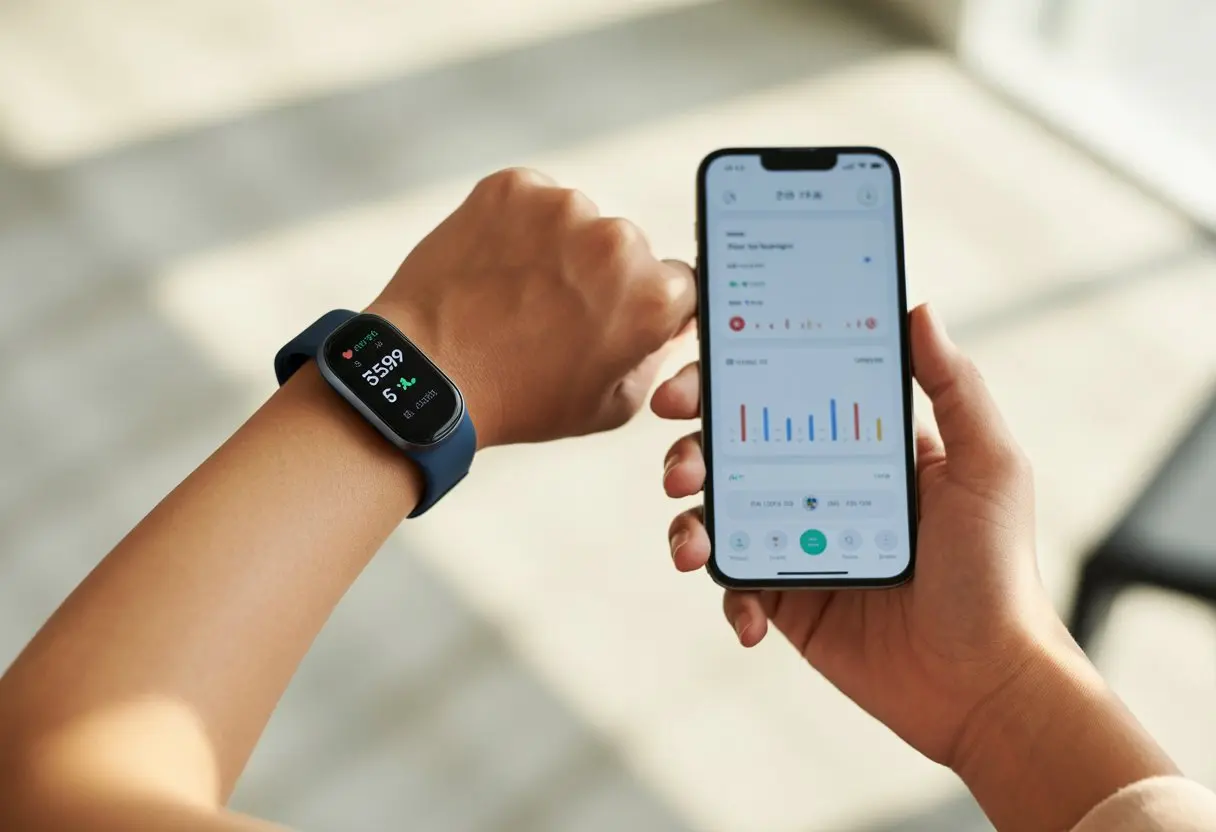
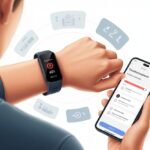
Let’s be honest—trying to remember what we did all week feels like piecing together a puzzle with half the pieces missing. Thankfully, iPhones make it way easier to keep tabs on every step, every workout, and yes, even those questionable dance moves. We can use a fitness tracker with our iPhone by connecting it through the Health or Fitness apps. This way, we see our progress in a flash and maybe even stay motivated.
Tracking activity on an iPhone is honestly easier than finding an excuse to skip leg day. Whether we’re logging steps, counting calories, or just trying to out-walk the neighbor, the iPhone pairs with tons of devices and even tracks basic activity by itself.
If you’re ready to level up, Apple’s Fitness app keeps rings, steps, and trends all in one place. It’s kind of like a cheat sheet for your activity—here’s an easy guide if you want to check it out.
So, if we want our phones to do more than deliver memes, let’s make them our fitness buddies. Whether we sync a tracker or just use what’s built in, iPhones are ready to help us chase those goals—no detective work needed.
Understanding Fitness Trackers and iPhone Compatibility
Modern gadgets make activity tracking a breeze. We have plenty of devices to choose from, but honestly, not all of them get along with iPhones.
It’s smart to check what device does what before we strap anything to our wrists and start counting steps.
What Is a Fitness Tracker?
A fitness tracker is basically a tiny wearable that helps us keep an eye on our daily activity. It tracks steps, distance, calories, heart rate, and if we’re really tired, even sleep cycles.
Most trackers are light and slim, focusing on movement instead of trying to run our lives like a smartwatch. Brands like Fitbit, Garmin, Polar, and Amazfit Bip pop up a lot—kind of sounds like a superhero team, right?
They usually sync with our phones, giving us stats that are easy to read and sometimes even a little virtual high-five when we hit our goals.
Some trackers stick to health stats, but others sneak in call notifications. They don’t usually offer app stores or music controls like smartwatches do.
Which Fitness Trackers Work With iPhone?
Not every tracker wants to hang out with iPhones, but a lot of them do. The big names—Fitbit, Garmin, Polar, Amazfit Bip—work with iPhones. And the Apple Watch? Well, it’s built for Apple stuff.
Fitbit trackers, like the Fitbit Charge 2, pair up with iPhones using the Fitbit app. Garmin and Polar have their own iOS apps too, which makes syncing simple. Amazfit Bip is another solid pick with good compatibility.
When we shop for a tracker, we should check that the model supports iOS or says it works with iPhones. Some budget trackers or no-name brands might only work with Android, so a quick look at the product details can save a lot of frustration.
Differences Between Fitness Trackers and Smartwatches
Smartwatches look like fitness trackers, but they do a lot more—think of them as trackers on a serious energy drink. Smartwatches like the Apple Watch let us answer calls, read texts, use apps, and sometimes pay for coffee.
Fitness trackers stick to health stats and longer battery life. They’re lighter, cheaper, and still keep us honest about those skipped workouts.
Here’s a quick comparison:
Feature
Fitness Tracker
Smartwatch
Health Tracking
Yes
Yes
Notifications
Basic (some models)
Advanced
Apps
Rare or limited
Many
Music Controls
Rare
Common
Battery Life
Days to weeks
About 1-2 days
Price
Lower
Higher
Smartwatches do a bit of everything, but fitness trackers are our trusty step-counting, sleep-tracking pals. The right one? That depends on how much tech we actually want strapped to our wrists.
Pairing and Setting Up Your Fitness Tracker With iPhone
Getting our fitness tracker to work with our iPhone shouldn’t feel like solving a Rubik’s Cube. We just want smooth syncing, app compatibility, and for that trip to the fridge to actually count.
Connecting Your Device via Bluetooth
First, we need to turn on Bluetooth on our iPhone. Swipe down for Control Center, tap the Bluetooth icon, and make sure it’s blue—not gray.
If we’re using an Apple Watch, we just hold it near our iPhone and follow the pairing instructions that pop up. Other trackers usually want us to press and hold a button until we see some flashy lights or a “Ready to Pair” message.
Once both devices are in pairing mode, we head to Settings > Bluetooth on the iPhone and tap our tracker when it shows up. Wait for the spinning wheel, and it should connect in a few seconds.
If it doesn’t work right away, don’t freak out. Sometimes the tracker just needs a quick reboot. Restarting both devices can fix things faster than you’d think.
Installing Required Fitness and Health Apps
Once we’re connected, it’s time to install the apps that track our progress. Some trackers have their own app, while others use the Health app or Apple Health.
We download the official app from the App Store. It’ll probably ask for permissions to track steps, heart rate, sleep, and maybe even our willpower.
If our tracker works with Apple Health, it may ask us to allow sharing data with the health app. We can manage what gets shared in the app’s settings. For trackers that use third-party platforms like MoveSpring, we can connect by selecting the iPhone as our device, which uses Apple Health features to sync with fitness tracker apps.
Troubleshooting Pairing Issues
Honestly, syncing can be stubborn—sometimes more stubborn than closing all three rings on a lazy Sunday. If our tracker refuses to connect, we double-check that Bluetooth is on, and the tracker is charged and close by.
Pairing with an Apple Watch? Make sure it’s updated and right next to the iPhone. For other trackers, make sure the right app is open and all permissions are granted (these things can be picky). Forgetting the device under Bluetooth settings and re-pairing it often works wonders.
Still stuck? Restart both the iPhone and tracker. If nothing works, check out the Apple Support pairing guide or a YouTube tutorial. Sometimes, a quick video walkthrough is all it takes to go from “why isn’t this syncing?” to “look at all those steps!”
Tracking Daily Activity and Exercise
Keeping tabs on our daily activity helps us dodge that “Did I even move today?” feeling before bed. Whether we’re working off pizza or racing friends to close activity rings, our fitness tracker and iPhone make it easy to see where we stand—literally.
Step Counting and Activity Rings
Let’s be real, checking our step count is weirdly satisfying. Our tracker tallies every step—whether it’s a sprint to the bus or a snack run to the kitchen.
The iPhone shows these steps clearly in the Health or Fitness app. No more pretending we were “probably really active.”
If step counting isn’t enough, the Activity Rings add a splash of color and competition. They track how much we move, stand, and exercise each day, giving us those three rings to close.
Stand Ring: Measures hours we stand or move for at least a minute.
Making it a game with friends makes things more fun, turning everyday walks into mini-competitions. For more on activity rings, Apple’s got a guide on using Activity on Apple Watch.
Tracking Running, Walking, and Cycling
Fitness trackers really shine when we actually work out—crazy, right? Running, walking, or cycling, the device uses GPS and sensors to track speed, distance, and route.
Starting a workout is simple: open the Workout app, pick your activity (maybe second-guess yourself, pick again), and hit start. During the workout, you see stats like pace and distance in real time.
Cycling metrics even show speed and elevation, which is great for bragging or just understanding why your legs feel like lead. After the workout, stats sync to the iPhone so we can check progress or share with friends—because if it’s not shared, did it even happen? Curious about tracking workouts? There’s a solid Reddit thread about using Apple Watch for exercise.
Monitoring Calories Burned
Counting calories burned is like keeping score—if only against yesterday’s snack choices. Our tracker uses heart rate and movement to estimate how many calories we burn during the day or a workout.
Calories split into two types: active (the ones we move for) and resting (the ones we burn just by existing). The Fitness app on iPhone shows these totals each day. It lines up the calories with our workouts, helping us see which activities really burn more.
Our fitness trackers don’t just count steps—they’re like mini health detectives, tracking what we do even when we’re just snoring or binge-watching shows. Understanding how our heart rate and sleep get measured can actually help us use all that data—or at least sound smart at parties.
How Heart Rate Tracking Works
When you strap on a fitness tracker, those tiny sensors on the back jump into action. The heart rate monitor shines light through your skin using a method called photoplethysmography (try saying that three times fast). This tech measures your blood flow, letting the tracker follow your heartbeat in real time.
You’ll usually spot your resting, walking, workout, and recovery rates right on the tracker or your iPhone. If you’re using an Apple Watch, just open the Heart Rate app and—voilà—numbers you can check anytime.
For the ultra-curious among us, heart rates can even pop up on your iPhone screen during workouts. No need to stare at your wrist in the middle of the gym. Just start a workout on the watch, open the Fitness app on your phone, and you’ll see live stats without missing a step (or a dramatic sweat drop) while exercising.
Sleep Monitoring and Interpretation
Your sleep monitor is the unsung hero in your tracker. It uses an accelerometer to sense every toss, turn, and maybe even your Morse code snoring. The tracker looks for patterns in movement and heart rate changes to figure out when you’re asleep, how long you stay out, and just how restful (or not) your night actually was.
On your iPhone, the Health app helps you set a sleep goal and build a bedtime schedule—because, let’s be honest, even adults need some structure. You can check details about deep sleep, light sleep, and those rare moments when your brain finally stops overthinking and lets you snooze with the help of Sleep tracking tools.
With all this info, you can spot trends, tweak your habits, or maybe just complain about your kids, pets, or neighbors ruining your beauty rest. Sometimes the data even hints it’s time to give up those late-night snacks or quit doomscrolling before bed.
Syncing Fitness Data and Using Health Apps
Getting your fitness tracker to play nice with your iPhone means making sure your data lands where you want it. If you want daily steps, calories, and workouts to count, syncing and integrating your favorite apps is the first step (pun always intended).
Syncing With Apple Health and Other Apps
Apple Health isn’t just another “health” app—it’s more like your personal data wizard. When you connect a fitness tracker, the Health app pulls in steps, heart rate, and workout info like a digital vacuum.
To sync, open the Health app, tap Browse, and choose a category like Activity. Then add data sources, like your Apple Watch or even your phone’s own step counter. If you love bar graphs or those circular rings, Apple Fitness is already linked. It’s almost suspiciously easy.
Some apps, like the Pedometer app, need a little push in settings to start merging data from your Apple Watch or other gadgets. If something stops syncing, try restarting your phone—it works more often than you’d think. If only fixing sore muscles was that simple. For more detail, check this guide on managing Health data on iPhone and iPad.
Integrating With Third-Party Fitness Platforms
Let’s be real—options are great. With third-party platforms like Strava and Runkeeper, you can bring all your runs, bike rides, and casual strolls together in one digital trophy room. Most big-name fitness apps link up with Apple Health, so your stats move between apps instead of getting trapped on one device.
To connect, just open the third-party app settings and look for “Connect with Apple Health” or “Sync with Health App.” Every app looks a bit different, but the goal stays the same: let your data move freely. If you use Strava or Runkeeper, syncing keeps every sweaty detail updated in both apps and Apple Health, so your hard work doesn’t vanish into a data black hole. For specifics, see the steps for mobile app integration with Apple Fitness and Health.
With everything linked, it almost feels like cheating—but unfortunately, you still have to do the workouts.
Advanced Features and Customization
We all like to think we’re fitness geniuses, but sometimes these trackers need a little help. If you want the most from your device, you’ve got to make it work for your habits, alert you when you slack off, and—please—avoid dying before a brag-worthy run.
Customizing Fitness Goals
Let’s be honest—one-size-fits-all goals never fit anyone. Your fitness tracker lets you tweak daily movement, exercise, and stand targets. On iPhone, just open the Fitness app, tap your Activity rings, scroll down, and hit “Change Goals.” Now you can boost your Move calories, raise Exercise minutes, or adjust Stand hours.
Want to go hard on Mondays but take it easy on Sundays? You can customize your goals for each day. That’s motivation, right? The best part—your goals can be as unique as your pizza order. And that’s saying something.
Enabling Notifications and Reminders
Everyone needs a personal cheerleader sometimes. Fitness trackers do that by sending notifications and reminders straight to your wrist. You can set alerts for inactivity, goal progress, achievements, or even just to stand up before you become one with your chair.
To turn these on, open the Watch app on your iPhone, find “Activity,” and toggle the notifications you want. Here’s a quick list for the easily distracted:
Stand Reminders: Nudge you to stand every hour
Goal Completions: Celebrate when you hit targets
Friend Activity: See when friends outpace you (time for payback)
Customizing these keeps you on track—or at least helps you keep up with the overachiever in the next cubicle.
Battery Life and Charging Tips
A fitness tracker that dies halfway through the day? That’s just tragic. To avoid the drama, keep your device charged and save battery life whenever you can. Lower the screen brightness, shorten wake time, and use Power Reserve mode. If your device sleeps before you do, maybe it’s time for a charging schedule.
Try charging during downtime—like when you’re showering or binging your favorite show. It’s not a bad idea to keep charging cables at work, in the car, or even in the kitchen (don’t ask). Your tracker can’t guilt-trip you about missed goals if it’s dead, and honestly, where’s the fun in that?
Choosing the Best Fitness Tracker for iPhone Users
You don’t have to run a marathon to know that not all fitness trackers are created equal. Finding one that actually works well with your iPhone feels a bit like searching for the perfect avocado—tricky, but so worth it when you get it right.
Top Models and Brands
Let’s start with the obvious: the Apple Watch. Apple built it for iPhone, so it syncs perfectly and can even unlock your phone while tracking things like heart rate, steps, and even your “unique” walking style.
If you’re not ready for the Apple Watch club, there are other solid picks. The Fitbit Charge 6 gets a lot of love for being affordable and reliable. The Garmin Vivoactive 6 is another top choice, especially for folks who want a tracker with strong workout and GPS features that still plays nice with iPhone. The Amazfit Bip is a good option if you want long battery life without spending a fortune.
Each of these brands offers solid integration with iPhones. Your fitness data appears in the apps you already use, and updates sync smoothly with Apple Health.
Key Features to Look For
When you’re picking out a fitness tracker, you want stuff that actually makes your day better (and maybe, just maybe, gets you moving). Here’s a quick list:
Seamless Syncing: If syncing feels like a chore, forget it. Go for a tracker that plays nicely with your iPhone, like the Apple Watch.
Accurate Sensors: You need sensors that get the job done—step counting, heart rate, sleep tracking—otherwise, you might as well be guessing how far you walked in your dreams.
Notifications: Let’s be real, getting a buzz on your wrist when your favorite pizza place drops a coupon? That’s a win.
Battery life: Longer battery means you won’t have to hunt for your charger every other day.
Water resistance: If you sweat a lot, or just forget to take it off in the rain, water resistance keeps you covered.
Love extras like GPS, music controls, or muting random notifications? Check the fine print before you buy.
That way, you’ll end up with a tracker that fits your life—without feeling like you’re wearing a brick or emptying your bank account.
Hi, my name is Garrett Jones, and I am a tech enthusiast. I enjoy researching the new tech that has been released, and have a vast knowledge of the best tech to purchase.
From a young age, I have always had a big interest in technology, and this blog is an extension of that interest. Through this blog, I hope to provide others with all of the information they need regarding tech options to consider, and things such as compatibility. Some of the different items I will be discussing include headphones, smartwatches, and how to fix common issues.