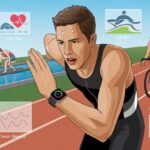
Let’s be honest—keeping track of triathlon training sometimes feels like entering the world’s strangest math contest, but with more mud, sweat, and maybe even a goose or two.
Using a fitness tracker takes away the guesswork and lets us actually see how far we’ve swum, biked, and run, all without scribbling it on our hands in Sharpie.
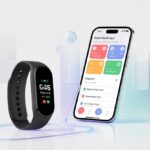
The world of gadgets can be confusing. Still, they’re game changers when it comes to staying organized and motivated.
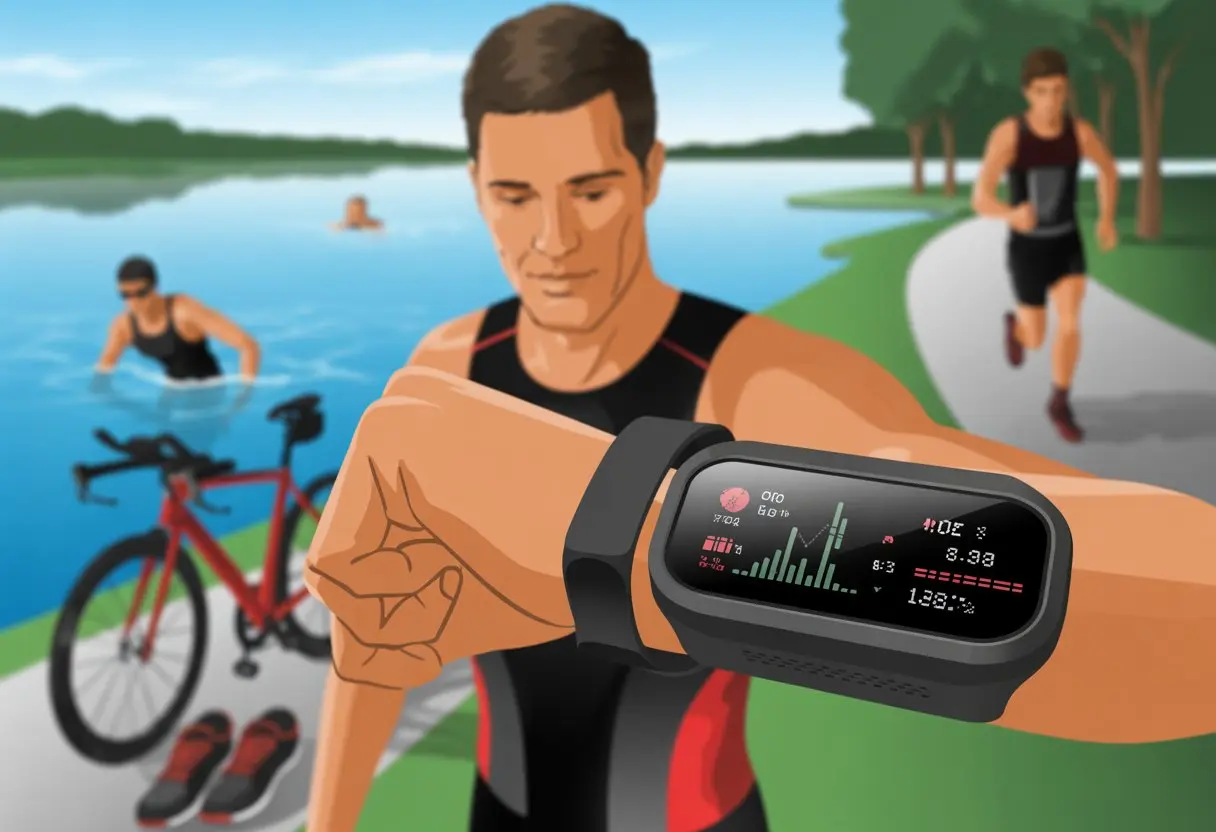
Now, our watches can cheer us on, log every heart-thumping hill, and even remind us not to bail on swim practice (even if we’d rather skip it).
With tools like Garmin’s multisport mode, we can follow our whole triathlon journey in one neat package.
No mental gymnastics required—just steady training and a dash of healthy competition with ourselves.
Ever wondered how to make the most of these high-tech gadgets? Or maybe you just want to avoid yelling your swim splits into your phone. Either way, this guide is for us.
Choosing the Right Fitness Tracker for Triathlon Training
Trying to pick the ultimate gadget for our swim-bike-run adventures can feel like wandering through a tech jungle.
With so many shiny options, let’s focus on what really matters so we don’t end up buying a glorified step counter.
Key Features to Look For
If we’re serious about triathlon training, our tracker needs to do more than just count our steps from couch to fridge.
Look for multisport modes that let us switch between swimming, cycling, and running with one button press.
Nobody wants to fumble during transitions and miss recording half the workout because the tracker is still “thinking” about the swim.
Water resistance is a must. Splash-proof won’t cut it, unless our swim style is more “cat in a bathtub” than “fish.”
Go for trackers rated at least 5ATM or 50 meters.
A built-in GPS is a lifesaver for tracking routes and distances. It saves us from awkwardly asking strangers, “How far is it to the next turnaround?”
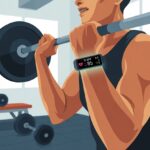
Heart rate monitoring helps make sure we’re not training like overcaffeinated hamsters or, on the flip side, sloths.
Battery life should last at least through our long training days. If the screen is readable in direct sunlight and the interface is user-friendly, that’s a bonus.
Comparing Popular Brands
When it comes to triathlon gadgets, the big names always pop up.
Garmin remains a favorite, thanks to devices like the Forerunner series and the Garmin Edge bike computers.
These are built for triathletes and can handle complicated metrics, seamless transitions, and even congratulate us more than our parents ever did.
COROS watches offer great battery life—sometimes outlasting our motivation.
Polar and Suunto are also popular for their multisport tracking and rugged design, but their user interfaces occasionally make us want to toss them into a lake.
Here’s a quick comparison:
| Brand | Strengths | Drawbacks |
|---|---|---|
| Garmin | Multisport, data, apps | Pricier, bulkier |
| COROS | Battery, simplicity | Fewer apps |
| Polar | Accurate data, comfort | Clunky menus |
| Suunto | Durability, outdoor modes | Syncing issues |
Integrating Bike Computers and Wearables
If we’re on a serious training kick, pairing a bike computer like the Garmin Edge with our wrist tracker just makes sense.
The Edge gives us real-time stats like speed, cadence, and power so we can see exactly how slowly we’re crawling up that hill.
Most Garmin watches sync easily with the Edge, letting us view everything in one dashboard.
Other brands offer integration too, but it’s usually simplest in the Garmin ecosystem—think Apple, but for sweat.
Wear your fitness tracker for the swim and run, but let bike computers handle the cycling data so you’re not squinting at a tiny wrist screen while steering with your teeth.
Tri training is demanding, but at least our gadgets can cooperate!
Setting Up Your Device for Maximum Accuracy
Before we break a sweat, let’s make sure our tracker actually records the right stuff.
A few smart setup steps can help us avoid surprise zigzags on our GPS maps or wildly wrong heart rate readings.
Getting to Know Your Sensors
Sensors are the tiny wizards inside our fitness tracker.
Most devices have a few: a heart rate sensor, motion sensor, GPS, and sometimes even a barometer.
Each one needs a little attention.
Wear the tracker on your less dominant wrist for better skin contact and fewer interruptions.
Keep the sensors clean, especially the heart rate sensor. Sweat, sunscreen, and dirt can mess with its accuracy.
A quick wipe with a soft cloth after each workout does wonders.
Check your device’s settings. Some trackers let us choose between automatic and continuous heart rate monitoring or set up custom zones.
Tuning these settings makes our stats more accurate and less like random lottery numbers.
If you use extra gear like chest straps or foot pods, pair them through Bluetooth or ANT+.
These add-ons can level up the data our tracker collects.
For more detail, check out these tips on maximizing fitness tracker accuracy.
Let’s be real: GPS is magic, until it drops out or leads us into a pond instead of around it.
To avoid becoming a squiggly line on the map, proper GPS setup is key.
Start your GPS outdoors, away from tall buildings or thick trees. This helps your tracker get a quick satellite fix and makes your route more reliable.
Many trackers offer different modes for accuracy versus battery life.
For longer rides or runs, pick “Best” or “High Accuracy” mode, even if it drains the battery faster.
If you’re just doing intervals at the track, a lower setting might be fine.
If your device supports importing maps or routes, use it.
Pre-loading a map keeps us on track and saves us from accidentally running into someone’s backyard.
Calibrate the compass or altimeter if your tracker has one—otherwise, your tracking data might get more lost than you are.
This extra setup pays off during multisport sessions, since we can switch from swim to bike to run without the GPS losing its mind.
For more advice on using multisport features and GPS settings during triathlons, check out this handy video.
Tracking Swim, Bike, and Run Workouts
When we train for triathlons, our fitness tracker becomes the coach we actually listen to.
With the right gadgets, we can stop guessing and start knowing exactly how far, how fast, and how well we’re moving.
Doesn’t matter if we’re splashing in a wetsuit, grinding up a hill on our bike, or pounding pavement in our favorite shoes.
Recording Triathlon-Specific Metrics
Let’s talk about the details our fitness trackers can grab.
Most modern trackers let us log each segment of our triathlon—swim, bike, and run—without missing a beat.
During the swim, even if we look like a confused sea otter, our watch can track laps, distance, and stroke type.
Some models add open water GPS, so we know how many times we accidentally veered off course.
If you need help swimming straight, the compass and buoy angle tracking features come in handy during open water swims and might save you from an “accidental extra kilometer” (see Triathlon Training Unleashed).
On the bike, our tracker logs speed, distance, cadence, and elevation.
If it has multisport mode, switching activities is as easy as hitting a button—no wrestling with your wetsuit in transition, thank goodness.
For the run, trackers keep up with pace, splits, stride length, and GPS maps of all the places our running shoes have taken us.
Pro tip: Sync your workouts to training platforms like Garmin Connect or Training Peaks so your data is safe from disappearing—and you can show off your stats to friends or coaches later.
Using Heart Rate Zones in Training
We’ve all been there: halfway up a hill, wondering if our heart is about to explode.
Monitoring our heart rate zones takes the guesswork out of effort—and gives us a solid excuse when we’re wiped out.
Most trackers now let us set custom heart rate zones, so we know when we’re in fat-burning mode or pushing our threshold.
Here’s a quick table of classic heart rate zones we might use with our tracker:
| Zone | % of Max HR | Description |
|---|---|---|
| Zone 1 | 50-60% | Easy recovery |
| Zone 2 | 60-70% | Basic endurance (all-day pace) |
| Zone 3 | 70-80% | Tempo/sweet spot |
| Zone 4 | 80-90% | Threshold/”I-can’t-talk” pace |
| Zone 5 | 90-100% | Sprint/maximum effort |
Using heart rate alerts helps us stick to the plan and avoid turning every session into an accidental race.
Over time, keeping an eye on these numbers lets us see improvements, adjust our intensity, and avoid burning out before race day.
If heart rate zones sound too scientific, just think of them as the difference between jogging to the fridge and sprinting after the ice cream truck.
Optimizing Bike Data: Pedal Like a Pro
When we hop on our road bike for triathlon training, data is our best friend.
Let’s make the most of our gadgets, from bike computers to power meters, so we’re never left asking, “Wait, how fast are we actually going?”
Using Bike Computers with Fitness Trackers
Bike computers feel like a smart teammate glued right to our handlebars. Devices like the Garmin Edge show us real-time speed, distance, time, cadence, heart rate, and even temperature.
We can check all the numbers at a glance, so we’re not fumbling with wristwatches or guessing how far we’ve gone.
To get more out of these gadgets, we should:
- Pair our fitness tracker and bike computer using Bluetooth or ANT+. That way, data from heart rate monitors or speed sensors syncs up without any drama.
- Set up custom data screens to see only the metrics we actually care about: speed, power, cadence, and heart rate. This keeps us focused and not drowning in digital clutter. There’s even a guide to setting up data screens if we get stuck.
A smooth setup means all our data lives in one place. We don’t have to wonder if it even counted that monster hill we just climbed.
Connecting Power Meters
Ready to feel like a pro? Let’s talk power meters. These little gadgets measure exactly how hard we’re pushing on the pedals, showing our effort in watts.
Power meters connect to our bike computers or fitness trackers, so we can compare today’s grind with yesterday’s ride.
Why bother?
- It tells us exactly how much energy we’re putting out, so pacing during training and races gets way easier.
- Power isn’t thrown off by headwinds or nerves. It’s just pure effort, no fluff.
- We get to brag about our “watt bombs” on social media. Admit it, it’s fun.
Connecting a power meter is usually simple. We just follow our bike computer’s Bluetooth or ANT+ instructions, and we’re rolling—no rocket science required.
For more tips on connecting different meters and data tools, see more here.
Mastering Multisport Mode and Transitions
Triathlons don’t slow down just because we’re fumbling with our watch. With multisport mode, our fitness tracker actually keeps up, so we spend less time pushing buttons and more time moving forward.
Let’s dive into staying cool—and in control—through every wild transition.
Automating Transitions from Swim to Bike (T1)
When we finish the swim, our hearts are thumping, goggles might be halfway off, and the last thing we want is to mess with finicky watch controls.
Multisport mode saves us by letting us press a single button to end the swim and start the bike.
On many devices, like Garmin and Apple Watch, we just hit the “lap” or “next” button as soon as we’re out of the water (and not waddling like penguins anymore).
Our tracker jumps to the next activity, recording separate times for the swim and the T1 transition. This feature is a lifesaver for remembering if we actually took the wetsuit off or somehow started cycling in it.
Here’s what usually goes down:
- Swim ends, we tap “Next.”
- The watch logs our T1 transition time.
We start pedaling, and the bike segment starts tracking.
Some advanced watches can even auto-detect transitions, but honestly—do we trust it not to count our snack break as a split? That’s a leap of faith.
Seamlessly Tracking T2: Bike to Run
T2 is where we swap the bike for running shoes—cue jelly legs and helmet hair.
Our tracker still has our back.
After we roll into transition and hop off the bike, we press the same “lap” or “next” button. The tracker logs our T2 transition time and flips right to run-tracking mode.
Apple Watch and Garmin both have multisport features that make it easy to keep our data straight, even when we run headfirst into a rack of bikes.
Quick recap:
- Bike ends, we tap “Next.”
- T2 split is logged.
The run segment kicks in automatically.
This smooth handoff keeps our splits accurate, and we don’t end up with a 15-minute “run” that was actually us fighting with our shoelaces. Bonus points if we remember where we left our shoes—our tracker can’t help there.
Monitoring Recovery: Rest Like a Champion
Sleep, recovery, and knowing when not to move matter just as much as crushing our next brick workout. Fitness trackers make it way easier to spot when we need rest, instead of just guessing—and risking turning into sad, overcooked spaghetti.
Using Recovery Metrics for Smarter Training
Let’s be real, most of us would skip rest days if someone didn’t stop us. That’s where recovery metrics come in.
Our fitness trackers use heart-rate monitors to show data like resting heart rate, heart rate variability, and sleep quality. If our resting heart rate jumps or we spend three nights fighting our pillow, it’s a sign to back off.
Most trackers break down our sleep stages—light, deep, and REM. We get to see if we’re hitting at least 15–20% deep sleep (hello, muscle repair) each night.
If not, these gadgets suggest changes like adjusting bedtime or winding down earlier. It helps us dodge injuries, avoid zombie legs, and keep our training sustainable, not just heroic. There’s a good rundown on digital recovery tools for triathletes.
Preparing Your Tracker for Race Day
Getting our fitness tracker ready is more than just strapping it on. We need to make sure it’s charged and all the settings are dialed in before the big day.
Maximizing Battery Life
Let’s be honest, a dead tracker mid-race is the stuff of nightmares.
To avoid scrambling for a charger in our tri-suit, let’s cover the basics.
First, fully charge the device the night before. Don’t rely on a quick charge at breakfast—charge it like you mean it.
Next, turn off any features we don’t need, like continuous Bluetooth or backlighting. Setting the screen to wake only with a wrist flick can save surprising amounts of power.
Switch off background apps, phone syncing, and all those fancy vibration alerts. If our tracker has a power-saving mode, now’s the time to use it.
Some triathlon watches offer a dedicated multisport function that’s both handy and battery-friendly. It also saves us from fumbling through modes on race day.
For a walkthrough, check out this guide on using Garmin’s triathlon feature.
Final Pre-Race Device Check
Before we step up to the starting line, let’s make sure our tracker isn’t plotting against us. Sync all your planned workouts and race segments now, so your watch doesn’t suddenly decide you’re out for a scenic hike.
Check that location services actually work—nobody wants to see themselves swimming across a parking lot on the tracker map. Double-check your time zone, date, and any auto-lap or split settings.
If you can, set up custom screens so you can see your pacing, heart rate, and distance right away, without digging through endless menus. There are some handy tips from coaches on setting up device screens effectively.
If your tracker has physical buttons, give them a quick press. They should work smoothly, not stick like old jelly beans.
Seriously, nothing’s more awkward than mashing a button with cold, wet hands while everyone else speeds past.

From a young age, I have always had a big interest in technology, and this blog is an extension of that interest. Through this blog, I hope to provide others with all of the information they need regarding tech options to consider, and things such as compatibility. Some of the different items I will be discussing include headphones, smartwatches, and how to fix common issues.
- Best Fitness Trackers for HIIT Workouts: Outrun Your Excuses, Not Just Your Heart Rate - August 24, 2026
- How to Use a Fitness Tracker for Digital Payments Without Breaking a Sweat - August 24, 2026
- Best Smartwatches for Tracking Kids’ Locations: Because Hide and Seek Just Got Serious - August 23, 2026
Related Posts: