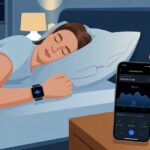
Ever wish you could turn off the lights without putting down your snacks or moving from the couch? Thanks to smartwatches, those lazy daydreams are finally possible.
Now, you can use your smartwatch to turn lights on, off, or set the mood—all with just a flick of your wrist.
Using a smartwatch as a remote for lights sounds like something out of a spy movie, but it’s surprisingly straightforward. Even if you’re not a tech whiz, connecting your watch to smart lighting like Hue takes just a few taps.
Honestly, the hardest part might be remembering which room you’re lighting up next.
With the right apps and a quick setup, you can link your smartwatch to your home’s smart lights. Adjust brightness or switch off forgotten lights from anywhere—even your bed or the bathroom.
If you’re ready to give your light switches a break, let’s see how easy it is to control your lighting right from your wrist.
Understanding How Smartwatches Control Lights
Turning lights on or off with a flick of the wrist sounds like the future, but really, it’s simple tech. You just need the right gadgets, a solid Wi-Fi connection, and a smartwatch that won’t quit halfway through the job.
How Remote Control Features Work
When you use your smartwatch as a remote, it sends signals to smart bulbs or through a mobile app. Most smartwatches connect with smart home apps like Google Home, Apple HomeKit, or lighting-specific apps.
The magic happens over Wi-Fi or Bluetooth. Tap, swipe, or talk to your watch, and it sends the command to the app.
The app then talks to your smart lights, either through the cloud or directly, depending on your setup.
If you like to show off (or just feel extra lazy), some smartwatches let you control lights with gestures or voice commands. You can run scenes, change brightness, or make lights blink—without leaving the couch.
You can’t just buy any smartwatch and expect your living room to light up like a disco. First, you need compatible smart lights—bulbs that work with your chosen app or platform.
A stable Wi-Fi connection is a must. Bluetooth might handle some quick tricks, but Wi-Fi is usually necessary for anything outside arm’s reach.
Your smartphone acts as the middleman, running the app that ties everything together.
Not every smartwatch supports smart home features, so check what your device actually offers. You might need to install specific apps or sync the watch with your phone.
Don’t waste money on a smartwatch that just looks cool but can’t control your lights. You want a gadget that actually works with your setup and won’t leave you fumbling for old switches.
Compatibility with Smart Lighting Systems
Your smartwatch needs to speak the same language as your smart lights. If your lights use Zigbee, Z-Wave, or Wi-Fi, check if the watch works with them directly or through apps.
Popular lighting like Philips Hue, LIFX, and TP-Link require special apps or integration. Many smartwatches connect with Home Assistant, SmartThings, or Google Home.
These platforms often have their own watch apps.
If the lighting brand only has a phone app, you might have to rely on voice commands through a speaker. Make sure your watch supports shortcuts, widgets, or voice commands that actually work with your bulbs.
Here’s a quick compatibility checklist:
Works with lighting brand’s app or main platform (like SmartThings)
Offers widget, shortcut, or voice support
Receives updates for new lighting features
Connects to your Wi-Fi (don’t underestimate this!)
Android Wear and Supported Devices
If you’re on Android, smartwatches with Wear OS (or Android Wear) are usually the best fit. They have the Google Play Store, so you can grab specialized smart home apps.
Top brands like Samsung’s Galaxy Watch and Fossil run Wear OS. These watches often support SmartThings controls and Google Home routines.
You can use voice commands with Google Assistant or set up shortcuts for your favorite lights.
Not all Android watches are equal, though. Cheaper models might skip features or updates.
Check for:
A solid app store
Reliable Bluetooth and Wi-Fi
Official apps for your lighting
Decent battery life—you don’t want your watch dying before bedtime
The best Android watches combine app access, steady connections, and smart assistant integration. That way, your quest for one-tap lighting doesn’t become an epic struggle.
Setting Up Your Smartwatch as a Light Remote
Turning your smartwatch into a light remote is way more fun than fumbling for a switch in the dark. Here’s how you can install the right apps and personalize settings for smooth, wrist-powered light control.
Installing Compatible Apps
First, find and install the right apps. Most smartwatches work with popular smart home platforms like SmartThings, Google Home, or Apple HomeKit.
Just visit the app store on your watch or phone and search for a compatible app. No need to download every flashy app—just the ones that support your lights.
Once you install the smart home app, open it and log in. The app will guide you to link your smartwatch with your smart lights.
For Samsung Galaxy Watch users, for example, use the SmartThings app to add devices. You might need to scan a QR code or approve some permissions.
It’s way faster than searching for the remote you lost last week.
Customizing Settings for Light Control
After the right app recognizes your light bulbs, it’s time to personalize the experience. Most apps let you organize lights by room, give them nicknames, and set up group controls.
Set favorites, so “Bedroom Lamp” is always just a tap away.
Look for settings that allow quick shortcuts. Many apps let you assign actions to watch buttons or create custom scenes (like “Movie Night” or “Bright Morning”).
If your watch supports voice assistants like Google Assistant or Siri, enable those features and just say, “Turn off the kitchen lights.” Your hands stay free for snacks.
Some smartwatches also allow automations. For example, your lights could turn on automatically when your watch detects you’ve arrived home.
Adjusting these settings saves steps and might even make you feel a bit tech-savvy.
Maximizing Smartwatch Features for Lighting
Your smartwatch does more than tell time or buzz when you get a text. With built-in features like notifications and calendar events, you can really step up your light control game.
Using Notifications to Trigger Lighting
Notifications aren’t just reminders—they can double as light switches if you set things up right. Some smart home apps let you link push notifications to lighting scenes.
For example, if your phone gets a weather alert about sunrise or sunset, your lights can adjust automatically. It’s almost like you planned your mood lighting (even if you didn’t).
Imagine getting a calendar reminder for movie night, and your smartwatch dims the living room lights instantly. Or maybe your watch buzzes for a meeting, and the living room lights gently brighten—making you look more professional than you probably feel.
Many platforms let you control which notifications trigger which lights. If Aunt Linda texts, maybe the kitchen lights flash—because, let’s face it, she only texts when she’s about to drop by.
Automating Lights with Calendar Events
Let’s use our calendars for more than dentist appointments. With smartwatch automation features, calendar events can trigger light shows right from your wrist.
When you schedule an event, you can create routines through your smartwatch’s companion app. As your calendar hits “Dinner Time,” the dining room lights turn on.
When “Bedtime” rolls around, your bedroom light dims automatically. It’s like having your own backstage crew, minus the drama.
Some smartwatches let you set up complications—those tiny widgets on the watch face. Tap to activate a lighting scene, check which lights are on, or see what’s coming up next on your calendar alongside your lighting status.
It makes you look super organized, even if you can’t remember where you left your keys.
Using Additional Smartwatch Tools to Enhance Experience
Sometimes, just pressing a button on your smartwatch isn’t enough. You can get even smarter with alarms or handy shortcuts called complications.
Setting Alarms to Control Lights
Ever wanted your bedroom lights to flash you awake at 7:00 am? With alarm clock features, you can schedule your lights to turn on or off at specific times.
This works by linking alarms on your smartwatch to smart home routines through certain apps.
Apps like IFTTT help connect alarm triggers to your lights. When your alarm goes off, the lights come on—no more tripping over shoes in the dark.
Setting these up is easy: pick a time, link it to an action, and you’re done.
You can even use alarms to turn off lights at bedtime, forcing yourself to wind down. Alarm clocks don’t just wake you—they can turn your home into an automatic light show with almost no effort.
Using Complications for One-Tap Control
Complications sound fancy, but they’re really just shortcuts on your watch face. Use them for instant control over your lights with a single tap.
No digging through menus—just tap and your room lights up.
Most smartwatches let you customize complications with different actions. Want to turn off all your lights before bed? Set that shortcut.
Need a disco vibe when friends arrive? Pop a “party lights” control right on your wrist.
Here are a few handy uses for complications:
One-tap on, one-tap off
Switch between “movie night” and “bright” scenes
Instantly dim lights, no sweat
Just tap, and your home listens. Honestly, that’s as easy—and as fun—as it gets.
Integrating Health and Utility Features with Lighting Control
Smartwatches do way more than just tell time—or nudge us to get up and move. They actually link their health tools to our smart lights, making our days a little healthier and, honestly, a lot more interesting.
Syncing Heart Rate Monitor with Lighting Scenes
Let’s be real—our hearts do more than just pump blood. They can control the lights, too.
When we sync the heart rate monitor from our smartwatch to our smart home system, we set up lighting scenes that match our mood, energy, or even stress. If our heart rate spikes—maybe from a workout or a frantic pizza dash—the lights can switch to something bright and energizing.
If we’re chilling out with deep breaths, the lights might fade to a soft blue. That gives us instant visual feedback on our health and adds a little dramatic flair to the room.
Our smartwatches send this data right to the smart lighting system. We get automatic scenes without having to press a bunch of buttons.
Honestly, it’s a little like living in a sci-fi movie.
Lighting Control with Tracker and Compass
Gadget combos are just fun. Most smartwatches include a built-in tracker for steps and a compass for direction—handy when we’re hunting for snacks or just wandering around.
With these features, our lights can respond to our movement. If the tracker notices us heading for the hallway, it can turn those lights on before we get there.
No more stubbed toes in the dark. The compass lets the lights follow us from room to room, adjusting as we go.
It makes the lighting feel smarter, and honestly, it saves us from yelling at the walls when we can’t find the switch. Plus, who doesn’t want their house to feel a little futuristic?
Here’s what we get:
Lights that turn on as we move
Directional lighting based on the compass
Less time fumbling for switches, more time to relax
Troubleshooting and Maintaining Your Setup
Even stubborn smartwatches can get in line if we use the right steps. Getting the lights to cooperate and keeping everything connected usually means tracking down what’s wrong and hitting it with the best fix.
Common Issues and Fixes
Sometimes, our smartwatch just won’t talk to the smart lights—like siblings giving each other the silent treatment. Most of the time, it’s a connection issue, dead batteries, or forgetting to turn on Bluetooth.
Quick Fixes:
Restart the smartwatch and the lighting hub.
Double-check Bluetooth and Wi-Fi.
Update the app and smartwatch firmware.
Make sure the smart home device isn’t too far away. (Walls are the enemy here.)
If the lights lag or just ignore us, try resetting the lights or syncing the smartwatch settings. Starting fresh can work wonders.
Ensuring Successful Connections
To keep our setup humming along, let’s act like overprotective parents—always checking in, maybe a little too often. Stay on top of software updates for both your phone’s app and the watch.
Don’t let too many devices crowd the Bluetooth connection. These gadgets seem to get a bit jealous if there’s too much competition.
Here’s a tip: move your Wi-Fi router somewhere it can actually see what’s going on. Don’t just shove it behind the couch and hope for the best.
Make it a habit to check the dedicated app every so often to confirm everything’s syncing up. If the app decides to act up, just uninstall and reinstall it—it’s like hitting the reset button for everyone involved.
All this fuss keeps our lights obedient and our smartwatch in a good mood. Honestly, it’s less drama than most reality TV.
Hi, my name is Garrett Jones, and I am a tech enthusiast. I enjoy researching the new tech that has been released, and have a vast knowledge of the best tech to purchase.
From a young age, I have always had a big interest in technology, and this blog is an extension of that interest. Through this blog, I hope to provide others with all of the information they need regarding tech options to consider, and things such as compatibility. Some of the different items I will be discussing include headphones, smartwatches, and how to fix common issues.