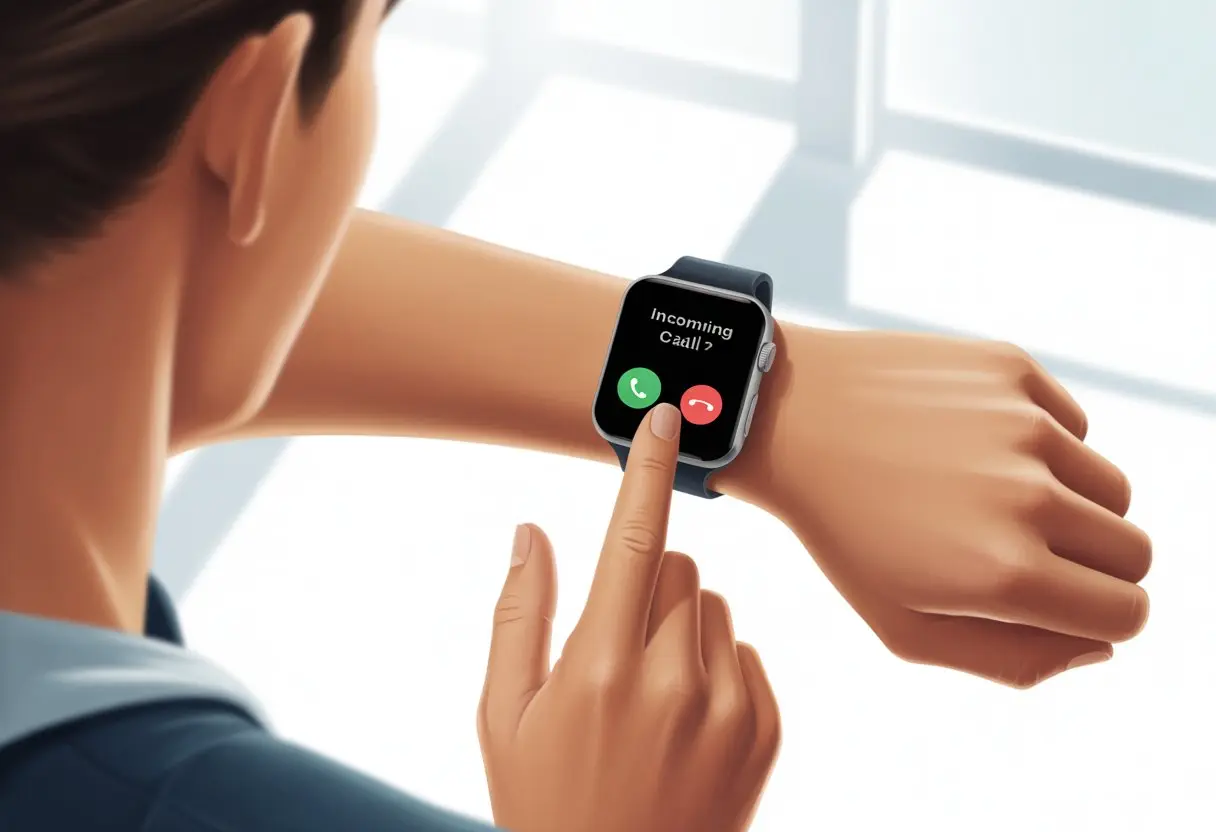
We’ve all had that moment—juggling groceries or mid-burpee—when our phone starts buzzing. Our smartwatches? They swoop in for the rescue. Just a tap or a quick button press, and boom, we answer calls right from our wrist. Honestly, it feels like the future—though, let’s be real, where are our flying cars or laundry that folds itself?
The coolest part? Whether we use Samsung or Wear OS, answering calls is ridiculously easy once we’ve got the basics down. Some watches need a Bluetooth link to our phone, while others handle calls solo if they have a mobile plan.
If we set things up right, we won’t need to dig through pockets or bags to grab a call again.
There are a few simple tricks and settings that make this even smoother. If we’re curious how to pull off the whole “talking to your wrist” thing, keep reading. Let’s make answering calls from our watch the highlight of the day.
Understanding Smartwatch Call Features
Let’s be honest, who hasn’t wanted to answer a call like a secret agent—no clunky phone required? Smartwatches make it possible, but only if we actually know what features they offer and what we need to get started.
How Smartwatches Handle Calls
Smartwatches aren’t just wrist candy—they’re also mini phones. Some models have built-in speakers and mics, so we can answer calls right on the watch.
Others just act as a remote for our phone, letting us accept or reject calls without scrambling for our device.
With a speaker, we can talk hands-free—great for when our hands are full of pizza or we’re clinging to a subway pole. If there’s no speaker, the watch sends the call to our phone, but at least we see who’s calling and decide if we care.
Most smartwatches show the caller’s name or number on their tiny screens. We tap a green icon or swipe to answer, and suddenly, we’re multitasking—taking calls while counting steps or pretending to pay attention in meetings.
Requirements for Answering Calls
Talking into our wrists sounds fun, but there are a few catches. Most smartwatches need to connect to our phone via Bluetooth to answer calls.
If our phone’s not nearby, we’re out of luck—unless our watch has its own cellular plan or eSIM.
We also have to turn on the right settings. Some devices need us to enable on-wrist calling in the watch’s app or system settings.
If the watch needs an app like Fitbit’s running in the background, we keep it open or the watch might ignore us completely. For more specifics, we can check the Samsung support site.
So, we double-check our connections, permissions, and make sure any companion app is up and running. Usually, a quick settings check sorts out any issues.
Types of Supported Smartwatches
Thankfully, not all smartwatches are the same—which means we get options. Some, like the Samsung Galaxy Watch or newer Apple Watches, let us take calls right from the wrist thanks to built-in speakers and mics.
Other watches, like certain Fitbit models, need our phone nearby and the right app running. The Fitbit support page has more info.
Here’s a quick table for popular models:
Watch Model
Call Support Type
Samsung Galaxy Watch
Direct on-wrist calling
Apple Watch Series
Direct on-wrist calling
Fitbit Smartwatches
Requires phone nearby
Some WearOS Watches
Depends on phone connection
Before we channel our inner spy, we need to check what our watch can do and whether our phone needs to stay close.
Setting Up Your Smartwatch for Calls
Let’s be real—if we don’t set things up, answering calls on our smartwatch just won’t work. We’ll end up tapping our wrists in confusion while Aunt Linda’s call goes to voicemail.
Pairing Our Smartwatch with Our Phone
First up, we need our smartwatch and phone to get along. We turn on Bluetooth, connect the two, and feel like tech wizards. Usually, we open Bluetooth settings, pick our watch from the list, and hit “Pair.” Simple, right? (Unless we accidentally try to pair with “Voldemort’s Galaxy” next door—so maybe double-check.)
Some watches ask us to scan a QR code or enter a code to confirm pairing. No reason to panic; just follow the prompts.
For Android Wear OS watches, we use the Wear OS app. For Samsung Galaxy, the Galaxy Wearable app does the trick. Pairing them properly is the only way to start answering calls like a secret agent.
Configuring Call Permissions
Our gadgets ghost us if we don’t give the right permissions. To make and receive calls, we have to let the smartwatch use our phone’s call features.
Most of us get a notification asking, “Can we access your contacts and calls?” We say yes, obviously.
If we use an Android watch, here’s a tip: go to Settings on the watch, scroll to Permissions, and make sure Calls and Contacts are both enabled. Otherwise, we’ll miss calls like we’re dodging them on purpose.
If things aren’t working, the permissions menu is usually where we fix it. Let’s not blame the Wi-Fi just yet.
Syncing Contacts Like a Pro
Nothing kills the James Bond vibe faster than not having someone’s number synced. To avoid this, we need our contacts on both our watch and phone.
Most smartwatches sync contacts automatically during setup. But if we’re the cautious type, we open the companion app (Wear OS or Galaxy Wearable) and tap “Sync Contacts.”
If something still looks off, we check that contacts sync is on in the app settings.
On some watches, we pick which account’s contacts to sync—work, personal, or that weird email from high school. Once we set it, our contact list updates and we’re ready to call Mom or prank our friends from our wrist. The Google Help call setup guide has more details if we get stuck.
Answering Calls on Different Smartwatches
We all like staying connected without digging through bags or sprinting across the house. Each smartwatch handles calls a bit differently, and some make us feel cooler than we probably are. Let’s make sure we don’t miss important calls—or pizza deliveries—by figuring out how to answer on the most popular smartwatches.
How To Answer on Apple Watch
When the Apple Watch rings, it buzzes our wrist, and for a second, we feel like a spy—just with less tuxedo. The caller’s name or number pops up, with two big buttons: green to accept, red to decline.
Just tap the green button to answer. If the watch is linked to our iPhone or has its own cellular plan, we talk right into the watch and can even wander around the room.
If we’d rather not answer (sorry, Aunt Linda), we hit the red button.
There’s also a quick message option. Scroll for pre-written replies like “Can I call you later?”—handy if our hands are covered in cookie dough.
How To Answer on Samsung Galaxy Watch
Let’s admit it—the Samsung Galaxy Watch feels pretty sci-fi. When a call comes in, both our watch and phone ring, as long as Bluetooth or eSIM is connected.
Bonus: If both our watch and phone ring, we can answer on either. We can also hand off the call between devices.
How To Answer on Wear OS Devices
If we have a Wear OS watch (like the Google Pixel Watch), calls work much the same as other top smartwatches. When a call comes in, the watch vibrates and the call screen pops up with two big buttons: answer or decline.
If our watch has a speaker and mic and connects to our Android phone or has LTE, we can answer and have a full conversation, hands-free. Some models let us answer by saying “Hey Google, answer the call”—which is both useful and a little show-offy at family gatherings. Google’s Help page has more info.
Some Wear OS watches let us mute, send a quick reply, or transfer the call to our phone. If it’s a telemarketer, declining is just a tap away.
Mastering Call Controls and Gestures
Handling calls on a smartwatch sometimes feels like a mini finger gymnastics event. But with the right swipes, taps, or even a quick voice command, we can pick up or reject calls without breaking a sweat—or saying a single word.
Swipe, Tap, and Other Finger Olympics
Want to look like a pro answering a call? Just swipe. When the watch rings, swipe the green phone icon right to pick up. If you’d rather not chat with a telemarketer, swipe the red phone icon left to hang up. No acrobatics required.
Not a fan of swiping? No problem. Tap the green button to answer, or the red one to decline. Some watches even give you fancier options. On certain Samsung Galaxy models, you can pinch your fingers or twist your wrist to answer or reject calls in a snap. Curious about these moves? Here’s a fun gesture controls on Galaxy Watches video you might want to check out.
Here’s a quick cheat sheet for the main gestures:
Action
Gesture
Answer call
Swipe right or tap ✔️
Decline call
Swipe left or tap ❌
Mute call
Pinch or shake wrist
Practice helps—unless you accidentally answer your boss’s call on your day off.
Enabling Hands-Free Options
If you want to go full hands-free, things get easier with a few settings tweaks. Open the watch settings and jump into the call or gesture controls section.
On many devices, just activate “Hands-free” or “Universal Gestures” mode to answer calls without touching anything. On Galaxy Watches, you can turn on universal gestures and answer calls by pinching your fingers or rotating your wrist. This comes in handy if your hands are full, dirty, or you just want to feel a bit futuristic.
Samsung has a video that shows exactly how to set this up. Some models let you answer by speaking commands or shaking your wrist. Setting up gestures usually takes just a minute.
Don’t forget to test everything, so you don’t end up waving at someone and accidentally answering your ex’s call.
Troubleshooting Common Issues
When your smartwatch refuses to answer calls, it can feel like you’re stuck in a sci-fi movie—just without the excitement.
Why Your Watch Is Ignoring You
Let’s be honest: sometimes our watch just doesn’t cooperate.
If your smartwatch ignores calls or the answer button is greyed out, you’re probably dealing with a connection issue. Make sure Bluetooth is on and your watch is actually paired to your phone. Double check in the settings, just to be sure.
A yellow or grey answer button with a line through it isn’t just a design choice. That usually means your smartwatch’s call function is off or some permissions are missing. On some watches, you’ll need to enable call permissions for your contacts or phone app. Samsung offers official tips for fixing call problems that walk you through these steps.
Sometimes, your phone’s “Do Not Disturb” mode blocks everything. If it’s on, nothing’s getting through—not even your mom’s calls. Check notification and focus mode settings on both your watch and phone.
Audio and Microphone Woes
Nobody wants to answer a call and realize the other person can’t hear them—or worse, hear nothing at all. If calls connect but all you get is silence, start with the basics: Is your watch’s volume up? Did you accidentally connect audio to wireless earbuds hiding somewhere?
On Wear OS or Samsung devices, your phone might not be sharing audio with the watch. Check the Bluetooth connection and make sure the call audio or “Phone calls” profile is enabled. Google Help has a quick tip for this.
Check if your microphone is blocked by, say, cookie crumbs or sunscreen. If people mention echo or no sound, try turning the watch off and back on. Still stuck? Look for software updates or try a reset—sometimes that’s all it takes.
Yelling at your watch is always an option, though maybe not in public.
Essential Tips for a Smooth Calling Experience
We’ve all answered a smartwatch call and felt like a secret agent—until the sound cuts out or our wrist starts acting up. Luckily, you can dodge most call drama with a few smart moves.
Boosting Call Quality on the Go
Let’s be real, nobody wants to say “Can you hear me now?” on repeat. Keep your watch close to your paired phone, especially if you use Bluetooth. Go too far and calls might sound like you’re in a tunnel.
Watch out for metal objects or thick walls blocking the signal. If you’re outside or in a noisy place, moving somewhere quieter can really help. The built-in mic and speaker on your wrist like a little peace and quiet.
Turning up the watch’s volume helps, but crank it too high and you might get echo. Try a test call to a friend and tweak the settings—saves you from sounding like a robot. If your smartwatch has Wi-Fi or its own mobile network, connecting to a strong network usually means fewer dropped calls (and less public sighing).
Keeping Your Smartwatch Updated
For smoother calls, make sure you’ve got the latest software. Updates fix bugs, add features, and sometimes even stop your watch from freezing mid-call. Check for updates regularly; on Samsung smartwatches, just head to Settings > Software Update.
When you see an update, connect to Wi-Fi and plug in your charger before installing. That way, you won’t get stuck with a dead battery mid-conversation. Updates only take a few minutes, and you’ll feel good knowing your wrist is future-proof.
If apps act weird or you spot glitches, restart the watch after updating. It’s a classic move that actually works. Keeping your smartwatch current doesn’t just fix call problems—it also keeps your private jokes safe. For help updating on Samsung watches, visit Samsung’s official support page.
Privacy and Safety While Taking Calls
Let’s be honest—nobody wants the whole room to hear them arguing about cookies. Smartwatches make us feel like secret agents, but they’re not great at keeping secrets in public.
Step away from the crowd before you answer a sensitive call.
Lower your smartwatch’s volume. Aunt Lisa’s stories don’t need a public audience.
Taking calls on a smartwatch while driving feels cool, but it’s not always the safest idea. Most laws allow hands-free, but you still need to keep your eyes on the road—not glued to your wrist.
Choose when and how you answer calls to avoid awkward or risky moments. If it’s not urgent, send a text later—no need to broadcast your shopping list to the world.
Just because you can talk to your wrist doesn’t mean you should forget manners or common sense. Sometimes, the smartest move is letting it ring.
Fun Alternative Uses for Call Features
Let’s be real—answering calls is just the beginning. Our smartwatches have plenty of tricks up their sleeves. One minute we’re taking a call like responsible adults, and the next, we’re whispering into our wrists like undercover agents. Move over, 007.
Sometimes, we use the call feature just to track down a missing phone. We’ll call ourselves and wander around until the ringing leads us straight to the couch cushions. High-tech? Maybe. Effective? Absolutely.
Here’s a quick rundown of how we’re actually using call features beyond boring old phone calls:
Instant Pranks: Look, texting is fine, but fake-calling yourself to dodge an awkward moment? Classic move.
Group Coordination: Trying to get everyone out the door? We’ll all call at once, and it’s basically a flash mob.
Impressing Friends: Answering your wrist at dinner? It’s futuristic—unless you end up talking to your salad by mistake.
We’ve even turned our watches into makeshift walkie-talkies. Calling ourselves from across the room just to test the speaker feels like we’re starring in our own spy show.
Fun Use
Description
Prank Calls
Quick, harmless entertainment
Phone Finder
Ring your phone with your watch
Secret Agent Roleplay
Whisper into your wrist—so cool!
Sometimes when boredom hits, we’ll call a friend from the next room just to say, “Can you hear me now?” Yeah, we’re that entertaining.
Honestly, with the right mindset, a smartwatch makes every call a little more fun—and, let’s be honest, a bit ridiculous too.
Hi, my name is Garrett Jones, and I am a tech enthusiast. I enjoy researching the new tech that has been released, and have a vast knowledge of the best tech to purchase.
From a young age, I have always had a big interest in technology, and this blog is an extension of that interest. Through this blog, I hope to provide others with all of the information they need regarding tech options to consider, and things such as compatibility. Some of the different items I will be discussing include headphones, smartwatches, and how to fix common issues.