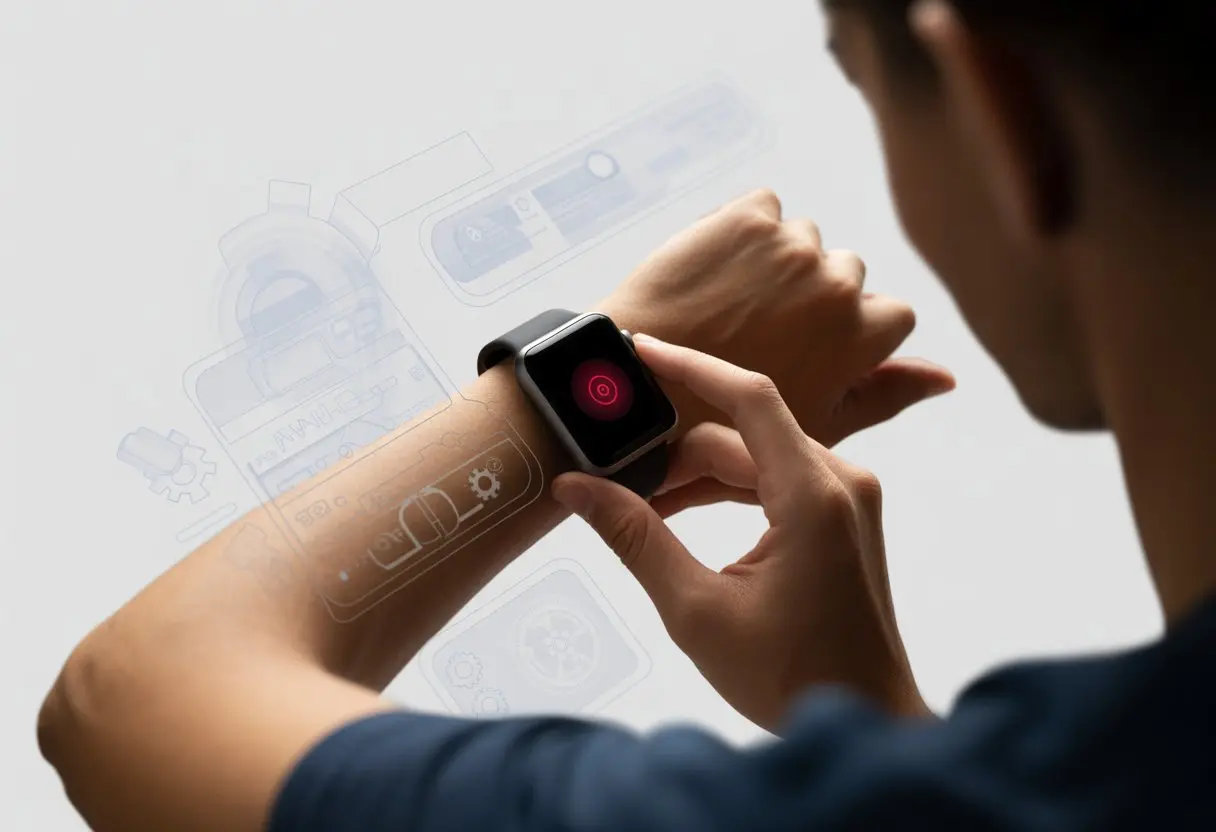
We’ve all been there—just when our smartwatch makes us feel like futuristic superheroes, error code 9001 pops up and ruins the vibe. It’s basically like spilling coffee on a white shirt, but this time, it’s on our wrists.
This annoying error likes to show up when we try to download apps, access features, or get back those paid watch faces we can’t live without.
Sometimes the basics—like a simple restart or checking for software updates—can save us from hours of tapping and swiping in frustration.
Let’s be honest: none of us bought a smartwatch just to admire an error message.
If we want our apps, faces, and features back (and to leave 9001 in the dust), we’ll need a few simple tricks up our sleeves.
What Is Smartwatch Error Code 9001?
Nothing kills our tech-savvy mood like a mysterious error message popping up on our wrists.
When we see code 9001, it’s not some secret spy message—it’s our smartwatch’s distress signal that something’s gone wrong in the digital world.
Overview of Error Messages
Error codes are really just our smartwatch’s way of sighing at us.
When we get error code 9001, it usually shows up during things like installing apps, trying to access paid features, or syncing our device.
The message might look boring, but it’s got attitude, usually saying something went wrong and to try again.
Here’s what we usually see:
Error message: “Error 9001: System error, please try again.”
What triggers it: Downloading apps, updating the watch, or unlocking paid watch faces.
These codes are supposed to help us (or at least make us feel like we’re part of some elite troubleshooting club).
But honestly, most of us just wonder if our watch is secretly judging us for not reading the manual.
If you want stories of people suffering the same fate and maybe a laugh, Samsung’s forums are packed with colorful tales of code 9001 frustration.
Why Smartwatches Display Error Codes
Our smartwatches might be tiny, but they’re definitely not shy about problems.
When things go wrong inside—bad updates, software bugs, sync fails—our trusty device pops up an error code so we know something’s off.
It’s like a digital “uh-oh.”
These error messages exist to save us from endless button-mashing.
By flashing a code, the watch gives us a clue about what’s breaking down—maybe a software hiccup, a server problem, or even a licensing issue for paid stuff.
This can make fixing the problem faster, at least when we aren’t busy Googling what the code even means.
We’re not alone.
Support sites and forums list dozens of error codes, each meant to guide us—or drive us a little crazy—as we hunt for a fix.
If we get stuck and want to see how others cope (sometimes by rebooting a dozen times), helpful guides can offer steps to try next.
Emoji reactions of despair? Totally optional.
Common Causes of Error Code 9001
This error loves to appear when our smartwatches get dramatic about charging.
Usually, it’s either the temperature or something weird with the charging gear.
Ambient Temperature Issues
Our smartwatches aren’t always up for extreme adventures.
If the charging environment is too hot or way too cold, they’ll throw a tantrum and hit us with error code 9001.
If we leave our smartwatch on the dashboard during a sunny day, the device might refuse to charge because the battery protection kicks in.
A message like “too hot to charge” or “too cold to charge” might pop up.
Most devices have a specific temperature range for charging, so putting our watch in a comfortable room usually does the trick.
Trying to charge our device in a freezing garage or a sweltering car? That’s a recipe for disappointment.
Even technology needs a sweet spot.
Charger Cable and AC Adaptor Problems
If we’ve checked the temperature and it’s not the issue, the next suspects are the charger cable and AC adaptor.
Bent pins, damaged wires, or faulty plugs can easily mess up the charging flow, leaving us with error code 9001 and a grumpy watch.
We should look over the cable for any visible damage.
The AC adaptor might be sending weird signals, too.
Sometimes, using third-party chargers or mixing up cables and bricks is like serving our smartwatch a weird meal—it just won’t accept it.
Switching to the original charger often works miracles.
Let’s avoid cable chaos by keeping backup chargers handy and swapping out the usual suspects when charging fails.
A magnifying glass is optional, but it does make things more dramatic.
Metal contacts where we plug in the charger can get rusty or dusty.
That messes up the juice flow and can trigger error code 9001.
A gentle wipe with a dry cloth can work wonders, but no licking—we promise, it doesn’t fix anything.
Let’s press the buttons and spin the crown (if we have one).
If they’re sticky, loose, or stuck, that’s a red flag.
Sometimes poor buttons mean it’s time for a repair or, if we’re feeling brave, a DIY fix with help from an official manual.
If things still look dicey, we might need help from a pro.
Sometimes, we just can’t beat the experts—or their tiny screwdrivers.
Step-by-Step Fixes for Error Code 9001
https://www.youtube.com/watch?v=U6KPxI7JshY
When our smartwatch hits us with Error Code 9001, it’s usually just asking for help, not a replacement.
Sometimes the fix is as simple as what we do with our phone chargers or where we leave our watch in the sun.
Removing the Charger Cable
First things first: let’s talk about that charger cable.
If our smartwatch flashes Error Code 9001, it might be because it’s still plugged in after charging.
Many watches don’t love being left connected to the charger once they’re fully juiced up.
Here’s what we should do:
Unplug the charger cable completely from our watch.
Wait a few seconds, enough time to wonder why these things never happen when we’re not running late.
Try turning the watch off and then back on again.
If the error pops up again, don’t worry. Just repeat the steps and make sure everything is disconnected.
Leaving the charger connected too long can sometimes make the watch a little grumpy, causing it to lock up or display errors.
Giving it a break from the charger often works wonders, just like a cat who’s had enough attention.
Cooling Down the Watch
Watches can get a little too warm, especially if we’re charging them in direct sunlight or using them non-stop during our morning run.
Error 9001 often means our watch is overheated and just needs a break.
Here’s what we can try:
Remove the watch and place it in a cool, shaded place. No, not the fridge—we’re just trying to cool it down, not freeze it!
Keep it away from direct sunlight and steamy bathrooms (sorry, no shower selfies for now).
Wait about 10-15 minutes for our tiny tech friend to chill out. Give it a gentle touch test to see if it feels cooler.
Once cooled, power it back on. If things look normal, we can get back to tracking steps and ignoring messages.
These steps are simple, but they’re often all we need before diving into more advanced troubleshooting.
Restarting and Power Cycling Solutions
When our smartwatches start acting up, a simple restart or power cycle can sometimes save us from a world of tech headaches.
Before we panic or rush to customer support, let’s tackle the easy steps that might just fix error code 9001.
Turn Off the Watch Properly
First, don’t just mash every button like we’re trying to win a video game.
To turn off the watch properly, let’s find the power button (usually on the side) and hold it down until the options appear.
We should see “Power Off” pop up—tap it and wait patiently for the device to fully shut down.
Once it’s off, let’s give it a solid 30 seconds of “me time.”
If the watch refuses to respond or throws a mini tantrum by getting stuck in a restart loop, try a force restart by holding the power button for about ten seconds until we see that hopeful logo again.
Some models may need us to hold both the power and another button at once—double check the manual or see specific fix steps for constant restarting issues.
A proper shutdown and slow restart gives the device a fresh start.
It can clear out small glitches and memory hiccups without any fancy tricks.
Try Charging Again Like a Pro
Maybe our smartwatch just wants a snack. Let’s plug it in with the original charger for best results.
Check if the cable and charging contacts are clean—nobody wants crumbs or dust in the charging port. Place the watch squarely on the charger, making sure it connects firmly.
Don’t just toss it on and hope for the best. Give it at least 15 minutes.
If you spot any charging lights or icons, that’s a good sign. While waiting, keep it out of direct sunlight or heat—nobody wants a watch that’s both charged and overheated.
If the battery’s totally drained, it might need a bit more time before it wakes up. If your watch still refuses to turn on after charging, check out this charging guide.
Try unplugging and re-plugging the charger or switch outlets. Sometimes, that does the trick.
If at first you don’t succeed, try and try (charging) again!
When to Request Servicing or Repairs
Sometimes, turning the smartwatch off and on just doesn’t cut it. We might hit issues that really need professional repairs or battery care.
Authorized Casio Service Center Process
We all like to think we’re handy with a screwdriver, but some problems are just out of our league. If your watch flashes cryptic error codes or just sits there looking smug, it’s probably time to contact an authorized Casio service center.
Here’s the fun part: check if your smartwatch is under warranty. Nobody wants to pay for a repair if it’s free, right?
After confirming warranty status, fill out a repair request on the Casio website. Describe your issue (be as detailed as your last pizza order) and send the device off.
Depending on the error, repairs might get technical—circuit board fixes or battery replacements and such. Don’t try open-heart surgery on your device—let the pros handle it if you want your watch to survive.
Signs Your Battery Really Needs Help
Let’s face it: batteries get tired. If your smartwatch needs charging more often than you drink coffee, that’s a red flag.
Here are warning signs your battery is waving the white flag:
Sudden shutdowns even when the battery says 50%
The watch heats up for no good reason
It takes forever to charge, or charges in five minutes and dies just as fast
When this happens, rebooting or resuscitation tips won’t help. Replacement is your best bet.
Sometimes, only a pro can tell if the battery’s the villain or just needs re-charging. Ignore these signs, and you might end up with a really fancy bracelet.
Preventive Measures for Avoiding Error 9001
Nobody wants their smartwatch to turn into a paperweight or an expensive bracelet. Practicing regular charging routines and keeping an eye on settings can help you steer clear of the dreaded error 9001.
Smart Charging Habits
Let’s talk charging. Your smartwatch likes to be treated with respect—not left plugged in for 48 hours or run down to 0% every single day.
Charging regularly and avoiding extreme battery levels helps keep things working smoothly. A good routine is to charge the watch once a day, maybe while you’re showering.
Avoid overnight charging unless your model specifically supports trickle charging. If your watch gets unusually warm during charging, take it off and let it cool—watches shouldn’t double as tiny ovens.
If you notice charging issues, try switching the charging cable or adapter. Got gunk stuck on the charging pins? Wipe them down with a soft cloth.
Bonus tip: Use the charger that came with the watch if possible. Following these steps helps keep charging normal and can prevent technical glitches like error 9001, as these smartwatch troubleshooting tips suggest.
Monitoring Watch Settings
Settings are the secret sauce—tweak them wrong, and things go sideways fast. To dodge error 9001, check your watch for timely software updates.
Outdated software can confuse the device faster than a cat in a room full of laser pointers. Turn off features you don’t need, like GPS or WiFi, unless you actually use them.
Too many active features drain the battery and might cause the system to act up. If your watch supports it, schedule automatic updates and reboot the device every now and then using the power button—not just letting it run until it begs for mercy.
Check for storage space, too. If your watch is packed with apps or files you don’t use, clear them out to prevent glitches.
Clean up settings, clear unnecessary data, and voila—your smartwatch stays happy, healthy, and hopefully, 9001-error-free. For more tips, check out this guide on smartwatch care.
What to Do If the Watch Powers Off Unexpectedly
Smartwatches sometimes take a nap when we least expect it. Let’s break down why that “power will turn off shortly” message pops up and what you can do before your wrist companion checks out for the day.
Understanding the Power Will Turn Off Shortly Message
When your smartwatch flashes the “power will turn off shortly” message, it’s warning you it’s about to go dark. This usually means a low battery, but sometimes it’s a software hiccup or overheating that triggers an emergency nap.
Picture this: you’re in the middle of tracking a workout, and suddenly your watch acts like it needs a snack, flashing warnings. Check the battery level first; that’s almost always the issue.
If the battery’s not to blame, maybe an outdated app or system glitch is behind this not-so-subtle shutdown. Sometimes, your watch just needs a break—too many apps open or a corrupt app can make it want to check out early.
It might even shut down repeatedly because of a “cool down” error, especially if it’s worked up more than you have. For more on these mysterious shutdowns and odd messages, check out Samsung’s explanation of smart watches powering off unexpectedly.
Immediate Required Actions
First things first: charge the watch. Low battery is usually the main villain, and plugging it in often helps.
If your charger isn’t original or is damaged, the watch might ignore it—so using the right charger matters. If the watch won’t turn on even with a full charge, force a reboot.
This is the smartwatch version of shaking it gently and saying, “Wake up, please!” Most models restart when you hold down the power button for about seven seconds.
If it’s still stubborn, check if any apps have gone rogue and uninstall anything suspicious. Don’t forget, keeping your software updated can work wonders.
Old versions tend to get cranky. Sometimes it helps to unpair the watch and your phone, restart both, and pair them again—think of it as a digital coffee break.
Got a “cool down” error? Remove the watch, let it rest in a cool spot, and please don’t tape an ice pack to it.
Sometimes, unexpected shutdowns call for more drastic measures. If nothing else works, try a factory reset—your watch will come back feeling (almost) brand new.
Additional Resources and Troubleshooting Tips
Sometimes, error code 9001 just won’t quit, no matter how many times we sigh at our wrist. We need a game plan full of better searches and calmer calls to get our smartwatch back to being smart.
How to Search for Further Help
When you’re faced with stubborn smartwatch errors, your first instinct might be to shout at the screen. Instead, channel that energy into smarter searching.
Google is your friend, especially if you use detailed keywords like “error 9001 on smartwatch after update” or “9001 code Samsung Galaxy Watch”. Forums can be a goldmine.
People love sharing their pain—and their fixes—on Reddit, official support forums, and even obscure gadget blogs. For step-by-step guides, sites focused on wearables often have dedicated troubleshooting tips.
If you’re hunting for official lingo, searching for “smartwatch error codes ccr manual” can sometimes unearth a hidden FAQ or PDF. Don’t forget language filters.
Type your problems in plain English (or another language if you’re feeling lucky) to widen your net. And hey, if all else fails, there’s always that one friend who swears they’re a watch expert—worth a try.
Contacting Support Without Losing Your Cool
Contacting support sometimes feels like trying to explain emojis to your grandparents. But hey, we’ve got this.
Before you pick up the phone, grab the basics: model number, error message, what you’ve already tried, and your CCR (Customer Care Reference), if you’ve got it. Jotting these down on a sticky note or your phone can really save you from blanking out when you finally get through.
Staying calm’s a bit of an art, isn’t it? Try some deep breaths while you’re stuck on hold.
Honestly, it’s worth checking out the common smartwatch error code advice before you call. Support teams usually ask you to go through those steps anyway, so why not get ahead?
If you feel like you’re just repeating yourself, go ahead and ask for a supervisor or a ticket number for later follow-up. There’s no harm in that.
A little humor goes a long way—think of it as smartwatch therapy for both you and the person on the other end.
And if nothing else works, well, interpretative dance is always an option… though maybe just stick to email for that one.
Hi, my name is Garrett Jones, and I am a tech enthusiast. I enjoy researching the new tech that has been released, and have a vast knowledge of the best tech to purchase.
From a young age, I have always had a big interest in technology, and this blog is an extension of that interest. Through this blog, I hope to provide others with all of the information they need regarding tech options to consider, and things such as compatibility. Some of the different items I will be discussing include headphones, smartwatches, and how to fix common issues.