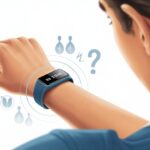
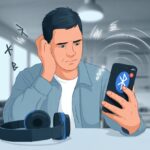
We’ve all been there—standing in the middle of the living room, waving our fitness tracker around like a magician’s wand, wishing it would just connect to our Android. Sometimes it feels like these gadgets just aren’t interested in communicating, no matter how much we tap, swipe, or mutter at them.
Usually, our fitness tracker refuses to pair with Android because of a Bluetooth hiccup, a cranky app, or maybe just a classic device glitch.

Honestly, it’s rarely as simple as flipping things off and on (though, let’s admit it, that trick works more than we care to say). There’s always that one sneaky setting hiding somewhere, or the phone just decides it’s nap time when we need it most.
Don’t stress—we’re about to dig into the most common reasons our fitness tracker isn’t pairing, and maybe find a few laughs along the way.
Understanding Fitness Tracker Pairing
Pairing our fitness tracker with Android isn’t rocket science, but wow, it sure can feel like it when things go sideways. Knowing how Bluetooth actually works, what’s happening during pairing, and the ways Android likes to complicate things helps us stay sane—and maybe even keep our socks on.
How Bluetooth Connectivity Works
Bluetooth is the invisible force that keeps our wearables chatting with our phones. It uses short-range radio waves to send signals between our devices.
No, it doesn’t need WiFi or a magic incantation—just a simple radio link.
Here’s the gist:
- We turn on Bluetooth on both devices.
- They search for each other (like two awkward guests at a party).
- When they “see” each other, they swap info and decide if they’re a match.
If Bluetooth is off, outdated, or juggling too many other connections (yep, headphones count), our fitness tracker might just give up and sulk. A quick toggle off and on can work wonders, and you can read more about it in this troubleshooting article.
The Pairing Process Explained
Pairing isn’t just for penguins—it’s how our tracker and phone set up a private, encrypted chat. We turn on Bluetooth, make the tracker discoverable, and open the right app.
- Open the app for our tracker’s brand.
- Tap the ‘add device’ or ‘pair’ button.
- Wait while the phone scans for nearby devices.
- When our tracker shows up, select it. Sometimes we have to confirm a code or tap a button.
If everything lines up, they’ll be best buds. Miss a prompt or cancel a request, and suddenly they act like strangers.
Common Android Compatibility Issues
This is where things get spicy. Not all Android phones play nice with every fitness tracker.
We might hit:
- Outdated operating systems (phones living in the Stone Age)
- Missing permissions (apps want access to everything, sometimes even our shoe size)
- Clashing Bluetooth devices (too many gadgets at once)
Some trackers demand a specific app, not just any old fitness app. Others refuse to pair if the battery is low or the app is ancient.
It helps to keep our devices charged, updated, and not trying to connect to a dozen mystery gadgets nearby. Restarting both the phone and the tracker can work surprisingly well—sometimes they just need a reset, like us.
Pre-Pairing Preparation
Before we try pairing our tracker with Android, we need to get a few things in order. Skipping this setup step is like making toast without plugging in the toaster—nothing happens except a little disappointment and maybe a craving for carbs.
Checking Device Settings on Android
Let’s start with the Android itself. We need to make sure Bluetooth is actually on and visible.
Sometimes our phones like to play hide-and-seek, so double-check that Bluetooth is visible to other devices—not just quietly enabled.
Location services should be on too, even if it feels like our phone already knows too much. Many fitness trackers need location access to pair with Bluetooth, so it’s not just paranoia—it’s necessary.
Keep the phone and tracker close together. Trying to pair from across the room? Not a winning move for Bluetooth range.
Here’s a quick checklist:
- Bluetooth: On and visible
- Location Services: On
- Devices: Within 3 feet of each other
- Airplane Mode: Off (unless we’re pretending to fly)
For more, see this Fitbit help page on pairing with Android.
Ensuring Proper App Permissions
The fitness app can act like a suspicious bouncer—no ID, no entry. When we install or open our tracker’s app, we need to give it the permissions it wants.
Usually, that means access to Bluetooth, Location, and sometimes Storage. Skip these, and the app just shrugs.
Let’s check app permissions through Android settings:
- Go to Settings > Apps.
- Find our fitness app.
- Tap Permissions.
- Grant access to Bluetooth, Location, and Storage if it shows up.
If we denied something before, we can fix it here. For more details, see Google’s tips on Wear OS syncing issues.
App permissions are serious—without them, our tracker is just a bracelet.
Battery Requirements for Pairing
Devices get cranky when they’re low on power. We’ve all tried to function before our morning coffee, and fitness trackers are no different.
Both our tracker and Android phone need enough battery to even think about pairing. Most trackers won’t start pairing if they’re under 20% battery; some want even more. Don’t forget the phone—a dead screen pairs with nothing but frustration.
Charge both devices to at least halfway for a smooth setup. Plug in the tracker while pairing if you can. If our tracker uses coin cell batteries, maybe it’s time for a fresh one.
For more ideas, check out these smartwatch connection tips.
Devices run on batteries, not wishes.
Step-by-Step Pairing Instructions
Getting our fitness tracker to pair with Android can feel like defusing a bomb with mittens—but we can handle it. We just need to follow a few steps: entering pairing mode, tweaking Bluetooth, and syncing through the right app.
How To Enter Pairing Mode
Let’s make sure our tracker actually wants to be found. Most trackers go into pairing mode if we long-press a button or tap through the menu until we find “Settings” and spot a “Pair” or “Connect” option.
Some models get shy and want us to hold the power button for a few seconds until a light blinks. If there’s no touchscreen or button menu, check if our tracker auto-enters pairing mode when powered on or after a reset.
Lost? Peek at the user manual or the official website for model-specific tricks.
Pro tip: make sure the tracker is charged. Nothing kills a pairing mood like a dead battery.
Setting Up Bluetooth Settings
Now it’s time to play matchmaker. Grab the Android, swipe down to open Quick Settings, and tap the Bluetooth icon.
Turn it off, wait three seconds (counting out loud helps), then turn it back on. This little reset solves half our problems.
Go to Settings > Connected devices > Pair new device. If our tracker pops up, tap it fast. If not, double-check that the tracker is still in pairing mode.
Sometimes we need to forget an old connection before starting fresh. Keep both devices close—Bluetooth doesn’t do long-distance.
Syncing With the Correct App
Once the tracker is paired, we’re not done. We need the right app to pull in all those steps.
Most brands want their own app—Fitbit? Use the Fitbit app. Using Google Fit? That’s here.
Install the app from Google Play. Open it, sign in, and follow the on-screen instructions to add our device.
Some apps want permission for Bluetooth and location—just say yes, because privacy is great, but so is tracking our naps.
Once we hit “sync,” watch for a spinning wheel or a happy checkmark. If it fails, restart both devices and try again.
Sometimes, even tech needs a nap.
Special Cases: Fitbit, Garmin, and More
Some fitness trackers like Fitbit and Garmin give us extra steps—not just the ones we track, but also in the pairing process. Both demand attention to Bluetooth, app permissions, and patience that can feel like a workout.
Pairing Fitbit Devices With Android
When our Fitbit refuses to sync, we need to play detective. Open the Settings app and check Bluetooth—if we spot a bunch of other Fitbits hanging around, it’s time to kick them out.
Removing extra Fitbit devices helps more than pep talks. Next, restart both the phone and the Fitbit.
It’s the tech version of a nap, and sometimes it just works. If that fails, toggle Bluetooth off and on (like switching Wi-Fi in a hotel—maybe it helps, maybe it doesn’t, but hey, worth a shot).
Check that our Fitbit app is up to date and that we’re logged in. You’d be surprised how often a quick update ends hours of troubleshooting.
For more steps, directions, and tales of Fitbit drama, the official Fitbit guide walks us through every fix, short of actually moving the steps for us.
Using the Garmin Connect App
Garmin really keeps us on our toes, doesn’t it? When our Garmin device refuses to pair, the Garmin Connect app is either a lifesaver or the reason we’re pulling our hair out. We need to make sure we’re pairing through the Garmin Connect app, not just the regular Bluetooth settings—Garmin seems to need that extra reassurance.
Sometimes battery optimization gets in the way. Let’s turn it off for the app, or else our phone might just put Garmin Connect to sleep at the worst moment.
If we’ve already paired everything but Garmin still acts clueless, we can give the device tile in Garmin Connect a solid tap (or a dramatic long-press) and choose to update the connection. And, hey, never underestimate the power of restarting both the phone and the tracker.
Pro tip: Garmin’s forums are packed with people who’ve seen it all—phantom connections, devices that claim they’re already paired with someone else (ouch). The Garmin Connect Mobile issues page might have a fix we haven’t tried yet.
Troubleshooting Pairing Issues
Before we decide to launch our trackers out the window, let’s walk through some steps. Most problems just need a little patience and a sprinkle of tech savvy.
Fixing Bluetooth Connection Problems
Bluetooth, our sometimes-fickle friend, often causes pairing headaches. If our tracker won’t pair, Bluetooth might be napping or just in a mood. Here’s what usually helps:
-
Turn Bluetooth off and on. It sounds basic, but it works more often than we’d like to admit.
-
Restart our phone and tracker. Even gadgets need to reset sometimes.
-
Check for old connections. If our phone’s Bluetooth settings list other trackers, we should remove them. Too many ex-trackers? Drama. For a step-by-step, check out this guide on fixing Bluetooth connection problems.
If the tracker still won’t pair, maybe it’s out of battery, out of range, or just plain stubborn. We should double-check we’re using the right app, too.
Resolving Notification and Sync Errors
Our tracker connects, but our steps don’t show up? Or maybe message notifications have vanished? Both issues are as annoying as socks that keep slipping down mid-run.
Let’s check notification settings on both the tracker and our Android phone. We also need to let the fitness app run in the background, or it might just snooze and forget about our data.
Still nothing? Clearing app data and cache can rescue stubborn apps. Keeping everything updated—both phone and app—makes a difference. If we’re still stuck, the Fitbit Community has extra tips for those days when our tracker’s just being difficult.
When to Consult justanswer
Sometimes, no amount of rebooting or pleading helps. That’s when it’s time to call in the pros—not just our techy nephew, but experts on JustAnswer.
If our tracker’s stuck on pairing or shows weird errors we’ve never seen, JustAnswer’s tech experts can walk us through fixes and hardware questions. They might just save us from tossing our devices into the nearest lake.
Honestly, it’s never a bad idea to get professional advice if we’re truly stuck. That way, we get back to counting steps instead of failed pairing attempts.
Advanced Solutions and Alternative Approaches
Sometimes trackers and Android devices just won’t get along, no matter how many basic fixes we try. We can still tackle stubborn syncing problems and keep our heart rate data safe. Let’s get a little serious (but not too serious) about fixing these tracker woes.
Unpairing and Re-Pairing Strategies
Sometimes it’s time for a temporary breakup with our fitness tracker. We go to Bluetooth settings and unpair the tracker from our phone. This move often clears up those strange connection bugs that pop up for no reason. Expect a little drama—disconnections can make our tracker throw a tantrum.
Now we restart both the phone and tracker, wait a beat, and pair them again through the app. This “fresh start” can fix weird issues like syncing failures or endless disconnects. When we pair, we should only keep one tracker connected—multiple devices just confuse Bluetooth. If things are still weird, clearing the app’s cache sometimes helps (check out the Fitbit Community for more on that).
Considerations for Heart Rate Data
Heart rate data matters, especially if we’re tracking workouts or just curious about our stress levels. If syncing fails, we lose those highs and lows from our morning run—or that spike when we realize we left coffee on the roof. Re-pairing can sometimes cause missing or duplicate data, so let’s double-check our last sync before making big changes.
If heart rate readings still look off or disappear, try wearing the tracker snug and clean the back sensor. A loose fit messes with the readings, making us seem calmer (or more stressed) than we really are. For those who care about heart rate zones, consistency is key. Keep the sensor clean and firmware updated, or our resting heart rate might just take a vacation. For more tips, see Google Help: Why won’t my Fitbit device sync?.
Keeping Your Fitness Tracker Paired for Good
Nothing ruins a step streak faster than a tracker that suddenly ghosts us. Avoiding pairing problems means keeping Bluetooth in check and staying current with device updates, so every dance move and power walk counts.
Tips for Reliable Bluetooth Connections
If our tracker and phone stop talking, Bluetooth probably threw a tantrum. We should confirm Bluetooth is on—sometimes that’s all it takes. Restarting our phone or tracker can work wonders, like a quick nap for our gadgets.
If things still refuse to connect, forget the tracker on the phone’s Bluetooth list and pair it again. This clears up old connections that get in the way. Turning off other paired Bluetooth devices nearby can also help, since too many connections just confuse our phone. As Fitbit and Google mention, multiple Bluetooth pairings can cause issues.
Still stuck? Clearing app data for our fitness or tracker app sometimes straightens things out. And, of course, updating the app never hurts.
Quick Fix Recap
- Turn Bluetooth off, then back on
- Restart both devices
- Remove and re-pair your tracker
- Disconnect extra Bluetooth devices
We call these the “Bluetooth Boogie” steps.
Maintaining Device Compatibility Over Time
Even when Bluetooth works perfectly, our tracker can just stop getting along with our phone if either one ages out of the relationship. Let’s be honest—Android updates seem to show up before we’re even ready, so it’s worth checking if our fitness tracker still supports the version we’re on.
Tracker companies push out updates for both hardware and apps. If we ignore those little notifications, compatibility issues can sneak up and ruin our day. I always set my device to auto-update apps, and I try to remember to check for firmware updates on the tracker itself—though I’ll admit, sometimes I forget.
If our phone or tracker is really old, sometimes we just have to accept it’s time for an upgrade. No amount of troubleshooting will make every tracker work with every new Android update, and that’s just how it goes.
What We Can Do:
| Action | Why It Helps |
|---|---|
| Update apps/firmware | Fixes bugs, keeps devices talking |
| Check compatibility | Prevents heartbreak from unsupported features |
| Avoid ancient devices | Keeps us on the forefront of fitness tech |
When we keep our tech in sync, we’re way less likely to miss out on the good stuff—like that all-important sleep score after a late-night cat video marathon.

From a young age, I have always had a big interest in technology, and this blog is an extension of that interest. Through this blog, I hope to provide others with all of the information they need regarding tech options to consider, and things such as compatibility. Some of the different items I will be discussing include headphones, smartwatches, and how to fix common issues.
- Why is my fitness tracker not pairing with Android? Common Culprits and Laughable Fixes - September 24, 2026
- How to update fitness tracker firmware Without Accidentally Turning It Into a Fancy Bracelet - September 23, 2026
- Best Bluetooth Headphones for Garmin Watches That Won’t Fall Off Mid-Jog - September 22, 2026