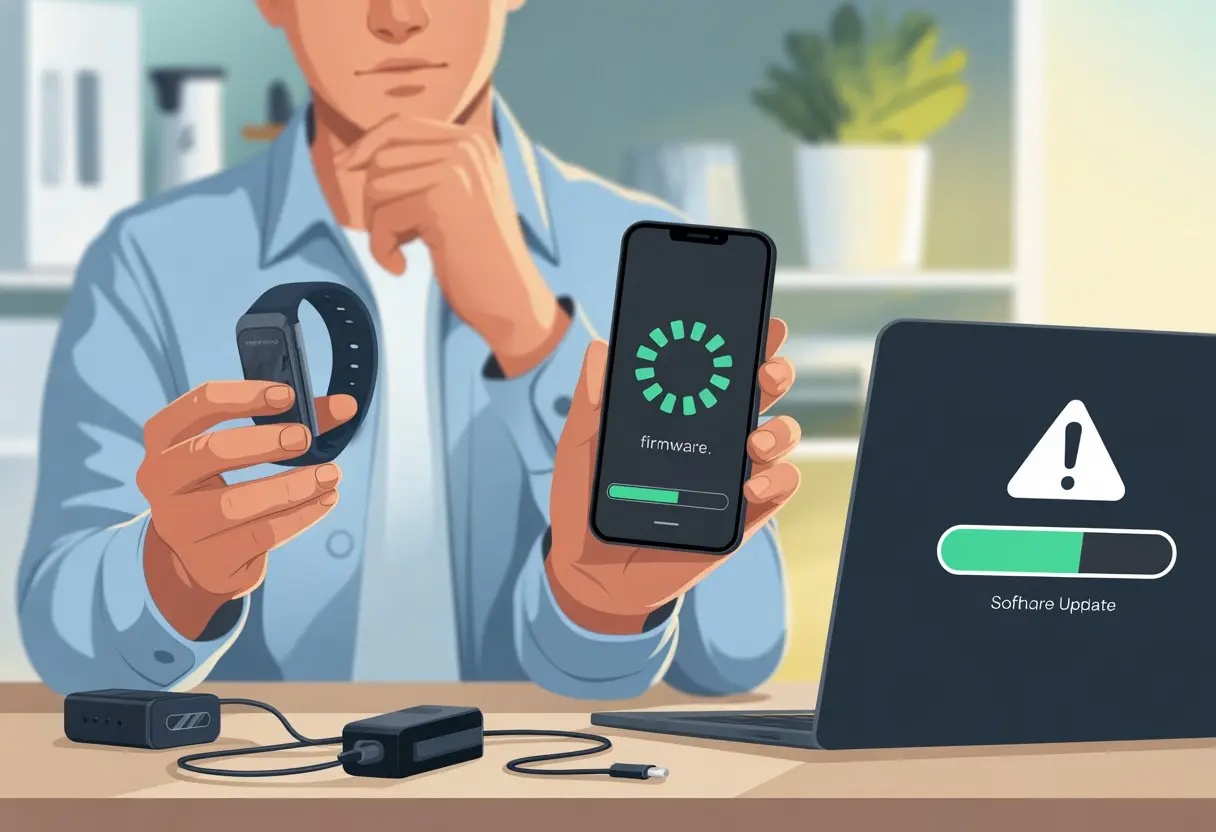
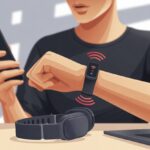
We’ve all been there—excited for new features on our fitness tracker, only to stare at a screen that just won’t update. Usually, our fitness trackers refuse to update because of connection issues, a low battery, or some weird glitch in the app or Bluetooth settings. Sometimes it feels like these devices need a pep talk before they’ll cooperate.
We’re not alone in this. Like coffee machines and printers, trackers seem to have their own personalities when it’s time for a firmware update.
Maybe they don’t like our Wi-Fi. Or maybe they’re holding a grudge because we skipped leg day.
If we want to stop that endless spinning update wheel, we have to understand what’s actually going wrong.
Let’s grab our troubleshooting hats and try to figure out why these little wrist computers get so stubborn.
No more blaming Mercury in retrograde—it’s time to get back on track and finish that update.
Understanding Firmware Updates on Fitness Trackers
Let’s be honest, nobody wants their wrist gadget acting up in the gym or on the treadmill.
Firmware updates keep our fitness trackers from feeling ancient. They add new features, squash bugs, and help our devices talk nicely to our phones.
What Is a Firmware Update?
A firmware update is basically a makeover for our tracker’s brain. Firmware is the special software inside the device that tells it what to do—kind of like a robot, but less dramatic.
When our tracker grabs a new firmware package, it fixes quirks and makes things run smoother. Sometimes updates make the device faster, track workouts better, or finally stop calling our run a nap.
The firmware lives inside the tracker’s memory. Updating it isn’t like a normal app update; it’s more like swapping out the engine in a car instead of just giving it a new paint job.
Why Firmware Matters for Fitness Devices
Honestly, fitness trackers can be pretty stubborn. If we don’t keep the firmware up to date, they might not sync well or could just ignore that epic step count we earned chasing the dog.
Firmware updates keep our devices current with whatever new rules the manufacturer sets. They patch security holes (so nobody hacks our workout stats) and help our tracker work with new features in apps or phones.
Ignoring firmware updates can mean glitches, battery drain, or missing runs. Sometimes, old firmware even mistakes our movie marathon for a nap. Not ideal.
Common Firmware Update Methods
Updating should be simple, right? Most trackers use Bluetooth to get updates from our phones or computers.
We usually start the update in the app, and then the tracker takes over while we wait and wonder if it’s actually doing anything.
Some brands let us update straight from the tracker, but most want us glued to our phone until it’s done.
If things go sideways (and they love to), the usual advice is to restart both tracker and phone—Fitbit support even says so.
Firmware update methods vary a bit, but a strong connection, enough battery, and a little patience are always part of the deal.
If we get “unable to update” messages, maybe our tracker just needs a break—or a quick reboot.
Device Compatibility and Requirements
Updating our fitness tracker’s firmware can feel like hunting for a parking spot at the mall—frustrating, but doable. We need our device, phone, and software to all play nicely together or the update won’t happen.
Supported Fitness Trackers
Not every gadget with a screen and step counter gets invited to the firmware update party.
Many fitness trackers, like Fitbit, Garmin, and Apple Watch, need regular firmware updates. Some older trackers might quietly drop off the list.
Manufacturers usually stop releasing updates about two years after a device is discontinued.
We should double-check if our tracker is still officially supported. The device’s website or support page is the best place to find out.
If our tracker is so old it remembers Flappy Bird, maybe it’s time for an upgrade. Apple Watch Series 3 and up, newer Fitbits, and current Garmin watches usually still get updates.
Compatible Smartphones and Devices
Our tracker isn’t much help if it can’t talk to our phone. Most trackers need a compatible phone, like an iPhone or recent Android, to handle firmware updates.
The latest trackers often need at least iOS 16 or a fairly new Android version to stay current.
Game systems and computers can’t help update the tracker. Firmware updates usually run through the brand’s official mobile app.
To avoid headaches, we need a smartphone on the tracker’s compatibility list. This info is usually buried somewhere on the manufacturer website.
Old phones or tablets might struggle with updates, so trying to set up a tracker with ancient tech is just asking for trouble.
System and Software Prerequisites
Besides the right tracker and phone, we need fresh system software.
The official app—whether it’s Fitbit or Apple’s Watch app—should always be up to date. Some updates only show up if we have the latest app.
Smartphones should also run updated operating systems. To update an Apple Watch, we need an iPhone with iOS 16 or later.
Android owners should make sure their OS is fairly recent—Android 9.0 or higher is a safe bet.
Updates often need the tracker charged above 50%, a solid internet connection, and—if GPS syncing is involved—no wild weather interfering.
If we check all these boxes, that firmware update should finally download instead of just spinning forever.
For Fitbit device requirements, Google has troubleshooting steps that can help if we’re stuck.
Connectivity Issues That Prevent Updates
If our fitness trackers had feelings, they’d probably roll their digital eyes every time we mess up the connection. Staying up to date depends on strong links between our devices and the internet, but even tiny hiccups can leave us frustrated.
Bluetooth and Wi-Fi Connection Problems
Our trackers love a good Bluetooth signal almost as much as we love a rest day. If the connection between tracker and phone gets sketchy, firmware updates just stall.
Sometimes, walking a few steps too far from our phone leaves the tracker totally lost.
Wi-Fi issues are another headache. A weak or unstable Wi-Fi signal means our tracker can’t reach those crucial update files.
If in doubt, we can try turning Bluetooth off and back on, or even restart our phones.
If nothing works, hiding next to the Wi-Fi router can’t hurt.
Pairing and Unpairing Devices
Pairing and unpairing trackers should be simple, but it’s never as easy as it sounds.
If we haven’t paired our device properly, update attempts are almost guaranteed to fail.
Unpairing, then repairing (yes, pun intended), can clear up weird glitches.
When we pair an Apple Watch or other tracker, the phone and tracker need to be best friends—always communicating, never ignoring each other.
Sometimes, all it takes is unpairing the Apple Watch, restarting the iPhone, then pairing them again to get updates moving.
If the fitness app won’t sync, a proven fix is to reset both devices before pairing again.
If our tracker is still giving us the silent treatment, maybe try one more “unpair, restart, repair” dance before calling for backup.
Software Glitches and App Troubles
Firmware updates can get stuck when software acts up or our fitness app decides to crash. Small problems like app crashes or random bugs can keep our fitness tracker stuck in the past, even when we’re desperate for new features.
System Errors and Bugs
Sometimes our trackers just act weird. System errors pop up out of nowhere, causing updates to fail or freeze halfway.
Bugs sneak in during the update, making the device lag, reboot, or show error messages that look like keyboard mashing.
When this happens, restarting both tracker and phone is a good first step.
If that doesn’t help, we should check if the app itself has an update.
Sometimes, a bug in the app blocks firmware updates. For really stubborn issues, some folks use special tools like TunesKit iOS System Recovery, or even try a “deep repair” if they’re feeling brave.
Dealing With App Crashes
App crashes are basically our fitness tracker’s way of ghosting us. If the Fitbit, Apple Fitness, or another fitness app won’t stay open, syncing and updating just won’t happen.
Most of the time, closing and reopening the app does the trick.
If not, uninstalling and reinstalling the fitness app can refresh things and clear out any gremlins.
Sometimes the real problem is with Bluetooth or another connection setting. Turning Bluetooth off and then on, or restarting our devices, can fix those weird connection glitches fast.
For more ways to fix fitness app not working, checking the official help pages can save us from tossing the tracker across the room—or at least help us keep our cool.
Troubleshooting Steps for Stuck Firmware Updates
Firmware updates on our fitness tracker sometimes hit a wall, leaving us stuck at a “stuck” screen instead of counting steps.
Before we throw it at the couch (or the dog), let’s walk through some steps to help get things moving again.
Restarting Your Fitness Tracker
Let’s try the classic “have you tried turning it off and on again?” trick. Restarting usually clears out those tiny bugs that block updates.
We should always connect our device to the charger first, especially if the battery’s low or the tracker keeps slipping into low power mode mid-update. Nothing ruins an update like a dying battery.
Here’s an easy way: while charging, press and hold the main button for about two seconds. Then unplug the charger but keep holding the button for another seven to nine seconds.
If the device vibrates or flashes a logo, that’s a good sign—it’s rebooting. Not all trackers use the same button combo, so it’s worth checking the manual or the manufacturer’s help page if this doesn’t work.
If updates are still stuck, try rebooting your phone and give the app another shot. Sometimes even our phones need a quick nap to get back on track.
If restarts feel about as pointless as yelling at your toaster, the next move is to reset your fitness calibration data. Don’t worry, this isn’t the dreaded “total factory reset“—we’re just refreshing step counts, stride length, or calorie calculations.
This helps when updates refuse to finish, especially if calibration bugs are hanging on for dear life. Go into your tracker’s settings and look for “Reset Calibration Data” or “Clear Fitness Data.” (Every device labels it differently—don’t ask why.)
Only do this if you’re fine losing tweaks like custom stride settings or step calibration. Your daily activity totals and personal info usually stick around.
After resetting, the tracker gets a fresh start and is less likely to stumble over corrupted data during updates. Sometimes it just needs a clean slate, kind of like we do on Monday mornings.
App and Account Considerations
Let’s be honest—we’ve all wanted to chuck our fitness trackers out the window at some point. Sometimes, though, the tracker isn’t the problem. How we use our apps or set up our accounts can cause trouble too.
A lot of the time, it’s the little details we ignore until our step tracking stops and our hearts skip a beat.
Correctly Using Your Fitness App
First things first, our fitness app needs updates just as much as we do after leg day. If the app’s out of date, things can get weird in a hurry.
That pink update button may look harmless, but you really need to press it when it pops up—no excuses, even if you’re deep into a Netflix binge.
Check Bluetooth. If your device isn’t connected, no update’s happening. Remove any old connections if they show as paired but aren’t working.
The app and tracker both need to be buddies, not distant relatives. Battery levels matter too.
If your tracker or phone is almost dead, firmware updates might pause or fail. Charge both before you even think about updates.
Some devices only update if the tracker is right next to your phone, so don’t leave it in the car or, honestly, anywhere mysterious.
Managing Your Garmin Connect Account
To update firmware on a Garmin tracker, you have to get your Garmin Connect account settings right. Forgetting your password or messing up logins can get updates stuck, and suddenly, you’re walking everywhere but your step count says you’re a couch potato.
Accounts should always stay logged in, with permissions set to allow syncing. Accidentally revoking permissions or signing out at the wrong time is like locking the fridge before dinner—just not smart.
Garmin Connect also needs fitness tracking enabled. If step tracking is off, Garmin thinks you’ve given up on walking, and nothing gets tracked or synced.
For shared trackers, double check which account is signed in. Mixing up accounts is a classic blunder—suddenly, Grandma’s walks get mixed up with your morning runs.
If updates still won’t work, try another phone or computer. Garmin devices sometimes need a fresh start, just like we do after too many failed workouts.
When to Seek Assistance
Even the most tech-savvy folks can end up stuck with a stubborn fitness tracker that just won’t update its firmware. If you’ve tried everything and your device still acts like a brick, there’s no shame in calling for help or looking at repair options.
Contacting Customer Support
Let’s just admit it—we’ve all tried turning it off and on again (twice), and the tracker still refuses to cooperate. That’s when it’s time to call customer support.
These folks have seen every issue under the sun and won’t judge you for questionable Wi-Fi or a low patience threshold.
Reaching out is pretty simple. Most brands offer a support number, chat, or email. Have your tracker’s model, serial number, and a quick summary of what went wrong ready.
The more details you give, the better they can help. Customer support can walk you through advanced fixes or provide updates if it’s a bigger issue.
If your device is under warranty, you might even get a replacement. And if nothing else, you get to practice patience while you wait on hold—maybe not fun, but hey, it’s a skill.
Sometimes, not even support can save us. When that happens, repair becomes the next step in our fitness tracker adventure.
If your device is still playing dead after you’ve tried everything reasonable, it’s probably time to look into repair—or, as I like to call it, “tracker rehab.”
Most brands actually offer official repair services. Usually, you’ll need to send in your device or just drop it off at an authorized service center.
This route is especially helpful if you’re still under warranty, since repairs or even a replacement might cost nothing.
If your warranty has expired, a standard repair might set you back a bit. Still, it’s usually cheaper than buying a whole new tracker, so it’s worth considering.
I’d definitely stay away from any repair shop that isn’t approved by your tracker’s maker. Unofficial repairs could void whatever warranty you’ve got left—never ideal.
Checklist for Standard Repairs
Check if warranty covers repairs
Use authorized service providers only
Compare repair fees to replacement costs
Back up your data if possible (nobody wants to lose those 7,000 steps)
Hi, my name is Garrett Jones, and I am a tech enthusiast. I enjoy researching the new tech that has been released, and have a vast knowledge of the best tech to purchase.
From a young age, I have always had a big interest in technology, and this blog is an extension of that interest. Through this blog, I hope to provide others with all of the information they need regarding tech options to consider, and things such as compatibility. Some of the different items I will be discussing include headphones, smartwatches, and how to fix common issues.