Let’s be honest—keeping the whole family active is like herding cats that would rather nap. Thankfully, a fitness tracker with family sharing can actually help (and maybe save our sanity).
We can use a fitness tracker’s family sharing tools to track everyone’s steps, motivate each other with some friendly competition, and celebrate those little wins together.
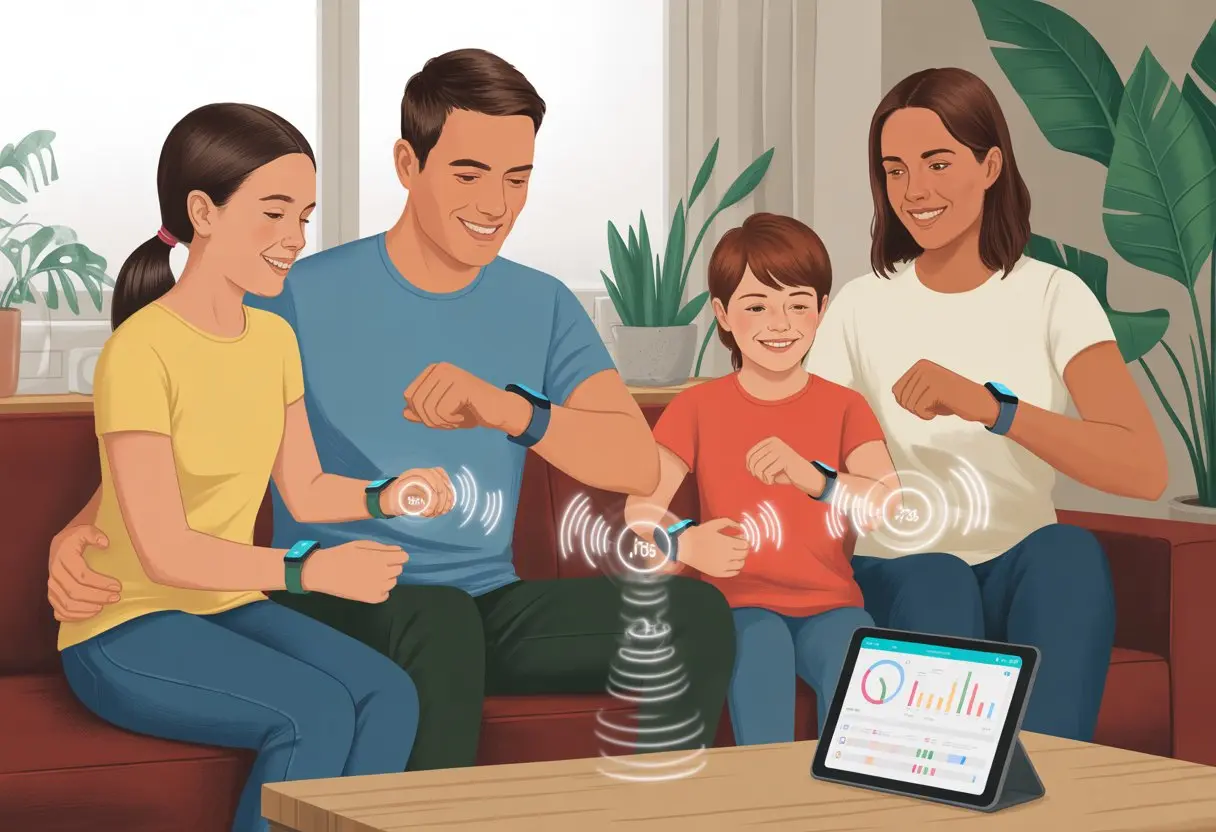
Ever wondered how many steps your kid takes just to get a snack? Or if Grandma really does those morning walks? Sharing fitness data makes all that way easier.
We’ll walk through how to set things up so you can keep tabs on everyone’s activity—without being a total nag.
No more guessing at dinner about who actually moved today. With family sharing, we’re all in this together—tracking, cheering, and maybe, just maybe, passing on dessert once in a while.
What Is Family Sharing with a Fitness Tracker?
Family sharing lets us sync our fitness adventures, compare step counts, and motivate each other—without having to peek at someone’s sweaty wrist. If you’ve got the right smartwatch or tracker, “friendly competition” becomes the new family motto, and group chats fill up with badges.
How Family Sharing Works
Family sharing uses built-in tools—like Apple’s Family Sharing or special family accounts—to connect our devices. When we link up, our fitness trackers or smartwatches send activity data, workouts, and progress reports to a shared family group.
Our steps, heart rates, and even sleep habits show up for the group to see. Some trackers let parents create accounts for kids, so things stay safe and age-appropriate.
Popular systems also allow messages, challenges, and weekly recaps that go straight to everyone’s phones. We get to cheer each other on—or tease each other for skipping leg day—all from one app.
Types of Trackers That Support Sharing
Not every gadget plays nice with families. Apple Watch, for example, supports Family Sharing, so you can add up to five other family members—even if they don’t have their own iPhones.
Fitbit’s Ace series lets us set up profiles for kids, so everyone can join in.
Here’s a quick table of trackers with sharing features:
| Tracker Type | Family Sharing? | Notes |
|---|---|---|
| Apple Watch | Yes | Even for kids (with some limits) |
| Fitbit Ace series | Yes | Made for children |
| Garmin | Limited | Some require personal accounts |
| Samsung Galaxy Fit | No | No official family link |
Each platform does things a little differently. We should always check if the tracker allows child profiles or sharing with non-owners.
Benefits of Tracking Together
When we use family sharing, we turn solo step-counting into a group project. Comparing stats makes even a simple walk competitive—suddenly, even the dog wants a tracker.
Here’s why connecting can be worth it:
- Motivation: It’s easier to stick with goals when Aunt Judy is watching.
- Accountability: The family leaderboard makes skipping workouts a little riskier.
- Safety: Parents keep an eye on kids’ activities, no detective work needed.
- Fun: Group challenges, shared badges, and inside jokes.
Family sharing makes fitness less boring and, who knows, maybe turns us into step-counting champions.
Choosing the Right Fitness Tracker for Your Crew
Finding a good fitness tracker for families isn’t just about cool screens and shiny bands. It’s about picking something that works for everyone—from the tech geek to Grandma.
We need devices that are easy to use, connect with our favorite phones, and don’t hit us with hidden fees every month.
Comparing Popular Brands
With so many trackers out there, it’s easy to feel lost—like wandering the snack aisle, but with more steps. We hear about Apple Watch, Fitbit, Garmin, and those random brands that pop up overnight.
Apple Watch works great with iPhones and fits in at PTA meetings. It’s famous for health features, crisp screens, and sharing options.
Fitbit focuses on activity and sleep, is budget-friendly, and works with both Android and iPhone. Garmin makes tough GPS watches for outdoor adventures—perfect if your family is more “hike” than “mall.”
Here’s what stands out:
| Brand | Best For | Plays Well With | Bonus Points |
|---|---|---|---|
| Apple Watch | iPhone users, style | iPhone | Health tracking, sharing |
| Fitbit | Simplicity, price | Android/iPhone | Sleep and step tracking |
| Garmin | Sports/outdoor lovers | Android/iPhone | GPS accuracy, long battery |
If your Aunt Karen runs marathons, Garmin’s probably the winner. For family step challenges, Fitbit is tough to beat. If everyone’s on Apple, the Watch just fits.
Key Features for Families
When we share fitness data as a group, we need more than just a step counter. Look for trackers with activity sharing so we can keep tabs on everyone—without starting a full-blown sibling rivalry (though, let’s be honest, that might happen anyway).
Sleep tracking helps us see who’s really up late. Heart rate monitoring and built-in GPS are handy for the athletes, but shouldn’t be too confusing for the rest.
Devices that let us manage family accounts are a huge win. Apple Watch lets us set up goals for each person from one iPhone, which is honestly a lifesaver.
Some brands highlight “family sharing” as a feature, so check the settings, not just the ads. If we’ve got swimmers—or kids who forget to take off their watch before a cannonball—water resistance is a must.
Subscription and Cost Considerations
Nothing kills the mood faster than a “free” fitness tracker that asks for a monthly fee a week later. Watch out for hidden subscriptions, like advanced sleep metrics or detailed workout insights.
Fitbit and Apple both offer paid premium features. Garmin usually gives us the full package right away.
Here’s what to keep in mind:
- Upfront cost: What’s in the box, and what’s extra (charging cables, bands, etc).
- Subscription fees: Are we stuck paying monthly for cool features?
- Family plans: Does the brand have a group deal?
Being honest with our wallets now saves us from yelling at our bank statement later. For more on how fitness wearables stack up, check out REI’s guide to choosing fitness wearables.
Compatibility with Devices
The best tracker is the one that works with all our phones—not just that one cousin’s Android nobody understands. Apple Watch needs an iPhone and won’t work with Android.
Fitbit and Garmin play nice with both iOS and Android, which makes life simpler for mixed-device families.
Always check the minimum software requirements for pairing and updates. Some features—like family sharing—only work on certain operating systems.
Apple’s family sharing, for example, sets up in the Health app on iPhones. If you’re gifting a tracker to someone with an ancient phone, a quick compatibility check can save a lot of drama.
Nothing says “family bonding” like tech support at Sunday dinner, so let’s pick trackers everyone’s device can handle without a meltdown.
Setting Up Family Sharing on Your Fitness Device
Getting the whole family tracking steps, calories, and exercise minutes together can sound like herding energetic cats. With the right setup, though, we can skip the chaos and make teamwork (plus some friendly competition) part of staying fit.
Here’s how to keep everyone’s data separate, devices connected, and setup headaches to a minimum.
Creating Profiles for Each Family Member
First up, we need unique profiles for everyone. Each person should have their own account, even if we’re sharing a phone or tablet.
This keeps our step count from doubling when Grandma runs laps around the kitchen.
For Apple devices, start by setting up Family Sharing in Settings and inviting each family member. Fitness apps like MyFitnessPal and Strava let us create separate user profiles, so everyone’s food logs and workout wins stay private.
In-app invitations and dedicated account logins are our best friends here.
Quick checklist for profiles:
- Create separate Apple IDs for each user if we’re on iPhones.
- Make sure the kids aren’t sneaking in and claiming our treadmill streaks.
- Invite everyone to the fitness apps—most work best with individual logins (Family Sharing on Apple).
Linking Devices and Apps
Once profiles are set up, it’s time to connect our gadgets and apps. Most fitness trackers, like Apple Watch and Fitbit, need to be paired with each user’s device or account to collect data correctly and show off those step streaks.
With Apple Health and Apple Fitness+, Family Sharing lets everyone access workouts and see their stats. Fitness apps like Strava and MyFitnessPal also let us link devices—just make sure each app is downloaded and logged in under the right profile.
Sharing activity with family or friends is easy in the Fitness app—just tap “Sharing,” add a buddy, and start the friendly trash talk (Share your activity in Fitness app).
We should double-check that data is syncing to the right account. Accidentally logging dad’s jog under the baby’s name ruins everyone’s averages—and might raise some eyebrows about superhuman toddlers.
Setting up family devices can throw some curveballs. Sometimes fitness trackers refuse to cooperate, especially if someone tries to use the same email or phone number twice.
It’s almost like the device knows when we’re trying to cut corners.
Family Sharing needs the latest software updates, so check for updates on all devices before starting. Some third-party fitness apps may not fully support family sharing, especially if they expect one main account per device (looking at you, Strava).
We might have to juggle a few extra logins or just decide who gets bragging rights (Sharing workouts and Family Sharing tips).
If a tracker still won’t sync, restarting both the device and the app usually does the trick. And yes, turning it off and on again is still a legit IT move—even for fitness gadgets.
Must-Try Features for Group Motivation
Trying to keep the whole family moving is tough. Good news: fitness trackers actually have some great features that make it easier (and, let’s be honest, a lot more fun) to stay active together.
Setting and Sharing Group Goals
Let’s dive into group goals. Honestly, nothing says “family bonding” quite like picking a step count to tackle together.
Most fitness trackers make it easy to set up a family challenge—maybe it’s 50,000 steps in a week, or a virtual walk to Grandma’s house.
Sharing these goals? Super simple with built-in sharing tools. Instead of quietly dragging ourselves up the stairs for the tenth time, we can update the group and instantly see who’s ahead or lagging behind.
Progress updates and reminders turn our daily walks into a friendly group mission. Suddenly, it’s not just exercise—it’s a team effort.
A few things make it work:
- Clear goal tracking
- Progress bars
- Reminders and nudges (think digital “Get off the couch, Jimmy!”)
- Real-time updates in the app
Apps like Stridekick let us start these group challenges and watch everyone’s steps pile up. We’re not just tracking—we’re in this together.
Achieving Milestones and Rewards
Honestly, who doesn’t love earning a digital badge? Trackers hand out achievements for hitting targets.
If we hit our step count three days in a row—boom, badge unlocked. Survive a week of family step battles without anyone sneaking steps for the dog? That deserves a reward too.
We can make up our own prizes, like letting the winner pick dinner for the night. These digital rewards and badges give us that extra push to keep moving, especially when we’d rather just argue about takeout.
Milestones keep us honest. When someone hits a mini-goal—say, 10,000 steps in a day—the group can cheer (or start plotting a comeback).
Celebrating these wins gives us that little boost to skip the elevator and take the stairs.
Friendly Competition and Leaderboards
A little friendly competition gets everyone moving. Leaderboards show our current step totals, and sometimes reveal who’s been pacing during phone calls.
We’re not just walking—we’re trying to out-step everyone else. Weekly rankings bring bragging rights (or maybe a way to dodge chores).
Noticing Aunt Linda’s step count suddenly skyrocket at night? That’s definitely suspicious, and a great excuse to walk one more block.
Most trackers let us sort by steps, calories, or active minutes, so we can see where we shine—or where we need to hide the snack wrappers.
Features like the leaderboard make even trips to the mailbox feel like a race. Every step suddenly matters.
Tracking Activities and Health Metrics Together
Let’s be real—keeping up with steps, heart rate, and calories as a family can feel like a never-ending relay. But with the right tracker, we can compete, compare, and encourage each other while watching our stats rise (or fall—nacho night, anyone?).
Step Counting and Pedometers
Trying to out-walk our kids or that ultra-competitive cousin? Step counters and pedometers in fitness trackers make it way easier.
Trackers count every step—whether we’re jogging, speed-shopping, or just running for the bus. Sharing step data lets us set group challenges and cheer each other on, or gloat a little when we’re in the lead.
Apple Health lets us share activity stats with up to five people, so everyone can check the daily leaderboard. Looking for a little rivalry? These step stats kick off a fun family competition.
Want to share steps through the Health app? Here’s how: sharing steps and other health data.
Monitoring Heart Rate and VO2 Max
Trackers keep an eye on our heart rate, which matters for everyone—from the youngest to Grandpa (especially if he’s still sprinting up stairs).
Sharing this data means we can compare average heart rates at rest or while exercising. Sometimes we find out that someone’s “brisk walk” is more of a caffeine-fueled dash.
We can also track VO2 Max—a fancy way to measure how well our bodies use oxygen during exercise. Honestly, it sounds more impressive than it feels when we’re gasping for air on family hikes.
Many trackers now alert us if our heartbeats look off. Sharing these numbers lets us check in on each other or give Grandpa a gentle nudge if something seems weird.
Logging Calories Burned and Nutrition
Counting calories burned sounds like a headache, so we let our trackers handle it. Most do the math based on age, weight, height, and activity, showing us exactly how many calories we’ve burned (including those sprints to the fridge).
We can log meals with built-in nutrition tracking. This keeps us aware of what we’re eating and how it matches our goals.
Some apps let families compare nutrition data and calories burned, turning meal tracking into a team effort.
We can spot patterns, share tips, or celebrate breaking our veggie record—while quietly ignoring dessert. If you want to share and track these stats as a group, check out this guide on sharing health data in the Health app.
Staying active together is great, but we need to know where we’re headed, how to get there, and how not to worry Grandma when we vanish for a “quick hike.”
Fitness trackers can make adventures more fun, connected, and a whole lot safer.
Route Sharing and Location Tracking
Real-time location sharing keeps our family close—and way less likely to get lost. Most fitness trackers and GPS watches let us share our route, so everyone can see if Dad’s shortcut actually goes through the snack aisle or if the kids really made it to the park.
We use location tracking to check how far everyone’s gone, whether it’s a long bike ride or a wild game of tag.
With the Apple Fitness app, it’s easy to share your activity with family and friends. If someone’s running late, we just pull up the map—no need for a flashlight search party.
When we’re hiking, family tracking can actually be a lifesaver. Some devices send alerts if someone strays from the planned route. No more blaming the squirrel for getting lost.
We all feel brave leaving the house—right up until the GPS watch starts beeping halfway down the trail.
Navigation features turn us into explorers, but with less risk of starring in a reality show about getting lost.
Most trackers support step-by-step directions, rerouting, and route mapping.
We can plan a route ahead of time and follow the turns right on our wrists. Apps like Map My Fitness offer route tracking and navigation, so we can log every twist and turn.
If you’re directionally challenged, voice prompts or vibration alerts let us know when to turn. Some GPS watches show maps we can zoom in or out—perfect for kids who think X marks the snack spot.
Safety Tips for All Ages
Let’s be honest: safety isn’t the most exciting part, but it’s definitely the most important. Before heading out, we should agree on check-in times, emergency contacts, and—yep—who’s holding the granola bars.
Kids and older adults especially benefit from location tracking and family sharing. Keeping everyone in the loop means more confidence and fewer panicked calls about missing hikers.
Using wearables with SOS features or direct messaging is a smart move. Remind the younger explorers: tracking isn’t about spying, it’s about staying safe together.
A quick talk before we leave can save us from awkward reunions at dinner.
Here’s a checklist for safety:
- Sync devices before heading out.
- Set up location sharing for everyone.
- Review the planned route together.
- Remind everyone—especially kids and the “overly adventurous”—to stick to the marked path.
Practical Tips for Hassle-Free Family Fitness Tracking
Keeping our fitness trackers running isn’t just about strapping them on. We need good habits to make them last through every jog, swim, or family step battle—without surprise dead batteries or soggy devices.
Maintaining Battery Life
Let’s be real, nothing kills the family step race like a dead tracker halfway through the day.
We should plug in our devices while we sleep or shower—tracking steps in the shower? That’s a debate for another day.
Turning off features we never use, like “Remind me to breathe” or GPS during indoor workouts, can give us extra battery life. Battery saver mode and lower screen brightness help too.
If someone forgets, a quick “You forgot to charge it, again?” in the group chat usually does the trick.
Here’s a handy table for charging tips:
| Tip | Impact |
|---|---|
| Charge overnight | Full battery each day |
| Turn off unused features | Longer battery life |
| Lower screen brightness | Less power needed |
We like to keep a spare charging cable at grandma’s, just in case.
Caring for Water-Resistant Devices
Some of us treat our trackers like submarines, but even water-resistant gadgets need some TLC.
Check the manual before cannonballing into the pool—trackers with IP68 or 5 ATM ratings can handle regular swims, but not all survive saltwater or hot tubs.
After a sweaty workout or swim, rinse the tracker with clean water. Salt, pool chemicals, or soap can block sensors or break seals.
Dry them with a soft towel, not a blow dryer (unless you want melted wristbands).
Water-Resistant Do’s and Don’ts:
- Do: Rinse after swimming
- Don’t: Press buttons underwater
- Do: Let it dry completely before charging
Clean the band and check for wear, too. No one wants a funky-smelling fitness tracker.
Managing Notifications and Syncing
Group fitness goals sound awesome—at least until our wrists buzz nonstop with everyone’s workout selfies and step counts.
Let’s just open the tracker’s app and decide which notifications we actually care about. Honestly, nobody needs an alert that “Uncle Bob finished 2 sit-ups!” but we should probably keep the low battery and scheduled workout reminders.
Try syncing your data at the same time every day, maybe after dinner. That way, everyone’s progress stays fresh, and nobody gets grumpy in the family challenge.
If your tracker refuses to sync, just restart it. Usually, that fixes things, or maybe you’ll need to ask the tech-savvy teen in the house.
Tweak those settings so your tracker stays helpful instead of driving you nuts. That way, your family’s fitness journey feels a bit less chaotic.

From a young age, I have always had a big interest in technology, and this blog is an extension of that interest. Through this blog, I hope to provide others with all of the information they need regarding tech options to consider, and things such as compatibility. Some of the different items I will be discussing include headphones, smartwatches, and how to fix common issues.
- Best Smartwatches for Elderly Care: Keep Grandma on Time and Grandpa Out of Trouble - September 7, 2026
- Why is my fitness tracker not showing incoming calls? Maybe It’s on a Silent Fitness Retreat! - September 7, 2026
- How to Use Bluetooth Headphones with Zoom Without Accidentally Broadcasting Your Playlist - September 6, 2026
Related Posts: