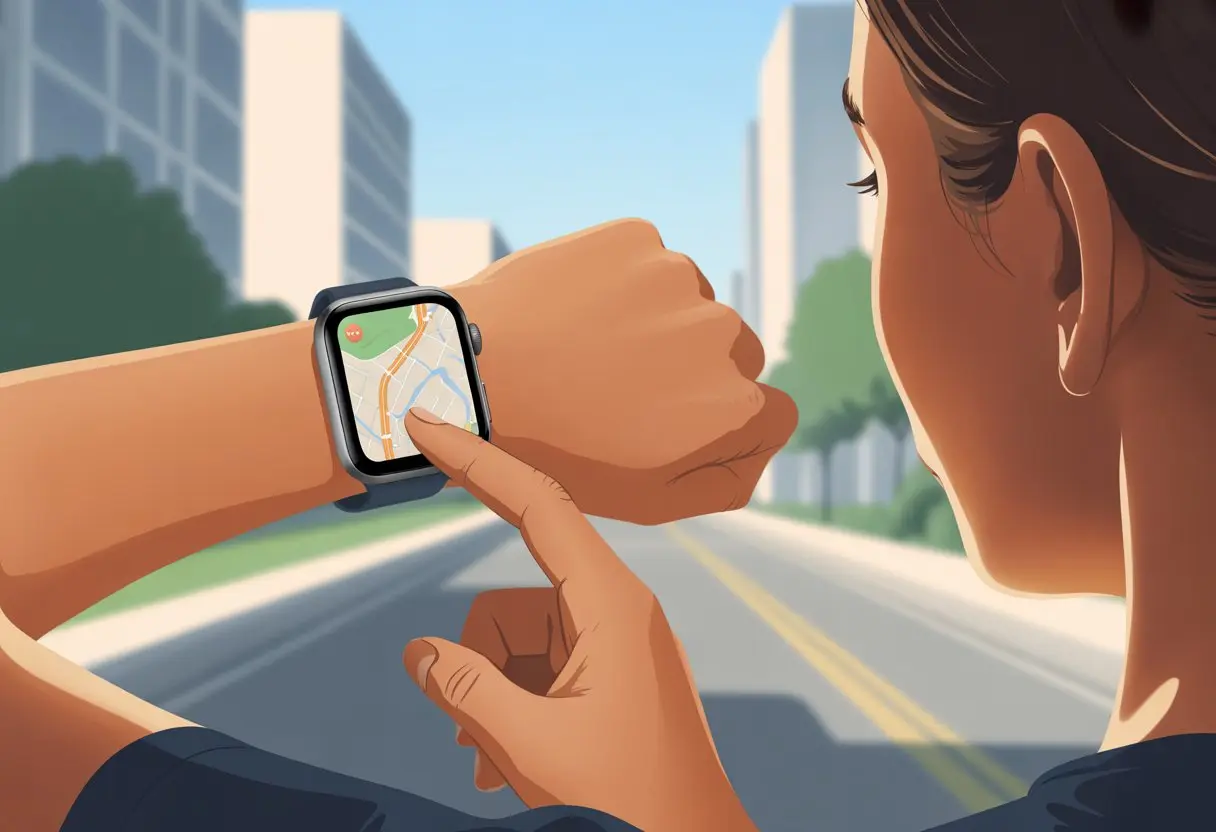
Let’s be real—nobody wants to wander around, lost, with their face glued to a phone. That’s where a smartwatch swoops in and saves the day. With Apple Maps on your smartwatch, you get turn-by-turn directions right on your wrist. No more awkwardly stopping to check your phone and wondering if you missed the last turn.
Just glance at your wrist, feel the tap, and walk on—looking (maybe) just a bit cooler than the folks dodging street signs.
Getting started with Apple Maps on your Apple Watch is a breeze. You can search for places, see your route, and get those subtle nudges when it’s time to move—all without fishing your phone out of your pocket.
That means one hand stays free for coffee, and the other for whatever dramatic gestures you’re making today.
If you used to worry about dragging out your phone just to find the nearest taco joint, you can relax. Apple Watch has your back (well, your wrist). With Maps, you’re set for errands, spontaneous adventures, and everything else.
Getting Started With Apple Maps on Your Smartwatch
Before you stroll off into the world with just your wrist as your guide, you’ll need to make sure your Apple Watch and iPhone are best pals. Also, double-check that the Maps app is ready to lead the way, not send you on some wild detour.
Pairing Your Apple Watch With Your iPhone
First, let’s make sure your Apple Watch and iPhone are talking to each other. To pair them, charge both devices—nobody wants to get lost and see a “low battery” pop up.
Turn on Bluetooth and Wi-Fi on your iPhone. Open the Apple Watch app on your phone.
Hold your watch close to the iPhone and follow the pairing steps that appear. Just like that, they’re in sync.
Make sure your iPhone runs the latest iOS and your watch has the newest watchOS. That way, you avoid those awkward moments when Maps just refuses to help. If something goes wrong, go ahead and reset the connection and give it another shot.
Once paired, you’re well on your way to mastering navigation.
Setting Up the Maps App on watchOS
Now, let’s bring the Maps app into the mix. On your Apple Watch, find the Maps icon (it looks like, well, a map). Open it up and check out what’s nearby—it’s kind of like peeking at a treasure map.
To search for a spot, tap the Search button and use Dictation or Scribble to enter an address. You can also pick from recently searched places if you’re feeling lazy or nostalgic.
Need directions? Tap your destination, hit Directions, and pick your travel method—walking, driving, or transit. The Maps app will tap your wrist when it’s time to turn, so you don’t have to stare at the screen like a lost pirate.
To make sure you catch all the alerts, open the Watch app on your iPhone and check that Turn Alerts are switched on. If you want more details, the official Maps guide for Apple Watch has your back.
With those steps, your Apple Watch is ready to guide you, keep you on track, and maybe even make you feel like a low-key explorer.
Navigating With Apple Maps on Apple Watch
Sometimes, it’s just easier to glance at your watch than wrestle with your iPhone. With Apple Maps on your Apple Watch, you get quick directions, can switch between walking or driving, and your friends might actually think you know where you’re going.
Starting Navigation to a Destination
Starting a trip on your Apple Watch is super simple—no magic words needed. Open the Maps app, tap the search button (the magnifying glass), and type in a destination.
If typing feels like a chore, use your voice instead. It’s especially handy if you’ve got clumsy thumbs or just like talking to gadgets.
Feeling social? Pick an address from your contacts list. That’s perfect if you remember your friend’s name but not their street.
Apple Watch goes beyond just telling you where to go—it taps your wrist. The Taptic Engine gives you gentle taps, so you don’t need to keep checking the screen.
Right turns and left turns feel different, so you’ll pick up the pattern fast.
If you’d rather see the map, just look at your watch. The next step and distance are always there, and if you want to zoom around like a secret agent, spin the Digital Crown.
The map updates live, so you won’t miss that sneaky little street. There’s something oddly satisfying about a perfectly timed buzz on your wrist.
Switching Between Driving and Walking Modes
Whether you’re driving, walking, or just wandering through a mall, Apple Maps has a mode for you. When you start navigation, your watch guesses the best mode, but you can always change it.
If you’re walking and want to skip the traffic, switch to walking mode for routes built for feet.
To change modes, tap the navigation icon when choosing a destination or during your trip. Driving routes show traffic and ETA, while walking routes highlight shortcuts and safe crossings.
Honestly, who doesn’t love shortcuts or knowing if you’ll beat the rain home? Smartwatches work with Apple Maps to give you the travel info you need without pulling out your phone every few minutes.
You can check your ETA, zoom in on maps like a digital detective, and find coffee shops or gas stations in no time.
Viewing ETA and Arrival Updates
Nothing says “Are we there yet?” like checking your ETA every five minutes. With a smartwatch, you can glance at your wrist and see your arrival time, which means less second-guessing and fewer backseat drivers.
Apple Maps keeps you updated with live arrival info. If traffic suddenly slows you down, your watch lets you know right away.
No need to unlock your phone for the tenth time—just raise your wrist for instant answers.
When directions change—like if Maps yells, “Take the next exit!”—your watch vibrates. You get clear updates and those timely taps, so you won’t miss a turn, even if you’re jamming out to your favorite playlist.
Zooming In on Your Route
Ever look at your wrist and think the map looks like a maze? Zooming in is easy—just twist the Digital Crown to zoom in or out.
Want to double check if the next street is Baker Avenue or the dreaded “oops, wrong turn?” Zoom right in.
It’s perfect for checking turns or spotting important streets without losing your place. If you struggle with tiny street names, zooming helps in seconds.
Plus, the map auto-refreshes as you move, so your location updates in real time. No more blaming someone else for that missed left turn.
Finding Nearby Places
You know that feeling when you suddenly need coffee, a bathroom, or gas? Smartwatches with Apple Maps make finding nearby spots ridiculously easy.
Tap the screen, browse for gas stations, restaurants, or hotels, and pick what you need in seconds.
Favorites and recent places show up first, which saves time and maybe a few arguments. If you want to explore, check out guides and suggestions.
Your watch updates directions to the new spot, complete with ETA, so you know exactly how long until relief (or caffeine).
For those “where the heck are we?” moments, addresses show up clearly. You get step-by-step directions, so nobody can claim they missed the next pit stop.
Taking Control: Buttons, Customization, and Notifications
Smart navigation starts with knowing how to wrangle your Apple Watch. You get handy buttons, can tweak your preferences, and keep distractions away—all without missing a beat.
Using the Digital Crown for Maps
Think of the Digital Crown as your navigation steering wheel, but without the risk of driving off the road. Use it to zoom in and out on your route, so you can actually see street names or upcoming turns.
When you’re lost at a tiny intersection, spinning the crown gives you a closer look—no need to poke the screen a hundred times.
Press the crown once to get back to the home screen. Hold it down to call up Siri for directions, or just to ask where you’re even going.
The Digital Crown is pretty handy if you’re wearing gloves or your fingers are tired from texting.
On the Apple Watch Ultra, it’s chunkier, so you can grip it even if your hands are full of snacks. For more, check out how to use buttons and gestures.
Customizing Your Apple Watch Experience
Customization is where you make the watch truly yours. Want bigger text? Prefer a different watch face for your adventures? Go for it.
In the Watch app on your iPhone, change the look, rearrange the app layout, or set complications so Maps is always front and center.
You can set a shortcut to Maps, tweak the Action button (if you’ve got the Apple Watch Ultra), or swap the home screen layout so you’re never digging for the right app.
Tweak notifications and focus modes to make sure you only get the alerts that matter. No need for pointless reminders when you’re following directions.
Nothing ruins a turn-by-turn moment quite like a flood of notifications. Seriously, is there anything worse than being both lost and distracted?
We can get a handle on this chaos by swiping down from the top of the screen to check notifications, or just flipping on Do Not Disturb, Focus, or Theater Mode for some peace.
If you’re using Apple Maps, it’s smart to mute unneeded notifications. That way, only the alerts that matter—like directions—break through.
Want to get a little fancy? Set up a Focus mode for “Navigation” and hush everything else. On the Apple Watch Ultra, notifications still pop up, but the bigger screen makes them less annoying somehow.
Curious how others deal with this? The Apple Watch subreddit has some solid advice from folks who’ve been there.
We get to navigate in peace, with just the right alerts keeping us on track. Plus, our wrists have never looked so smart.
Multi-Device Magic: Handoff and Syncing
Let’s be honest—sometimes we start directions on our iPhone but want our Apple Watch to handle the turn-by-turn. Apple Maps and Handoff make this easy, and honestly, it feels a bit like magic (minus the top hats).
Handing Off Apple Maps Between iPhone and Apple Watch
Ready to switch from phone to wrist? Handoff has you covered. First, make sure Handoff is enabled on both your iPhone and Apple Watch.
On the iPhone, head to Settings > General > AirPlay & Handoff and turn on Handoff. For the watch, open the Apple Watch app, tap My Watch > General, and flip on Enable Handoff.
Once that’s set, just start a route in the maps app on your iPhone. Your watch will pop up and politely ask if you want to take over navigation on your wrist.
Tap the notification, and voilà—your directions jump from phone to watch, step-by-step. Need a more detailed walkthrough? Apple’s official Handoff guide breaks it down.
You’ll get quick glances at upcoming turns without juggling your gadgets.
Comparing Smartwatch Navigation Apps
Nobody needs to be a pirate captain just to find the grocery store. With navigation apps on our wrists, getting around is way easier—and maybe we’ll even stop getting lost in parking lots.
Apple Maps vs Google Maps on Apple Watch
When it comes to wrist navigation, Apple Maps and Google Maps lead the pack. Apple Maps is baked right into the Apple Watch. You get haptic feedback, turn-by-turn directions, and quick-glance routes—no need to pull out your iPhone.
The interface stays clean, and the Digital Crown makes scrolling easy, even if your thumbs have a mind of their own.
Google Maps is here too, but it’s a bit different. You’ll need your iPhone nearby, since the watch can’t plan routes by itself. Start navigation on your phone, and directions appear on your wrist—thanks, Bluetooth!
But let’s be real, small screens can make detailed maps a bit confusing, especially if your route isn’t straightforward. Want to see both apps in action? Check out this video for a closer look.
Quick comparison table:
Feature
Apple Maps
Google Maps
On-watch navigation
Yes
Limited (needs phone)
Haptic feedback
Yes
Yes
Independent GPS use
Yes (on GPS models)
No
Garmin on Your Wrist: Alternatives and Extras
Some folks really care about heart rates and step counts. That’s where Garmin shines! Even though Garmin isn’t an Apple Watch brand, many Garmin smartwatches come packed with GPS tracking and their own sharp mapping features.
The Garmin Connect app lets you sync workouts, routes, and stats, so you can nerd out over every jog, hike, or dramatic stroll to the mailbox.
Garmin maps are detailed and rugged, which is perfect for outdoor adventures. You get breadcrumb trails, waypoint navigation, and you can follow GPX routes right from your wrist.
Extras like topo maps make you feel like a real explorer, even if you’re just circling the local park.
Garmin wearables also last longer on a charge than Apple Watch, so you don’t have to panic if your trip takes a little longer. It might be overkill for city commuters, but for trailblazers and data-lovers, it’s a pretty sweet upgrade.
Battery Life Tips for Long Adventures
Nobody wants their Apple Watch to bail halfway through a hike or when you’re lost in a new city. We need a few tricks to keep our wrists powered up all day.
Staying Powered Up on the Go
Watching that battery icon shrink is not the kind of adventure anyone wants. The Low Power Mode on watchOS can seriously save the day—it turns off the always-on display, cuts down background activity, and limits Wi-Fi and cellular use to stretch out battery life. Apple’s battery guide has more info.
Close any apps you’re not using and silence notifications you don’t need. Turning off Nightstand Mode, if you’re not using it, can actually save a surprising amount of juice.
Honestly, restarting your Apple Watch every now and then is like giving it a tiny spa day. It helps everything run better and keeps the battery happy. Want more practical ideas (or the secret to hitting 56 hours)? These bonus battery tips are worth a look.
Here’s a quick battery-saving checklist:
Turn on Low Power Mode
Cut down background app activity
Silence unnecessary notifications
Restart the watch regularly
Keep Nightstand Mode off when not needed
Now, go wherever Apple Maps leads—without that dreaded “low battery” warning.
Advanced Features for Fitness and Training
With a smartwatch and Apple Maps on your wrist, you can really level up your fitness game—without getting hopelessly lost or sweaty and confused (well, maybe just a little). Smartwatches aren’t just for directions; they’re packed with training tools that keep tabs on your heart rate and even your sleep.
Tracking Heart Rate and Power While Navigating
Who says you can’t find the nearest smoothie shop and check your heart rate at the same time? Many smartwatches, including the Apple Watch, let you keep the activity app running while using Apple Maps. You’ll see your pace, distance, and heart rate along with step-by-step directions.
No more awkwardly checking your pulse in the middle of a crosswalk.
If you’re cycling or running, power metrics make training a lot smarter. For cycling, some watches support third-party power meters, so you can track cycling power data as your map guides you. For running, the Apple Watch measures running power by itself, so you don’t need extra gadgets.
You can also track your resting heart rate and overnight sleep tracking with your smartwatch. That means even your recovery gets measured—perfect if you need an excuse for a nap. Want more details on Apple Watch fitness features? Check out Apple’s fitness guide.
Integrating Workouts With Navigation
We don’t have to pick between “maps” and “workouts” anymore. With features in both the Workout app and some third-party apps, you can run structured workouts on the same screen as Apple Maps.
So, you get directions while chasing your step count record—or just pretending to.
Here’s how it helps:
Get alerts for interval changes during structured workouts—like “speed up at the next intersection.”
Your training load stats update right after your workout, since heart rate and power keep tracking.
If you get lost (it happens), navigation reroutes you without stopping your workout session.
For step-by-step info, Apple’s user guide for Apple Watch has you covered. Of course, all this tech doesn’t guarantee you’ll actually get off the couch—but it does make fitness a lot more fun when you do.
Troubleshooting and Developer Tools
Using a smartwatch with Apple Maps usually goes smoothly, but tech has a way of humbling us. Whether you’re dealing with watch drama or testing the latest iOS beta, some clever fixes and tools can get things back on track.
Common Issues and Fixes
Sometimes, Apple Watch and Apple Maps just stop talking to each other. If directions don’t show up or the watch won’t reconnect, it’s time to do a little detective work.
Start with the basics:
Restart both devices—the classic turn-it-off-and-on move actually solves a lot of weird problems.
Check Bluetooth and Wi-Fi on both your iPhone and watch. If either isn’t connected, Maps directions might just vanish.
Open the Watch app on your iPhone and make sure Apple Maps is still installed and allowed to send notifications.
If none of that helps, try removing the watch from the run destinations in Xcode and set it up again (thanks, Apple Developer Forums). Also, connect your Apple Watch via USB while debugging if you’re feeling technical. In rare cases, reinstalling the Maps app or unpairing and re-pairing the watch can finally convince Apple Maps to behave.
Exploring Developer Betas and New Features
We like living on the edge, so sometimes we dive into iOS or watchOS developer betas. It’s fun to try out new features before anyone else even knows they’re around.
But, honestly? Betas can be just as frustrating as they are exciting. You never know what’s going to break next.
When things start acting weird during development, we fire up Xcode’s debugger. Apple actually gives us some handy built-in tools for tracking down issues, so we spend less time guessing and more time actually fixing stuff.
Hi, my name is Garrett Jones, and I am a tech enthusiast. I enjoy researching the new tech that has been released, and have a vast knowledge of the best tech to purchase.
From a young age, I have always had a big interest in technology, and this blog is an extension of that interest. Through this blog, I hope to provide others with all of the information they need regarding tech options to consider, and things such as compatibility. Some of the different items I will be discussing include headphones, smartwatches, and how to fix common issues.