We’ve all been there—checking our fitness tracker after a long walk, expecting some wild step count, only to see a big fat zero. Is the tracker lazy, or is it us? Usually, our fitness tracker misses steps because of sensor hiccups, software bugs, or settings we didn’t even know we changed.
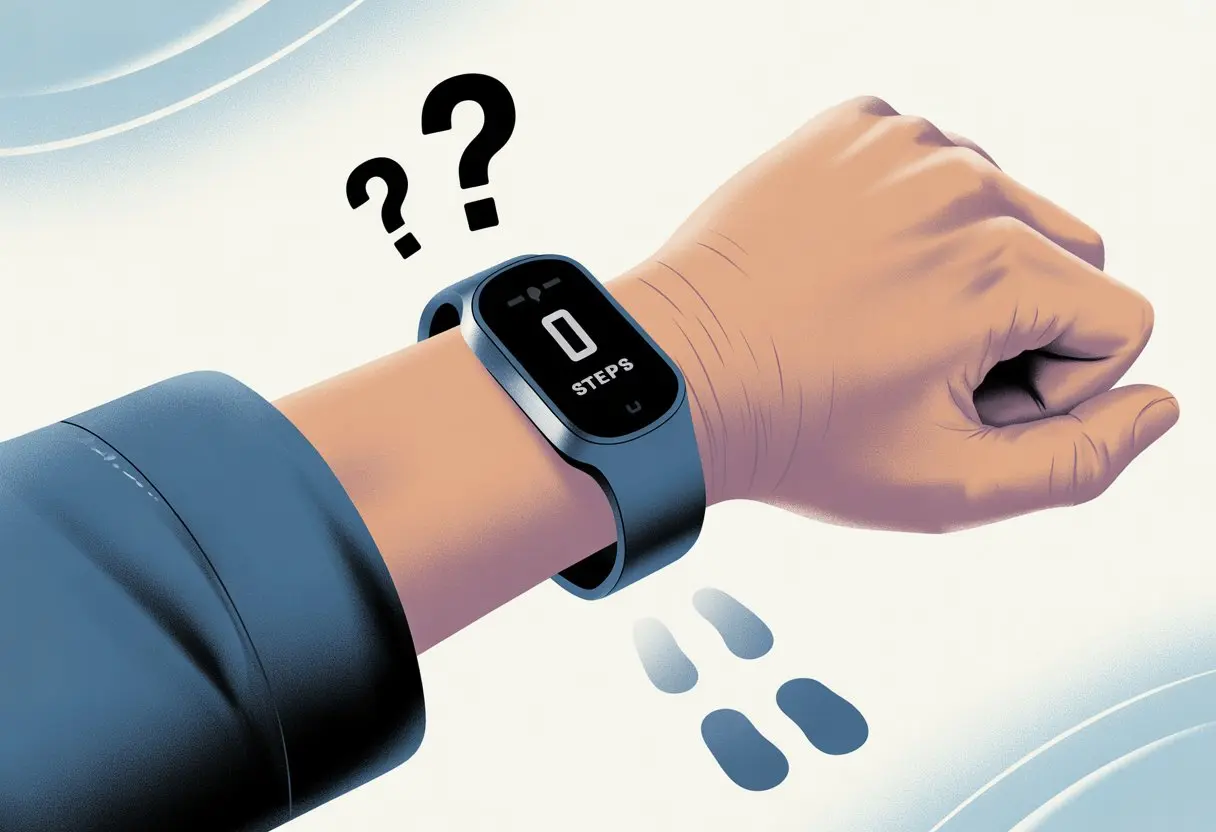
It’s like a modern ghost story—the mystery of the missing steps. We start to wonder if we even walked to the kitchen or just teleported.
But don’t stress. We dug up the real reasons our tracker might be slacking off and what we can actually do about it.
Let’s try to figure out why our steps keep vanishing. Maybe we’ll even save ourselves from pacing around the living room just to close those rings for real this time.
Common Reasons Your Fitness Tracker Isn’t Counting Steps
Sometimes our fitness tracker just ignores all our hard work. Even little things, like how we wear it, can mess up our step count.
Incorrect Wrist Placement
When we strap our fitness tracker too tight or too loose, we’re asking for trouble. The tracker needs to sit against our skin—snug, but not cutting off circulation—to pick up motion right.
If the device sits sideways, upside down, or even on our elbow, its sensors get confused. It’s kind of like trying to read a book in a dark room—possible, but a lot harder than it needs to be.
We want the tracker on the top of our wrist, not the underside, and definitely not clipped to our wild uncle’s dog.
Wearing Tracker on Non-Dominant Wrist
Most trackers let us pick which wrist we wear them on, and there’s a real reason for it. Our dominant hand moves more during the day.
If we put the tracker on our non-dominant wrist and forget to tell the app, our step count can get weirdly low. The non-dominant arm just doesn’t swing as much, so the tracker might miss steps unless we tweak the settings.
Some trackers let us switch between wrists in the app. That way, the device knows what kind of arm movement to expect.
Not Enough Arm Movement
Some of us walk like ninjas—hardly any arm swinging, just pure leg power. Most trackers want to see that arm bobbing while we walk.
If we stroll with hands in our pockets or carry a bag, we might secretly rack up steps, but the tracker acts like nothing happened. Holding onto things, like a stroller, shopping cart, or even a leash, can mean fewer steps get counted.
The tracker needs to feel that back-and-forth motion. No arm swing? Fewer steps. It’s weird, but sometimes we have to exaggerate those swings just to convince the tracker we’re actually moving.
Repetitive Motions Mimicking Steps
Our trackers aren’t exactly picky. Sometimes they count “steps” when we’re folding laundry, washing dishes, or shaking a ketchup bottle like we’re in the Olympics.
The sensors look for patterns that feel like walking and get tricked pretty easily. Repetitive arm motions can fool the tracker into thinking we’re walking, even if we’re just standing still.
On the flip side, using a lawn mower or vacuum can give us too many bonus steps or, strangely, not enough, depending on how our hands move.
Honestly, sometimes our step count reflects way more than just walking. Maybe housework should count as cardio, right?
Device Settings and Calibration Issues
Let’s be real—our trackers occasionally act like they need a cup of coffee just to function. Usually, settings or tracking features are to blame, or maybe the gadget just wants a quick reboot.
Checking and Adjusting Settings
If our step count says we spent the day like a statue, the first thing to check is our device settings. Sometimes, Location Services or Motion & Fitness permissions just need a nudge.
We can go into the settings menu, make sure fitness tracking is on, and confirm the right permissions are allowed. For iPhones, that means jumping into Settings > Privacy & Security > Location Services and making sure everything’s switched on.
If everything looks good but the tracker still ignores us, restarting the app or device can help. Tech gets moody, too.
Enabling Fitness Tracking Features
We’ve all accidentally turned off something important—autocorrect, Wi-Fi, or, in this case, fitness tracking. If step data is missing, double-check that step tracking is enabled.
On iPhones, we need to check that Motion & Fitness Tracking is flipped on in Settings. On Android and other gadgets, look for “Activity tracking” or “Track steps” and make sure it’s on.
If these features are off, our trackers just chill out, totally unaware we’re racing to catch the bus. Turning them on usually gets things back on track.
Resetting Fitness Calibration Data
If our tracker thinks walking to the fridge is a 5K, it’s probably time for a calibration reset. Step counts can get weird if we set up the device while doing something other than walking.
Resetting calibration is usually simple. On Apple Watch, we open the Watch app on our iPhone, go to Privacy, and tap Reset Fitness Calibration Data. After that, walking in a flat, open area helps the tracker learn our stride.
Other fitness bands might need a manual restart or a full reset, as shown in some fitness tracker troubleshooting guides.
Reaching Your Daily Step Goal
If our tracker shows zero steps after a morning jog, we should double-check our daily step goal and activity settings. Some apps and devices don’t show progress unless everything’s set up right.
It’s possible we’ve met our move goal, but steps aren’t showing. Sometimes the step counting algorithm is out of sync with our phone app, as folks discuss in user forums.
We can check for sync issues and make sure the daily goal is realistic. Updating to the latest software version is worth a shot, too. Trackers can be stubborn until they get an update.
Fitness App Glitches and Syncing Problems
If our fitness app refuses to count steps, we’re definitely not alone. App bugs, syncing headaches, or a sneaky setting can make it feel like our walks don’t count.
Syncing the Fitness App
Syncing is supposed to make everything work together, but sometimes the fitness app just won’t play nice. Double-checking Bluetooth is a good start—no Bluetooth, no syncing, no steps.
We should also make sure our phone and tracker are both updated. An old app can mean data gets stuck or doesn’t match up.
If the app shows zero steps but the ring looks full (or vice versa), there’s probably a syncing issue between the app and device. Force quitting the app and restarting our devices can help.
If things still aren’t matching up, opening the Health app can show if the data is actually there. Sometimes, it’s just the Fitness app slacking off.
Dealing with a Fitness App Not Working
When the fitness app isn’t working, it feels like our daily walks are invisible. We might see our activity ring close while our step count stays at zero, or the app won’t update after a sweaty workout.
It’s tempting to throw our phone across the room—but before we get dramatic, let’s try the basics:
- Restart our phone and watch
- Check for software updates
- Make sure location and motion tracking are on
Some users say even resetting both devices doesn’t always fix things, so patience is important. For more tips, check out this Fitness app troubleshooting thread.
Deleting and Reinstalling the Fitness App
If nothing else works, it’s time for drastic measures: delete and reinstall the fitness app. First, back up any important data in case the app forgets our steps.
Here’s how to do it:
- Press and hold the app icon until it wiggles
- Tap “Remove App” and say goodbye (for now)
- Head to the App Store and reinstall the Fitness app
A fresh install usually wipes out glitches and gives the app a clean slate. We log in, set it up, and syncing often starts working again.
If you want a video walkthrough, this step-by-step guide is handy.
Sometimes, the oldest tech trick really is the best.
Hardware and Software Troubleshooting
Sometimes, a fitness tracker just doesn’t want to count steps. Issues can come from the device itself, old software, or weird firmware glitches. Here’s how we usually handle the most common fixes—because who wants to count steps by hand?
Restarting Your Device
Let’s start with the classic: turning it off and on again. It’s almost a joke, but it solves more issues than you’d think.
For iPhones, we hold down the power button, slide to power off, and wait a few seconds before turning it back on. Most fitness trackers or smartwatches have a button or menu setting for restart.
Restarting helps if the step counter froze, went blank, or randomly jumped to zero. Before we panic or call tech support, let’s restart our phones and fitness devices. It’s a quick fix that clears up a lot of weird glitches. If we’re still stuck at zero, it might be time to dig deeper—no pun intended.
Performing a Software Update
Running old software on our trackers? That’s like wearing flip-flops in a snowstorm—definitely not the best move. Updates bring fixes, better accuracy, and sometimes cool new features.
If you’ve got an iPhone, just head to Settings > General > Software Update and follow the steps. For other fitness trackers or smartwatches, we usually open their companion app—like the Apple Watch or Fitbit app—and look for the update button in the menu.
Software updates often fix step-counting bugs or glitches from outdated code. If an update’s available, go ahead and install it. Step counting doesn’t stand a chance if it’s stuck in last year’s firmware.
Need a hand? This iPhone Life guide can help.
Firmware Update and Package Fixes
Firmware is the secret sauce that tells our tracker how to behave. Sometimes, a bug in the firmware makes step tracking act weird or just quit.
Many smartwatches let us update firmware in their settings or through a connected app. If we’re having trouble, it’s worth checking for a firmware update—especially if restarting and software updates haven’t worked.
Once in a while, things just go sideways and we have to reinstall the whole firmware package. That’s basically sending our tracker to a spa for a full reset.
Look for “reinstall firmware package” or “factory reset” in the app or settings. Most trackers let us back up our data first, so don’t panic.
If your tracker needs a firmware update, plug it in, connect to Wi-Fi, and let it do its thing. Interruptions can make things worse, so maybe go grab a snack while it works.
Standard Repair vs. Tech Wizardry
If nothing’s working and steps are still missing, we might have a bigger issue. Here’s where it gets interesting—do we try a standard repair, or call in a tech wizard?
Start with the basics: check the sensors, clean the device, and look over your health or fitness app settings. Sometimes just wiping fingerprints and restarting fixes it.
If that doesn’t help, you might need to get a little more creative. Sometimes reaching out to support, using advanced diagnostic tools, or even manually flashing firmware is needed (not for the faint of heart). Apple has a troubleshooting checklist that’s helped others with weird issues.
If nothing works, maybe it’s time to count steps out loud—kidding, but hey, desperate times.
When Apple Health App Doesn’t Play Nice
Sometimes tech just decides to take a nap, especially when it comes to step counting on Apple devices. Our steps might be perfect, but Apple Health and friends don’t always agree.
Unpairing and Re-Pairing Apple Watch
Let’s be real, the Apple Watch and iPhone relationship has its moments. If our step count looks way off, it might be time for a little breakup—just temporarily.
Unpair the watch from your iPhone (it’ll back up your data automatically). Once it’s done, pair it again through the Watch app.
This usually helps the devices sync up, and our steps start showing up again. If the issue comes back, repeating this dance often sorts it out.
Troubles with Apple Health and Health App
Sometimes the Apple Health app just forgets it’s supposed to track our steps. Usually, this happens because it doesn’t have permission to gather motion data.
Check in Settings under Privacy and make sure the Health app can track motion and fitness activity.
Restarting your phone can also help if things still seem off. If the step count stays at zero but you know you’ve done some serious walking, try toggling permissions off and on in the Health app.
Make sure the Health app has permission to track you, or your steps might never show up, no matter how many laps you do around the living room.
Advanced Fixes and System Errors
Sometimes our fitness trackers just have a mind of their own. When the usual fixes don’t cut it, maybe it’s a sneaky system glitch or even a moody iPhone.
Tackling System Glitches
Let’s be honest—sometimes electronic gremlins just mess with our progress. Glitches can show up after updates, app crashes, or when the iPhone just needs a break.
If your step tracker stops counting, try force quitting the Health or Fitness app, then reopening it. Sometimes that’s all it takes.
A full restart can also help—it’s like giving your phone a fresh cup of coffee. Check for any iOS updates, too. Sometimes the fix is hiding behind that “update now” button.
If that doesn’t work, sign out and back in to your iCloud account. This can refresh stuck data syncing and step counts.
Still missing steps? Toggle “Fitness Tracking” and “Health” permissions off and on in Settings. That sometimes scares the bugs away.
For more advice, check out common fitness app tracking issues others have faced.
Using iOS System Recovery Tools
If things are still a mess and steps won’t log, it’s time to bring out the big guns. iOS system recovery tools like TunesKit can fix deeper system errors or stubborn glitches.
These apps act like a tech cleanup crew. They help fix corrupted data, random crashes, and device freeze-ups—without deleting your cat photos or health data.
Here’s a quick rundown:
| Issue | What iOS Recovery Tools Can Fix |
|---|---|
| App not opening | Fixes app launch failures |
| Stuck updates | Repairs failed or stuck iOS updates |
| Random crashing | Cleans up system errors and freezes |
For step-by-step help, check the guides for iOS system recovery fixes. Most tools just need you to plug in your iPhone, follow some prompts, and let them do their thing.
Dealing with iPhone Stuck Scenarios
Sometimes our iPhones just… give up. If you’re staring at a frozen screen, Apple logo limbo, or endless restart loops, step tracking becomes the least of your worries.
Try a forced restart: press and quickly release Volume Up, then Volume Down, then hold the Power button until the screen goes dark and the Apple logo returns.
If your iPhone still won’t cooperate, recovery mode or those iOS system recovery tools might be your only hope.
Remember, operating system failures affect everything—so your chats, memes, and step counts all hit pause. If nothing works, maybe it’s time to visit the Genius Bar, or just take a walk and count steps yourself. Sometimes, you just have to laugh.
Understanding Power Saving Features
Sometimes our fitness tracker tries to save battery at the worst possible time—like right when we finally get moving. The settings we choose can decide if every step (or dance move) gets counted.
Low Power Mode Effects on Step Tracking
When we turn on low power mode, our devices act like energy-saving heroes, but there’s a trade-off. Many trackers, including the Apple Watch, cut down on sensors and features in this mode.
That can make step tracking less accurate, especially if motion sensors aren’t checking as often.
Some devices have a couple different power saving settings. With some, workouts and steps may not get tracked fully, but battery life can last forever. According to this Apple Watch discussion, turning off power saving modes in Workout settings can bring your steps back.
Here’s a quick tip list:
- Check if low power mode is on when your step count looks weird
- If you want every stride counted, keep power saving off during activity
- Save battery by not checking your steps every five seconds
Still not sure? Try turning off power saving mode and march in place. If it starts counting again, you’ve found the culprit.
Device Compatibility and Update Concerns
When our fitness tracker skips steps, it’s tempting to blame our lazy feet. But sometimes, it’s just the devices or updates causing trouble. Software versions and compatibility can make or break your step streak.
iOS 16 and Fitness Tracker Compatibility
If you’re running iOS 16, make sure your fitness tracker plays nice with it. Some trackers or fitness apps just won’t cooperate with certain operating systems—kind of like that friend who never RSVPs.
Step tracking can stop if the app isn’t ready for the latest iOS update. Before tossing your tracker, check the app’s page in the App Store for compatibility info.
Developers usually list which iOS versions they support. Sometimes, apps need special permissions that reset after updating to iOS 16. If permissions are off, your phone may still run, but your steps won’t.
If the app works with iOS 16 but isn’t counting steps, double-check privacy settings or reset the Motion & Fitness permissions. Updates can cause bugs for some users, as others have mentioned in fitness app not counting steps threads.
Ensuring All Devices Are Up to Date
Running old software on your iPhone or tracker? That’s like showing up to a marathon in slippers—you’re not winning. Fitness apps and trackers need the latest updates to work well together.
Update your operating system and tracker app to squash bugs, unlock features, and keep things in sync. Some users have had trouble when their iPhone or Apple Watch weren’t both updated, so don’t let one device fall behind.
If one device updates and the other doesn’t, step tracking can glitch or stop, as people mention in forums about the Fitness app not updating activity.
Restart both devices after updates. Turning things off and on again fixes more than just Wi-Fi! If you’re still stuck, check for further updates from Apple or your fitness app developer.
When All Else Fails: Seeking Professional Help
Sometimes, after trying every fix under the sun, our tracker still thinks we’re just sitting around. At that point, it’s time to get some expert help.
Support from Verified Professionals
We’ve all been there—messing with our step counter, only to see zero steps while pacing the room. If restarting and tweaking settings hasn’t helped, reaching out to verified professionals is the next step.
Apple, Fitbit, and other big brands have official support with real humans who’ve seen it all. They can walk us through device resets, software troubleshooting, or hardware checks.
Support reps might ask for device logs or have you test the tracker on another phone, so keep chargers and cables handy.
Reaching out to official support can save your step goals. If you’re lucky, you might even get a free replacement if your tracker’s truly defective. Always check the warranty before someone asks, “Have you tried turning it off and on again?”
When to Try JustAnswer
Sometimes it’s midnight, your tracker’s still stubborn, and official tech support is fast asleep. That’s when you might want to check out services like JustAnswer.
This site links you up with tech experts, fitness tracker geeks, and electronics wizards—sometimes even at odd hours when everyone else has called it a night.
With JustAnswer, you just type your question, maybe snap a picture of your tracker doing its “lazy day” routine, and get step-by-step help from a real person. Instead of guessing your way through endless tutorials, you’ll talk to folks who’ve actually fixed these annoying problems before.
If you need answers fast, or your health is at stake and waiting isn’t an option, JustAnswer can really come in handy. Honestly, it’s a little entertaining to see how many creative ways the experts suggest, “Try charging it for a bit.”
If you’re tired of wandering around with no steps counted, having someone who actually knows what they’re doing feels like a win.

From a young age, I have always had a big interest in technology, and this blog is an extension of that interest. Through this blog, I hope to provide others with all of the information they need regarding tech options to consider, and things such as compatibility. Some of the different items I will be discussing include headphones, smartwatches, and how to fix common issues.
Related Posts: