Let’s be honest—most of us wear fitness trackers for steps, sleep, and, well, to feel a bit smug when that daily goal buzzes. But what if our trusty fitness band actually made chatting with friends easier too?
We can get Facebook Messenger notifications right on our wrists, so we don’t miss funny memes or urgent group messages just because we’re out for a walk.
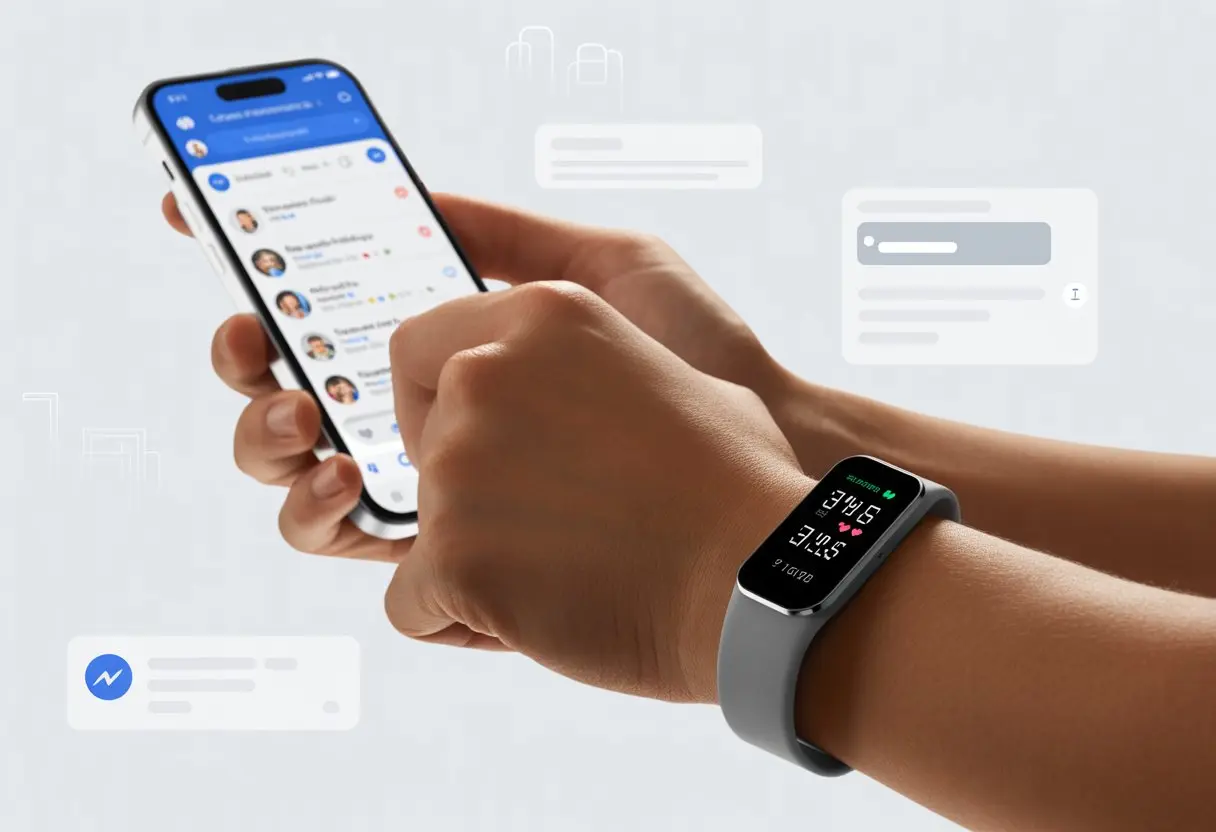
Let’s talk about how to turn a fitness tracker into a mini messaging headquarters.
No more fumbling to grab the phone mid-jog or interrupting a workout to check who just messaged.
With a little setup, we can stay connected without missing a beat—or a step.
Whether you use a Garmin, Fitbit, or even a Galaxy Watch, there’s a way to link Messenger to your tracker.
Let’s see how we can make our next workout a little more social and, honestly, a lot more fun.
Getting Started With Your Fitness Tracker And Facebook Messenger
Before we chat our way to better health, let’s set up our gear the right way.
We’ll need to connect our fitness tracker to our phone, check what the phone’s brain—oops, we mean operating system—can do, and see if Messenger is ready for action.
Pairing Your Fitness Tracker With Your Smartphone
First things first, let’s get our fitness tracker talking to our smartphone.
Most trackers use Bluetooth to make the magic happen, so we need to switch that on.
If only we could turn on motivation as easily!
Open your tracker’s app (think Fitbit, Garmin, or something equally techy) and follow the prompts to link it to your phone.
Usually, there’s a “Pair device” button hiding in the settings menu.
We tap it, look for our tracker’s name, and select it faster than we run to the fridge.
If something’s not working, try turning Bluetooth off and on again.
Still stuck? Charge both devices—nothing wants to talk on an empty battery.
Ensuring Operating System Compatibility
Now we need to make sure our smartphone can actually support the fitness tracker and Facebook Messenger.
Apple users, your iPhones should run iOS 13 or newer.
Android fans, you’ll want Android 8.0 or later.
Fitness tracker apps usually say which operating systems they like best.
If our phone is too old (sorry, 2014), not all features will work, and we might miss out on important updates.
No one wants to be left out of the next Messenger emoji update.
A quick visit to the app store lets us know if our phone still makes the cut.
If the app won’t install, it’s probably time to update the operating system—or, if all else fails, think about upgrading your phone to something built this decade.
Installing Messenger On Your Device
To get Messenger ready, we’ll need to download it from the App Store or Google Play Store.
Search for “Facebook Messenger” and hit the install button.
Simple, right? Yet somehow we always have to clear a few gigabytes of photos we forgot about.
After installing, sign in using your Facebook account details.
If you’re not already logged into Facebook on your phone, Messenger will ask you to do this first.
Notifications may pop up asking if you want to allow them—unless you like surprises, tap “allow”.
It’s important to remember that while Facebook Messenger doesn’t have a native app on wearables like Pixel Watch, you can still get notifications if it’s set up correctly on your phone.
If you want to actually reply from the tracker, check if your brand supports quick replies or message notifications through the companion app.
Let’s keep those message alerts coming—after all, who wants to miss out on group chat drama while counting steps?
Syncing Fitness Trackers With Messaging Apps
Syncing fitness trackers with messaging apps sounds either brilliant or slightly risky—now our friends can see us sweat in real time!
This process usually means connecting accounts or fiddling with phone settings to get alerts from Messenger or WhatsApp on our Apple Watch, Garmin, or Fitbit.
Connecting Fitness Tracker Accounts
We need our fitness tracker and our messaging app to become best friends.
For most devices, just download the right smartwatch app (like Garmin Connect or the Fitbit app) on your phone and sign in.
Once you’ve done the basic setup, enable notifications.
On Apple Watch, do this through the Watch app on your iPhone.
For Fitbit, use the Fitbit app and look for notification settings.
Garmin users should check out the instructions in their app and YouTube’s guide to using the Messenger app with Garmin watches.
Usually, syncing with Messenger or WhatsApp means turning on permissions for these apps in your phone’s settings.
Check all the right boxes, including access to notifications and permission to run in the background.
If you accidentally block your messenger app from talking to your tracker, it’s like putting them in separate rooms at a party.
They just won’t communicate.
Troubleshooting Sync Issues
Sync not working? Notifications playing hide and seek?
Don’t panic; it happens to the best of us.
First, make sure Bluetooth is turned on and both devices are connected.
If that doesn’t do the trick, sometimes you need to dive into your phone’s notification permissions.
According to users in the Garmin forums, checking all notification and nearby device permissions for Messenger is a must.
Try restarting everything.
Unpair and re-pair the devices if necessary.
When all else fails, update the apps and double-check that Do Not Disturb modes are off—sometimes, the tracker just wants a nap.
If syncing with WhatsApp or Messenger still refuses to work, reinstall one or both apps.
This step works surprisingly often, like shaking a stubborn vending machine (just be gentle with your phone).
Using Messenger Notifications On Wearables
Sometimes we want Facebook Messenger to buzz our wrists just as fast as our phones.
With the right settings, fitness trackers and smartwatches can keep us in the loop even when our phones are hiding at the bottom of a bag.
Here’s what we need to know to get Messenger playing nice with our wearables.
Enabling Messenger Notifications
Let’s actually get those Messenger alerts onto our wrists.
On many wearables, like Fitbit or Samsung’s Galaxy Watch, we have to link our messenger app to the companion app on our phone.
With Fitbit, open the Fitbit app, tap your device, and under Notifications, find App Notifications.
Messenger should pop up—just check the box, and now your tracker’s a mini-portal for new messages.
The process is similar with other brands.
On a Samsung watch, use the Galaxy Wearable app, go to Watch Settings, then Notifications, and toggle Messenger ON.
Garmin users, head to phone settings, open the Apps menu, find Messenger, and allow all permissions (especially Nearby Devices).
This makes notifications far more reliable.
For most wearables, enabling this is as simple as turning on the option in your related phone or watch app.
If all else fails, reboot the wearable and try again.
Managing Notification Settings
Notifications can get a little much, especially in rowdy group chats.
We can fine-tune what pings our wrists so we don’t get buzzed every time someone sends an over-enthusiastic thumbs-up emoji.
On Fitbit, select which apps send notifications in the App Notifications section.
If Messenger is the star of the show, keep it on and mute all the noisy apps you don’t care about.
On Samsung watches, go a step further—open Galaxy Wearable, choose Manage Notifications, and pick exactly which notifications you want.
You can even turn off vibrations or sounds, so your wrists stop shaking like a caffeinated squirrel.
For Garmin and others, make sure permission settings match your preference.
Some systems let you control previews, sound, and vibration mode.
Privacy fans can even hide message content, so nosy neighbors can’t sneak a peek if you lift your arms.
If your wearable feels more like a slot machine than a fitness tracker, a few simple tweaks will return things to normal—no coins needed.
For easy-to-follow pictures and detailed steps, check community guides like this post on setting up Messenger alerts for Fitbit or see how it’s done on Samsung wearables.
Tracking Health And Activity Metrics
A fitness tracker does more than just count our steps—it makes us face the music about how much we actually move and sleep.
By checking our activity and sleep stats, we can set goals, impress friends on Messenger, and pretend we don’t nap every afternoon.
Monitoring Daily Steps And Activity
If you ever wanted to know exactly how lazy—er, efficient—you are, the step count on an activity tracker is brutally honest.
Most trackers display steps, distance, calories burned, and even time spent being active.
We can boost motivation with daily step goals (10,000 steps, anyone?) or join step count challenges to turn our lack of movement into a good excuse for competition.
Syncing your fitness tracker with certain apps makes it even easier to share your best days with friends or rival coworkers.
Some fitness trackers and apps automatically log steps and workouts, so you don’t have to remember each lunchtime walk or dash to the coffee machine.
A quick glance at the activity tracker dashboard usually shows:
| Metric | Description |
|---|---|
| Steps | How many times you lifted your feet |
| Calories | How many snacks you “earned” |
| Minutes | Time spent moving |
The fitness tracker holds us accountable, even when our willpower would rather binge-watch TV.
Analyzing Sleep Patterns
Quality sleep makes us nicer, healthier, and less likely to fall asleep during meetings.
Sleep trackers collect data on when we toss, turn, and finally give up on counting sheep.
Most trackers break down sleep patterns into light, deep, and REM sleep.
They’ll shame us with stats like total sleep time, bedtime consistency, and, occasionally, how many times we got up for midnight snacks.
A good sleep tracker nudges us toward healthier habits by highlighting trends and offering tips.
When we check weekly graphs, we see patterns like staying up too late on weekends or keeping a strict bedtime on Tuesdays (thanks, reality TV).
Spotting trends in our sleep patterns helps us tune up our routine without feeling like grumpy zombies.
For more about these types of metrics, some devices even monitor heart rate and sleep quality, giving us extra bragging rights.
Maximizing Battery Life While Chatting And Tracking
Nothing kills a chat or workout streak like a dead battery. If we want our fitness tracker and Facebook Messenger to keep up, we’ve got to make some smart tweaks to our settings and permissions.
Optimizing Fitness Tracker Settings
Let’s poke around in the settings menu of our fitness tracker. Try lowering the screen brightness—unless we really need to light up the room at midnight. Lower brightness actually saves a lot of battery, and we can still read messages while doing squats.
Pick a simple clock face and stick with it. Animated designs might look cool, but they drain the battery way faster than you’d think. If we use the exercise tracker for two hours a day, it’ll drain more quickly, so let’s just track the workouts that matter. There’s more on these tweaks in this Fitbit community discussion about battery life.
Turn off always-on display, and don’t let vibration notifications buzz for every single chat. If every Messenger “ding” turns our wrist into a trembling mess, it’s time to set vibration to “important only.”
Adjusting App Permissions
Now, let’s get real about our apps. Facebook Messenger loves running in the background, but we don’t need it quietly sipping battery all day.
Go into the tracker’s settings or the paired phone app and restrict Messenger’s background activity. That way, it only checks for updates when we open it. If Messenger wants to send constant notifications, try limiting alerts or muting group chats we don’t care about. Our wrists—and battery—will appreciate it.
If our tracker has a cellular connection, turn it off when our phone is nearby. This stretches battery life by letting just one device handle the signal. For more tips, check out this Reddit thread on maximizing battery life with different apps.
Setting clear boundaries for our tracker and Messenger means we can chat and track all day without scrambling for a charger before lunch.
Exploring Advanced Health And Fitness Features
Fitness trackers aren’t just digital watches—they’re packed with cool health features that can make us feel like we’ve got a personal coach. From syncing data with other apps to sharing sleep and workout stats, there’s a lot we can play with.
Using Third-Party Health And Fitness Apps
Let’s be honest, sometimes the basics don’t cut it. That’s where third-party fitness apps and integrations like the Fitbit app step in. We can link our tracker with other options to get things like workout reminders, hydration alerts, and meal tracking.
Pairing a tracker with these apps usually takes just a few taps. Once linked, we might get gentle nudges to stand up, drink water, or start a living room dance-off. Suddenly, our tracker feels less like a nagging parent and more like a friendly coach. For more ideas, see the top fitness tracker features.
Utilizing Sleep And Activity Data With Messenger
Imagine waking up after a rough night and wanting to brag (or complain) about your sleep. Most trackers record sleep and daily activity in wild detail—steps, heart rate, even blood oxygen levels.
We can use that data to spark conversations, maybe even motivate our friends to get moving. Screenshot a step streak or a record heart rate and drop it in a Messenger chat. Who says healthy competition can’t start with a meme-worthy chart? Check out more about tracking health metrics like blood oxygen and ECG in this roundup of advanced health features.
Our tracker can’t make us type faster, but it can give us plenty to talk about.
Staying Secure: Privacy Settings With Messenger And Trackers
Keeping our personal info safe feels like a full-time job these days. Our watches know more about our morning jogs than our families do. So, how do we balance Messenger chats and fitness tracking without oversharing?
Managing Permissions Between Apps
Let’s start simple—permissions. If our fitness tracker wants to share with Facebook Messenger, we need to check what we’re agreeing to. Both apps might ask for contacts, location, or health data. Giving away too much is like handing over the keys to our digital house.
Only grant permissions that are actually needed. When Messenger or our tracker asks for something extra, pause and think about what could happen with that info. Dive into our phone’s settings—on iPhone and Android, we can toggle app permissions on or off. This keeps us in control. If an app asks for something it doesn’t need, just say “no.”
Understanding Data Sharing Risks
Connecting trackers and Messenger sometimes feels like a party where everyone’s oversharing. Some companies collect details about our workouts, heart rate, and even sleep. If that flows into Messenger, it could get used for ads or, worse, end up in a data breach.
Check each app’s privacy settings. For Messenger, look under Privacy & safety. For trackers, dig into the user account dashboard.
Here’s what helps:
- Turn off location sharing if it’s not needed.
- Limit data sharing between apps—don’t sync reports straight to Messenger.
- Review app integrations often, and disconnect what we’re not using.
After scandals like Cambridge Analytica, we know data can slip away fast. Let’s not give every app an invite to our digital world.
Fun Ways To Show Off Your Progress On Messenger
Let’s be real—tracking steps is fun, but showing off that step count is even better. Fitness trackers make it easy to bring our latest stats right into Messenger.
Sharing Step Count With Friends
Sometimes we hit numbers too good to keep to ourselves. If our tracker app shows daily steps, just screenshot it and send it in a group chat with a cheeky “guess who’s skipping the elevator?”
Some fitness trackers connect to our phones and let us share stats. On iPhone, we can use the Health app or the tracker’s app—just tap our results, hit share, and pick Messenger. It’s almost magic, but sweatier.
Add a sticker or GIF for extra flair. Nothing says “I walked 14,892 steps” like a dancing penguin.
Posting Activity Milestones In Messenger
Big achievements deserve a little bragging. Hit a personal best? Post a celebratory update or story right in Messenger.
Jazz it up with emojis, like:
- 🏅 10,000 steps
- 🚶♂️ 50,000 steps this week
- 🌄 Walked up three flights without wheezing
Tracker apps usually send us milestone notifications. Snap a pic of the notification, or make a mini-table in Messenger with our records. Friends might groan, cheer, or challenge us—and honestly, that’s half the fun.
Troubleshooting Common Issues
Sometimes our fitness trackers just stop cooperating. Messages vanish, times get weird, or notifications disappear. Getting things back on track usually just takes a few simple steps.
Fixing Time Zone And Sync Problems
If our tracker thinks it’s yesterday or sends Messenger notifications at odd hours, we probably have a time zone or sync issue. First, check the phone paired with the device. Make sure the phone’s time and zone are set to automatic and match our real location.
When using trackers like Apple Watch or Fitbit, syncing should happen automatically. If not, we can take charge.
Here’s what to try:
- Open the tracker’s app (like Fitbit).
- Find “Sync Now” and force a manual sync.
- Toggle Bluetooth off and on again.
- Still stuck? Restart both the tracker and the phone.
- If nothing works, unpair and re-pair the devices.
If messages still show up at 2 a.m., it’s probably not a cosmic sign to start a midnight workout.
Updating Fitness Tracker Apps
Old apps are like expired yogurt—nothing good comes from keeping them around. Updates fix bugs and often restore Messenger notifications.
To check for updates, open the App Store or Google Play and search for the tracker’s app. For Apple Watch, use the Watch app; for Fitbit, it’s the Fitbit app.
Tap “update” if you see it. If nothing changes, reinstall the fitness tracker app. Sometimes, uninstalling and reinstalling Messenger helps too. According to some users, reinstalling Messenger solves notification issues, while resetting the tracker usually doesn’t.
Keeping all our apps fresh gives us the best shot at getting messages on time—and saves us from yelling at our wrist in public.
Integrating With Other Facebook Devices
Honestly, if our trackers and Facebook gadgets aren’t talking, we might as well send smoke signals. Here’s what happens when we link wearables with classic Facebook hardware.
Connecting With Oculus
When we pair a fitness tracker with an Oculus headset (Meta Quest), we get a whole new workout vibe. Real-time heart rate pops up while we play our favorite VR rhythm games. Suddenly, dodging virtual blocks gets way more exciting.
Make sure both devices are paired with the same Facebook account. The Oculus app lets us use heart rate and fitness data from supported trackers. On Android, Health Connect makes syncing easier, like our gadgets finally decided to cooperate. For details, check out how to track your fitness stats on Meta Quest with heart rate monitoring.
Syncing Data With Facebook Portal
Let’s dive into Facebook Portal for a second. Ever wanted to check your steps or calories during a family Messenger video call? Maybe you want to show off your new post-lunch walk record—hey, why not?
Portal and your fitness tracker should really work together. Most major fitness apps like Fitbit or Garmin can send notifications right to your Portal screen, as long as you let them.
On Portal, just connect your Messenger account and grant the right app access in the settings. That way, you won’t miss messages or milestones, and your grandma’s endless birthday wishes still pop up while you keep an eye on your progress.

From a young age, I have always had a big interest in technology, and this blog is an extension of that interest. Through this blog, I hope to provide others with all of the information they need regarding tech options to consider, and things such as compatibility. Some of the different items I will be discussing include headphones, smartwatches, and how to fix common issues.
Related Posts: