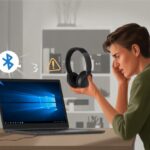
Let’s be honest, nobody wants to keep untangling headphone wires just to enjoy their favorite playlist or hop on a call. Bluetooth headphones make life so much easier—if we can actually get them working with our Windows 10 computer without feeling like we need a degree in IT. To connect Bluetooth headphones to a Windows PC, we just need to turn on Bluetooth on our laptop, put the headphones in pairing mode, and click to connect.
We’ve all stared at our devices, silently asking if they’re even trying to cooperate. Fortunately, connecting Bluetooth headphones to a Windows 10 laptop isn’t as daunting as it seems. Once we get used to it, we can enjoy wireless sound without the usual hassle.
Ready to finally ditch those cords? It’s honestly easier than most people think, and soon, we’ll probably wonder why we ever put up with headphone jacks. If you want to know what buttons to press (and in what order), stick around for a quick, no-nonsense guide.
Getting Your PC Ready for Bluetooth Connections
Before we try to pair our favorite headphones, let’s make sure our computer won’t throw a “Bluetooth not found” tantrum. We need to check for the right hardware, turn on Bluetooth, and make sure our drivers aren’t ancient.
Checking Bluetooth Hardware and Software Compatibility
First up: does our computer even have Bluetooth? Not all PCs do. If we’re using a laptop from the past few years, we’re probably fine.
Desktops can be unpredictable; sometimes they include Bluetooth, sometimes not. We can open Device Manager by right-clicking the Start button and selecting it from the menu.
If “Bluetooth” shows up in the device list, we’re good to go. If not, we’ll need a Bluetooth adaptor. These little dongles are cheap and easy to find online or at electronics stores.
Windows 10 usually supports Bluetooth out of the box, but an old or missing adaptor will ruin everything. Wireless headphones need at least Bluetooth 4.0, so if our computer is ancient, it’s probably time for an upgrade.
Turning On Bluetooth Function in Windows
Sometimes Bluetooth just needs a little push. We’ll click the Start menu, head to Settings > Devices > Bluetooth & other devices, and flip the Bluetooth toggle switch to On.
If the switch is missing, our computer is probably not in the mood. On some desktops—especially the ones that still have floppy drives—we’ll need an external adaptor.
Some laptops even have a physical Bluetooth button or a keyboard shortcut with a tiny antenna icon. If we’re totally lost, a guide from Dell might save us.
Ensuring Proper Drivers and Updates
Without the right drivers, Bluetooth devices and computers just won’t get along. We should update Windows by going to Settings > Update & Security > Windows Update and clicking Check for updates.
In Device Manager, we can right-click our Bluetooth device and select “Update driver.” We’ll follow the prompts and let Windows do its thing.
If Bluetooth is still missing, Microsoft has a support article that’s actually helpful.
If nothing works, we can unplug the Bluetooth adaptor and plug it back in. Sometimes, the old-school fixes really are the best.
Preparing Bluetooth Headphones for Pairing
Getting Bluetooth headphones ready to connect can feel like a guessing game. We need to know which buttons to press, what lights to watch for, and whether the headphones will actually talk to us.
Let’s also be ready for the classic “enter the passkey” moment, just in case.
Activating Pairing Mode
Every brand seems to have its own way. Some headphones want us to hold the power button for five seconds.
Others have a separate button with a mysterious icon. Occasionally, it feels like we need to perform a secret ritual.
To set our headphones to pairing mode:
- Power off first: Most headsets want us to start from off.
- Press and hold: Hold the power or Bluetooth button for a few seconds.
- Watch the lights: Look for blinking blue, red, or alternating LEDs.
If nothing flashes, it’s time to check the manual—no shame in that. Every model does things a bit differently. This guide covers a bunch of brands if you get stuck.
Understanding Voice Guidance and LED Indicators
Some headphones actually talk to us. If we hear “Pairing” or “Ready to pair,” we’re golden. Voice guidance means the headphones are in pairing mode.
If we don’t hear anything, we need to watch for flashing LEDs.
- Blue or white blinking: Usually means “ready to pair.”
- Red/blue alternating: Definitely in pairing mode.
- Solid light: Not in pairing mode, so try again.
Listening for beeps or watching the light show can make us feel like Bluetooth detectives. It’s all about picking up the clues.
Locating the Passkey or PIN
Sometimes Windows asks for a passkey or PIN. No need to stress—most Bluetooth headphones use a simple code: 0000, 1111, or 1234.
The passkey could be in the manual, on a sticker, or hidden somewhere unexpected. Here’s where to check:
| Location | Common PIN |
|---|---|
| Manual | 0000 |
| Box/Sticker | 1234 |
| Manufacturer’s Website | 1111 |
Try the usual suspects first. Windows might not even ask, but it’s good to be ready—just in case.
Pairing and Connecting on Windows 10 and 11
Connecting Bluetooth headphones to Windows 10 or 11 isn’t as nerve-wracking as it sounds. With a bit of patience, we can get Bluetooth pairing sorted—even if Windows tries to be mysterious.
Accessing Bluetooth Settings
First, let’s find the Bluetooth controls. On Windows 10 and 11, click the Start menu (the little Windows flag), type Settings, and press Enter.
Inside Settings, there’s a section called Bluetooth & Devices (sometimes just “Devices” in Windows 10). We’ll click that.
If Bluetooth is off, we’ll see a switch—let’s turn it On. If there’s no Bluetooth switch, our computer might not support Bluetooth, or maybe it’s just hiding.
Look for the Add device button. That’s our way in.
Quick step-by-step:
| Step | Windows 10 | Windows 11 |
|---|---|---|
| Open Settings | Start > Settings > Devices | Start > Settings > Bluetooth & Devices |
| Turn on Bluetooth | Toggle Bluetooth switch | Toggle Bluetooth switch |
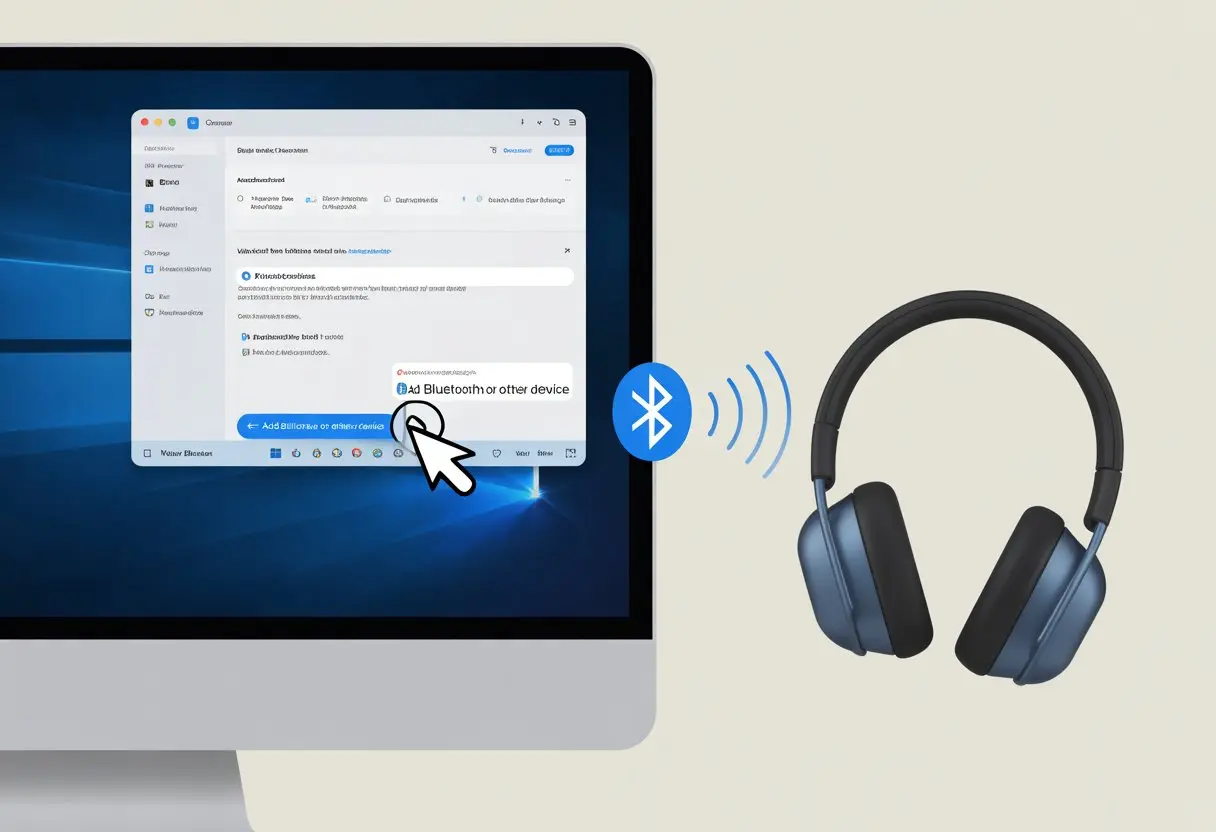
| Add device | Click “Add Bluetooth or other device” | Click “Add device” |
If you’re still lost, Sony’s instructions might help.
Selecting and Connecting to Your Headphones
Let’s make sure our Bluetooth headphones are in pairing mode—usually that means holding a button until a light flashes. If they’re not in pairing mode, Windows won’t find them.
Back in Bluetooth settings, after clicking Add device, pick Bluetooth. Our computer will scan for nearby devices, and our headphones should show up in the list.
Click the name of our headphones. There might be a chime or a pop-up confirming the connection. If Windows asks for a PIN, try 0000 or 1234—these usually work.
Once connected, we’ll see Bluetooth connected next to the headphones’ name. If audio doesn’t play through the headphones, we may need to set them as the output device in sound settings.
Troubleshooting Bluetooth Pairing Issues
Bluetooth pairing doesn’t always go smoothly. If the headphones don’t show up, double-check they’re in pairing mode and have enough battery.
Turning Bluetooth off and back on sometimes helps. If we paired before but can’t connect now, remove the device from the list and try again.
Keeping Windows updated can solve a lot of weird issues. For more troubleshooting, check More Bluetooth options in Settings and make sure “Allow Bluetooth devices to connect to this computer” is checked.
Here’s a quick checklist:
- Headphones are in pairing mode
- Bluetooth is enabled on the PC
- Devices are close to each other
- Remove and re-pair if needed
If nothing works, maybe it’s time for a wired headset—or just a deep breath.
Optimizing Audio Playback and Microphone Settings
Let’s make our Bluetooth headphones sound as good as possible and avoid yelling at our computer. Focusing on audio quality and using the right connection types can save us from hours of frustration and strange sound problems.
Configuring A2DP and Sound Output
Let’s be honest: nothing ruins a good playlist faster than tinny audio. We need to make sure our headphones use the A2DP profile for that sweet, high-quality stereo sound. Without it, everything just sounds like it’s coming through a bad phone line.
Once we connect our Bluetooth headphones, let’s double-check those sound output settings. Right-click the volume icon in the bottom-right corner and choose “Sound Settings.” In the output device list, look for our headphones by name—avoid anything labeled “Hands-Free” or “Headset.” That “Hands-Free” mode is fine for calls but terrible for music.
If we get stuck in “Headset” mode, music will sound like it’s playing in a shoebox. Here’s what I usually do: disconnect and reconnect, or just turn off the “Hands-Free” feature in the device properties. If you want step-by-step help, this guide on setting sound output to Bluetooth headphones explains it pretty well.
Ensuring Music Playback Connections
For the best music playback, let’s check that our PC uses the right Bluetooth profile. A2DP unlocks stereo audio and actually makes Spotify or game soundtracks enjoyable. If our headphones keep jumping back to “Headset” mode after a video call, trust me, we’re not the only ones.
Apps like Teams or Zoom can hijack the headphone mic and force that headset profile, which just kills music quality. When the call’s over, it’s smart to switch the playback connection back to A2DP for better sound.
Sometimes, things get weird. I’ve seen users fix stubborn audio by disabling the “Hands-free phone service” in the Bluetooth device properties. This workaround often sorts out Bluetooth audio quality issues in Windows 11.
When nothing else works, I just reboot both the PC and headphones. It’s basic, but honestly, it fixes more than you’d think.
Managing Multiple Devices and Advanced Features
Trying to juggle Bluetooth headphones between devices can feel like a circus trick. Still, we’ve got more options these days, and with a little know-how, switching between gadgets doesn’t have to be a headache.
Switching Between Devices
Switching Bluetooth headphones between a phone, tablet, and Windows PC isn’t always smooth. Some headphones support “multi-point” connections, but not all do. Multi-point lets us connect to two devices at once—say, a phone and a computer—and switch between them for calls and music.
If our headphones don’t support multi-point, we have to disconnect from one device before connecting to another. Usually, this means opening Bluetooth settings, selecting the connected headphones, and clicking “Disconnect” or “Remove device.” Then we can pair with the next device.
A few headphones have a button just for toggling between devices. If we’re lucky, the headphones remember our last few connections, making reconnecting easier. If not, well, the old “turn it off and on again” trick is always an option.
Pairing Bluetooth Headphones with More Than One Computer
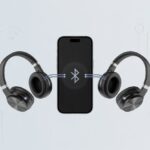
Pairing Bluetooth headphones with multiple Windows PCs sounds simple, but Bluetooth likes to keep us on our toes. Most headphones remember several paired devices—sometimes up to eight!—but unless they have multi-point, they won’t connect to more than one PC at a time.
Here’s how I usually do it:
- Put the headphones in pairing mode on the first PC and connect.
- Switch to the second PC, pop the headphones into pairing mode again, and connect.
- When we turn the headphones on, they usually reconnect to the last paired device. If not, just select them from the Bluetooth menu.
If things get messy, a quick reset on the headphones wipes out old pairings. For more help, check out this simple walkthrough. With a little patience, we can keep all our devices happy—no clown shoes required.
Resetting Your Headphones and PC to Factory Settings
Sometimes, our Bluetooth headphones or PC just refuse to cooperate. When all else fails, hitting that reset button can clear out old pairings and give us a clean slate.
When and How to Reset Headphones
If our headphones keep acting up or don’t show up during pairing, a factory reset might do the trick. Resetting wipes all stored Bluetooth pairings. Usually, you hold down certain buttons—often power and volume-up—for a few seconds. Definitely check the manual so you don’t accidentally trigger some weird mode.
After the reset, the headphones should blink their little LED like they’re ready to party. Our Windows PC will see them as a new device. If issues stick around, some models (especially Sony) recommend resetting and initializing to fully clear all Bluetooth data.
Restoring Bluetooth Settings in Windows
When the PC forgets how to Bluetooth, sometimes a quick settings reset helps.
- Forgetting Devices: Head to Settings > Devices > Bluetooth & other devices. Find our headphones, then click Remove device to clear out old connections.
- Restarting Bluetooth: Turning Bluetooth off and back on can work wonders. If not, just reboot the PC—sometimes that’s all it needs.
- Factory Reset: If problems stick around, a full system reset might be needed. Back up your files first, though—losing all your memes would be tragic. Microsoft has a handy guide to pairing and managing Bluetooth devices if you want more details.
Common Pitfalls and What Not to Connect
Let’s be real: sometimes we try to connect everything but the kitchen sink to Bluetooth. But not every device plays nicely with Bluetooth headphones—especially on Windows.
Why You Can’t Use Printers or Macs in This Guide
Let’s talk about printers for a second. Honestly, as strange as it sounds, you just can’t use printers as Bluetooth headphones, no matter how hard you try.
Even if your printer comes with Bluetooth, it’s only interested in printing. It’s not going to play your favorite playlist.
Trying to pair your headphones with a printer? Yeah, that’s just not going to work. Save the printer for paper jams, not jam sessions.
Now, what about Macs? This guide sticks to Windows PCs—nothing else.
If you try following these steps on a Mac, things could get confusing fast. Macs have their own quirks and settings.
Honestly, that’s a whole other can of worms. If you’re using a MacBook, don’t panic—Apple offers its own Bluetooth instructions.
But that’s not what’s happening here. For everything Windows-only, check out this Bluetooth support guide.

From a young age, I have always had a big interest in technology, and this blog is an extension of that interest. Through this blog, I hope to provide others with all of the information they need regarding tech options to consider, and things such as compatibility. Some of the different items I will be discussing include headphones, smartwatches, and how to fix common issues.
- Why do my Bluetooth headphones not block outside sound? Sorry, They’re Not Mind Readers! - October 5, 2026
- How to Use a Smartwatch for Running Without Looking Like You’re Checking Your Stocks - October 4, 2026
- Best Bluetooth Headphones for Long Flights: Ears Happy, Neighbors Jealous - October 4, 2026
Related Posts: