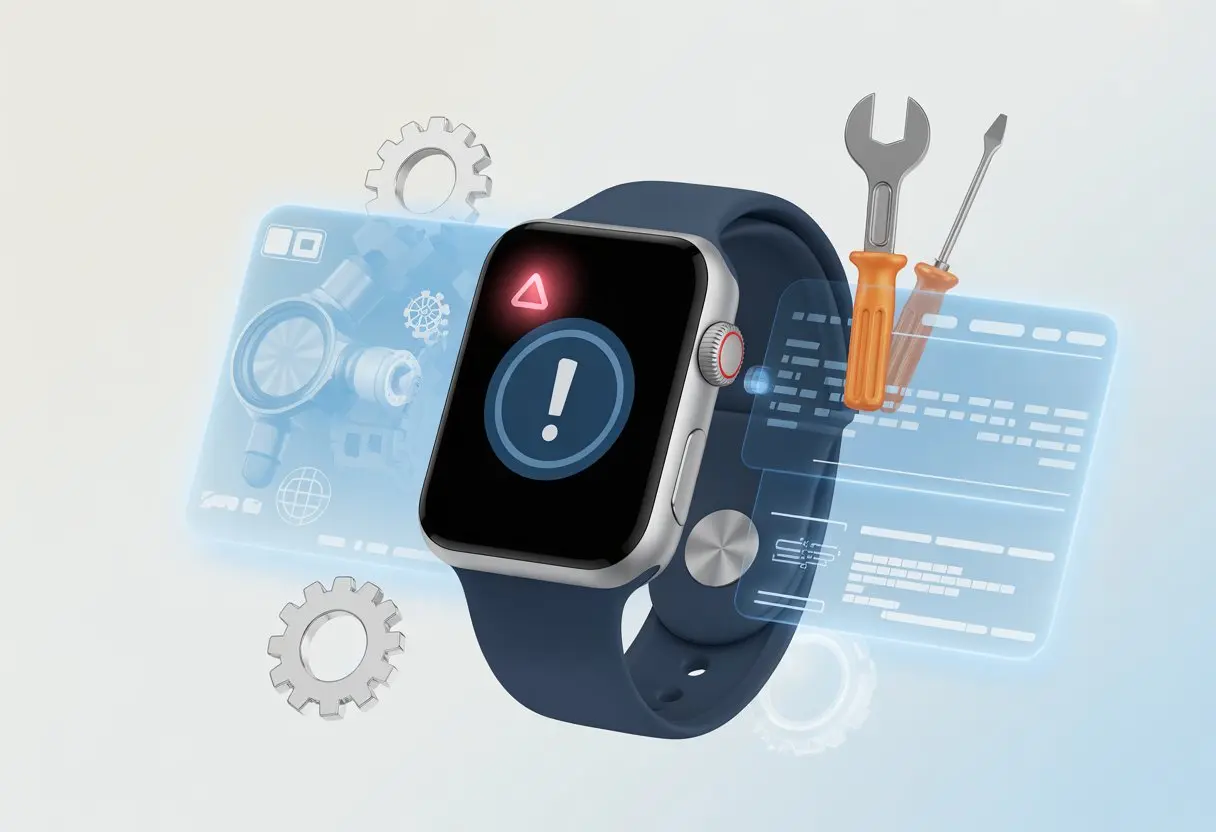
We’ve all had that moment—you just want to check a text, and instead your smartwatch flashes the cryptic error code 9999. It feels like your watch is trying to spill some big secret, but then forgets halfway through. The quick fix for smartwatch error code 9999? Usually, a restart or a factory reset does the trick. But sometimes, honestly, it takes a bit more extra troubleshooting to get everything back to normal.
Before you toss your smartwatch across the room or start sending angry texts (from your phone, obviously), let’s try to figure out what this error means and why it keeps showing up. There’s something about a random number on your wrist that really reminds you how much tech likes to keep us guessing.
Alright, let’s dig into the best ways to kick error code 9999 out of your life and get your wrist gadget working again. You don’t need a magic wand—just a few simple steps.
What Is Smartwatch Error Code 9999?
Error code 9999 is that clingy friend who just won’t take a hint. Your smartwatch flashes this code when something’s gone seriously sideways, and you’re left wondering if you broke some secret smartwatch rule.
This stubborn code doesn’t tell you much, but you can figure it out by looking closer at what it means and why it’s there. Spoiler: your smartwatch doesn’t actually hate you.
Decoding the Dreaded 9999 Error
When you see error 9999, your smartwatch is basically having a meltdown with its operating system. Instead of being helpful, it just flashes 9999—like a toddler pointing and crying but not telling you what hurts.
Most of the time, this means your watch is stuck in a boot loop or can’t load its software. You might notice error 9999 after a failed update or a restart that didn’t go as planned.
Sometimes, everything seems fine for weeks, and then—bam—error code 9999 shows up while you’re pouring coffee. Your digital wrist buddy just can’t finish starting up, so it asks for help in the laziest way possible—with a random number.
Remember, 9999 is more of a “help!” than a real diagnosis. You’ll have to do some digging, but at least your watch is trying to tell you something’s off.
Common Triggers for Error Code 9999
Let’s call out the usual suspects: bad software updates, power failures, and corrupted files. If you install the wrong firmware, things can go south fast.
Your smartwatch’s operating system might choke on buggy updates or files it can’t handle. If the battery dies mid-update, well, that’s a recipe for the dreaded 9999.
Failed connections or interrupted syncing with your phone can confuse the device, too. Third-party apps—or those not approved by the manufacturer—might send the system into chaos, leaving you stuck in a loop of startup screens and “starting up 9999” messages. It’s happened with satellite and wearable devices.
Rarely, hardware problems like broken memory or damaged chips can trigger error 9999, but usually, it’s a software mess. The upside? Most of the time, you can fix it yourself—no need for a tiny hammer or a team of experts.
Top Smartwatch Models Affected By Error 9999
Error code 9999 has shown up on more wrists than anyone cares to admit. Tech fans, fitness junkies—no one’s safe when this digital gremlin appears.
Popular Brands and Their Love Affair With 9999
Let’s be honest—no brand is drama-free, and error 9999 doesn’t play favorites. Apple Watch users might think they’re immune, but nope, this error likes shiny things too.
Samsung Galaxy Watch owners get code 9999 when syncing or setting up accounts. Garmin smartwatches? They’ve had their share of bootloop issues, especially after GPS updates. Garmin smartwatches sometimes get stuck in loops for no clear reason.
A quick search online shows Fitbit and Fossil fans aren’t safe either. WearOS watches get their own flavor of 9999, usually during updates or when Bluetooth just feels like being difficult.
Brand
Known Pain Points for Error 9999
Apple
Syncing, software updates
Samsung
Account setup, connectivity
Garmin
Bootloop after GPS update
Fitbit
App crashing, firmware install
Fossil
Pairing errors, update failures
Why This Error Is So Universal
We all want to think our smartwatch is special, but honestly, most models love to confuse us with the same error codes. Error 9999 pops up when there’s trouble syncing, a firmware update goes sideways, or the app just decides to throw a tantrum.
Firmware bugs, server hiccups, and connection issues all roll out the red carpet for 9999. Whether it’s a Bluetooth fail or a mystery glitch during a routine update, nobody escapes this confusing badge. That’s why you’ll see it on Apple, Samsung, Garmin, and even mid-range models.
Honestly, we’re all in this together—no wrist is really safe.
Root Causes of Error Code 9999 on Smartwatches
When your smartwatch flashes error code 9999, it’s not just for fun. Most of the time, you’re dealing with software mix-ups, stubborn battery problems, or an operating system that’s having a meltdown.
Software Glitches and Rogue Apps
Let’s be real—some apps just can’t behave. When you download new apps or install updates, sometimes they don’t play nice with your smartwatch’s OS.
If you add a buggy app or a sketchy update, your watch might freeze or keep flashing error code 9999. Sometimes, two apps try to fight for control, which leads to crashes or endless error loops.
Uninstalling recently added or updated apps can clear things up. Pay attention to apps that ask for too many permissions—those can mess with system processes.
A full system restart (basically, a digital deep breath) can help clear out background glitches. Clearing cache and temporary files can also smooth things out.
Battery Issues Striking Again
Battery problems are like guests who overstay their welcome. When your watch’s battery loses charge too quickly or overheats, you might see error code 9999.
Low battery levels can make the device unstable and prone to weirdness. Maybe you forgot to charge your watch overnight, or a power-hungry app drained it in hours.
Try removing battery-draining apps. Adjust the brightness and turn off notifications you don’t need. If your battery keeps letting you down, it’s probably time for a repair.
Operating System Melodramas
There’s nothing quite like a smartwatch OS having an identity crisis. Sometimes, the OS gets stuck in a loop after a failed update, or it tries to juggle too many tasks and drops them all. Glitches—including error 9999—often pop up after botched updates or when you try to install unsupported software.
The OS might forget how to talk to the apps, so features stop working or the watch refuses to boot. You may need to do a system reset or reinstall the OS to get things back on track.
Keeping the OS updated and only installing trusted updates can help dodge most of these digital tantrums. If nothing helps, a full factory reset gives your watch a fresh start.
When your smartwatch flashes error code 9999, it’s never convenient. Quick fixes can help, but sometimes you’ll need a longer-term plan.
Here’s what actually works—no need to throw your watch out the window.
Restart: Turning It Off and On Actually Works Sometimes
Let’s start with the classic—turning it off and on again. It sounds basic, but honestly, it works more often than you’d think.
Hold the power button until the screen goes dark. Wait about 30 seconds (maybe grab a sip of coffee), then turn it back on.
Restarting clears minor glitches, like stuck apps or weird battery issues. If error code 9999 doesn’t disappear, at least you got a breather. Sometimes, doing this twice finally kicks the error out.
Software Updates: Don’t Ignore Those Notifications
Raise your hand if you’ve ever swiped away a software update reminder. We’ve all done it. But skipping updates can cause headaches like error code 9999, so let’s try to keep things updated.
To check for updates, go to the settings menu on your watch or through the phone app. Look for Software Update or something similar. If there’s an update, let it run—maybe take a snack break.
Updates fix bugs, stop app crashes, and improve battery life. Old software is a common cause of repeated error codes. Let’s not treat old firmware like a vintage accessory.
Diagnostics and Battery Checks
Your smartwatch is tough, but it can’t run on a dying battery or bad hardware. Sometimes, error code 9999 shows up because of these problems.
Check battery health in the settings. If your watch barely holds a charge, you might need a replacement.
If your watch has diagnostic tools, use them and follow the advice—if it says “replace battery,” trust it. A poor battery can make apps misbehave, causing all sorts of errors.
If your watch feels warm, charges slowly, or powers off at random, those are big warning signs.
App Uninstallation Therapy
Don’t be afraid to delete a few apps to see if one’s behind error code 9999. Corrupt or buggy apps are sneaky.
Go to your app list and uninstall anything you don’t use or that updated right before the error started. No need to purge everything—just start with new or suspicious apps.
If things improve, try swapping to a different app. Reinstalling one app at a time can help you find the real troublemaker. Fewer apps can mean a happier battery, too.
When All Else Fails: Advanced Trouble-Busting Techniques
Sometimes, smartwatches just refuse to cooperate. You try everything, but error code 9999 won’t budge.
For those extra-stubborn issues, a few advanced tricks might help before you give up completely.
The Ultimate Reset (It’s Okay to Panic a Little)
So, we’ve hit the big red button—maybe not literally, but it sure feels that way. Sometimes, endless error codes leave us with one option: the factory reset.
This move takes our smartwatch right back to how it was fresh out of the box. Sure, we’ll lose custom faces, settings, and our precious step count from last week. Still, if the watch just won’t cooperate, it’s usually worth a shot.
Here’s how we reset most models:
Back up our data if we can, just to avoid heartbreak.
Open the watch’s settings.
Tap System, then Reset or Factory Reset.
Wait for the watch to restart, then follow the setup steps.
If we need more help, there are guides on how to perform a factory reset. If even this doesn’t work, well, at least we’ve tried everything short of hiring a tech wizard.
Checking Water Resistance and Physical Damage
We like to believe our smartwatches can handle anything. Unfortunately, water and concrete floors love to prove us wrong.
If error code 9999 pops up after a swim or a surprise splash, we should check if our watch’s water resistance was ever meant for that much action.
It’s time for some detective work:
Wipe the device dry and look for foggy screens or moisture under the glass.
Inspect for cracks, dents, or loose buttons.
Don’t forget to peek around the charging ports—water loves to hide there.
When water or damage is the culprit, a reset usually won’t save us. At this point, it’s smarter to stop tinkering and look for specialized repair advice or check if we’ve still got a warranty.
Dealing With Persistent Heart Rate Monitor Glitches
If the heart rate monitor keeps acting up, we shouldn’t panic—it happens to a lot of people. Sometimes, the sensor just gets smudged or can’t handle our wild dance moves.
Here’s how we tackle it:
Clean the sensor gently with a soft, dry cloth.
Make sure the watch fits snugly (not so tight it leaves a mark).
Restart the watch or toggle heart rate tracking off and on.
If nothing helps, we might have a hardware issue on our hands. Sometimes a reset helps, but if the problem sticks around, it’s time to check out some troubleshooting guides.
Contacting Tech Support Without Losing Your Mind
When nothing else works, we end up calling support. We just want answers, not drama.
Here’s how we keep it together:
Tip Table
Step
Why It Matters
Gather details
Serial number, model, what broke
List what we tried
Shows we’ve done our homework
Stay calm (try!)
Nicer tone, better help from support
We should describe the issue clearly, mention error code 9999, and list what we’ve already tried. For backup, there’s more advice about contacting tech support and advanced fixes. At the very least, we’re talking to another human who gets it.
Preventing Smartwatch Error Code 9999 in the Future
Nobody wants to spend the weekend fighting with a stubborn gadget. With a few honest habits, we can avoid most headaches. Sometimes, the real fix is not needing a fix at all.
Mastering Operating System Updates Like a Tech Wizard
We all see the “update now” alert and think, “Eh, maybe later.” But skipping updates? That’s like ignoring the gas light in our car.
Smartwatch updates bring bug fixes, new features, and security patches straight to our wrists. It’s a good idea to turn on automatic updates. That way, we don’t have to remember, and we’ll avoid running outdated software.
If we need to update manually, let’s make sure the watch is charged and connected to Wi-Fi. Pro tip: Clearing out old notifications and restarting the device first makes updates go smoother.
Making this a habit can help us dodge weird bugs and issues like error code 9999. Plus, who doesn’t love knowing their device is up to date?
Optimizing Battery Life the Lazy Way
Low battery ruins everything. Most error codes seem to show up when the smartwatch is running low or just refusing to cooperate until we plug it in.
To keep the battery happy, we should charge the watch regularly—overnight is perfect, since we’re not using it anyway. Avoid those sketchy third-party chargers; they can cause battery issues and random glitches.
Here’s a lazy optimization list:
Drop the screen brightness a bit.
Turn off unused features like always-on display.
Go easy on GPS tracking (unless we’re marathon training).
Even a couple of these tips can keep battery-related problems from ruining our day.
Keeping Apps and GPS in Line
I get it—it’s fun to grab every flashy app in the store. But honestly, piling on too many apps just invites conflicts, weird glitches, and those classic GPS meltdowns.
Let’s stick with the ones we actually use. When an app wants an update or some new permission, it’s worth paying attention.
For GPS, double-check that your location settings are right. Only turn them on when you really need them.
If your GPS starts acting up or your battery’s draining way too fast, just restart the watch or update the app that’s causing trouble.
There’s nothing more annoying than seeing your fitness walk mapped out somewhere in the Atlantic Ocean. Before heading out, make sure your operating system, apps, and GPS software all play nicely together—otherwise, you might run into smartwatch problems that can totally spoil your day.
Let’s be a little picky about which apps we keep and stay smart about GPS settings. That way, we can dodge those mysterious error pop-ups.
Hi, my name is Garrett Jones, and I am a tech enthusiast. I enjoy researching the new tech that has been released, and have a vast knowledge of the best tech to purchase.
From a young age, I have always had a big interest in technology, and this blog is an extension of that interest. Through this blog, I hope to provide others with all of the information they need regarding tech options to consider, and things such as compatibility. Some of the different items I will be discussing include headphones, smartwatches, and how to fix common issues.