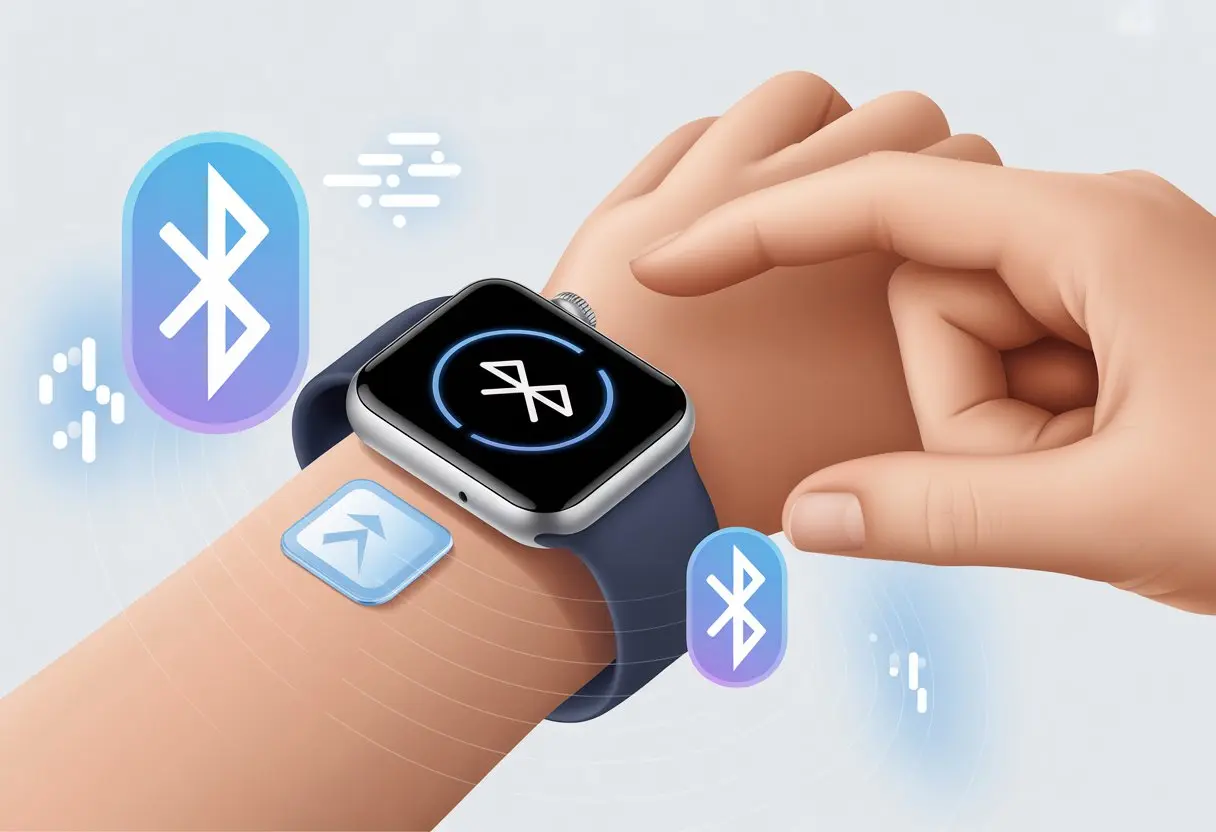
Bluetooth error code 44 on our smartwatches has a way of turning us into accidental tech detectives. One minute, we’re happily checking our steps, and the next, our watch flashes a cryptic error number and acts like we’re the problem. The fastest way to fix Bluetooth error code 44? Just unpair the smartwatch from your phone, restart both devices, and then pair them again.
We’ve all had those moments where we blame the watch, the phone, or honestly, just fate. Sometimes, these gadgets just need a reset, like we do after a long Monday. If the smartwatch still refuses to cooperate, a quick Bluetooth settings check or making sure both devices are updated can usually sort things out.
Stick with it, and the smartwatch should get back in sync. We’ve all been there—no shame in a little Bluetooth struggle.
Understanding Smartwatch Bluetooth Error Code 44
Smartwatch Bluetooth Error Code 44 really knows how to pick its moment. It shows up right when we’re about to hit a step goal or brag about our heart rate at a party. This error pops up when our smartwatch and phone just aren’t getting along.
Several things can trigger this error, and knowing the causes can save us a lot of frustration (and maybe embarrassment).
What Triggers Error Code 44
We usually run into Error Code 44 when our smartwatch can’t connect with our phone. The main culprit is a broken Bluetooth connection.
Sometimes, Bluetooth is just off (who hasn’t done that?), or the devices are too far apart—Bluetooth likes close company. Outdated software, mismatched pairing codes, or interference from too many other Bluetooth devices can also mess things up.
Battery issues sneak in, too. Low battery on either device can make them act up. If we’ve ignored update reminders for a while, Error 44 might just be our reminder.
Common Connectivity Issues Explained
Error Code 44 can show up after the smartwatch and phone just stop trying to talk to each other. Connection drops, missed notifications, and failed pairing attempts usually follow when Bluetooth gets moody.
Interference is always lurking in the background. Walls, metal, and even kitchen gadgets can zap Bluetooth signals faster than we’d like. If the watch gets stuck on an old pairing profile, Error 44 will hang around until we unpair and start over.
Rebooting both devices and checking for updates can clear up most of these issues. If nothing else works, removing all previously paired devices and trying to pair again after a restart often does the trick.
Diagnosing Bluetooth Connection Problems
Sometimes, smartwatches just don’t want to play ball. Instead of counting our steps, they hide behind error codes and turn connection into a guessing game.
Figuring out what’s wrong is step one if we want our Bluetooth syncing and notifications back.
Signs Your Smartwatch Is Plotting Against You
We’ve all been there: The smartwatch just won’t pair, and we start wondering if it’s doing it on purpose. Some classic signs include:
The Bluetooth icon on the watch goes gray or disappears.
Pairing attempts do nothing, or error code 44 pops up at the worst moment.
The phone might list our watch as “not connected”—even if both gadgets are side by side. Notifications stop, or health data refuses to sync.
If this sounds familiar, our devices are definitely not on speaking terms. Sometimes, the watch forgets the phone, or the phone forgets the watch. It feels like we’re stuck in the middle of their silent argument.
Sometimes, we’ll see repeated connection requests or the device name in Bluetooth settings with a “needs attention” message. Even our gadgets want attention now and then.
Tools and Settings Needed Before You Panic
Before we start panicking, let’s make sure Bluetooth is actually on and ready. First, check that Bluetooth is enabled on both the phone and the smartwatch.
Look for the Bluetooth symbol at the top of the phone screen—if it’s missing, that’s our cue to switch it on. Open the Bluetooth menu in phone settings, and look for the smartwatch under paired devices.
If it says “Disconnected” or shows an error, toggle Bluetooth off and back on. Sometimes, just refreshing the menu or selecting “Forget device” and pairing again solves weird issues (see more at Techlicious).
Make sure both gadgets are charged, since low battery can make them drop connections to save power. Keep them close—Bluetooth doesn’t do long distance. If nothing else works, restart both devices and hope for the best.
Step-By-Step Solutions for Error Code 44
https://www.youtube.com/watch?v=sx5W5I7Mthg
Let’s take a breath and deal with Error Code 44 together. Whether Bluetooth gave up after an update or our smartwatch wants a little extra attention, here’s what we can do.
Basic Fixes to Try First
Before we get too technical, let’s double-check the basics. Is Bluetooth on? Check both the phone and the watch. Sometimes, it really is that simple.
Try restarting both devices. A quick reboot often clears up mysterious problems. If that fails, forget the smartwatch in the phone’s Bluetooth settings, then pair it again. Sometimes, the watch just needs a moment to show up in the list.
If we’re still stuck with error 44, update the watch firmware and the phone’s operating system. Outdated software causes more drama than we’d like. For more quick tips, check out these common smartwatch fixes.
Advanced Troubleshooting Methods
If the watch is still silent, it’s time for advanced moves. Try clearing the Bluetooth cache on the phone (Android folks, this one’s for you). Sometimes, the settings just need a clean slate.
If all else fails, do a factory reset—but don’t forget to back up any important info first! Unpair and re-pair the devices again, making sure to follow every prompt.
If nothing works, try connecting the watch to another phone or a different smartwatch to the original phone. That way, we can see if the hardware is the real problem. For more stubborn issues, this troubleshooting guide offers extra strategies.
Resetting and Reconnecting Your Smartwatch
Before our smartwatch and phone get back in sync, we’ll need to get a little hands-on. The goal: reset those stubborn Bluetooth settings and pair things up like tech matchmakers.
How to Reset Bluetooth Settings
Let’s break up with Bluetooth for a minute. On the phone, open Bluetooth settings, find the watch in the paired devices list, and tap “Forget.” It’s basically the digital unfollow.
On the watch, if possible, turn Bluetooth off and on again. Sometimes, a restart is all it takes. If code 44 still won’t quit, a full watch reset might be necessary. Usually, holding the power buttons or digging into system settings gets us there.
Android users can clear the Bluetooth cache by heading to Settings > Apps > Bluetooth > Storage, then tapping “Clear Cache” and “Clear Data.” That wipes out old connection crumbs that could be causing trouble (see this community post).
Pairing Your Devices Without Drama
Now, let’s get the smartwatch and phone talking again. Keep both devices close—within 10 meters, just to be safe. Make sure Bluetooth is enabled on both, and put the watch in pairing mode. Usually, the watch will show an icon or message when it’s ready.
Open the smartwatch app on your phone (like Galaxy Wearable). If it can’t find the watch, restart both devices again. Some watches won’t reconnect unless we grant the app every permission it asks for—contacts, calls, the whole list. Double-check that nothing important is blocked.
If pairing still fails, check for system updates on both the phone and the watch. Sometimes, Bluetooth just needs a fresh start with new software (here’s a Samsung video guide). Once paired up, notifications and health data should sync—finally.
Avoiding Future Smartwatch Bluetooth Headaches
If Bluetooth keeps acting up, it gets old fast. Luckily, there are a few habits that help keep the smartwatch and phone happy together, so we spend less time troubleshooting and more time actually using our gadgets.
Tips to Prevent Connectivity Issues
Nobody wants a surprise Bluetooth error. Save yourself the headache by making sure both your smartwatch and phone are fully charged. Dead batteries love to ruin connections.
Keep devices within 10 meters (about 33 feet) of each other. If you wander too far, Bluetooth will act like it’s playing hide and seek. Every so often, check that Bluetooth is still on—you might have switched it off by accident.
If you’re using WiFi and Bluetooth at the same time, some devices get confused. Try turning off WiFi for a bit if Bluetooth starts acting up.
Restarting both the phone and smartwatch every now and then can work wonders. It gives both gadgets a fresh start, and they’ll usually go back to getting along.
How to Keep Your Bluetooth Connection Happy
Bluetooth can be a bit particular—it wants things just so. I always try to keep my smartwatch and phone updated. Updates squash bugs and make connections way smoother.
Sometimes, Bluetooth just needs a fresh start. I’ll delete the old connection from my phone, then pair everything again. If that flops, I forget the device in settings and try bonding them like it’s the first time.
Here’s a quick table to keep our connection smiling:
Do This Regularly
Why It Matters
Restart Devices
Stops random glitches
Update Software
Gets rid of bugs
Stay Nearby
Keeps signal strong
Re-Pair Devices
Refreshes connections
If nothing seems to fix it, I’ll check the official support pages for advice. Sometimes I’ll even watch a troubleshooting video, like this one on YouTube. Occasionally, Bluetooth just needs a nudge and a little patience.
When All Else Fails: Contacting Customer Support
There are days when, no matter how many times I restart or threaten to throw my smartwatch across the room, Bluetooth error code 44 simply refuses to disappear. That’s when I admit defeat and call in the experts, hoping someone out there understands Bluetooth’s secret language.
Information to Gather Before Reaching Out
Before I dive into tech support, I like to get my info together. It saves me from scrambling for details while someone waits on the other end. Here’s what I usually have handy:
Device Information: I write down my smartwatch make, model, and serial number. Trust me, support will ask, and it’s way less stressful if I’m ready.
Error Details: I note the exact wording of error code 44. If I can, I snap a photo or screenshot—visuals help.
Steps Tried: I jot down every trick I’ve tried (restarts, resets, toggling Bluetooth, you name it). This shows I’m not just calling because I forgot to charge it.
App and Software Versions: I list the operating system versions on my smartwatch and phone, plus any app details. Sometimes support spots a known bug right away.
A little prep now means less explaining later. And honestly, less explaining means less time stuck listening to hold music.
Best Ways to Get Help (Without Rage Quitting)
Getting help sometimes feels like a side quest in a game. The rewards? Well, they’re usually case numbers instead of loot chests—definitely not as exciting.
Official Support Website: Most brands offer a support portal with FAQs, contact forms, and live chat. Honestly, I’ve started a chat while watching TV more times than I can count.
Phone Calls: If you want to talk to an actual person (or maybe just need to vent), calling works. Just brace yourself—your call is “very important” to them, but you might wait a while.
Email Support: Writing out your problem in an email or ticket can feel pretty satisfying. Plus, you get everything in writing, so you won’t forget what they said.
Visit a Service Center: Sometimes you just need help in person. Local support centers or tech desks at stores can handle repairs or walk you through a fix.
No matter which route you pick, patience really helps. Grab a snack, keep your charger handy, and maybe try to laugh about it—trust me, you’ll probably need all three.
Hi, my name is Garrett Jones, and I am a tech enthusiast. I enjoy researching the new tech that has been released, and have a vast knowledge of the best tech to purchase.
From a young age, I have always had a big interest in technology, and this blog is an extension of that interest. Through this blog, I hope to provide others with all of the information they need regarding tech options to consider, and things such as compatibility. Some of the different items I will be discussing include headphones, smartwatches, and how to fix common issues.