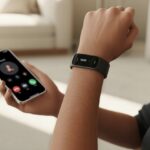
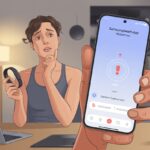
Ever stood around, waiting for your wrist to buzz, only to realize your fitness tracker is as silent as a library after hours? We count on those little reminders to move or take action, but sometimes, trackers just don’t seem interested in communicating.
Most of the time, when your fitness tracker stops vibrating for reminders, it’s because vibration settings are off, “Do Not Disturb” mode is on, or the device is having a glitch.
We’ve all been there—wondering if the tracker is broken, or if it’s just having a moment. Instead of guessing, let’s dig into why your handy gadget might have lost its spark.
With a little troubleshooting, you can get back those helpful nudges and shakes from your wrist.
Common Reasons a Fitness Tracker Is Not Vibrating
Sometimes, your fitness tracker stays strangely silent, even when you expect it to buzz for reminders or notifications. A few main culprits usually cause this, and, honestly, most are simple fixes if you know where to look.
Notifications Settings
Trackers love to stay quiet when they think you want peace. If “Do Not Disturb” (DND) or sleep mode is on, your device acts like it’s taking a nap.
Even one accidental tap can flip these on.
Make sure both DND and sleep mode are off. On most trackers, you can swipe down or up for quick settings and check for little icons like a moon or minus sign.
DND is sneaky and often hides there.
Notification settings on your phone can also cause problems. Sometimes, app notifications are off, or the tracker isn’t allowed to get alerts from your phone.
Double check those permissions—it’s like giving your tracker a hall pass to keep buzzing.
If you’re using a Fitbit, this is a frequent issue. A quick visit to the settings can save the day.
Quick Checklist:
- DND and sleep mode OFF
- App notification permissions ON
- Sync tracker with phone
Low Battery or Charging Issues
We all know our motivation runs low sometimes, and so does your tracker’s battery. A low or dead battery is probably the most boring, yet common, reason for silence.
The vibration motor is the first thing your device skips to save energy.
Make sure the battery is charged before panicking. If your tracker sits on the charger forever or refuses to charge, there’s probably a bigger problem.
Try a different charging cable, restart the device, or switch up the charging port.
Some devices stop vibrating or giving notifications while charging, as a power-saving feature. If your tracker is plugged in, unplug it and see if anything changes.
What to Check:
- Is the battery level above 20%?
- Is the device charging properly?
- Unplugged during the day?
Device Settings
Let’s be real, we’ve all gotten lost in endless menus at least once. Your tracker might be set not to vibrate.
In the settings, look for “Vibration” or “Haptics” and make sure they’re turned on.
Some trackers let you change the buzz strength, which could be set to “weak” or even “none” if you’re not careful.
Most brands let you choose what, when, and how notifications show up. On Apple Watches and Galaxies, you get ultra-customizable options, but that means more chances for confusion.
It’s worth checking and toggling these settings if you’re not feeling the buzz.
A quick how-to guide usually helps you find the right spot in the settings menu.
Restarting the fitness tracker can help too—just like us, it needs a reboot now and then.
Important Menus:
- Notification vibration/haptics
- App-level settings
- Device restart button
Reminders to Move Function
The “reminders to move” feature is great—unless it silently gives up on you. If your tracker’s reminders to get up and stretch are missing, this function itself might be off.
Check inside the device’s activity or health app for “reminders to move,” “hourly reminders,” or “activity goals.”
If reminders are on but still silent, check sleep mode and app permissions again. Sometimes, reminders are automatically disabled at night or in sleep hours.
That’s great for uninterrupted nap time, but not so great when you actually want the nudge.
The buzz can only do so much if other key settings or notifications aren’t active. Make sure everything’s properly synced up and connected.
To Keep You Moving:
- “Reminders to move” is ON
- No sleep or DND mode
- Tracker is synced and worn properly
Troubleshooting Device Vibration Issues
When your fitness tracker refuses to buzz for reminders, it can feel like it’s ignoring you on purpose. Let’s see how you can outsmart your tricky device and get those helpful vibrations working again.
Checking Silent Alarms
First things first, check your silent alarm settings. Even the best gadgets need you to set alarms correctly for them to bother vibrating.
If the alarm is set to soundless or disabled by accident (thanks, clumsy fingers), no buzz will happen.
Go to your device settings menu and look for any alarms—morning wake-ups, hydration breaks, “do your homework” notices, and so on. Make sure each alarm is enabled and vibration is on.
If everything looks set but still nothing happens, try a quick restart. Sometimes, tech just wants a nap and a reboot.
For some devices, like the Fitbit Charge 6, you can scroll in the settings and tap restart—no magic wand needed.
If that solves it, you’re back in business.
Time and Reminders Setup
If alarms and notifications are on but reminders are silent, check your device’s time settings. Reminders set for the wrong time zone can be very punctual—in the wrong country.
Double-check that the time on your tracker matches your phone or local time.
Here’s a quick checklist:
- Make sure automatic time update is on.
- Verify time zone settings.
- Confirm reminders are set for a future time, not last week.
Some trackers have a Do Not Disturb or Silent Mode. If one of these is on, your device won’t vibrate for anything except maybe an asteroid landing.
If your tracker has this, make sure it’s off. On WearOS and similar watches, this hides under Apps and notifications settings.
Testing the Device Vibrates Feature
Now, time for the ultimate test: Does the device vibrate for anything at all, or is it just completely on strike?
Test this by triggering an alarm, timer, or notification. If there’s no response, the vibration motor might be having a lazy day, or something’s blocking it.
- Try setting a timer for a minute and see if it buzzes.
- Check for device updates—sometimes a good update wakes everything up.
- If still nothing, try restarting the device. For most trackers, a simple restart command in the settings will do the trick.
If the device still doesn’t vibrate after all this, you might need to reach out for help. Or maybe your tracker just prefers peace and quiet.
Firmware, Syncing, and Software Glitches
Sometimes, fitness trackers act less like helpful coaches and more like moody robots. A missed vibration might be caused by outdated software, syncing issues, or a wild software glitch that only a restart can fix.
Let’s look at how these problems can sneak in and mess with your reminders.
Updating Your Fitness Tracker
We’ve probably all ignored that “update available” notification because, honestly, who actually likes updates? But those updates do more than take up time—they often fix bugs that mess with vibrations and notifications.
If your tracker’s firmware is old, it might stop buzzing at the right time or, worse, forget to buzz at all. Firmware updates can fix crashes, improve battery life, and keep things running smoothly.
To check for updates, open the companion app on your phone and look for the device management page. Sometimes the update takes a few minutes; sometimes it feels like you could fit in a full cardio session while you wait.
Just don’t skip it—no one wants a tracker stuck in last year’s software drama. If you want to see how update issues can ruin vibrations, the Fitbit community has shared stories of vibration problems after an update.
Syncing with Your Phone
Let’s admit it, syncing should be simple, but sometimes trackers and phones argue like siblings who won’t share. If syncing isn’t working, reminders and notifications—including vibrations—may not show up at all.
This means you could miss steps, alarms, or that guilt-inducing “time to move!” nudge.
Usually, your fitness tracker needs Bluetooth to talk to your phone and get the latest instructions. If Bluetooth is off, or if the tracker and phone had a falling-out, nothing gets updated.
Open your tracker app, make sure Bluetooth is on, and force a manual sync. It sounds high-tech, but it’s really just pressing a button and hoping for the best.
For extra fun, there are even cases where syncing fixes every missed vibration.
Quick Syncing Checklist:
- Bluetooth is turned on
- Tracker is close to the phone
- Manual sync in the app
- Yell at your tracker (optional but satisfying)
Restarting or Resetting the Device
Nothing says “I’m desperate” like restarting your fitness tracker. But honestly, it works more than we’d like to admit.
A quick restart can kick out minor software bugs that stop reminders from vibrating.
It’s like telling the tracker to take a nap and wake up with a better attitude.
If a restart doesn’t work, a full reset might be the next step. This erases settings, so you’ll have to set up everything again—but sometimes, it’s the only way to banish stubborn glitches.
Experts say restarting or reinstalling the app can fix more issues than you’d expect.
For more annoyingly persistent notification bugs, resetting is the last resort, as shown by advice in this Fitbit troubleshooting guide.
Good Restart Habits:
- Restart before panicking
- Reset if everything else fails
- Complain loudly while you wait (optional)
Understanding Your Fitbit and Other Brands
Sometimes, fitness trackers act shy and skip the expected buzz. Let’s dig into why Fitbit and other brands may decide to keep things quiet, even when you really wish they’d give you a gentle nudge.
Fitbit-Specific Reminder Features
When your Fitbit stops buzzing for reminders, one of its many settings probably flipped the switch. Do Not Disturb or Sleep Mode loves to sneak in and quietly disable vibrations without a heads-up.
If you notice your wrist stays still and silent, check if these modes are on. Turn them off if you want your reminders to buzz again.
Another sneaky culprit? The vibration setting inside the Fitbit app. Open the device page and look for the Vibration Settings section.
Make sure Always Vibrate is switched on. Forgetting this is like asking your tracker to whisper when you really want it to shout.
If that doesn’t work, just restart your device—sometimes that magically fixes things. Plenty of folks on forums swear by it.
If you want a step-by-step guide, Fitbit’s community and support pages have your back with detailed advice on fixing silent reminders.
Quick Settings for Vibrations
Quick settings hide in plain sight, honestly. Those swipe-down menus or shortcuts let you silence your tracker with just one tap—sometimes on purpose, but often by accident.
On Fitbits, toggling Do Not Disturb or Sleep Mode right from the device stops all reminder buzzes. It’s easy to forget you turned them on during a movie and never switched them back.
The real trick? Double-check these quick settings whenever things seem suspiciously quiet.
Most other brands like Garmin and Xiaomi copy this approach, so keeping an eye on quick settings just makes sense. If you want your tracker to remind you, checking these settings is as essential as charging the battery.
Fitbit support offers a straightforward list of steps to review and change these options.
Fitness Tracker Modes That Mute Vibrations
Our fitness trackers do a great job buzzing us awake or nudging us to move. But they also have secret modes where they just… go quiet.
Sometimes these settings flip on without us noticing, and then—poof!—no more vibrating reminders.
Sleep Mode and Sleep Stages
When you put your tracker in sleep mode, it’s like the device tucks itself in for the night too. The tracker stops buzzing for reminders and notifications, so you’re not jolted awake by a midnight alert about your step count.
Most trackers can also detect sleep stages automatically. During deep sleep, they might turn off vibrations so you don’t get woken up mid-dream by a reminder to stand.
If you notice you’re missing alerts at night or right after waking up, check these settings. Sometimes just turning off sleep mode or adjusting the timing brings those vibrations back to life.
Sleep is important, but trackers don’t need to be so dramatic about it.
Exercise and Active Zone Minutes Modes
When you’re deep into a workout, some trackers hold back on reminders. Imagine you’re in the middle of cardio and your wrist keeps buzzing—super annoying, right?
In exercise mode, vibrations for standard reminders usually get disabled. That way, you can focus on your burpees instead of missed water reminders.
Trackers with active zone minutes tracking get extra careful. They want you to hit those high-intensity marks, but don’t want to distract you with a “get moving” alert when you’re already sweating buckets.
The tracker may only buzz for workout milestones or heart rate warnings, not regular reminders. If you’re missing vibrations during gym time, this is probably why.
Daily Goal and Hourly Steps Settings
Hitting your daily goal or keeping up with hourly steps matters, but your tracker might go silent as a reward or motivator. After you crush your step goal for the day, some trackers stop vibrating for that interval—mission accomplished, so they quiet down.
If you haven’t hit your hourly step count, some trackers only buzz once per hour, then stay silent until the next hour rolls around.
It’s kind of like a digital coach who knows nagging gets old. If you want more frequent reminders, try tweaking these settings.
Pay attention to how the hourly or daily buzzes change after hitting or missing a milestone. Your wrists (and ears) will thank you for figuring it out.
Other Features That May Affect Vibrations
Sometimes, tracker vibrations stop working because of changes in other features. Customizations, payment features, and tracking settings can all mess with those tiny buzz alerts.
Clock Faces and Customizations
When you install a new clock face, you’re usually focused on style—but who knew swapping faces could mess with vibrations? Some third-party clock faces or widgets can cause glitches or even block notifications.
If your favorite digital watch face was made by someone who loves flashy numbers more than practical alerts, vibration settings might not work right. Try switching to a different clock face, especially an official one, if you’re missing reminders.
Extra widgets like weather, fancy step streak graphics, or calendar add-ons can overload your device and stop it from buzzing as it should.
To fix this, keep it simple. Try a basic or default face and remove unneeded extras.
If that helps, well, you’ve found the culprit—it’s not some secret anti-vibration conspiracy.
Contactless Features like Fitbit Pay
Contactless payments on your tracker are convenient
When to Seek Professional Help (or Throw a Tiny Tantrum)
Sometimes, no matter what you do, your tracker just won’t cooperate—even after a full reset and checking every setting. At that point, you might need to get some extra help, or just admit defeat (and maybe grumble a little).
Customer Support Options
When your tracker refuses to play nice, reaching out to customer support feels a bit like calling a friend to vent about your stubborn gadget. Most brands have help centers, live chats, email support, or good old phone lines.
Before you jump in, gather the basics: your device model, purchase info, and a clear description of what’s going wrong (for example: “Not vibrating for reminders, and it’s ruining my schedule!”).
On some sites, you’ll find helpful guides and steps to try, like Fitbit’s troubleshooting tips.
Some support reps will make you repeat basic troubleshooting (turn it off and on again, and again), but patience really can pay off. Jot down any case numbers or advice they give—you might need it if you have to call back.
Warranty and Replacement Guidelines
If support can’t sort out our problem, it’s time to look into the warranty. Most trackers offer at least a one-year warranty, which should cover defects—like a tracker that just won’t wake up.
Let’s check a few things:
- When did we buy it?
- Does the warranty skip accidental damage?
- Will they want the original box or receipts?
To get a replacement, we might need to send back our unresponsive tracker. Sometimes, the company throws in a prepaid shipping label, which is honestly a relief.
Each brand sets its own rules, so it’s worth digging into the details. If the warranty’s expired, well, we have to decide—buy a new tracker or finally let out that tiny tantrum we’ve been holding back.

From a young age, I have always had a big interest in technology, and this blog is an extension of that interest. Through this blog, I hope to provide others with all of the information they need regarding tech options to consider, and things such as compatibility. Some of the different items I will be discussing include headphones, smartwatches, and how to fix common issues.
- How to use a fitness tracker for sedentary alerts: Because Your Couch Won’t Miss You Anyway - September 14, 2026
- Why do my Bluetooth headphones not work with my projector? Solving Tech Mysteries for the Audio-Challenged - September 13, 2026
- Best Smartwatches for Medication Reminders: Never Forget Your Pills (or Your Sanity) Again - September 13, 2026
Related Posts: