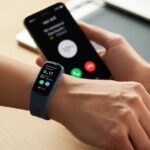
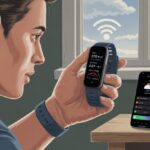
We’ve all had that moment—waiting for an important call, only to realize our fitness tracker just decided to ignore us. It almost feels like our wrist gadget is off in its own world, doesn’t it? Usually, our fitness tracker misses incoming calls because of Bluetooth hiccups, notification settings gone rogue, or phone permissions not switched on.
If you’re tired of missing calls mid-jog or while you’re deep in a squat, you’re definitely not the only one. It’s frustrating to glance at your phone and see a missed call, especially when you thought your tracker had your back.
There are a few simple reasons this happens, and honestly, most fixes are pretty painless. No need to yell at your smartwatch—at least, not yet.
Let’s dig into why our fitness tracker goes silent and how we can get those call alerts working again. Our wrists deserve better, right?
Common Reasons Your Fitness Tracker Ignores Incoming Calls
Sometimes, our fitness trackers act more like stubborn pets than helpful gadgets. A few sneaky issues love to block incoming call alerts, leaving us scratching our heads and missing calls—even from Aunt Linda.
Disconnected Bluetooth
Let’s be real—Bluetooth connections can be flaky. One minute our tracker is all “Hey, I’m here!” and the next, it’s like it forgot we exist.
We should always check the Bluetooth icon on our tracker or phone. Sometimes it looks connected, but it’s just pretending.
Walking out of range (about 30 feet for most trackers) or having too many gadgets around can mess things up.
Try toggling Bluetooth off and on, both on the tracker and your phone. Pairing the devices again usually brings those call alerts back.
If that doesn’t work, restarting both devices—and maybe stepping away from your crowded Wi-Fi router—can help.
Misconfigured Notifications
If calls aren’t showing up, our notifications might be hiding. Usually, the problem is that notifications aren’t enabled for the tracker in the phone’s settings.
On our phones, we need to make sure notifications—especially for calls—are turned on. That means digging into the tracker’s app (like Fitbit, Samsung Health, or Garmin Connect) and checking that permissions are set to “Allow.”
Some devices have special call alert settings too. Make sure “Incoming Calls” is toggled on.
An Android Central discussion pointed out that these quick settings fixes solve most notification problems.
If we ignore these, our gadgets might keep ghosting us.
Do Not Disturb Mode Pranks
Do Not Disturb mode can feel like our tracker is pranking us. With it on, the device just won’t buzz or flash for calls.
We need to check both our phone and the tracker, since many trackers copy the phone’s Do Not Disturb status.
It’s easy to forget to switch it off after a meeting or nap.
Look for a crescent moon icon, either on the device or in settings. Turn off Do Not Disturb, and—boom—calls start popping up again.
For more on how this mode messes with notifications, check out this Apple Watch discussion.
Low Battery Shenanigans
When the tracker’s battery gets low, things start acting up. Low battery doesn’t just mean a shutdown; sometimes it skips notifications, including calls.
Some trackers even turn off Bluetooth or enter power-saving mode by themselves.
We can dodge this by charging our device regularly. If we’re running on empty, a quick 10-15 minute charge can revive notifications.
If our tracker keeps missing call alerts when the battery’s low, plugging it in is worth a shot before blaming other settings.
We’ve all scrambled for the charging cable while our tracker just sits there, ignoring everyone.
Troubleshooting Notification Issues
Let’s be honest: missing notifications on our fitness tracker is like missing out on dessert—totally unacceptable. The upside? Most notification issues just need a little patience and a few quick checks.
Let’s get our phones and trackers working together again.
Syncing Your Tracker and Phone
Out-of-sync devices act like strangers at a party. For notifications to work, our tracker and phone need to stay in sync.
First, check if Bluetooth is actually on. No Bluetooth, no notifications.
Open the tracker app (Fitbit, Garmin Connect, etc.) on our phone. Swipe to refresh or tap the sync button if there’s one.
Sometimes, just re-syncing gets things moving again.
Let’s also make sure we’re not in airplane mode or low power mode—those can sneakily block syncing.
If syncing still fails, restart both phone and tracker. This classic reboot often wakes up a lazy connection.
When syncing works, notifications should start showing up on our wrist. For extra help, check the official Fitbit support page.
Double-Checking Device Settings
If syncing isn’t the villain, device settings might be. Both our phone and tracker have sneaky switches that mess with notifications.
On our phone, go to Settings > Notifications and find the tracker app. Make sure all alert types (calls, texts, app notifications) are on.
Check if Do Not Disturb or Focus mode is hiding in the background. These features love to block all our alerts.
Peek at the tracker settings too. Some devices have their own “Notifications” toggle. If it’s off, flip it on—it’s usually right on the tracker, like with the Fitbit Charge.
Once everything’s lined up, calls should start popping up on our wrist again.
Factory Reset: The Big Red Button
If nothing else works, it’s time for the Big Red Button—a factory reset. This is the ultimate “Have you tried turning it off and on again?” move.
Before we jump in, back up any health or fitness data we care about, since factory resetting wipes everything.
Here’s how:
Open the tracker’s app and find Factory Reset or Erase All Data under device settings.
Confirm we want to erase everything.
After the reset, pair the tracker with the phone like it’s their first meeting.
It’s a bit dramatic, but sometimes it’s the only way to kick out stubborn notification issues. Now we get a fresh start and, hopefully, a steady stream of call and text alerts.
Some smartwatches suggest keeping the app open during pairing, as Citizen Watch support notes.
App and OS Culprits: When Software Gets Sassy
Sometimes, the real troublemaker is your phone’s software. App settings and system permissions can block call notifications, leaving us completely in the dark.
Android Notification Permissions
On Android, notification permissions are like snacks—if we don’t have them, we get cranky. For our tracker to show incoming calls, we need to give notification access to both the wearable and the app.
Android updates sometimes reset these permissions, and suddenly, nothing works.
Make sure the fitness tracker app and any related system apps (like Google Play Services) are on.
If Do Not Disturb is set, we get silence. No calls, no buzzes, not even a weak vibration.
Always make sure Do Not Disturb is off. If nothing else helps, try a restart—it’s surprisingly effective.
For more on Android call notification issues, see this support post.
Fitbit App Foibles
Fitbit, for all its step-counting magic, can be picky about notifications. If the Fitbit app isn’t running in the background, or if the phone puts it to “sleep,” we’ll miss calls.
Even the phone’s ringer can betray us—if it’s on silent, so is the tracker.
People often report silent notifications when the phone goes into silent mode. If we want calls to come through, everything from the ringer to app notifications has to be just right.
Notifications can get weird on fitness trackers, and it’s not just calls that play hide and seek. Text messages and quick replies sometimes vanish too.
Text Messages Missing in Action
We’ve all stared at our wrists, waiting for a text that never appears. Sometimes our trackers just refuse to show texts, even when our phones are buzzing away.
Common reasons? Bluetooth disconnects, low battery, or notification settings gone sideways.
If our phone shows text notifications but our tracker doesn’t, we should check if notification permissions are on.
For many trackers, setting the device as “trusted” can help. Oddly, restarting both phone and tracker (the classic “Have you tried turning it off and on again?”) often does the trick—almost like magic, just with less drama.
Some Fitbit users have suggested this works more often than you’d think.
Issues with Text Message Reply
Replying to a message from your wrist should feel futuristic, right? But sometimes these trackers just don’t cooperate. You might tap the “Reply” button and—poof—it’s gone, or those reply options just stay stubbornly greyed out.
Usually, compatibility is the culprit. Some trackers only let you reply to messages if you’ve paired them with Android, not iOS. So, if the reply feature suddenly ghosts you, it’s worth double-checking what your tracker can actually do.
Don’t forget to peek at your notification settings on both your phone and the tracker app. Outdated software can sneak in and wreck things too, so keeping everything updated is honestly a smart move.
If nothing works, well, you might just have to join the “I’ll text you back later” club for a bit. Plenty of folks with Android smartwatches have been there.
How Notification Settings Affect Fitness Data
Notification settings on fitness trackers can be surprisingly tricky. When you don’t set them up right, your heart rate, steps, and even syncing can get a little unpredictable.
Let’s talk about what actually goes sideways when notifications decide to act up.
Interference with Heart Rate Readings
If your tracker gets a call or alert, it might drop what it’s doing—like counting your heartbeats—just to buzz your wrist. Suddenly, your “resting” heart rate jumps when Grandma calls for the third time in ten minutes.
When notifications keep coming, the sensors can get distracted. Your tracker tries to juggle too much, and the heart rate data might show up late, look jumpy, or just vanish.
Frequent vibrations from notifications can even mess up the tracker’s contact with your skin. That makes heart rate readings less accurate.
If you’re aiming for smooth, reliable fitness data, try cutting back on notifications during workouts.
Sync Delays and Data Loss
Notifications don’t just mess with your heart rate. When too many alerts pop up, syncing can get stubborn.
Sometimes, your shiny fitness data—those steps, runs, and heroic dashes to catch the pizza delivery—won’t upload right away. In rare cases, the data just disappears.
Some devices stop syncing while they deal with messages or calls. It’s honestly a bit disappointing when you realize your record-setting walk didn’t count.
If you’re obsessed with keeping your activity streak alive, managing notifications might save you a lot of frustration (and maybe a few choice words).
When you spot delays, try checking your settings. Turning off unnecessary notifications can help your device focus on what matters—tracking your athletic feats.
Hi, my name is Garrett Jones, and I am a tech enthusiast. I enjoy researching the new tech that has been released, and have a vast knowledge of the best tech to purchase.
From a young age, I have always had a big interest in technology, and this blog is an extension of that interest. Through this blog, I hope to provide others with all of the information they need regarding tech options to consider, and things such as compatibility. Some of the different items I will be discussing include headphones, smartwatches, and how to fix common issues.