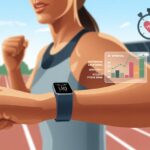
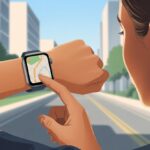
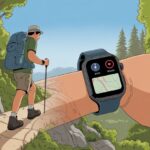
Let’s be real—most of us couldn’t find our way out of a paper bag, and maps? They might as well be ancient hieroglyphs. With a fitness tracker, though, we don’t have to fake it anymore.
Using a fitness tracker for navigation lets us follow routes, get turn-by-turn directions, or track our paths—all without digging out our phones. Our wrists just got a serious upgrade.
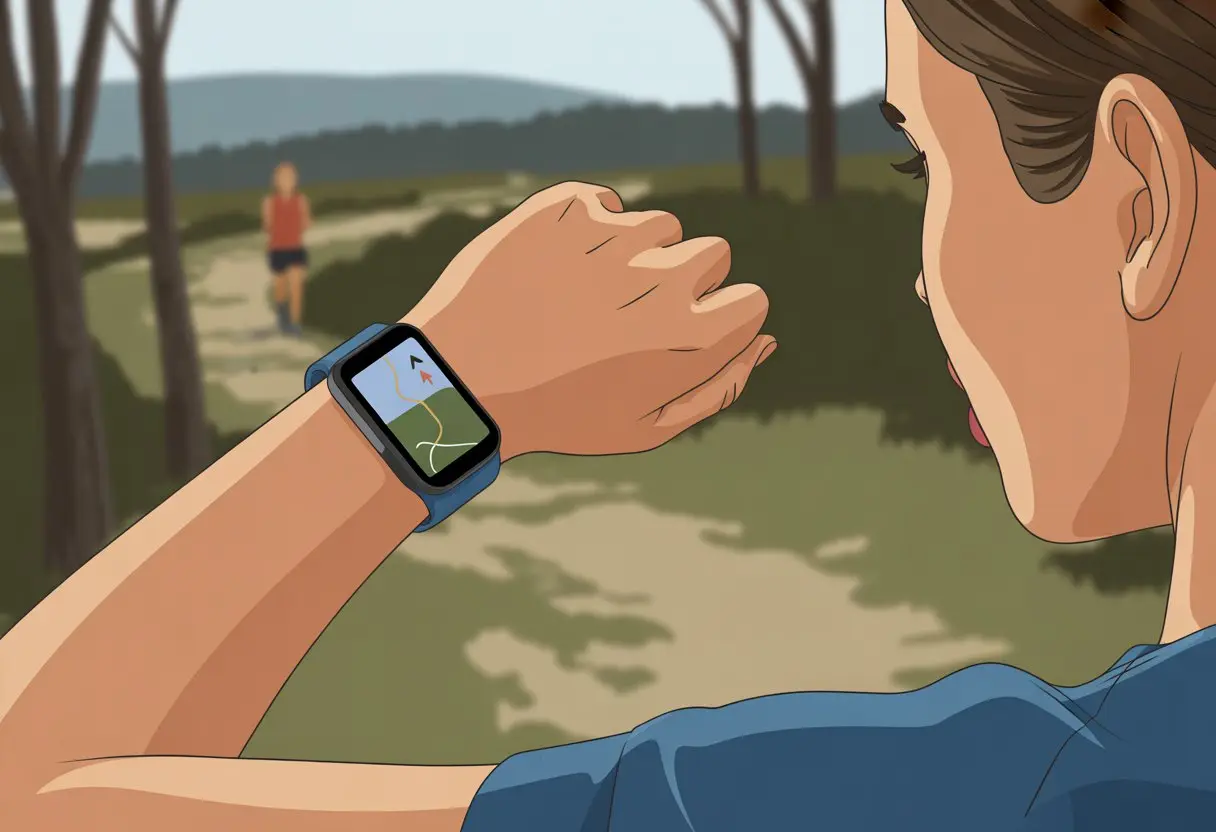
We don’t need to wander around hoping a friendly crow will lead us home. GPS tracking on outdoor smartwatches and fitness trackers puts maps and directions right on our wrists.
We just enable GPS, pick our activity, and head out—at least pretending we know where we’re going. If we want to get our tracker working with built-in navigation, or connect to our phones for live updates, this guide’s got us covered.
When we strap on a fitness watch, we want it to do more than just pester us about steps. Honestly, some days, finding the snack aisle feels like an adventure.
Let’s look at how these little gadgets keep us on track.
Most modern fitness watches have built-in GPS. This tiny marvel uses satellites to figure out exactly where we are—no wizardry required.
GPS navigation works by picking up signals from multiple satellites and triangulating our spot with surprising accuracy.
The best part? We get real-time tracking. We can watch ourselves move on a map while running, walking, or biking.
This makes it tough to exaggerate our workouts (unless we hand our watch to a taxi driver). Many trackers save our routes, so we can retrace our steps or show off to skeptical friends.
Curious about the tech behind it? Here’s a guide to GPS smartwatches.
Our fitness trackers come with navigation features that would make explorers jealous.
We get turn-by-turn directions, breadcrumb trails, and route-back functions. If we wander off, digital breadcrumbs lead us home—no need for actual bread.
Many fitness watches let us mark waypoints, like trailheads or our favorite coffee shop. Some even track elevation, which is great if we like to climb (or just say we do).
For those who need a nudge, audio prompts and vibrations tell us when to turn or celebrate us for staying on course.
Want more info? This page about GPS tracking on smartwatches covers hiking, running, and cycling navigation tools.
Having navigation on our fitness tracker makes outdoor adventures safer and way less stressful.
We can leave the phone and paper maps at home—everything we need is right on our wrist.
With navigation built in, we feel braver about exploring new trails. If we mess up a turn, recalculated directions get us back on track, just like a car GPS.
Trackers with navigation usually record distance, speed, elevation, and more, all while guiding us live.
Not sure if a fitness watch will really help you find your way? This quick guide to GPS functions spells out the basics.
Before we head out, we need to set up our fitness tracker. Good setup means we get real-time directions, all our stats, and actually make it home—or to the smoothie bar.
Pairing with Your Smartphone
First up, let’s get our tracker and phone talking (no secret handshake required). Most models use Bluetooth.
This lets our tracker show phone notifications and sync maps.
If we’re on Android, pairing usually takes just a minute. We open the companion app—Fitbit, Garmin Connect, whatever—and follow the prompts.
Sometimes, we have to enable location services or permissions.
Once they’re paired, our tracker uses the phone’s GPS for accurate maps on that tiny screen. If we forget to pair, our tracker might wander aimlessly, just like us searching for Wi-Fi at a campsite.
Lose connection? Try toggling Bluetooth or, honestly, just restart everything and cross your fingers.
Installing Third-Party Apps
Sometimes, the built-in stuff isn’t enough. We might want turn-by-turn navigation or fancy route suggestions.
That’s where third-party apps come in.
Trackers with Google’s systems let us install apps like Google Maps. Others, like Komoot or Strava, work through their own app stores or the main companion app.
We open the app store, search, pick, and install. Most apps will ask for permissions—get ready to tap “yes” a lot.
Installation can take a few minutes, so maybe grab a snack while our tracker does its thing.
Once installed, we can use our favorite navigation tools right from the wrist. For step-by-step help, check out using Google Maps directions on your Fitbit Charge 6.
Customizing Activity Modes
We don’t always care about the same stats for every workout. Customizing activity modes lets us see what matters—pace, distance, or maybe just coffee stops.
Most trackers let us pick activity modes like walking, running, hiking, or cycling. Inside each mode, we choose which metrics show up.
Some trackers let us toggle GPS for outdoor activities. Always turn GPS on if we want navigation.
Go into the settings from the exercise app or activity screen—here’s how to turn GPS on for your Fitbit.
We can also set up alerts, like a buzz when we go off route or hit a certain distance. Customizing means our tracker keeps us on course, vibrates when needed, and doesn’t overload us with numbers we’ll ignore anyway.
With fitness trackers, we don’t have to trust our (questionable) sense of direction or that old compass from the junk drawer.
Whether we’re flying down bike trails, running into the unknown, or just curious how far we’ve gone, navigation features save the day.
Cycling with On-Wrist Directions
When we’re on the bike, hands on the bars, a paper map is a disaster waiting to happen. Our fitness trackers let us load a route and get cues on our wrist.
Left, right, straight—a glance tells us what’s next.
Modern trackers buzz and pop up turn instructions, so we don’t have to squint at street signs. Some even show color maps with zoom, so we can check twists and turns ahead.
This makes group rides easier—no more yelling, “Was that our turn?” and messing up the flow.
We use this to explore new routes or just mix up the daily commute. On many devices, we press a button or swipe to bring up navigation, as shown for Suunto Race and some Garmin watches.
Trail Running Off the Beaten Path
For those of us who like mud between our toes, trail running navigation is a lifesaver. We can preload a track or waypoints, and the tracker guides us through forests and maybe past some startled squirrels.
Most wearables show a “breadcrumb” line, so if we miss a turn, it’s easy to spot and fix. Newer trackers vibrate if we wander off course.
We can even save our favorite secret trails and retrace our steps without getting lost.
Trail running often means patchy signal or hidden paths, so the “back to start” feature is a real rescue—nobody wants their story to end with a search party.
Distance Tracking on Workouts
Let’s be honest: bragging about mileage is half the fun. Fitness trackers use GPS to log how far we go—running, cycling, hiking, whatever.
During a workout, our tracker calculates distance in real time and shows it on the main screen. We can set distance goals, and when we hit a milestone, the tracker cheers us on with a buzz or a beep.
Some devices give us stats like average pace, splits, and estimated finish time.
Afterward, all the data is saved so we can review it or upload for motivation. Accurate distance tracking helps us train smarter and, yes, compete with friends on workout apps (we all know it’s secretly a competition).
Maximizing Accuracy and Battery Life
Nobody wants to end up in a sketchy alley or stranded because the tracker died halfway through the adventure.
If we tweak the right settings and use a few tricks, we can get the best accuracy and battery life without losing our minds.
Optimizing GPS Settings
Let’s not let our trackers think we live in the Bermuda Triangle. GPS is our navigation buddy, but it needs a little help.
We should turn on high-accuracy mode only when we really need it—like when we’re actually exploring, not just sitting at a café.
Letting GPS run nonstop drains the battery, so save it for mapping and navigation.
Standing still before starting helps the tracker lock onto satellites. Tall buildings and trees block signals, so warming up out in the open is a smart move.
Newer trackers with LEAP technology balance accuracy and battery life, but keeping firmware updated and syncing often helps too.
Extending Battery Life
When it comes to battery life, it’s really about not being careless. Nobody wants their tracker dying at mile two, right? So let’s try to manage those settings a bit smarter.
Lower the screen brightness—unless we enjoy looking like a walking lighthouse.
Disable notifications for every email, emoji, or pizza ad. That stuff adds up.
Use battery saver or low power modes when we’re not actively navigating. Just a heads up, those modes can mess with GPS accuracy a bit.
Try airplane mode when Bluetooth or Wi-Fi isn’t needed. Cleaning up apps running in the background keeps our tracker from working overtime.
Some smartwatches even suggest turning on low power mode if we know it’s going to be a long day.
Troubleshooting Common Issues
Sometimes our fitness tracker acts like we’ve just teleported. If the GPS can’t find us or the battery drains like we’re circling the globe, don’t panic—let’s troubleshoot.
Restart the tracker first (here’s how). Then check for software updates; outdated systems love to be buggy and hungry for power.
If we’re still showing up in the wrong place, try a GPS recalibration. Head outside to an open area and let the device get its bearings.
If our route map turns into modern art, we should reset or check with the manufacturer’s support. Some issues just happen—like stepping in puddles, but for trackers.
If we care about staying safe and actually getting where we want, our fitness tracker’s heart rate monitor quietly works behind the scenes.
While we follow the map, it checks how our heart reacts, tracks VO2 max, and even lets us know when stress might be an issue.
When we’re out walking, hiking, or even running from the neighbor’s wild poodle, our heart rate reveals a lot. Fitness trackers now use optical sensors to measure beats per minute—no awkward chest straps needed.
We just glance at the screen to see how fast (or slow) our hearts are working.
Keeping an eye on heart rate helps us pace ourselves. If we’re climbing a hill and see our heart rate soaring, maybe it’s time for a quick snack break.
Many trackers combine heart rate with GPS, so we can see how different routes or areas affect our effort.
Using heart rate this way makes navigation smarter. And honestly, it feels cooler to use data to guide us instead of just guessing.
Using VO2 Max and Stress Level Data
VO2 max and stress levels aren’t just for elite athletes or people who drink kale smoothies. Our tracker estimates VO2 max to show how well our bodies use oxygen during exercise.
It’s like having a tiny coach on our wrist, whispering, “You’re getting fitter—or maybe you need another cardio day.”
Stress level readings help too. If we’re pushing too hard to beat the sunset, our tracker will likely ping a stress alert.
Modern wearables use continuous heart rate monitoring to track this. By watching both VO2 max and stress data, we can decide if we should keep going or slow down before our legs and lungs protest.
A little humor, a lot of data, and we’re well on our way—hopefully not getting lost (or way too stressed) along the path.
Getting lost on a run sounds fun in theory, but not when we’re sweating buckets and just want lunch. Using our tracker’s navigation features is a smart way to stick to our training plan and keep those fitness goals in sight.
Syncing Routes with Training Plans
Let’s be honest, half the battle is just getting out the door. The other half? Not wandering off into the unknown.
That’s why syncing our favorite running or cycling routes directly with our training plan is such a lifesaver. Many trackers let us import routes from apps like Strava or GPX files.
When we load up a route, our tracker guides us with on-screen prompts or vibrations. It makes messing up the course almost impossible—even if we’re not exactly cartographers.
Need to run a new 5K course every Saturday? Just pick or draw a route in Strava, sync it to the tracker, and we’re good.
We should always double-check that routes are actually synced before stepping out. There’s nothing like following the wrong course and ending up at a petting zoo instead of the finish line.
Some trackers also let us preview our route, so we can spot hills (and maybe “accidentally” avoid them).
Tracking Progress Toward Fitness Goals
It’s easy to feel like a champion when our tracker dings to say we’re halfway done. Built-in navigation doesn’t just stop us from getting lost—it makes sure every training run or ride counts toward our fitness goals.
Most trackers log stats like distance, time, pace, and splits on each mapped route.
We can check a table or chart of our progress in the tracker app, see if our pace is improving, or just count snack breaks. Tracking our success keeps motivation high, and if we share our activities to a platform like Strava, a little digital applause never hurts.
Fitness trackers can even adjust training plans when they notice we’re ahead of schedule (look at us go!) or behind. By combining real route data with training schedules, we make our fitness journey less of a wild goose chase and more of a straight shot to our goals.
We live in a world where our wrists can practically get us from point A to point B—while tracking our steps, heart rate, and maybe telling us to stand up. There are plenty of clever gadgets and apps to help us navigate the wild, or, more realistically, the local neighborhood.
Comparing Fitness Watches
Not every fitness watch is created equal when it comes to navigation. Some watches offer built-in GPS, while others play nice with our phones and let us follow maps on tiny screens.
We can think of them like spy gadgets, only less “top secret” and more “run faster, please.”
Let’s take a quick tour through the heavy hitters:
-
Apple Watch: A smartwatch superstar with navigation features powered by third-party apps. Good for city routes and hiking if we’re not worried about battery life.
-
Garmin Watches: Many Garmin models (like the Vivoactive series) are made for outdoor adventures. Their built-in GPS, breadcrumb navigation, and maps let us pretend we’re on a real expedition.
-
Fitbit Charge 6: More affordable, but still offers versatile tracking features and pairs with our phones for location help.
If we enjoy following a glowing line on our wrists more than getting lost, a good fitness watch is our trusty companion.
Using the Fitbit Charge 2
The Fitbit Charge 2 isn’t the newest gadget on the block, but who hasn’t clung to reliable tech a little too long?
While it doesn’t have built-in GPS, it uses something called “Connected GPS.” That’s just a fancy way of saying: grab your phone, we’re going together.
To track our route, start a workout on the Charge 2 and keep the phone nearby. The Fitbit app will use our phone’s GPS to plot the course.
This setup gives us the basics: pace, distance, and a nice map to show off after. It doesn’t give live directions—we’re tracking, not turn-by-turn navigating.
If we want more advanced features, newer models like the Fitbit Charge 6 are worth a look. They offer improved GPS and better integration with navigation apps, saving us from wandering too far off course.
Integrating with Strava
Strava is basically the ultimate social network for runners and cyclists who love colorful maps of their workouts. We can sync our fitness watch (or phone) with Strava to record routes, compare results, and brag to friends about that perfectly drawn GPS squiggle.
Many watches, including Fitbit, Apple Watch, and Garmin, work with Strava. Once connected, our runs and rides upload automatically.
Strava displays our routes on detailed maps, tracks stats, and breaks records we didn’t even realize we cared about. Some devices even let us follow a route or path on Strava right from the watch—though don’t be shocked if our attempt at avoiding traffic turns into a scenic detour.
Getting Strava set up is simple: link our fitness tracker account in the Strava app or website, then bask in the glory of digital trophies and ever-changing leaderboards. Competitive? Us? Never.
Our fitness trackers aren’t just about maps and step counts. There are a few clever extras that help us navigate smarter and keep us from wandering into the land of lost socks.
Sleep Tracking and Recovery
Let’s be real, nobody likes getting lost because we’re slogging along like zombies. That’s where sleep tracking comes in to save our navigation skills.
When our trackers monitor our sleep patterns, they tell us how much quality recovery we’re getting. Not enough deep sleep? Our alertness drops and so does our sense of direction.
Most trackers break down sleep stages—light, deep, and REM. If we wake up and see we spent the night in light sleep, maybe it’s not the best day to try a new hiking trail.
Here’s why quality sleep helps our navigation:
-
Sharper focus: We’re less likely to miss trail markers or confuse left with right.
-
Faster reaction time: Great for dodging potholes or darting around slow walkers.
-
Better endurance: Exploring new routes gets easier when we’re well-rested.
So when our tracker gently scolds us for staying up too late, it’s not nagging—it’s just trying to keep us from wandering in circles at the park.
Activity Mode Selection
Ever started a workout on “yoga” while actually out for a run? That’s like showing up to the pool in a wool sweater—definitely not the vibe.
Picking the right activity mode really matters if you want your navigation to make sense. Most fitness trackers offer options like walking, running, cycling, and hiking.
When you tap the right one, the GPS actually tailors itself to fit what you’re doing. Cycling mode might watch for altitude changes, while walking mode just cares about your steps and the distance you’ve covered.
Some trackers even let you save your favorite routes for next time. That’s a lifesaver if you’re the type who forgets where you went five minutes ago.
If you get comfortable with these modes, your maps and stats start to make sense. No more scratching your head wondering why your tracker says you “swam 10 miles” on a mountain trail.
Just pick the right mode, and your tracker will actually help you out—or at least keep you from getting lost.
For more on must-have tracker features, check out this fitness tracker guide.

From a young age, I have always had a big interest in technology, and this blog is an extension of that interest. Through this blog, I hope to provide others with all of the information they need regarding tech options to consider, and things such as compatibility. Some of the different items I will be discussing include headphones, smartwatches, and how to fix common issues.
- The Best Rugged And Waterproof Smartwatches - October 21, 2026
- 10 Best Military Smartwatch – Find The Best Tactical Military Watches in 2023 - October 20, 2026
- Are Wired Headphones Safer Than Bluetooth? A Friendly Guide - October 20, 2026
Related Posts: