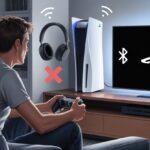
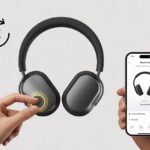
Let’s be real—most of us wish we could just throw on our Bluetooth headphones, sync up to our PlayStation, and get right into the game without waking up the whole house. But you’ve probably tried it and realized it’s not always that easy. Yeah, you can use Bluetooth headphones with PlayStation, but it’s not as simple as pairing them to your phone.
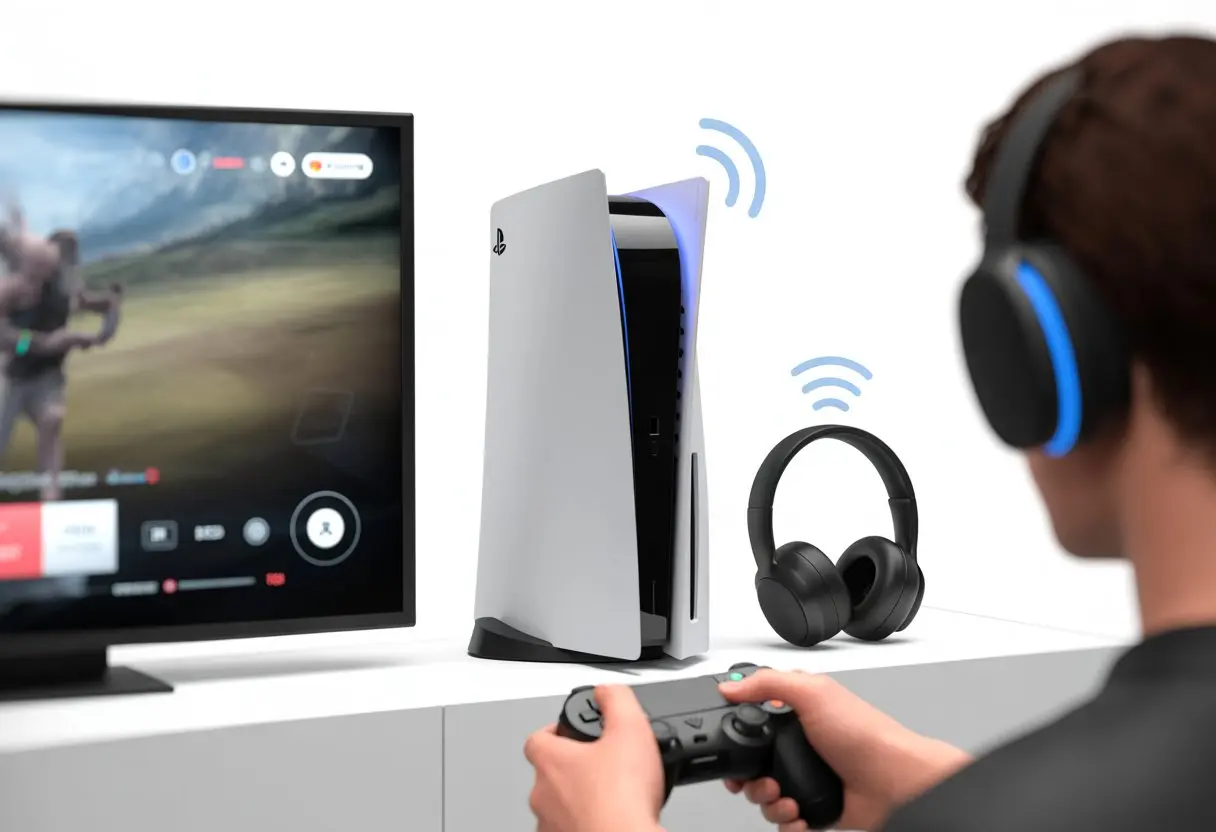
We’re here because we want late-night gaming to sound awesome, not like we’re defusing a bomb. That means figuring out which headphones actually work, what menus to poke through, and what hacks will save us from that dreaded wire mess.
If you love gaming but can’t stand reading thick manuals, this guide’s for you.
Let’s break down the process, dodge the “Bluetooth not supported” drama, and get to the good part—actually hearing our games, music, and friends in peace. Our ears (and neighbors) will be grateful.
Understanding Bluetooth Compatibility with PlayStation
It’s not as simple as just hitting “pair” and crossing your fingers. PlayStation has its own rules, weird exceptions, and a few features that seem to hate our favorite gaming headsets.
Let’s see what’s actually happening with Bluetooth, PS4, and PS5.
Supported Bluetooth Protocols
PlayStation consoles, both PS4 and PS5, love to tease us. They technically support Bluetooth, but it’s not a free-for-all. They only allow certain protocols. These consoles mainly work with Bluetooth headsets using A2DP and HSP profiles. But here’s the catch—they don’t allow standard A2DP headphones for game audio.
Things get confusing fast. Sony blocks most regular Bluetooth earbuds and wireless headsets from working natively for game audio. If you try to connect an ordinary pair, you’ll usually see an error message or get nothing but silence. Sony says this is because of latency and bandwidth issues in Bluetooth audio that can mess up your game timing. There’s a Reddit thread on PS4 Bluetooth audio that dives deeper if you’re curious.
PlayStation Wireless Headset Options
The safest bet is usually PlayStation’s own wireless headsets. Models like the PlayStation Wireless Headset and the Pulse 3D Wireless Headset connect directly with a USB dongle or proprietary adapter. These headsets skip the usual Bluetooth headaches and give us solid audio without lag.
Here’s a quick cheat sheet for the main PlayStation wireless headset types:
| Headset Name | Connection Type | Works With |
|---|---|---|
| PlayStation Gold Wireless | USB Dongle | PS4, PS5 |
| Pulse 3D Wireless Headset | USB Dongle | PS4, PS5 |
| Officially Licensed Third-Party | Varies | PS4, PS5 |
Sony’s official headsets throw in extra features like surround sound and easy chat/game volume controls. It’s like they really want us in their headset club.
PS4 vs PS5 Bluetooth Limitations
Now, about PS4 versus PS5. You’d think the newer PS5 would let us use whatever Bluetooth device we want, right? Nope. Both consoles still block most standard Bluetooth audio for gaming. If you want to use your favorite wireless headphones, you’ll need a wired connection or a special dongle.
On PS4, you can sometimes use Bluetooth for voice chat with certain headsets, but not for full game audio. PS5 keeps this restriction going. There’s a twist, though—Sony added support for some Bluetooth audio devices with system updates on PS5, but the list is tiny. If you want hassle-free audio, stick to PlayStation’s official wireless headsets or try an external Bluetooth adapter that works with PlayStation.
If you’re dreaming of using your favorite Bluetooth earbuds wire-free on PlayStation, you’ll have to get creative or stick with Sony’s solutions.
Getting Your Bluetooth Headphones Ready
Before you try connecting Bluetooth headphones to your PlayStation, check a few things first. It saves you from hunting for cables, flipping through manuals, or having to explain why “the headphones just aren’t working, okay?”
Enabling Pairing Mode
Let’s talk about pairing mode—the Bluetooth way of waving at your PlayStation. Nearly every headset has a button combo for this. Usually, you press and hold the power or Bluetooth button for several seconds—sometimes until a flashing light appears.
If your headphones refuse to cooperate—maybe they’re just flashing blue and red or doing nothing at all—look for tiny instructions on the device, often near the charging port. Some headsets restart pairing mode by turning them off and on, or by a weird button-pressing sequence.
A lot of headsets beep or flash when they’re ready to pair. If yours stays silent, you might not actually be in pairing mode. Take a breath. Try again, and hold the button a little longer—some brands love a secret handshake.
Charging and Powering On
If your Bluetooth device isn’t charged, it’s basically a paperweight. Make sure you’ve plugged it in for at least an hour before you try connecting. There’s nothing worse than a dead battery halfway through setup.
Check the power indicator. Some headphones use LED lights to show charge, others use beeps or voice prompts. If you see a red light, plug it back in.
Some headsets won’t power on while charging, which feels like a joke from the manufacturer. Unplug, press the power button, and look for a flash, glow, or at least a beep.
Checking Compatibility
Now for the awkward bit—figuring out if your PlayStation and Bluetooth headphones even want to talk to each other. Not every headset works, especially with PS4, which is notoriously picky about Bluetooth devices.
PlayStation supports certain Bluetooth profiles, usually their own branded headsets or a handful of third-party ones. Some headsets won’t pair at all, and others lose features like the mic. Check the manual or search online for your model. Sometimes, you need a USB Bluetooth adapter or just have to use the classic audio cable.
If you want to check, look for Bluetooth “A2DP” or “HSP/HFP” in the specs. If you spot those, the headset might work. If not, now you know why it was on clearance.
Connecting Bluetooth Headphones to PlayStation
Getting Bluetooth headphones to work with PlayStation takes a little effort, and sometimes extra gear. Depending on what you’ve got—or how stubborn your console feels—you can use a USB dongle, try pairing directly, or just grab a 3.5mm cable.
Using a USB Dongle or Adapter
Most PlayStations prefer wireless headsets with a USB dongle. Plug the dongle into the USB-A port, power on your headphones, and wait for them to pair.
A solid light usually means they’re connected, and you’re ready to go. Some headsets include their own USB adapters for consoles. If not, you can find universal Bluetooth dongles, though not all work perfectly for gaming—look for ones that support both audio and microphones.
Here’s a quick checklist for dongle connection:
- Plug in the USB dongle
- Set headphones to pairing mode
- Wait for a steady indicator light
- Adjust PlayStation audio output settings
The right adapter is usually the fastest path to wireless freedom. Not every dongle works with every PlayStation, so a little trial and error might be needed.
Pairing Directly with PlayStation
If you’re hoping to skip extra hardware, you can try pairing directly, but not all Bluetooth headsets will work. PS4 and PS5 only support certain Bluetooth audio devices. Most regular wireless headphones won’t show up unless they’re PlayStation-certified.
If you still want to try:
- Turn on the Bluetooth headset and set it to pairing mode.
- On the console, go to Settings > Devices > Bluetooth Devices.
- Pick your headset from the list—if it appears, you’re in luck.
Sometimes, though, your headset just won’t show up, or the PlayStation acts like you’re trying to pair with a toaster. That’s why most people stick with the dongle method. Still, it’s worth a shot, especially if your headphones are on the (very short) compatible list. More details are at how to pair PlayStation wireless headsets.
Using a Wired 3.5mm Cable
If nothing else works, the 3.5mm cable is your trusty backup. Most PlayStation controllers have a headphone jack on the bottom. Plug your headset in there.
Your headphones switch to wired mode (no battery worries), and you get instant game audio and voice chat. If your headset has a built-in mic, it usually works as soon as you plug in. Wired connections also skip lag, so your audio and gameplay stay in sync.
Quick steps:
- Plug the 3.5mm cable into your headset and controller.
- Adjust output options in PlayStation audio settings if needed.
- Enjoy solid, old-school audio.
No Bluetooth drama, no dropped connections. Sometimes, you just can’t beat classic.
Adjusting Audio Output and Microphone Settings
Dialing in your audio output and microphone setup matters if you want to actually hear your game and not just the frantic clicking of your own buttons. Let’s avoid shouting “CAN YOU HEAR ME NOW?” across the living room and get things sounding right.
Changing Audio Output Options
Let’s start by making sure our PlayStation listens to us—and our Bluetooth headphones. Head over to the Settings menu, choose Sound, and then tap on Audio Output. You’ll spot a list of devices there.
Double-check that your headphones show up and connect them, or you’ll just hear the gentle hum of nothingness.
If your headphones don’t appear, try using a dongle or a USB Bluetooth transmitter. Don’t worry, even the pros need a little help sometimes.
Once they’re connected, head back to Sound and poke around for EQ Presets. This menu lets you pump up the bass for those big explosions or silence that squeaky NPC. PlayStation has official instructions for changing audio settings on PS5 consoles, if you want to dive deeper.
Setting Up the Microphone
Getting a Bluetooth mic working on PlayStation doesn’t have to be a mystery. After connecting your headset, jump into Settings, then Sound, and finally Microphone.
You should see your headset microphone listed there. If it’s missing, try unplugging and plugging it back in. Sometimes that’s all it takes.
If that doesn’t work, yelling at the TV won’t fix microphone issues. Trust me.
Here’s a quick checklist:
- Set “Input Device” to your headphones
- Test your voice with “Adjust Microphone Level”
- Maybe don’t scream at the TV while testing
Now, your teammates can hear every muttered complaint in crisp detail.
Balancing Game and Chat Audio
It’s tough when the game audio drowns out your friends—or vice versa. Luckily, PlayStation gives us sliders to fix this.
Go to Settings, then Sound, and look for Audio Balance or Volume Control (Headphones).
Adjust the slider for more game or more chat audio, depending on your mood. Some setups, especially on PS4, might need you to follow the PS4 Bluetooth headset setup guide.
If both the game and your friends are too loud, just turn everything down—or play in silence for a bit of peace.
Exploring PlayStation Special Technologies
PlayStation has its own tricks for making wireless audio work smoothly. Two main options stand out: PlayStation Link and Sony’s fancy headsets.
PlayStation Link Technology
PlayStation Link deserves a shoutout. Sony cooked up this special connection for buttery-smooth audio on their consoles and the PlayStation Portal.
Forget basic Bluetooth. PlayStation Link uses a custom wireless setup that gives us lower lag and better sound.
The big win? You get a more stable connection and much lower latency than regular Bluetooth. Your game audio lines up with what’s happening on screen, so lag can’t take the blame for missed shots.
PlayStation Link lets you switch between compatible devices without re-pairing every time you bounce from PS5 to PlayStation Portal.
Just a heads-up, regular Bluetooth headphones can’t use PlayStation Link. You’ll need special headsets marked with “PlayStation Link” on the box, or you might end up shouting at the TV in frustration.
If you want to connect wireless gear, PlayStation’s official support page has your back.
Pulse Explore and Pulse Elite Features
Now for Sony’s Pulse Explore earbuds and Pulse Elite headset. Both use PlayStation Link, but each brings something different to the table.
Pulse Explore gives you tiny buds with dual microphones and noise rejection. Your voice stays clear, even if your brother is making smoothies right next to you.
The case charges the buds, so you’re less likely to lose cables.
Pulse Elite is more classic, sitting over your ears. It’s got a retractable mic (feeling like a pilot, anyone?), AI-powered noise reduction, and a charging hanger. You can even hang your headset like a piece of art.
Both options promise spatial audio, low lag, and easy switching between PlayStation devices. Most regular Bluetooth headphones just can’t compete with that—sorry, old earbuds.
If you’re not sure how to pair these, Sony’s instructions for linking headsets will walk you through it.
Noticing Notification Sounds and Troubleshooting
Bluetooth headphones don’t always play nice with every PlayStation beep and boop. When things go wrong, it helps to know if your headset is working or if you’ve entered the dreaded “silent mode.”
Notification Sound Behavior
Ever notice PlayStation keeps some secrets? Those trophy pings and friend requests don’t always reach Bluetooth headphones.
Some models, especially the PlayStation 4, act picky about sending system audio. Sometimes, they only send game sounds, leaving notifications stuck in speaker limbo.
When notifications do show up, they might be delayed or oddly quiet. Signal interference or unsupported connection types like A2DP can cause this.
A compatibility table in the settings might help, but it rarely says more than “not supported.” Not hearing any sounds? Sometimes, PlayStation just wants to keep things to itself.
Fixing Connection Problems
Don’t panic and toss your headphones yet. If there’s no sound, check that your headphones are actually connected.
Try moving closer to the console—walls and distance can ruin your Bluetooth party. Remove other Bluetooth devices nearby, since they might mess with your signal. PlayStation’s official troubleshooting advice suggests this too.
If you’re still stuck, restart both the PlayStation and your headphones, or try pairing them again from scratch. For stubborn earbuds, hold the PS Link or pairing button a bit longer—the indicator lights might finally cooperate.
Still not working? It might be time to call customer service or check the manual for the right ritual.
Remember, troubleshooting can feel like a journey. Sometimes headphones just need a little encouragement—or maybe a firmware update.
Alternatives and Extra Tips for Gaming Audio
Let’s be real—sometimes Bluetooth just doesn’t cut it. But you don’t have to settle for weak TV sound or shouting across the room.
There are some workarounds and upgrades to keep your gaming audio sharp.
Using a PS4 Controller for Wired Headphones
When Bluetooth refuses to cooperate, the trusty PS4 controller comes to the rescue. It has a regular 3.5mm headphone jack at the bottom.
Just grab any wired headset or even old phone earbuds, and plug them in. No pairing headaches or battery worries.
Sound comes through right away, and some headphones let you use a built-in mic for team chat. That’s handy for calling out plays (or yelling “cover me!” every few seconds).
Here’s a quick perk list:
- Easy setup: Plug in and go. Even your grandparents could do it.
- Less lag: Wired means instant sound. Game audio and chat stay in sync.
- Budget-friendly: Wired headphones cost less, so you can spend your savings on extra game skins.
Upgrading to a Gaming Headset
Let’s be honest—if we really want to treat our ears (and maybe our teammates), getting a dedicated gaming headset just hits different. These headsets actually care about comfort, sound quality, and a mic that doesn’t make us sound like we’re underwater.
Most of them plug right into a PS4 or PS5, either with USB or a 3.5mm jack. Brands like SteelSeries, HyperX, and Razer keep popping up for a reason. They build their headsets for long gaming sessions, so we can play for hours and our ears won’t hate us—unless we’re on a losing streak, then all bets are off.
Here’s what a gaming headset usually brings to the table:
| Feature | Benefit |
|---|---|
| Surround sound | We can hear footsteps behind us |
| Boom mic | Our team can finally understand us |
| Cushioned fit | No sore ears after long raids |
Upgrading isn’t just about looking cool. It’s about catching every sneaky footstep and every dramatic explosion.
If we actually care about winning (or just want to keep the peace at home), a gaming headset feels like a pretty smart move.

From a young age, I have always had a big interest in technology, and this blog is an extension of that interest. Through this blog, I hope to provide others with all of the information they need regarding tech options to consider, and things such as compatibility. Some of the different items I will be discussing include headphones, smartwatches, and how to fix common issues.
- The Best Rugged And Waterproof Smartwatches - October 21, 2026
- 10 Best Military Smartwatch – Find The Best Tactical Military Watches in 2023 - October 20, 2026
- Are Wired Headphones Safer Than Bluetooth? A Friendly Guide - October 20, 2026