We all know the drill—checking Instagram every few minutes is just muscle memory at this point.
But here’s the thing: you can actually use your smartwatch to check out Instagram and interact with posts, so you don’t have to dig out your phone every time you get a notification or want to see what’s up.
Now, your wrist gets to join the endless scroll party, too.
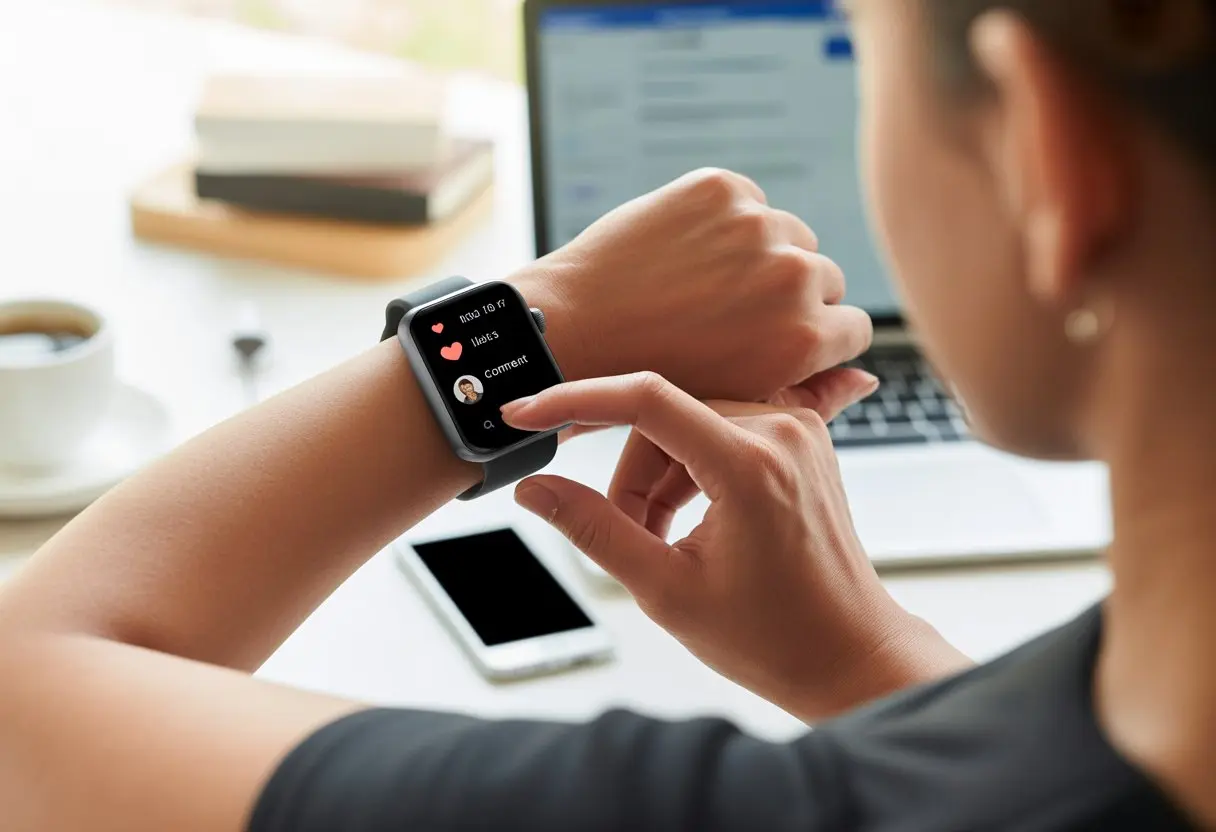
Let’s be real—it feels kind of cool to sneak a peek at Instagram right from your smartwatch.
No more awkward phone grabs during meetings; just a sly glance at your wrist, and you’re up to speed on stories and posts.
If you’re ready to multitask like a pro—from counting steps to double-tapping posts—you’re in the right place.
Stick around and you’ll make Instagramming hands-free and way more fun, minus the thumb cramps.
Getting Started with Instagram on Your Smartwatch
We’ve all been there—you want to scroll Instagram from your wrist, but it’s not exactly obvious how to set it up.
Let’s break down what you actually need, how to get it, and how to link your life (and phone) to your favorite app.
Compatible Smartwatches and Requirements
First things first: which watches actually let you see those puppy pics on your wrist?
The Apple Watch is the crowd favorite, but a few others like Tag Heuer Connected and some Wear OS watches can handle it too.
Not every smartwatch works, and Instagram doesn’t have an official app for any watch right now (seriously, why not?).
If you’re on Apple, you’ll need an iPhone paired with your Apple Watch.
No iPhone means no Instagram on your wrist.
On Android, there’s a bit more wiggle room, but your watch needs to run Wear OS and connect to a phone with the Instagram app installed.
And just to be clear—this is an Instagram-only adventure, not TikTok.
Some older or off-brand watches (you know the ones) probably won’t support Instagram unless you get creative with third-party apps.
It’s always smart to check your watch’s app store or do a quick online search before you get your hopes up.
Downloading Instagram and Related Apps
So, your smartwatch is ready to go.
But here’s the catch: there’s no easy “Install Instagram on your Watch” button.
Don’t panic!
On iPhone, just download Instagram from the App Store as usual.
For the Apple Watch, you’ll mostly get notifications, or you can try third-party apps if you want more.
Apps like Lens for Watch or Watchy (search for them in the App Store) can help you browse your feed, but features might be a bit limited.
For Wear OS, check Google Play for Instagram-related apps.
You’ll probably find companion apps that mirror notifications, and a few unofficial ones that let you scroll, like, or maybe even post.
Pro tip: check those app ratings—some reviews are comedy gold.
Tip: Stick with apps from trusted developers.
Take a look at the privacy info before you hand over all your selfies.
Initial Setup and Account Linking
Now comes the “fun” part: setting everything up.
On Apple Watch, after you’ve installed Instagram or a third-party app on your phone, most will ask you to log in—usually through a web page or your iPhone.
You’ll need to give permissions for notifications and access (not your shoe size, thankfully).
If you want Instagram notifications on your wrist, turn them on in your iPhone’s notification settings.
On Wear OS, you’ll pair your watch, open the companion app, and log in—typing a password on that tiny screen is a challenge, but hey, you got this.
Quick setup list:
- Open the watch app and tap “Login.”
- Allow permissions when it asks.
- Decide which notifications you want to see on your wrist, so you’re not buzzing every three seconds.
If everything works, you can now check likes and messages without sneaking your phone at dinner.
If something goes wrong, honestly, turning it off and on really does fix things more often than not.
Instagram on a smartwatch might sound a bit sci-fi, but honestly, it just makes life easier.
You can keep up with your feed, check notifications, and send quick replies without reaching for your phone.
Everything gets crammed into that tiny screen you’re always glancing at—pretty convenient, right?
Viewing and Reacting to Posts
When you scroll Instagram on your Apple Watch or another smartwatch, you get the basics: images, captions, and a flood of comments.
The full app isn’t on your wrist just yet, so you’ll use third-party apps, web viewers, or creative workarounds.
Don’t expect to type out essays in the comments—quick likes and simple reactions are the move.
To like a post, tap the tiny heart under most images.
Some third-party apps let you comment or drop an emoji, but writing a novel isn’t happening on a one-inch screen.
Here’s a quick breakdown:
| Action | Supported? | Notes |
|---|---|---|
| Like | Yes | Tap or double-tap |
| Comment | Sometimes | Short replies only |
| Save Post | Limited | Not always available |
You might miss some fancy features, but you’ll react faster than most people.
Browsing Stories on Smartwatch
Swiping through stories is one of Instagram’s main attractions, so of course, you want it everywhere.
Some smartwatches let you view stories through third-party apps or notifications, but expect a stripped-down experience.
You’ll get a preview or image, sometimes even a short video, with buttons to skip forward or back.
Sound usually doesn’t make the cut, so you’ll have to imagine the music in those dance clips.
Interactive stickers, polls, and links? Not happening.
Still, nothing feels more “future” than sneaking a story during a meeting with just a flick of your wrist.
A few watches let you react to stories with an emoji or preset reply, but don’t expect much more.
Remember—these are quick peeks, not deep dives into baking tutorials or travel vlogs.
Handling Direct Messages
Direct messages on Instagram can be a little tricky on a smartwatch.
Most DM notifications pop up right on your watch face.
You can read short messages, see who sent them, and sometimes even reply without grabbing your phone.
Replies are usually limited to canned responses, emojis, or quick voice dictation.
So, “LOL,” a thumbs-up, or a super short answer—sure.
Long conversations or sending photos? You’ll need your phone for that.
If you use an Apple Watch, there are some clever tricks for accessing DMs, but honestly, none are perfect.
When your friend sends a meme, you can react, but explaining the punchline will probably have to wait until you’re back on your phone.
Managing Instagram Notifications
Let’s be honest—no one wants to miss a like or DM, but nobody needs their wrist buzzing every two seconds either.
Setting up notifications for Instagram on your smartwatch keeps you in the loop without driving you nuts.
With a few taps, you can control what you see, when you see it, and keep your sanity.
Customizing Alerts for Instagram
First up: make sure your watch actually gets Instagram notifications.
Open the Galaxy Wearable app on your phone and head to Watch Settings.
Tap Notifications.
Toggle App Notifications and pick Instagram from the list.
Want DMs? Likes? Stories? You’re in charge—no need to take every alert just because you can.
It’s easy to pick which Instagram alerts you care about.
Just look for Instagram in the app list and switch it on or off.
You can also tweak what kind of Instagram updates you want by following the official steps in Instagram’s Notification Settings.
Let your watch handle only the important stuff.
Muting or Filtering Unwanted Notifications
Sometimes, you just want some peace.
There’s only so much “like” and “comment” noise you can handle.
Luckily, your watch won’t judge if you mute things for a bit.
In the Galaxy Wearable app, under Notifications, head to Instagram and mute whatever types you don’t want.
Instagram’s own settings let you mute or filter certain notifications right from the app, too.
If you need total quiet, use Do Not Disturb mode or just turn off Instagram alerts until you’re ready for them again.
No more late-night buzzing—unless you’re into that.
Setting custom times for notifications helps you control when alerts come through, so you’re not getting pinged during dinner or class.
Syncing Notifications Between Devices
Getting your smartwatch and phone to work together is key.
You want notifications to show up on your watch, not disappear into the ether.
In the Galaxy Wearable app, check Sync Notifications so both devices stay in sync.
If notifications show up on your watch but not your phone (or vice versa), syncing usually fixes it fast.
If Instagram notifications are missing, make sure your phone’s notifications for the app are turned on too.
Sometimes, it’s just a setting away—here’s a guide on how to get notifications from Instagram on your watch.
When both devices are up to date, alerts come through smoothly, so you don’t miss a beat (or a post).
Connecting Instagram with Health and Fitness Features
It’s actually pretty easy to combine your workout stats and your social media habits—sometimes literally on your wrist.
Let’s see how you can flex your fitness numbers and your selfie game using Instagram and your smartwatch.
Sharing Your Workout Progress to Stories
Let’s be honest—a good workout deserves a little humble brag. Most smartwatches sync with fitness apps that track steps, heart rate, pace, calories, and active time.
After we hit finish (or maybe just flop onto the sofa), we can quickly grab those stats.
Some smartwatches let us screenshot our workout summary. Then, we just send that screenshot to our phones, toss it into an Instagram Story, and show off how many calories we burned—no need to mention the donut afterward.
We can also share directly from fitness apps. Apps like Strava or Apple Health let us post workout maps, run routes, and activity summaries straight to Instagram.
Our friends might cheer us on, or maybe just roll their eyes at our early-morning hustle. Want some creative ways to share results? Check out these video guides on using Instagram with smartwatches.
Using Instagram During Workouts
Sometimes, we say we’re checking our heart rate, but really, we’re sneaking a peek at Instagram notifications between sets.
With smartwatch apps and notifications, we can like photos, check comments, or see DMs with a quick glance. No more awkward phone juggling in the gym.
Don’t expect to scroll endlessly or post a full workout selfie from your wrist, though. Most smartwatches work best for quick interactions.
We can enable notifications through our fitness app’s settings or the smartwatch’s companion app. If we use an Android watch, we might even try an Instagram app or a workaround for more features—just be warned, scrolling on a one-inch screen is an adventure.
Notifications help us stay connected, but they don’t have to wreck our focus—unless we’re just pretending to focus in the first place. For more setup tips, here’s some advice for running Android apps on smartwatches.
Customizing Your Instagram Experience
We all want Instagram just a tap away on our wrist, right? A few smart settings can turn our watch into a mini social media command center.
A little tweaking and suddenly our favorite app is right there, ready whenever we are.
Adjusting Watch Face for Quick Access
Changing the watch face can make Instagram just a flick away. Honestly, those default watch faces never really “get” us, so let’s pick one that handles app shortcuts.
Most smartwatches let us add complications—tiny widgets that show steps, weather, or even quick links to apps.
We open the settings on our smartwatch or companion phone app and scroll through available watch faces. We should look for options that let us add app shortcuts or complication slots.
Some faces let us stick the shortcut in the corner, the center, or right next to our step count if we want to pretend scrolling is exercise.
On certain devices, we just hold down the screen and tap “customize.” Others want us to use the settings app.
Once we save the shortcut, we can tap into Instagram so fast, our followers won’t know what hit them. Here’s a step-by-step walkthrough for smartwatches if you want a visual.
Personalizing Instagram Shortcuts
Custom shortcuts mean we don’t have to fumble through a sea of apps whenever we want to lurk—uh, connect—with friends.
Most smartwatch systems let us assign specific apps to shortcut buttons, digital crowns, or side keys. How fancy do we want to get?
On Apple Watch, we can add Instagram shortcuts with third-party apps like Lens or Watchy. On Wear OS or Android watches, we might use the “Add shortcut” option with a long press or customize app docks through settings.
We should put our most-used Instagram features—like DMs or the explore feed—right at our fingertips.
Need a visual? Reddit has discussed doomscrolling Instagram right from the wrist.
The trick is to place the shortcut where our thumb naturally rests. Who wants to do finger gymnastics just to check their likes?
Let’s be real: the less time we spend searching, the more time we have for cute dog videos. That’s a win.
Maximizing Social Connectivity Beyond Instagram
Our smartwatches do way more than just Instagram. With the right apps, we can connect with friends on other platforms and reply to messages on the go.
And yes, we can pretend we’re just checking the time.
Integrating Facebook and Twitter
Getting Facebook and Twitter on our smartwatch feels like strapping a mini computer to our wrist.
Most newer smartwatches give us notifications, let us view messages, and sometimes even post quick updates without pulling out our phones.
For Facebook, we can get message alerts, comment notifications, and friend requests on the tiny screen. It’s perfect for catching who tagged us in an embarrassing photo.
On Twitter, we can get direct message alerts and tweet notifications. Never miss a meme again.
Some watches even let us “like” or retweet posts, so we look busy in meetings. We should check the companion app (like Wear OS or Apple Watch) and make sure notifications are turned on.
Third-party apps sometimes unlock extra features, too.
| Platform | Notifications | Post/Reply | Extra Features |
|---|---|---|---|
| Yes | Sometimes | View friend requests, comments | |
| Yes | Sometimes | Like and retweet, DMs |
Interacting with Multiple Social Apps
Let’s be honest, we have too many social apps to count, but our smartwatch is ready for the challenge.
Many smartwatches support apps like WhatsApp, Snapchat, or even Reddit. We can usually get message previews, quick replies, and emoji support—all without pausing our scroll.
To keep things sane, we can customize which alerts get our attention. Turning off less important notifications saves us from drowning in likes, pokes, and reminders that our cousin posted another cat video.
Pairing with the right phone app, like GloryFit for some smartwatches, makes it easier to connect different social media platforms in one place.
If all else fails, there’s always airplane mode when we need a break. For more tips, check out this guide on connecting social apps to smartwatches.
Who knew our wrists could help us step up our Instagram game? With a smartwatch, we can tag places or share maps to make our posts more interesting.
Geotagging from Your Smartwatch
Ever wanted to show off that you’re sipping coffee on a mountain top or chilling at the world’s biggest ball of yarn? With smartwatch geotagging, we don’t need to haul out our phones every time inspiration strikes.
Many smartwatches with GPS let us add our exact location to photos we’re about to share. When we snap a photo or use an Instagram app on our watch, we can pick a location tag from nearby places.
This gives our posts context—“Hey, everyone, look where we are!”—without typing out a long caption.
Here’s how it usually works:
- Open the Instagram app or compatible browser on the watch.
- Snap a pic or pick one.
- Tap to add a location (or pick from suggestions).
- Post and cross your fingers someone appreciates you left the house.
Now our friends know exactly where we found that mural, coffee shop, or weird statue with googly eyes.
Using Map Features for Instagram Stories
Nobody likes getting lost, especially when you’re just trying to share the best pizza in town. Smartwatches help by using map and navigation apps to get us to cool spots, then flexing those locations on Instagram Stories.
Many smartwatches let us use map and navigation apps right from our wrists. We pick a place, follow directions (and pretend we’re not lost), and then grab the location for our Story.
Some Instagram features even let us add a mini-map sticker, making our stories look sharp and a little more high-tech.
Extra tip: If our smartwatch supports voice commands, we can just ask for directions, which makes us look like a tech wizard while everyone else fumbles with their phones. Now our Instagram Stories don’t just look good—they come with proof we didn’t wander into an alley by mistake.
Smartwatch Tips, Tricks, and Troubleshooting
Nobody wants their watch to die halfway through checking cat memes or lose connection right before liking a friend’s new post.
Let’s keep our devices running longer and connected better, so we can scroll in style.
Optimizing Battery Life with Instagram
Keeping Instagram open on our smartwatches drains the battery fast—sometimes faster than our patience in a slow Wi-Fi zone.
First, we should turn down our brightness settings to the lowest comfortable level. Less screen glow means more scrolling time.
Closing background apps we’re not using helps too. There’s nothing like a surprise weather update draining precious juice!
Turning off non-essential notifications in settings saves battery as well. Just imagine all the battery we’ll save by ignoring that one group chat.
Here’s a quick table to remember what eats up power:
| Feature | Battery Saver Tip |
|---|---|
| Brightness | Lower it |
| Vibration Alerts | Set to silent or minimal |
| Connectivity | Use Wi-Fi over cellular if possible |
| Background Apps | Close unused apps |
When we’re done scrolling, always exit the Instagram app. Don’t just switch screens—give it the full boot.
Solving Common Connectivity Issues
Ever notice how your smartwatch sometimes acts like it’s on airplane mode, even though you’re just standing in your kitchen? If Instagram refuses to load, the first thing I do is check that both my smartwatch and phone are connected to the same Wi-Fi or Bluetooth.
When things get weird, I just restart both devices. It sounds basic, but honestly, it works more often than not.
I also make sure my smartwatch’s software and apps stay updated. Outdated stuff tends to cause all sorts of little headaches.
If I’m using a browser to open Instagram on my smartwatch, clearing the browser cache sometimes fixes the issue. For Galaxy smartwatch folks, there’s this helpful video on how others handle Instagram on Galaxy Watch.
Honestly, if nothing else works, turning it off and back on again feels like the closest thing to magic we’ve got.

From a young age, I have always had a big interest in technology, and this blog is an extension of that interest. Through this blog, I hope to provide others with all of the information they need regarding tech options to consider, and things such as compatibility. Some of the different items I will be discussing include headphones, smartwatches, and how to fix common issues.
- Why is My Fitness Tracker Screen Not Responding? When Your Steps Tracker Takes a Nap - September 22, 2026
- Why do my Bluetooth headphones not work with my camera? Reasons Your Gadgets Won’t Play Nice Together - September 21, 2026
- How to Use a Fitness Tracker for Elderly Care: Because Grandma Wants to Outsmart Her Step Counter - September 21, 2026
Related Posts: